Startup Repair Infinite Loop Recovery

How to Recover from an Infinitely Looping Startup Repair Loop without Reinstalling Windows

If you've ever experienced a Startup Repair that continously loops and fails to fix the problem of not being able to load windows, even in safe mode, then you'll know that usually the only way to recover from this when System Restore does not work is to do a clean install of Windows.

Until now.

This tutorial will show you how to use the System Recovery Options provided by Windows to recover your system to a working state so that you don't have to risk losing data by performing a clean install.

   Warning
The instructions presented withing this tutorial must be followed correctly, or you can damage your Windows 7 installation even further. This tutorial is designed to help recover from a bad registry that is causing the startup repair loop. You should note that there may still be some issues remaining that cannot be fixed by manually restoring the registry.


Recovering Your System
  1. Boot to the System Recovery Options screen.
    • If Windows automatically opens Startup Repair, and subsequently fails to fix a problem, you can skip ahead to step 4 below.
  2. In the System Recovery Options screen, click Startup Repair:
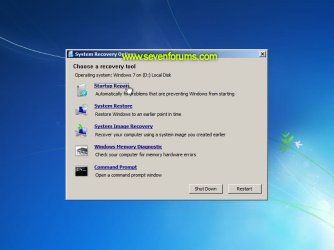
    Image05_startuprepair.jpg


  3. Windows will search for an attempt to repair startup problems:
    Image06_searching.jpg


  4. If startup problems could not be repaired, you will receive the message Windows cannot repair this computer automatically. Click View advanced options for system recovery and support:
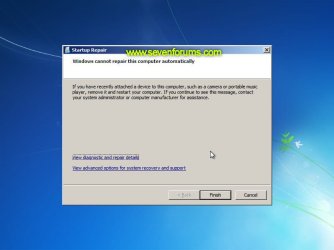
    Image07_cannotfix.jpg


  5. Click View advanced options for system recovery and support, which which bring you back to the main System Recovery Options screen.
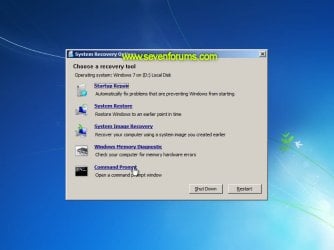
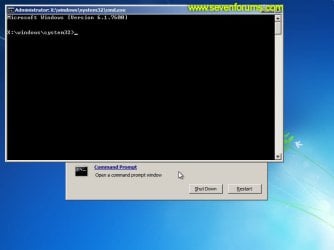
  6. Click Command Prompt:
    Image08_clickcommand.jpg


  7. Command Prompt should open to X:, which is an internal ram disk use by System Repair:
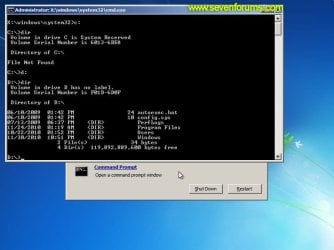
    Image10_changedrive.jpg


  8. Now you need to find your system drive. Depending on how your system is setup, this could be either C: or D:.
    • Type C: and press <ENTER>.
    • Verify that this is your system drive by typing DIR and pressing <ENTER>. If you see the Program Files, Users and Windows folders, then you have found your system drive, and can continue to step 9 below.
    • If the drive is not your system drive, repeat steps I and II above, changing the drive letter to D, E or some other letter until the system drive is located.
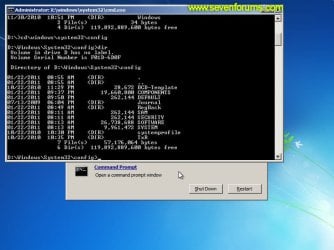
      Image11_chdir_config.jpg

  9. When you have located your Windows system drive, type CD \windows\system32\config and press <ENTER>:
  10. Type DIR and press <ENTER>, and verify that the following files and folders exist in the config folder:
    • RegBack (which is a folder)
    • DEFAULT
    • SAM
    • SECURITY
    • SOFTWARE
    • SYSTEM
      Image11_chdir_config.jpg

  11. Type MD mybackup and press <ENTER> to create a backup folder that you can use incase this procedure does not work as expected.
  12. Type copy *.* mybackup and press <ENTER>.
    • If you are prompted to overwrite existing files, press A to allow all backups to be overwritten.
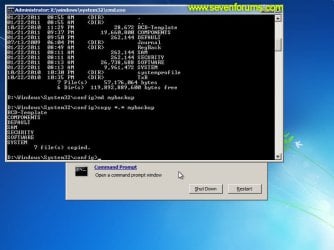
      Image12_mybackup.jpg

  13. Now you need to check if you can use the automatic Windows backups to restore your registry:
    • Type CD RegBack and press <ENTER> to go to the RegBack folder.
    • Type DIR and press <ENTER> to view the contents of the folder. All the following files must exist:
      • The DEFAULT, SAM and SECURITY files should each be about 262,000 bytes in size.
      • The SOFTWARE file should be about 26,000,000 bytes.
      • The SYSTEM file should be about 9,900,000 bytes.
      • The file sizes presented here are approximate estimations, and may vary depending on your system. If any one of them are 0 bytes, then you should stop what you're doing now and seek an alternative method of recovering your system, because Windows cannot function with a 0-byte size registry hive.
    • If the hive files listed in RegBack are ok, then proceed to step 14 of the tutorial.
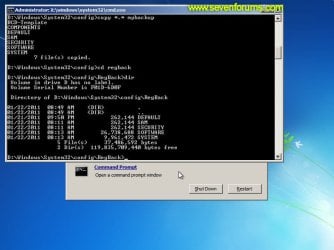
      Image13_checkregback.jpg


  14. Type copy *.* .. and press <ENTER> to copy the backup hive files to \Windows\System32\config.
    • If you are prompted to overwrite existing files, press A to allow all file to be overwritten.
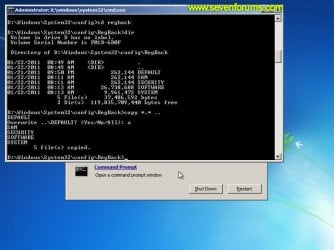
      Image14_copyregback.jpg

  15. Type exit and press <ENTER> to close the command prompt.
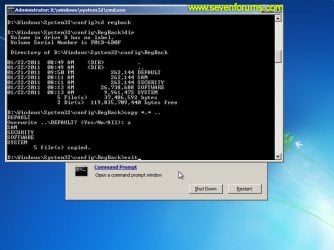
    Image15_exit.jpg


  16. Click the Restart button to reboot your computer. If all goes well, your system will boot normally.
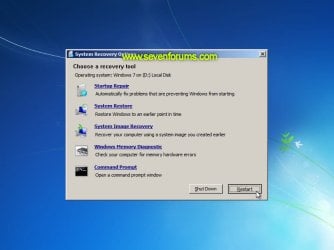
    Image16_restart.jpg
    Image17_working.jpg


Reference Information
This tutorial was made possible after learning how to manualy replace the Windows 7 Registry Hives after reading the Recovering Windows 7 Registry Hives/Files article on Microsoft Technet.


Attachments
  • Image09_commandprompt.jpg
    Image09_commandprompt.jpg
    26.1 KB · Views: 373
Last edited by a moderator:
This worked perfectly

Thank you for the detailed tutorial, I've been stressing for weeks over this issue. Finally came across this thread and now my system is back to normal
 

My Computer My Computer

At a glance

64
Computer type
PC/Desktop
Computer Manufacturer/Model Number
DELL XPS STUDIO
OS
64
Yea...that's what I think I'm going to have to do. :( Thanks for the replies though! I appreciate it!
 

My Computer My Computer

At a glance

Windows 7 Pro 64 bit
OS
Windows 7 Pro 64 bit
Well it works, I can get back to my Windows system except when I restart again, the same problem occurs and I have to go through your process again.

Did I do something wrong or what?

Ciao, Jim
 

My Computer My Computer

At a glance

Windows 7AMD64
Computer type
PC/Desktop
Computer Manufacturer/Model Number
Gateway
OS
Windows 7
CPU
AMD64
Hard Drives
1 TB
Antivirus
MS Security Essentials
Browser
Firefox
I did your routine 3 times as every time I restart, the same problem occurs. I am now on my 4th attempt. What am I doing wrong or what is not being corrected?

Ciao , jim
 

My Computer My Computer

At a glance

Windows 7AMD64
Computer type
PC/Desktop
Computer Manufacturer/Model Number
Gateway
OS
Windows 7
CPU
AMD64
Hard Drives
1 TB
Antivirus
MS Security Essentials
Browser
Firefox
Reboot Loop whats next

Hello, newbie here but I been reading the forum for some time. My Windows 7 Pro 64 is experiencing the Reboot Loop with the latest 14 patches that were released on 02/11/14. I managed to get up and running using a Win7 ISO on a USB thumb drive. Then reverting back to a Restore Point. But now I’m not sure how I can install these 14 patches without going back into the loop. Just looking for some help on what my next steps should be other than a OS reinstall.
 

My Computer My Computer

At a glance

Windows 7 Pro 64biti716GBAsus
Computer type
PC/Desktop
Computer Manufacturer/Model Number
Custom
OS
Windows 7 Pro 64bit
CPU
i7
Motherboard
Asus
Memory
16GB
Graphics Card(s)
Asus
Hard Drives
C - Intel SSD 120GB
D - Western Digital 2TB
Y - Western Digital 2TB
Z - Western Digital 2TB
Antivirus
MS Security Essentials
Browser
Firefox/Chrome
OK,I went through that Recovery Loop many, many times but it could never co0mpletely get rid of the problem.
Then I wen through the Startup Repair 3 times procedure. I did that for 3 times. Nothing
So then I decided to have the computer run all night with the Looping error saying it was "configuring My PC" and when I woke up in the morning, there it was, all gone, the PC was fixed.:sleepy::sleepy::sleepy:

So what do I attribute that to? Was Windows 7 actually trying to configure my PC with the updates and I wouldn't let it do it's job? I don't know but it seems when I let it run it's course, it got fixed.

Thanks for all the help anyway, it was quite an experience.

Ciao, Jim
 

My Computer My Computer

At a glance

Windows 7AMD64
Computer type
PC/Desktop
Computer Manufacturer/Model Number
Gateway
OS
Windows 7
CPU
AMD64
Hard Drives
1 TB
Antivirus
MS Security Essentials
Browser
Firefox
Please help me! I can't find Program Files, in any of my drives!

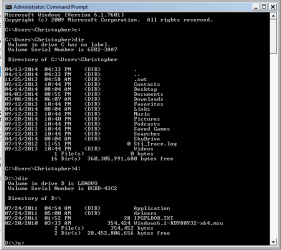
hi guys, I really need help, I've followed the instructions in using the command prompt, but I just can't find the drive with the Program Files, Users Etc2. So I'm stuck at the first part of it!

I've tried using command prompt through the repair startup, and the command prompt with Safe mode. I've even tried to look for the files in drives E and F.

I'm not a tech savvy guy, and I really need help.

COMMAND PROMPT.png

Please help me!
 

My Computer My Computer

At a glance

windows 7
Computer type
PC/Desktop
OS
windows 7
Hello Bryan, and welcome to Seven Forums.

Your screenshot isn't a command prompt at boot as in the tutorial.

From your screenshot C: is the correct drive letter, but you were just looking in the "C:\Users\Christopher" folder instead of just C:.

If you have "C:\Users\Christopher" in the prompt, type:

CD\ (press Enter)

If you have some other drive letter, then type:

C: (press Enter)

Hope this helps, :)
Shawn
 

My Computer My Computer

At a glance

64-bit Windows 11 Pro for WorkstationsIntel i7-8700K OC'd to 5 GHz64 GB (4x16GB) G.SKILL TridentZ RGB DDR4 3600...ASUS ROG-STRIX-GTX1080TI-O11G-GAMING
Computer type
PC/Desktop
Computer Manufacturer/Model Number
Self built custom
OS
64-bit Windows 11 Pro for Workstations
CPU
Intel i7-8700K OC'd to 5 GHz
Motherboard
ASUS ROG Maximus XI Formula Z390
Memory
64 GB (4x16GB) G.SKILL TridentZ RGB DDR4 3600 MHz
Graphics Card(s)
ASUS ROG-STRIX-GTX1080TI-O11G-GAMING
Sound Card
Integrated
Monitor(s) Displays
2 x Samsung Odyssey G7 27"
Screen Resolution
2560x1440
Hard Drives
1TB Samsung 990 PRO M.2,
4TB Samsung 990 PRO PRO M.2,
TerraMaster F8 SSD Plus NAS
PSU
Seasonic Prime Titanium 850W
Case
Thermaltake Core P3
Cooling
Corsair Hydro H115i
Keyboard
Logitech wireless K800
Mouse
Logitech MX Master 4
Internet Speed
2 Gb/s Download and 100 Mb/s Upload
Antivirus
Malwarebyte Anti-Malware Premium
Browser
Google Chrome
Other Info
Logitech Z625 speaker system,
Logitech BRIO 4K Pro webcam,
HP Color LaserJet Pro MFP M477fdn,
APC SMART-UPS RT 1000 XL - SURT1000XLI,
Galaxy S23 Plus phone
thanks my friend

today I followed your instructions and worked for me. win 7 ultimate now boot normally.
Thanks again !!
 

My Computer My Computer

At a glance

win 7 64 bit ultimateintel8 gb512mb
Computer type
Laptop
Computer Manufacturer/Model Number
lenovo
OS
win 7 64 bit ultimate
CPU
intel
Motherboard
intel
Memory
8 gb
Graphics Card(s)
512mb
Hard Drives
500gb
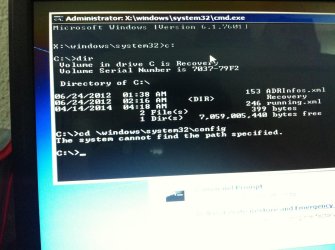
i have a problem with this step
cd \windows\system32\config
it tells me that system can not find the path specified
can u help me at that ?
 

Attachments

  • image.jpg
    image.jpg
    497.3 KB · Views: 362

My Computer My Computer

At a glance

windows 7
Computer type
PC/Desktop
OS
windows 7
is this repair applicable to vista?

Hello. My girlfriend has a windows vista os and has this exact same problem with the same screen shots. Can you tell me how to fix her laptop.

If I try this fix I get stopped at the same point as moodycool3 above.
 

My Computer My Computer

At a glance

vista
Computer type
Laptop
Computer Manufacturer/Model Number
toshiba
OS
vista
did you ever fix this?

i have a problem with this step
cd \windows\system32\config
it tells me that system can not find the path specified
can u help me at that ?

I have the same issue at the same point in the steps. I dont seem to have a system32 folder within c:\windows. Did you ever get this fixed?
 

My Computer My Computer

At a glance

vista
Computer type
Laptop
Computer Manufacturer/Model Number
toshiba
OS
vista
I have just joined the forum today so hi to everyone.
I am having problems with this also, I got to step 13 and all of the folders have 0 bytes.
Could someone please help? I did not carry on the procedure as recommended due to the 0 bytes.

Chris
 

My Computer My Computer

At a glance

Windows 7 32bit
Computer type
Laptop
OS
Windows 7 32bit
Hello Chris, and welcome to Seven Forums.

You might see if you may be able to do a system restore at boot using a restore point dated before you had this issue to fix this.

If not, then you may need to reinstall Windows.
 

My Computer My Computer

At a glance

64-bit Windows 11 Pro for WorkstationsIntel i7-8700K OC'd to 5 GHz64 GB (4x16GB) G.SKILL TridentZ RGB DDR4 3600...ASUS ROG-STRIX-GTX1080TI-O11G-GAMING
Computer type
PC/Desktop
Computer Manufacturer/Model Number
Self built custom
OS
64-bit Windows 11 Pro for Workstations
CPU
Intel i7-8700K OC'd to 5 GHz
Motherboard
ASUS ROG Maximus XI Formula Z390
Memory
64 GB (4x16GB) G.SKILL TridentZ RGB DDR4 3600 MHz
Graphics Card(s)
ASUS ROG-STRIX-GTX1080TI-O11G-GAMING
Sound Card
Integrated
Monitor(s) Displays
2 x Samsung Odyssey G7 27"
Screen Resolution
2560x1440
Hard Drives
1TB Samsung 990 PRO M.2,
4TB Samsung 990 PRO PRO M.2,
TerraMaster F8 SSD Plus NAS
PSU
Seasonic Prime Titanium 850W
Case
Thermaltake Core P3
Cooling
Corsair Hydro H115i
Keyboard
Logitech wireless K800
Mouse
Logitech MX Master 4
Internet Speed
2 Gb/s Download and 100 Mb/s Upload
Antivirus
Malwarebyte Anti-Malware Premium
Browser
Google Chrome
Other Info
Logitech Z625 speaker system,
Logitech BRIO 4K Pro webcam,
HP Color LaserJet Pro MFP M477fdn,
APC SMART-UPS RT 1000 XL - SURT1000XLI,
Galaxy S23 Plus phone
Hello Chris, and welcome to Seven Forums.

You might see if you may be able to do a system restore at boot using a restore point dated before you had this issue to fix this.

If not, then you may need to reinstall Windows.

Hi.
It says that they are no restore points created. I've ran CHKDSK and there are numerous bad sectors.
Trying to avoid a clean install if possible :-(
 

My Computer My Computer

At a glance

Windows 7 32bit
Computer type
Laptop
OS
Windows 7 32bit
It doesn't sound good if you have that many bad sectors.

I would recommend to use the Live Peppermint DVD/USB below (or your choice) to back up anything that you do not want to lose to another location in case the drive may be failing and before it does.

http://www.sevenforums.com/tutorial...ate-live-cd-dvd-usb-use-emergency-backup.html

I'm not sure it'll be possible to avoid a clean install, and possibly having to replace the hard drive if it doesn't pass using the hard drive manufacturer's diagnostic tool (ex: SeaTools).
 

My Computer My Computer

At a glance

64-bit Windows 11 Pro for WorkstationsIntel i7-8700K OC'd to 5 GHz64 GB (4x16GB) G.SKILL TridentZ RGB DDR4 3600...ASUS ROG-STRIX-GTX1080TI-O11G-GAMING
Computer type
PC/Desktop
Computer Manufacturer/Model Number
Self built custom
OS
64-bit Windows 11 Pro for Workstations
CPU
Intel i7-8700K OC'd to 5 GHz
Motherboard
ASUS ROG Maximus XI Formula Z390
Memory
64 GB (4x16GB) G.SKILL TridentZ RGB DDR4 3600 MHz
Graphics Card(s)
ASUS ROG-STRIX-GTX1080TI-O11G-GAMING
Sound Card
Integrated
Monitor(s) Displays
2 x Samsung Odyssey G7 27"
Screen Resolution
2560x1440
Hard Drives
1TB Samsung 990 PRO M.2,
4TB Samsung 990 PRO PRO M.2,
TerraMaster F8 SSD Plus NAS
PSU
Seasonic Prime Titanium 850W
Case
Thermaltake Core P3
Cooling
Corsair Hydro H115i
Keyboard
Logitech wireless K800
Mouse
Logitech MX Master 4
Internet Speed
2 Gb/s Download and 100 Mb/s Upload
Antivirus
Malwarebyte Anti-Malware Premium
Browser
Google Chrome
Other Info
Logitech Z625 speaker system,
Logitech BRIO 4K Pro webcam,
HP Color LaserJet Pro MFP M477fdn,
APC SMART-UPS RT 1000 XL - SURT1000XLI,
Galaxy S23 Plus phone
It doesn't sound good if you have that many bad sectors.

I would recommend to use the Live Peppermint DVD/USB below (or your choice) to back up anything that you do not want to lose to another location in case the drive may be failing and before it does.

http://www.sevenforums.com/tutorial...ate-live-cd-dvd-usb-use-emergency-backup.html

I'm not sure it'll be possible to avoid a clean install, and possibly having to replace the hard drive if it doesn't pass using the hard drive manufacturer's diagnostic tool (ex: SeaTools).

Thanks for your help.
I may take the opportunity to upgrade the HDD to a bigger capacity - would be rude not to! Hehe
 

My Computer My Computer

At a glance

Windows 7 32bit
Computer type
Laptop
OS
Windows 7 32bit
Startup repair infinite loop recovery

I have followed your instructions (3 times) and cannot get my computer fixed. I also ran system restore at the oldest point and still cannot start. I show 0 bytes in the files. You mentioned trying a different solution, and I am at that point now.
 

My Computer My Computer

At a glance

windows home premium, 32 bitIntel4GB
Computer type
PC/Desktop
Computer Manufacturer/Model Number
HP
OS
windows home premium, 32 bit
CPU
Intel
Memory
4GB
Antivirus
Avast
Browser
Mozilla
What is the problem? Are you getting startup repair infinte loop?

When you run system restore, what happens, how far does it get? Any messages?

Seems you have HP preinstalled with 32 bit win7?

What is the model number? Which edition of win7?
 

My Computers My Computers

  • At a glance

    7 X64i5 84002x8gb 3200mhz
    Computer type
    PC/Desktop
    OS
    7 X64
    CPU
    i5 8400
    Motherboard
    gigabyte b365m ds3h
    Memory
    2x8gb 3200mhz
    Hard Drives
    various
    PSU
    pure power 11 400w cm
    Case
    Coolermaster
    Cooling
    cryorig m9i
  • At a glance

    7x64g54008gb ddr4 2400
    Computer type
    PC/Desktop
    OS
    7x64
    CPU
    g5400
    Motherboard
    ga b365m ds3h
    Memory
    8gb ddr4 2400
    PSU
    xfx pro 450w
I continue to go through infinite repair loop. I restored system successfully to 1-28-13. Previous attempts to restore did not complete using a 1 week back restore point. Problem remains. There are no files shown. I have windows 7, 32 bit upgrade from Vista. I have a HP microtower, mdl dc5800. Do I need to reload Vista before loading windows 7? Is there any way to recover my files since it shows no files when I run your fix? I have tried to run various programs on the cd, but it will not start the fix programs.
 

My Computer My Computer

At a glance

windows home premium, 32 bitIntel4GB
Computer type
PC/Desktop
Computer Manufacturer/Model Number
HP
OS
windows home premium, 32 bit
CPU
Intel
Memory
4GB
Antivirus
Avast
Browser
Mozilla
Back
Top