Startup Repair Infinite Loop Recovery

How to Recover from an Infinitely Looping Startup Repair Loop without Reinstalling Windows

If you've ever experienced a Startup Repair that continously loops and fails to fix the problem of not being able to load windows, even in safe mode, then you'll know that usually the only way to recover from this when System Restore does not work is to do a clean install of Windows.

Until now.

This tutorial will show you how to use the System Recovery Options provided by Windows to recover your system to a working state so that you don't have to risk losing data by performing a clean install.

   Warning
The instructions presented withing this tutorial must be followed correctly, or you can damage your Windows 7 installation even further. This tutorial is designed to help recover from a bad registry that is causing the startup repair loop. You should note that there may still be some issues remaining that cannot be fixed by manually restoring the registry.


Recovering Your System
  1. Boot to the System Recovery Options screen.
    • If Windows automatically opens Startup Repair, and subsequently fails to fix a problem, you can skip ahead to step 4 below.
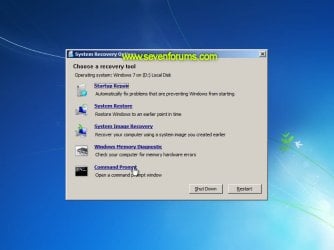
  2. In the System Recovery Options screen, click Startup Repair:
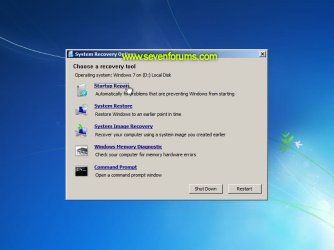
    Image05_startuprepair.jpg


  3. Windows will search for an attempt to repair startup problems:
    Image06_searching.jpg


  4. If startup problems could not be repaired, you will receive the message Windows cannot repair this computer automatically. Click View advanced options for system recovery and support:
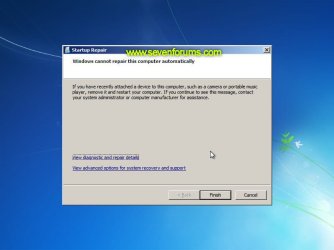
    Image07_cannotfix.jpg


  5. Click View advanced options for system recovery and support, which which bring you back to the main System Recovery Options screen.
  6. Click Command Prompt:
    Image08_clickcommand.jpg


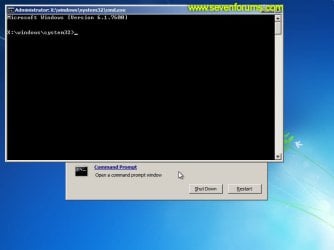
  7. Command Prompt should open to X:, which is an internal ram disk use by System Repair:
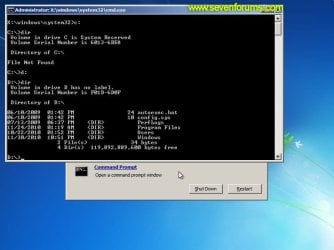
    Image10_changedrive.jpg


  8. Now you need to find your system drive. Depending on how your system is setup, this could be either C: or D:.
    • Type C: and press <ENTER>.
    • Verify that this is your system drive by typing DIR and pressing <ENTER>. If you see the Program Files, Users and Windows folders, then you have found your system drive, and can continue to step 9 below.
    • If the drive is not your system drive, repeat steps I and II above, changing the drive letter to D, E or some other letter until the system drive is located.
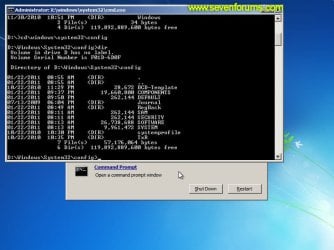
      Image11_chdir_config.jpg

  9. When you have located your Windows system drive, type CD \windows\system32\config and press <ENTER>:
  10. Type DIR and press <ENTER>, and verify that the following files and folders exist in the config folder:
    • RegBack (which is a folder)
    • DEFAULT
    • SAM
    • SECURITY
    • SOFTWARE
    • SYSTEM
      Image11_chdir_config.jpg

  11. Type MD mybackup and press <ENTER> to create a backup folder that you can use incase this procedure does not work as expected.
  12. Type copy *.* mybackup and press <ENTER>.
    • If you are prompted to overwrite existing files, press A to allow all backups to be overwritten.
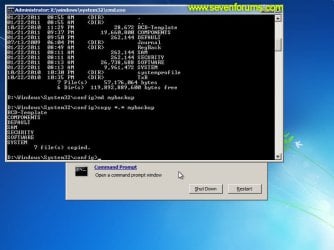
      Image12_mybackup.jpg

  13. Now you need to check if you can use the automatic Windows backups to restore your registry:
    • Type CD RegBack and press <ENTER> to go to the RegBack folder.
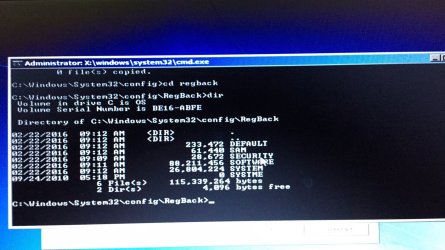
    • Type DIR and press <ENTER> to view the contents of the folder. All the following files must exist:
      • The DEFAULT, SAM and SECURITY files should each be about 262,000 bytes in size.
      • The SOFTWARE file should be about 26,000,000 bytes.
      • The SYSTEM file should be about 9,900,000 bytes.
      • The file sizes presented here are approximate estimations, and may vary depending on your system. If any one of them are 0 bytes, then you should stop what you're doing now and seek an alternative method of recovering your system, because Windows cannot function with a 0-byte size registry hive.
    • If the hive files listed in RegBack are ok, then proceed to step 14 of the tutorial.
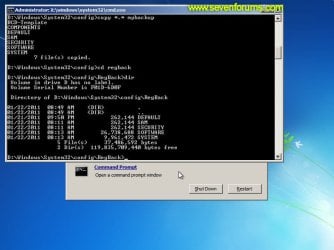
      Image13_checkregback.jpg


  14. Type copy *.* .. and press <ENTER> to copy the backup hive files to \Windows\System32\config.
    • If you are prompted to overwrite existing files, press A to allow all file to be overwritten.
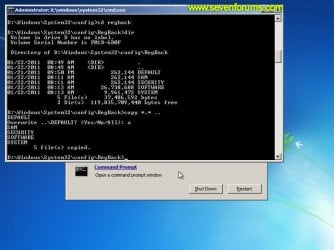
      Image14_copyregback.jpg

  15. Type exit and press <ENTER> to close the command prompt.
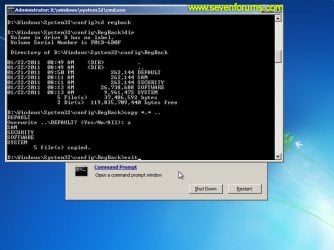
    Image15_exit.jpg


  16. Click the Restart button to reboot your computer. If all goes well, your system will boot normally.
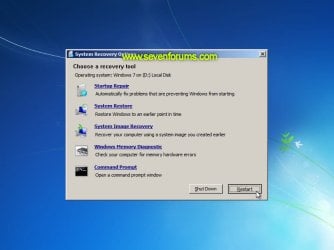
    Image16_restart.jpg
    Image17_working.jpg


Reference Information
This tutorial was made possible after learning how to manualy replace the Windows 7 Registry Hives after reading the Recovering Windows 7 Registry Hives/Files article on Microsoft Technet.


Attachments
  • Image09_commandprompt.jpg
    Image09_commandprompt.jpg
    26.1 KB · Views: 373
Last edited by a moderator:
Works like a dream on windows 100 too. Saved me a couple of times ty ty props :cool:
 

My Computer My Computer

At a glance

w7 home premium x64
Computer type
Laptop
Computer Manufacturer/Model Number
acer 5742z
OS
w7 home premium x64
Thankyou so much for this! I thought I'd broken my boyfriends laptop and this saved me $$$
 

My Computer My Computer

At a glance

Windows 7
Computer type
Laptop
OS
Windows 7
I've done everything on this page but it didn't work. C: doesn't contain the right files and D: is corrupted. X: had the right files but in the end they all went to 0 bytes. What do I do???
 

My Computer My Computer

At a glance

Windows 7 Home Premium 64bit
Computer type
PC/Desktop
Computer Manufacturer/Model Number
Dell
OS
Windows 7 Home Premium 64bit
Browser
Chrome
I tried to repair problem by "Starup repair" but it seems to stuck to next step, like forever, without providing an answer for me. So i consider it as a faiure and went on command prompt way, but i fear that i am going to lose my files. Is there such a chance?


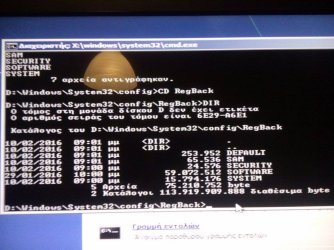
Also, step 13 gave me quite diffent result from the ones you mentioned.
12736279_10205981994050744_1190039639_n.jpg
Does it make any different?
 
Last edited:

My Computer My Computer

At a glance

Windows 7 Home Premium x64
Computer type
PC/Desktop
Computer Manufacturer/Model Number
Custom built
OS
Windows 7 Home Premium x64
Unable to proceed after step 13 III

I have an additional line after Default, Sam, Security, Software, system which is " SYSTME" with 0 bytes. Which is not appeared on the posted screenshot in your tutorial. Any help will be appreciated.
 

Attachments

  • image.jpg
    image.jpg
    242.9 KB · Views: 2,208

My Computer My Computer

At a glance

Window 7 home premium
Computer type
PC/Desktop
Computer Manufacturer/Model Number
Asus
OS
Window 7 home premium
Hi Dzomlija, I register this account specially to say thanks! You have saved me a lot of works! You're really great, buddy! Thank you so much! :)
 

My Computer My Computer

At a glance

windows 10 64 bit
Computer type
PC/Desktop
OS
windows 10 64 bit
Hope someone can help. Here's what happened. Last Thursday I shut down my computer and a update installed. The next day I tried to turn on my computer and my computer was stuck in a loop that said "preparing automatic repair" and would shut down and repeat.

I tried this fix and it worked! But at the end of the day as I shut down my computer I got another update installed and again has crashed my computer. What do I need to do to get out of this situation????
 

My Computer My Computer

At a glance

Windows 10
Computer type
PC/Desktop
OS
Windows 10
Thank you SO much!

I actually made the account JUST to say thank you for your help!
My computer was stuck and I had this infinite loop of failed "repairs".
This article saved me A LOT of trouble, and PLENTY of files!

Thank you!:D
 

My Computer My Computer

At a glance

Windows 10 64bit
Computer type
PC/Desktop
OS
Windows 10 64bit
Success

Thanks Mr Dzomlija. Like others I have registered just to say well done. I was given an Acer Aspire laptop to look at, running Windows 8.1, but tried this method and it worked just fine. The symptom was the same with the eternal automatic repair loop and after spending two days recovering boot files, system restores, trying to refresh without a full reset and running chkdsk, sfc etc. this saved me a lot of frustration. The only way I could do anything was to load Windows 8.1 repair onto a USB stick, as there was no DVD Drive on this laptop and then boot from it, which allowed me to use the command prompt (which at least enabled me to backup all the user files). Great detailed tutorial and only took minutes. Others may not be so lucky if their problem is not registry related. The automatic repair loop seems to be a major problem, especially with Windows 8, but gives no information as to its cause, just takes you round in circles.
 

My Computer My Computer

At a glance

windows 7 64bitIntel Pentium(R) D 3.00GHZ dual core4.00 GBAMD Radeon HD 5450
Computer type
PC/Desktop
Computer Manufacturer/Model Number
HP
OS
windows 7 64bit
CPU
Intel Pentium(R) D 3.00GHZ dual core
Memory
4.00 GB
Graphics Card(s)
AMD Radeon HD 5450
Hard Drives
HDS725050KLA360 ATA 500GB
Antivirus
Avast 2016 free edition
Browser
Chrome, Firefox, Internet Explorer
I LOVE YOU

My system got powered off while Windows was booting, then every boot thereafter wanted to run the startup repair tool, which couldn't fix the issue or even tell me what the issue was to begin with. Was a little skeptical about trying these steps, but it totally worked! THANK YOU SO MUCH! It saved me from data loss and so much time it would have taken to reinstall Windows and get everything set up again. How can I send you some beer money? Cheers!
 

My Computer My Computer

At a glance

Windows 7 64 bit Enterprise
Computer type
PC/Desktop
OS
Windows 7 64 bit Enterprise
YES. It works. Thanks a lot. Love you, man
 

My Computer My Computer

At a glance

Windows 8.1 64 bit
Computer type
PC/Desktop
OS
Windows 8.1 64 bit
I managed to get to step 14 before i couldnt go any further.. the default file appears then it says nothing else can be copied and go straight to D:\windows\system32\config\regback! What have i done wrong? all the files in the previous step had bytes.
 

My Computer My Computer

At a glance

windows 7Intel Core i7-4790K 4.0GHz Quad-Core ProcessorCorsair Vengeance 16GB (2 x 8GB) DDR3-1600 Me...XFX Radeon R9 280X 3GB Double Dissipation Vid...
Computer type
PC/Desktop
Computer Manufacturer/Model Number
custom build
OS
windows 7
CPU
Intel Core i7-4790K 4.0GHz Quad-Core Processor
Motherboard
ASRock Z97 Extreme3 ATX LGA1150 Motherboard
Memory
Corsair Vengeance 16GB (2 x 8GB) DDR3-1600 Memory
Graphics Card(s)
XFX Radeon R9 280X 3GB Double Dissipation Video Card
Hard Drives
Seagate Barracuda 3TB 3.5" 7200RPM Internal Hard Drive
Antivirus
none
Browser
google chrome
I've read through a bunch of pages of this thread and my eyes are watering :rolleyes: so I just wanted to add my problem and see if anyone can help. Thanks in advance!

The laptop in question here is a Toshiba Satellite L655-S5161x.

I have the same issue as many -- DEFAULT, SAM, SECURITY, SOFTWARE, SYSTEM all show up with 0 bytes.

What is an "alternative method of recovering your system"?? (as stated in Step #13)

I even copied DEFAULT, SAM, SECURITY, SOFTWARE, SYSTEM from another working computer (with Win7), restarted, and it STILL loops infinitely!

Before that, I had previously already did a FULL reinstall of Windows 7 from the laptop's HDDRECOVERY, which also formatted the HDD, so this thing should run as if it is fresh out the box! It doesn’t. It just loops.

The laptop is old, slow, and has essentially been replaced already, and ALL of my important files were manually (slowly) removed using CMD prior to the reinstall… but that’s not the point! The point is to get this thing to work!

Thanks.
 

My Computer My Computer

At a glance

64 Win 7 Home Prem
Computer type
PC/Desktop
Computer Manufacturer/Model Number
Toshiba Satellite L655-S5161x
OS
64 Win 7 Home Prem
This SAVED MY LIFE, thank you so much for this, really.

I used it on windows 8.1 and worked like a charm. I had a problem with the manual recovery too, so my only alternative was to dismount the drive of my laptop and plug it in as external drive and backup the data. Instead this procedure fixed everything and I didn't have to do any of this tedious job.
It worked very easily, i love you :p
 

My Computer My Computer

At a glance

Windows 8.1
Computer type
PC/Desktop
OS
Windows 8.1
Automatic Repair Loop

My system did not reboot normally and now my DIR shows NOTHING!! As u can see on the photo, at 5:46pm on 7/14/2016 (today) there is a file "Recovery.txt". What next??
 

My Computer My Computer

At a glance

Windows 10
Computer type
PC/Desktop
Computer Manufacturer/Model Number
Gateway Laptop
OS
Windows 10
Thank you!

Worked like a charm! Thanks a ton!!
 

My Computer My Computer

At a glance

Windows 10
Computer type
PC/Desktop
OS
Windows 10
Thank you!

I created an account, simply so I could tell you that this saved my computer, tonight. Ran two Windows updates on work computers, this afternoon, but third strike on the home computer sent me into an evening of tailspin and, well.. infinite loops.
 

My Computer My Computer

At a glance

Windows 7 32b Professional
Computer type
Laptop
OS
Windows 7 32b Professional
Solved my Problem

:thumbsup: you are....... my life savior.............. since 2 month my pc not working.... Black window with mouse Cursor....... than i decide change my hard disk........ but..... today.... Type in google "CD/DVD boot than restart fix" than i read your "TUTORIAL"...... step by step follow your tut..... "THAN RESTART MY PC OOOOOOOOOO WOW..... FIX MY PROBLEM" ................ THANKS ............

sorry for my bad english.
 

My Computer My Computer

At a glance

WIN 7 64BITONBOARD
Computer type
PC/Desktop
Computer Manufacturer/Model Number
hp
OS
WIN 7 64BIT
Graphics Card(s)
ONBOARD
Hard Drives
160 gb
Antivirus
AVIRA FREE
Browser
FIREFOX 40
Hi there!
I too wish to thank you for this! While it has not yet fixed my particular problem, I have a feeling I am on the right track.

HP pavilion p6727c
Win 7 sp1
One sata disk labelled 0 (zero)
3 volumes -
vol 1= system no letter assigned originally, I assigned it as B:
Vol 2=OS letter= C:
Vol 3=HP_RECOVERY letter= E: (when normal boot this is listed as D: in "my computer"

I have the repair loop, and had a look at each directory in RE using a repair disc I made in 2014.

C: has the folders you listed (ie Program files, users, windows, etc)
But in B, C, and E when I use the command cd \windows\system32\config
each reply is the same: the system cannot find the path specified.

So... What now??

Please advise if possible. Thanks in advance. :D


Awwwww... Shoot! I just rechecked my work and on C: I misspelled windows. Doh! Sorry, continuing the process, and still very grateful for this! :-)
 
Last edited:

My Computer My Computer

At a glance

Windows 7 Home Premium SP1 64-bit Build 6.1.7601AMD Athon ii 640 3000Mhz 4 Cores4GB Ram (3.75 usable - 2.04 available) 7.65GB...ATI Radeon HD 4200
Computer type
PC/Desktop
Computer Manufacturer/Model Number
HP Pavilion p6727c
OS
Windows 7 Home Premium SP1 64-bit Build 6.1.7601
CPU
AMD Athon ii 640 3000Mhz 4 Cores
Motherboard
FOXCONN Alvorix-RS880
Memory
4GB Ram (3.75 usable - 2.04 available) 7.65GB Virtual Mem
Graphics Card(s)
ATI Radeon HD 4200
Hard Drives
ST375052 8AS SATA Disk Drive
698GB (555GB available)
3 Partitions (100MB-698GB-13.6GB)
Antivirus
Norton 360
Browser
Chrome
Okee dokee... I got to the Regback, all files exist but are way off the amounts you've mentioned.
Default 262,144
Sam 61,440
Security 24,576
Software 70,615,040
System 21,004,288
5 files 91,967,488
2 Dir 537,426,518,016

I will not be continuing until I get some input from here as I am not a PC wiz like some of you here, but I can follow directions.
PLEASE HELP!!
Thx
 

My Computer My Computer

At a glance

Windows 7 Home Premium SP1 64-bit Build 6.1.7601AMD Athon ii 640 3000Mhz 4 Cores4GB Ram (3.75 usable - 2.04 available) 7.65GB...ATI Radeon HD 4200
Computer type
PC/Desktop
Computer Manufacturer/Model Number
HP Pavilion p6727c
OS
Windows 7 Home Premium SP1 64-bit Build 6.1.7601
CPU
AMD Athon ii 640 3000Mhz 4 Cores
Motherboard
FOXCONN Alvorix-RS880
Memory
4GB Ram (3.75 usable - 2.04 available) 7.65GB Virtual Mem
Graphics Card(s)
ATI Radeon HD 4200
Hard Drives
ST375052 8AS SATA Disk Drive
698GB (555GB available)
3 Partitions (100MB-698GB-13.6GB)
Antivirus
Norton 360
Browser
Chrome
Back
Top