Startup Repair Infinite Loop Recovery

How to Recover from an Infinitely Looping Startup Repair Loop without Reinstalling Windows

If you've ever experienced a Startup Repair that continously loops and fails to fix the problem of not being able to load windows, even in safe mode, then you'll know that usually the only way to recover from this when System Restore does not work is to do a clean install of Windows.

Until now.

This tutorial will show you how to use the System Recovery Options provided by Windows to recover your system to a working state so that you don't have to risk losing data by performing a clean install.

   Warning
The instructions presented withing this tutorial must be followed correctly, or you can damage your Windows 7 installation even further. This tutorial is designed to help recover from a bad registry that is causing the startup repair loop. You should note that there may still be some issues remaining that cannot be fixed by manually restoring the registry.


Recovering Your System
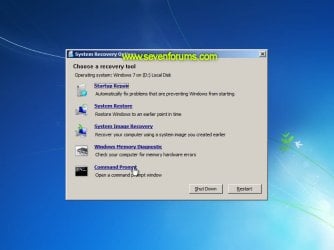
  1. Boot to the System Recovery Options screen.
    • If Windows automatically opens Startup Repair, and subsequently fails to fix a problem, you can skip ahead to step 4 below.
  2. In the System Recovery Options screen, click Startup Repair:
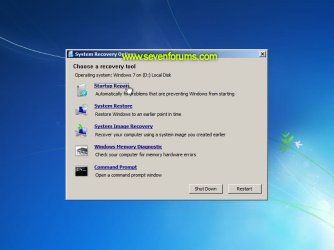
    Image05_startuprepair.jpg


  3. Windows will search for an attempt to repair startup problems:
    Image06_searching.jpg


  4. If startup problems could not be repaired, you will receive the message Windows cannot repair this computer automatically. Click View advanced options for system recovery and support:
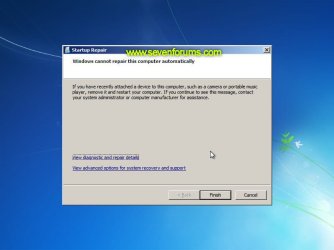
    Image07_cannotfix.jpg


  5. Click View advanced options for system recovery and support, which which bring you back to the main System Recovery Options screen.
  6. Click Command Prompt:
    Image08_clickcommand.jpg


  7. Command Prompt should open to X:, which is an internal ram disk use by System Repair:
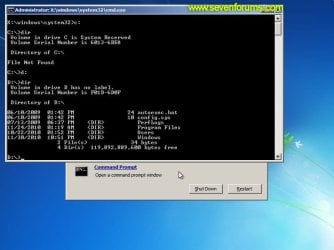
    Image10_changedrive.jpg


  8. Now you need to find your system drive. Depending on how your system is setup, this could be either C: or D:.
    • Type C: and press <ENTER>.
    • Verify that this is your system drive by typing DIR and pressing <ENTER>. If you see the Program Files, Users and Windows folders, then you have found your system drive, and can continue to step 9 below.
    • If the drive is not your system drive, repeat steps I and II above, changing the drive letter to D, E or some other letter until the system drive is located.
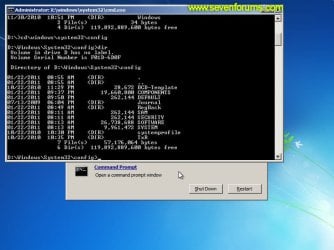
      Image11_chdir_config.jpg

  9. When you have located your Windows system drive, type CD \windows\system32\config and press <ENTER>:
  10. Type DIR and press <ENTER>, and verify that the following files and folders exist in the config folder:
    • RegBack (which is a folder)
    • DEFAULT
    • SAM
    • SECURITY
    • SOFTWARE
    • SYSTEM
      Image11_chdir_config.jpg

  11. Type MD mybackup and press <ENTER> to create a backup folder that you can use incase this procedure does not work as expected.
  12. Type copy *.* mybackup and press <ENTER>.
    • If you are prompted to overwrite existing files, press A to allow all backups to be overwritten.
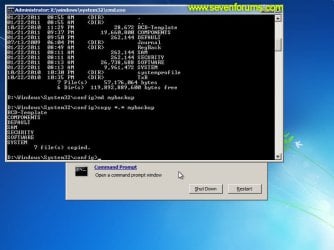
      Image12_mybackup.jpg

  13. Now you need to check if you can use the automatic Windows backups to restore your registry:
    • Type CD RegBack and press <ENTER> to go to the RegBack folder.
    • Type DIR and press <ENTER> to view the contents of the folder. All the following files must exist:
      • The DEFAULT, SAM and SECURITY files should each be about 262,000 bytes in size.
      • The SOFTWARE file should be about 26,000,000 bytes.
      • The SYSTEM file should be about 9,900,000 bytes.
      • The file sizes presented here are approximate estimations, and may vary depending on your system. If any one of them are 0 bytes, then you should stop what you're doing now and seek an alternative method of recovering your system, because Windows cannot function with a 0-byte size registry hive.
    • If the hive files listed in RegBack are ok, then proceed to step 14 of the tutorial.
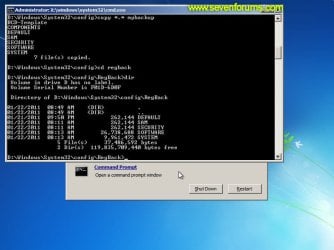
      Image13_checkregback.jpg


  14. Type copy *.* .. and press <ENTER> to copy the backup hive files to \Windows\System32\config.
    • If you are prompted to overwrite existing files, press A to allow all file to be overwritten.
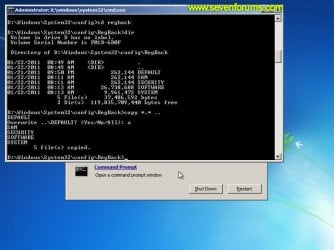
      Image14_copyregback.jpg

  15. Type exit and press <ENTER> to close the command prompt.
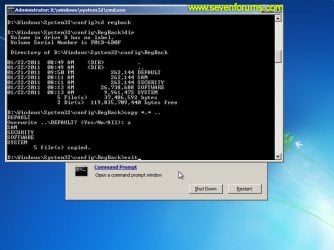
    Image15_exit.jpg


  16. Click the Restart button to reboot your computer. If all goes well, your system will boot normally.
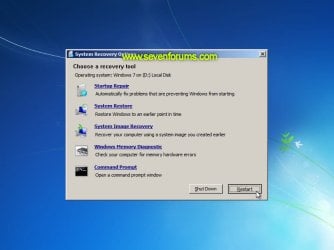
    Image16_restart.jpg
    Image17_working.jpg


Reference Information
This tutorial was made possible after learning how to manualy replace the Windows 7 Registry Hives after reading the Recovering Windows 7 Registry Hives/Files article on Microsoft Technet.


Attachments
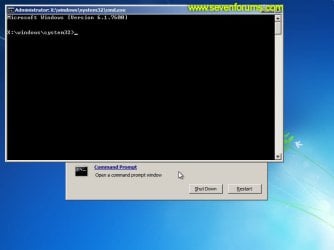
  • Image09_commandprompt.jpg
    Image09_commandprompt.jpg
    26.1 KB · Views: 373
Last edited by a moderator:
The sizes sound OK.
 

My Computers My Computers

  • At a glance

    7 X64i5 84002x8gb 3200mhz
    Computer type
    PC/Desktop
    OS
    7 X64
    CPU
    i5 8400
    Motherboard
    gigabyte b365m ds3h
    Memory
    2x8gb 3200mhz
    Hard Drives
    various
    PSU
    pure power 11 400w cm
    Case
    Coolermaster
    Cooling
    cryorig m9i
  • At a glance

    7x64g54008gb ddr4 2400
    Computer type
    PC/Desktop
    OS
    7x64
    CPU
    g5400
    Motherboard
    ga b365m ds3h
    Memory
    8gb ddr4 2400
    PSU
    xfx pro 450w
The sizes sound OK.
Thank you so much for replying! :)
They do?!? Really?!? Hmmmmm....
That's not what the instructions say. :confused:
Nice quotes btw... :D
 

My Computer My Computer

At a glance

Windows 7 Home Premium SP1 64-bit Build 6.1.7601AMD Athon ii 640 3000Mhz 4 Cores4GB Ram (3.75 usable - 2.04 available) 7.65GB...ATI Radeon HD 4200
Computer type
PC/Desktop
Computer Manufacturer/Model Number
HP Pavilion p6727c
OS
Windows 7 Home Premium SP1 64-bit Build 6.1.7601
CPU
AMD Athon ii 640 3000Mhz 4 Cores
Motherboard
FOXCONN Alvorix-RS880
Memory
4GB Ram (3.75 usable - 2.04 available) 7.65GB Virtual Mem
Graphics Card(s)
ATI Radeon HD 4200
Hard Drives
ST375052 8AS SATA Disk Drive
698GB (555GB available)
3 Partitions (100MB-698GB-13.6GB)
Antivirus
Norton 360
Browser
Chrome
Hi
I make all the steps but when i make the 13 my pc give me the info i have 0 bytes. what i can do for fix this problem?
 

My Computer My Computer

At a glance

Windows 7
Computer type
PC/Desktop
Computer Manufacturer/Model Number
Sony
OS
Windows 7
hi guys having the same issue as most of you, tried this fix didn't work at all....any ideas on what else i can do?

Cheers in advance
 

My Computer My Computer

At a glance

Windows 7 32 Bit
OS
Windows 7 32 Bit
I know I'm not even nearly the first to, but I just had to sign up to this forum to give many, many thanks to the original poster for this solution.

Windows Start-up Repair wouldn't work.
System Restore wouldn't work.
Checkdisk wouldn't work.
System File Checker wouldn't work.
Repairing the Boot Manager wouldn't work.
A few other things wouldn't work.

This was literally my last throw of the dice. I'm so happy that I persevered and that my Google Fu skills were strong.

So thanks again Dzomlija.
 
Last edited:

My Computer My Computer

At a glance

Windows 10 Home x64
Computer type
Laptop
Computer Manufacturer/Model Number
Asus G750
OS
Windows 10 Home x64
Urgent help!!

I used your method two times when the computer looped like that and they worked each time. It started looping again and when I click on "Advanced options.." I only have startup repair in the recovery tools. Help!!
 

My Computer My Computer

At a glance

Windows 7
Computer type
PC/Desktop
Computer Manufacturer/Model Number
Unknown
OS
Windows 7
After I click step 5, there is no command prompt option in step 6. Only shows 2 recovery options: Startup Repair and Dell DataSafe Restore.
I have this too. Only startup repair tho. Any luck?
 

My Computer My Computer

At a glance

Windows 7
Computer type
PC/Desktop
Computer Manufacturer/Model Number
Unknown
OS
Windows 7
Press shift+F10 when you are at the startup repair option.
 

My Computers My Computers

  • At a glance

    7 X64i5 84002x8gb 3200mhz
    Computer type
    PC/Desktop
    OS
    7 X64
    CPU
    i5 8400
    Motherboard
    gigabyte b365m ds3h
    Memory
    2x8gb 3200mhz
    Hard Drives
    various
    PSU
    pure power 11 400w cm
    Case
    Coolermaster
    Cooling
    cryorig m9i
  • At a glance

    7x64g54008gb ddr4 2400
    Computer type
    PC/Desktop
    OS
    7x64
    CPU
    g5400
    Motherboard
    ga b365m ds3h
    Memory
    8gb ddr4 2400
    PSU
    xfx pro 450w
I did that but nothing comes up
 

My Computer My Computer

At a glance

Windows 7
Computer type
PC/Desktop
Computer Manufacturer/Model Number
Unknown
OS
Windows 7
Press shift+F10 when you are at the startup repair option.

It doesn't work, is there anything else I can do? Please I need to fix it.
 

My Computer My Computer

At a glance

Windows 7
Computer type
PC/Desktop
Computer Manufacturer/Model Number
Unknown
OS
Windows 7

My Computers My Computers

  • At a glance

    7 X64i5 84002x8gb 3200mhz
    Computer type
    PC/Desktop
    OS
    7 X64
    CPU
    i5 8400
    Motherboard
    gigabyte b365m ds3h
    Memory
    2x8gb 3200mhz
    Hard Drives
    various
    PSU
    pure power 11 400w cm
    Case
    Coolermaster
    Cooling
    cryorig m9i
  • At a glance

    7x64g54008gb ddr4 2400
    Computer type
    PC/Desktop
    OS
    7x64
    CPU
    g5400
    Motherboard
    ga b365m ds3h
    Memory
    8gb ddr4 2400
    PSU
    xfx pro 450w

My Computers My Computers

  • At a glance

    7 X64i5 84002x8gb 3200mhz
    Computer type
    PC/Desktop
    OS
    7 X64
    CPU
    i5 8400
    Motherboard
    gigabyte b365m ds3h
    Memory
    2x8gb 3200mhz
    Hard Drives
    various
    PSU
    pure power 11 400w cm
    Case
    Coolermaster
    Cooling
    cryorig m9i
  • At a glance

    7x64g54008gb ddr4 2400
    Computer type
    PC/Desktop
    OS
    7x64
    CPU
    g5400
    Motherboard
    ga b365m ds3h
    Memory
    8gb ddr4 2400
    PSU
    xfx pro 450w
Problem Solved

I just wanted to post the solution for my endless "repair loop." I tried this tutorial and many other fixes via the command prompt, and nothing worked.

I had a forced power outage by ComEd while they were installing a smart meter. After this took place, my computer got stuck in the endless repair stage. I had a BSOD and the boot process looked very strange.

What had happened was is that my motherboard battery was dead. So when the power was shut off, the bios was reset and the system configuration was changed. I had to go back into the bios at startup and change the configuration from IDE to AHCI. After doing this, Windows 7 fired right up:)

Anytime my system is without power, this "repair loop" will occur until I change out the battery on the motherboard.

Good luck to everyone still experiencing this issue.
 

My Computer My Computer

At a glance

Windows 7 Professional 64 bitIntel8gb G-Skill
Computer type
PC/Desktop
Computer Manufacturer/Model Number
Custom Build
OS
Windows 7 Professional 64 bit
CPU
Intel
Motherboard
Asus P5Q-E
Memory
8gb G-Skill
Hard Drives
Kingston 224gb SSD
Great stuff .. Kudos

Awesome job dude.... It worked Right First Time... :thumbsup:
 

My Computer My Computer

At a glance

NJ
Computer type
PC/Desktop
OS
NJ
Dzomlija, I should pay you for this post :D

Do you have Paypal?

Thanks dude!
 

My Computer My Computer

At a glance

Windows 7 Home
OS
Windows 7 Home
Thank you

This worked flawlessly. Thank you for providing detailed and clear instructions!! I was skeptical, but this was the ONLY solution that worked. Cuck stumped.
 

My Computer My Computer

At a glance

Windows 7 ultimate
Computer type
PC/Desktop
OS
Windows 7 ultimate
You are the man!

Thank you, Thank you ,THANK YOU! I thought I was looking at a full reinstall on two hard drives. The SSD I work off of and the HDD is was cloned from that is my backup both developed this bootloop. They are both running perfectly now and I absolutely appreciate the work you did for this even if it was a few years ago. I joined the forum just to thank you.
 

My Computer My Computer

At a glance

Windows 10 Ultimate 64bit
Computer type
Laptop
OS
Windows 10 Ultimate 64bit
OH MY GOSH! Thank you so much!!! I have been working on my friend's desktop and it crashed. I was so nervous that it could not be fixed without a full reinstall. I registered with this forum just to show my gratitude. Bless you!
 

My Computer My Computer

At a glance

Windows 7 64bit
Computer type
PC/Desktop
Computer Manufacturer/Model Number
Asus
OS
Windows 7 64bit
Problems

Hey. I did everything bu after exit i click the option of continue to windows 8.1 and it throw me again to the point of troubleshoot. Dont know what else to do. Please help me
 

My Computer My Computer

At a glance

Windows 8.1
Computer type
PC/Desktop
Computer Manufacturer/Model Number
Dell
OS
Windows 8.1
Back
Top