
Why it's Sometimes Necessary to Run a Startup Repair 3 Times to Create Windows Boot Files to Another, New Location
When a Windows Operating System (OS) is installed it becomes the system volume or commonly referred to as "System, Active" partition and by default it will contain all the files needed to boot Windows. When a second OS is installed to the same PC (a dual or multi boot) the files needed to boot that OS will be added to the existing "system volume" containing boot files from the previous install and the 2 OSs will 'share' the boot files and if either of the 2 is removed or damaged so as to not boot, that may directly affect the other OS's ability to boot.
There is another situation that is common now, when Windows 7 is installed to an un-partitioned or "unallocated space" on a Hard Disk Drive (HDD) it creates one partition (the first) labeled "System Reserved" that becomes the "system volume" and a second partition that Windows 7 installs to, both "Primary" partitions; the "System Reserved" partition is where the boot files are created and has a link to the recovery options console built into Windows 7, it serves a very useful purpose but there may be times when removing or repairing the "System Reserved" partition becomes necessary.
click any image to enlarge
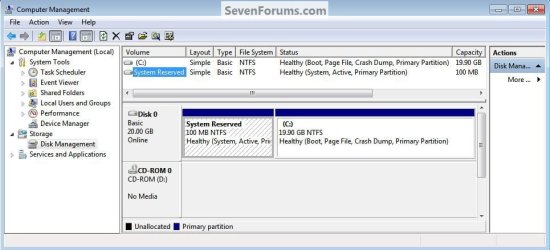
The simplest way to make these changes is to do what is referred to as a startup repair it's a process that will write new boot files to the selected OS and it will then be able to boot independently; or in other cases you may want to rearrange / change the partition structure, you can use a startup repair to correct this also.
The trick is that sometime and in certain situations it becomes absolutely necessary to do as many as 3 separate startup repairs with a system restart between each repair to completely write boot files to the "new" location and if the process is interrupted or not completed you will be right back where you started, with a PC that will not start-up at all.
Warning
As with anything that makes changes to the Windows structure there is always the chance for an error to occur, it would be advisable to make reliable backups to the media of your choice of any important data, i.e. pictures, music or documents, that you would not want to lose before you make any changes to your system, it is always better to be safe than sorry.
Let's get started!
Note
If you can't boot into (start) Windows have a look at Option Two below.
If there is more than 1 partition marked "Active" that will cause WinRE to not be able to complete the repairs properly as the active flag is the designation of where the new boot files are to be created, if so the other partitions will have to be marked as "Inactive" for the repairs to be completed.
See Option Two #2 below for the process.
The first step in the process is to mark the desired volume/partition as "Active" so that WinRE (Windows Recovery Environment) will know which volume you want to become "System" when the startup repairs are run.
The second step in this process is to run at least 3 separate startup repairs to create a new set of boot files to the new "Active" volume/partition, be sure to complete all 3 steps of Option One below to complete this entire process.
Option One
Using Disk Management
1) In the Windows start menu search box type diskmgmt.msc right click the entry and click "Run as Administrator" if you get a User Account Control (UAC) prompt enter your user credentials and click Yes; in Disk Management right click the partition you want to be the "system volume" and click "Mark Partition as Active".

2) Now click yes for the dialog box that opens; the second snip down is what you will have after that.

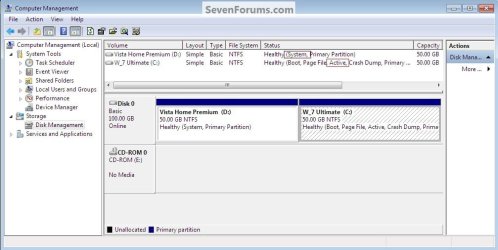
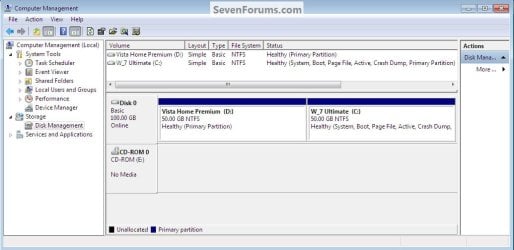
3) Now put the Windows full installer DVD or a windows repair disk into the Optical Disk Drive (ODD) and restart the PC, at the BIOS select the ODD as first boot device and when the PC boots run the 3 startup repairs with restarts discussed above to write the new boot files to the selected volume.
How to Run a Startup Repair in Windows 7
This is what you will have after the repairs.
Option Two
Using DISKPART
If you have a Windows 7 full installer DVD, have a look at Method One in this tutorial at the link below to see how to boot to diskpart so you can mark the desired partition as "Active" so that WinRE (Windows Recovery Environment) will know where to write the new boot files.
How to Boot to DISKPART at PC Startup
http://www.sevenforums.com/tutorials/119713-diskpart-pc-startup.htmlhttp://www.sevenforums.com/tutorials/119713-diskpart-pc-startup.html
If you are using a created windows repair disk have a look at Method Two and if you are using a Vista full installer view Method Three.
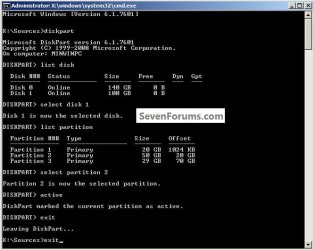
Once in diskpart of course you would substitute your disk / partition information in-place of that listed in the snips for demonstration purposes.
1) To mark the selected partition as "Active" click to see this snip below.
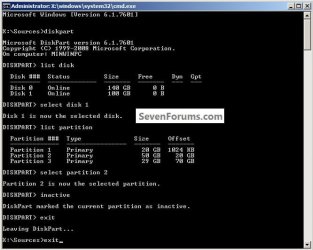
2) To mark the selected partition as "Inactive" click to see this snip below.
If there is more than 1 partition marked "Active" that will cause WinRE to not be able to complete the repairs properly as the active flag is the designation of where the new boot files are to be created / repaired, if so the other partitions will have to be marked as "Inactive" for the repairs to be completed.
To see how to mark the selected partition as "Inactive" click this snip below.
This can also be done from an elevated command window.
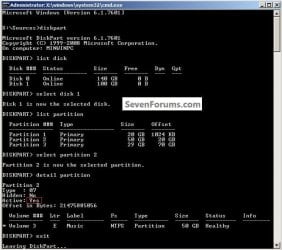
3) How to check if a partition is marked "Active" click to see the snip below.
Enjoy!

Related Tutorials
- http://www.sevenforums.com/tutorials/119151-system-reserved-create-using-disk-management.html
- http://www.sevenforums.com/tutorials/123170-system-reserved-create-dual-boot.html
- http://www.sevenforums.com/tutorials/121536-system-reserved-multi-boot-logical-partitions.html
- http://www.sevenforums.com/tutorials/681-startup-repair.html?ltr=S
- http://www.sevenforums.com/tutorials/107566-dual-boot-create-partitions-using-pwbd.html
- http://www.sevenforums.com/tutorials/109752-partition-recover-space-used-older-os.html
- http://www.sevenforums.com/tutorials/93322-partition-wizard-use-bootable-cd.html
- http://www.sevenforums.com/tutorials/20864-mbr-restore-windows-7-master-boot-record.html
- http://www.sevenforums.com/tutorials/91339-ssd-hdd-optimize-windows-reinstallation.html
- http://www.sevenforums.com/tutorials/5166-dual-boot-installation-windows-7-vista.html
- http://www.sevenforums.com/tutorials/8057-dual-boot-installation-windows-7-xp.html
- http://www.sevenforums.com/tutorials/666-advanced-boot-options.html
- http://www.sevenforums.com/tutorials/566-virtual-hard-disk-create-attach-vhd.html
- http://www.sevenforums.com/tutorials/87768-password-reset-options-windows-7-a.html
- How to Recover from an Infinitely Looping Startup Repair Loop without Reinstalling Windows
Last edited:

