
How to Create and Delete Sticky Notes in Windows 7 and Windows 8
Information
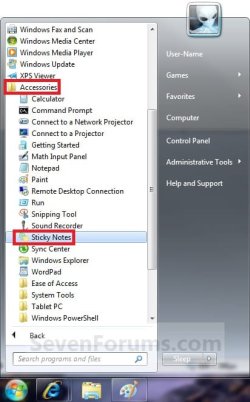
Sticky Notes allows you to type and leave a Post-it type note on your desktop until deleted.
This tutorial will show you how to create and delete Sticky Notes in Windows 7 and Windows 8.
This tutorial will show you how to create and delete Sticky Notes in Windows 7 and Windows 8.
Warning
Sticky Notes is not available in the Windows 7 Starter and Home Basic editions.
OPTION ONE
To Create a Sticky Note
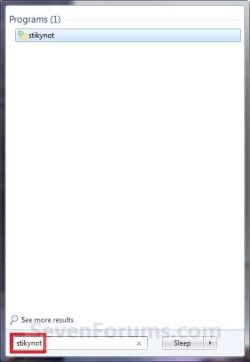
1. Press the Windows + R keys to open the Run dialog, type stikynot, and press Enter.
2. Type in your message, and move the Sticky Note to where you like it to be displayed on the desktop. (See screenshot below)
NOTE: It will remain there until you delete it.
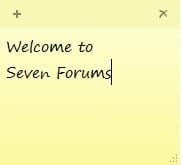
3. To Resize the Sticky Note
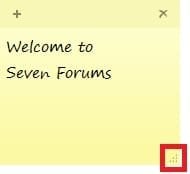
A) Click/tap and hold on the arrow tab at the bottom right corner, or move the mouse point to the edge of an existing Sticky Note until it turn into a double arrow, and drag the Sticky Note to the size you want it to be. (See screenshot below)
OR
B) Move the mouse pointer over any one of the borders of the sticky note itself until the pointer turns into a double arrow, then drag the border back and forth to adjust it's width or hight to how you like.
4. To Create another New Sticky Note
A) Click/tap on the + sign at the top left corner of an existing Sticky Note, or press Ctrl+N, to open another new blank Stick Note. (See screenshot below)

B) Repeat steps 2 and 3 above.
OPTION TWO
To Delete a Sticky Note
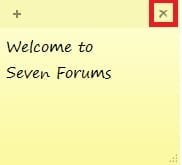
1. Click/tap on the X sign at the top right corner of an existing Sticky Note, or press Ctrl+D, to delete that Sticky Note. (See screenshot below)
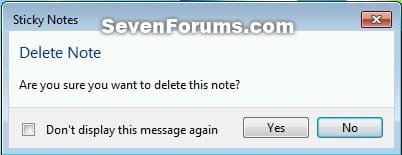
2. Click/tap on Yes to confirm deletion. (See screenshot below)
That's it,
Shawn
Related Tutorials
- How to Change the Color of a Sticky Note in Windows 7 and Windows 8
- How to Format Text in a Sticky Note in Windows 7 and Windows 8
- How to Backup and Restore Sticky Notes in Windows 7 and Windows 8
- How to Change the Default Font in Sticky Notes in Windows 7 and Windows 8
- How to Enable or Disable Sticky Notes Delete Confirmation in Windows 7 and Windows 8
Attachments
Last edited:


