
System Image - Extract Files Using Disk Management

How to Extract Windows 7 System Image Files Using Disk Management


   Information
When you create a system image, Windows 7 creates a Virtual Hard Disk VHD file that contains all of your files. This will show you how to attach (mount) this VHD file using Disk Management to manually extract and restore specific files of your choice from the system image instead of doing the default full system image recovery.
   Note
System images are saved in this format:

(selected backup location's drive letter)\WindowsImageBackup\(your computer name)\Backup (year-month-day) (time-hhmmss)

For example, if your computer name is Windows7-PC, your backup image location is on hard disk or partition (network or local) D: , and you backed up on September 14th 2008 at 4:39:45 AM (it uses 24 hour time), then that system image VHD file will be located in the D:\WindowsImageBackup\Windows7-PC\Backup 2009-09-14 043945 folder.


OPTION ONE

To Attach the VHD to Extract Files from System Image


1. Open the Control Panel (icons View).
A) Click on the Administrative Tools icon, and click on Computer Management.

B) Go to step 3.
OR

2. Open the Start Menu.
A) In the Search box, type compmgmt.msc and press Enter.
3. If prompted by UAC, then click on Yes.

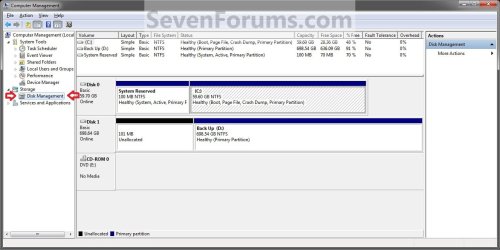
4. In the left pane, right click on Disk Management, and click on Attach VHD. (See screenshot below)
NOTE: You can also click on Disk Management, Action on the menu bar, and Attach VHD.
Step1.jpg
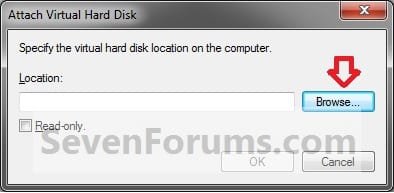
5. Click on the Browse button. (See screenshot below)
Step2.jpg
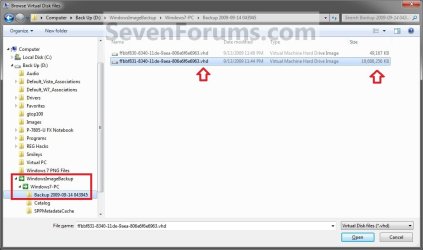
6. Navigate to the drive or partition that you selected to save the created system image to, then select a listed VHD file for the disk that you want to extract files from. (See screenshot below)
NOTE: See the NOTE box at the top of the tutorial to see where to find your system image VHD file at.

   Note
There will be a VHD file for each hard disk that was included in the system image backup when it was created.

You will not be able to open the VHD for the 100 MB System Reserved partition if you had one created during the installation of your Windows 7.
Step3.jpg
7. Click on OK. (See screenshot below)
NOTE: Be sure to leave the Read only box unchecked if you wish to have more than read-only access.
Step4.jpg
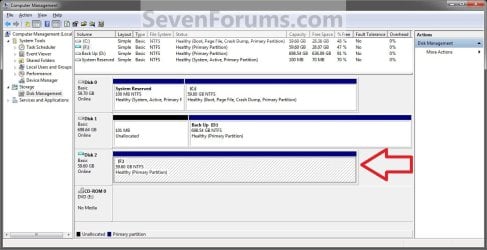
8. You will now notice that the VHD file has been attached (mounted) as a separate virtual disk with it's own drive letter (ex: F: ) in Disk Management. Close Disk Management.(See screenshot below)
Step5.jpg
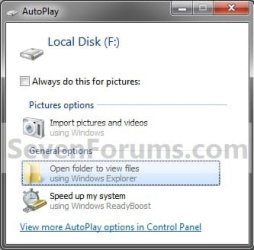
9. You may also get a AutoPlay pop-up window. Double click on the Open folder to view files option. (See screenshot below)
NOTE: If you did not get a AutoPlay pop-up, then you can open the new attached VHD virtual disk (ex: F) from the Computer window like any other hard drive or partition.
Step6.jpg
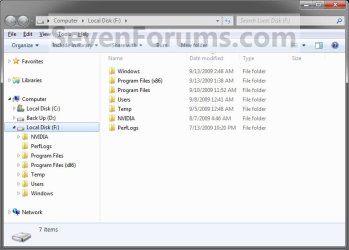
10. You can now copy any files that you want from the attached system image VHD disk (ex: F: ) to restore back to your Windows 7 C: drive. (See screenshot below)
Step7.jpg


OPTION TWO

To Detach the VHD in Disk Management


NOTE: This will show you to detach the VHD file in Disk Management from OPTION ONE above without affecting the system image.
1. Open the Control Panel (icons View).
A) Click on the Administrative Tools icon, and click on Computer Management.

B) Go to step 3.
OR

2. Open the Start Menu.
A) In the Search box, type compmgmt.msc and press Enter.
3. If prompted by UAC, then click on Yes.

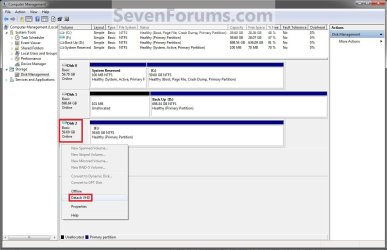
4. In the middle pane, right click on the Disk # of the attached VHD (ex: F: ), and click on Detach VHD. (See screenshot below)
Detach_VHD.jpg
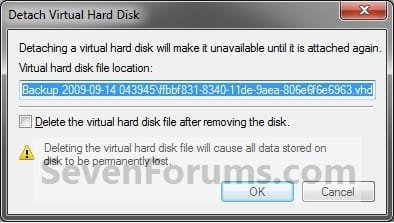
5. Click on OK. (See sreenshot below)
WARNING: DO NOT CHECK the Delete the virtual hard disk file after removing the disk box. If you do, you will destroy the created system image. Leaving this box unchecked will leave your created system image intact an unharmed so you can still be able to use it to do a full system image recovery.
Detach2.jpg
6. You will now notice that the VHD (ex: F: ) has been detached in Disk Management. (See screenshot below)
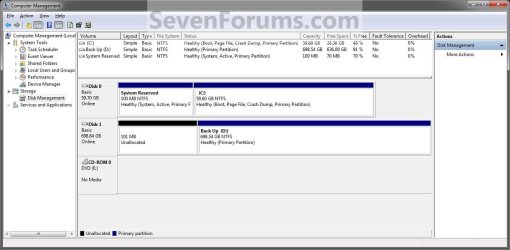
Detach3.jpg
7. Close Disk Management.
That's it,
Shawn


Last edited:
You're most welcome Trv. :)
 

My Computer

Computer type
PC/Desktop
Computer Manufacturer/Model Number
Self built custom
OS
64-bit Windows 11 Pro for Workstations
CPU
Intel i7-8700K OC'd to 5 GHz
Motherboard
ASUS ROG Maximus XI Formula Z390
Memory
64 GB (4x16GB) G.SKILL TridentZ RGB DDR4 3600 MHz
Graphics Card(s)
ASUS ROG-STRIX-GTX1080TI-O11G-GAMING
Sound Card
Integrated
Monitor(s) Displays
2 x Samsung Odyssey G7 27"
Screen Resolution
2560x1440
Hard Drives
1TB Samsung 990 PRO M.2,
4TB Samsung 990 PRO PRO M.2,
TerraMaster F8 SSD Plus NAS
PSU
Seasonic Prime Titanium 850W
Case
Thermaltake Core P3
Cooling
Corsair Hydro H115i
Keyboard
Logitech wireless K800
Mouse
Logitech MX Master 4
Internet Speed
2 Gb/s Download and 100 Mb/s Upload
Antivirus
Malwarebyte Anti-Malware Premium
Browser
Google Chrome
Other Info
Logitech Z625 speaker system,
Logitech BRIO 4K Pro webcam,
HP Color LaserJet Pro MFP M477fdn,
APC SMART-UPS RT 1000 XL - SURT1000XLI,
Galaxy S23 Plus phone
Thanks Brink, I thought I was going to have to restore every file! It also seems that if you mount the VHD file as Read-Only it seems it does an uninitalized disk. I didn't read the "Don't Check Read-Only" the first time lol! Anyways, you saved me bigtime!!:D
 

My Computer

Computer Manufacturer/Model Number
Toshiba
OS
Windows 7 Home Premium x64
CPU
AMD
Memory
4 GB
Graphics Card(s)
ATI Radeon Intergrated Graphics
Sound Card
Realtek
Screen Resolution
1366 X 768
Hard Drives
223 GB HDD
You're most welcome RJ. :)
 

My Computer

Computer type
PC/Desktop
Computer Manufacturer/Model Number
Self built custom
OS
64-bit Windows 11 Pro for Workstations
CPU
Intel i7-8700K OC'd to 5 GHz
Motherboard
ASUS ROG Maximus XI Formula Z390
Memory
64 GB (4x16GB) G.SKILL TridentZ RGB DDR4 3600 MHz
Graphics Card(s)
ASUS ROG-STRIX-GTX1080TI-O11G-GAMING
Sound Card
Integrated
Monitor(s) Displays
2 x Samsung Odyssey G7 27"
Screen Resolution
2560x1440
Hard Drives
1TB Samsung 990 PRO M.2,
4TB Samsung 990 PRO PRO M.2,
TerraMaster F8 SSD Plus NAS
PSU
Seasonic Prime Titanium 850W
Case
Thermaltake Core P3
Cooling
Corsair Hydro H115i
Keyboard
Logitech wireless K800
Mouse
Logitech MX Master 4
Internet Speed
2 Gb/s Download and 100 Mb/s Upload
Antivirus
Malwarebyte Anti-Malware Premium
Browser
Google Chrome
Other Info
Logitech Z625 speaker system,
Logitech BRIO 4K Pro webcam,
HP Color LaserJet Pro MFP M477fdn,
APC SMART-UPS RT 1000 XL - SURT1000XLI,
Galaxy S23 Plus phone
I thought I already posted this question, but don't see it here. (Sorry if it got posted twice.)

When I try to attach some system disk vhds (from Windows 7 backup) they attach, but as unallocated, with no drive letter, making them unreadable.

(Note--I did not check the read-only box)

How can I get them to be alllocated and show up as a drive?

Thank you.
 

My Computer

OS
Windows 7
Hello Maiki,

Are you doing this from within an administrator account?

Could you post some screenshots of step 5 on showing what you selected and see afterwards?
 
Last edited:

My Computer

Computer type
PC/Desktop
Computer Manufacturer/Model Number
Self built custom
OS
64-bit Windows 11 Pro for Workstations
CPU
Intel i7-8700K OC'd to 5 GHz
Motherboard
ASUS ROG Maximus XI Formula Z390
Memory
64 GB (4x16GB) G.SKILL TridentZ RGB DDR4 3600 MHz
Graphics Card(s)
ASUS ROG-STRIX-GTX1080TI-O11G-GAMING
Sound Card
Integrated
Monitor(s) Displays
2 x Samsung Odyssey G7 27"
Screen Resolution
2560x1440
Hard Drives
1TB Samsung 990 PRO M.2,
4TB Samsung 990 PRO PRO M.2,
TerraMaster F8 SSD Plus NAS
PSU
Seasonic Prime Titanium 850W
Case
Thermaltake Core P3
Cooling
Corsair Hydro H115i
Keyboard
Logitech wireless K800
Mouse
Logitech MX Master 4
Internet Speed
2 Gb/s Download and 100 Mb/s Upload
Antivirus
Malwarebyte Anti-Malware Premium
Browser
Google Chrome
Other Info
Logitech Z625 speaker system,
Logitech BRIO 4K Pro webcam,
HP Color LaserJet Pro MFP M477fdn,
APC SMART-UPS RT 1000 XL - SURT1000XLI,
Galaxy S23 Plus phone
Hello Maiki,

Are you doing this from within an administrator account?

Could you post some screenshots of step 5 on showing what you selected and see afterwards?

Yes, my account (the only user) is an administrator account.

I'll try to get to the screenshots soon. It is a different computer than this one, and I am very busy. However, I think I described very clearly, what happens. I go through the procedure in Disk Management to attach the .vhd. It attaches, and I can see the attached .vhd in Disk Managment. However, it says "unallocated", and there is no drive letter, and not accessible in Windows Explorer. Tried over and over and over, same result.
 

My Computer

OS
Windows 7
Maiki,

As a test, create another system image backup, and see if you may be able to attach/mount the VHD for it. Maybe the current VHD is corrupted.
 

My Computer

Computer type
PC/Desktop
Computer Manufacturer/Model Number
Self built custom
OS
64-bit Windows 11 Pro for Workstations
CPU
Intel i7-8700K OC'd to 5 GHz
Motherboard
ASUS ROG Maximus XI Formula Z390
Memory
64 GB (4x16GB) G.SKILL TridentZ RGB DDR4 3600 MHz
Graphics Card(s)
ASUS ROG-STRIX-GTX1080TI-O11G-GAMING
Sound Card
Integrated
Monitor(s) Displays
2 x Samsung Odyssey G7 27"
Screen Resolution
2560x1440
Hard Drives
1TB Samsung 990 PRO M.2,
4TB Samsung 990 PRO PRO M.2,
TerraMaster F8 SSD Plus NAS
PSU
Seasonic Prime Titanium 850W
Case
Thermaltake Core P3
Cooling
Corsair Hydro H115i
Keyboard
Logitech wireless K800
Mouse
Logitech MX Master 4
Internet Speed
2 Gb/s Download and 100 Mb/s Upload
Antivirus
Malwarebyte Anti-Malware Premium
Browser
Google Chrome
Other Info
Logitech Z625 speaker system,
Logitech BRIO 4K Pro webcam,
HP Color LaserJet Pro MFP M477fdn,
APC SMART-UPS RT 1000 XL - SURT1000XLI,
Galaxy S23 Plus phone
Still No Luck

I have mounted the VHD in Computer Management, and the J:/ drive mounts, but whenever I open the drive it doesn't appear to have any files in it. I do believe I chose the correct VHD (231 GB) and I'm not sure how else to do it. There are vital files on this image and I've done all the research I can, but they all seem to stop at the mounting of the new drive.

Any help would be greatly appreciated,


╚Brandon╝
 

My Computer

OS
Windows 7 Home Premium
It's 2012, and I just discovered this site. The tutorial was very enlightening. It contains more useful information on Virtual PC than I have been able to find anywhere else (although I haven't read all the other tutorials here). Thanks, Brink. I think I'll be haunting this site for a while.
 

My Computer

Computer Manufacturer/Model Number
Dell Vostro 230
OS
Windows 7 Professional 32-bit
CPU
Intel Core2 Quad 2.66 GHz
Memory
4 GB
You're most welcome LeChiffre, and welcome to Seven Forums. :)
 

My Computer

Computer type
PC/Desktop
Computer Manufacturer/Model Number
Self built custom
OS
64-bit Windows 11 Pro for Workstations
CPU
Intel i7-8700K OC'd to 5 GHz
Motherboard
ASUS ROG Maximus XI Formula Z390
Memory
64 GB (4x16GB) G.SKILL TridentZ RGB DDR4 3600 MHz
Graphics Card(s)
ASUS ROG-STRIX-GTX1080TI-O11G-GAMING
Sound Card
Integrated
Monitor(s) Displays
2 x Samsung Odyssey G7 27"
Screen Resolution
2560x1440
Hard Drives
1TB Samsung 990 PRO M.2,
4TB Samsung 990 PRO PRO M.2,
TerraMaster F8 SSD Plus NAS
PSU
Seasonic Prime Titanium 850W
Case
Thermaltake Core P3
Cooling
Corsair Hydro H115i
Keyboard
Logitech wireless K800
Mouse
Logitech MX Master 4
Internet Speed
2 Gb/s Download and 100 Mb/s Upload
Antivirus
Malwarebyte Anti-Malware Premium
Browser
Google Chrome
Other Info
Logitech Z625 speaker system,
Logitech BRIO 4K Pro webcam,
HP Color LaserJet Pro MFP M477fdn,
APC SMART-UPS RT 1000 XL - SURT1000XLI,
Galaxy S23 Plus phone
I have mounted the VHD in Computer Management, and the J:/ drive mounts, but whenever I open the drive it doesn't appear to have any files in it. I do believe I chose the correct VHD (231 GB) and I'm not sure how else to do it. There are vital files on this image and I've done all the research I can, but they all seem to stop at the mounting of the new drive.

Any help would be greatly appreciated,


╚Brandon╝

Brandon,

Could you post a screenshot showing the contents of the location below to see if maybe what the issue may be or if there is another VHD that should have been used instead?

F:\WindowsImageBackup\Computer-Name\Backup Year-######
 

My Computer

Computer type
PC/Desktop
Computer Manufacturer/Model Number
Self built custom
OS
64-bit Windows 11 Pro for Workstations
CPU
Intel i7-8700K OC'd to 5 GHz
Motherboard
ASUS ROG Maximus XI Formula Z390
Memory
64 GB (4x16GB) G.SKILL TridentZ RGB DDR4 3600 MHz
Graphics Card(s)
ASUS ROG-STRIX-GTX1080TI-O11G-GAMING
Sound Card
Integrated
Monitor(s) Displays
2 x Samsung Odyssey G7 27"
Screen Resolution
2560x1440
Hard Drives
1TB Samsung 990 PRO M.2,
4TB Samsung 990 PRO PRO M.2,
TerraMaster F8 SSD Plus NAS
PSU
Seasonic Prime Titanium 850W
Case
Thermaltake Core P3
Cooling
Corsair Hydro H115i
Keyboard
Logitech wireless K800
Mouse
Logitech MX Master 4
Internet Speed
2 Gb/s Download and 100 Mb/s Upload
Antivirus
Malwarebyte Anti-Malware Premium
Browser
Google Chrome
Other Info
Logitech Z625 speaker system,
Logitech BRIO 4K Pro webcam,
HP Color LaserJet Pro MFP M477fdn,
APC SMART-UPS RT 1000 XL - SURT1000XLI,
Galaxy S23 Plus phone
Hi Brink
Thanks great tut! Proplem is it does not work for me. I get the same message as Richard earlier: "The requested operation could not be completed due to a file system limitation". I've got enough disk space. The image is spanned over 4 disks. I've also opened all folders to see that all are allowed. Any other suggestion?

Isn't there a way to merge the four disks to one vhd file?
 

My Computer

OS
Windows 7 Professional
Hello boetiejon, and welcome to Seven Forums.

Ah, yep that would be the issue. It needs to be a single VHD file. I'm afraid that I don't know if they can be merged or not as a VHD. :(
 

My Computer

Computer type
PC/Desktop
Computer Manufacturer/Model Number
Self built custom
OS
64-bit Windows 11 Pro for Workstations
CPU
Intel i7-8700K OC'd to 5 GHz
Motherboard
ASUS ROG Maximus XI Formula Z390
Memory
64 GB (4x16GB) G.SKILL TridentZ RGB DDR4 3600 MHz
Graphics Card(s)
ASUS ROG-STRIX-GTX1080TI-O11G-GAMING
Sound Card
Integrated
Monitor(s) Displays
2 x Samsung Odyssey G7 27"
Screen Resolution
2560x1440
Hard Drives
1TB Samsung 990 PRO M.2,
4TB Samsung 990 PRO PRO M.2,
TerraMaster F8 SSD Plus NAS
PSU
Seasonic Prime Titanium 850W
Case
Thermaltake Core P3
Cooling
Corsair Hydro H115i
Keyboard
Logitech wireless K800
Mouse
Logitech MX Master 4
Internet Speed
2 Gb/s Download and 100 Mb/s Upload
Antivirus
Malwarebyte Anti-Malware Premium
Browser
Google Chrome
Other Info
Logitech Z625 speaker system,
Logitech BRIO 4K Pro webcam,
HP Color LaserJet Pro MFP M477fdn,
APC SMART-UPS RT 1000 XL - SURT1000XLI,
Galaxy S23 Plus phone
Nice tutorial and very handy.
7. Click on OK. (See screenshot below)
NOTE: Be sure to leave the Read only box unchecked.

Why not readonly? you only want to mount it and READ files from it.
 

My Computer

Computer type
Laptop
Computer Manufacturer/Model Number
ACER ASPIRE 5742G
OS
Microsoft Windows 7 Home Premium 64-bits 7601 Multiprocessor Free Service Pack 1
CPU
Intel(R) Core(TM) i3 CPU M 370 @ 2.40GHz
Motherboard
Acer Aspire 5742G
Memory
4,00 GB
Graphics Card(s)
ATI Mobility Radeon HD 5400 Series
Sound Card
(1) AMD High Definition Audio Device (2) Realtek High Defi
Screen Resolution
1366 x 768 x 32 bits (4294967296 colors) @ 60 Hz
Hard Drives
WDC WD5000BEVT-22ZAT0
Hey Ron,

Only in case one may want more than read-only access. :)
 

My Computer

Computer type
PC/Desktop
Computer Manufacturer/Model Number
Self built custom
OS
64-bit Windows 11 Pro for Workstations
CPU
Intel i7-8700K OC'd to 5 GHz
Motherboard
ASUS ROG Maximus XI Formula Z390
Memory
64 GB (4x16GB) G.SKILL TridentZ RGB DDR4 3600 MHz
Graphics Card(s)
ASUS ROG-STRIX-GTX1080TI-O11G-GAMING
Sound Card
Integrated
Monitor(s) Displays
2 x Samsung Odyssey G7 27"
Screen Resolution
2560x1440
Hard Drives
1TB Samsung 990 PRO M.2,
4TB Samsung 990 PRO PRO M.2,
TerraMaster F8 SSD Plus NAS
PSU
Seasonic Prime Titanium 850W
Case
Thermaltake Core P3
Cooling
Corsair Hydro H115i
Keyboard
Logitech wireless K800
Mouse
Logitech MX Master 4
Internet Speed
2 Gb/s Download and 100 Mb/s Upload
Antivirus
Malwarebyte Anti-Malware Premium
Browser
Google Chrome
Other Info
Logitech Z625 speaker system,
Logitech BRIO 4K Pro webcam,
HP Color LaserJet Pro MFP M477fdn,
APC SMART-UPS RT 1000 XL - SURT1000XLI,
Galaxy S23 Plus phone
Hey there Brink,
Was just posting to see if you can help? I had a few problems with my laptop for the past few days, I don't have an installation disc (was not supplied, Win 7 was already installed).

Today I found a .vhd file (20.5GB in size) in a folder called WindowsImageBackup (I did not create this this, It was already on the computer on a partitioned drive called "LENOVO" (I am assuming the manufacturer placed this partition with the image file on it).

Anyway I followed this tutorial on how to extract the files from the .vhd file and replace any of the files you need to replace on your main drive, Anyway I managed to attach the .vhd file and it appears as attached in the Disc Management menu, but when I try to locate that drive afterwards I can't find it anywhere. Can you provideme with any help as I really need to fix this issue, Everything is extremely unresponsive and internet pages are taking roughly 30 - 40 minutes to load (even though I have 100mb fibre optic connection, It runs at 13mb though :p).
 

My Computer

Computer type
Laptop
Computer Manufacturer/Model Number
LENOVO 4151/200 Lenovo 3000 G530
OS
Windows 7 Professional Service Pack 1 (build 7601)
CPU
2.00 gigahertz Intel Core2 Duo
Motherboard
LENOVO JIWA1 REFERENCE
Memory
3034 Megabytes Usable Installed Memory
Graphics Card(s)
Intergrated
Hard Drives
143.99 Gigabytes Usable Hard Drive Capacity
53.20 Gigabytes Hard Drive Free Space

TSSTcorp CDDVDW TS-L633B [Optical drive]

Msft Virtual Disk SCSI Disk Device (111.57 GB) -- drive 1
WDC WD1600BEVT-22ZCT0 [Hard drive] (160.04 GB) -- drive 0, s/
Antivirus
Avast Free
Browser
Chrome (Latest Build)
Hello frsgalaxy, and welcome to Seven Forums.

When Disk Management attached the VHD, did it assign it a drive letter to show up in the "Computer" window?

You might also consider doing a system restore at boot using a restore point (if available) dated before this happened to see if it may be able to undo and fix this for you.

Hope this helps for now, :)
Shawn
 

My Computer

Computer type
PC/Desktop
Computer Manufacturer/Model Number
Self built custom
OS
64-bit Windows 11 Pro for Workstations
CPU
Intel i7-8700K OC'd to 5 GHz
Motherboard
ASUS ROG Maximus XI Formula Z390
Memory
64 GB (4x16GB) G.SKILL TridentZ RGB DDR4 3600 MHz
Graphics Card(s)
ASUS ROG-STRIX-GTX1080TI-O11G-GAMING
Sound Card
Integrated
Monitor(s) Displays
2 x Samsung Odyssey G7 27"
Screen Resolution
2560x1440
Hard Drives
1TB Samsung 990 PRO M.2,
4TB Samsung 990 PRO PRO M.2,
TerraMaster F8 SSD Plus NAS
PSU
Seasonic Prime Titanium 850W
Case
Thermaltake Core P3
Cooling
Corsair Hydro H115i
Keyboard
Logitech wireless K800
Mouse
Logitech MX Master 4
Internet Speed
2 Gb/s Download and 100 Mb/s Upload
Antivirus
Malwarebyte Anti-Malware Premium
Browser
Google Chrome
Other Info
Logitech Z625 speaker system,
Logitech BRIO 4K Pro webcam,
HP Color LaserJet Pro MFP M477fdn,
APC SMART-UPS RT 1000 XL - SURT1000XLI,
Galaxy S23 Plus phone
Hey there Brink,
Was just posting to see if you can help? I had a few problems with my laptop for the past few days, I don't have an installation disc (was not supplied, Win 7 was already installed).

Today I found a .vhd file (20.5GB in size) in a folder called WindowsImageBackup (I did not create this this, It was already on the computer on a partitioned drive called "LENOVO" (I am assuming the manufacturer placed this partition with the image file on it).

Anyway I followed this tutorial on how to extract the files from the .vhd file and replace any of the files you need to replace on your main drive, Anyway I managed to attach the .vhd file and it appears as attached in the Disc Management menu, but when I try to locate that drive afterwards I can't find it anywhere. Can you provideme with any help as I really need to fix this issue, Everything is extremely unresponsive and internet pages are taking roughly 30 - 40 minutes to load (even though I have 100mb fibre optic connection, It runs at 13mb though :p).
What do you want to do with that vhd file? You want to do a factory install... so replace your current win7 install with that one?
 

My Computer

Computer type
Laptop
Computer Manufacturer/Model Number
ACER ASPIRE 5742G
OS
Microsoft Windows 7 Home Premium 64-bits 7601 Multiprocessor Free Service Pack 1
CPU
Intel(R) Core(TM) i3 CPU M 370 @ 2.40GHz
Motherboard
Acer Aspire 5742G
Memory
4,00 GB
Graphics Card(s)
ATI Mobility Radeon HD 5400 Series
Sound Card
(1) AMD High Definition Audio Device (2) Realtek High Defi
Screen Resolution
1366 x 768 x 32 bits (4294967296 colors) @ 60 Hz
Hard Drives
WDC WD5000BEVT-22ZAT0
Shawn

No drive letter was assigned to the .vhd after attaching it (at least not in Start --> Computer) in fact no drive even showed up in that section, It was "only" displayed in disc management.

As for a system restore from boot that is not an option as there is no restore point available according to my laptop at least (even though a restore point is created every week, I'm an Indie Game Dev so I need everything to be safe and secure :p).

Kaktussoft

There is no option for a factory reset on my laptop (apparently laptop's don't have them according to my local microsoft engineer or at least my brand of laptop doesn't) but yeah I guess so or just replace all the file's and regi's that are created during setup if at all possible (Don't really fancy paying £199.99 for a copy of windows 7 seem's the laptop only cost me £200, Additionally I can't afford to pay out for one, Damn I need a new computer :-s)
 

My Computer

Computer type
Laptop
Computer Manufacturer/Model Number
LENOVO 4151/200 Lenovo 3000 G530
OS
Windows 7 Professional Service Pack 1 (build 7601)
CPU
2.00 gigahertz Intel Core2 Duo
Motherboard
LENOVO JIWA1 REFERENCE
Memory
3034 Megabytes Usable Installed Memory
Graphics Card(s)
Intergrated
Hard Drives
143.99 Gigabytes Usable Hard Drive Capacity
53.20 Gigabytes Hard Drive Free Space

TSSTcorp CDDVDW TS-L633B [Optical drive]

Msft Virtual Disk SCSI Disk Device (111.57 GB) -- drive 1
WDC WD1600BEVT-22ZCT0 [Hard drive] (160.04 GB) -- drive 0, s/
Antivirus
Avast Free
Browser
Chrome (Latest Build)
Shawn

No drive letter was assigned to the .vhd after attaching it (at least not in Start --> Computer) in fact no drive even showed up in that section, It was "only" displayed in disc management.

As for a system restore from boot that is not an option as there is no restore point available according to my laptop at least (even though a restore point is created every week, I'm an Indie Game Dev so I need everything to be safe and secure :p).

Kaktussoft

There is no option for a factory reset on my laptop (apparently laptop's don't have them according to my local microsoft engineer or at least my brand of laptop doesn't) but yeah I guess so or just replace all the file's and regi's that are created during setup if at all possible (Don't really fancy paying £199.99 for a copy of windows 7 seem's the laptop only cost me £200, Additionally I can't afford to pay out for one, Damn I need a new computer :-s)

If you attach the vhd in disk management:
  • Is only 1 partition in vhd?
  • Look in windows explorer. When was vhd file created? Prior to buying laptop... so vhd is made by shop?
  • Assign a drive letter. Just right click in disk management on partition in vhd and assign drive letter P for example
  • In windows explorer: P has folders like windows, users etcetera. So looks like a win7 disk?
Make a new thread for this problem and post url here
 

My Computer

Computer type
Laptop
Computer Manufacturer/Model Number
ACER ASPIRE 5742G
OS
Microsoft Windows 7 Home Premium 64-bits 7601 Multiprocessor Free Service Pack 1
CPU
Intel(R) Core(TM) i3 CPU M 370 @ 2.40GHz
Motherboard
Acer Aspire 5742G
Memory
4,00 GB
Graphics Card(s)
ATI Mobility Radeon HD 5400 Series
Sound Card
(1) AMD High Definition Audio Device (2) Realtek High Defi
Screen Resolution
1366 x 768 x 32 bits (4294967296 colors) @ 60 Hz
Hard Drives
WDC WD5000BEVT-22ZAT0
Back
Top