
System Image - Extract Files Using Disk Management

How to Extract Windows 7 System Image Files Using Disk Management


   Information
When you create a system image, Windows 7 creates a Virtual Hard Disk VHD file that contains all of your files. This will show you how to attach (mount) this VHD file using Disk Management to manually extract and restore specific files of your choice from the system image instead of doing the default full system image recovery.
   Note
System images are saved in this format:

(selected backup location's drive letter)\WindowsImageBackup\(your computer name)\Backup (year-month-day) (time-hhmmss)

For example, if your computer name is Windows7-PC, your backup image location is on hard disk or partition (network or local) D: , and you backed up on September 14th 2008 at 4:39:45 AM (it uses 24 hour time), then that system image VHD file will be located in the D:\WindowsImageBackup\Windows7-PC\Backup 2009-09-14 043945 folder.


OPTION ONE

To Attach the VHD to Extract Files from System Image


1. Open the Control Panel (icons View).
A) Click on the Administrative Tools icon, and click on Computer Management.

B) Go to step 3.
OR

2. Open the Start Menu.
A) In the Search box, type compmgmt.msc and press Enter.
3. If prompted by UAC, then click on Yes.

4. In the left pane, right click on Disk Management, and click on Attach VHD. (See screenshot below)
NOTE: You can also click on Disk Management, Action on the menu bar, and Attach VHD.
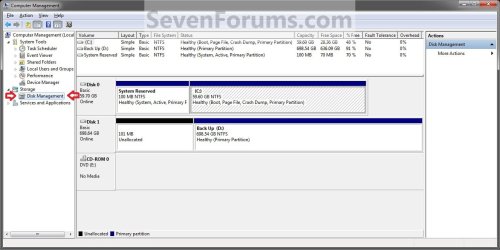
Step1.jpg
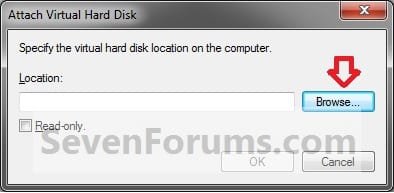
5. Click on the Browse button. (See screenshot below)
Step2.jpg
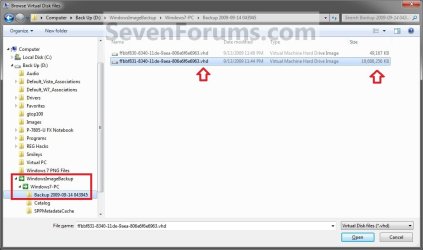
6. Navigate to the drive or partition that you selected to save the created system image to, then select a listed VHD file for the disk that you want to extract files from. (See screenshot below)
NOTE: See the NOTE box at the top of the tutorial to see where to find your system image VHD file at.

   Note
There will be a VHD file for each hard disk that was included in the system image backup when it was created.

You will not be able to open the VHD for the 100 MB System Reserved partition if you had one created during the installation of your Windows 7.
Step3.jpg
7. Click on OK. (See screenshot below)
NOTE: Be sure to leave the Read only box unchecked if you wish to have more than read-only access.
Step4.jpg
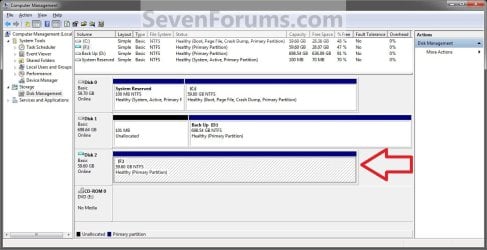
8. You will now notice that the VHD file has been attached (mounted) as a separate virtual disk with it's own drive letter (ex: F: ) in Disk Management. Close Disk Management.(See screenshot below)
Step5.jpg
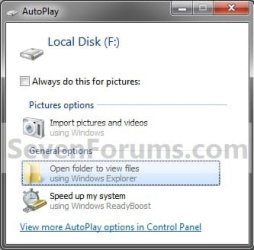
9. You may also get a AutoPlay pop-up window. Double click on the Open folder to view files option. (See screenshot below)
NOTE: If you did not get a AutoPlay pop-up, then you can open the new attached VHD virtual disk (ex: F) from the Computer window like any other hard drive or partition.
Step6.jpg
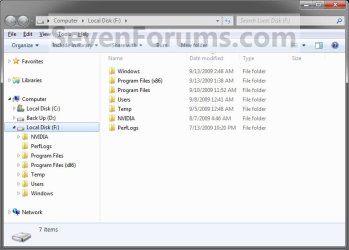
10. You can now copy any files that you want from the attached system image VHD disk (ex: F: ) to restore back to your Windows 7 C: drive. (See screenshot below)
Step7.jpg


OPTION TWO

To Detach the VHD in Disk Management


NOTE: This will show you to detach the VHD file in Disk Management from OPTION ONE above without affecting the system image.
1. Open the Control Panel (icons View).
A) Click on the Administrative Tools icon, and click on Computer Management.

B) Go to step 3.
OR

2. Open the Start Menu.
A) In the Search box, type compmgmt.msc and press Enter.
3. If prompted by UAC, then click on Yes.

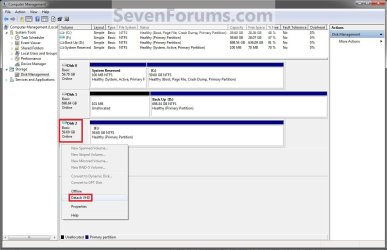
4. In the middle pane, right click on the Disk # of the attached VHD (ex: F: ), and click on Detach VHD. (See screenshot below)
Detach_VHD.jpg
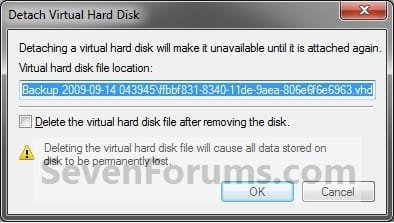
5. Click on OK. (See sreenshot below)
WARNING: DO NOT CHECK the Delete the virtual hard disk file after removing the disk box. If you do, you will destroy the created system image. Leaving this box unchecked will leave your created system image intact an unharmed so you can still be able to use it to do a full system image recovery.
Detach2.jpg
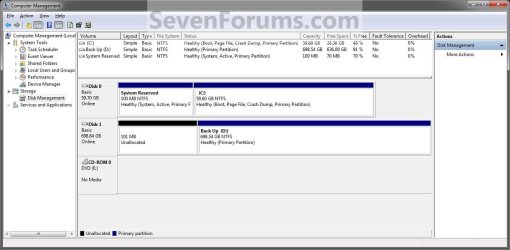
6. You will now notice that the VHD (ex: F: ) has been detached in Disk Management. (See screenshot below)
Detach3.jpg
7. Close Disk Management.
That's it,
Shawn


Last edited:
Hello Peter,

It would only change the read-only attribute of the file. :)
 

My Computer

Computer type
PC/Desktop
Computer Manufacturer/Model Number
Self built custom
OS
64-bit Windows 11 Pro for Workstations
CPU
Intel i7-8700K OC'd to 5 GHz
Motherboard
ASUS ROG Maximus XI Formula Z390
Memory
64 GB (4x16GB) G.SKILL TridentZ RGB DDR4 3600 MHz
Graphics Card(s)
ASUS ROG-STRIX-GTX1080TI-O11G-GAMING
Sound Card
Integrated
Monitor(s) Displays
2 x Samsung Odyssey G7 27"
Screen Resolution
2560x1440
Hard Drives
1TB Samsung 990 PRO M.2,
4TB Samsung 990 PRO PRO M.2,
TerraMaster F8 SSD Plus NAS
PSU
Seasonic Prime Titanium 850W
Case
Thermaltake Core P3
Cooling
Corsair Hydro H115i
Keyboard
Logitech wireless K800
Mouse
Logitech MX Master 4
Internet Speed
2 Gb/s Download and 100 Mb/s Upload
Antivirus
Malwarebyte Anti-Malware Premium
Browser
Google Chrome
Other Info
Logitech Z625 speaker system,
Logitech BRIO 4K Pro webcam,
HP Color LaserJet Pro MFP M477fdn,
APC SMART-UPS RT 1000 XL - SURT1000XLI,
Galaxy S23 Plus phone
Hello Brink,

thanks for your input but your suggestion is not what I can see on my system. It does not explain why the first time the image would be mounted as a not initialized drive if the R/O attribute has been set. Furthermore I checked that the R/O attribute is not set by default for these files after creation. So it has not to be cleared before the first mounting.

Anytime I mount an VHD image this way, its file date stamp is updated if the R/O attribute is not set. And after a first mounting with writing capability then the image can be mounted in a R/O mode.

Maybe something is actually changed in the VHD file but I too lazy to compare an image that has just been mounted then unmounted with its original copy.

Other suggestions ?
 
Last edited:

My Computer

Computer type
Laptop
Computer Manufacturer/Model Number
Dell Latitude E6410
OS
Windows 7 Pro 64
CPU
Core i5 580-M
Motherboard
Dell
Memory
Samsung 1x4GB
Graphics Card(s)
Integrated Intel HD Graphics
Sound Card
Integrated
Monitor(s) Displays
LCD
Screen Resolution
1280 x 800
Hard Drives
Seagate Momentus 160 Go / 16 Mo / 7200 rpm
Internet Speed
ADSL 20 Mbps
Antivirus
MSE
Browser
IE11 / Firefox 31 (August 1, 2014)
The time stamp has been updated since it has been accessed by mounting it.

I'm not sure why it's not initialized with a drive letter when you mount the VHD. Are you mounting the largest VHD for the system image?
 

My Computer

Computer type
PC/Desktop
Computer Manufacturer/Model Number
Self built custom
OS
64-bit Windows 11 Pro for Workstations
CPU
Intel i7-8700K OC'd to 5 GHz
Motherboard
ASUS ROG Maximus XI Formula Z390
Memory
64 GB (4x16GB) G.SKILL TridentZ RGB DDR4 3600 MHz
Graphics Card(s)
ASUS ROG-STRIX-GTX1080TI-O11G-GAMING
Sound Card
Integrated
Monitor(s) Displays
2 x Samsung Odyssey G7 27"
Screen Resolution
2560x1440
Hard Drives
1TB Samsung 990 PRO M.2,
4TB Samsung 990 PRO PRO M.2,
TerraMaster F8 SSD Plus NAS
PSU
Seasonic Prime Titanium 850W
Case
Thermaltake Core P3
Cooling
Corsair Hydro H115i
Keyboard
Logitech wireless K800
Mouse
Logitech MX Master 4
Internet Speed
2 Gb/s Download and 100 Mb/s Upload
Antivirus
Malwarebyte Anti-Malware Premium
Browser
Google Chrome
Other Info
Logitech Z625 speaker system,
Logitech BRIO 4K Pro webcam,
HP Color LaserJet Pro MFP M477fdn,
APC SMART-UPS RT 1000 XL - SURT1000XLI,
Galaxy S23 Plus phone
AFAIK, the "modified" time stamp should not be updated any time a image is mounted. I do not know anything about the mounting process but it would sound weird to me in case such a process would change anything in the mounted image. As far as the image is just read for some navigation or file copy through Explorer.

Several people reported here the same behavior for a not initialized drive when read-only mode is checked.

Brink, I am not sure to understand your question: I have only one VHD file in any Backup* folder under WindowsImageBackup. Size is always around 25 GB.
 

My Computer

Computer type
Laptop
Computer Manufacturer/Model Number
Dell Latitude E6410
OS
Windows 7 Pro 64
CPU
Core i5 580-M
Motherboard
Dell
Memory
Samsung 1x4GB
Graphics Card(s)
Integrated Intel HD Graphics
Sound Card
Integrated
Monitor(s) Displays
LCD
Screen Resolution
1280 x 800
Hard Drives
Seagate Momentus 160 Go / 16 Mo / 7200 rpm
Internet Speed
ADSL 20 Mbps
Antivirus
MSE
Browser
IE11 / Firefox 31 (August 1, 2014)
There will be a VHD file for each hard disk that was included in the system image backup when it was created. If you only have the Windows C: drive, then that would be why you only have the one VHD file.

If changes are made with the files from the mounted VHD, then that would change the time stamp.
 

My Computer

Computer type
PC/Desktop
Computer Manufacturer/Model Number
Self built custom
OS
64-bit Windows 11 Pro for Workstations
CPU
Intel i7-8700K OC'd to 5 GHz
Motherboard
ASUS ROG Maximus XI Formula Z390
Memory
64 GB (4x16GB) G.SKILL TridentZ RGB DDR4 3600 MHz
Graphics Card(s)
ASUS ROG-STRIX-GTX1080TI-O11G-GAMING
Sound Card
Integrated
Monitor(s) Displays
2 x Samsung Odyssey G7 27"
Screen Resolution
2560x1440
Hard Drives
1TB Samsung 990 PRO M.2,
4TB Samsung 990 PRO PRO M.2,
TerraMaster F8 SSD Plus NAS
PSU
Seasonic Prime Titanium 850W
Case
Thermaltake Core P3
Cooling
Corsair Hydro H115i
Keyboard
Logitech wireless K800
Mouse
Logitech MX Master 4
Internet Speed
2 Gb/s Download and 100 Mb/s Upload
Antivirus
Malwarebyte Anti-Malware Premium
Browser
Google Chrome
Other Info
Logitech Z625 speaker system,
Logitech BRIO 4K Pro webcam,
HP Color LaserJet Pro MFP M477fdn,
APC SMART-UPS RT 1000 XL - SURT1000XLI,
Galaxy S23 Plus phone
There will be a VHD file for each hard disk that was included in the system image backup when it was created. If you only have the Windows C: drive, then that would be why you only have the one VHD file.

If changes are made with the files from the mounted VHD, then that would change the time stamp.

Bumping an old Tutorial here... so if we are to mount a drive to extract files, but the best practice is to not touch the ownership and permissions on the image, how can we access the files, in particular the Users folders where everything is situated?

Right now the only workaround I see is run Notepad as admin, then use the Open File dialog like Explorer. Is there a better way? Running Windows Explorer as admin doesn't work. Also for Windows 10, the "Exit Explorer" then relaunch as admin doesn't work either.
 

My Computer

Computer type
PC/Desktop
OS
7 Ultimate SP1
CPU
Intel i5-3570K
Motherboard
Gigabyte G1.Sniper M3
Memory
G.Skill Sniper 16GB 1600 CL9
Graphics Card(s)
Diamond Radeon R9 290 4GB
Sound Card
Onboard SB Recon3D
Hard Drives
Samsung 840 EVO 250GB
1TB WD Black
PSU
Seasonic M12D 750W
Case
Fractal Design Define Mini
Keyboard
Noppoo Choc Pro MX Brown
Mouse
Logitech G5
Hello Toni,

It's not going to hurt the image if you are only using one of the options in the tutorial to extract files from it. :)
 

My Computer

Computer type
PC/Desktop
Computer Manufacturer/Model Number
Self built custom
OS
64-bit Windows 11 Pro for Workstations
CPU
Intel i7-8700K OC'd to 5 GHz
Motherboard
ASUS ROG Maximus XI Formula Z390
Memory
64 GB (4x16GB) G.SKILL TridentZ RGB DDR4 3600 MHz
Graphics Card(s)
ASUS ROG-STRIX-GTX1080TI-O11G-GAMING
Sound Card
Integrated
Monitor(s) Displays
2 x Samsung Odyssey G7 27"
Screen Resolution
2560x1440
Hard Drives
1TB Samsung 990 PRO M.2,
4TB Samsung 990 PRO PRO M.2,
TerraMaster F8 SSD Plus NAS
PSU
Seasonic Prime Titanium 850W
Case
Thermaltake Core P3
Cooling
Corsair Hydro H115i
Keyboard
Logitech wireless K800
Mouse
Logitech MX Master 4
Internet Speed
2 Gb/s Download and 100 Mb/s Upload
Antivirus
Malwarebyte Anti-Malware Premium
Browser
Google Chrome
Other Info
Logitech Z625 speaker system,
Logitech BRIO 4K Pro webcam,
HP Color LaserJet Pro MFP M477fdn,
APC SMART-UPS RT 1000 XL - SURT1000XLI,
Galaxy S23 Plus phone
Inserting files into a VHD?

This tutorial is quite informative in obtaining information from previous images. Contemplate the REVERSE? It is possible to insert files into a VHD after the VHD has been mounted. If the VHD is from a previous system image will the inserted file become part of that older image even though the GlobalCatalog may not even have the info on the new file?

I ask this as a hypothetical because I can imagine that some system or program file has become corrupt, but you do not know when. So the possibility that previous images have the same corrupt file exists. Can I avoid restoring the old image, correcting the file (saving it as filename2), and then remaking the image? If I can simply insert the correct file to the VHD, I have circumvented some time loss in restoring & remaking the old image.

My guess as being an engineer/physicist the above would violate some conservation law & that it cannot be done. But I thought I would ask since there resides some experience & knowledge that supersedes mine on these topics at this site.
 

My Computer

Computer type
PC/Desktop
OS
Windows 7 Home Prem 32 bit
Hello betaupsilon, :)

What you propose is interesting. If you try it, be sure to have another full system image to restore back to in case it causes issues.
 

My Computer

Computer type
PC/Desktop
Computer Manufacturer/Model Number
Self built custom
OS
64-bit Windows 11 Pro for Workstations
CPU
Intel i7-8700K OC'd to 5 GHz
Motherboard
ASUS ROG Maximus XI Formula Z390
Memory
64 GB (4x16GB) G.SKILL TridentZ RGB DDR4 3600 MHz
Graphics Card(s)
ASUS ROG-STRIX-GTX1080TI-O11G-GAMING
Sound Card
Integrated
Monitor(s) Displays
2 x Samsung Odyssey G7 27"
Screen Resolution
2560x1440
Hard Drives
1TB Samsung 990 PRO M.2,
4TB Samsung 990 PRO PRO M.2,
TerraMaster F8 SSD Plus NAS
PSU
Seasonic Prime Titanium 850W
Case
Thermaltake Core P3
Cooling
Corsair Hydro H115i
Keyboard
Logitech wireless K800
Mouse
Logitech MX Master 4
Internet Speed
2 Gb/s Download and 100 Mb/s Upload
Antivirus
Malwarebyte Anti-Malware Premium
Browser
Google Chrome
Other Info
Logitech Z625 speaker system,
Logitech BRIO 4K Pro webcam,
HP Color LaserJet Pro MFP M477fdn,
APC SMART-UPS RT 1000 XL - SURT1000XLI,
Galaxy S23 Plus phone
Back
Top