
System Image - Extract Files Using Disk Management

How to Extract Windows 7 System Image Files Using Disk Management


   Information
When you create a system image, Windows 7 creates a Virtual Hard Disk VHD file that contains all of your files. This will show you how to attach (mount) this VHD file using Disk Management to manually extract and restore specific files of your choice from the system image instead of doing the default full system image recovery.
   Note
System images are saved in this format:

(selected backup location's drive letter)\WindowsImageBackup\(your computer name)\Backup (year-month-day) (time-hhmmss)

For example, if your computer name is Windows7-PC, your backup image location is on hard disk or partition (network or local) D: , and you backed up on September 14th 2008 at 4:39:45 AM (it uses 24 hour time), then that system image VHD file will be located in the D:\WindowsImageBackup\Windows7-PC\Backup 2009-09-14 043945 folder.


OPTION ONE

To Attach the VHD to Extract Files from System Image


1. Open the Control Panel (icons View).
A) Click on the Administrative Tools icon, and click on Computer Management.

B) Go to step 3.
OR

2. Open the Start Menu.
A) In the Search box, type compmgmt.msc and press Enter.
3. If prompted by UAC, then click on Yes.

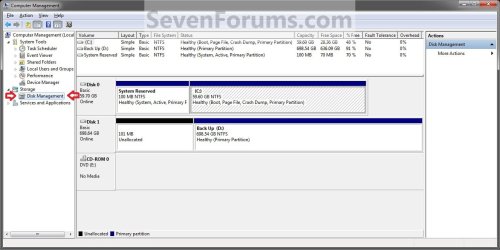
4. In the left pane, right click on Disk Management, and click on Attach VHD. (See screenshot below)
NOTE: You can also click on Disk Management, Action on the menu bar, and Attach VHD.
Step1.jpg
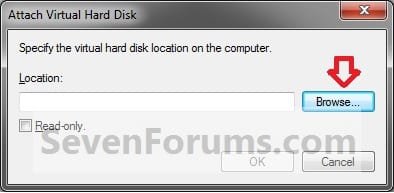
5. Click on the Browse button. (See screenshot below)
Step2.jpg
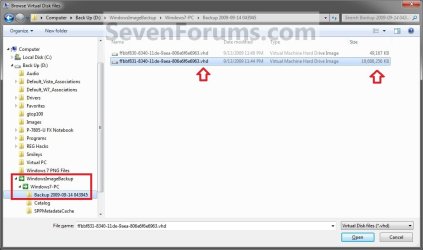
6. Navigate to the drive or partition that you selected to save the created system image to, then select a listed VHD file for the disk that you want to extract files from. (See screenshot below)
NOTE: See the NOTE box at the top of the tutorial to see where to find your system image VHD file at.

   Note
There will be a VHD file for each hard disk that was included in the system image backup when it was created.

You will not be able to open the VHD for the 100 MB System Reserved partition if you had one created during the installation of your Windows 7.
Step3.jpg
7. Click on OK. (See screenshot below)
NOTE: Be sure to leave the Read only box unchecked if you wish to have more than read-only access.
Step4.jpg
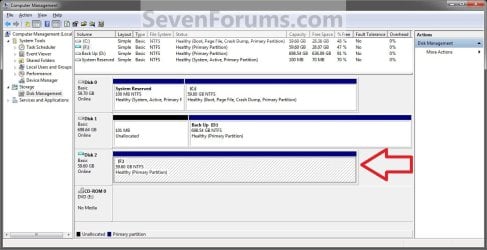
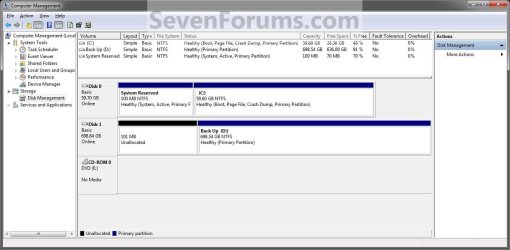
8. You will now notice that the VHD file has been attached (mounted) as a separate virtual disk with it's own drive letter (ex: F: ) in Disk Management. Close Disk Management.(See screenshot below)
Step5.jpg
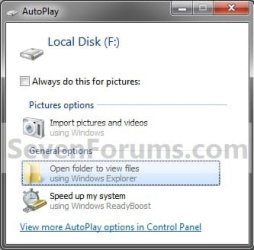
9. You may also get a AutoPlay pop-up window. Double click on the Open folder to view files option. (See screenshot below)
NOTE: If you did not get a AutoPlay pop-up, then you can open the new attached VHD virtual disk (ex: F) from the Computer window like any other hard drive or partition.
Step6.jpg
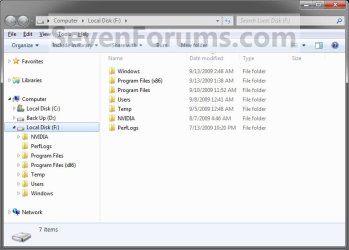
10. You can now copy any files that you want from the attached system image VHD disk (ex: F: ) to restore back to your Windows 7 C: drive. (See screenshot below)
Step7.jpg


OPTION TWO

To Detach the VHD in Disk Management


NOTE: This will show you to detach the VHD file in Disk Management from OPTION ONE above without affecting the system image.
1. Open the Control Panel (icons View).
A) Click on the Administrative Tools icon, and click on Computer Management.

B) Go to step 3.
OR

2. Open the Start Menu.
A) In the Search box, type compmgmt.msc and press Enter.
3. If prompted by UAC, then click on Yes.

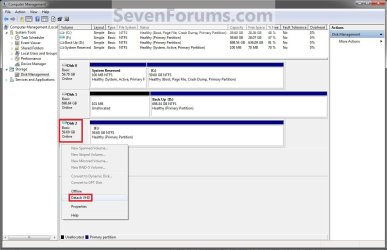
4. In the middle pane, right click on the Disk # of the attached VHD (ex: F: ), and click on Detach VHD. (See screenshot below)
Detach_VHD.jpg
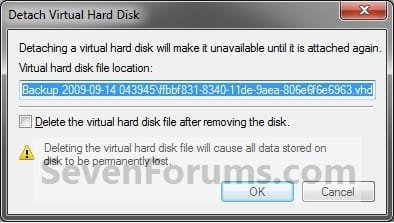
5. Click on OK. (See sreenshot below)
WARNING: DO NOT CHECK the Delete the virtual hard disk file after removing the disk box. If you do, you will destroy the created system image. Leaving this box unchecked will leave your created system image intact an unharmed so you can still be able to use it to do a full system image recovery.
Detach2.jpg
6. You will now notice that the VHD (ex: F: ) has been detached in Disk Management. (See screenshot below)
Detach3.jpg
7. Close Disk Management.
That's it,
Shawn


Last edited:
You're most welcome Taiyoyuden. :)


Wolfgang,

It's all because they save the backup in a VHD file to make it accessible through a virtual machine or to attach it like in the tutorial. Now what would be great is if they could have us be able to view VHD files in Windows Explorer just as easily as ZIP files without having to attach the VHD first.
 

My Computer

Computer type
PC/Desktop
Computer Manufacturer/Model Number
Self built custom
OS
64-bit Windows 11 Pro for Workstations
CPU
Intel i7-8700K OC'd to 5 GHz
Motherboard
ASUS ROG Maximus XI Formula Z390
Memory
64 GB (4x16GB) G.SKILL TridentZ RGB DDR4 3600 MHz
Graphics Card(s)
ASUS ROG-STRIX-GTX1080TI-O11G-GAMING
Sound Card
Integrated
Monitor(s) Displays
2 x Samsung Odyssey G7 27"
Screen Resolution
2560x1440
Hard Drives
1TB Samsung 990 PRO M.2,
4TB Samsung 990 PRO PRO M.2,
TerraMaster F8 SSD Plus NAS
PSU
Seasonic Prime Titanium 850W
Case
Thermaltake Core P3
Cooling
Corsair Hydro H115i
Keyboard
Logitech wireless K800
Mouse
Logitech MX Master 4
Internet Speed
2 Gb/s Download and 100 Mb/s Upload
Antivirus
Malwarebyte Anti-Malware Premium
Browser
Google Chrome
Other Info
Logitech Z625 speaker system,
Logitech BRIO 4K Pro webcam,
HP Color LaserJet Pro MFP M477fdn,
APC SMART-UPS RT 1000 XL - SURT1000XLI,
Galaxy S23 Plus phone
Does this tute work for Windows Home Premium ?

I tried going into
'Computer Management'

then when I tried to attach a vhd file I get the following error message.

'Virtaul Disk Manager'

'The requested operation could not be completed due to a file system limitation'


Any help would be greatly appreciated
Richard

rca08207 at bigpond.net.au
 

My Computer

OS
W7 and XP
Hello Richard,

If it's the VHD from the system image backup, be sure that you have already opened all of the folders in the WindowsImageBackup and allowed access while doing so first. Afterwards try attaching the VHD again.

Do you have enough free space on the hard drive?
 

My Computer

Computer type
PC/Desktop
Computer Manufacturer/Model Number
Self built custom
OS
64-bit Windows 11 Pro for Workstations
CPU
Intel i7-8700K OC'd to 5 GHz
Motherboard
ASUS ROG Maximus XI Formula Z390
Memory
64 GB (4x16GB) G.SKILL TridentZ RGB DDR4 3600 MHz
Graphics Card(s)
ASUS ROG-STRIX-GTX1080TI-O11G-GAMING
Sound Card
Integrated
Monitor(s) Displays
2 x Samsung Odyssey G7 27"
Screen Resolution
2560x1440
Hard Drives
1TB Samsung 990 PRO M.2,
4TB Samsung 990 PRO PRO M.2,
TerraMaster F8 SSD Plus NAS
PSU
Seasonic Prime Titanium 850W
Case
Thermaltake Core P3
Cooling
Corsair Hydro H115i
Keyboard
Logitech wireless K800
Mouse
Logitech MX Master 4
Internet Speed
2 Gb/s Download and 100 Mb/s Upload
Antivirus
Malwarebyte Anti-Malware Premium
Browser
Google Chrome
Other Info
Logitech Z625 speaker system,
Logitech BRIO 4K Pro webcam,
HP Color LaserJet Pro MFP M477fdn,
APC SMART-UPS RT 1000 XL - SURT1000XLI,
Galaxy S23 Plus phone
You're most welcome Taiyoyuden. :)


Wolfgang,

It's all because they save the backup in a VHD file to make it accessible through a virtual machine or to attach it like in the tutorial. Now what would be great is if they could have us be able to view VHD files in Windows Explorer just as easily as ZIP files without having to attach the VHD first.

Hi Shawn,

Just saw your answer. Must have been asleep at the wheel for the last 6 days - LOL.
What you say may make sense in the MS logic. But imagine the average Joe who wants to just recover one folder from an image. They should at least have provided a little tool similar to Shadow Explorer which took a young Swiss guy to write. But maybe there is another Swiss who will help with MS images.
 

My Computer

Computer Manufacturer/Model Number
HP, Dell, Gateway, Toshiba - 4 laptops and 2 desktops
OS
Vista, Windows7, Mint Mate, Zorin, Windows 8
CPU
from 1.6GHz Duo to i7
Monitor(s) Displays
2x HP w2207
Hard Drives
5x HDD, 7x SSD, 12x Externals
Keyboard
with trackball - no mices
Mouse
Trackball mice
Internet Speed
DSL 6000
I can't argue with that. It would be nice to have that by default. :)
 

My Computer

Computer type
PC/Desktop
Computer Manufacturer/Model Number
Self built custom
OS
64-bit Windows 11 Pro for Workstations
CPU
Intel i7-8700K OC'd to 5 GHz
Motherboard
ASUS ROG Maximus XI Formula Z390
Memory
64 GB (4x16GB) G.SKILL TridentZ RGB DDR4 3600 MHz
Graphics Card(s)
ASUS ROG-STRIX-GTX1080TI-O11G-GAMING
Sound Card
Integrated
Monitor(s) Displays
2 x Samsung Odyssey G7 27"
Screen Resolution
2560x1440
Hard Drives
1TB Samsung 990 PRO M.2,
4TB Samsung 990 PRO PRO M.2,
TerraMaster F8 SSD Plus NAS
PSU
Seasonic Prime Titanium 850W
Case
Thermaltake Core P3
Cooling
Corsair Hydro H115i
Keyboard
Logitech wireless K800
Mouse
Logitech MX Master 4
Internet Speed
2 Gb/s Download and 100 Mb/s Upload
Antivirus
Malwarebyte Anti-Malware Premium
Browser
Google Chrome
Other Info
Logitech Z625 speaker system,
Logitech BRIO 4K Pro webcam,
HP Color LaserJet Pro MFP M477fdn,
APC SMART-UPS RT 1000 XL - SURT1000XLI,
Galaxy S23 Plus phone
Brink said to Nostradamus

"be sure that you have already opened all of the folders in the WindowsImageBackup and allowed access while doing so first."
.....

What is this and how do you do it ?

I have about 8 system image DVD disks making the system backup image.

Attach VHD in W7 does not work for me.


HDD Size is not an issue
 
Last edited:

My Computer

OS
W7 and XP
Richard,

After you have created a system image backup to have the WindowsImageBackup folder with the backup VHD in it, you will see the path for the WindowsImageBackup folder in the NOTE box at the top of the tutorial on the first page. Once you are there, you would just simply open that folder and all subfolders in it like any other folder. If you get any prompts asking you to "Allow" permission first before opening it, then approve it.

When finished, try extracting the backup VHD again from within the WindowsImageBackup folder.
 

My Computer

Computer type
PC/Desktop
Computer Manufacturer/Model Number
Self built custom
OS
64-bit Windows 11 Pro for Workstations
CPU
Intel i7-8700K OC'd to 5 GHz
Motherboard
ASUS ROG Maximus XI Formula Z390
Memory
64 GB (4x16GB) G.SKILL TridentZ RGB DDR4 3600 MHz
Graphics Card(s)
ASUS ROG-STRIX-GTX1080TI-O11G-GAMING
Sound Card
Integrated
Monitor(s) Displays
2 x Samsung Odyssey G7 27"
Screen Resolution
2560x1440
Hard Drives
1TB Samsung 990 PRO M.2,
4TB Samsung 990 PRO PRO M.2,
TerraMaster F8 SSD Plus NAS
PSU
Seasonic Prime Titanium 850W
Case
Thermaltake Core P3
Cooling
Corsair Hydro H115i
Keyboard
Logitech wireless K800
Mouse
Logitech MX Master 4
Internet Speed
2 Gb/s Download and 100 Mb/s Upload
Antivirus
Malwarebyte Anti-Malware Premium
Browser
Google Chrome
Other Info
Logitech Z625 speaker system,
Logitech BRIO 4K Pro webcam,
HP Color LaserJet Pro MFP M477fdn,
APC SMART-UPS RT 1000 XL - SURT1000XLI,
Galaxy S23 Plus phone
WindowsImageBackup folder on the same page now

Hello Brink

Sorry if I seem a bit thick (headed).

OK I can see the 4.5 Gb VHD file now what do I do ?

Not sure what you mean by

try extracting the backup VHD again from within the WindowsImageBackup folder
this seems to be a vicious circle
If I double click the vhd file on the windowsimagebackup DVD, using windows 7 (Home Premium) prompts me what program would I like to use to open it ? So I give up there and just close it.
 

My Computer

OS
W7 and XP
You would try OPTION ONE in the tutorial again making sure that you select that VHD file when you get to step 6. Hopefully it will work for you this time. :)
 

My Computer

Computer type
PC/Desktop
Computer Manufacturer/Model Number
Self built custom
OS
64-bit Windows 11 Pro for Workstations
CPU
Intel i7-8700K OC'd to 5 GHz
Motherboard
ASUS ROG Maximus XI Formula Z390
Memory
64 GB (4x16GB) G.SKILL TridentZ RGB DDR4 3600 MHz
Graphics Card(s)
ASUS ROG-STRIX-GTX1080TI-O11G-GAMING
Sound Card
Integrated
Monitor(s) Displays
2 x Samsung Odyssey G7 27"
Screen Resolution
2560x1440
Hard Drives
1TB Samsung 990 PRO M.2,
4TB Samsung 990 PRO PRO M.2,
TerraMaster F8 SSD Plus NAS
PSU
Seasonic Prime Titanium 850W
Case
Thermaltake Core P3
Cooling
Corsair Hydro H115i
Keyboard
Logitech wireless K800
Mouse
Logitech MX Master 4
Internet Speed
2 Gb/s Download and 100 Mb/s Upload
Antivirus
Malwarebyte Anti-Malware Premium
Browser
Google Chrome
Other Info
Logitech Z625 speaker system,
Logitech BRIO 4K Pro webcam,
HP Color LaserJet Pro MFP M477fdn,
APC SMART-UPS RT 1000 XL - SURT1000XLI,
Galaxy S23 Plus phone
I don't know what I did different.... but

Now when I open "Computer Management" >>> "Disk Management" >>> "Attach VHD"

it says in "Virtual Disk Manager" window

"The file or directory is corrupted and unreadable"

correction the file on the HDD which I copied from the DVD is corrupted.
I accidently opened the wrong copy of the VHD file.

When I try doing the same operation to attach to the VHD file on the DVD I get the original error

"The requested operation could not be completed due to a file system limitation" (for the first backup disk / DVD)

This is strange too because the first disk in the backup would usually work
I found that the computer would reboot windows only after completing the second dvd backup of an 8-disk-backup-set.
It reads from the last disk / DVD OK as it does allow me to start the System Restore.

Is there a way to test these backup disks after they a burnt so you know if you have a good working set rather than just blindly believing that the BACKUP is OK and ready to be used ?

Would my PANDA antivirus program have anything to do with this ?

I did the same operation for disk 2 of 8

same message for both vhd files on disk 2 of 8

"The requested operation could not be completed due to a file system limitation" (for the first backup disk / DVD)
kind regards

same message for vhd file on disk 8 of 8

"The requested operation could not be completed due to a file system limitation" (for the first backup disk / DVD)

Richard
 

My Computer

OS
W7 and XP
Yep, it looks like you have a bad or corrupted system image backup. Unfortunately, the only way to test them is to actually do a system image recovery to see if they restore or not.

However, if you get a successfully completed message after you create a system image, then it should be good and ready to use. Now, if you move or rename the backup, then that is when things go wrong and the system image backup may not work anymore afterwards. It's best to leave the backup as is where you originally backed it up at to be safe.
 

My Computer

Computer type
PC/Desktop
Computer Manufacturer/Model Number
Self built custom
OS
64-bit Windows 11 Pro for Workstations
CPU
Intel i7-8700K OC'd to 5 GHz
Motherboard
ASUS ROG Maximus XI Formula Z390
Memory
64 GB (4x16GB) G.SKILL TridentZ RGB DDR4 3600 MHz
Graphics Card(s)
ASUS ROG-STRIX-GTX1080TI-O11G-GAMING
Sound Card
Integrated
Monitor(s) Displays
2 x Samsung Odyssey G7 27"
Screen Resolution
2560x1440
Hard Drives
1TB Samsung 990 PRO M.2,
4TB Samsung 990 PRO PRO M.2,
TerraMaster F8 SSD Plus NAS
PSU
Seasonic Prime Titanium 850W
Case
Thermaltake Core P3
Cooling
Corsair Hydro H115i
Keyboard
Logitech wireless K800
Mouse
Logitech MX Master 4
Internet Speed
2 Gb/s Download and 100 Mb/s Upload
Antivirus
Malwarebyte Anti-Malware Premium
Browser
Google Chrome
Other Info
Logitech Z625 speaker system,
Logitech BRIO 4K Pro webcam,
HP Color LaserJet Pro MFP M477fdn,
APC SMART-UPS RT 1000 XL - SURT1000XLI,
Galaxy S23 Plus phone
Still does not explain same messages received on...

on disks 1 and 8

Sorry but I think it must be something else

Disk 1 and Disk 8 seem to be working OK because I usually make it to disk 2

It may be that disk 2 or 3 is corrupted or it may be that my dual boot computer (with XP Pro and Windows 7)is the culprit....I believe some people have mentioned some issues about attempting system image backups with Dual Boot systems -- that they don't seem to work.

I just found a few trojans on my system for good measure...
 

My Computer

OS
W7 and XP
I find that DVD's are not as reliable as a hard drive. I personally prefer saving the system image backup to another physical hard drive, or another available partition.
 

My Computer

Computer type
PC/Desktop
Computer Manufacturer/Model Number
Self built custom
OS
64-bit Windows 11 Pro for Workstations
CPU
Intel i7-8700K OC'd to 5 GHz
Motherboard
ASUS ROG Maximus XI Formula Z390
Memory
64 GB (4x16GB) G.SKILL TridentZ RGB DDR4 3600 MHz
Graphics Card(s)
ASUS ROG-STRIX-GTX1080TI-O11G-GAMING
Sound Card
Integrated
Monitor(s) Displays
2 x Samsung Odyssey G7 27"
Screen Resolution
2560x1440
Hard Drives
1TB Samsung 990 PRO M.2,
4TB Samsung 990 PRO PRO M.2,
TerraMaster F8 SSD Plus NAS
PSU
Seasonic Prime Titanium 850W
Case
Thermaltake Core P3
Cooling
Corsair Hydro H115i
Keyboard
Logitech wireless K800
Mouse
Logitech MX Master 4
Internet Speed
2 Gb/s Download and 100 Mb/s Upload
Antivirus
Malwarebyte Anti-Malware Premium
Browser
Google Chrome
Other Info
Logitech Z625 speaker system,
Logitech BRIO 4K Pro webcam,
HP Color LaserJet Pro MFP M477fdn,
APC SMART-UPS RT 1000 XL - SURT1000XLI,
Galaxy S23 Plus phone
What is strange...

is that enough files were restored to allow/ enable windows 7 to reboot.
It seems the files for Windows 7 and its partition were restored on drive c.
Actually a lot of files are missing from Drive c. There seems to be enough to run w7 though.
Maybe that is why Disk management is not running properly.

but no files were restored on the other drive/partition which had XP

Because I had a second drive/partition .. I should not have checked

...
"only restore system drives"...

so I will give that a go as drive "a" was not a system drive

wacky-doo its actually starting to restore drive a without rebooting..

I think I might have solved this one.

Upto disk three
 
Last edited:

My Computer

OS
W7 and XP
On a system image recovery, it's a all or none deal. If any part of the restore fails, it usually cancels it and defaults back to the what you had before trying. :(
 

My Computer

Computer type
PC/Desktop
Computer Manufacturer/Model Number
Self built custom
OS
64-bit Windows 11 Pro for Workstations
CPU
Intel i7-8700K OC'd to 5 GHz
Motherboard
ASUS ROG Maximus XI Formula Z390
Memory
64 GB (4x16GB) G.SKILL TridentZ RGB DDR4 3600 MHz
Graphics Card(s)
ASUS ROG-STRIX-GTX1080TI-O11G-GAMING
Sound Card
Integrated
Monitor(s) Displays
2 x Samsung Odyssey G7 27"
Screen Resolution
2560x1440
Hard Drives
1TB Samsung 990 PRO M.2,
4TB Samsung 990 PRO PRO M.2,
TerraMaster F8 SSD Plus NAS
PSU
Seasonic Prime Titanium 850W
Case
Thermaltake Core P3
Cooling
Corsair Hydro H115i
Keyboard
Logitech wireless K800
Mouse
Logitech MX Master 4
Internet Speed
2 Gb/s Download and 100 Mb/s Upload
Antivirus
Malwarebyte Anti-Malware Premium
Browser
Google Chrome
Other Info
Logitech Z625 speaker system,
Logitech BRIO 4K Pro webcam,
HP Color LaserJet Pro MFP M477fdn,
APC SMART-UPS RT 1000 XL - SURT1000XLI,
Galaxy S23 Plus phone
This is really great, thumbs up for the tutorial.
 

My Computer

Computer type
Laptop
Computer Manufacturer/Model Number
Acer Aspire 5810T8929
OS
Windows 10 Home 64b
CPU
Intel Core Solo 1.4Ghz 800Mhz FSB
Memory
Samsung 4GB DDR3
Graphics Card(s)
Intel GMA 4500MHD
Screen Resolution
1366x768
Hard Drives
Seagate Momentus XT (Hybrid HD) 750GB
Internet Speed
40 Mbs
Antivirus
Kaspersky Free Antivirus
Browser
Chrome 60.0.3112.113 (Official Build) (64-bit)
great tutorial and some questions

thanks Brink really great tutorial I've just tested and it works fine. I have some questions, maybe you could answer.
- I made a image of all my system, disk C: and D:, how can access to my D: files?
I tried using same method selecting other vhd file, it mounted but I could no see files?
- is there any tool for mounting vhd files for windows xp, my desktop pc use XP? just in case.
- I have windows 7 ultimate, this method works on all versions of windows 7?

thanks again
greets
 

My Computer

Computer Manufacturer/Model Number
sony vaio serie F
OS
windows 7 ultimate x64
CPU
core i7
Memory
6 GB
Graphics Card(s)
nvidia
Hard Drives
500 GB
Hello Gatotechero, and welcome to Seven Forums.

This will not work with XP, but you should be able to access everything through the VHD system image file Windows 7 though. If you do not have your D: drive included, then you might try attaching any other available VHD to see what is in it.

Hope this helps,
Shawn
 

My Computer

Computer type
PC/Desktop
Computer Manufacturer/Model Number
Self built custom
OS
64-bit Windows 11 Pro for Workstations
CPU
Intel i7-8700K OC'd to 5 GHz
Motherboard
ASUS ROG Maximus XI Formula Z390
Memory
64 GB (4x16GB) G.SKILL TridentZ RGB DDR4 3600 MHz
Graphics Card(s)
ASUS ROG-STRIX-GTX1080TI-O11G-GAMING
Sound Card
Integrated
Monitor(s) Displays
2 x Samsung Odyssey G7 27"
Screen Resolution
2560x1440
Hard Drives
1TB Samsung 990 PRO M.2,
4TB Samsung 990 PRO PRO M.2,
TerraMaster F8 SSD Plus NAS
PSU
Seasonic Prime Titanium 850W
Case
Thermaltake Core P3
Cooling
Corsair Hydro H115i
Keyboard
Logitech wireless K800
Mouse
Logitech MX Master 4
Internet Speed
2 Gb/s Download and 100 Mb/s Upload
Antivirus
Malwarebyte Anti-Malware Premium
Browser
Google Chrome
Other Info
Logitech Z625 speaker system,
Logitech BRIO 4K Pro webcam,
HP Color LaserJet Pro MFP M477fdn,
APC SMART-UPS RT 1000 XL - SURT1000XLI,
Galaxy S23 Plus phone
Thanks so much for this tutorial! I am pretty new to backing up - I've always just made my OS recovery disc and manually copied my important data to an external hdd - so I've had a pretty steep learning curve trying to figure out Windows Backup system imaging.

I spent several hours reading threads here about Windows Backup and other third party software, and ended up using WB in large part because I read a post that said you could create an image, but still access individual files. Then when I tried to click on the folder, it wouldn't let me browse the folders and files. I read many posts saying that you can't use Windows Explorers to view your Windows Backup, and was very disappointed and frustrated. I like to be able to see everything and confirm that it's all there and accessible. I was actually thinking of just deleting it and going with another program because of it.

I was so happy to come across this tutorial and be able to explore everything in my backup!

Now to create my Windows repair disc. That is used to boot the computer in the case of a catastrophic computer crash, and then I'll be able to access the system image on my attached USB external hdd, right?
 

My Computer

Computer type
Laptop
Computer Manufacturer/Model Number
Toshiba Satellite U845W-S410
OS
Windows 7 Home Premium 64 bit
CPU
Intel ® Core™ i5-3317U Processor
Memory
6GB DDR3 1600MHz
Graphics Card(s)
Mobile Intel ® HD Graphics with 64MB-1696MB dynamically allo
Monitor(s) Displays
All-in-one -- Generic PnP Monitor
Screen Resolution
14.4” diagonal widescreen TruBrite ® TFT display at 1792 x 7
Hard Drives
500GB (5400 RPM, Serial ATA) with dedicated 32GB mSATA SSD disk
cache
Keyboard
Logitech
Mouse
Logitech
You're most welcome Blue skies.

If you have a retail Windows 7 installation disc, then you can just use it to be able to boot to the System Recovery Options (WinRE) instead.

However, it wouldn't hurt to make a system repair disc to have as a backup, or to use instead of your Windows 7 installation disc. This way you can keep your Windows 7 installation disc somewhere safe and only use it when you want to reinstall Windows 7, and use the repair disc for everything else.

Hope this helps,
Shawn
 

My Computer

Computer type
PC/Desktop
Computer Manufacturer/Model Number
Self built custom
OS
64-bit Windows 11 Pro for Workstations
CPU
Intel i7-8700K OC'd to 5 GHz
Motherboard
ASUS ROG Maximus XI Formula Z390
Memory
64 GB (4x16GB) G.SKILL TridentZ RGB DDR4 3600 MHz
Graphics Card(s)
ASUS ROG-STRIX-GTX1080TI-O11G-GAMING
Sound Card
Integrated
Monitor(s) Displays
2 x Samsung Odyssey G7 27"
Screen Resolution
2560x1440
Hard Drives
1TB Samsung 990 PRO M.2,
4TB Samsung 990 PRO PRO M.2,
TerraMaster F8 SSD Plus NAS
PSU
Seasonic Prime Titanium 850W
Case
Thermaltake Core P3
Cooling
Corsair Hydro H115i
Keyboard
Logitech wireless K800
Mouse
Logitech MX Master 4
Internet Speed
2 Gb/s Download and 100 Mb/s Upload
Antivirus
Malwarebyte Anti-Malware Premium
Browser
Google Chrome
Other Info
Logitech Z625 speaker system,
Logitech BRIO 4K Pro webcam,
HP Color LaserJet Pro MFP M477fdn,
APC SMART-UPS RT 1000 XL - SURT1000XLI,
Galaxy S23 Plus phone
Back
Top