System Imaging as Additional Protection

This is a nice, usefull discussion, and hopefully it will stay up on the net for years to come. Let me add some great Open Source (Free) Backup solutions, some geared towards users, some towards IT, some both. App names in RED are geared towards IT. Apps in BLUE are geared towards users.

CloneZilla: Clonezilla, based on DRBL, Partclone and udpcast, allows you to do bare metal backup and recovery. Two types of Clonezilla are available, Clonezilla live and Clonezilla SE (server edition). Clonezilla live is suitable for single machine backup and restore. While Clonezilla SE is for massive deployment, it can clone many (40 plus!) computers simultaneously. Clonezilla saves and restores only used blocks in the harddisk. This increases the clone efficiency. At the NCHC's Classroom C, Clonezilla SE was used to clone 41 computers simultaneously. It took only about 10 minutes to clone a 5.6 GBytes system image to all 41 computers via multicasting!

Amanda Community Edition: Amanda is the most popular open source backup and recovery software in the world. Amanda protects more than half a million servers and desktops running various versions of Linux, UNIX, BSD, Mac OS-X and Microsoft Windows operating systems worldwide.

Redo Backup & Recovery: Redo Backup and Recovery is so simple that anyone can use it. It is the easiest, most complete disaster recovery solution available. It allows bare-metal restore, which means that even if your hard drive melts or gets completely erased by a virus, you can have a completely-functional system back up and running in as little as 10 minutes.

ODIN - Open Disk Imager In A Nutshell: ODIN is a utility for easy backup of hard drive volumes or complete hard drives under Windows. A disk image can be created or restored. Only used clusters can be backuped, compression on the fly is possible. It runs under 32-Bit Windows Operating Systems. How many hours did you spend in setting up your Windows system? Setting up the operating system, installing programs, customizing to your personal needs. Do you want to be protected against hard disk failures, viruses or other malware? Just restore your system within minutes. Why spend money for a commercial solution? ODIN supports snapshots can be run from command line or with a GUI and runs on 32-Bit and 46-Bit operating systems. (note, ODIN has a great CMD interface, for scripting).

UBCD4WIN - Ultimate Boot CD For Windows: BCD4Win is a bootable recovery CD that contains software used for repairing, restoring, or diagnosing almost any computer problem. Our goal is to be the most complete and easy to use free computer diagnostic tool. Almost all software included in UBCD4Win are freeware utilities for Windows®. Some of the tools inlcuded are "free for personal use" copies so users need to respect these licenses. A few of the tools included in UBCD4Win are paid for and licensed software owned by UBCD4win. (Have to include this, as it includes a free copy of Norton Ghost 8 )
 

My Computer My Computer

OS
Windows 7
CPU
Quad Core
Memory
8GB
Hard Drives
1TB
THIS NEEDS TO BE A STICKY!!! Macrium Reflect is my best friend!
 

My Computers My Computers

System One System Two

  • Computer type
    PC/Desktop
    Computer Manufacturer/Model Number
    PowerSpec G164
    OS
    WIN10
    CPU
    AMD Ryzen 5 3600 6-Core Processor 3.59 GHz
    Memory
    16.0 GB
    Internet Speed
    VERY FAST>>>!!!
  • Antivirus
    ESET Security Premium
THIS NEEDS TO BE A STICKY!!! Macrium Reflect is my best friend!

335Backup8-18-2010.png


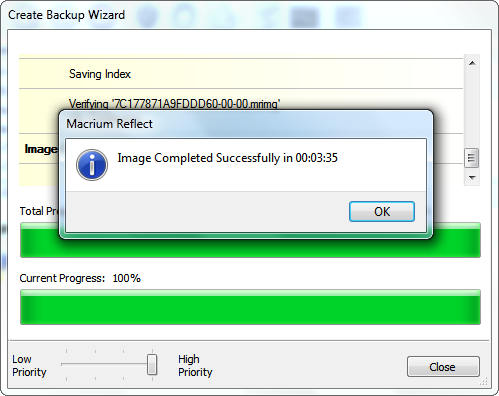
Same here because Macrium Reflect is extremely reliable in that it has never failed me, its very simple to use, and its extremely fast at backing up the 22 GB on my C drive in 3 minutes and 35 seconds at speeds in excess of 650 Mbps!

~Maxx~
 

My Computer My Computer

Computer Manufacturer/Model Number
HP HPE 270f
OS
Windows 7 x64 Home Premium
CPU
Intel Core i7 930 @ 2.8 Ghz Socket 1366 LGA
Motherboard
Pegatron Truckee v1.04E41
Memory
8 GB 1366 Mhz DDR3 (PC3-10700) RAM
Graphics Card(s)
ATI Radeon 5770 1 GB DDR5 RAM
Sound Card
Realtech High Definition
Monitor(s) Displays
32" Sony Bravia
Screen Resolution
1366 X 768
Hard Drives
Intel 25nm 120 GB Series 320 SSD HD Tune- 265 MBps Read/ 130 MBps Write

LaCie 1TB + 1TB RAID 0 eSATA Drive HD Tune- 160 MBps Read/ 90 MBps Write
Keyboard
Logitech Illuminated
Mouse
Logitech MX Revolution
Internet Speed
36.4 Mbps Maximum on a 37 Mbps Motorola SB501 Modem

My Computer My Computer

Computer type
PC/Desktop
Computer Manufacturer/Model Number
Self Built
OS
Windows 7 Home Premium x32 SP1
CPU
x2 2.6 GHz
Motherboard
Asus
Memory
A-Data 2GB DDR2-800
Graphics Card(s)
ATI X1250
Sound Card
SB 5.1 Live!
Hard Drives
WD and Seagate FAP
PSU
Tagan TG-480-U01
Keyboard
BTC 6300
Mouse
Logitech VX Nano
Antivirus
None
Hi

First post here.

I've been browsing the forum for a wee while and I've got plenty of useful advice, particularly in regards to getting rid of McAfee and using MSE and MBAM instead.

I have a quick question as a Win7 noob about sytem images.

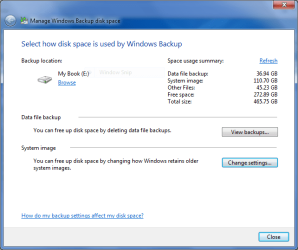
My computer is set to back up to an external drive once a week using Windows Backup and my understanding is that this includes a system image. I've attached a screenshot to show what I mean.

My question is, is this the same type of image as is being discussed in this thread and would this restore me to a current working system if needed?

Thanks
 

Attachments

  • Backup Window.PNG
    Backup Window.PNG
    22.5 KB · Views: 10

My Computer My Computer

OS
Windows 7 64bit
It looks like you have 110GBs worth of images and another 36GBs worth of file backups. If those files reside on the OS partition, then seperate backups would not reall be required. They are part of the images. The only problem is that the Windows7 imaging facility makes it awkward to mount them. That is why I prefer free Macrium which is a lot easier to understand and to operate.
However, if your data is in a seperate data partition (which is highly recommended), then you need to backup that data seperately - either with data backup or with an image of the data partition.

To answer your question about restoration I always recommend to make at least one trial run to make sure it works correctly. For that I create a little test partition which I image and restore. That way I do not risk to srew up the system.
 

My Computer My Computer

Computer Manufacturer/Model Number
HP, Dell, Gateway, Toshiba - 4 laptops and 2 desktops
OS
Vista, Windows7, Mint Mate, Zorin, Windows 8
CPU
from 1.6GHz Duo to i7
Monitor(s) Displays
2x HP w2207
Hard Drives
5x HDD, 7x SSD, 12x Externals
Keyboard
with trackball - no mices
Mouse
Trackball mice
Internet Speed
DSL 6000
It looks like you have 110GBs worth of images and another 36GBs worth of file backups. If those files reside on the OS partition, then seperate backups would not reall be required. They are part of the images. The only problem is that the Windows7 imaging facility makes it awkward to mount them. That is why I prefer free Macrium which is a lot easier to understand and to operate.
However, if your data is in a seperate data partition (which is highly recommended), then you need to backup that data seperately - either with data backup or with an image of the data partition.

To answer your question about restoration I always recommend to make at least one trial run to make sure it works correctly. For that I create a little test partition which I image and restore. That way I do not risk to srew up the system.

Thanks for the reply.

I've done a little bit of reading in the interim and it looks as though I do indeed have a system image and separate file backups beyond that. It seems to be set that way to allow me to restore all or some files without having to restore from a system image, which suits me fine.

Thanks again for the help, this thread has been very useful.
 

My Computer My Computer

OS
Windows 7 64bit
Hi all
OF COURSE you should always backup your system and data -- but be aware of a little problem which will catch the unwary out.

If you image the system (or at least the OS partition) using non MS software such as Acronis / Macrium etc. etc. there is often a hidden small SYSTEM partition.

On restore you might get a BSOD on booting up the system.

Don't panic however as booting from the OS install disk and running the REPAIR option will fix this.

The problem is caused by a change in W7 to the boot manager. Nothing to be worried about but if you DO get this symptom then it's easily fixed.

On installing W7 for the first time I would allocate THE WHOLE DISK to have a SINGLE partition so the OS install won't then t create this hidden system partition.

After I've installed the OS I would then use something like GPARTED to "shrink" the OS partition to say around 30 - 40 GB for W7 and then have my DATA on other partitions which I could then create from the free space released.

Cheers
jimbo
 

My Computer My Computer

Computer type
PC/Desktop
Computer Manufacturer/Model Number
Custom built, several laptops HP/ASUS
OS
Linux CENTOS 7 / various Windows OS'es and servers
CPU
Intel i7 Intel i5
Memory
8GB, 16GB
Graphics Card(s)
On Motherboard
Sound Card
Realtek HD audio
Monitor(s) Displays
Apple Cinema display, Samsung LCD
Screen Resolution
1920 X 1080
Hard Drives
4 X 1TB SATA
Mouse
Toshiba wireless laser
Internet Speed
> 20MB up
If you image the system (or at least the OS partition) using non MS software such as Acronis / Macrium etc. etc. there is often a hidden small SYSTEM partition.

Acronis can see the System Reserved Partition even if it doesn't have a drive letter. As long as you make sure you include it in the Image (when it asks you what to back up) then there shouldn't be any issues.
 

My Computer My Computer

Computer type
PC/Desktop
Computer Manufacturer/Model Number
Medion Erazer (note to self: insert model number) - with custom additions
OS
Windows 10 Pro x64
CPU
Intel Core i5 7400 @ 3.00GHz
Motherboard
OEM supllied with PC
Memory
8GB 2133Mhz DDR4 (OEM supplied)
Graphics Card(s)
Gygabyte Windforce GTX 1050Ti (Factory Overclocked)
Sound Card
Realtek
Monitor(s) Displays
Acer Al1980 + HKC
Screen Resolution
1360*768(HKC) / 1280*1024(Acer)
Hard Drives
1TB Toshiba
1TB WD Caviar Green
120GB Samsung Evo 840
PSU
OEM supplied (no power rating on case)
Case
OEM Supplied
Cooling
Stock
Keyboard
Logitech Wireless
Mouse
Logitect Wireless
Internet Speed
40Mb/s Down 10Mb/s Up
Antivirus
Defender
Browser
Firefox
Hi there
Even when you include this in the backup the system will sometimes BSOD on bootup after restore --so that's why I added the warning and how to avoid the problem altogether.

Of course if you DON'T experience the problem then fine -- but I've taken over 500 backups of various W7 versions types over the last few months so have experienced all sorts of "hiccups".

Better to be prepared than rely on a backup and then get stuck with no internet / google on how to fix.

Where the problem manifests itself frequently is if you are MOVING the OS to a different HDD (You've replaced a disk or you've altered the boot sequence to a new "C" drive) or you have adjusted the sizes of partitions before restoring.

The system partition as far as I can see contains some fixed physical pointers so if you've changed the partition geometry then these pointers are hosed up.

System Repair from the OS install DVD will fix these.

Cheers
jimbo
 

My Computer My Computer

Computer type
PC/Desktop
Computer Manufacturer/Model Number
Custom built, several laptops HP/ASUS
OS
Linux CENTOS 7 / various Windows OS'es and servers
CPU
Intel i7 Intel i5
Memory
8GB, 16GB
Graphics Card(s)
On Motherboard
Sound Card
Realtek HD audio
Monitor(s) Displays
Apple Cinema display, Samsung LCD
Screen Resolution
1920 X 1080
Hard Drives
4 X 1TB SATA
Mouse
Toshiba wireless laser
Internet Speed
> 20MB up
Ahh really? didn't know that :) Always good to know, I haven't had that particular issue :)

Thanks for the heads up jimbo
 

My Computer My Computer

Computer type
PC/Desktop
Computer Manufacturer/Model Number
Medion Erazer (note to self: insert model number) - with custom additions
OS
Windows 10 Pro x64
CPU
Intel Core i5 7400 @ 3.00GHz
Motherboard
OEM supllied with PC
Memory
8GB 2133Mhz DDR4 (OEM supplied)
Graphics Card(s)
Gygabyte Windforce GTX 1050Ti (Factory Overclocked)
Sound Card
Realtek
Monitor(s) Displays
Acer Al1980 + HKC
Screen Resolution
1360*768(HKC) / 1280*1024(Acer)
Hard Drives
1TB Toshiba
1TB WD Caviar Green
120GB Samsung Evo 840
PSU
OEM supplied (no power rating on case)
Case
OEM Supplied
Cooling
Stock
Keyboard
Logitech Wireless
Mouse
Logitect Wireless
Internet Speed
40Mb/s Down 10Mb/s Up
Antivirus
Defender
Browser
Firefox
If you have the little 100MB partition as active boot partition, you need to image that only once - for the case when the disk hardware itself goes south. But as long as the disk runs well, there is no need to restore this partition. You need to only restore the OS partition. Just make sure you select "Do not restore MBR" during the restoration. Like e.g. here in Macrium:
 

Attachments

  • 2010-03-25_1807.png
    2010-03-25_1807.png
    141.5 KB · Views: 3

My Computer My Computer

Computer Manufacturer/Model Number
HP, Dell, Gateway, Toshiba - 4 laptops and 2 desktops
OS
Vista, Windows7, Mint Mate, Zorin, Windows 8
CPU
from 1.6GHz Duo to i7
Monitor(s) Displays
2x HP w2207
Hard Drives
5x HDD, 7x SSD, 12x Externals
Keyboard
with trackball - no mices
Mouse
Trackball mice
Internet Speed
DSL 6000
Why would you only image the 100mb partition once? Why not do it every time? I understand it doesn't change much...but it's tiny, has next to nothing in it, and takes up about 0.000000001% of your total backup space.
 

My Computer My Computer

Computer Manufacturer/Model Number
Self-Built in July 2009
OS
Windows 7 Ultimate x64
CPU
Intel Q9550 2.83Ghz OC'd to 3.40Ghz
Motherboard
Gigabyte GA-EP45-UD3R rev. 1.1, F12 BIOS
Memory
8GB G.Skill PI DDR2-800, 4-4-4-12 timings
Graphics Card(s)
EVGA 1280MB Nvidia GeForce GTX570
Sound Card
Realtek ALC899A 8 channel onboard audio
Monitor(s) Displays
23" Acer x233H
Screen Resolution
1920x1080
Hard Drives
Intel X25-M 80GB Gen 2 SSD
Western Digital 1TB Caviar Black, 32MB cache. WD1001FALS
PSU
Corsair 620HX modular
Case
Antec P182
Cooling
stock
Keyboard
ABS M1 Mechanical
Mouse
Logitech G9 Laser Mouse
Internet Speed
15/2 cable modem
Other Info
Windows and Linux enthusiast. Logitech G35 Headset.
Why would you only image the 100mb partition once? Why not do it every time? I understand it doesn't change much...but it's tiny, has next to nothing in it, and takes up about 0.000000001% of your total backup space.
Because it never changes at all. It is an unneccesary additional step. I appreciate the minute space requirement, but why bother. The same goes for the system recovery partition - if you want to protect that from a hardware failure, image it once - and once only.
 

My Computer My Computer

Computer Manufacturer/Model Number
HP, Dell, Gateway, Toshiba - 4 laptops and 2 desktops
OS
Vista, Windows7, Mint Mate, Zorin, Windows 8
CPU
from 1.6GHz Duo to i7
Monitor(s) Displays
2x HP w2207
Hard Drives
5x HDD, 7x SSD, 12x Externals
Keyboard
with trackball - no mices
Mouse
Trackball mice
Internet Speed
DSL 6000
Good tip Jimbo45.

I think the failure to boot issue may be due to Imaging just the OS partition?


I bring this up because, I have never had a boot issue w/Acronis personally.

But, My OS is on a 40GB SSD, and I do a complete disk Image of that drive..

This method images the entire disk as is:
All Partitions incl. the hidden 100MB, Alignment, Disk Signature, .. everything.

We all may have slightly different methods, but I find just doing the entire disc rather than partition is much easier.
Although this may not always be practical for all setups.


But I have seen the exact issue Jimbo45 describes if just the OS partition is imaged.
And as mentioned, easily remedied however.
 

My Computer My Computer

Computer Manufacturer/Model Number
Custom (Self Build)
OS
Windows 7 Home Premium 64bit
CPU
Intel Core i7 2700k
Motherboard
eVGA P67 SLI
Memory
8GB Mushkin Redline Ridgebacks @1866
Graphics Card(s)
EVGA GTX570 SC
Sound Card
XiFi Titanium HD
Monitor(s) Displays
LG W2453V
Screen Resolution
1920x1080
Hard Drives
Intel 320 80GB -- Intel X25-V 40GB --WD Black 1TB x2 -- WD Blue 640GB
PSU
Seasonic x750
Case
Corsair 600T SE White
Cooling
eVGA Superclocked CPU Cooler
Keyboard
Saitek Cyborg
Antivirus
Kaspersky
Browser
IE
Other Info
LG BD/DVD
Because it never changes at all. It is an unneccesary additional step.
Maybe I am wrong, but don't you simply check 1 additional box when you create your backup set? So, the additional step is 2 clicks instead of one????

I appreciate the minute space requirement, but why bother.
Because in that rare case that you do need to restore your MBR or that partition does get whacked, you have it in your most recent backup already...rather than having to hunt down the backup which contains it. This way the screenshot shown above detailing what to do with the MBR is really no longer an issue. You can choose whichever option and all will be fine. So why??? Simplicity really.
 

My Computer My Computer

Computer Manufacturer/Model Number
Self-Built in July 2009
OS
Windows 7 Ultimate x64
CPU
Intel Q9550 2.83Ghz OC'd to 3.40Ghz
Motherboard
Gigabyte GA-EP45-UD3R rev. 1.1, F12 BIOS
Memory
8GB G.Skill PI DDR2-800, 4-4-4-12 timings
Graphics Card(s)
EVGA 1280MB Nvidia GeForce GTX570
Sound Card
Realtek ALC899A 8 channel onboard audio
Monitor(s) Displays
23" Acer x233H
Screen Resolution
1920x1080
Hard Drives
Intel X25-M 80GB Gen 2 SSD
Western Digital 1TB Caviar Black, 32MB cache. WD1001FALS
PSU
Corsair 620HX modular
Case
Antec P182
Cooling
stock
Keyboard
ABS M1 Mechanical
Mouse
Logitech G9 Laser Mouse
Internet Speed
15/2 cable modem
Other Info
Windows and Linux enthusiast. Logitech G35 Headset.
Because it never changes at all. It is an unneccesary additional step.

For me at least, only doing it once is actually an "additional unneccesary step" I literally set up my backups once,
tell Acronis to image System Reserved along with C every Sunday at 19.00Hrs, make 3 incremental backups before deleting all backups and making a new full backup (so once a month I get a fresh backup).

For me, removing "System Reserved" from the drives to be imaged would actually be more effort, because once it's done, I just let it do its thing, and remind myself not to do anything particularly intensive on a Sunday evening.

Course we all have our own way of doing it, and whats right for me isn't right for everyone else.

Doesn't Windows built in imaging automatically image System Reserved too? its been a while since I used it, can't remember.
 

My Computer My Computer

Computer type
PC/Desktop
Computer Manufacturer/Model Number
Medion Erazer (note to self: insert model number) - with custom additions
OS
Windows 10 Pro x64
CPU
Intel Core i5 7400 @ 3.00GHz
Motherboard
OEM supllied with PC
Memory
8GB 2133Mhz DDR4 (OEM supplied)
Graphics Card(s)
Gygabyte Windforce GTX 1050Ti (Factory Overclocked)
Sound Card
Realtek
Monitor(s) Displays
Acer Al1980 + HKC
Screen Resolution
1360*768(HKC) / 1280*1024(Acer)
Hard Drives
1TB Toshiba
1TB WD Caviar Green
120GB Samsung Evo 840
PSU
OEM supplied (no power rating on case)
Case
OEM Supplied
Cooling
Stock
Keyboard
Logitech Wireless
Mouse
Logitect Wireless
Internet Speed
40Mb/s Down 10Mb/s Up
Antivirus
Defender
Browser
Firefox
Although I do use system imaging from time to time, with as fast as it is to load an operating system these days and the fact that I keep my data backed up separately, I don't find that imaging is an absolute necessity. For most people though, who don't want to go through the hassle or put in the effort, this makes sense and should be strongly considered.


Hi there PParks
While it IS true that re-installing an OS is very fast these days the problem comes in re-installing your applications such as say Photoshop CS5 etc.

You have to go through the trouble of finding all your serial numbers and also ALL THE UPDATES to the product since you initially installed it.

My DATA is always on separate drives -- so are things like Database stuff but applications usually are installed within Windows so all the entries such as .exe, .dll and registry entries are on your "C" or OS drive. You don't want the registry to get out of sync with your application.

I suggest like the consensus on this thread that it IS a good idea to Image your system regularly -- and of course back up your OTHER data too.

Cheers
jimbo
 

My Computer My Computer

Computer type
PC/Desktop
Computer Manufacturer/Model Number
Custom built, several laptops HP/ASUS
OS
Linux CENTOS 7 / various Windows OS'es and servers
CPU
Intel i7 Intel i5
Memory
8GB, 16GB
Graphics Card(s)
On Motherboard
Sound Card
Realtek HD audio
Monitor(s) Displays
Apple Cinema display, Samsung LCD
Screen Resolution
1920 X 1080
Hard Drives
4 X 1TB SATA
Mouse
Toshiba wireless laser
Internet Speed
> 20MB up
Yes, I do understand the benefits of imaging a machine. In fact, I use Acronis True Image Home 2010 at home myself and use a combination of Macrium and EaseUsToDo Backup for a couple of lab boxes that I use at work. But I also don't install much software and next to nothing is licensed (only Acronis and my games...everything else I use is open source or freeware)...so the setting back up part for me is relatively easy. Clearly this is a bit different than most other people and I did acknowledge that for most.....doing an image is a wise idea.

In retrospect, I guess I probably would have refrained from making that original post as I clearly was just debating the concept of necessity rather than good idea.
 

My Computer My Computer

Computer Manufacturer/Model Number
Self-Built in July 2009
OS
Windows 7 Ultimate x64
CPU
Intel Q9550 2.83Ghz OC'd to 3.40Ghz
Motherboard
Gigabyte GA-EP45-UD3R rev. 1.1, F12 BIOS
Memory
8GB G.Skill PI DDR2-800, 4-4-4-12 timings
Graphics Card(s)
EVGA 1280MB Nvidia GeForce GTX570
Sound Card
Realtek ALC899A 8 channel onboard audio
Monitor(s) Displays
23" Acer x233H
Screen Resolution
1920x1080
Hard Drives
Intel X25-M 80GB Gen 2 SSD
Western Digital 1TB Caviar Black, 32MB cache. WD1001FALS
PSU
Corsair 620HX modular
Case
Antec P182
Cooling
stock
Keyboard
ABS M1 Mechanical
Mouse
Logitech G9 Laser Mouse
Internet Speed
15/2 cable modem
Other Info
Windows and Linux enthusiast. Logitech G35 Headset.
If you have the little 100MB partition as active boot partition, you need to image that only once - for the case when the disk hardware itself goes south. But as long as the disk runs well, there is no need to restore this partition. You need to only restore the OS partition. Just make sure you select "Do not restore MBR" during the restoration.

This is the assumption I was going on because that is how I restored my Vista computer many times, but yesterday morning when I went to use Reflect v4.2.2866 x64 on my Win 7 x64 desktop for the first time I chose "Do not Restore MBR" and the restore went flawlessly as is usual until I went to restart the computer and I got this message which I took a photograph of...

ReflectFailed.jpg


After this frightful experience which is the very first time Macrium Reflect has ever failed me I am looking to the following advise from jimbo45 to avoid having this problem again which I am quite sure was because either I did not replace the MBR or did not include it when I created the backup image in Reflect.

Hi all
OF COURSE you should always backup your system and data -- but be aware of a little problem which will catch the unwary out.

If you image the system (or at least the OS partition) using non MS software such as Acronis / Macrium etc. etc. there is often a hidden small SYSTEM partition.


On restore you might get a BSOD on booting up the system.

Don't panic however as booting from the OS install disk and running the REPAIR option will fix this.

The problem is caused by a change in W7 to the boot manager. Nothing to be worried about but if you DO get this symptom then it's easily fixed.

Cheers
jimbo

In the end I successfully restored the computer from the 24 GB Win 7 System Image Backup that had been made just 2 days earlier and I was very impressed with how quickly and precisely the process went.

I am a little confused though over the disparity of opinions about how to successfully restore Win 7 from a Macrium Reflect Backup Image in that I have found out what doesn't work, but I am still unclear as to exactly what process does work. With Win 7 should I back up the 100 MB active boot partition along with the OS and restore them together, or can I simply select Restore MBR for a successful Image restore with Macruim Reflect???

~Maxx~
 

My Computer My Computer

Computer Manufacturer/Model Number
HP HPE 270f
OS
Windows 7 x64 Home Premium
CPU
Intel Core i7 930 @ 2.8 Ghz Socket 1366 LGA
Motherboard
Pegatron Truckee v1.04E41
Memory
8 GB 1366 Mhz DDR3 (PC3-10700) RAM
Graphics Card(s)
ATI Radeon 5770 1 GB DDR5 RAM
Sound Card
Realtech High Definition
Monitor(s) Displays
32" Sony Bravia
Screen Resolution
1366 X 768
Hard Drives
Intel 25nm 120 GB Series 320 SSD HD Tune- 265 MBps Read/ 130 MBps Write

LaCie 1TB + 1TB RAID 0 eSATA Drive HD Tune- 160 MBps Read/ 90 MBps Write
Keyboard
Logitech Illuminated
Mouse
Logitech MX Revolution
Internet Speed
36.4 Mbps Maximum on a 37 Mbps Motorola SB501 Modem
Back
Top