System Reserved : Create Using Disk Management

Create the New Windows 7 System Reserved Partition Using Windows Disk Management

This information can be used to create the Windows 7 System Reserved partition after you have installed Windows using only Windows native disk management.

The main advantage of the System Reserved partition, it adds a link to WinRE (Windows Recovery Environment) to the F8 advanced boot options in Windows 7 that can be accessed during PC startup to repair startup errors if a Windows installer or a system repair disk isn't available for use; it also creates a central location to store the boot files needed to start Windows in a dual/multi boot situation and that makes it very easy to replace/remove a single OS when needed.

There must be at least one (1) Primary partition for creation/use as the System Reserved partition will not function as intended from an Extended partition; for further information on this requirement see Option Two #2 below.
   Warning

As with anything that makes changes to the Windows structure there is always the chance for an error to occur, it would be advisable to make reliable backups to the media of your choice of any important data, i.e. pictures, music or documents, that you would not want to lose before you attempt any of the methods out-lined here, it is always better to be safe than sorry.

Let's get started!

Have a look at this tutorial before you start this for an alternative method.

System Reserved : Create for Dual Boot


Option One

Create the Windows 7 Syetem Reserved Partition


In the Windows start menu search box type diskmgmt.msc right click the entry and click "Run as Administrator" if you get a User Account Control (UAC) prompt enter your user credentials and click Yes.

1) In the disk management window and assuming you have created or already have unallocated space to start with, right click that space and click New Simple Volume then Next for the first "Wizard" dialog box.
click any image to enlarge
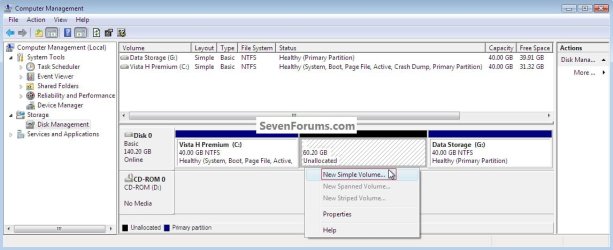
NewSimpleVolume.jpg
2) In the "Specify Volume Size" box type 200 for the size to create and click Next.

The reason for suggesting to create the System Reserved at 200MB instead of the new default of 100MB is an attempt to curb some of the issues we're now seeing with the partition being too small when dual/multi booting and it also being needed for use with the Windows 7 Backup and Restore and BitLocker programs.
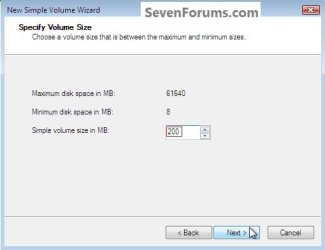
Size.jpg
3) In the "Assign Drive Letter" box do not assign a drive letter and click Next.
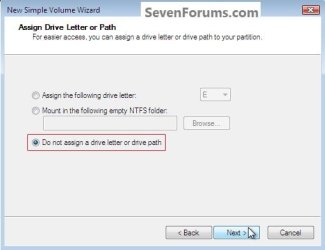
Assign.jpg
4) In the "Format" box at the "Volume Label" line type System Reserved and do not put a check/tic at the "quick" box and click Next
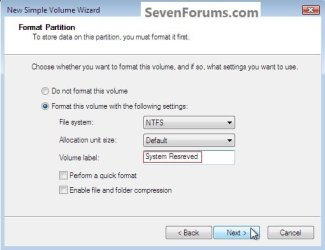
Label.jpg
5) At the last "Completing" wizard dialog box click Finish to complete the process.


Option Two

Install a second Windows Operating System


1) Now if you want to install a second Windows OS using the remaining unallocated space it's a very easy process; create this partition in the same way you created the SysResv partition; when you get to the "Specify Volume Size" dialog box click Next to accept the offered size or you can choose to create a specific size; for this one you can assign the next available drive letter; then at the "Format" box you would use a Label (name) that you choose like Windows 7 or whatever you like and click Finish for the last "Wizard" dialog box.
click any image to enlarge
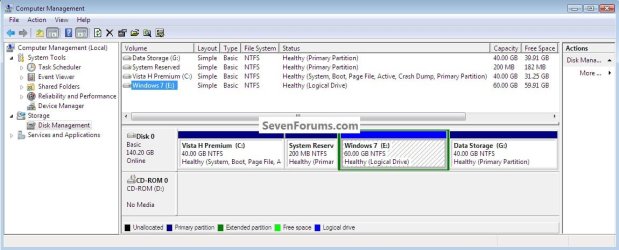
W_7Logical.jpg
2) If there are already three (3) existing Primary partitions Windows will only create the fourth partition as an Extended partition, if you end up with an Extended/Logical drive, you can choose to do the Windows installation to the Logical drive and there will be no issues at all if you do and it can always be converted to a Primary partition at a later time if you choose.

For further information on the creation and use of Extended partition / Logical drives, have a look at this tutorial and its related links listed below.

System Reserved : Multi Boot from Logical Partitions

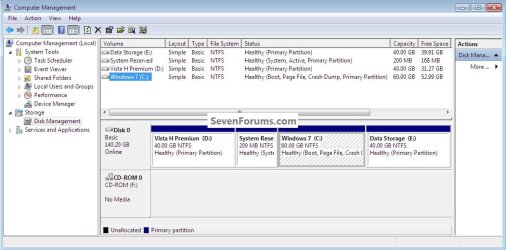
3) Strictly for demonstration purposes here, I'm going to use the free Partition Wizard bootable disk (PWBD) to convert the Extended to a Primary partition before the Windows installation so that I will have four (4) Primary partitions, for an out-line of the process see Option Four in this tutorial.

Partition Wizard : Use the Bootable CD
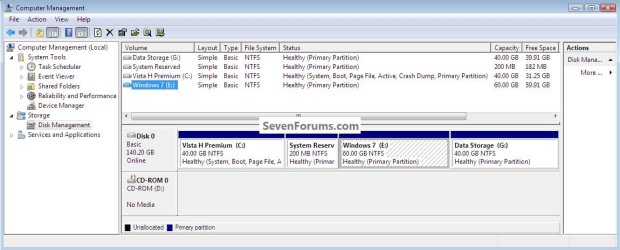
W_7Primary.jpg
SetPrimary.jpg
Method One: Install Windows 7 / Vista

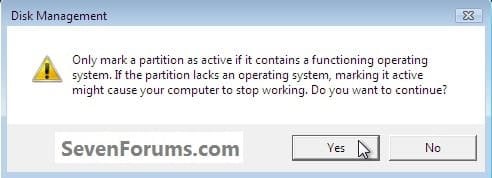
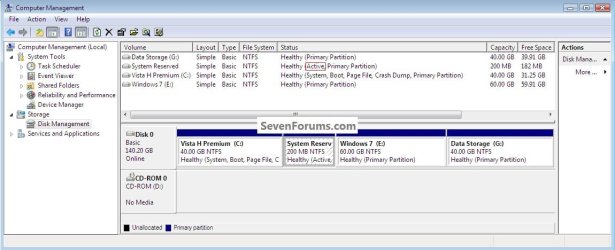
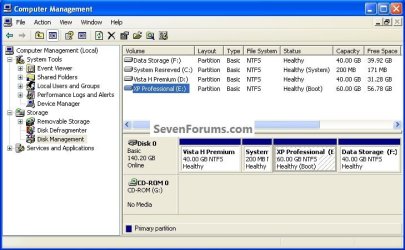
1) The first thing is to mark the "System Reserved" partition as "Active" so Windows will know where to create the system volume, where the system boot files are stored; in Windows disk management right click the SysResv partition and click "Mark as Active" then Yes for the conformation dialog box, the third snip is what you will have.
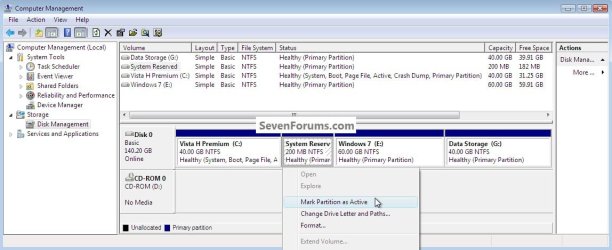
SRW_7MarkActive.jpg
ActiveYes.jpg
SRActive2.jpg
2) Now insert the Windows install media into the Optical Disk Drive and restart the PC to set the first boot device as the ODD in the BIOS and install Windows 7 to the created "Windows 7" partition.

You will want to do a clean install choosing the "Custom (advanced)" not the "Upgrade" option, when you are presented with this "Where do you want ... " dialog box click to choose the created "Windows 7" partition and click next; do not use the installer to format anything.
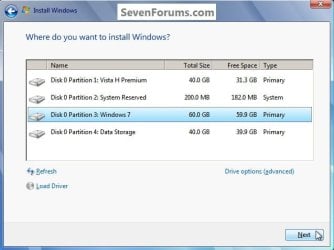
W_7Choose.jpg
3) Here's the end result.
BootW_7.jpg
4) You will have to use EasyBCD from within Windows 7 to add an entry for Vista to the Windows boot (dual boot) menu but that's the easiest part of this process.
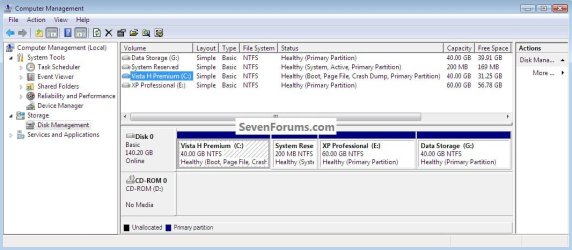
BootVista.jpg
Vista.jpg
Method Two: Install Windows XP

The XP partition has to remain the system volume for the installation process or it will cause all sorts of issues that have to be corrected before XP will boot correctly in conjunction with the use of the "System Reserved" partition in a dual/multi boot configuration; this method is only possible using a Primary partition, it is not possible using an Extended/Logical drive.

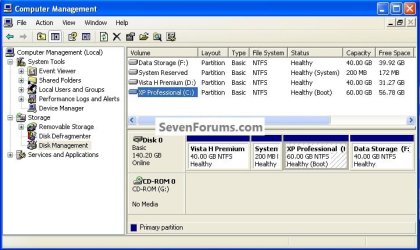
1) Use the same methods above to create both the SysResv and a partition to install XP to; right click the created XP partition and click "Mark as Active" then Yes for the conformation dialog box.
click any image to enlarge
XPMarkActive.jpg
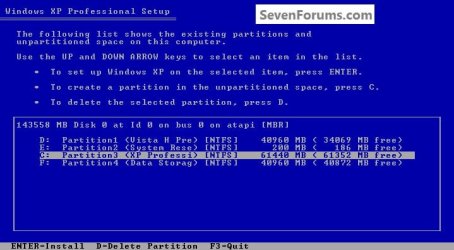
2) Now insert the Windows install media into the Optical Disk Drive and restart the PC to set the first boot device as the ODD in the BIOS and install Windows XP to the created "XP Professional" partition; do not use the installer to format anything.
XPChoose.jpg
When XP starts, these next steps have to be done and done in this order to get XP and whichever OS (Vista / Windows7) you're dual booting to boot correctly so you won't have issues later.

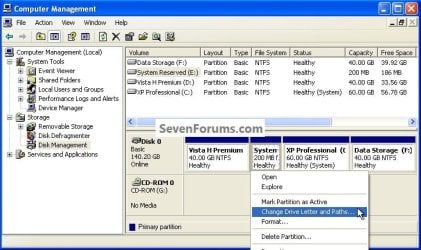
3) In Windows XP disk management, right click the "System Reserved" partition and click "Change Drive Letter" then in the dialog box that opens click "Remove" then Yes for the "Confirm" dialog box.
XPRemoveLetter.jpg
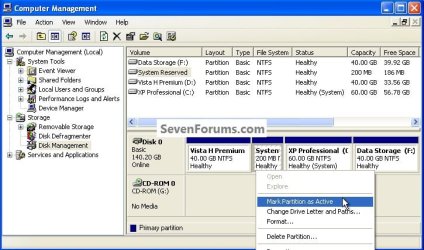
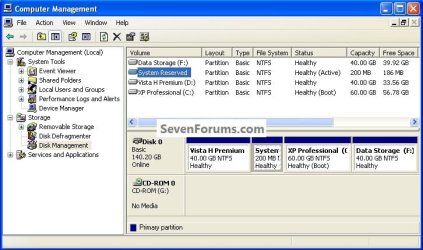
4) Now right click the SysResv partition and click "Mark as Active" then Yes for the "Disk Management" conformation dialog box; the second snip is what you should have.
SysResvMarkActive.jpg
SysResvActive.jpg
5) Now put a Windows 7 / Vista full installer DVD or a created repair disk into the Optical Disk Drive (ODD) and restart the PC, at the BIOS select the ODD as the first boot device and run the 3 separate startup repairs with a system restart between each repair to create the boot files needed to start the dual boot to the "System Reserved" partition; information on the entire process can be viewed at these tutorials below.

Startup Repair - Run 3 Separate Times

How to Run a Startup Repair in Windows 7
BootVista.jpg
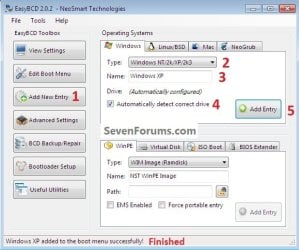
6) One last step; you will have to use EasyBCD from within Vista / Windows 7 to add an entry for XP to the Windows boot (dual boot) menu to get back to XP but that's the easiest part of this process.
BootXP.jpg
XPAdd.jpg
Enjoy :)


Attachments

  • XPBoot.jpg
    XPBoot.jpg
    196.5 KB · Views: 30
Last edited by a moderator:

My Computer

Computer type
PC/Desktop
Computer Manufacturer/Model Number
Custom Build
OS
Windows 7 Professional SP1 - x64 [Non-UEFI Boot]
CPU
Ivy Bridge Core i5 3570K (Delidded)
Motherboard
Asus P8Z77-V LE PLUS
Memory
G.Skill "Ares" DDR3 PC3-12800 - 1600MHz (16Gb)
Graphics Card(s)
Asus Dual-RX480-O4G
Sound Card
Creative Sound Blaster Z w/5.1 sound system
Monitor(s) Displays
Asus IPS 23"
Screen Resolution
16/9
Hard Drives
Internal:
500Go Sata 6Gb/s (x2)
500Go Sata 3Gb/s (x2)
SSD 60Go Sata 6Gb/s
PSU
In Win C 900W Series 80+ Platinum
Case
Thermaltake Chaser A71
Cooling
Custom Water Cooling Loop
Keyboard
Cooler Master QuickFire XTi
Mouse
Razer Imperator 2012 (4G)
Antivirus
MSE
Browser
IE 11.0.xxx Rtm
Other Info
"Raid0" with Intel Smart Response Technology (HDD/SSD)
Hello.


May I ask you a few questions first?


1) Do you have a set of factory recovery disks?
No

2) Is it a factory installation of Windows 7?
No. Last week I reinstalled Windows 7 Home Premium using a retail disk and the key on the bottom of my laptop

3) Have you altered the partition structure?
After installing Windows 7, no. I have before though, that was before I reinstalled Windows 7

4) Do you have actual Windows 7 installation media?
Yes, a Retail DVD of Windows 7

I believe you could trim down the size of the 'recovery' partition and create an actual System Reserved partition in its place.

I know that can't be a recovery partition from Toshiba, because I already had a 10 GB partition labeled "Recovery", but after I messed with the partition layout (I installed Ubuntu), it was no longer useful and when I reinstalled Windows 7, I took off that partition and formatted the partition that Windows 7 was installed and reinstalled it in that same partition.
 

My Computer

Computer Manufacturer/Model Number
Toshiba
OS
Windows 7 Home Premium x64
CPU
AMD
Memory
4 GB
Graphics Card(s)
ATI Radeon Intergrated Graphics
Sound Card
Realtek
Screen Resolution
1366 X 768
Hard Drives
223 GB HDD
I know that can't be a recovery partition from Toshiba, because I already had a 10 GB partition labeled "Recovery", but after I messed with the partition layout (I installed Ubuntu), it was no longer useful and when I reinstalled Windows 7, I took off that partition and formatted the partition that Windows 7 was installed and reinstalled it in that same partition.
If you want to recover all the space on the HDD and create the SysResv at the suggested 200MB, have a look at this information, it would be more useful to do it this way after you have made back-ups of any data you need to save.


After you have copied out or made back-ups of the data you need to save to external media, use Step One of this tutorial at the link below to do a wipe (secure erase) to the entire Hard Disk Drive / Solid State Drive.
  • Then if you do not want to create the new Windows 7 "System Reserved" partition use the outline in Step Two #2 to create, format and mark Active a single 100GB partition to do the installation to.
  • If you do want to create the "System Reserved" partition use the outline in Step Two #3 to create, format and mark Active the System Reserved partition and then create and format the 100GB partition to do the installation to.
Either way, running the "clean all" then creating and formatting the partition(s) using diskpart will get you the best possible space to do a clean install of Windows 7 to; you can always extend the Windows partition to include the remaining unallocated space on the HDD / SSD or create additional Primary partitions or an Extended partition after the installation completes if you choose.

SSD / HDD : Optimize for Windows Reinstallation

DISKPART : At PC Startup
 

My Computer

Computer Manufacturer/Model Number
* BFK Customs *
OS
W 7 64-bit Ultimate
CPU
Intel Q9550 Yorkfield
Motherboard
ASUS P5Q Pro
Memory
8GB Dominator 8500C5D
Graphics Card(s)
ATI : XFX 5870
Sound Card
Realtek HD Audio 7-1
Monitor(s) Displays
1x 47" LCD HDMI & 3x 26" LCD HDMI
Screen Resolution
1920x1080P & 1920x1200
Hard Drives
1x 80GB Intel X25-M G2 SSD : 1x 500GB & 1x 640GB WD Caviar Black(s)
PSU
Corsair 620HX
Case
Cooler Master RC-690
Cooling
Tuniq Tower 120, 2x 140mm and 3x 120mm case fans
Keyboard
Microsoft 500
Mouse
Razer Diamondback 3G
Internet Speed
14 Mb/s
Other Info
1x Koutech 3Gb/s SATA HDD Hot Swap Rack
If you want to recover all the space on the HDD and create the SysResv at the suggested 200MB, have a look at this information, it would be more useful to do it this way after you have made back-ups of any data you need to save.


After you have copied out or made back-ups of the data you need to save to external media, use Step One of this tutorial at the link below to do a wipe (secure erase) to the entire Hard Disk Drive / Solid State Drive.
  • Then if you do not want to create the new Windows 7 "System Reserved" partition use the outline in Step Two #2 to create, format and mark Active a single 100GB partition to do the installation to.
  • If you do want to create the "System Reserved" partition use the outline in Step Two #3 to create, format and mark Active the System Reserved partition and then create and format the 100GB partition to do the installation to.
Either way, running the "clean all" then creating and formatting the partition(s) using diskpart will get you the best possible space to do a clean install of Windows 7 to; you can always extend the Windows partition to include the remaining unallocated space on the HDD / SSD or create additional Primary partitions or an Extended partition after the installation completes if you choose.

SSD / HDD : Optimize for Windows Reinstallation

DISKPART : At PC Startup

So I would have to reinstall Windows?
 

My Computer

Computer Manufacturer/Model Number
Toshiba
OS
Windows 7 Home Premium x64
CPU
AMD
Memory
4 GB
Graphics Card(s)
ATI Radeon Intergrated Graphics
Sound Card
Realtek
Screen Resolution
1366 X 768
Hard Drives
223 GB HDD
So I would have to reinstall Windows?


Only if you want to, it's your choice.

If you just want to create a 200MB System Reserved partition and make it the "System" partition; let's do this one step at a time.

First do you have a Windows 7 installation disk or a created repair disk that you can use?
 

My Computer

Computer Manufacturer/Model Number
* BFK Customs *
OS
W 7 64-bit Ultimate
CPU
Intel Q9550 Yorkfield
Motherboard
ASUS P5Q Pro
Memory
8GB Dominator 8500C5D
Graphics Card(s)
ATI : XFX 5870
Sound Card
Realtek HD Audio 7-1
Monitor(s) Displays
1x 47" LCD HDMI & 3x 26" LCD HDMI
Screen Resolution
1920x1080P & 1920x1200
Hard Drives
1x 80GB Intel X25-M G2 SSD : 1x 500GB & 1x 640GB WD Caviar Black(s)
PSU
Corsair 620HX
Case
Cooler Master RC-690
Cooling
Tuniq Tower 120, 2x 140mm and 3x 120mm case fans
Keyboard
Microsoft 500
Mouse
Razer Diamondback 3G
Internet Speed
14 Mb/s
Other Info
1x Koutech 3Gb/s SATA HDD Hot Swap Rack
I believe I do have a Windows 7 installation disk:D

Edit: Actually I don't know if I really need to create one since I have a installation disk that has the same options, right?
 

My Computer

Computer Manufacturer/Model Number
Toshiba
OS
Windows 7 Home Premium x64
CPU
AMD
Memory
4 GB
Graphics Card(s)
ATI Radeon Intergrated Graphics
Sound Card
Realtek
Screen Resolution
1366 X 768
Hard Drives
223 GB HDD
I believe I do have a Windows 7 installation disk:D


If you have installed the Windows 7 SP 1 the installation disk you have may not work so it would be best to use Option One in this tutorial at the link below to create one that you can use if needed.

How to Create a Windows 7 System Repair Disc


Do that and post back here and then we'll go forward.
 

My Computer

Computer Manufacturer/Model Number
* BFK Customs *
OS
W 7 64-bit Ultimate
CPU
Intel Q9550 Yorkfield
Motherboard
ASUS P5Q Pro
Memory
8GB Dominator 8500C5D
Graphics Card(s)
ATI : XFX 5870
Sound Card
Realtek HD Audio 7-1
Monitor(s) Displays
1x 47" LCD HDMI & 3x 26" LCD HDMI
Screen Resolution
1920x1080P & 1920x1200
Hard Drives
1x 80GB Intel X25-M G2 SSD : 1x 500GB & 1x 640GB WD Caviar Black(s)
PSU
Corsair 620HX
Case
Cooler Master RC-690
Cooling
Tuniq Tower 120, 2x 140mm and 3x 120mm case fans
Keyboard
Microsoft 500
Mouse
Razer Diamondback 3G
Internet Speed
14 Mb/s
Other Info
1x Koutech 3Gb/s SATA HDD Hot Swap Rack

My Computer

Computer Manufacturer/Model Number
Toshiba
OS
Windows 7 Home Premium x64
CPU
AMD
Memory
4 GB
Graphics Card(s)
ATI Radeon Intergrated Graphics
Sound Card
Realtek
Screen Resolution
1366 X 768
Hard Drives
223 GB HDD
A CD would be best, I'm just concerned that if something goes wrong and you need to do a startup repair to correct boot issues that without the correct version disk you won't be able to and you will be left with a machine that won't boot at all.
 

My Computer

Computer Manufacturer/Model Number
* BFK Customs *
OS
W 7 64-bit Ultimate
CPU
Intel Q9550 Yorkfield
Motherboard
ASUS P5Q Pro
Memory
8GB Dominator 8500C5D
Graphics Card(s)
ATI : XFX 5870
Sound Card
Realtek HD Audio 7-1
Monitor(s) Displays
1x 47" LCD HDMI & 3x 26" LCD HDMI
Screen Resolution
1920x1080P & 1920x1200
Hard Drives
1x 80GB Intel X25-M G2 SSD : 1x 500GB & 1x 640GB WD Caviar Black(s)
PSU
Corsair 620HX
Case
Cooler Master RC-690
Cooling
Tuniq Tower 120, 2x 140mm and 3x 120mm case fans
Keyboard
Microsoft 500
Mouse
Razer Diamondback 3G
Internet Speed
14 Mb/s
Other Info
1x Koutech 3Gb/s SATA HDD Hot Swap Rack
A CD would be best, I'm just concerned that if something goes wrong and you need to do a startup repair to correct boot issues that without the correct version disk you won't be able to and you will be left with a machine that won't boot at all.


What about one of the universal dvds? That's the one I have created using one of the tutorials here.
 

My Computer

Computer Manufacturer/Model Number
Toshiba
OS
Windows 7 Home Premium x64
CPU
AMD
Memory
4 GB
Graphics Card(s)
ATI Radeon Intergrated Graphics
Sound Card
Realtek
Screen Resolution
1366 X 768
Hard Drives
223 GB HDD
1) Do you have the SP 1 installed?

2) Did you create the disk before you installed the SP 1 to the system?
 

My Computer

Computer Manufacturer/Model Number
* BFK Customs *
OS
W 7 64-bit Ultimate
CPU
Intel Q9550 Yorkfield
Motherboard
ASUS P5Q Pro
Memory
8GB Dominator 8500C5D
Graphics Card(s)
ATI : XFX 5870
Sound Card
Realtek HD Audio 7-1
Monitor(s) Displays
1x 47" LCD HDMI & 3x 26" LCD HDMI
Screen Resolution
1920x1080P & 1920x1200
Hard Drives
1x 80GB Intel X25-M G2 SSD : 1x 500GB & 1x 640GB WD Caviar Black(s)
PSU
Corsair 620HX
Case
Cooler Master RC-690
Cooling
Tuniq Tower 120, 2x 140mm and 3x 120mm case fans
Keyboard
Microsoft 500
Mouse
Razer Diamondback 3G
Internet Speed
14 Mb/s
Other Info
1x Koutech 3Gb/s SATA HDD Hot Swap Rack

My Computer

Computer Manufacturer/Model Number
Toshiba
OS
Windows 7 Home Premium x64
CPU
AMD
Memory
4 GB
Graphics Card(s)
ATI Radeon Intergrated Graphics
Sound Card
Realtek
Screen Resolution
1366 X 768
Hard Drives
223 GB HDD
OK here we go. :)


First use Windows 7 disk management to shrink the 1.46GB partition to as small as it will go but not below the suggested 200MB boot partition you're trying to create.

Study this tutorial at the link below before you start so you will know how to proceed if you develop boot issues.

Startup Repair - Run 3 Separate Times

You would have to boot to diskpart to mark the Windows 7 partition as Active as outlined in Option Two #1 and do the 3 separate startup repairs to create the boot files to the Windows 7 partition, but don't do that if it is not necessary as it's a step that's not needed unless you have boot issues.
 

My Computer

Computer Manufacturer/Model Number
* BFK Customs *
OS
W 7 64-bit Ultimate
CPU
Intel Q9550 Yorkfield
Motherboard
ASUS P5Q Pro
Memory
8GB Dominator 8500C5D
Graphics Card(s)
ATI : XFX 5870
Sound Card
Realtek HD Audio 7-1
Monitor(s) Displays
1x 47" LCD HDMI & 3x 26" LCD HDMI
Screen Resolution
1920x1080P & 1920x1200
Hard Drives
1x 80GB Intel X25-M G2 SSD : 1x 500GB & 1x 640GB WD Caviar Black(s)
PSU
Corsair 620HX
Case
Cooler Master RC-690
Cooling
Tuniq Tower 120, 2x 140mm and 3x 120mm case fans
Keyboard
Microsoft 500
Mouse
Razer Diamondback 3G
Internet Speed
14 Mb/s
Other Info
1x Koutech 3Gb/s SATA HDD Hot Swap Rack
OK here we go. :)


First use Windows 7 disk management to shrink the 1.46GB partition to as small as it will go but not below the suggested 200MB boot partition you're trying to create.

Study this tutorial at the link below before you start so you will know how to proceed if you develop boot issues.

Startup Repair - Run 3 Separate Times

You would have to boot to diskpart to mark the Windows 7 partition as Active as outlined in Option Two #1 and do the 3 separate startup repairs to create the boot files to the Windows 7 partition, but don't do that if it is not necessary as it's a step that's not needed unless you have boot issues.

Ok, Thanks!

Edit: Just realised, the partition is already marked active
 

My Computer

Computer Manufacturer/Model Number
Toshiba
OS
Windows 7 Home Premium x64
CPU
AMD
Memory
4 GB
Graphics Card(s)
ATI Radeon Intergrated Graphics
Sound Card
Realtek
Screen Resolution
1366 X 768
Hard Drives
223 GB HDD

My Computer

Computer Manufacturer/Model Number
* BFK Customs *
OS
W 7 64-bit Ultimate
CPU
Intel Q9550 Yorkfield
Motherboard
ASUS P5Q Pro
Memory
8GB Dominator 8500C5D
Graphics Card(s)
ATI : XFX 5870
Sound Card
Realtek HD Audio 7-1
Monitor(s) Displays
1x 47" LCD HDMI & 3x 26" LCD HDMI
Screen Resolution
1920x1080P & 1920x1200
Hard Drives
1x 80GB Intel X25-M G2 SSD : 1x 500GB & 1x 640GB WD Caviar Black(s)
PSU
Corsair 620HX
Case
Cooler Master RC-690
Cooling
Tuniq Tower 120, 2x 140mm and 3x 120mm case fans
Keyboard
Microsoft 500
Mouse
Razer Diamondback 3G
Internet Speed
14 Mb/s
Other Info
1x Koutech 3Gb/s SATA HDD Hot Swap Rack
So its ok to resize it even though it's already marked Active?
 

My Computer

Computer Manufacturer/Model Number
Toshiba
OS
Windows 7 Home Premium x64
CPU
AMD
Memory
4 GB
Graphics Card(s)
ATI Radeon Intergrated Graphics
Sound Card
Realtek
Screen Resolution
1366 X 768
Hard Drives
223 GB HDD
So its ok to resize it even though it's already marked Active?


Yes, just do the shrink using disk management and nothing else.
 

My Computer

Computer Manufacturer/Model Number
* BFK Customs *
OS
W 7 64-bit Ultimate
CPU
Intel Q9550 Yorkfield
Motherboard
ASUS P5Q Pro
Memory
8GB Dominator 8500C5D
Graphics Card(s)
ATI : XFX 5870
Sound Card
Realtek HD Audio 7-1
Monitor(s) Displays
1x 47" LCD HDMI & 3x 26" LCD HDMI
Screen Resolution
1920x1080P & 1920x1200
Hard Drives
1x 80GB Intel X25-M G2 SSD : 1x 500GB & 1x 640GB WD Caviar Black(s)
PSU
Corsair 620HX
Case
Cooler Master RC-690
Cooling
Tuniq Tower 120, 2x 140mm and 3x 120mm case fans
Keyboard
Microsoft 500
Mouse
Razer Diamondback 3G
Internet Speed
14 Mb/s
Other Info
1x Koutech 3Gb/s SATA HDD Hot Swap Rack
OK here we go. :)


First use Windows 7 disk management to shrink the 1.46GB partition to as small as it will go but not below the suggested 200MB boot partition you're trying to create.

Study this tutorial at the link below before you start so you will know how to proceed if you develop boot issues.

Startup Repair - Run 3 Separate Times

You would have to boot to diskpart to mark the Windows 7 partition as Active as outlined in Option Two #1 and do the 3 separate startup repairs to create the boot files to the Windows 7 partition, but don't do that if it is not necessary as it's a step that's not needed unless you have boot issues.

I'm glad hearing you saying that...

i was studying that tutorial "startup repair - run 3 separate times" two days ago...and was wondering myself if it was really necessary to do it.

I've done just by curiosity a 3 startup repair (rebooting each time between repair), two days ago without marking the partition active as tutorial said.

Of course it did not find any troubleshoot during the 3 repairs. Was wondering the impact of such manner.

You made it clear to me, today...!;)
 

My Computer

Computer type
PC/Desktop
Computer Manufacturer/Model Number
Custom Build
OS
Windows 7 Professional SP1 - x64 [Non-UEFI Boot]
CPU
Ivy Bridge Core i5 3570K (Delidded)
Motherboard
Asus P8Z77-V LE PLUS
Memory
G.Skill "Ares" DDR3 PC3-12800 - 1600MHz (16Gb)
Graphics Card(s)
Asus Dual-RX480-O4G
Sound Card
Creative Sound Blaster Z w/5.1 sound system
Monitor(s) Displays
Asus IPS 23"
Screen Resolution
16/9
Hard Drives
Internal:
500Go Sata 6Gb/s (x2)
500Go Sata 3Gb/s (x2)
SSD 60Go Sata 6Gb/s
PSU
In Win C 900W Series 80+ Platinum
Case
Thermaltake Chaser A71
Cooling
Custom Water Cooling Loop
Keyboard
Cooler Master QuickFire XTi
Mouse
Razer Imperator 2012 (4G)
Antivirus
MSE
Browser
IE 11.0.xxx Rtm
Other Info
"Raid0" with Intel Smart Response Technology (HDD/SSD)
I'm glad hearing you saying that...

i was studying that tutorial "startup repair - run 3 separate times" two days ago...and was wondering myself if it was really necessary to do it.

I've done just by curiosity a 3 startup repair (rebooting each time between repair), two days ago without marking the partition active as tutorial said.

Of course it did not find any troubleshoot during the 3 repairs. Was wondering the impact of such manner.

You made it clear to me, today...!;)


Glad I could help mate and thanks for the input!
 

My Computer

Computer Manufacturer/Model Number
* BFK Customs *
OS
W 7 64-bit Ultimate
CPU
Intel Q9550 Yorkfield
Motherboard
ASUS P5Q Pro
Memory
8GB Dominator 8500C5D
Graphics Card(s)
ATI : XFX 5870
Sound Card
Realtek HD Audio 7-1
Monitor(s) Displays
1x 47" LCD HDMI & 3x 26" LCD HDMI
Screen Resolution
1920x1080P & 1920x1200
Hard Drives
1x 80GB Intel X25-M G2 SSD : 1x 500GB & 1x 640GB WD Caviar Black(s)
PSU
Corsair 620HX
Case
Cooler Master RC-690
Cooling
Tuniq Tower 120, 2x 140mm and 3x 120mm case fans
Keyboard
Microsoft 500
Mouse
Razer Diamondback 3G
Internet Speed
14 Mb/s
Other Info
1x Koutech 3Gb/s SATA HDD Hot Swap Rack
Thank you for the tutorial.

I am not sure that I understand the two options.

Is the first option self-sufficient in itself?

Even though one does not put any files into that system-reserved partition? Are all the files necessary for the repair options on the boot drive, and the sr partition is only necessary to access it?

Thank you.
 

My Computer

OS
Windows 7
Back
Top