
System Restore

How to Do a System Restore in Windows 7

   Information
This will show you how to do a System Restore to restore your Windows 7 system files to an earlier point in time. It's a way to undo system changes to your computer without affecting your personal user files, such as e‑mail, documents, or photos.

   Note
System Restore uses a feature called System Protection to regularly create and save restore points of selected hard disks in your computer. These restore points contain information about registry settings and other system information that Windows 7 uses. You can also create restore points manually.

   Warning
A System Restore will uninstall programs and drivers (step 8 in Option One below) that were installed after the date of the selected restore point.

A System Restore will replace the password of all local user accounts to what they were at the time of the selected restore point.

If you do a System Restore when the computer is in safe mode or Windows Recovery Environment (WinRE), then you will not be able to undo the restore operation. However, you are able to still run System Restore again and choose a different restore point if available.


CONTENTS:
  • Option One: To Do a System Restore in Windows 7 using System Protection
  • Option Two: To Do a System Restore at Boot using System Recovery Options


OPTION ONE

To Do a System Restore in Windows 7 using System Protection


NOTE: Be sure to temporarily disable your antivirus program first to prevent it from possibly preventing you from doing a system restore.
1. Do step 2, step 3, step 4, or step 5 below for how you would like to open System Restore.

2. Open the Start Menu, type rstrui.exe in the search box, press Enter, and go to step 6 below.

3. Open the Start Menu.
A) Click on All Programs, Accessories, System Tools, and System Restore, and go to step 6 below. (see screenshot below)
Start_Menu.jpg
4. Open the Control Panel (icons view).
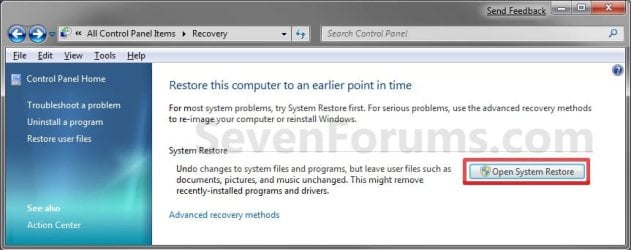
A) Click on the Recovery icon.

B) Click on the Open System Restore button. (see screenshot below)
Recovery.jpg
C) Go to step 7 or step 8 below.
5. Open the Start Menu.
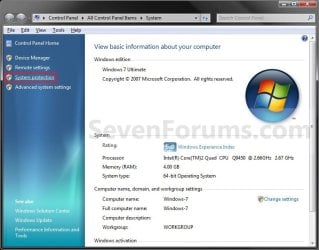
A) Right click on the Computer button and click on Properties.

B) Click on the System Protection link. (see screenshot below)
System.jpg
C) Close the System window, and go to step 6 below. (see screenshot above)
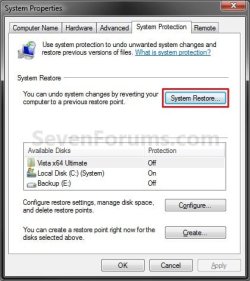
6. Click on the System Restore button. (see screenshot below)
System_Properties.jpg
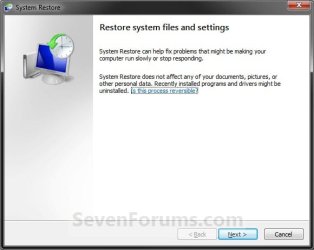
7. If You Have Not Done a System Restore Before
A) Click on the Next button, and go to step 9 below. (see screenshot below)
Restore.jpg
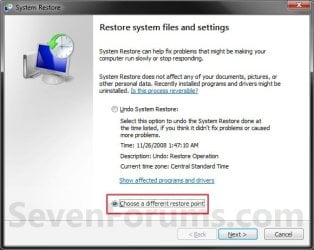
8. If You Have Done a System Restore Before
A) Select (dot) Choose a different restore point, click on the Next button, and go to step 9 below. (see screenshot below)
Restore_Point-2.jpg
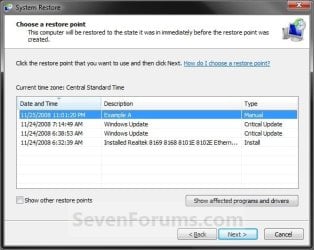
9. Select (click on) a listed restore point that you want to restore the drives that were included in the restore point back to how they were when the restore point was created. (see screenshot below)
NOTE: Check the Show other restore points box to see any restore points (older) that may not be listed here.
System_Restore.jpg
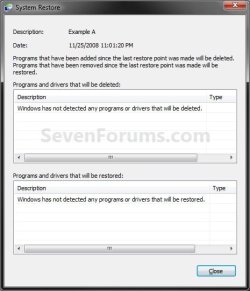
10. To Show Affected Programs and Drivers
NOTE: This will show you a list of programs and drivers that will be deleted and restored by the selected restore point.
A) Click on the Show affected programs and drivers button. (See screenshot above)

B) When done reviewing, click on the Close button. (see screenshot below)
Affected_Programs.jpg
11. Click on the Next button. (see screenshot below step 8)
NOTE: Make sure that the restore point you want is still selected (highlighted).

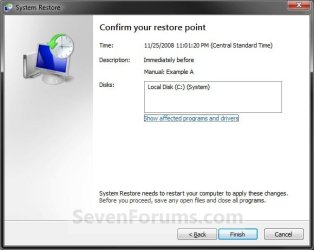
12. Click on the Finish button. (see screenshot below)
NOTE: The listed drives here will be restored back to how they were for the selected restore point.
Confirm.jpg
13. Click on Yes to confirm. (see screenshot below)
WARNING: This will immediately restart your computer to finish the system restore.
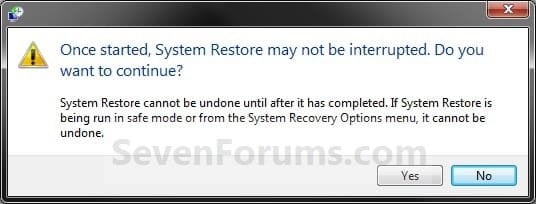
Last_Chance.jpg
14. After the computer has restarted, click on the Close button. (see screenshot below)
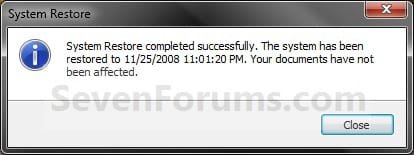
After_Reboot.jpg


OPTION TWO

To Do a System Restore at Boot using System Recovery Options


NOTE: This will allow you to restore Windows 7 to a earlier restore point with a Windows 7 installation disc or System Repair Disc from the System Recovery Options screen at bootup. This can be handy if you cannot startup Windows 7.
1. Using your retail Windows 7 installation disc or System Repair Disc, boot to the System Recovery Options screen.

2. Select the System Restore option. (see screenshot below)
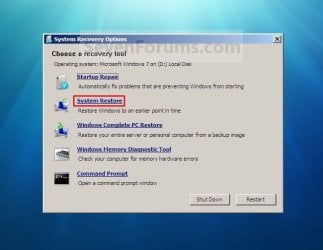
System_Recovery_Options.jpg
3. Continue starting with step 7 or step 8 in Option One above.
That's it,
Shawn


Last edited:
You're most welcome.

If you are referring to the drivers inquiry, then you do not need any drivers to do any of this at boot unless you are using a RAID HDD/SSD or PCI-E SSD setup.
 

My Computer

Computer type
PC/Desktop
Computer Manufacturer/Model Number
Self built custom
OS
64-bit Windows 11 Pro for Workstations
CPU
Intel i7-8700K OC'd to 5 GHz
Motherboard
ASUS ROG Maximus XI Formula Z390
Memory
64 GB (4x16GB) G.SKILL TridentZ RGB DDR4 3600 MHz
Graphics Card(s)
ASUS ROG-STRIX-GTX1080TI-O11G-GAMING
Sound Card
Integrated
Monitor(s) Displays
2 x Samsung Odyssey G7 27"
Screen Resolution
2560x1440
Hard Drives
1TB Samsung 990 PRO M.2,
4TB Samsung 990 PRO PRO M.2,
TerraMaster F8 SSD Plus NAS
PSU
Seasonic Prime Titanium 850W
Case
Thermaltake Core P3
Cooling
Corsair Hydro H115i
Keyboard
Logitech wireless K800
Mouse
Logitech MX Master 4
Internet Speed
2 Gb/s Download and 100 Mb/s Upload
Antivirus
Malwarebyte Anti-Malware Premium
Browser
Google Chrome
Other Info
Logitech Z625 speaker system,
Logitech BRIO 4K Pro webcam,
HP Color LaserJet Pro MFP M477fdn,
APC SMART-UPS RT 1000 XL - SURT1000XLI,
Galaxy S23 Plus phone
You're most welcome.

If you are referring to the drivers inquiry, then you do not need any drivers to do any of this at boot unless you are using a RAID HDD/SSD or PCI-E SSD setup.

Thank you so much,

I really don't know what you mean with this 'a RAID HDD/SSD or PCI-E SSD setup.'

However, I am inquiring about:
First:As long as "Backup and Restore icon" allows me to create a backup copy for either the entire HDD, or Data only, and also the software such Acronis and Norton Guest and Macrium Reflect program' enable also me to create a backup for either the entire HDD or data, So my question: What difference there is between "backup and restore tool" and these software such as Acronis and so on.?


Finally: As long as that person said to me 'Be aware that if you intend to restore from a DVD-R while booted from a DVD-ROM, then you will need two DVD drives, one for the boot disc and another to read the backup.'

Thus, could you let me know that I should have two drivers when I want to create or even restore my system from the backup which I created with either 'backup and Restore tool Or 'Acronis' , Norton guest or another software ?

I think that I must have two drives, especially when I use Acornis CD which is bootable to create the backup or even to restore . Because the first drive the CD of Acronis will be inserted in and the other drive DVDs will be inserted in to send or get the data during the process of backup or restore
I hope you understand me
 

My Computer

Computer Manufacturer/Model Number
HP pavilion DV6
OS
Windows 7 Home Premium SP1-64bit.
CPU
Intel Core i5 2.30GHz
Motherboard
Hewlett-Packard- Model 1657
Memory
6GB
Graphics Card(s)
ATI Radeon HD 6770M
Screen Resolution
1366x768
Hard Drives
750GB Toshiba
Answers inline. :)

I really don't know what you mean with this 'a RAID HDD/SSD or PCI-E SSD setup.'
I wouldn't worry about it then since you would have had to set it up to have it.
However, I am inquiring about:
First:As long as "Backup and Restore icon" allows me to create a backup copy for either the entire HDD, or Data only, and also the software such Acronis and Norton Guest and Macrium Reflect program' enable also me to create a backup for either the entire HDD or data, So my question: What difference there is between "backup and restore tool" and these software such as Acronis and so on.?
If you click on the links that I previously posted and posted again below, it will help explain the differences. ;)

Finally: As long as that person said to me 'Be aware that if you intend to restore from a DVD-R while booted from a DVD-ROM, then you will need two DVD drives, one for the boot disc and another to read the backup.'

Thus, could you let me know that I should have two drivers when I want to create or even restore my system from the backup which I created with either 'backup and Restore tool Or 'Acronis' , Norton guest or another software ?

I think that I must have two drives, especially when I use Acornis CD which is bootable to create the backup or even to restore . Because the first drive the CD of Acronis will be inserted in and the other drive DVDs will be inserted in to send or get the data during the process of backup or restore
I hope you understand me
While it makes it easier to do, you do not need to have two DVD drives to restore from DVDs.

However, I would not recommend to use a DVD to save your backup on. Instead, it would be best to save your backup to another internal or external HDD.


Last edited:

My Computer

Computer type
PC/Desktop
Computer Manufacturer/Model Number
Self built custom
OS
64-bit Windows 11 Pro for Workstations
CPU
Intel i7-8700K OC'd to 5 GHz
Motherboard
ASUS ROG Maximus XI Formula Z390
Memory
64 GB (4x16GB) G.SKILL TridentZ RGB DDR4 3600 MHz
Graphics Card(s)
ASUS ROG-STRIX-GTX1080TI-O11G-GAMING
Sound Card
Integrated
Monitor(s) Displays
2 x Samsung Odyssey G7 27"
Screen Resolution
2560x1440
Hard Drives
1TB Samsung 990 PRO M.2,
4TB Samsung 990 PRO PRO M.2,
TerraMaster F8 SSD Plus NAS
PSU
Seasonic Prime Titanium 850W
Case
Thermaltake Core P3
Cooling
Corsair Hydro H115i
Keyboard
Logitech wireless K800
Mouse
Logitech MX Master 4
Internet Speed
2 Gb/s Download and 100 Mb/s Upload
Antivirus
Malwarebyte Anti-Malware Premium
Browser
Google Chrome
Other Info
Logitech Z625 speaker system,
Logitech BRIO 4K Pro webcam,
HP Color LaserJet Pro MFP M477fdn,
APC SMART-UPS RT 1000 XL - SURT1000XLI,
Galaxy S23 Plus phone
Thank you Brink,

But I think I really need to do repair for my system now. Why? Because neither 'backup and restore icon', 'updates of windows' or even 'system restore (with the first method in your explanation.)' run well Then I must follow the second method for doing system restore regardless of what windows I encountered and what windows I didn't encounter as it is described in your explanation. As I said before that i didn't found my letter system showed in the that windows which was supposed to be shown in. And also the letter of my system's drive isn't the letter 'C' howeve, was 'D', but you confirmed that i should be accessed to 'system restore' and not to restore from the recovery of factory which in 'D', Didn't you?
Because 'backup and restore icon' didn't respond, I clicked right-click on my C drive' then I chose ''proprieties', but I found no response when I click 'tools'

lllllli.png


Do you see any other solution other than making system restore from the recovery options which I should use 'repair Disc' to access it, after that I will do repair for the system?

WHAT IS THE PROBLEM WITH MY COMPUTER? WHY DO 'WINDOWS UPDATES', 'BACKUP AND RESTORE ICON' AND 'SYSTEM ROSTER' NOT WORK WELL?
 
Last edited:

My Computer

Computer Manufacturer/Model Number
HP pavilion DV6
OS
Windows 7 Home Premium SP1-64bit.
CPU
Intel Core i5 2.30GHz
Motherboard
Hewlett-Packard- Model 1657
Memory
6GB
Graphics Card(s)
ATI Radeon HD 6770M
Screen Resolution
1366x768
Hard Drives
750GB Toshiba

My Computer

Computer type
PC/Desktop
Computer Manufacturer/Model Number
Self built custom
OS
64-bit Windows 11 Pro for Workstations
CPU
Intel i7-8700K OC'd to 5 GHz
Motherboard
ASUS ROG Maximus XI Formula Z390
Memory
64 GB (4x16GB) G.SKILL TridentZ RGB DDR4 3600 MHz
Graphics Card(s)
ASUS ROG-STRIX-GTX1080TI-O11G-GAMING
Sound Card
Integrated
Monitor(s) Displays
2 x Samsung Odyssey G7 27"
Screen Resolution
2560x1440
Hard Drives
1TB Samsung 990 PRO M.2,
4TB Samsung 990 PRO PRO M.2,
TerraMaster F8 SSD Plus NAS
PSU
Seasonic Prime Titanium 850W
Case
Thermaltake Core P3
Cooling
Corsair Hydro H115i
Keyboard
Logitech wireless K800
Mouse
Logitech MX Master 4
Internet Speed
2 Gb/s Download and 100 Mb/s Upload
Antivirus
Malwarebyte Anti-Malware Premium
Browser
Google Chrome
Other Info
Logitech Z625 speaker system,
Logitech BRIO 4K Pro webcam,
HP Color LaserJet Pro MFP M477fdn,
APC SMART-UPS RT 1000 XL - SURT1000XLI,
Galaxy S23 Plus phone
That's great news Mehady, and welcome to Seven Forums. :)
 

My Computer

Computer type
PC/Desktop
Computer Manufacturer/Model Number
Self built custom
OS
64-bit Windows 11 Pro for Workstations
CPU
Intel i7-8700K OC'd to 5 GHz
Motherboard
ASUS ROG Maximus XI Formula Z390
Memory
64 GB (4x16GB) G.SKILL TridentZ RGB DDR4 3600 MHz
Graphics Card(s)
ASUS ROG-STRIX-GTX1080TI-O11G-GAMING
Sound Card
Integrated
Monitor(s) Displays
2 x Samsung Odyssey G7 27"
Screen Resolution
2560x1440
Hard Drives
1TB Samsung 990 PRO M.2,
4TB Samsung 990 PRO PRO M.2,
TerraMaster F8 SSD Plus NAS
PSU
Seasonic Prime Titanium 850W
Case
Thermaltake Core P3
Cooling
Corsair Hydro H115i
Keyboard
Logitech wireless K800
Mouse
Logitech MX Master 4
Internet Speed
2 Gb/s Download and 100 Mb/s Upload
Antivirus
Malwarebyte Anti-Malware Premium
Browser
Google Chrome
Other Info
Logitech Z625 speaker system,
Logitech BRIO 4K Pro webcam,
HP Color LaserJet Pro MFP M477fdn,
APC SMART-UPS RT 1000 XL - SURT1000XLI,
Galaxy S23 Plus phone
With as many issues you are having, you might consider restoring Windows 7 back to it's "original condition" from the factory. Be sure to backup anything you do not want to lose first if you do. :(

Performing an HP System Recovery (Windows 7) Compaq Presario F500 CTO Notebook PC - HP Customer Care (United States - English)

Thank you Brink,

Then you suggest that the only solution would be to restore from the backup which either in the Recovery of the factory in D or in the DVDs which I have created in the first time of my computer's starting.
Then what is the benefit from:
Fist: system restore which is in this thread of yours.
Second: repair which is in another thread of yours.
Third: SfC scan which is also in another thread of yours.


Finlay: I have many programs and setting which are installed in my system now. If I restore from the backup of factory, I will lose all of this and my computer will return as it was from releasing from the factory.
So how can I do a backup of the entire system now as long as backup and restore icon didn't respond? I even tried this command 'sdclt' for Windows Backup Utility, but I also didn't found any response.

Any comments would be quite highly appreciated.
 

My Computer

Computer Manufacturer/Model Number
HP pavilion DV6
OS
Windows 7 Home Premium SP1-64bit.
CPU
Intel Core i5 2.30GHz
Motherboard
Hewlett-Packard- Model 1657
Memory
6GB
Graphics Card(s)
ATI Radeon HD 6770M
Screen Resolution
1366x768
Hard Drives
750GB Toshiba
Since you said nothing else worked for you, I believe doing a factory recovery may be the only option left. I would try from your recovery partition first instead of the DVDs though.

There is an option to do a backup in the HP Recovery Manager, but I would also recommend to manually copy and paste anything that you do not want to lose to another location that is not being formatted to be safe.

Any programs not included in the factory default will have to be reinstalled, and all settings will have to be reset again though. :(
 

My Computer

Computer type
PC/Desktop
Computer Manufacturer/Model Number
Self built custom
OS
64-bit Windows 11 Pro for Workstations
CPU
Intel i7-8700K OC'd to 5 GHz
Motherboard
ASUS ROG Maximus XI Formula Z390
Memory
64 GB (4x16GB) G.SKILL TridentZ RGB DDR4 3600 MHz
Graphics Card(s)
ASUS ROG-STRIX-GTX1080TI-O11G-GAMING
Sound Card
Integrated
Monitor(s) Displays
2 x Samsung Odyssey G7 27"
Screen Resolution
2560x1440
Hard Drives
1TB Samsung 990 PRO M.2,
4TB Samsung 990 PRO PRO M.2,
TerraMaster F8 SSD Plus NAS
PSU
Seasonic Prime Titanium 850W
Case
Thermaltake Core P3
Cooling
Corsair Hydro H115i
Keyboard
Logitech wireless K800
Mouse
Logitech MX Master 4
Internet Speed
2 Gb/s Download and 100 Mb/s Upload
Antivirus
Malwarebyte Anti-Malware Premium
Browser
Google Chrome
Other Info
Logitech Z625 speaker system,
Logitech BRIO 4K Pro webcam,
HP Color LaserJet Pro MFP M477fdn,
APC SMART-UPS RT 1000 XL - SURT1000XLI,
Galaxy S23 Plus phone
Since you said nothing else worked for you, I believe doing a factory recovery may be the only option left. I would try from your recovery partition first instead of the DVDs though.
Thank you Brink for your reply,
I faild only in doning system restore with trying the first mothod.
I didn't try 'repair system' and also ''Through System Recovery Options at Boot.'

I want to understand at least to try doing a system restore 'Through System Recovery Options at Boot.' and ''repair system' even the problem didn't solove I would finde out what benefit from 'System Recovery Options at Boot.' and ''repair system' .
However, I scared that I followed the remain steps in the second method because I found that the letter of my system's drive was D instead of C.

However, I will do the final solution to be the restore from the backup from either 'the Recovery of Factory in the D, or in the DVDs.

By the way, I think that the backup which is in DVDs is a copy of the Recovery of factory which is in D.

There is an option to do a backup in the HP Recovery Manager, but I would also recommend to manually copy and paste anything that you do not want to lose to another location that is not being formatted to be safe.
Could you let me know how I can do a backup in the HP Recovery Manager to keep a copy from my system before I do the restore from the Recovery of factory only in order to benefit from it. If you will say to me open 'bakup and restore icon', I will say that it didn't respond and even its command ''sdclt'' didn't respond.
 

My Computer

Computer Manufacturer/Model Number
HP pavilion DV6
OS
Windows 7 Home Premium SP1-64bit.
CPU
Intel Core i5 2.30GHz
Motherboard
Hewlett-Packard- Model 1657
Memory
6GB
Graphics Card(s)
ATI Radeon HD 6770M
Screen Resolution
1366x768
Hard Drives
750GB Toshiba

My Computer

Computer type
PC/Desktop
Computer Manufacturer/Model Number
Self built custom
OS
64-bit Windows 11 Pro for Workstations
CPU
Intel i7-8700K OC'd to 5 GHz
Motherboard
ASUS ROG Maximus XI Formula Z390
Memory
64 GB (4x16GB) G.SKILL TridentZ RGB DDR4 3600 MHz
Graphics Card(s)
ASUS ROG-STRIX-GTX1080TI-O11G-GAMING
Sound Card
Integrated
Monitor(s) Displays
2 x Samsung Odyssey G7 27"
Screen Resolution
2560x1440
Hard Drives
1TB Samsung 990 PRO M.2,
4TB Samsung 990 PRO PRO M.2,
TerraMaster F8 SSD Plus NAS
PSU
Seasonic Prime Titanium 850W
Case
Thermaltake Core P3
Cooling
Corsair Hydro H115i
Keyboard
Logitech wireless K800
Mouse
Logitech MX Master 4
Internet Speed
2 Gb/s Download and 100 Mb/s Upload
Antivirus
Malwarebyte Anti-Malware Premium
Browser
Google Chrome
Other Info
Logitech Z625 speaker system,
Logitech BRIO 4K Pro webcam,
HP Color LaserJet Pro MFP M477fdn,
APC SMART-UPS RT 1000 XL - SURT1000XLI,
Galaxy S23 Plus phone
I had thought all efforts failed. It certainly would not hurt to try doing a system restore at boot.

You would select the backup option in HP Recovery Manager. It will not be a complete image backup, but only a backup of files/folders you select instead. The link at HP below can help give you more details about it.

Performing an HP System Recovery (Windows 7) Compaq Presario F500 CTO Notebook PC - HP Customer Care (United States - English)

Thank you so much,

But, HP Recovery Manager software allows to create one set of recovery disks or a portable drive one. And I created a backup copy on DVDs in the very first time of my computer's strating and now I cannot do another backup copy, unless there is another way or with Acronis or Norton Guest.

I am expecting you will give me another way to do a backup of my system now before I do the restore form the backup of factory, this Recovery manager didn't found:

73221147.png


I have used this for doing the backup which I did in the very first time of my computer's starting and I put it in DVDs.
Could you please give me any run command of Recovery manager to see whether is is working well or not
 
Last edited:

My Computer

Computer Manufacturer/Model Number
HP pavilion DV6
OS
Windows 7 Home Premium SP1-64bit.
CPU
Intel Core i5 2.30GHz
Motherboard
Hewlett-Packard- Model 1657
Memory
6GB
Graphics Card(s)
ATI Radeon HD 6770M
Screen Resolution
1366x768
Hard Drives
750GB Toshiba
I think you are reading the wrong part at that link. ;)

Backup and restore important files

The Recovery Manager displays a prompt to make a backup copy of your files before it performs any action that may erase or delete any files. HP recommends that you make backup copies of your files on a regular basis, and that you store the backed-up files on a CD/DVD or other external media in a separate physical location, away from the computer.

Doing scheduled backups will help you to recover some, if not all, of your information in the event that something happens to the original files on your PC. It is important to decide which files you want to save. Make a list of important information that you cannot easily replace. This list will help you to determine which files to back up, and also give you a reference list in the event that you need to retrieve the files.

To use the HP Recovery Manager to back up your files, see HP Notebook PCs - How To Back Up User Files .
 

My Computer

Computer type
PC/Desktop
Computer Manufacturer/Model Number
Self built custom
OS
64-bit Windows 11 Pro for Workstations
CPU
Intel i7-8700K OC'd to 5 GHz
Motherboard
ASUS ROG Maximus XI Formula Z390
Memory
64 GB (4x16GB) G.SKILL TridentZ RGB DDR4 3600 MHz
Graphics Card(s)
ASUS ROG-STRIX-GTX1080TI-O11G-GAMING
Sound Card
Integrated
Monitor(s) Displays
2 x Samsung Odyssey G7 27"
Screen Resolution
2560x1440
Hard Drives
1TB Samsung 990 PRO M.2,
4TB Samsung 990 PRO PRO M.2,
TerraMaster F8 SSD Plus NAS
PSU
Seasonic Prime Titanium 850W
Case
Thermaltake Core P3
Cooling
Corsair Hydro H115i
Keyboard
Logitech wireless K800
Mouse
Logitech MX Master 4
Internet Speed
2 Gb/s Download and 100 Mb/s Upload
Antivirus
Malwarebyte Anti-Malware Premium
Browser
Google Chrome
Other Info
Logitech Z625 speaker system,
Logitech BRIO 4K Pro webcam,
HP Color LaserJet Pro MFP M477fdn,
APC SMART-UPS RT 1000 XL - SURT1000XLI,
Galaxy S23 Plus phone
Thank you so much indeed for your help, Brink. Please forgive me because I have never used such things. Could you please reply my questions?

First: This way only to backup the files without creating a new backup for the entire external HDD whenever I want.
In my case now, I want to create another new backup to keep my system with all of its installing programs and settings.

Second: The backup for files with this way will be saved in the destination with the same organization. In other words, if I have some some folders on desktop some of them 'English Audio' and inside another folder 'AE'. Are these folders will be save as in the same sequence.

Third: I heard that Norton Guest to create a backup copy, but unfortunately this program lets me only store the backup on one drive in the internal HDD. However, I want to save my backup in an external HDD because I sometimes may want to use an external hard drive storage device for backing up all of my PCs, or back up the data from one PC to the hard drive of another PC.

Finally: These software, such as Acronis and Norton don't let me add the latest settings of the windows, such as new programs and settings into the oldest backup. In other words, if I created a backup three months ago. And after period of time, I want to create another backup, but I don't want to create a new; however, I want to let a program, such as Acornis or even another one adds the latest programs and settings and anything else happened on a system into the old backup. whenever I want to create new backup, I want only to let latest of windows be backed up of the oldest backup and so on .

Do you have any suggestions?
 
Last edited:

My Computer

Computer Manufacturer/Model Number
HP pavilion DV6
OS
Windows 7 Home Premium SP1-64bit.
CPU
Intel Core i5 2.30GHz
Motherboard
Hewlett-Packard- Model 1657
Memory
6GB
Graphics Card(s)
ATI Radeon HD 6770M
Screen Resolution
1366x768
Hard Drives
750GB Toshiba
Cooperator,

With as many errors you say you are having in your current installation, then it may by pointless to create a full backup of it other than to just have you files included. If you ever restored the image backup, you would just be back to where you are now with the same errors.

Macrium Reflect is a good option to create backups and images with though.

http://www.sevenforums.com/tutorials/73828-imaging-free-macrium.html
 

My Computer

Computer type
PC/Desktop
Computer Manufacturer/Model Number
Self built custom
OS
64-bit Windows 11 Pro for Workstations
CPU
Intel i7-8700K OC'd to 5 GHz
Motherboard
ASUS ROG Maximus XI Formula Z390
Memory
64 GB (4x16GB) G.SKILL TridentZ RGB DDR4 3600 MHz
Graphics Card(s)
ASUS ROG-STRIX-GTX1080TI-O11G-GAMING
Sound Card
Integrated
Monitor(s) Displays
2 x Samsung Odyssey G7 27"
Screen Resolution
2560x1440
Hard Drives
1TB Samsung 990 PRO M.2,
4TB Samsung 990 PRO PRO M.2,
TerraMaster F8 SSD Plus NAS
PSU
Seasonic Prime Titanium 850W
Case
Thermaltake Core P3
Cooling
Corsair Hydro H115i
Keyboard
Logitech wireless K800
Mouse
Logitech MX Master 4
Internet Speed
2 Gb/s Download and 100 Mb/s Upload
Antivirus
Malwarebyte Anti-Malware Premium
Browser
Google Chrome
Other Info
Logitech Z625 speaker system,
Logitech BRIO 4K Pro webcam,
HP Color LaserJet Pro MFP M477fdn,
APC SMART-UPS RT 1000 XL - SURT1000XLI,
Galaxy S23 Plus phone
Cooperator,

With as many errors you say you are having in your current installation, then it may by pointless to create a full backup of it other than to just have you files included. If you ever restored the image backup, you would just be back to where you are now with the same errors.

Macrium Reflect is a good option to create backups and images with though.

http://www.sevenforums.com/tutorials/73828-imaging-free-macrium.html

Thank you Brink,

But could you please confirm for me whether that the backup for files during HP Recovery by pressing F11 will be saved in the destination with the same organization. In other words, if I have some some folders on desktop some of them 'English Audio' and inside another folder 'AE'. Are these folders will be saved as in the same folders in the destination.

Finally: all the favorites(bookmarks) of all browsers will be backed up into the destination.
 

My Computer

Computer Manufacturer/Model Number
HP pavilion DV6
OS
Windows 7 Home Premium SP1-64bit.
CPU
Intel Core i5 2.30GHz
Motherboard
Hewlett-Packard- Model 1657
Memory
6GB
Graphics Card(s)
ATI Radeon HD 6770M
Screen Resolution
1366x768
Hard Drives
750GB Toshiba
I'm afraid that I don't know where HP saves it at, but it looks like it just does a normal Windows Backup. However, for individual files that you do not want to lose, I would strongly recommend to just manually copy and paste them to another location (ex: HDD) not on your Windows 7 HDD. This way you know they are safe and will not get wiped out by mistake.
 

My Computer

Computer type
PC/Desktop
Computer Manufacturer/Model Number
Self built custom
OS
64-bit Windows 11 Pro for Workstations
CPU
Intel i7-8700K OC'd to 5 GHz
Motherboard
ASUS ROG Maximus XI Formula Z390
Memory
64 GB (4x16GB) G.SKILL TridentZ RGB DDR4 3600 MHz
Graphics Card(s)
ASUS ROG-STRIX-GTX1080TI-O11G-GAMING
Sound Card
Integrated
Monitor(s) Displays
2 x Samsung Odyssey G7 27"
Screen Resolution
2560x1440
Hard Drives
1TB Samsung 990 PRO M.2,
4TB Samsung 990 PRO PRO M.2,
TerraMaster F8 SSD Plus NAS
PSU
Seasonic Prime Titanium 850W
Case
Thermaltake Core P3
Cooling
Corsair Hydro H115i
Keyboard
Logitech wireless K800
Mouse
Logitech MX Master 4
Internet Speed
2 Gb/s Download and 100 Mb/s Upload
Antivirus
Malwarebyte Anti-Malware Premium
Browser
Google Chrome
Other Info
Logitech Z625 speaker system,
Logitech BRIO 4K Pro webcam,
HP Color LaserJet Pro MFP M477fdn,
APC SMART-UPS RT 1000 XL - SURT1000XLI,
Galaxy S23 Plus phone
Thank you so much indeed, Brink, I have a very little question here:

First: What does this button in the window below do?

40319455.png


When I clicked on that button, another window which asks me to enter a name for helping me to remember the name of backup. Then, I have entered a name. After that, I clicked "OK" Finally, That name has been listed in this list below with a description "Mohammad" and Type: "manual"
kkkkp.png


Second: I have create a system restore at this time: 6/27/2012 12, 12:58:34 PM, GMT. with this description "installed Prestio! As it is in this screenshot below:
llllyj.jpg


However, when I have opened system restore tool again, I have quite surprised that found that my store point which I created at 6/27/2012 12, 12:58:34 PM, GMT, with this description "installed Prestio! Mr. Photo4" became with this description "Install sun virtual Box" at this time: 6/29/2012, 02.04.01 PM, GMT
Screenshot below:

kkkdzc.png


My questions are:
(A) who created this one, as far as I know that If no restore points have been created in the last 7 or 8 days, Windows 7 will create an automatic one. But as you see, I have created one at 27. So, it is quite early in order for system creates an automatic one

(B)As long as System constantly automatically creates a system restore with a description for recent events, such as install a program, uninstall a program and so on, I don't find system points I created if I need them.

Finally: I noticed in your explanation that you have discussed how to create a system restore, but you didn't discuss how to use any system restore we want from those created ones when we need to do.
 
Last edited:

My Computer

Computer Manufacturer/Model Number
HP pavilion DV6
OS
Windows 7 Home Premium SP1-64bit.
CPU
Intel Core i5 2.30GHz
Motherboard
Hewlett-Packard- Model 1657
Memory
6GB
Graphics Card(s)
ATI Radeon HD 6770M
Screen Resolution
1366x768
Hard Drives
750GB Toshiba
Cooperator,

Sorry for the late reply, I was out of town for the day.

When you click on Create, it's for you to manually create a restore point. The name you type in is what you see boxed in red in your screenshots. You would usually enter something that will make it easier for you to reference what the restore point is for. For example, before installing program X.

QA) Since you screenshots are not in English. I have no way of reading all of it. However, Windows will also sometimes automatically create restore points say before installing Windows Updates, and before installing some programs (ex: VirtualBox or Prestio! Mr. Photo4) during their installation process. This is all normal.

QB) If new restore points exceed your maximum disk space set for restore points, then old restore points will automatically be deleted to make room for the new one. This could be what happened to thos missing manual restore points.

Q-Finally) Steps 7 and 8 in the tutorial on the first page here can help show you more on this to allow you to be able to select to use any of your restore points other than just the latest one.
 

My Computer

Computer type
PC/Desktop
Computer Manufacturer/Model Number
Self built custom
OS
64-bit Windows 11 Pro for Workstations
CPU
Intel i7-8700K OC'd to 5 GHz
Motherboard
ASUS ROG Maximus XI Formula Z390
Memory
64 GB (4x16GB) G.SKILL TridentZ RGB DDR4 3600 MHz
Graphics Card(s)
ASUS ROG-STRIX-GTX1080TI-O11G-GAMING
Sound Card
Integrated
Monitor(s) Displays
2 x Samsung Odyssey G7 27"
Screen Resolution
2560x1440
Hard Drives
1TB Samsung 990 PRO M.2,
4TB Samsung 990 PRO PRO M.2,
TerraMaster F8 SSD Plus NAS
PSU
Seasonic Prime Titanium 850W
Case
Thermaltake Core P3
Cooling
Corsair Hydro H115i
Keyboard
Logitech wireless K800
Mouse
Logitech MX Master 4
Internet Speed
2 Gb/s Download and 100 Mb/s Upload
Antivirus
Malwarebyte Anti-Malware Premium
Browser
Google Chrome
Other Info
Logitech Z625 speaker system,
Logitech BRIO 4K Pro webcam,
HP Color LaserJet Pro MFP M477fdn,
APC SMART-UPS RT 1000 XL - SURT1000XLI,
Galaxy S23 Plus phone
Thank you Brink, very much indeed,


If new restore points exceed your maximum disk space set for restore points, then old restore points will automatically be deleted to make room for the new one. This could be what happened to those missing manual restore points.
I know that old restore points delete when the maximum disk space exceeds the specific size. But I am asking about as long as Windows creates automatically restore points, what benefit there is I create a system restore manually. I will retrieve my system if I need that from one of those which Windows creates automatically and continuously.


Since you screenshots are not in English. I have no way of reading all of it. However, Windows will also sometimes automatically create restore points say before installing Windows Updates, and before installing some programs (ex: VirtualBox or Prestio! Mr. Photo4) during their installation process. This is all normal.
I created one system point which was with installing 'Presto Mr.Photo, at :6/27/2012. But whenever I install or uninstall a program, I notice that Windows creates another point with description with this event, although the period for creating the previous point doesn't exceed 7 days.
Q-Finally) Steps 7 and 8 in the tutorial on the first page here can help show you more on this to allow you to be able to select to use any of your restore points other than just the latest one.
But this link is the same one which we been discussing in since a certain period of time. This link shows me how to create a system restore either 'Through System Recovery Options at Boot' or 'Through System Protection'. But it doesn't show me how to retrieve any system restores(any restore points) from what I have created.

In other words, If I have created some restore points before.(the first: at 6/26/2012, the second: at 29/6/2012) Then, If I have done something wrong at this date: 7/1/2012 or even after, and computer didn't work well.
I want now to let my computer return to its normal status by retrieving from one of those points which I created before. My question: is how I can retrieve from one of those points created before(the first: at 6/26/2012, the second: at 29/6/2012 or even earlier ones if they are still), so my computer will return to what it was before that created point.

I hope you understand me
 
Last edited:

My Computer

Computer Manufacturer/Model Number
HP pavilion DV6
OS
Windows 7 Home Premium SP1-64bit.
CPU
Intel Core i5 2.30GHz
Motherboard
Hewlett-Packard- Model 1657
Memory
6GB
Graphics Card(s)
ATI Radeon HD 6770M
Screen Resolution
1366x768
Hard Drives
750GB Toshiba
Back
Top