
System Restore

How to Do a System Restore in Windows 7

   Information
This will show you how to do a System Restore to restore your Windows 7 system files to an earlier point in time. It's a way to undo system changes to your computer without affecting your personal user files, such as e‑mail, documents, or photos.

   Note
System Restore uses a feature called System Protection to regularly create and save restore points of selected hard disks in your computer. These restore points contain information about registry settings and other system information that Windows 7 uses. You can also create restore points manually.

   Warning
A System Restore will uninstall programs and drivers (step 8 in Option One below) that were installed after the date of the selected restore point.

A System Restore will replace the password of all local user accounts to what they were at the time of the selected restore point.

If you do a System Restore when the computer is in safe mode or Windows Recovery Environment (WinRE), then you will not be able to undo the restore operation. However, you are able to still run System Restore again and choose a different restore point if available.


CONTENTS:
  • Option One: To Do a System Restore in Windows 7 using System Protection
  • Option Two: To Do a System Restore at Boot using System Recovery Options


OPTION ONE

To Do a System Restore in Windows 7 using System Protection


NOTE: Be sure to temporarily disable your antivirus program first to prevent it from possibly preventing you from doing a system restore.
1. Do step 2, step 3, step 4, or step 5 below for how you would like to open System Restore.

2. Open the Start Menu, type rstrui.exe in the search box, press Enter, and go to step 6 below.

3. Open the Start Menu.
A) Click on All Programs, Accessories, System Tools, and System Restore, and go to step 6 below. (see screenshot below)
Start_Menu.jpg
4. Open the Control Panel (icons view).
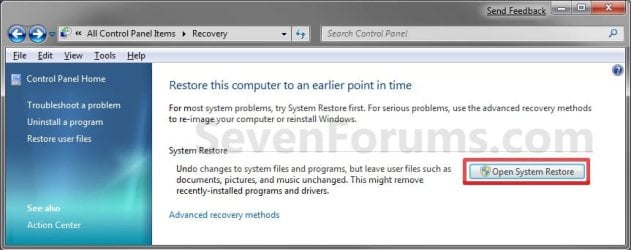
A) Click on the Recovery icon.

B) Click on the Open System Restore button. (see screenshot below)
Recovery.jpg
C) Go to step 7 or step 8 below.
5. Open the Start Menu.
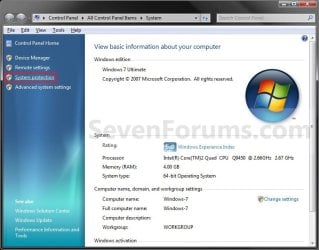
A) Right click on the Computer button and click on Properties.

B) Click on the System Protection link. (see screenshot below)
System.jpg
C) Close the System window, and go to step 6 below. (see screenshot above)
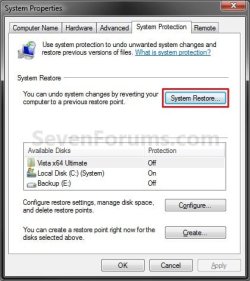
6. Click on the System Restore button. (see screenshot below)
System_Properties.jpg
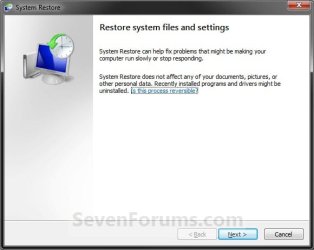
7. If You Have Not Done a System Restore Before
A) Click on the Next button, and go to step 9 below. (see screenshot below)
Restore.jpg
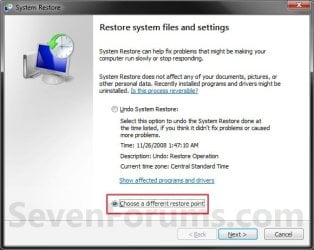
8. If You Have Done a System Restore Before
A) Select (dot) Choose a different restore point, click on the Next button, and go to step 9 below. (see screenshot below)
Restore_Point-2.jpg
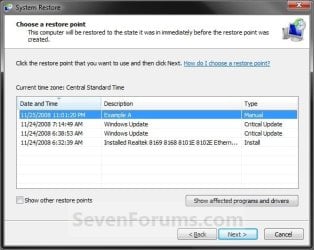
9. Select (click on) a listed restore point that you want to restore the drives that were included in the restore point back to how they were when the restore point was created. (see screenshot below)
NOTE: Check the Show other restore points box to see any restore points (older) that may not be listed here.
System_Restore.jpg
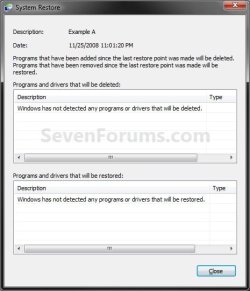
10. To Show Affected Programs and Drivers
NOTE: This will show you a list of programs and drivers that will be deleted and restored by the selected restore point.
A) Click on the Show affected programs and drivers button. (See screenshot above)

B) When done reviewing, click on the Close button. (see screenshot below)
Affected_Programs.jpg
11. Click on the Next button. (see screenshot below step 8)
NOTE: Make sure that the restore point you want is still selected (highlighted).

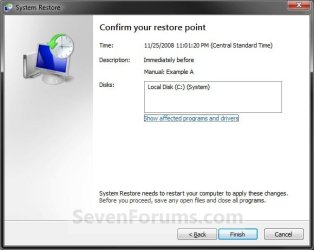
12. Click on the Finish button. (see screenshot below)
NOTE: The listed drives here will be restored back to how they were for the selected restore point.
Confirm.jpg
13. Click on Yes to confirm. (see screenshot below)
WARNING: This will immediately restart your computer to finish the system restore.
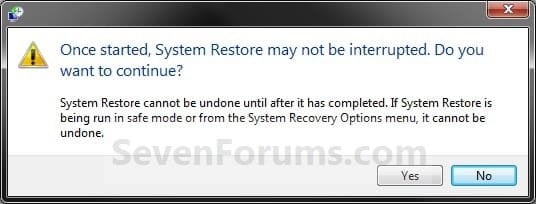
Last_Chance.jpg
14. After the computer has restarted, click on the Close button. (see screenshot below)
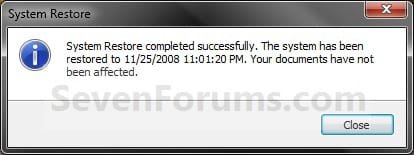
After_Reboot.jpg


OPTION TWO

To Do a System Restore at Boot using System Recovery Options


NOTE: This will allow you to restore Windows 7 to a earlier restore point with a Windows 7 installation disc or System Repair Disc from the System Recovery Options screen at bootup. This can be handy if you cannot startup Windows 7.
1. Using your retail Windows 7 installation disc or System Repair Disc, boot to the System Recovery Options screen.

2. Select the System Restore option. (see screenshot below)
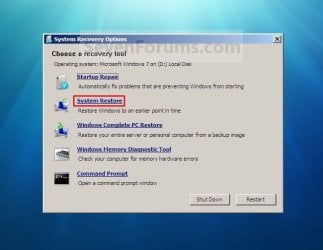
System_Recovery_Options.jpg
3. Continue starting with step 7 or step 8 in Option One above.
That's it,
Shawn


Last edited:
triede the solution. Hope it workded
 

My Computer

Computer Manufacturer/Model Number
levenovo thinkpad t61
OS
windows 7 home premium
CPU
joevelyn
Motherboard
joevelyn
Memory
joevelyn
Graphics Card(s)
joevelyn
Sound Card
joevelyn
Monitor(s) Displays
joevelyn
Hard Drives
joevelyn
PSU
joevelyn
Case
joevelyn
Cooling
joevelyn
Hello Joe, and welcome to Seven Forums.

I'm not sure what solution you mean, but I hope it worked for you as well. :confused:
 

My Computer

Computer type
PC/Desktop
Computer Manufacturer/Model Number
Self built custom
OS
64-bit Windows 11 Pro for Workstations
CPU
Intel i7-8700K OC'd to 5 GHz
Motherboard
ASUS ROG Maximus XI Formula Z390
Memory
64 GB (4x16GB) G.SKILL TridentZ RGB DDR4 3600 MHz
Graphics Card(s)
ASUS ROG-STRIX-GTX1080TI-O11G-GAMING
Sound Card
Integrated
Monitor(s) Displays
2 x Samsung Odyssey G7 27"
Screen Resolution
2560x1440
Hard Drives
1TB Samsung 990 PRO M.2,
4TB Samsung 990 PRO PRO M.2,
TerraMaster F8 SSD Plus NAS
PSU
Seasonic Prime Titanium 850W
Case
Thermaltake Core P3
Cooling
Corsair Hydro H115i
Keyboard
Logitech wireless K800
Mouse
Logitech MX Master 4
Internet Speed
2 Gb/s Download and 100 Mb/s Upload
Antivirus
Malwarebyte Anti-Malware Premium
Browser
Google Chrome
Other Info
Logitech Z625 speaker system,
Logitech BRIO 4K Pro webcam,
HP Color LaserJet Pro MFP M477fdn,
APC SMART-UPS RT 1000 XL - SURT1000XLI,
Galaxy S23 Plus phone
Hi,

I am unable to do 'System Restore' in my laptop. I tried but after restarting I got a message like not successfully completed. I have attached a screenshot for that. I tried with different restoring point but not working !!!!!!!!!!

Please let me know if there is any other way to do that.

Thanks,
Suranjit
 

Attachments

  • System Restore Problem.jpg
    System Restore Problem.jpg
    33.8 KB · Views: 472,603

My Computer

Computer Manufacturer/Model Number
HP
OS
Windows 7 64 bit
CPU
Inter Core 2 Duo T6600
Memory
4GB DDR3
Graphics Card(s)
ATI Radeon
Sound Card
Altec Lansing
Hi,

I am unable to do 'System Restore' in my laptop. I tried but after restarting I got a message like not successfully completed. I have attached a screenshot for that. I tried with different restoring point but not working !!!!!!!!!!

Please let me know if there is any other way to do that.

Thanks,
Suranjit

According to this website (which is actually for Vista, but should apply to 7):

Error message created by System Restore, file backup and Defrag in Windows Vista:

1. This can be do to the System Volume Information Folder attributes being set to Read-only.

The System Volume Information Folder is where Vista holds restore points or shadow copies.

For Windows Vista using the NTFS File System.
Click Start then My Computer.
On the Tools menu Then Folder Options.
On the View tab, click “Show hidden files and folders”.
Clear the Hide protected operating system files (Recommended) check box. Click Yes when you are prompted to confirm the change.
Click OK.
Right-click the System Volume Information folder in the root folder, and then click Properties.
If the Read-only attibutes is checked, uncheck it and click, OK
Now try creating a restore point.
Warning: Remember to hide the hidden System Files when done.

2. This error occurs because the recovery partition is enabled for File Backup or System Restore and is almost full. To work around this, do not select D:\ as a backup source. Also, go to System Protection in Control Panel and make sure that D:\ is not enabled for restore points.
 

My Computer

OS
Windows 7 Enterprise 64-bit
CPU
AMD Phenom II X4 3.0GHz
Motherboard
ASUS M5A97
Memory
8GB G-Skill Ripjaws DDR3 1333
Graphics Card(s)
PNY GeForce 460 GTX 1GB OC - Enthusiast Edition
Sound Card
VIA High Definition Audio
Monitor(s) Displays
Dell 19"
Screen Resolution
1280x1024
Hard Drives
1TB - Primary
160GB - Secondary
250GB - External backup for important files
PSU
OCZ Fata1ty 700W Modular PSU
Case
ASUS
Keyboard
Microsoft Wireless Keyboard 2000
Mouse
Microsoft Wireless Mouse 2000
Internet Speed
3 Mbps/768 kbps
Thanks for that link.

I read that but it seems that if I create a system restore point following the rules mentioned then I can use this system restore point later.
That means I will not be able to do any System Restore to any point before that. Is that correct??

Thank you again.
 

My Computer

Computer Manufacturer/Model Number
HP
OS
Windows 7 64 bit
CPU
Inter Core 2 Duo T6600
Memory
4GB DDR3
Graphics Card(s)
ATI Radeon
Sound Card
Altec Lansing
Hi,Suranjit.I don't know if this is at all helpful,but I used to use Zone Alarm security suite and something in the AV\AM locked some files to where I couldn't use sysyem restore.

I had to Recover to get rid of ZA.Use MSE now and haven't had the first problem.
 

My Computer

Computer Manufacturer/Model Number
Acer Aspire 5517-5427 Notebook
OS
MS Windows 7 Home Premium 64-bit
CPU
AMD K8/AMD Athlon(tm) Processor TF-20 @1.6G
Motherboard
Acer Aspire 5517 (Socket S1G1)
Memory
2.0GB Dual-Channel DDR2 @ 319MHz 5-5-5-15
Graphics Card(s)
ATI Radeon HD 3200 Graphics (Acer Incorporated [ALI])
Sound Card
Realtek High Definition Audio
Monitor(s) Displays
Generic PnP Monitor @ 1366x768
Hard Drives
244.20GB Western Digital WDC WD2500BEVT-22A23T0 ATA Device (IDE)
PSU
Stock
Case
Stock
Cooling
Stock
Mouse
Gigaware-Wireless
Internet Speed
HA!
When i go to my startup, i have two options to pick.
1: Launch Startup repair
2: Start Windows.
I pick 1 and i dont have a disk or something. so i picked 2 and it goes to the same page where i got to pick two options. pls help fast n reply asap or i will get scolding by my parents. thanks
 

My Computer

Computer Manufacturer/Model Number
HP Mini 100-3000
OS
Windows XP/Wndows 7
Memory
250gb
Graphics Card(s)
Intel Atom Inside
Sound Card
IDT High Definition Audio CODEC
Hello Hollow, and welcome to Seven Forums.

Are you unable to do a system restore from within Windows 7?

If so, you can also create a System Repair Disc to be able to use to do METHOD TWO in the tutorial with. Of course, you will still have to have an available restore point to select to go back to.

Hope this helps,
Shawn
 

My Computer

Computer type
PC/Desktop
Computer Manufacturer/Model Number
Self built custom
OS
64-bit Windows 11 Pro for Workstations
CPU
Intel i7-8700K OC'd to 5 GHz
Motherboard
ASUS ROG Maximus XI Formula Z390
Memory
64 GB (4x16GB) G.SKILL TridentZ RGB DDR4 3600 MHz
Graphics Card(s)
ASUS ROG-STRIX-GTX1080TI-O11G-GAMING
Sound Card
Integrated
Monitor(s) Displays
2 x Samsung Odyssey G7 27"
Screen Resolution
2560x1440
Hard Drives
1TB Samsung 990 PRO M.2,
4TB Samsung 990 PRO PRO M.2,
TerraMaster F8 SSD Plus NAS
PSU
Seasonic Prime Titanium 850W
Case
Thermaltake Core P3
Cooling
Corsair Hydro H115i
Keyboard
Logitech wireless K800
Mouse
Logitech MX Master 4
Internet Speed
2 Gb/s Download and 100 Mb/s Upload
Antivirus
Malwarebyte Anti-Malware Premium
Browser
Google Chrome
Other Info
Logitech Z625 speaker system,
Logitech BRIO 4K Pro webcam,
HP Color LaserJet Pro MFP M477fdn,
APC SMART-UPS RT 1000 XL - SURT1000XLI,
Galaxy S23 Plus phone
Lost here

umm i'm lost here. I looked around and this seems are close system restore as it gets and seems it only restores back to certain points. Or atleast thats what i think. But isn't there a option to completely restore your computer back to the original condition ( in other and exact words it deletes everything from your computer and only re installed windows 7? )
 

My Computer

OS
Windows 7 Home Premium 64 bit
umm i'm lost here. I looked around and this seems are close system restore as it gets and seems it only restores back to certain points. Or atleast thats what i think. But isn't there a option to completely restore your computer back to the original condition ( in other and exact words it deletes everything from your computer and only re installed windows 7? )

the tutorial is restore back to the certain points. if you want to restore to the original (like as first time you fresh install) you can choose repair install http://www.sevenforums.com/tutorials/3413-repair-install.html
or what's the problems you got.. you can mention it,so we can help you :D
 

My Computer

Computer Manufacturer/Model Number
built up
OS
windows 7
CPU
Phenom II AMD Dragon 3.5Ghz
Memory
DDR3 4GB
Graphics Card(s)
ATI Radeon 512Mb
Monitor(s) Displays
HP L1506
Screen Resolution
1152 x 864
Hard Drives
WDC 1 TB SATA-II Green Power
Keyboard
HP wireless keyboard
Mouse
HP Optic
Internet Speed
1GB
Hello trent and welcome to the Forum. A system restore provides a limited means to return your system to a previous point in time. A portion of the hard drive is set aside for these points. Depending on how much hard drive space is set aside, and how much data is to be included in the restore point, and how often restore points are created will determine how many restore points can be saved. For some people it might be a couple of weeks while for others it might be a couple of months.

System Restore - Windows 7 features - Microsoft Windows

There are two usual methods to return a computer to its original condition. Some manufacturers include their own recovery partition on the hard drive and a means to access that partition, usually via the start menu. On my Dell, for example, I have a Dell Backup and Recovery Manager in my start menu. I can use this to restore my machine to its original factory condition including all trialware and bloat.

The second method is to create your own system image and a companion system repair disk. Windows 7 has its own imaging tool/repair disk. Other people recommend a free alternative called Macrium Reflect. Both of these imaging tools let you image your entire computer to include operating system(s), updates, other programs, personal settings, files, folders, etc. In case of a crash or other problem you can return your computer to the exact state it was in at the time the image was created.

http://www.sevenforums.com/tutorials/663-backup-complete-computer-create-image-backup.html

http://www.sevenforums.com/tutorials/73828-imaging-free-macrium.html

But if all you want to do is install Windows 7 and nothing else, you can do a clean install. Only the operating system is installed and anything else on the hard drive is deleted during a format procedure.

http://www.sevenforums.com/tutorials/1649-clean-install-windows-7-a.html
 

My Computer

Computer type
Laptop
Computer Manufacturer/Model Number
Sony Vaio VPCEB47GM Laptop
OS
Win 7 Pro 64-bit
CPU
Intel i5 2.4 Ghz
Memory
8GB DDR3
Graphics Card(s)
Intel HD 3000
Sound Card
IDT High Definition
Monitor(s) Displays
15.6 WGXA Anti-Glare LED
Screen Resolution
1280x800
Hard Drives
640Gb 7200rpm
Antivirus
MSE
Browser
Opera (primary) with IE9 backup
  • Like
Reactions: JMH
Hey

Have you done this tut? System clean installation it will tell you how to wipe your pc
 

My Computer

Computer Manufacturer/Model Number
7600
OS
Windows 7 Home Premium
CPU
Pentium(R) Dual-Core E5300 @ 2.60GHz
Motherboard
ASUS P5KPL-AM/PS
Memory
4GB RAM
Graphics Card(s)
NVIDIA GeForce 9500 GT
Monitor(s) Displays
Benq 22"
Screen Resolution
1920 x 1080
Hard Drives
600GB NTFS HDD WD, 1TB External HDD HP simple save , 1TB External WD HDD, 250GB External WD HDD.
Case
Cooler Master Scout
Keyboard
Razer Lycosa
Mouse
Razer Imperator
Other Info
Windows®. Life without Walls™.

Love Steam
I got a new Laptop
updated windows & drivers
& created a Restore point

wondering if i need to on system restore ?
or does that mean once i created a restore point
& it said Restore point created successfully
its already on ?

Thanks
 

My Computer

Computer Manufacturer/Model Number
Alienware m17
OS
Windows 7 Ultimate
CPU
Core 2 Extreme CPU Q9300 @ 2.53GHz
Memory
4 GB
Graphics Card(s)
2x3870 Ati
Hard Drives
2x500 GB Samsung 7200rpm
I got a new Laptop
updated windows & drivers
& created a Restore point

wondering if i need to on system restore ?
or does that mean once i created a restore point
& it said Restore point created successfully
its already on ?

Thanks

Since you got the message that the restore point was created successfully, system restore should be on. You can verify that by clicking start > right-click Computer > click Properties > System Protection in left column. You should see the drive containing your operating system is "on".
 

My Computer

Computer type
Laptop
Computer Manufacturer/Model Number
Sony Vaio VPCEB47GM Laptop
OS
Win 7 Pro 64-bit
CPU
Intel i5 2.4 Ghz
Memory
8GB DDR3
Graphics Card(s)
Intel HD 3000
Sound Card
IDT High Definition
Monitor(s) Displays
15.6 WGXA Anti-Glare LED
Screen Resolution
1280x800
Hard Drives
640Gb 7200rpm
Antivirus
MSE
Browser
Opera (primary) with IE9 backup
I got a new Laptop
updated windows & drivers
& created a Restore point

wondering if i need to on system restore ?
or does that mean once i created a restore point
& it said Restore point created successfully
its already on ?

Thanks

Since you got the message that the restore point was created successfully, system restore should be on. You can verify that by clicking start > right-click Computer > click Properties > System Protection in left column. You should see the drive containing your operating system is "on".

Yes it is
Thankyou Thankyou thankyou :)
+1 rep
 

My Computer

Computer Manufacturer/Model Number
Alienware m17
OS
Windows 7 Ultimate
CPU
Core 2 Extreme CPU Q9300 @ 2.53GHz
Memory
4 GB
Graphics Card(s)
2x3870 Ati
Hard Drives
2x500 GB Samsung 7200rpm
Restore - Windows 7 - No previous date

What happens if at point 7 you do not have any restore dates??
 

My Computer

OS
Windows 7 32
Hello LouLou and welcome to Seven Forums. If your computer is misbehaving and you're trying to repair it, without any restore points you just won't be able to use that particular fix. But there are other things you can try to effect a repair depending on what problems you're experiencing. If you're experiencing problems let us know what they are so we can help guide you to a solution.

If your computer is working just fine you can create restore points manually for one of those "just in case" situations we all have. This tutorial will explain how to do that:

http://www.sevenforums.com/tutorials/697-system-restore-point-create.html

Please post back and let us know what issues you're having.
 

My Computer

Computer type
Laptop
Computer Manufacturer/Model Number
Sony Vaio VPCEB47GM Laptop
OS
Win 7 Pro 64-bit
CPU
Intel i5 2.4 Ghz
Memory
8GB DDR3
Graphics Card(s)
Intel HD 3000
Sound Card
IDT High Definition
Monitor(s) Displays
15.6 WGXA Anti-Glare LED
Screen Resolution
1280x800
Hard Drives
640Gb 7200rpm
Antivirus
MSE
Browser
Opera (primary) with IE9 backup
windows 7 restore

Hi thanks for the feedback. I have deleted some files in error! And was hoping a restore would help. I have created one as of yesterday but that doesnt help my situation. Emptied my waste bin also! Thank you anyway. Kind regards
 

My Computer

OS
Windows 7 32
Hi LouLou ... You may be able to recover these files with Recova .. ;)
 

My Computer

Computer type
PC/Desktop
Computer Manufacturer/Model Number
LENOVO K450 @3.0GHZ
OS
64-bit Windows 8.1 Pro
CPU
Core(TM) i5 CPU 4330 Haswell @ 3.20GHz
Motherboard
LENOVO
Memory
12.00 GB
Graphics Card(s)
Intel(R) HD Graphics
Sound Card
Intel HD integtrated
Monitor(s) Displays
HP 25' ISP Monitor
Screen Resolution
1900/1020
Hard Drives
(1) ST1000DM003-1CH162 (2) Generic STORAGE DEVICE USB Device (3) Generic STORAGE DEVICE USB Device
Internet Speed
100mb down/10mb up
Back
Top