System tray date missing

pmennen

New member
Member
Local time
2:57 PM
Messages
38
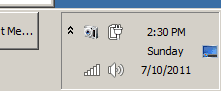
I had both the time and the date in the system tray, but then I decided to select the classic scheme. (I'm picky about the colors, and it seemed that I needed to do that to get the full flexibility I needed). I'm happy with the scheme but the only drawback is now the system tray contains the time but not the date. (I get the date only by hovering in that area). Is there a way to tell windows to put the date back in there or do I have to use a third party utility to do this?

Thanks
~Paul
 

My Computer

OS
Windows 7 Home Premium 64 bit
Paul, try to left click on the clock and then change settings.
 

My Computer

Computer type
PC/Desktop
Computer Manufacturer/Model Number
Dell XPS 420
OS
Windows 10, Home Clean Install
CPU
Intel Core2 processsor Q8200(2.33Ghz 1333FSB) Quad Core Tech
Motherboard
Dell
Memory
6 gb
Graphics Card(s)
ATI Radeon 256MB HD3650
Sound Card
Intergrated 7.1 Channel Audio
Monitor(s) Displays
Dell SP2009W 20"
Hard Drives
640 GB Serial ATA Hard drive
Cooling
Fan
Keyboard
Dell USB Keyboard
Mouse
Dell Premium Optical USB
Internet Speed
DSL 2.85
Hi Pmennen

You can only have the date showing aswell if your using large icons on the taskbar

Danny
 

My Computer

Computer Manufacturer/Model Number
acer aspire 5935g
OS
Windows 7 Home Premium x64 SP1
CPU
intel(R)core(TM)2 duo CPU T6600 @ 2.20GHz
Motherboard
intel gm45/gm47 revision 07
Memory
3 gb ddr3
Graphics Card(s)
ati radeon hd4570/512mb
Monitor(s) Displays
lop156wh2-tle1 15.3 flat
Screen Resolution
1366x768
Hard Drives
OCZ-Agility3 60gig ssd
320gig external hdd
500gig external hdd
Mouse
Optical
Internet Speed
30Mbps Down/30Mbps Up

My Computer

Computer type
Laptop
Computer Manufacturer/Model Number
Sager NP9170
OS
Win 7 Pro x64 / Win 10 Pro
CPU
Intel(R) Core(TM) i7-3630QM CPU @ 2.40GHz
Motherboard
CLEVO P170EM
Memory
12 GB
Graphics Card(s)
(1) Intel(R) HD Graphics 4000 (2) NVIDIA GeForce GTX 675M
Sound Card
(1) Realtek High Definition Audio (2) Intel(R) Display Aud
Monitor(s) Displays
17.3
Screen Resolution
1920x1080
Hard Drives
(1) Samsung 860 EVO 500GB(OS) (1) Samsung 860 EVO 500GB(Data)
Keyboard
Backlite
Antivirus
MSE, Malwarebytes Pro
Browser
Firefox
Other Info
DESKTOP: Custom-built.
OS: Win 10 Pro x64.
CASE: Rosewill R5.
CPU: Intel I5 4670K CPU @ 3.40GHz.
CPU COOLER: Cool Master Hyper 212 EVO.
MOTHERBOARD: Asus Z87-A.
MEMORY: Kingston HyperX 2x4 GB.
GPU: Nvidia Geforce 650 TI.
PSU: Corsair TX750.
DRIVES: (1) Samsung 840 120 GB SSD (2) Western Digital blue 500 GB 7200 RPM.
  • Like
Reactions: whs
Hi Pmennen

You can only have the date showing aswell if your using large icons on the taskbar

Danny

Thanks Danny (and Jerry), but I am already using large icons and the date still doesn't appear. The date does appear if I enlarge the taskbar to be double height. Attached is a screen capture of the system tray for both single and double height.

I think the problem is that the text is too big because of my adjustments to the window theme. I don't really want to change the theme since I have that the way I want it. There doesn't seem to be a way to separately adjust the text size of this system tray clock, so perhaps I have to use a third party utility. I remember there was such a thing for windows XP (to put the date in) since that capability was not built into XP. It had the ability to adjust pretty much everything. I wonder if that would work with windows 7?
 

Attachments

  • SystemTrayClock.png
    SystemTrayClock.png
    1.7 KB · Views: 1,637

My Computer

OS
Windows 7 Home Premium 64 bit
System clock/date...

Right click on tray area and choose properties, then under clock make sure it is "ON'...
 

My Computer

Computer type
PC/Desktop
Computer Manufacturer/Model Number
Custom by Charbroil57
OS
Windows 7 Home Premium x64 (clean install 8/05/2015)
CPU
AMD Phenom II X2 550 Black Edition 3.1GHz
Motherboard
Gigabyte GA-MA790X-UD4P AM3/AM2+/AM2 AMD 790X ATX AMD
Memory
8 GB (4 x 2 GB) Corsair 6400C5 800 MHz
Graphics Card(s)
BFG 512MB GDDR3 9600GT OC
Sound Card
Realtec HD Audio 5.1
Monitor(s) Displays
DVI Viewsonic VA2231
Screen Resolution
1920 x 1080 (1080p)
Hard Drives
1 TB SATA 6G Seagate Barracuda (Boot drive, limited to 3G due to Mobo)
500 GB SATA 3G Seagate Barracuda
500 GB USB Seagate Desktop Drive
PSU
Ultra X4 750w Modular(upgraded)
Case
Antec Sonata
Cooling
Stock (80w CPU)
Keyboard
Microsoft Wireless Desktop Elite
Mouse
Wirless Intellimouse Explorer 2.0
Internet Speed
Xfinity Broadband (Home 75 MB Download)
Antivirus
Norton Internet Security
Browser
Firefox 39 (default) and IE 11
Other Info
SATA HP Lightscribe DVD RW
SATA Samsung Lightscribe DVD RW
Right click on tray area and choose properties, then under clock make sure it is "ON'...

Ok, sorry if I think that is a silly question. If I turn the clock off, neither the time or the date will appear in the tray. However I have the clock but not the time.

For grins I did try turning the clock off, and then on again ... but no joy.

~Paul
 

My Computer

OS
Windows 7 Home Premium 64 bit

My Computer

Computer Manufacturer/Model Number
Averatec 6130HS-20
OS
Windows 7 Professional 32-bit (6.1, Build 7600)
CPU
Intel(R) Pentium(R) 4 3.00 GHz HT
Memory
2.0 GB
Graphics Card(s)
ATI Mobility Radeon 9600 64MB
Sound Card
Realtek AC'97 Audio
Screen Resolution
1280 x 800
Hard Drives
Seagate 96023A 60GB 7200RPM -
Seagate FreeAgentDesktop 250GB
Cooling
20 Inch Box Fan
Mouse
Targus PAWM10 Wireless Optical Laptop Mouse
Indeed T-Clock 2010 did exactly what I needed.
Thanks for the link Greg!

~Paul
 

My Computer

OS
Windows 7 Home Premium 64 bit
Back
Top