Task Management

Task Management

   Information
This tutorial will show you how to quickly and easily kill wayward programs and processes that have stopped working or not functioning as expected.

   Note
The command line will be used throughout this tutorial.


Sometimes it is necessary to close programs and tasks by brute-force as they have stopped responding or not functioning as expected. In these cases the usual methods of closing a program wont work. Often the programs start sucking resources from the OS and thereby become unresponsive.

For these occasions this method is a handy quick way to get the program resolved.

1. Start the command prompt by typing cmd in the start menu search bar and press enter

2. With cmd running you can get a list of running applications and tasks by typing tasklist in the cmd window.
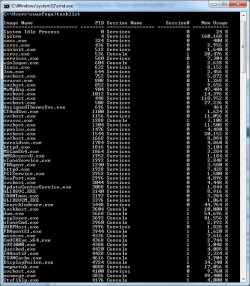
tm1.JPG

3. We are mostly interested in the PID (Process ID number) column. Every running program or task has a unique PID associated with it. This allows for easy task management For instance there may be a couple of instances of the same program running with the same name but using different PIDs thereby making it harder to kill the process using its name.

4. So with the list of tasks we can now begin to take action. In this example lets imagine that Messenger has become unresponsive and we need to kill it.

To kill the process you use the command taskkill. So to kill messenger in this case you use:

taskkill /PID 3836
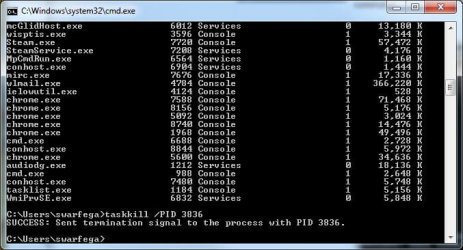
tm2.JPG

As you will see, you will get notification of success or failure to kill the task. The offending program or task also disappears from the desktop.

   Note
You could also type taskkill /IM msnmsgr.exe which would have the same affect. But of course if you have two processes with the same name, the PID method would be preferred.
 
Last edited by a moderator:
Nice tutorial, nice utility. Anything to make it easier!

Robert
 

My Computer

OS
...
Hello Robert,

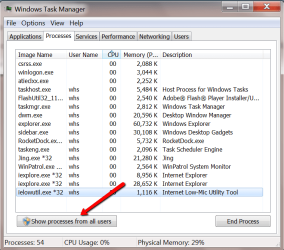
You could also use Task Manager to kill the applications and processes as well.

Hope this helps,
Shawn
 

My Computer

Computer type
PC/Desktop
Computer Manufacturer/Model Number
Self built custom
OS
64-bit Windows 11 Pro for Workstations
CPU
Intel i7-8700K OC'd to 5 GHz
Motherboard
ASUS ROG Maximus XI Formula Z390
Memory
64 GB (4x16GB) G.SKILL TridentZ RGB DDR4 3600 MHz
Graphics Card(s)
ASUS ROG-STRIX-GTX1080TI-O11G-GAMING
Sound Card
Integrated
Monitor(s) Displays
2 x Samsung Odyssey G7 27"
Screen Resolution
2560x1440
Hard Drives
1TB Samsung 990 PRO M.2,
4TB Samsung 990 PRO PRO M.2,
TerraMaster F8 SSD Plus NAS
PSU
Seasonic Prime Titanium 850W
Case
Thermaltake Core P3
Cooling
Corsair Hydro H115i
Keyboard
Logitech wireless K800
Mouse
Logitech MX Master 4
Internet Speed
2 Gb/s Download and 100 Mb/s Upload
Antivirus
Malwarebyte Anti-Malware Premium
Browser
Google Chrome
Other Info
Logitech Z625 speaker system,
Logitech BRIO 4K Pro webcam,
HP Color LaserJet Pro MFP M477fdn,
APC SMART-UPS RT 1000 XL - SURT1000XLI,
Galaxy S23 Plus phone
thansk brink, im learning alot of tips here.
 

My Computer

OS
Windows 7 Pro x64
CPU
Intel Core 2 Quad Q6600 [2.4Ghz] OC speeds 3.2Ghz
Motherboard
ASUS P5QL-E
Memory
Kingston HyperX KHX8500D2K2-4G 1066Mhz 8GB (2GB*4)
Graphics Card(s)
ASUS GeForce GTX 550 Ti
Sound Card
OnBoard
Monitor(s) Displays
Samsung SyncMaster T220
Screen Resolution
1680*1050
Hard Drives
Intel SSD 320 Series 80GB
PSU
Corsair TX750W
Case
CM 690 II
Cooling
Cooler Master Hyper 212+
Keyboard
Logitech G510
Mouse
Logitech G400
Internet Speed
50Mb :D
As a related item this may be of interest to those who work on other peoples machines, ( well our machines would never get into a bad state would they :sarc: ), It's a bat file to close all non essential processes in one go ...

Kill All Running Apps .BAT – Repair Tool of the Week | Technibble

The title pretty much says it all. This .BAT file will kill all currently running apps on a system that the user started with the exception of a few locked Windows processes and some antivirus products. This comes in handy when you are working on a system that has too many processes running and thus slowing it down; often to the point where its difficult to do any work on it.

Being a BAT file, this script is obviously highly customizable. It works on a “if the process is not in this list, then kill it” system; so you can add processes to the list that you do not to be killed such as the menu for your USB drive applications or Firefox.
 

My Computers

System One System Two

  • Computer type
    PC/Desktop
    Computer Manufacturer/Model Number
    ChillBlast - Custom to my design
    OS
    Windows 11 Pro x64 [Latest Release and Release Preview]
    CPU
    Ryzen 9 5950X, 3.8 - 5.2 MHz
    Motherboard
    Asus Prime X570-Pro
    Memory
    64GB [2 x 32GB] DDR4 3200MHz
    Graphics Card(s)
    4GB NVIDIA GEFORCE GTX 1650 Ti
    Sound Card
    On-board SPDIF to 5.1 System + HDMI [5.1 system]
    Monitor(s) Displays
    32" UHD 32 Bit HDR Monitor + 43" UHD 4K 32Bit HDR TV
    Screen Resolution
    2 x 3840 x 2160 @60Hz
    Hard Drives
    1TB M2 SSD OS, 500GB Fast Access SSD, 2 x 8TB Data + Various Externals from 1TB to 4TB, 10TB NAS
    PSU
    NZXT C750 80 PLUS Gold 750W Modular PSU
    Case
    Workstation Case [Matt Black]
    Cooling
    NZXT Kraken X63 280mm CPU Cooler +2x Quiet Case fans
    Keyboard
    Logitech Wireless MX Keys & K400 + others
    Mouse
    Logitech Wireless MX Master 3S
    Internet Speed
    920 MB Down 50 MB Up
    Antivirus
    BitDefender Total Security Pro
    Browser
    Chrome (always run latest Non-Beta)
    Other Info
    Also run ...
    Laptop - Quad 8GB - Windows 10 Pro x64
    Nexus 7 Android tablet x2
    Samsung 10.2" tablet
    Blackview TAB 8 4G Android Tablet c/w Keyboard
    Wacom Intuos Pro Medium Pen Pad
    Wacom Intuos Pro Small Pen Pad
    Wacom Expresskeys Remote
    Loopdeck+ Graphics Controller
    Shuttle Pro v2 Control
  • Computer type
    Laptop
    System Manufacturer/Model Number
    Dell XPS 17 10750H
    OS
    Windows 11 Pro x64 Latest RP
    CPU
    Intel I7 10750H 5.0GHz
    Motherboard
    Dell XPS
    Memory
    32GB [2x16GB] DDR4 2933 MHz
    Graphics Card(s)
    nVidia GTX1650Ti 4 GB GDDR6
    Sound Card
    Stock [Realtek] 4 Speaker
    Monitor(s) Displays
    17" IPS UHD+ Infinity Edge Touchscreen
    Screen Resolution
    3840 x 2400
    Hard Drives
    2TB M2 NVMe, 4TB External + various 500GB & 1TB External NVMe (also have access to spinner HDD from
    PSU
    Stock
    Case
    Stock XPS Aluminium & Carbon Fibre
    Cooling
    Stock - Active Fan Control
    Keyboard
    Backlit + Various Logitech
    Mouse
    Stock Track Pad + Logitech MX Trackball
    Internet Speed
    72 MB Down 18MB Up
    Browser
    Chrome
    Other Info
    Also run ...
    Laptop - Quad 8GB - Windows 10 Pro x64
    Nexus 7 Android tablet x2
    10.2" tablet
    Sony Z3 Android Smartphone
    Wacom Intuos Pro Medium Pen Pad
    Wacom Intuos Pro Small Pen Pad
    Wacom Expresskeys Remote
    Loopdeck+ Graphics Controller
    Shuttle Pro v2 Control Pad
    10TB NAS
Hello Robert,

You could also use Task Manager to kill the applications and processes as well.

Hope this helps,
Shawn
That's how I usually do it. Just make sure you click on 'Show processes from all users'.
 

Attachments

  • 2013-08-06_1200.png
    2013-08-06_1200.png
    33.1 KB · Views: 402

My Computer

Computer Manufacturer/Model Number
HP, Dell, Gateway, Toshiba - 4 laptops and 2 desktops
OS
Vista, Windows7, Mint Mate, Zorin, Windows 8
CPU
from 1.6GHz Duo to i7
Monitor(s) Displays
2x HP w2207
Hard Drives
5x HDD, 7x SSD, 12x Externals
Keyboard
with trackball - no mices
Mouse
Trackball mice
Internet Speed
DSL 6000
Back
Top