
Task Manager - Add or Remove Columns

How to Add or Remove Columns in Task Manager in Vista and Windows 7

   Information
This will show you how to add or remove columns in the Processes, Networking, and Users tabs in the Windows 7 or Vista Task Manager.

All Changes made will be remembered for when you close and open Task Manager until you make new changes.


Here's How: 1. Right click on a empty space on the taskbar and click on Task Manager, OR press CTRL+SHIFT+ESC.

2. To Add or Remove Columns in the Processes Tab A) Click on the Processes tab, then click on View (menu bar) and Select Columns. (see screenshot below)
NOTE: The sceenshot below shows the added Base Priority (Base Pri) column added. Processes_Columns.jpg
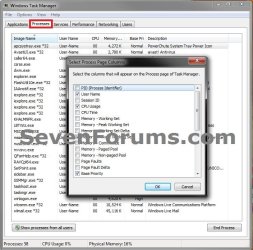
B) Check or Uncheck the boxes to add or remove the available columns of your choice, then click on OK.
3. To Add or Remove Columns in the Networking Tab A) Click on the Networking tab, then click on View (menu bar) and Select Columns. (see screenshot below) Networking_Columns.jpg
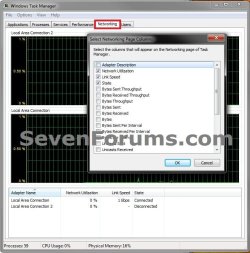
B) Check or Uncheck the boxes to add or remove the available columns of your choice, then click on OK.
4. To Add or Remove Columns in the Users Tab A) Click on the Users tab, then click on View (menu bar) and Select Columns. (see screenshot below) Users_Columns.jpg
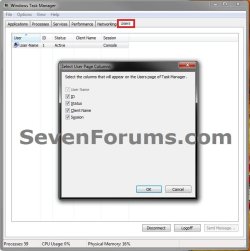
B) Check or Uncheck the boxes to add or remove the available columns of your choice, then click on OK.
5. When finished, you can close Task Manager.
That's it,
Shawn


Last edited:
Another good tutorial, Shawn. Thanks once again.
 

My Computer

Computer Manufacturer/Model Number
Home built
OS
Windows 7 Ultimate 32 bit
CPU
Intel(R) Pentium(R) 4 CPU 3.00GHz
Motherboard
ASUS P4P800-VM Motherboard Chipset: Intel 865G + ICH5
Memory
2.50 GB RAM
Graphics Card(s)
NVIDIA GeForce 7600 GS
Sound Card
SoundMax Integrated Digital Audio (Chip)
Monitor(s) Displays
ViewSonic VX 1962 wm
Screen Resolution
1680 X 1050
Hard Drives
Seagate Barracuda 7200.10 80 GB
ST380215A ATA Device 18.6 GB
Western Digital "My Book" external hard drive 750 GB
Cooling
Fan based
Keyboard
Microsoft Comfort Curve Keyboard 2000 v10 USB
Mouse
Logitec optic USB
Internet Speed
3.01 Mb/s download 0.64 Mb/s upload
Thank you Carl. :)
 

My Computer

Computer type
PC/Desktop
Computer Manufacturer/Model Number
Self built custom
OS
64-bit Windows 11 Pro for Workstations
CPU
Intel i7-8700K OC'd to 5 GHz
Motherboard
ASUS ROG Maximus XI Formula Z390
Memory
64 GB (4x16GB) G.SKILL TridentZ RGB DDR4 3600 MHz
Graphics Card(s)
ASUS ROG-STRIX-GTX1080TI-O11G-GAMING
Sound Card
Integrated
Monitor(s) Displays
2 x Samsung Odyssey G7 27"
Screen Resolution
2560x1440
Hard Drives
1TB Samsung 990 PRO M.2,
4TB Samsung 990 PRO PRO M.2,
TerraMaster F8 SSD Plus NAS
PSU
Seasonic Prime Titanium 850W
Case
Thermaltake Core P3
Cooling
Corsair Hydro H115i
Keyboard
Logitech wireless K800
Mouse
Logitech MX Master 4
Internet Speed
2 Gb/s Download and 100 Mb/s Upload
Antivirus
Malwarebyte Anti-Malware Premium
Browser
Google Chrome
Other Info
Logitech Z625 speaker system,
Logitech BRIO 4K Pro webcam,
HP Color LaserJet Pro MFP M477fdn,
APC SMART-UPS RT 1000 XL - SURT1000XLI,
Galaxy S23 Plus phone
Before a few days i used to get that picture when i started task manager and it showed all programs running. NOw i don't get that picture when i start task manager but only no choices. But only this


| User | ID | Status | Client Name | Session
zmth 1 Active Console


and that is it ! Never any different . Used to get the window you show. I wish there was a way to upload an image on this forum but there is NOT. Don't know how you all uploaded that picture of what your screen showed. Anyway it does NOT show "Windows Task Manager" at top . NO colums with "Applications ,Processes,Services,Performance...etc. That does NOT appear but only as i have shown above.
 

My Computer

Computer type
Laptop
OS
7 64

My Computer

Computer type
PC/Desktop
Computer Manufacturer/Model Number
Self built custom
OS
64-bit Windows 11 Pro for Workstations
CPU
Intel i7-8700K OC'd to 5 GHz
Motherboard
ASUS ROG Maximus XI Formula Z390
Memory
64 GB (4x16GB) G.SKILL TridentZ RGB DDR4 3600 MHz
Graphics Card(s)
ASUS ROG-STRIX-GTX1080TI-O11G-GAMING
Sound Card
Integrated
Monitor(s) Displays
2 x Samsung Odyssey G7 27"
Screen Resolution
2560x1440
Hard Drives
1TB Samsung 990 PRO M.2,
4TB Samsung 990 PRO PRO M.2,
TerraMaster F8 SSD Plus NAS
PSU
Seasonic Prime Titanium 850W
Case
Thermaltake Core P3
Cooling
Corsair Hydro H115i
Keyboard
Logitech wireless K800
Mouse
Logitech MX Master 4
Internet Speed
2 Gb/s Download and 100 Mb/s Upload
Antivirus
Malwarebyte Anti-Malware Premium
Browser
Google Chrome
Other Info
Logitech Z625 speaker system,
Logitech BRIO 4K Pro webcam,
HP Color LaserJet Pro MFP M477fdn,
APC SMART-UPS RT 1000 XL - SURT1000XLI,
Galaxy S23 Plus phone
Back
Top