
How to Display a Message Reminder in Windows with Task Scheduler
Information
This will show you how to create yourself, or another user or group, a message reminder scheduled to display for when and how often you like in Windows 7 or Vista using Task Scheduler.
All users on the computer will be able to do this.
All users on the computer will be able to do this.
Note
The steps may look long and complicated, but this is really quite easy to do. I just included a lot of details to help make it easy. 
Warning
The message reminder might not always appear on top of the current active window if you just happen to be typing or clicking in the window (ex: Internet Explorer) at the same time when the message reminder displays causing the message reminder to no longer be the active window and not on top.
The message reminder will also have a icon on the taskbar to indicate that it has displayed.
You could also use what Dwarf's posted below to avoid this as well.
The message reminder will also have a icon on the taskbar to indicate that it has displayed.
You could also use what Dwarf's posted below to avoid this as well.
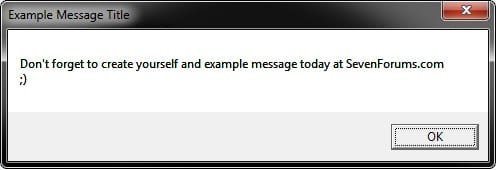
EXAMPLE: Message Reminder
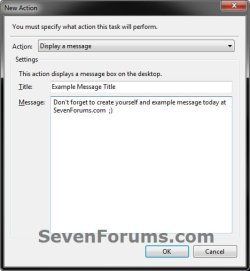
NOTE: This is the type of message reminder pop-up dialog that will be displayed on your desktop with your message title and message you set for when and how often in Task Scheduler.
Here's How:
1. Open the Start Menu, type taskschd.msc, and press Enter.
2. If prompted by UAC, then click on Yes (Windows 7) or Continue (Vista).
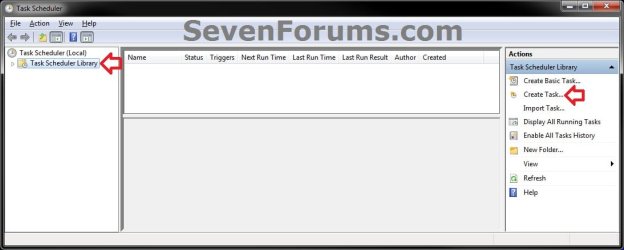
3. In the left pane, click on Task Scheduler Library folder to select it, then click on Create Task in the right pane. (see screenshot below)
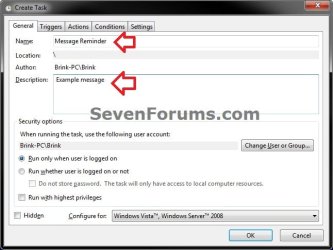
4. In the General tab, type in a Name and Description for this task to help let you know what it's for. (see screenshot below)
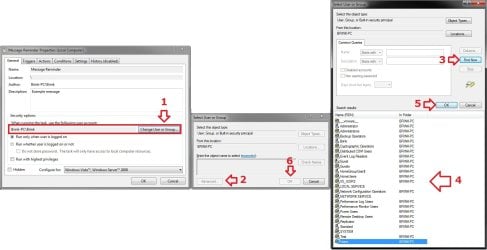
5. If you wanted to change what user or group this message reminder will display for other than than the default of your user account, then click on the Change User or Group button and follow the steps in the screenshot below to select a user or group. If not, then skip this step and go to step 6.
NOTE: The steps are numbered in the order to follow for how to select a different user or group. The Users group would be for all users.
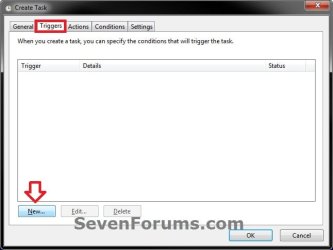
6. Click on the Triggers tab, and click on the New button. (see screenshot below)
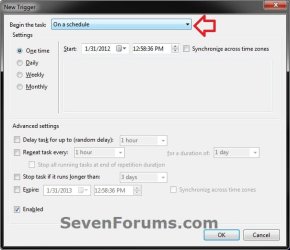
7. If not already selected, then select On a schedule. (see screenshot below)
NOTE: You could select what event you would like or works better for you instead, but I'm just using this one as an example. If you select a different option, then you will have different setting to set instead of the ones in steps 7A-7B below.
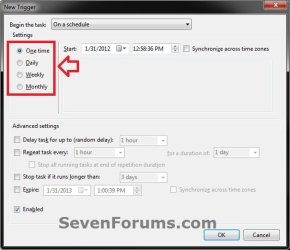
A) Select how often you want the message reminder to display. (see screenshot below)
B) Depending on what you selected in step 7A, select and set when (ex: date and time) you want the message reminder to display. (see screenshots below)
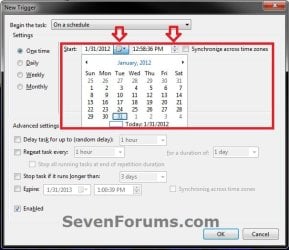
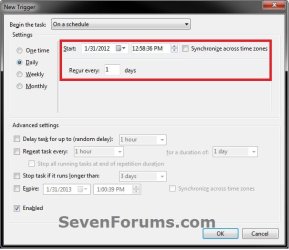
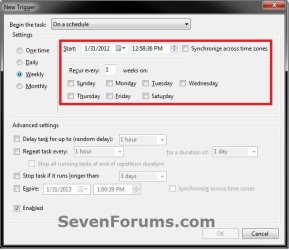

C) When finished, click on OK. (see screenshot above)
8. Click on the Actions tab, and click on the New button. (see screenshot below)

9. In the Action drop down menu, select Display a message. (see screenshot above)
NOTE: See red warning box at the top of the tutorial.
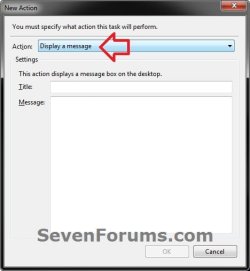
10. Type in a Title and Message that you want displayed in the message reminder, and click on OK. (see screenshot above)
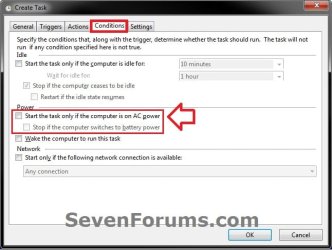
11. Click on the Conditions tab, uncheck the Stop if the computer switches to batter power box, and uncheck the Start the task only if the computer is on AC power box. (see screenshot below)
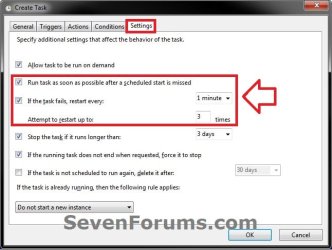
12. Click on the Settings tab, check the Run task as soon as possible after a scheduled start is missed box, and check the If the task fails, restart every: box. (see screenshot below)
13. Click on OK. (see screenshot below)
14. You will now see this task listed in the Task Scheduler Library folder. (see screenshot below)
NOTE: You will always be able to edit or delete this task.

15. Close Task Scheduler. You're message reminder will now display for the user or group and when you have it set for in this task.
That's it,
Shawn
Related Tutorials
- Task Scheduler - Create New Task
- Task - Create to Run a Program at Startup and Log On
- Task Scheduler - Put Computer into Standby Mode
- How to Create a Task that will Shut Down the PC Automatically
- How to Create a Task to Wake up the Computer to Run in Vista and Windows 7
- How to Create a Elevated Program Task Shortcut without a UAC Prompt
Last edited:


