
Taskbar - Customize Skin

How to Customize the Windows 7 Taskbar Skin

   Information
Here’s something for those, who are stuck with the Basic skin, and don’t like the default Taskbar appearance...
attachment.php

...but would rather have it look different:
attachment.php

Unfortunately, the Basic Taskbar appearance can't be changed thru settings, but requires you to alter the image files it's based on. This said, as the images are only a few pixels big, it's not difficult at all.


STEP ONE

Preparation


1. Download the Uxtheme patch in order to use these modifications.
WARNING: Make sure you download the right files! As always, make backups of the files you alter, as there’s always a chance to break something. Especially when messing around with system files.

2. In there you’ll need the 829.png to 832.png and 990.png to 993.png files. For build 7229, you'll need the 841.png to 844.png and 1010.png to 1013.png files instead.
NOTE: I created a little overview. Here you can see, where the images are used.
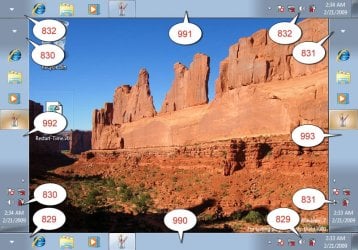
basic_bar_pos.jpg
3. Apply the Uxtheme patch (If not already done before).

4. Take ownership of aero.msstyles (so you can overwrite it).

5. Create a backup of aero.msstyles.


STEP TWO

How to Edit


1. Open your aero.msstyles backup with Resource Tuner (or a comparable tool)

2. Extract the image files.

3. Modify the file(s) to your liking.

4. In Resource Tuner select Edit Resource to add the edited image.
NOTE: The file name has to be the same as the original file.

5. Select Save File as and create a copy of aero.msstyles somewhere

6. Replace the old file with the newly created one

7. Change to a different Scheme and back to apply your settings
Enjoy! :D

   Tip
I have attached the plain black bar in a ZIP file below for those who want to see what it looks like without having to edit something. Click on the Download button below to download the ZIP file. :p

Download


Attachments

  • basic_bar_black.zip
    basic_bar_black.zip
    829.1 KB · Views: 11,123
  • Basic_Bar1.jpg
    Basic_Bar1.jpg
    14.7 KB · Views: 132,539
  • basic_bar_default.jpg
    basic_bar_default.jpg
    3.9 KB · Views: 132,217
Last edited by a moderator:
Does This Work for RTM?????
 

My Computer

Computer Manufacturer/Model Number
Gateway DX4831
OS
Windows 7 Ultimate x64
CPU
Intel i3 :(
Motherboard
OEM Intel H57
Memory
6GB DDR3 1333
Graphics Card(s)
NVIDIA GeForce GT 220 :(
Sound Card
Built IN
Monitor(s) Displays
Gateway HX2000 @ 1600x900 :(
Screen Resolution
1600x900
Hard Drives
1TB Western Digital
Internet Speed
Comcast 20MB down 5 MB up
what to download ? :( and what are those "pgn" files?
 

My Computer

Computer Manufacturer/Model Number
i dont know
OS
Windows 7 Ultimate x32
CPU
2.40 ghz
Motherboard
i dont know
Memory
1 gb ram
Graphics Card(s)
ati randeon 9250
Sound Card
sound blaster audigy
Monitor(s) Displays
lg flatron w1934s
Hard Drives
ide 50gb and team 500 gb
PSU
i dont know
Case
i dont know
Cooling
i dont know
Hi, I don't want to turn off aero, is there any way to customize the taskbar, or the semi transparent pieces of it?
Nice tutorial and thanks in advance!
 

My Computer

Computer type
PC/Desktop
Computer Manufacturer/Model Number
Custom Built PC
OS
Windows 7 Ultimate 64 bit SP1
CPU
Intel(R) Core(TM) i5-2500K
Motherboard
Gigabyte Technology Co., Ltd. Z68X-UD3-B3
Memory
12GB Kingston Hyperx 1600MHz
Graphics Card(s)
Asus GTS 450
PSU
500W Coolink
Other Info
Genius G-Pen F610 (PenPad)
Windows Bleed through

THANKS tons you guys for all the useful tools and techniques.

Here's my plight: WINDOW BLEED THROUGH

Background
I recently re-installed Win7 Pro x64 on my HP dv99620us (4G RAM) laptop because of eroding performance.

To speed up performance I followed many of the directions here, on this very popular, thorough guide, including turning off AERO and most visual effects:
Speed Up Windows 7 - Ultimate Guide To Make Windows 7 Blazing Fast!!!

While there seems to be some disagreement about whether AERO or Basic/Classic themes use fewer system resources (Microsoft claims that AERO traffics all processing through the GPU, freeing the CPU up, others point out that other services that support Aero still eat up CUP resources, and that, especially on laptops, both processors use the same RAM). Nonetheless, I still see some tests showing overall system consumption is higher with AERO and thus performance can be slower.

But, as all here seem to agree: Win7 Basic and Classic themes are kinda ugly. So, given the debate here about what build of Windows, and issues around x64, I followed the instructions here http://mediamyself.deviantart.com/art/Dark-for-Windows-7-Basic-141788355?offset=25#comments on installing the DARK theme.

The theme looks great. But, if I have a window open on the desktop (not minimized) behind the active window, often a few elements of the rear window suddenly appear in (bleed through) the current active window. As long as keep windows other than the active window minimized, there's no problem.

Any suggestions on how to fix?

THANKS
 

My Computer

Computer Manufacturer/Model Number
HP dv9620us
OS
Win7 Ultimate x64
CPU
AMD Turion 64 x2 Mobile Technology TL-58 1.90 GHz
Memory
2048 MB DDR2 (2 Dimm)
Graphics Card(s)
NVIDIA GeForce Go 7150M (UMA)
Sound Card
Conexant High Definition SmartAudio HD2
Monitor(s) Displays
17.0" WXGA+ High-Definition BrightView Widescreen (1440 x 90
Hard Drives
240 GB (5400 RPM) Dual HDD - 120 GB + 120 GB(SATA)
Back
Top

