
How to Lock or Unlock Taskbar in Windows 7
Information
This will show you how to lock or unlock the taskbar to allow you to move the taskbar or toolbars on the taskbar in Windows 7.
When the taskbar is unlocked, you will see a dotted separator line to the left of pinned programs, and any toolbars.
When the taskbar is unlocked, you will see a dotted separator line to the left of pinned programs, and any toolbars.
Tip
EXAMPLE: Taskbar
OPTION ONE
From the Taskbar
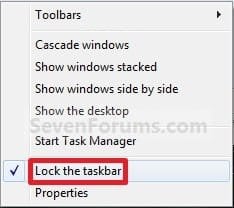
1. Right click on a empty space on the taskbar.
2. To Lock the Taskbar
A) Click on Lock the taskbar to check it. (See screenshot below step 3)
3. To Unlock the Taskbar
A) Click on Lock the taskbar to uncheck it. (See screenshot below)
OPTION TWO
From Taskbar and Start Menu Properties
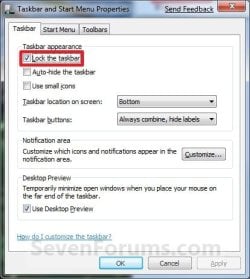
1. Right click on a empty space on the taskbar and click on Properties.
A) Go to step 3.
OR
2. Right click on the Start button and click on Properties.
A) Click on the Taskbar tab. (See screenshot below step 5)
3. To Lock the Taskbar
A) Check the Lock the taskbar box. (See screenshot step 5)
B) Go to step 5.
4. To Unlock the Taskbar
A) Uncheck the Lock the taskbar box. (See screenshot below step 5)
5. Click on OK. (See screenshot below)
OPTION THREE
Using a REG File Download
1. To Lock Taskbar
A) Click on the Download button below to download the file below.
Lock_Taskbar.reg
Download
B) Go to step 3.
2. To Unlock Taskbar
A) Click on the Download button below to download the file below.
Unlock_Taskbar.reg
Download
3. Click on Save, and save the .reg file to the desktop.
4. Right click on the downloaded .reg file and click on Merge.
5. Click on Run, Yes, Yes, and OK when prompted.
6. Log off and log on, or restart the computer to completely apply.
7. When done, you can delete the downloaded .reg file if you like
That's it,
Shawn
Related Tutorials
- How to Pin or Unpin a Folder to the Windows 7 Taskbar
- How to Pin or Unpin a Program to the Windows 7 Taskbar
- How to Use Small or Large Icons on the Windows 7 Taskbar
- How to Enable or Disable QuickLaunch in Windows 7
- How to Enable or Disable Windows 7 Taskbar Button Grouping
- How to Move the Windows 7 Taskbar Location on the Desktop
- How to Show or Hide the Windows 7 Taskbar with Auto-hide
- How to Change the Windows 7 Taskbar Icon Width Size
- How to Pin or Unpin a Drive to the Windows 7 Taskbar
- How to Create a Taskbar Properties Shortcut in Windows 7
- How to Resize the Taskbar in Vista and Windows 7
- How to Enable or Disable Resizing the Taskbar in Vista and Windows 7
Attachments

Last edited:


 . Well I am not that desparate, I will reinstall the OS in the next one or two weeks anyway, and hopefully the last time for a longer time, after I check out a few more applications. However, if you have some more ideas, I would be happy to try. BTW, the help a few weeks ago with the disappearing system folders (My Documents, etc.) worked perfectly!

