
How to Enable or Disable Resizing the Taskbar in Vista and Windows 7
Information
This will show you how to enable or disable the ability of users from resizing the taskbar in Vista and Windows 7.
You must be logged in as an administrator to be able to do this tutorial.
You must be logged in as an administrator to be able to do this tutorial.
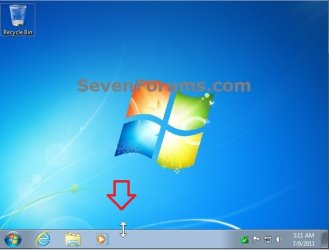
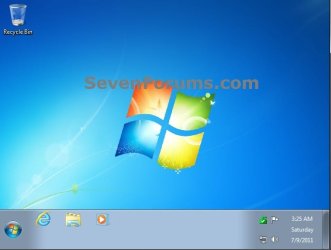
EXAMPLE: Resizing the Taskbar
NOTE: When disabled, you will no longer get the double arrow mouse pointer to be able to drag the taskbar border.
OPTION ONE
Using a REG File Download
NOTE: This option will affect all users on the computer. 1. To Enable the Ability to Resize the Taskbar
NOTE: This is the default setting. A) Click on the Download button below to download the file below. Enable_Taskbar_Resize.reg
Download
B) Go to step 3.
2. To Disable the Ability to Resize the Taskbar A) Click on the Download button below to download the file below. Disable_Taskbar_Resize.reg
Download
3. Click on Save, and save the .reg file to the desktop.
4. Right click on the downloaded .reg file and click on Merge.
5. Click on Run, Yes (UAC-Windows 7) or Continue (UAC-Vista), Yes, and OK when prompted.
6. Log off and log on, or restart the computer to apply.
7. When done, you can delete the downloaded .reg file if you like.
OPTION TWO
Through the Local Group Policy Editor
2. In the left pane, click on to expand User Configuration, Administrative Templates, and Start Menu and Taskbar. (see screenshot below)
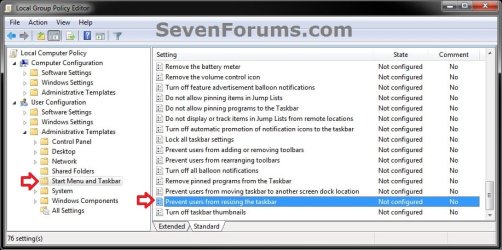
3. In the right pane, right click on Prevent users from resizing the taskbar and click on Edit. (See screenshot above)
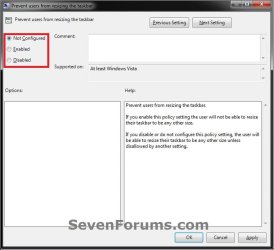
4. To Enable the Ability to Resize the Taskbar A) Select (dot) either Not Configured or Disabled. (see screenshot below step 6)
NOTE: Not Configured is the default setting.
B) Go to step 6.
5. To Disable the Ability to Resize the Taskbar A) Select (dot) Enabled. (see screenshot below step 6)
6. Click on OK. (see screenshot below)
7. Close the Local Group Policy Editor window.
8. Log off and log on, or restart the computer to apply.
That's it,
Shawn
Attachments
Last edited:

 I remember the old XP days though, when you could just click 'n' drag...