Taskbar Thumbnail Previews - Enable or Disable

How to Enable or Disable Taskbar Thumbnail Previews in Windows 7 and Windows 8

   Information
The usual method used in Vista to disable the taskbar thumbnail previews does not work in Windows 7 and Windows 8.

This tutorial will show you how to enable or disable the thumbnail previews of open items on the taskbar in Windows 7 and Windows 8.

   Warning
In Windows 7, you will need to have a Aero Theme selected and not one of the Basic and High Contrast Themes for taskbar thumbnail previews to display.

Aero Requirements to be Enabled in Windows 7

NOTE: If Aero is not enabled, then taskbar thumbnail previews will not display even when enabled.

  • 1 GHz 32-bit or 64-bit processor
  • 1 GB of system memory
  • Support for DirectX 9 graphics with 128 MB memory (in order to enable Aero theme)
  • You must be have True Color (32 bit) set instead of High Color (16 bit).
  • The desktop composition and Animate controls and elements inside windows options need to be enabled in Visual Effects.
  • The Desktop Window Manager Session Manager and Themes Services need to be set as Started and Automatic.
  • Refresh or update your WEI score. You will need an WEI score minimum of 2.0 in both Graphics & Gaming graphics in order for Aero to be activated.
  • Activate Windows 7.
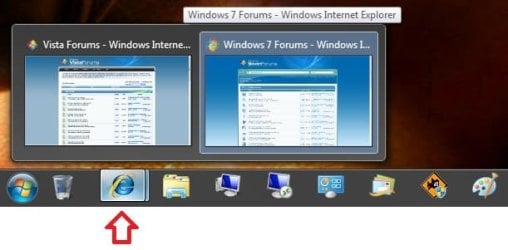
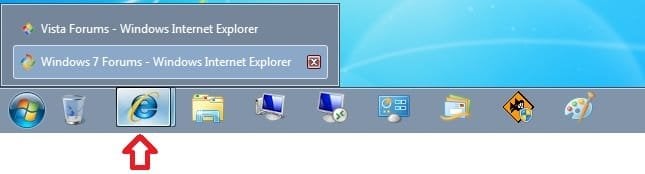
EXAMPLE: Taskbar Thumbnail Preview
Example.jpg


OPTION ONE

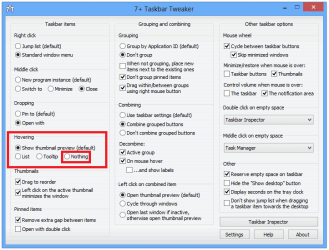
Enable or Disable Taskbar Thumbnail Previews using "7+ Taskbar Tweaker"


NOTE: This will allow you to enable or disable the taskbar thumbnail previews and list mode using a free program called 7+ Taskbar Tweaker. It is a standalone EXE file, so there is nothing to install. You just run the exe file. The download for it is in a RAR file, so you will also need a program like 7-Zip to open the RAR file and extract the EXE file since Windows 7 does not support opening RAR files by default.
1. Download the 7+ Taskbar Tweaker RAR file for your 32-bit or 64-bit Windows 7 or Windows 8.

2. Extract and run the 7+ Taskbar Tweaker exe file.

3. To Disable Taskbar Thumbnail Previews in Windows 7/8
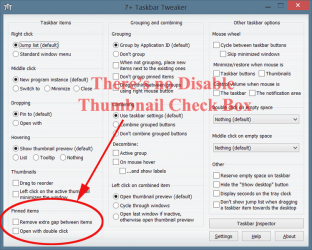
A) Under Hovering in the Taskbar items section, select (dot) the Nothing option. (see screenshot below step 5)
4. To Enable Taskbar Thumbnail Previews in Windows 7/8
NOTE: This is the default setting.

A) Under Hovering in the Taskbar items section, select (dot) the Show thumbnail preview option. (see screenshot below step 5)
5. Close 7+ Taskbar Tweaker.
7+-Taskbar-Tweaker.png


OPTION TWO

Enable or Disable Taskbar Thumbnail Previews by Changing Taskbar Thumbnail and List Mode Threshold


NOTE: Changing the threshold (NumThumbnails value) to 0 will disable taskbar thumbnails, and allow you to still use a Aero theme with a list (list mode) of open windows.
1. For how, see: Change Taskbar Thumbnail and List Mode Threshold in Windows 7 and Windows 8


OPTION THREE

Enable or Disable Taskbar Thumbnail Previews by Changing Theme in Windows 7


   Note

PRO: Taskbar thumbnail previews disabled, and you have a list of opened windows for the taskbar item instead.
Basic_theme.jpg
CON: No Aero theme.

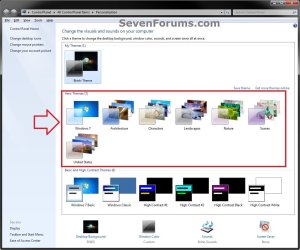
1. To Enable Taskbar Thumbnail Previews in Windows 7
NOTE: If you still want to use a Aero theme and have taskbar thumbnails previews disabled, then see OPTION TWO or OPTION FOUR instead. This is the default setting.
A) Select an Aero Theme in Personalization. (see screenshot below)
Aero_Theme.jpg
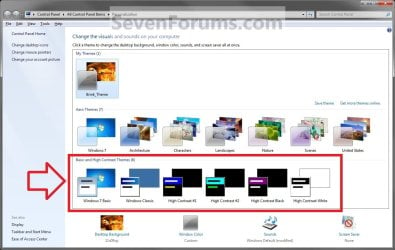
2. To Disable Taskbar Thumbnail Previews in Windows 7
A) Select one of the Basic and High Contrast Themes in Personalization. (see screenshot below)
Themes.jpg


OPTION FOUR

Enable or Disable Taskbar Thumbnail Previews by Changing Thumbnail Display Delay Time


   Note
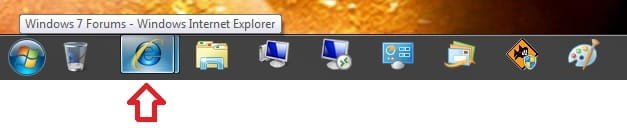
This is more of a workaround instead by setting the taskbar thumbnail preview display time to a long delay time that would effectively be the same as disabling them.

PRO: Taskbar thumbnail previews disabled, and you can have a Aero theme.

CON: You will not even have a list of opened windows for the taskbar items.
Long_delay_time.jpg

1. To Enable Taskbar Thumbnail Previews in Windows 7/8
NOTE: This is the default setting.
A) Click on the download button below to download the file below.
Default_Taskbar_Thumbnail_Delay_Time.reg

Download


B) Go to step 3.
2. To Disable Taskbar Thumbnail Previews in Windows 7/8
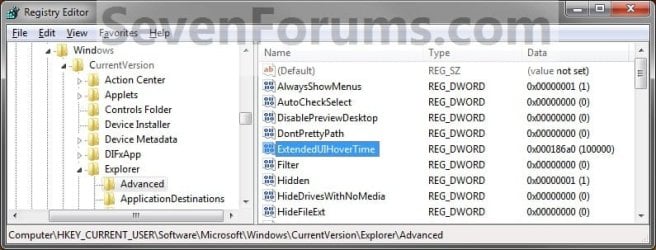
NOTE: This sets the delay time to 100000 ms (1000 milliseconds = 1 second) to effectively disable them.
A) Click on the download button below to download the file below.
100000ms_Taskbar_Thumbnail_Delay_Time.reg

Download


regedit.jpg
3. Save the .reg file to your desktop.

4. Double click/tap on the downloaded .reg file to merge it.

5. If prompted, click/tap on Run, Yes (UAC), Yes, and OK to approve the merge.

6. Log off and log on, or restart the computer to apply the changes.

7. When done, you can delete the downloaded .reg and .zip files if you like.
That's it,
Shawn


Attachments

Last edited:
Hey folks!

I tried option 4 to enable the windows toobar preview and
they had downloads; so I downloaded the file (enabling one) and unzipped the file and double clicked on it. It asked me if I wanted to continue so I clicked okay which i think added the registry into my computer.

Since then, display on my internet explorer and some folders look really weird.
Just to give you guys an idea, if i go on a google or hotmail, every tabs are surrounded by the box with thick line and the colors of the texts are blue or green where it is supposed to be black.

I tried chaning the display theme on personalization tab under control panel and that did not fix it. I am clueless.
This is starting to really bothering me a lottttt because I just bought a new laptop and this thing is making things look so funky.

does anyone have a solution to this?

Hello KDM, and welcome to Seven Forums.

Could you post back with screenshots of this?
 

My Computer

Computer type
PC/Desktop
Computer Manufacturer/Model Number
Self built custom
OS
64-bit Windows 11 Pro for Workstations
CPU
Intel i7-8700K OC'd to 5 GHz
Motherboard
ASUS ROG Maximus XI Formula Z390
Memory
64 GB (4x16GB) G.SKILL TridentZ RGB DDR4 3600 MHz
Graphics Card(s)
ASUS ROG-STRIX-GTX1080TI-O11G-GAMING
Sound Card
Integrated
Monitor(s) Displays
2 x Samsung Odyssey G7 27"
Screen Resolution
2560x1440
Hard Drives
1TB Samsung 990 PRO M.2,
4TB Samsung 990 PRO PRO M.2,
TerraMaster F8 SSD Plus NAS
PSU
Seasonic Prime Titanium 850W
Case
Thermaltake Core P3
Cooling
Corsair Hydro H115i
Keyboard
Logitech wireless K800
Mouse
Logitech MX Master 4
Internet Speed
2 Gb/s Download and 100 Mb/s Upload
Antivirus
Malwarebyte Anti-Malware Premium
Browser
Google Chrome
Other Info
Logitech Z625 speaker system,
Logitech BRIO 4K Pro webcam,
HP Color LaserJet Pro MFP M477fdn,
APC SMART-UPS RT 1000 XL - SURT1000XLI,
Galaxy S23 Plus phone
7 Taskbar Tweaker is the most useful tool for those who want to disable taskbar thumbnail previews. I didn't know anything about 7 Taskbar Tweaker, thanks for the tip.
 

My Computer

OS
Windows 7
Thank you very very much for your thorough guides Brink :)
 

My Computer

Computer Manufacturer/Model Number
Dell Studio 1555
OS
Windows 7 Home Premium 64 bit
CPU
Duo Core 2 2.1 GHz
Memory
4 GB
Graphics Card(s)
ATI Mobility HD 4570
Sound Card
IDT HD Audio
Hard Drives
Western Digital 500 GB SATA
Internet Speed
13 Megabit ADSL2+
You're most welcome Laurus. :)
 

My Computer

Computer type
PC/Desktop
Computer Manufacturer/Model Number
Self built custom
OS
64-bit Windows 11 Pro for Workstations
CPU
Intel i7-8700K OC'd to 5 GHz
Motherboard
ASUS ROG Maximus XI Formula Z390
Memory
64 GB (4x16GB) G.SKILL TridentZ RGB DDR4 3600 MHz
Graphics Card(s)
ASUS ROG-STRIX-GTX1080TI-O11G-GAMING
Sound Card
Integrated
Monitor(s) Displays
2 x Samsung Odyssey G7 27"
Screen Resolution
2560x1440
Hard Drives
1TB Samsung 990 PRO M.2,
4TB Samsung 990 PRO PRO M.2,
TerraMaster F8 SSD Plus NAS
PSU
Seasonic Prime Titanium 850W
Case
Thermaltake Core P3
Cooling
Corsair Hydro H115i
Keyboard
Logitech wireless K800
Mouse
Logitech MX Master 4
Internet Speed
2 Gb/s Download and 100 Mb/s Upload
Antivirus
Malwarebyte Anti-Malware Premium
Browser
Google Chrome
Other Info
Logitech Z625 speaker system,
Logitech BRIO 4K Pro webcam,
HP Color LaserJet Pro MFP M477fdn,
APC SMART-UPS RT 1000 XL - SURT1000XLI,
Galaxy S23 Plus phone
I tried Method One but there's no Disable Thumbnail check box. See screenshot below.

I also tried Method Two. I used the registry editor utility. I don't know what it did but it didn't prevent the thumbnails from popping up.

Option Three appears to be a manual version of Option Two.

So after the first three options didn't work I gave up.
 

Attachments

  • Untitled-1.png
    Untitled-1.png
    97.9 KB · Views: 702
Last edited:

My Computer

Computer type
PC/Desktop
Computer Manufacturer/Model Number
Custom Build Gigabyte
OS
Win7 Home Premium 64 bit
CPU
AMD
Motherboard
GA-MA78GM-S2H ver 1.1
Memory
4gb
Graphics Card(s)
built in
Hard Drives
Seagate 500 gig SATA 6
Seagate 1 tb SATA
Western Digital 1 tb IDE
Antivirus
Avira
Browser
Firefox
Hello Jim,

Option One has been updated to help. Please try again. :)
 

My Computer

Computer type
PC/Desktop
Computer Manufacturer/Model Number
Self built custom
OS
64-bit Windows 11 Pro for Workstations
CPU
Intel i7-8700K OC'd to 5 GHz
Motherboard
ASUS ROG Maximus XI Formula Z390
Memory
64 GB (4x16GB) G.SKILL TridentZ RGB DDR4 3600 MHz
Graphics Card(s)
ASUS ROG-STRIX-GTX1080TI-O11G-GAMING
Sound Card
Integrated
Monitor(s) Displays
2 x Samsung Odyssey G7 27"
Screen Resolution
2560x1440
Hard Drives
1TB Samsung 990 PRO M.2,
4TB Samsung 990 PRO PRO M.2,
TerraMaster F8 SSD Plus NAS
PSU
Seasonic Prime Titanium 850W
Case
Thermaltake Core P3
Cooling
Corsair Hydro H115i
Keyboard
Logitech wireless K800
Mouse
Logitech MX Master 4
Internet Speed
2 Gb/s Download and 100 Mb/s Upload
Antivirus
Malwarebyte Anti-Malware Premium
Browser
Google Chrome
Other Info
Logitech Z625 speaker system,
Logitech BRIO 4K Pro webcam,
HP Color LaserJet Pro MFP M477fdn,
APC SMART-UPS RT 1000 XL - SURT1000XLI,
Galaxy S23 Plus phone
Hello Jim,

Option One has been updated to help. Please try again. :)

I think that's working. Thank you very much. I considered trying that but since it wasn't as described I thought better of it.

Will it continue to work if I uninstall 7+ or must I leave it installed?
 

My Computer

Computer type
PC/Desktop
Computer Manufacturer/Model Number
Custom Build Gigabyte
OS
Win7 Home Premium 64 bit
CPU
AMD
Motherboard
GA-MA78GM-S2H ver 1.1
Memory
4gb
Graphics Card(s)
built in
Hard Drives
Seagate 500 gig SATA 6
Seagate 1 tb SATA
Western Digital 1 tb IDE
Antivirus
Avira
Browser
Firefox
Great news. It should continue to work after uninstalling. :)
 

My Computer

Computer type
PC/Desktop
Computer Manufacturer/Model Number
Self built custom
OS
64-bit Windows 11 Pro for Workstations
CPU
Intel i7-8700K OC'd to 5 GHz
Motherboard
ASUS ROG Maximus XI Formula Z390
Memory
64 GB (4x16GB) G.SKILL TridentZ RGB DDR4 3600 MHz
Graphics Card(s)
ASUS ROG-STRIX-GTX1080TI-O11G-GAMING
Sound Card
Integrated
Monitor(s) Displays
2 x Samsung Odyssey G7 27"
Screen Resolution
2560x1440
Hard Drives
1TB Samsung 990 PRO M.2,
4TB Samsung 990 PRO PRO M.2,
TerraMaster F8 SSD Plus NAS
PSU
Seasonic Prime Titanium 850W
Case
Thermaltake Core P3
Cooling
Corsair Hydro H115i
Keyboard
Logitech wireless K800
Mouse
Logitech MX Master 4
Internet Speed
2 Gb/s Download and 100 Mb/s Upload
Antivirus
Malwarebyte Anti-Malware Premium
Browser
Google Chrome
Other Info
Logitech Z625 speaker system,
Logitech BRIO 4K Pro webcam,
HP Color LaserJet Pro MFP M477fdn,
APC SMART-UPS RT 1000 XL - SURT1000XLI,
Galaxy S23 Plus phone
This is freaking God a like option to turn off idiotic taskbar preview !
Thanks man !
 

My Computer

Computer type
PC/Desktop
OS
win7
You're most welcome IceLancer, and welcome to Seven Forums. I'm glad you found this tutoril helpful. :)
 

My Computer

Computer type
PC/Desktop
Computer Manufacturer/Model Number
Self built custom
OS
64-bit Windows 11 Pro for Workstations
CPU
Intel i7-8700K OC'd to 5 GHz
Motherboard
ASUS ROG Maximus XI Formula Z390
Memory
64 GB (4x16GB) G.SKILL TridentZ RGB DDR4 3600 MHz
Graphics Card(s)
ASUS ROG-STRIX-GTX1080TI-O11G-GAMING
Sound Card
Integrated
Monitor(s) Displays
2 x Samsung Odyssey G7 27"
Screen Resolution
2560x1440
Hard Drives
1TB Samsung 990 PRO M.2,
4TB Samsung 990 PRO PRO M.2,
TerraMaster F8 SSD Plus NAS
PSU
Seasonic Prime Titanium 850W
Case
Thermaltake Core P3
Cooling
Corsair Hydro H115i
Keyboard
Logitech wireless K800
Mouse
Logitech MX Master 4
Internet Speed
2 Gb/s Download and 100 Mb/s Upload
Antivirus
Malwarebyte Anti-Malware Premium
Browser
Google Chrome
Other Info
Logitech Z625 speaker system,
Logitech BRIO 4K Pro webcam,
HP Color LaserJet Pro MFP M477fdn,
APC SMART-UPS RT 1000 XL - SURT1000XLI,
Galaxy S23 Plus phone
Hi i have this problem: when i hoover mouse on preview thumbnail the window won't appears on desktop.

I solved in this way:

1 open regedit (key "win + r" and type regedit)
2 navigate to [HKEY_CURRENT_USER\Software\Microsoft\Windows\CurrentVersion\Explorer\Advanced]
3 change value of key "DisablePreviewWindow" from 1 to 0.
4 log off and log in again
5 all done

I try too with 7+ Taskbar Tweaker, but some funcion works, but the tool doesn't solve the problem above.

Lorenzo
 

My Computer

Computer type
PC/Desktop
Computer Manufacturer/Model Number
HP
OS
Windows 7 64 bit Ultimate
CPU
Intel core i7 2600 3400 mhz
Motherboard
Pegatron 2AB5
Memory
8 Gb
Graphics Card(s)
GeForce 550 Ti Gtx
Hard Drives
Hitachi_HDS721010CLA632 1Tb
Antivirus
Kaspersky Internet Sycurity 2013
Browser
FireFox Mozilla 19.02
First, I know that this stuff is some years old, but the system is still in use, everything is still valid, and people still read this as lurkers, so it's okay to add useful information.

None of the four options flawlessly disables thumbnail previews and list mode from showing up, on mouse over. All options have some problem, some catch...

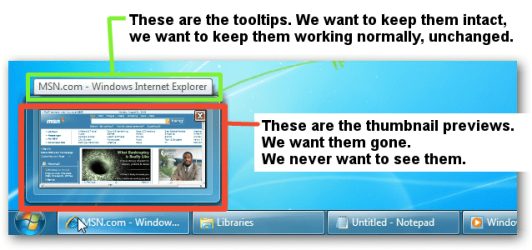
Option one: It has the side effect of making tooltips show up immediately. This should be said on the tutorial (it's not said). The program, 7+ Taskbar Tweaker, doesn't provide a formal ability to merely disable thumbnail previews (and list mode). It offers the ability to not display anything on mouse over. While that disables thumbnail previews (and list mode) indeed, it also disables tooltips too. Tooltips reveal the full titles of windows so they are useful. The program offers the ability to replace thumbnail previews on mouse over with tooltips on mouse over. This way, the tooltips come up pretty much instantly on mouse over. That constant flickering of tooltips in and out is annoying, in a similar manner to why we're trying to disable thumbnail previews in the first place. Everywhere on the system, tooltips come up after the mouse idles for a brief amount of time. This keeps them from annoyingly coming up all the time. So this ability of replacing thumbnail previews with tooltips is no good either. As said initially, the program provides no formal ability to merely disable thumbnail previews and list mode from showing up on mouse over, without messing with tooltips, leaving them behaving normally, only showing up after about a second, rather than immediately.

Option two: It doesn't disable list mode too, it only disables thumbnail previews.

Option three: It only works if using a basic theme.

Option four: It's the best option, it achieves the goal. It shouldn't be at the bottom of the list for those who want list mode gone too. But, it has a bug, where the thumbnail previews will still pop up inadvertently. This should be said on the tutorial (it's not said). Here's how the bug happens: You need to have option four's registry tweak in place. Drag a window button on the taskbar (reordering feature). Don't do anything special (like clicking somewhere) until the next step. Click the window button that was moved, because the window has now lost focus (go figure). Move the cursor outside of the window button. Now, the thumbnail previews pop up! Edit: Another bug... Using 7+ Taskbar Tweaker to make middle click close windows will have the thumbnail previews pop up as well... Too bad.

By the way, I tested with video recording software and using method one, tooltips show up after 0:00;12. Using method four, they show up after 0:01;02. It basically means that method one makes them instant, while method four holds them for a second, as is characteristic of normal tooltips.

So, thanks for the tip. It does come with a couple of not so great bugs.
 
Last edited:

My Computer

Computer type
Laptop
OS
Windows 7 Professional x64
I figured out how to do it! I'm talking about my post above. I must be the only one who knows how. It's necessary to use methods 1 and 4 in combination. In 7+ Taskbar Tweaker, set tooltips to show up on hover. On the other hand, set the registry as in step 4, but with the amount of time that tooltips should take to appear instead, which can be 1 or 2 seconds. Don't screw up editing the registry with the milliseconds and the decimal/hexadecimal thing. The couple of bugs that I mentioned in my previous post will still happen, but with tooltips instead and a bit differently, so they don't matter much.

There are loads of users out there on the internet asking about disabling the thumbnail previews... by the way.
 

My Computer

Computer type
Laptop
OS
Windows 7 Professional x64
I'm not sure what you mean since tooltips and thumbnail previews are two completely different settings. :confused:
 

My Computer

Computer type
PC/Desktop
Computer Manufacturer/Model Number
Self built custom
OS
64-bit Windows 11 Pro for Workstations
CPU
Intel i7-8700K OC'd to 5 GHz
Motherboard
ASUS ROG Maximus XI Formula Z390
Memory
64 GB (4x16GB) G.SKILL TridentZ RGB DDR4 3600 MHz
Graphics Card(s)
ASUS ROG-STRIX-GTX1080TI-O11G-GAMING
Sound Card
Integrated
Monitor(s) Displays
2 x Samsung Odyssey G7 27"
Screen Resolution
2560x1440
Hard Drives
1TB Samsung 990 PRO M.2,
4TB Samsung 990 PRO PRO M.2,
TerraMaster F8 SSD Plus NAS
PSU
Seasonic Prime Titanium 850W
Case
Thermaltake Core P3
Cooling
Corsair Hydro H115i
Keyboard
Logitech wireless K800
Mouse
Logitech MX Master 4
Internet Speed
2 Gb/s Download and 100 Mb/s Upload
Antivirus
Malwarebyte Anti-Malware Premium
Browser
Google Chrome
Other Info
Logitech Z625 speaker system,
Logitech BRIO 4K Pro webcam,
HP Color LaserJet Pro MFP M477fdn,
APC SMART-UPS RT 1000 XL - SURT1000XLI,
Galaxy S23 Plus phone
I'm not sure what you mean since tooltips and thumbnail previews are two completely different settings. :confused:
Well, normally I wouldn't do this, but... See the attachment. Saw it? Good. Now let's try to do it:
Method 1 (Taskbar Tweaker): Makes tooltips show up instantly. Everyone knows that tooltips only appear after a brief period of time of being idle. Showing up instantly is not how they are supposed to work. Not a good method.
Method 4 (registry tweak): Is buggy. Thumbnail previews will still pop up under certain scenarios. Not good.
Solution: Combine method 1 with 4, using both of them results in no issues at achieving the objective proposed.
 

Attachments

  • untitled.png
    untitled.png
    213.2 KB · Views: 541

My Computer

Computer type
Laptop
OS
Windows 7 Professional x64
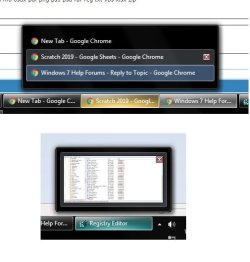
Sorry to necro this, but I am at the end of my rope.
I did option 2 but I'm not happy that it still gives a preview (attached)

So I tried to do Option 4 but for some reason it's not showing up in the registry. It's supposed to be in the same location (HKEY_CURRENT_USER\Software\Microsoft\Windows\CurrentVersion\Explorer\Advanced) right?

Please help.. :(
 

Attachments

  • grrr.jpg
    grrr.jpg
    57.1 KB · Views: 292

My Computer

OS
Windows 7 Professional 32bit
CPU
AMD Athlon II X2 250
Memory
4 GB
Hello KerBansot, and welcome to Seven Forums. :-)

When you downloaded and merged the 100000ms_Taskbar_Thumbnail_Delay_Time.reg file from step 2 of Option 4, were you able to fully and successfully approve the merge at step 5?

If you like, you could also manually add the ExtendedUIHoverTime DWORD and set its decimal value to 100000.
 

My Computer

Computer type
PC/Desktop
Computer Manufacturer/Model Number
Self built custom
OS
64-bit Windows 11 Pro for Workstations
CPU
Intel i7-8700K OC'd to 5 GHz
Motherboard
ASUS ROG Maximus XI Formula Z390
Memory
64 GB (4x16GB) G.SKILL TridentZ RGB DDR4 3600 MHz
Graphics Card(s)
ASUS ROG-STRIX-GTX1080TI-O11G-GAMING
Sound Card
Integrated
Monitor(s) Displays
2 x Samsung Odyssey G7 27"
Screen Resolution
2560x1440
Hard Drives
1TB Samsung 990 PRO M.2,
4TB Samsung 990 PRO PRO M.2,
TerraMaster F8 SSD Plus NAS
PSU
Seasonic Prime Titanium 850W
Case
Thermaltake Core P3
Cooling
Corsair Hydro H115i
Keyboard
Logitech wireless K800
Mouse
Logitech MX Master 4
Internet Speed
2 Gb/s Download and 100 Mb/s Upload
Antivirus
Malwarebyte Anti-Malware Premium
Browser
Google Chrome
Other Info
Logitech Z625 speaker system,
Logitech BRIO 4K Pro webcam,
HP Color LaserJet Pro MFP M477fdn,
APC SMART-UPS RT 1000 XL - SURT1000XLI,
Galaxy S23 Plus phone
Back
Top