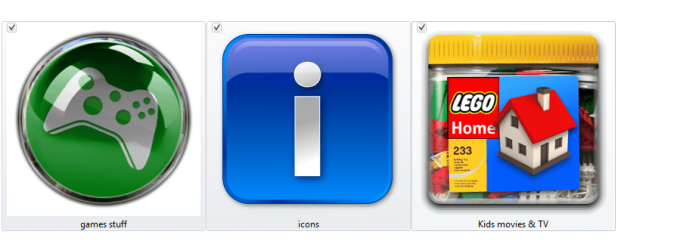
There are NO small icons in folders in Windows 7 - How do you fix?

Benuzzles

New member
Local time
8:59 AM
Messages
4
I did multiple google searches for a solution, but apparently nobody else on the planet is using Windows 7 as a graphical user interface (i.e. putting a set of folders in folders, then having icons in each folder, and opening up each folder, to decide what program you want to run). I am autistic (asperger's syndrome) and I prefer to use my Windows as a graphical user interface, and that is how I been using it since Windows 95. I been using computers as a graphical user interface since the Mac Plus in 1987. Folders inside of folders. Icons inside of each folder. You click on whatever icon for what you want to run. Everytime Microsoft comes out with a new version of Windows, Windows becomes LESS of a graphical user interface and Windows 7 can't even be called by definition a graphical users interface unless you use third-party programs like "Shellfolderfix" to fix the flaws in it. But this is off topic.

My problem is, there are NO small icons in folders in Windows 7. This is a serious problem for someone trying to use Windows 7 as a graphical user interface. Small icons have existed and worked fine in folders in Windows XP for over a decade. There are NO small icons in folders in Windows 7. Small icons exist on the desktop in Windows 7. But the smallest size of an icon, you can get in a folder is medium. Some applications do not even have a medium icon, so when you install the application, you just get a blank icon when viewing the application in a folder in Windows 7 which looks awful. I can't believe there isn't millions of complaints on google about this. Before someone points out that there is a small icon option in folders in Windows 7. What I am talking about are icons, that look like icons, and act like icons. Also I am talking about what has been called small icons for the last decade. Even Windows 7 itself seems "confused" as to the definition of small icon, since it has different size icons for small icon on the desktop and in folder view (real smart of Microsoft to totally screw this over). The invalidly named "small icon" option that Windows 7 has for folders, gives you something that resembles a detail view. How do you get real small icons in folders in Windows 7? How do you get the same size small icons that you have on the desktop in Windows 7 to appear in folders?

Is there a fix, third party program, registry setting, or anything else I can do, to get small icons in folders in Windows 7?
 

My Computer My Computer

At a glance

Windows 7 and Windows XP (so far Windows XP i...AMD Phenom II X6 1090T (3.62 GHZ)4 GBEVGA Nvidia GTX 580
Computer type
PC/Desktop
Computer Manufacturer/Model Number
Self Built
OS
Windows 7 and Windows XP (so far Windows XP is far superior to Windows 7)
CPU
AMD Phenom II X6 1090T (3.62 GHZ)
Motherboard
Gigabyte 890FXA-UD5
Memory
4 GB
Graphics Card(s)
EVGA Nvidia GTX 580
Suggestion

Re: Using Windows 7 as a graphical user interface (i.e. putting a set of folders in folders, then having icons in each folder, and opening up each folder, to decide what program you want to run).

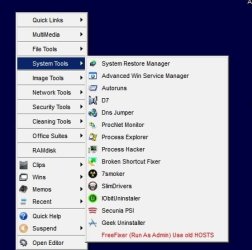
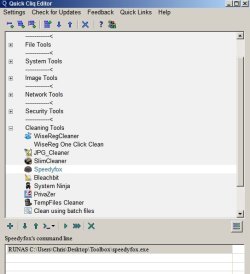
I'm not sure that I understand your point but it seems to me that you might consider using something like QuickCliq as it would allow you to build your own menu and sub-menus for folders or programs and you can launch files or programs from within the interface. Here's a couple of screenshots showing the menu and menu editor along with an example of how it's possible to launch multiple files from a single shortcut.


Other than that I think that you could just try creating shortcuts inside your folders.
 

Attachments

  • Qcliq.jpg
    Qcliq.jpg
    23.6 KB · Views: 19
  • Qcliq1.jpg
    Qcliq1.jpg
    31.9 KB · Views: 19
  • Qcliq3.jpg
    Qcliq3.jpg
    9.6 KB · Views: 19

My Computer My Computer

At a glance

Microsoft Windows 7 Home Premium 64-bit 7601 ...AMD C-60 APU with Radeon(tm) HD Graphics4.00 GBAMD Radeon HD 6290 Graphics
Computer type
Laptop
Computer Manufacturer/Model Number
ASUS
OS
Microsoft Windows 7 Home Premium 64-bit 7601 Multiprocessor Free Service Pack 1
CPU
AMD C-60 APU with Radeon(tm) HD Graphics
Motherboard
ASUSTeK COMPUTER INC. X501U
Memory
4.00 GB
Graphics Card(s)
AMD Radeon HD 6290 Graphics
Sound Card
(1) AMD High Definition Audio Device (2) Realtek High Defi
Screen Resolution
1366 x 768 x 32 bits (4294967296 colors) @ 60 Hz
Hard Drives
Hitachi HTS545050A7E380 SATA Disk Device
Antivirus
Comodo CIS & FW, SecureAplus App Whitelisting, Threatfire
Browser
Cyberfox 64bit, Opera 64bit, Airfox
Other Info
Spy-The-Spy, HitmanPro.Alert, Norton Connect Safe, MJRegWatcher, BitDefender TrafficLight, Voodoo Shield, Zemana AntiMalware
dont know if you are aware but , when you are in a window if you click on a blank area of the window and then hold ctrl and the window key and scroll the mouse up you can enlarge the icons, folders , files etc.

ctrl+ win key scroll down to make smaller
so you could select the large icons and then tweek i smaller or larger to suit yourself, or medium and enlarge it to a size between medium and large.

also have you considered using something like object dock , you can have it at the top of your screen,
set to auto hide and whenever you want to run something you just put the mouse to the top of the screen and drag it along until you see the item you want.
you can also change the icons to suit yourself, and you can have folders as well as exe's you can then add a icon to the folder so it is an image rather than a generic folder image.

i use object dock.
here is an example of how mine looks as you move the mouse along the top of the screen,

ojd.png

the icons zoom out as you run along the dock so you can see the icon clearly, i section mine into areas ,
so browser things in one area ,media stuff in another and so on. once you get the hang of it you will wonder how you managed without it.

the ctrl +win key scroll to enlarge or decrease works with the destop icon sizes too. not just in folder windows

you can drag shortcuts and folders to the dock from a window or the desktop and then delete the shortcut from the desktop, eventually you have a clean desktop.


http://www.stardock.com/products/objectdock/features.asp

also there is a sale on with stardock products for a couple more days ,
 

My Computer My Computer

At a glance

Microsoft Windows 7 Home Premium 64-bit 7600IIx4 amd athelon 635 processor2x2gbati radeon HD 5450
Computer Manufacturer/Model Number
Hewlett packard/p6512uk
OS
Microsoft Windows 7 Home Premium 64-bit 7600
CPU
IIx4 amd athelon 635 processor
Motherboard
FOXCONN 2AA9
Memory
2x2gb
Graphics Card(s)
ati radeon HD 5450
Sound Card
(1) Realtek High Definition Audio (2) AMD High Definition
Monitor(s) Displays
samsung lcd tv 32"
Screen Resolution
1360x 768
Hard Drives
(1) WDC WD10 01FAES-60Z2A0 SATA Disk Device (2) Maxtor OneTouch USB Device (3) ST310003 33AS USB Device (4) WD My Book 1111 USB Device
PSU
?
Cooling
air!
Keyboard
wireless hp
Mouse
wireless Hp,optical
Internet Speed
1.10mb/s
Antivirus
MSE
Browser
Firefox
This is a reply to Callender's message.

A menu is as far opposite of what I want as you can get. Like someone asking for gold and you offering to give them dirt. Or someone asking for food and you offer to give them a rock. Those are just analogies.

I *never* ever use the Start Menu in Windows XP or Windows 7. The start menu, was something that Microsoft originally added, so that they didn't get accused of making an exact copy of the Apple Operating System for the Macintosh. All programs were run from within folders originally. That is what a graphical user interface was, and still is. Windows 95, was the first Microsoft operating system to have the idiotic Start Menu, but within the operating system, it had all the features necessary to run as a graphical user interface. You could drag your programs folder from the start menu directory in the windows directory to a place on your desktop. Once you had your programs folder on your desktop, then every single one of your programs was in it and clickable. You then could create separate folders for every category of software. You could have an applications folder, a programming folder, a games folder, a utility folder. In my current programs folder in both Windows 7 and Windows XP, I have an applications folder, internet folder, games folder, programming folder, shells folder, etc. And in the Games folder, I have a Steam Games folder, Desura Games Folder, and Origin games folder. DRM free games are in the root games folder.

There are three major problems that exist with Windows 7 being used as a graphical user interface. First it doesn't remember folder sizes (the most unbelievable thing in the world, but apparently most of the world just accepts it, which shows how totally opposite they use computers from me). ShellFolderFix, which is a third party program fixes that total and complete screw up by Microsoft. Atleast Windows 7 lets you create empty folders. In Vista, empty folders didn't even exist. (unbelievable again). Anyways. The other two major problems is the lack of small icons, and the fact that like Windows XP, Windows 7 will sometimes forget icon positions within folders. For example, if you stick icons in a specific order, of the programs you use most frequently first and least frequently last. Every so often, Windows XP and Windows 7, will forget the order that you stuck your icons inside your folder. I need to see if I can fix that too, since that also drives me crazy. I given up on putting things in order, until I can find a fix. But I'm getting off topic.

This thread I started to try to get help with the small icons issue. Windows XP could display small icons on the Desktop and inside folders. Windows 7 can ONLY display small icons on the Desktop. The smallest icon it can display in folders, when used as a graphical user interface, is medium size icons. If you request any smaller size for icons, you get something like a detail view, which is reminiscent of an upgraded version of DOS. DOS is obsolete, and I don't like using Windows as if I was using an upgraded version of DOS. Getting off topic, but wanted to say that. I'm autistic, so I jump around a lot. Anyways, my problem is I can't get small icons in folders in Windows 7. Anyone know of a fix, third party program, registry setting, or whatever, that will make Windows 7 display small icons in folders?
 

My Computer My Computer

At a glance

Windows 7 and Windows XP (so far Windows XP i...AMD Phenom II X6 1090T (3.62 GHZ)4 GBEVGA Nvidia GTX 580
Computer type
PC/Desktop
Computer Manufacturer/Model Number
Self Built
OS
Windows 7 and Windows XP (so far Windows XP is far superior to Windows 7)
CPU
AMD Phenom II X6 1090T (3.62 GHZ)
Motherboard
Gigabyte 890FXA-UD5
Memory
4 GB
Graphics Card(s)
EVGA Nvidia GTX 580
My problem is, there are NO small icons in folders in Windows 7. This is a serious problem for someone trying to use Windows 7 as a graphical user interface. Small icons have existed and worked fine in folders in Windows XP for over a decade. There are NO small icons in folders in Windows 7. Small icons exist on the desktop in Windows 7. But the smallest size of an icon, you can get in a folder is medium.
What am I missing in your comments??

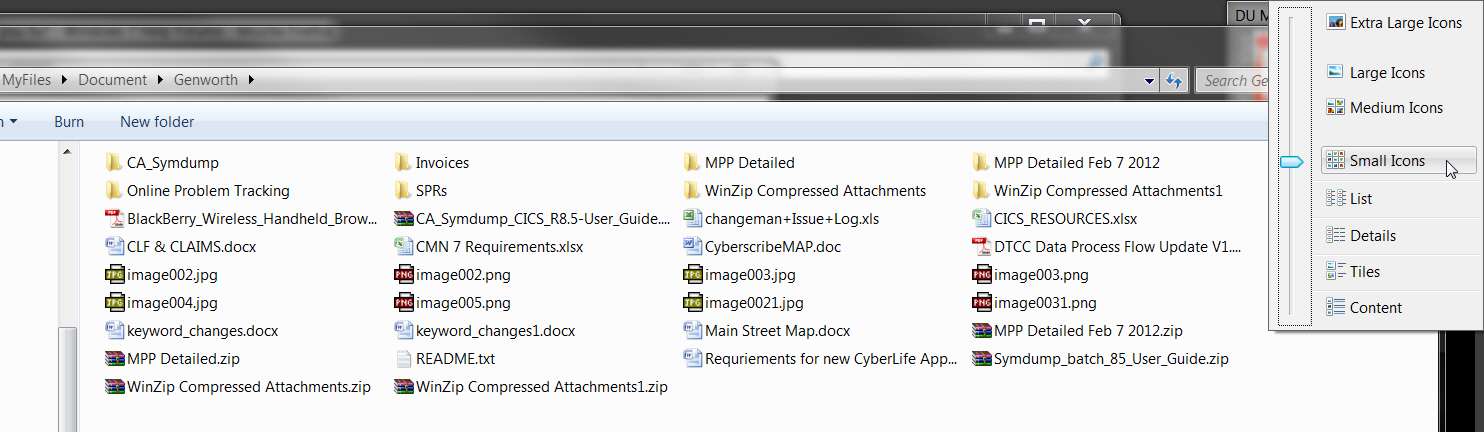
In Explorer, the view "more options" (on the upper-right of any Explorer window, just above the column heading bar) offers large, medium and small icons.

pqxp.jpg


Is this not what you want... small icons??

What am I missing?
 

My Computer My Computer

At a glance

Windows 7 Pro x64 (1), Win7 Pro X64 (2)i5-3350p 3.1Ghz/6MB-cache (1); E8400 3.0Ghz/6...8GB PC3-12800 DDR3 (1); 4GB PC3-10600 DDR3 (2)ATI HD7750 (1), (see TV cards); ATI R7 250 (2)
Computer type
PC/Desktop
Computer Manufacturer/Model Number
Home-built, two systems (1) and (2)
OS
Windows 7 Pro x64 (1), Win7 Pro X64 (2)
CPU
i5-3350p 3.1Ghz/6MB-cache (1); E8400 3.0Ghz/6MB-cache (2)
Motherboard
ASUS P8Z77-V Pro (1); ASUS P5Q3 (2)
Memory
8GB PC3-12800 DDR3 (1); 4GB PC3-10600 DDR3 (2)
Graphics Card(s)
ATI HD7750 (1), (see TV cards); ATI R7 250 (2)
Sound Card
Realtek ALC892 HD Audio (1); Realtek ALC1200 HD Audio (2)
Monitor(s) Displays
Eizo HD2441W LCD, Eizo S2433W (1); Eizo 24" S2433W (2)
Screen Resolution
1920x1200, 1920x1200 (1); 1920x1200 (2)
Hard Drives
(1) 1TB SATA-II (7200RPM), 2x2TB SATA-III (7200RPM), 250GB SATA-III (10000RPM) for OS; 2x2TB external USB 3.0

(2) 320GB SATA-II (7200RPM), 750GB SATA-II (7200RPM), 150GB SATA-II (10000RPM) for OS; 2TB external USB 3.0
PSU
Nesteq ECS-6001 600W (1); Nesteq ECS-5001 500W (2)
Case
Acousti-Case 360 (1) and (2)
Cooling
Noctua NH-U12P SE2 for CPU, 2x120mm case fans (1) and (2)
Keyboard
IBM PS/2 (1) and (2)
Mouse
Logitech MX Revolution wireless (1); Microsoft wired (2)
Internet Speed
100mbps down / 10mbps up
Antivirus
Microsoft Security Essentials; Malwarebyte Anti-Malware Pro
Browser
Firefox
Other Info
Ceton InfiniTV 4-tuner cablecard-enabled TV card as well as Hauppauge HVR-2250 OTA/ATSC 2-tuner TV card in (1), running under Win7 WMC
dont know if you are aware but , when you are in a window if you click on a blank area of the window and then hold ctrl and the window key and scroll the mouse up you can enlarge the icons, folders , files etc.

ctrl+ win key scroll down to make smaller
so you could select the large icons and then tweek i smaller or larger to suit yourself, or medium and enlarge it to a size between medium and large.

No, I didn't know anything about that, that's why I'm posting in here, to try to get help. Though I guess I complain a bit while doing it. I get frustrated at the shortcomings in Windows.

Thanks for this suggestion, I will try it. But my mouse wheel is currently broken, so I hope when you say scroll up, that it will work without a mouse wheel? If not, then I will need to wait to try it, until after I buy a new mouse. Also if I change the icon sizes in my folders, I would want them to be remembered and permanent. The idea is to permanently change the icon sizes to small icon size. I wouldn't want to have to go thru, and do the windows key ctrl+ thing for every single folder I have, everytime I reboot my computer. So as I said, I would want it to remember the changes permanently. Does it remember the changes permanently? Also one of the things I mentioned in my first post, was that some applications do not have a medium size icon set, so you get a blank icon for the application, which just looks awful. The only way to get an icon for the application to appear, is to get it to display, as small icon. I mean the same small icon that Windows 7 displays properly on the desktop. Or what Windows XP, called small icons. I'm using that as the definition of "small icon".
 

My Computer My Computer

At a glance

Windows 7 and Windows XP (so far Windows XP i...AMD Phenom II X6 1090T (3.62 GHZ)4 GBEVGA Nvidia GTX 580
Computer type
PC/Desktop
Computer Manufacturer/Model Number
Self Built
OS
Windows 7 and Windows XP (so far Windows XP is far superior to Windows 7)
CPU
AMD Phenom II X6 1090T (3.62 GHZ)
Motherboard
Gigabyte 890FXA-UD5
Memory
4 GB
Graphics Card(s)
EVGA Nvidia GTX 580
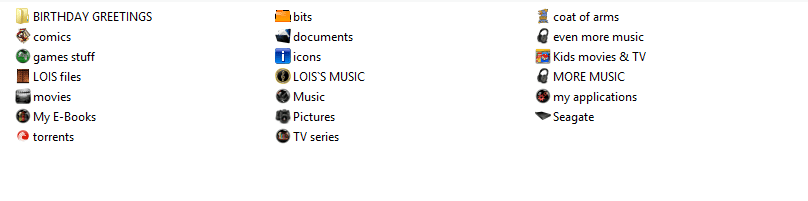
using my ctrl +winkey +scroll these are the smallest i can get the icons in a window

lil.png

and the largest

big.png
im on a laptop so the windows are not huge anyway

also these icons are the icons i have added to folders ,i also like a graphical view when in a window it makes more sense that 10 manilla colored folders, i dont bother for subfolders as i can have 300 sub folders in a folder but its a nice compromise.
 

My Computer My Computer

At a glance

Microsoft Windows 7 Home Premium 64-bit 7600IIx4 amd athelon 635 processor2x2gbati radeon HD 5450
Computer Manufacturer/Model Number
Hewlett packard/p6512uk
OS
Microsoft Windows 7 Home Premium 64-bit 7600
CPU
IIx4 amd athelon 635 processor
Motherboard
FOXCONN 2AA9
Memory
2x2gb
Graphics Card(s)
ati radeon HD 5450
Sound Card
(1) Realtek High Definition Audio (2) AMD High Definition
Monitor(s) Displays
samsung lcd tv 32"
Screen Resolution
1360x 768
Hard Drives
(1) WDC WD10 01FAES-60Z2A0 SATA Disk Device (2) Maxtor OneTouch USB Device (3) ST310003 33AS USB Device (4) WD My Book 1111 USB Device
PSU
?
Cooling
air!
Keyboard
wireless hp
Mouse
wireless Hp,optical
Internet Speed
1.10mb/s
Antivirus
MSE
Browser
Firefox
My problem is, there are NO small icons in folders in Windows 7. This is a serious problem for someone trying to use Windows 7 as a graphical user interface. Small icons have existed and worked fine in folders in Windows XP for over a decade. There are NO small icons in folders in Windows 7. Small icons exist on the desktop in Windows 7. But the smallest size of an icon, you can get in a folder is medium.
What am I missing in your comments??

In Explorer, the view "more options" (on the upper-right of any Explorer window, just above the column heading bar) offers large, medium and small icons.

pqxp.jpg


Is this not what you want... small icons??

What am I missing?


Go to Windows 7, right click on your desktop, and ask it to display small icons. What do you see? Then go to a folder, and do the same thing. Do you see the same small icons, when in a folder, that you see on your desktop? The answer is no. In Windows XP, you did. In Windows XP, small icons appeared identically on the desktop and within a folder. Windows 7, seems to be "confused" about the definition of what a small icon is, since it appears as two completely different views and sizes when you click small icons. In Desktop, you get one type of small icon. In folders, you get a different view and different size of small icon.

I want the small icons as displayed on the desktop in Windows 7, or the small icons as displayed in both the desktop and folders in Windows XP. That's the small icons, that I want within the folders in Windows 7. That is what I am asking for. Understand now?
 

My Computer My Computer

At a glance

Windows 7 and Windows XP (so far Windows XP i...AMD Phenom II X6 1090T (3.62 GHZ)4 GBEVGA Nvidia GTX 580
Computer type
PC/Desktop
Computer Manufacturer/Model Number
Self Built
OS
Windows 7 and Windows XP (so far Windows XP is far superior to Windows 7)
CPU
AMD Phenom II X6 1090T (3.62 GHZ)
Motherboard
Gigabyte 890FXA-UD5
Memory
4 GB
Graphics Card(s)
EVGA Nvidia GTX 580
First it doesn't remember folder sizes (the most unbelievable thing in the world, but apparently most of the world just accepts it, which shows how totally opposite they use computers from me).
Again, I'm confused by your comment.

Are you saying that when you open a folder (i.e. launch Windows Explorer) and re-size or re-locate the Explorer window, that the size of that particular window and its particular location is not remembered uniquely, as contrasted to the size and location of any other folder window that might have been opened? And this is a major issue?

True, the outer size and location of the Explorer window is "remembered" universally, as opposed to having a unique memory for every folder's window size and location that you've ever opened. But the column headings and column separators ARE remembered uniquely by folder. And the "view options" ARE also remembered uniquely by folder. Every single folder has its own unique and persistent memory for everything inside of the Explorer window... for that particular folder.

So the only thing that is not actually remembered uniquely by folder is the location and outer size of the main generic Explorer window itself which opens when you launch Explorer by double-clicking on any folder or the taskbar folder icon. True. It will always open at the last size and last location you were looking at when you last closed it, no matter what folder that was. But inside of the window... each folder is unique.

And this is a major problem?? And why??
 

My Computer My Computer

At a glance

Windows 7 Pro x64 (1), Win7 Pro X64 (2)i5-3350p 3.1Ghz/6MB-cache (1); E8400 3.0Ghz/6...8GB PC3-12800 DDR3 (1); 4GB PC3-10600 DDR3 (2)ATI HD7750 (1), (see TV cards); ATI R7 250 (2)
Computer type
PC/Desktop
Computer Manufacturer/Model Number
Home-built, two systems (1) and (2)
OS
Windows 7 Pro x64 (1), Win7 Pro X64 (2)
CPU
i5-3350p 3.1Ghz/6MB-cache (1); E8400 3.0Ghz/6MB-cache (2)
Motherboard
ASUS P8Z77-V Pro (1); ASUS P5Q3 (2)
Memory
8GB PC3-12800 DDR3 (1); 4GB PC3-10600 DDR3 (2)
Graphics Card(s)
ATI HD7750 (1), (see TV cards); ATI R7 250 (2)
Sound Card
Realtek ALC892 HD Audio (1); Realtek ALC1200 HD Audio (2)
Monitor(s) Displays
Eizo HD2441W LCD, Eizo S2433W (1); Eizo 24" S2433W (2)
Screen Resolution
1920x1200, 1920x1200 (1); 1920x1200 (2)
Hard Drives
(1) 1TB SATA-II (7200RPM), 2x2TB SATA-III (7200RPM), 250GB SATA-III (10000RPM) for OS; 2x2TB external USB 3.0

(2) 320GB SATA-II (7200RPM), 750GB SATA-II (7200RPM), 150GB SATA-II (10000RPM) for OS; 2TB external USB 3.0
PSU
Nesteq ECS-6001 600W (1); Nesteq ECS-5001 500W (2)
Case
Acousti-Case 360 (1) and (2)
Cooling
Noctua NH-U12P SE2 for CPU, 2x120mm case fans (1) and (2)
Keyboard
IBM PS/2 (1) and (2)
Mouse
Logitech MX Revolution wireless (1); Microsoft wired (2)
Internet Speed
100mbps down / 10mbps up
Antivirus
Microsoft Security Essentials; Malwarebyte Anti-Malware Pro
Browser
Firefox
Other Info
Ceton InfiniTV 4-tuner cablecard-enabled TV card as well as Hauppauge HVR-2250 OTA/ATSC 2-tuner TV card in (1), running under Win7 WMC
its easy to get fustrated with windows but it can do a lot and we dont know everything it can do,
we can know a lot but to learn a new os each time it comes out takes time.

also we all ask questions here , its how we learn and we all know things too, so when we ask if you know something its just to establish where you are up to .
dont be offended.
 

My Computer My Computer

At a glance

Microsoft Windows 7 Home Premium 64-bit 7600IIx4 amd athelon 635 processor2x2gbati radeon HD 5450
Computer Manufacturer/Model Number
Hewlett packard/p6512uk
OS
Microsoft Windows 7 Home Premium 64-bit 7600
CPU
IIx4 amd athelon 635 processor
Motherboard
FOXCONN 2AA9
Memory
2x2gb
Graphics Card(s)
ati radeon HD 5450
Sound Card
(1) Realtek High Definition Audio (2) AMD High Definition
Monitor(s) Displays
samsung lcd tv 32"
Screen Resolution
1360x 768
Hard Drives
(1) WDC WD10 01FAES-60Z2A0 SATA Disk Device (2) Maxtor OneTouch USB Device (3) ST310003 33AS USB Device (4) WD My Book 1111 USB Device
PSU
?
Cooling
air!
Keyboard
wireless hp
Mouse
wireless Hp,optical
Internet Speed
1.10mb/s
Antivirus
MSE
Browser
Firefox
ok!
reading your post before,
you say you can see small icons in the menu when you right click the desktop,
but that you cant see the small icons in the menu if you right click in a window.

that is because there is a different way to resize the icons when in a window, there is an icon to click when in a window and it then shows the slider that is in dsperbers image above. ( or do the ctrl+win key+scroll.)

also when you have the folders etc the correct size you want then you can click organise/ folder and layout options,
in the window that opens then click the view tab then click apply these settings to folders or windows of this type.
or near as ,im remembering this as i use windows 8 now
 

My Computer My Computer

At a glance

Microsoft Windows 7 Home Premium 64-bit 7600IIx4 amd athelon 635 processor2x2gbati radeon HD 5450
Computer Manufacturer/Model Number
Hewlett packard/p6512uk
OS
Microsoft Windows 7 Home Premium 64-bit 7600
CPU
IIx4 amd athelon 635 processor
Motherboard
FOXCONN 2AA9
Memory
2x2gb
Graphics Card(s)
ati radeon HD 5450
Sound Card
(1) Realtek High Definition Audio (2) AMD High Definition
Monitor(s) Displays
samsung lcd tv 32"
Screen Resolution
1360x 768
Hard Drives
(1) WDC WD10 01FAES-60Z2A0 SATA Disk Device (2) Maxtor OneTouch USB Device (3) ST310003 33AS USB Device (4) WD My Book 1111 USB Device
PSU
?
Cooling
air!
Keyboard
wireless hp
Mouse
wireless Hp,optical
Internet Speed
1.10mb/s
Antivirus
MSE
Browser
Firefox
Icon sizes

I misunderstood your question and probably still don't understand so sorry about that!

Anyway in answer to your comment:
"Go to Windows 7, right click on your desktop, and ask it to display small icons. What do you see? Then go to a folder, and do the same thing. Do you see the same small icons, when in a folder, that you see on your desktop?"

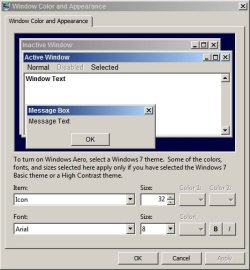
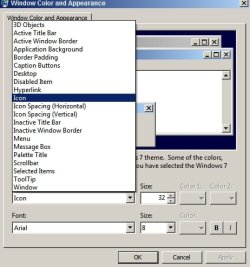
It depends entirely upon what size I've chosen to set my desktop icons to and can use the spin the mouse wheel method to resize them or use Window Color & Appearance options.

I see there's a tutorial on icon sizes: http://www.sevenforums.com/tutorials/3916-icon-size-change-windows-explorer-window.html


Attachments

  • Desktop Icons.jpg
    Desktop Icons.jpg
    3.5 KB · Views: 8
  • 2013-12-08 18_23_19-Window Color and Appearance.jpg
    2013-12-08 18_23_19-Window Color and Appearance.jpg
    33.4 KB · Views: 7
  • 2013-12-08 18_24_25-Window Color and Appearance 2.jpg
    2013-12-08 18_24_25-Window Color and Appearance 2.jpg
    31.5 KB · Views: 7
Last edited:

My Computer My Computer

At a glance

Microsoft Windows 7 Home Premium 64-bit 7601 ...AMD C-60 APU with Radeon(tm) HD Graphics4.00 GBAMD Radeon HD 6290 Graphics
Computer type
Laptop
Computer Manufacturer/Model Number
ASUS
OS
Microsoft Windows 7 Home Premium 64-bit 7601 Multiprocessor Free Service Pack 1
CPU
AMD C-60 APU with Radeon(tm) HD Graphics
Motherboard
ASUSTeK COMPUTER INC. X501U
Memory
4.00 GB
Graphics Card(s)
AMD Radeon HD 6290 Graphics
Sound Card
(1) AMD High Definition Audio Device (2) Realtek High Defi
Screen Resolution
1366 x 768 x 32 bits (4294967296 colors) @ 60 Hz
Hard Drives
Hitachi HTS545050A7E380 SATA Disk Device
Antivirus
Comodo CIS & FW, SecureAplus App Whitelisting, Threatfire
Browser
Cyberfox 64bit, Opera 64bit, Airfox
Other Info
Spy-The-Spy, HitmanPro.Alert, Norton Connect Safe, MJRegWatcher, BitDefender TrafficLight, Voodoo Shield, Zemana AntiMalware
Back
Top