
How to Enable or Disable Explorer Thumbnail Previews in Windows 7 and Windows 8
Information
This tutorial will show you how to enable or disable thumbnail previews in Windows Explorer for all or specific users in Windows 7 and Windows 8.
Note
Displaying thumbnails in Windows Explorer will require that Windows Photo Viewer is set as the default program with all of it's default associations (except .gif files) set with it as well.
If you disable thumbnail previews, then they will also not display in the preview pane in Windows 7 or Windows 8.
If you disable thumbnail previews, then they will also not display in the preview pane in Windows 7 or Windows 8.
Tip
If there are a lot of thumbnails in a Windows Explorer window, then it can slow down your computer while you wait for the thumbnails to load. If this happens, then disabling thumbnails will speed up how fast a Windows Explorer window will open by displaying only icons instead of thumbnails.
Warning
When thumbnail previews is enabled, you will need to have the icon view size in the Windows Explorer window set to either Medium Icons, Large Icons, or Extra Large Icons to see a thumbnail of the file or folder.
EXAMPLE: Thumbnails Enabled in Windows Explorer



EXAMPLE: Thumbnails Disabled in Windows Explorer


OPTION ONE
To Enable or Disable Thumbnail Previews in Folder Options
NOTE: This option will only enable or disable thumbnails in your account. If this option is not available in Folder Options, then you will need to enable either OPTION THREE or OPTION FOUR below to enable for all users. 1. Open Folder Options in Windows 7 or Windows 8, and click/tap on the View tab. (see screenshot below)
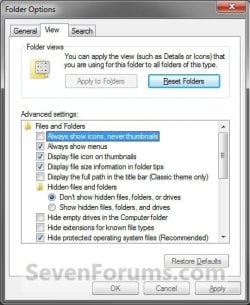
2. Do step 3 or 4 below for what you would like to do.
3. To Turn Off Thumbnails A) Check Always show icons, never thumbnails, and click/tap on OK. (See screenshot above)
4. To Turn On Thumbnails
NOTE: This is the default setting. A) Uncheck Always show icons, never thumbnails, and click/tap on OK. (See screenshot below step 2)
OPTION TWO
To Enable or Disable Thumbnail Previews in Visual Effects
NOTE: This option will only enable or disable thumbnails in your user account. 1. Open Visual Effects settings in Windows 7 or Windows 8. (see screenshot below)

2. To Turn Off Thumbnails A) Uncheck Show thumbnails instead of icons, and click/tap on OK. (See screenshot above)
3. To Turn On Thumbnails
NOTE: This is the default setting. A) Check Show thumbnails instead of icons, and click/tap on OK. (See screenshot below step 1)
NOTE: If this option will not stay checked when you reopen this window, then you will need to enable either OPTION THREE or OPTION FOUR below.
OPTION THREE
To Enable or Disable Thumbnail Previews using a REG File
NOTE: This option will disable thumbnails for all users on the computer and overrides step 3 and 4 below. This is the same as doing OPTION FOUR with Group Policy. You must be logged in as an administrator to be able to do this option. A) Click/tap on the Download button below to download the file below, and go to step 5 below. Disable_Explorer_Thumbnails_All_Users.reg
Download
2. To Enable All Users Thumbnails
NOTE: This is the default setting. This option will enable thumbnails for all users on the computer and overrides step 3 and 4 below. This is the same as doing OPTION FOUR with Group Policy. You must be logged in as an administrator to be able to do this option. A) Click/tap on the Download button below to download the file below, and go to step 5 below. Enable_Explorer_Thumbnails_All_Users.reg
Download
3. To Disable Only Your Thumbnails
NOTE: This option will disable thumbnails for only the currently logged in user. This is the same as doing OPTION ONE or OPTION TWO above. A) Click/tap on the Download button below to download the file below, and go to step 5 below. Disable_Explorer_Thumbnails_Current_User.reg
Download
4. To Enable Only Your Thumbnails
NOTE: This is the default setting. This option will enable thumbnails for only the currently logged in user. This is the same as doing OPTION ONE or OPTION TWO above. A) Click/tap on the Download button below to download the file below, and go to step 5 below. Enable_Explorer_Thumbnails_Current_User.reg
Download
5. Save the .reg file to your desktop.
6. Double click/tap on the downloaded .reg file to merge it.
7. Click/tap on Run, Yes (UAC), Yes, and OK when prompted.
8. Log off and log on, or restart the computer to apply.
9. When finished, you can delete the downloaded .reg file if you like.
OPTION FOUR
To Enable or Disable Thumbnail Previews in Group Policy
NOTE: You must be logged in as an administrator to be able to do this option. 1. Open the all users, specific users or groups, or all users except administrators Local Group Policy Editor for how you want this policy applied.
2. In the left pane, click on the arrow to expand User Configuration, Administrative Templates, Windows Components, and Windows Explorer (Windows 7) or File Explorer (Windows 8). (see screenshot below)
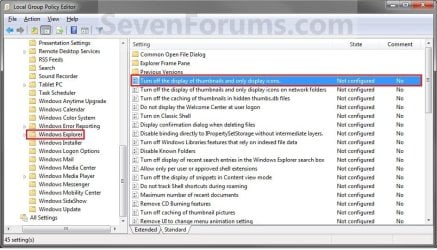
3. In the right pane of Windows Explorer (Windows 7) or File Explorer (Windows 8), double click/tap on Turn off the display of thumbnails and only display icons to edit it. (see screenshot above)
4. Do step 5 or 6 below for what you would like to do.
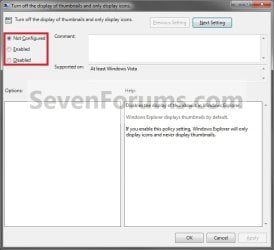
5. To Enable Thumbnails A) Select (dot) Not Configured or Disabled, and go to step 7 below. (see screenshot below step 7)
NOTE: Not Configured is the default setting.
6. To Disable Thumbnails A) Select (dot) Enabled, and go to step 7 below. (see screenshot below step 7)
7. Click/tap on OK. (See screenshot below)
8. Close the Local Group Policy Editor.
That's it,
Shawn
Related Tutorials
- How to Enable or Disable the Windows 7 Taskbar Thumbnail Previews
- How to Enable or Disable the Thumbnail Cache in Vista, Windows 7, and Windows 8
- How to Clear and Reset the Thumbnail Cache in Vista, Windows 7, and Windows 8
- How to Enable or Disable Windows 7 Pop-up Descriptions
- How to Change the Thumbnail Previews Border in Windows 7
- How to Change the Windows 7 Default Folder Icon
- Add "Enable/Disable Thumbnails" to Context Menu in Vista, Windows 7, and Windows 8
Attachments
Last edited:


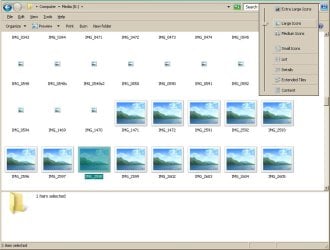

 If i copy /paste a thumbnail image, the pasted image doesnt show as thumbnail.