Solved Toshiba Satellite Pro C650-18D HDD Recovery

johnp

New member
Local time
3:45 PM
Messages
29
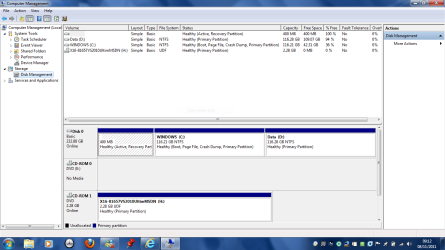
Hi, my laptop has a 250GB hard drive which is split Windows (C) 116GB and Data(D) 116GB. The Data contains the Toshiba HDD Recovery Software(7GB).

My C drive is nearly full, is there anyway I can either reduce the size of the D partition or remove it totally.

My operating system is Windows 7 Home Premium 64bit.

Thanks for your help.
 

My Computer My Computer

At a glance

Windows 7 Ultimate 64 bitAMD Athlon 64 X2 Dual Core Processor4GBNVIDIA GeForce 8600 GT
OS
Windows 7 Ultimate 64 bit
CPU
AMD Athlon 64 X2 Dual Core Processor
Motherboard
ASUS Crosshair
Memory
4GB
Graphics Card(s)
NVIDIA GeForce 8600 GT
Sound Card
sSoundMAX
Monitor(s) Displays
Plug and Play
Hard Drives
Maxtor 6V300F0
ST3750330SV
Please post back a screenshot of your maximized Disk Management drive map with listings showing all columns, using the Snipping Tool in Start Menu, so we can advise you better.
 
Thank you for the reply, I have attached a copy of the Disk Management drive map as requested,

I hope this helps.
 

Attachments

  • Capture.PNG
    Capture.PNG
    53.5 KB · Views: 142

My Computer My Computer

At a glance

Windows 7 Ultimate 64 bitAMD Athlon 64 X2 Dual Core Processor4GBNVIDIA GeForce 8600 GT
OS
Windows 7 Ultimate 64 bit
CPU
AMD Athlon 64 X2 Dual Core Processor
Motherboard
ASUS Crosshair
Memory
4GB
Graphics Card(s)
NVIDIA GeForce 8600 GT
Sound Card
sSoundMAX
Monitor(s) Displays
Plug and Play
Hard Drives
Maxtor 6V300F0
ST3750330SV
You can move files from D to C then delete D in Disk Management then Extend C into the space, but the benefit of having a separate data partition is it keeps your Windows Backup Image smaller without all of the storage included on it. Having a Win7 backup image and data files stored externally is the safest method and modern way to reinstall Win7 if it ever becomes irreparable or the HD fails. Backup Complete Computer - Create an Image Backup

To delete D and extend C:
Partition or Volume - Delete
Partition or Volume - Extend

To instead resize D to extend C into the space, Download free Partition Wizard bootable CD, write ISO file to CD using Windows Image Burner, boot CD.

Rightclick on D to Resize, slide left grey border to right to make as much as space as you want to expand C into, click OK.

Now rightclick on C>Resize, slide right grey border to the right to take up the space you made from D, Click OK, Apply all steps.
 
Hi gregrocker,

Thanks for your quick reply, I downloaded the Partition Wizard bootable CD and followed your instructions to resize C & D and everything went okay.

Thanks again for your help.
 

My Computer My Computer

At a glance

Windows 7 Ultimate 64 bitAMD Athlon 64 X2 Dual Core Processor4GBNVIDIA GeForce 8600 GT
OS
Windows 7 Ultimate 64 bit
CPU
AMD Athlon 64 X2 Dual Core Processor
Motherboard
ASUS Crosshair
Memory
4GB
Graphics Card(s)
NVIDIA GeForce 8600 GT
Sound Card
sSoundMAX
Monitor(s) Displays
Plug and Play
Hard Drives
Maxtor 6V300F0
ST3750330SV
Good work. It's a great tool, worth keeping.

You can mark the thread Solved at top.
 
Back
Top