Transparency - Enable Full Clear Glass Transparency

How to Enable "Full Clear Glass Transparency" in Windows 7

   Information
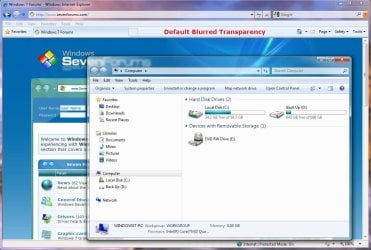
By default when you enabled transparency in Windows 7, the transparency will be blurred a bit in the window borders. This will show you how to have the window borders fully clear and transparent like glass instead for your current account only, or for all user accounts on the computer.

The Windows 7 Starter and Home Basic editions do not have Aero Transparency included in them.

   Note
This will not make the taskbar clear, on window borders. One side effect though is that when you have a window border with text on top of another window with text, the text will tend to overlap each other since the window is clear instead of with a opaque (blurred) background.
   Warning
You will only be able to apply this while logged in an administrator account.

You will not have the Transparency option if you have a Basic and High Contrast Theme instead of a Aero Theme.

Aero Requirements to be Enabled in Windows 7:
NOTE: If Aero is not enabled, then Transparency will not work even when enabled.
  • 1 GHz 32-bit or 64-bit processor
  • 1 GB of system memory
  • Support for DirectX 9 graphics with 128 MB memory (in order to enable Aero theme)
  • You must be have True Color (32 bit) set instead of High Color (16 bit).
  • The desktop composition and Animate controls and elements inside windows options need to be enabled in Visual Effects.
  • The Desktop Window Manager Session Manager and Themes Services need to be set as Started and Automatic.
  • Refresh or update your WEI score. You will need an WEI score minimum of 2.0 in both Graphics & Gaming graphics in order for Aero to be activated.

EXAMPLE: Full Clear Transparency and Default Blurred Transparency
NOTE: Notice how the Computer window borders are completely transparent when this is enabled. Enabled.jpg
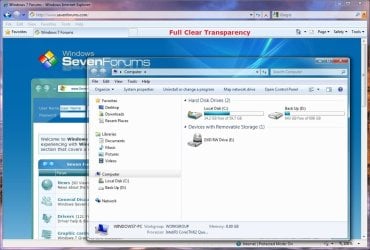
Default.jpg


STEP ONE

Replace System Files to Make this Work


NOTE: Credit goes to LFB for this addition. Thank you LFB. 1. Click on the Download button below to download the DWM_32-bit_7127.zip or DWM_64-bit_7127.zip file for your 32-bit (x86) or 64-bit (x64) Windows 7 version. For 32-bit Windows 7:

Download


For 64-bit Windows 7:

Download


2. Click on Save, and save the .zip file to the desktop.

3. Open the .zip file and extract (drag and drop) the dwm.exe and uDWM.dll files to the desktop.

4. Right click on each the dwm.exe and uDWM.dll files (one at a time) on the desktop and click on Properties, General tab, the Unblock button, and on OK. (See screenshots below)
NOTE: If you do not have a Unblock button under the General tab, then the shortcut is already unblocked and you can continue on to step 5. Unblock1.jpgUnblock2.jpg
5. Stop the Desktop Windows Manager Session Manager Service. (See screenshot below) Services.jpg
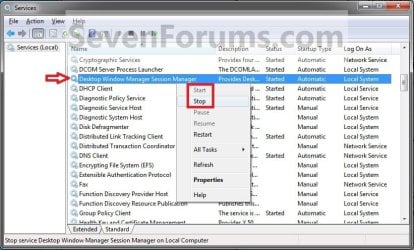
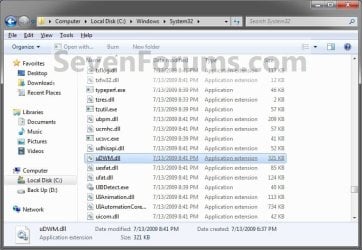
6. In Windows Explorer, navigate to and make a backup copy of the original C:\Windows\System32\dwm.exe and C:\Windows\System32\uDWM.dll files at these locations. (See screenshots below)
NOTE: You will need these backups if you ever would like to restore them. dwm.exe.jpg
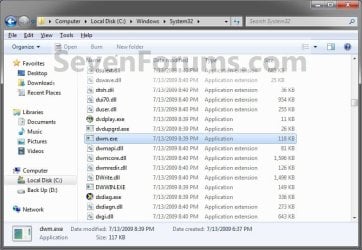
uDWM.dll.jpg

7. In Windows Explorer, take ownership and give yourself full permission of the C:\Windows\System32\dwm.exe and C:\Windows\System32\uDWM.dll files at these locations. (See screenshots above)

8. Copy and Paste the dwm.exe and uDWM.dll files on the desktop into the C:\Windows\System32 folder.

9. Select Copy and Replace and approve the replacement of these default files with the downloaded ones.
NOTE: If you ever run a sfc /scannow command, it will consider these as modified files, and will replace them with the default ones. You'll have to do this tutorial again to have the full clear transparency back.

10. Start the Desktop Windows Manager Session Manager Service. (See screenshot below step 5)

11. Do either OPTION ONE or OPTION TWO below.


OPTION ONE

For Current User Account Only

1. To Enable Current User Full Transparency A) Click on the Download button below to download the file below. Enable_Current_User_Full_Transparency.reg

Download


B) Go to step 4.
2. To Undo Current User Full Transparency A) Click on the Download button below to download the file below. Undo_Current_User_Full_Transparency.reg

Download


3. Save the .reg file to the desktop.

4. Right click on the downloaded .reg file, and click on Merge.

5. Click on Run, Yes (UAC), Yes, and OK when prompted.

6. Log off and log on, or restart the computer to apply.

7. When done, you can delete the downloaded .reg file if you like.


OPTION TWO

For All User Accounts

1. To Enable All Users Full Transparency A) Click on the Download button below to download the file below. Enable_All_Users_Full_Transparency.reg

Download


B) Go to step 4.
2. To Undo All Users Full Transparency A) Click on the Download button below to download the file below. Undo_All_Users_Full_Transparency.reg

Download


3. Save the .reg file to the desktop.

4. Right click on the downloaded .reg file and click on Merge.

5. Click on Run, Yes (UAC), Yes, and OK when prompted.

6. Enable Transparency and adjust the color intensity to the far left in all user accounts on the computer.
NOTE: The current user account will have transparency enabled and color intensity adjusted automatically with this download, but any other user accounts on the computer will need to enable transparency to prevent a blending affect in the window borders.

7. Log off and log on, or restart the computer to apply.

8. When done, you can delete the downloaded .reg file if you like.
That's it,
Shawn


Attachments

Last edited:
Not good trick. Its only for windows explorer, not for all OS windows 7 ( taskbar and start menu)
I dont like this tut by I lost my time and work for it.
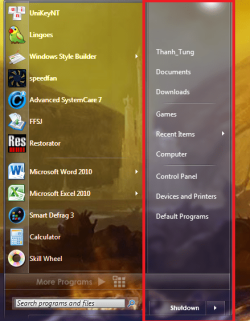
I only want clear blur for taskbar and start menu and windows explorer isnt important
 

My Computer My Computer

Computer type
PC/Desktop
OS
Windows 7 Ultimate x64
Hello Cambodia, and welcome to Seven Forums.

Yes, that's what it says the tutorial is for at the top, and what the example screenshots show.

This will show you how to have the window borders fully clear and transparent like glass instead for your current account only, or for all user accounts on the computer.

For the Start Menu and Taskbar, see the tutorial below instead to check the "enable transparency" box.

http://www.sevenforums.com/tutorials/283-transparency-enable-disable.html

Hope this helps, :)
Shawn
 

My Computer My Computer

Computer type
PC/Desktop
Computer Manufacturer/Model Number
Self built custom
OS
64-bit Windows 11 Pro for Workstations
CPU
Intel i7-8700K OC'd to 5 GHz
Motherboard
ASUS ROG Maximus XI Formula Z390
Memory
64 GB (4x16GB) G.SKILL TridentZ RGB DDR4 3600 MHz
Graphics Card(s)
ASUS ROG-STRIX-GTX1080TI-O11G-GAMING
Sound Card
Integrated
Monitor(s) Displays
2 x Samsung Odyssey G7 27"
Screen Resolution
2560x1440
Hard Drives
1TB Samsung 990 PRO M.2,
4TB Samsung 990 PRO PRO M.2,
TerraMaster F8 SSD Plus NAS
PSU
Seasonic Prime Titanium 850W
Case
Thermaltake Core P3
Cooling
Corsair Hydro H115i
Keyboard
Logitech wireless K800
Mouse
Logitech MX Master 4
Internet Speed
2 Gb/s Download and 100 Mb/s Upload
Antivirus
Malwarebyte Anti-Malware Premium
Browser
Google Chrome
Other Info
Logitech Z625 speaker system,
Logitech BRIO 4K Pro webcam,
HP Color LaserJet Pro MFP M477fdn,
APC SMART-UPS RT 1000 XL - SURT1000XLI,
Galaxy S23 Plus phone
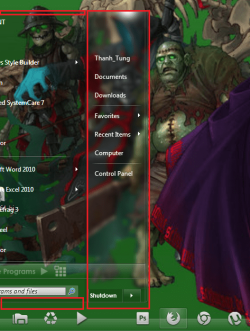
Ok. I'll retry. Last try blur in my window became black side and previous tries it dont run.
I edited Hide blur with DWORD as 1 ; ColorizationBlurBalance as 0, ColorizationOpaqueBlend as 1; ColorizationBlurBalance as 1 ; ColorizationColor as 1 ; ColorizationGlassReflectionIntensity =1.
11.png
blur.png
I hope too.
Thank to hellp :)
 

My Computer My Computer

Computer type
PC/Desktop
OS
Windows 7 Ultimate x64

My Computer My Computer

Computer type
PC/Desktop
Computer Manufacturer/Model Number
Self built custom
OS
64-bit Windows 11 Pro for Workstations
CPU
Intel i7-8700K OC'd to 5 GHz
Motherboard
ASUS ROG Maximus XI Formula Z390
Memory
64 GB (4x16GB) G.SKILL TridentZ RGB DDR4 3600 MHz
Graphics Card(s)
ASUS ROG-STRIX-GTX1080TI-O11G-GAMING
Sound Card
Integrated
Monitor(s) Displays
2 x Samsung Odyssey G7 27"
Screen Resolution
2560x1440
Hard Drives
1TB Samsung 990 PRO M.2,
4TB Samsung 990 PRO PRO M.2,
TerraMaster F8 SSD Plus NAS
PSU
Seasonic Prime Titanium 850W
Case
Thermaltake Core P3
Cooling
Corsair Hydro H115i
Keyboard
Logitech wireless K800
Mouse
Logitech MX Master 4
Internet Speed
2 Gb/s Download and 100 Mb/s Upload
Antivirus
Malwarebyte Anti-Malware Premium
Browser
Google Chrome
Other Info
Logitech Z625 speaker system,
Logitech BRIO 4K Pro webcam,
HP Color LaserJet Pro MFP M477fdn,
APC SMART-UPS RT 1000 XL - SURT1000XLI,
Galaxy S23 Plus phone
Sorry, but it dont work :(. Its bigest problem when I creat theme. I cant continue working and must stop it.
blur1.png
 

My Computer My Computer

Computer type
PC/Desktop
OS
Windows 7 Ultimate x64
Please elaborate on it didn't work, and what you mean by can't continue working.

It looks like it worked as far as making everything transparent.
 

My Computer My Computer

Computer type
PC/Desktop
Computer Manufacturer/Model Number
Self built custom
OS
64-bit Windows 11 Pro for Workstations
CPU
Intel i7-8700K OC'd to 5 GHz
Motherboard
ASUS ROG Maximus XI Formula Z390
Memory
64 GB (4x16GB) G.SKILL TridentZ RGB DDR4 3600 MHz
Graphics Card(s)
ASUS ROG-STRIX-GTX1080TI-O11G-GAMING
Sound Card
Integrated
Monitor(s) Displays
2 x Samsung Odyssey G7 27"
Screen Resolution
2560x1440
Hard Drives
1TB Samsung 990 PRO M.2,
4TB Samsung 990 PRO PRO M.2,
TerraMaster F8 SSD Plus NAS
PSU
Seasonic Prime Titanium 850W
Case
Thermaltake Core P3
Cooling
Corsair Hydro H115i
Keyboard
Logitech wireless K800
Mouse
Logitech MX Master 4
Internet Speed
2 Gb/s Download and 100 Mb/s Upload
Antivirus
Malwarebyte Anti-Malware Premium
Browser
Google Chrome
Other Info
Logitech Z625 speaker system,
Logitech BRIO 4K Pro webcam,
HP Color LaserJet Pro MFP M477fdn,
APC SMART-UPS RT 1000 XL - SURT1000XLI,
Galaxy S23 Plus phone

Thanks for hellp. But the link error. I search this soft and feel it isnt good, it do blur and transparenty all.

Please elaborate on it didn't work, and what you mean by can't continue working.

It looks like it worked as far as making everything transparent.

Theme with mistake blur , I cant fix it and cant finish too :(
I stop to do it and waitting help from few 4rums.
 

My Computer My Computer

Computer type
PC/Desktop
OS
Windows 7 Ultimate x64

My Computer My Computer

Computer type
PC/Desktop
Computer Manufacturer/Model Number
Self built custom
OS
64-bit Windows 11 Pro for Workstations
CPU
Intel i7-8700K OC'd to 5 GHz
Motherboard
ASUS ROG Maximus XI Formula Z390
Memory
64 GB (4x16GB) G.SKILL TridentZ RGB DDR4 3600 MHz
Graphics Card(s)
ASUS ROG-STRIX-GTX1080TI-O11G-GAMING
Sound Card
Integrated
Monitor(s) Displays
2 x Samsung Odyssey G7 27"
Screen Resolution
2560x1440
Hard Drives
1TB Samsung 990 PRO M.2,
4TB Samsung 990 PRO PRO M.2,
TerraMaster F8 SSD Plus NAS
PSU
Seasonic Prime Titanium 850W
Case
Thermaltake Core P3
Cooling
Corsair Hydro H115i
Keyboard
Logitech wireless K800
Mouse
Logitech MX Master 4
Internet Speed
2 Gb/s Download and 100 Mb/s Upload
Antivirus
Malwarebyte Anti-Malware Premium
Browser
Google Chrome
Other Info
Logitech Z625 speaker system,
Logitech BRIO 4K Pro webcam,
HP Color LaserJet Pro MFP M477fdn,
APC SMART-UPS RT 1000 XL - SURT1000XLI,
Galaxy S23 Plus phone
Here are some working links for wTrans from Brothersoft.

I tried it and this soft only blur windows. All blur, taskbar, icons, menu, text,... and more dark
When you install and you must boring by other soft install (hide so you know that but can choice) and set search conduil to FF, GC. You should not try it.
I need trick or soft to clear blur, not blur for all T_T
Anyway, thank for help, you very good
 

My Computer My Computer

Computer type
PC/Desktop
OS
Windows 7 Ultimate x64
Back
Top