trojan rootkit and virus prevention

chas53

New member
Member
VIP
Local time
1:22 PM
Messages
173
how can I protect my sony vaio laptop from getting infected with another trojan rootkit or any virus that will ruin it?

are you folks still recommending MSE? (my computer tech is recommending AVG. he says MSE has gone downhill.)

are you still recommending web of trust add-on?

would it be ok if I keep my AVG and got the web of trust add-on? would that be a smart way to go?

also, I wanted to go to many webites that the web of trust (I had web of trust, until I had my clean install) had a question mark in a little blue circle for.
some of these websites were for sites that I thought were for well known highly respected music gear equipment.
I got the question marks in little blue circles so many times, that eventually I went to the sites anyway.

then 10 days ago, I went to a site (question mark in little blue circle) looking for info on a guitar slide I had just bought.
BAAAAAM............trojan rootkit. major trouble.

I do not want to go through that again. would appreciate any information on what I should do, so that does not happen again.

thank you everyone.
 

My Computer My Computer

Computer Manufacturer/Model Number
sony vaio vpcsc31fm
OS
Microsoft Windows 7 Home Premium 64-bit 7601 Multiprocessor Free Service Pack 1
CPU
Intel(R) Core(TM) i5-2430M CPU @ 2.40GHz
Motherboard
Sony Corporation VAIO
Memory
6.00 GB
Graphics Card(s)
Intel(R) HD Graphics Family
Sound Card
(1) High Definition Audio Device (2) Bluetooth Hands-free
Screen Resolution
1366 x 768 x 32 bits (4294967296 colors) @ 59 Hz
Hard Drives
ST95005620AS
Chas53, I recommend that you get the program malwarebytes. They have a free version but I pay for the program and it intercepts web browsing that might be bad sites.

I believe that the money is well spent. Malwarebytes : Free anti-malware download
is their website. They have a free version as well as the $24.95 version.

Rich
 

My Computer My Computer

Computer type
Laptop
Computer Manufacturer/Model Number
Toshiba Laptop Qosimo X870
OS
Windows 7 Pro x64 SP1
CPU
Intel Core I7
Motherboard
Toshiba Qosmio
Memory
16 Gigs
Graphics Card(s)
NVIDIA GeForce GTX 670M
Monitor(s) Displays
17.7" laptop
Screen Resolution
1600 x 900
Hard Drives
256 Gig SanDisk SSD for C
256 Gig Intel SSD for D
Internet Speed
50/25 FIOS
Antivirus
Vipre (all you can eat for 10 machines)
Browser
IE and FF
Other Info
I have dos 6.22, wfwg 3.11, win98, 2000 and xp VHD's available for testing. MS's Virtual PC works great.
Common sense is all you really need. I run multiple computer with no AV of any type and have never been infected.

It's all about where you go, what you do and how you use the computer.

Other then that MSE is very good from what I read.
 

My Computer My Computer

OS
7 x64
Chas53, I recommend that you get the program malwarebytes. They have a free version but I pay for the program and it intercepts web browsing that might be bad sites.

I believe that the money is well spent. Malwarebytes : Free anti-malware download
is their website. They have a free version as well as the $24.95 version.

I had malwarebytes. but I had the free one. guessing that one does not intercept bad web sites.
though I would gladly pay $25 if it actually works.

Rich

Common sense is all you really need. I run multiple computer with no AV of any type and have never been infected.

It's all about where you go, what you do and how you use the computer.

Other then that MSE is very good from what I read.

I really thought I was using common sense. I don't go to porn sites. I don't go to sites to download free stuff.
 

My Computer My Computer

Computer Manufacturer/Model Number
sony vaio vpcsc31fm
OS
Microsoft Windows 7 Home Premium 64-bit 7601 Multiprocessor Free Service Pack 1
CPU
Intel(R) Core(TM) i5-2430M CPU @ 2.40GHz
Motherboard
Sony Corporation VAIO
Memory
6.00 GB
Graphics Card(s)
Intel(R) HD Graphics Family
Sound Card
(1) High Definition Audio Device (2) Bluetooth Hands-free
Screen Resolution
1366 x 768 x 32 bits (4294967296 colors) @ 59 Hz
Hard Drives
ST95005620AS
AVG is good enough to protect you from tojans, virus, spywares, malwares, worms and rootkits. Plus the Link Scanner checks each and every link and blocks them if any threat is detected.
 

My Computer My Computer

OS
Microsoft Windows 7 Professional 64-bit Multiprocessor Free Service Pack 1
CPU
Intel(R) Core(TM) i5-3470 CPU @ 3.20GHz
Motherboard
Intel Corporation DB75EN
Memory
8.00 GB
Graphics Card(s)
NVIDIA GeForce GT 630
Sound Card
(1) Realtek High Definition Audio (2) NVIDIA High Definiti
Screen Resolution
1366 x 768 x 32 bits (4294967296 colors) @ 59 Hz
Hard Drives
WDC WD10EZRX-00A8LB0 ATA Device
Internet Speed
4Mbps
Antivirus
AVG Internet Security
Browser
Google Chrome
Backup System Images

Any site can have poisoned links.

I run FF + NoScript to protect myself from rouge rogue js and XSS attacks.

Creating backup system images (regularly) is the way to protect yourself.
Make sure they are stored in an external location.

If your system gets infected simply obliterate it and then restore your backup.

I backup all of my operating systems (and personal data) before I install the Patch Tuesday updates.
 
Last edited:

My Computer My Computer

Computer type
PC/Desktop
Computer Manufacturer/Model Number
n/a
OS
W7 Ultimate SP1, LM19.2 MATE, W10 Home 1703, W10 Pro 1703 VM, #All 64 bit
CPU
AMD Phenom II x6 1100T, 3.3 GHz
Motherboard
ASUS M4A88T-M/USB3 (AM3)
Memory
12GB DDR3 1333 G-Skill (4GB x 2), G-Skill (2GB x 2)
Graphics Card(s)
NVIDIA GeForce GTX 660
Sound Card
Realtek?
Monitor(s) Displays
Samsung S23B350
Screen Resolution
1920x1080
Hard Drives
WD Green 2TB (SATA), WD Green 3TB (SATA), WD Blue 4TB (SATA), WD Blue 6TB (SATA)
PSU
Cooler Master
Case
Antec GX300 Tower
Cooling
3x Antec TRICOOL 120mm Fans
Mouse
Wired Optical
Internet Speed
DSL
Antivirus
Avast
Browser
Pale Moon (64 bit)
Other Info
2018-12-27 Upgraded HDDs
2015-12-10 Upgraded case, graphics card, storage
2015-08-15 Upgraded motherboard & RAM
2015-07-15 Upgraded LM17.1 to LM17.2
I agree with Rich. Malwarebytes is a great investment. Many times you can find online specials that drop the price below $20.

Having said that I would also recommend you keep on hand a few trusted on-demand scanners. No anti-malware product is going to be 100% effective 100% of the time. If there was such a thing we'd all be using it. A few recommended products (all free) are:

Superantispyware

ESET Online Scanner

Windows Defender Offline

TDSSKiller

And one other thing to consider. If you know you have a clean computer, create a system image. The system image is like a snapshot of your entire hard drive. All of your programs, personal settings, files, folders, etc are captured in that image. If your machine becomes infected, crashes, etc you can restore the image and be up and running in about 30 minutes. Your machine will be exactly like it was the day you made the image. The more often you image the machine the more current it will be.

Just my 2 cents.
 

My Computer My Computer

Computer type
Laptop
Computer Manufacturer/Model Number
Sony Vaio VPCEB47GM Laptop
OS
Win 7 Pro 64-bit
CPU
Intel i5 2.4 Ghz
Memory
8GB DDR3
Graphics Card(s)
Intel HD 3000
Sound Card
IDT High Definition
Monitor(s) Displays
15.6 WGXA Anti-Glare LED
Screen Resolution
1280x800
Hard Drives
640Gb 7200rpm
Antivirus
MSE
Browser
Opera (primary) with IE9 backup
AVG is good enough to protect you from tojans, virus, spywares, malwares, worms and rootkits. Plus the Link Scanner checks each and every link and blocks them if any threat is detected.


thank you. I have Avg free. do you think I have Link Scanner? or how can I check. (I just looked. did not see it.)


Any site can have poisoned links.

I run FF + NoScript to protect myself from rouge js and XSS attacks.

Creating backup system images (regularly) is the way to protect yourself.
Make sure they are stored in an external location.

If your system gets infected simply obliterate it and then restore your backup.

I backup all of my operating systems (and personal data) before I install the Patch Tuesday updates.

thank you.

I agree with Rich. Malwarebytes is a great investment. Many times you can find online specials that drop the price below $20.

Having said that I would also recommend you keep on hand a few trusted on-demand scanners. No anti-malware product is going to be 100% effective 100% of the time. If there was such a thing we'd all be using it. A few recommended products (all free) are:

Superantispyware

ESET Online Scanner

Windows Defender Offline

TDSSKiller

And one other thing to consider. If you know you have a clean computer, create a system image. The system image is like a snapshot of your entire hard drive. All of your programs, personal settings, files, folders, etc are captured in that image. If your machine becomes infected, crashes, etc you can restore the image and be up and running in about 30 minutes. Your machine will be exactly like it was the day you made the image. The more often you image the machine the more current it will be.

Just my 2 cents.

thank you for all recommendations. as far as I know my computer is now clean. clean install. its acting very good.
is it to difficult to create a system image?
would you please tell me how to do it? or guide me to the tutorial?
I am a little gunshy after what I have been through, about messing with anything.

but your idea sounds like a very smart one indeed.
 

My Computer My Computer

Computer Manufacturer/Model Number
sony vaio vpcsc31fm
OS
Microsoft Windows 7 Home Premium 64-bit 7601 Multiprocessor Free Service Pack 1
CPU
Intel(R) Core(TM) i5-2430M CPU @ 2.40GHz
Motherboard
Sony Corporation VAIO
Memory
6.00 GB
Graphics Card(s)
Intel(R) HD Graphics Family
Sound Card
(1) High Definition Audio Device (2) Bluetooth Hands-free
Screen Resolution
1366 x 768 x 32 bits (4294967296 colors) @ 59 Hz
Hard Drives
ST95005620AS
Mecurium??? (Spelling) Reflect Free is recommended on this forum site. I personally use Acronis True Image but I do all imaging Offline, from a Boot USB stick.

Never cared for doing them from inside Windows and if the system crashes and you have to Load an image back on a wiped drive you'll need to do that from a Boot DVD or USB stick anyway. I Image my Boot drive, a SSD and temp store it on another internal drive. This makes making the image very fast, maybe 10-15 minutes tops. But that all depends on how much data is on the drive. Once the imaging is done I reboot into Windows and copy the new image over to an external drive.
 

My Computer My Computer

OS
7 x64
Just a few notes to think.
A rootket can still be on your computer. They are very hard to completely remove. Some people do a complete clean and install to be sure.
http://www.sevenforums.com/tutorials/197255-windows-7-installation-prepare-pc-sold.html
As marmimar has mentioned ESET Online Scanner and Windows Defender Offline they are very good and would also be my recommendation.
I would not do a backup until you at least use EOS and WDO. You don't want to back up a infected system.
My protection is.
MSE
MAM-Pro
Built in Windows 7 Firewall
Router
 

My Computer My Computer

Computer type
PC/Desktop
Computer Manufacturer/Model Number
Home made Desktop
OS
Windows 10 Pro. 64/ version 1709 Windows 7 Pro/64
CPU
Intel i7-6800K @ 4.3
Motherboard
ASUS X-99 Deluxe II
Memory
Corsair Platinum 16 gig @2400
Graphics Card(s)
EVGA GTX 1070 OC
Monitor(s) Displays
Asus 27" LED LCD/VE278Q
Screen Resolution
1920-1080 or 1280-720 HDMI
Hard Drives
INTEL SSD 730-240 Gb Sata 3.0/
PSU
EVGA Platium 1200W
Case
Phanteks Luxe Tempered Glass 8 fans/ one radiator
Cooling
XSPC/ Water Cooled CPU
Keyboard
Das 4 Professional
Mouse
Logitech M705/MX Anywhere 2-S
Internet Speed
100 mbits
Antivirus
Microsoft Security Essentials/ Malwarebytes Premium 3.0/ SAS
Browser
I.E. 11 default/Firefox/ ISP Time Warner Cable/Spectrum
Other Info
LG BluRay Burner/
Sound system-KLipsch-THX/
Icy Dock ssd Hot Swap bays.
Mecurium??? (Spelling) Reflect Free is recommended on this forum site. I personally use Acronis True Image but I do all imaging Offline, from a Boot USB stick.

Never cared for doing them from inside Windows and if the system crashes and you have to Load an image back on a wiped drive you'll need to do that from a Boot DVD or USB stick anyway. I Image my Boot drive, a SSD and temp store it on another internal drive. This makes making the image very fast, maybe 10-15 minutes tops. But that all depends on how much data is on the drive. Once the imaging is done I reboot into Windows and copy the new image over to an external drive.

this is over my head. I cannot follow what you are doing here.


Just a few notes to think.
A rootket can still be on your computer. They are very hard to completely remove. Some people do a complete clean and install to be sure.
http://www.sevenforums.com/tutorials/197255-windows-7-installation-prepare-pc-sold.html
As marmimar has mentioned ESET Online Scanner and Windows Defender Offline they are very good and would also be my recommendation.
I would not do a backup until you at least use EOS and WDO. You don't want to back up a infected system.
My protection is.
MSE
MAM-Pro
Built in Windows 7 Firewall
Router

I did a clean install following the instructions given to me here at the forum. i went to digital river and downloaded on to a dvd, a win 7 iso.

after that I took my computer to my tech (because I could not get the wireless going). he replaced the wireless card.
I am not sure if he did another clean install or not. he might have.

anyway, with all of that said, do you think that I still have a rootkit on my computer?
 

My Computer My Computer

Computer Manufacturer/Model Number
sony vaio vpcsc31fm
OS
Microsoft Windows 7 Home Premium 64-bit 7601 Multiprocessor Free Service Pack 1
CPU
Intel(R) Core(TM) i5-2430M CPU @ 2.40GHz
Motherboard
Sony Corporation VAIO
Memory
6.00 GB
Graphics Card(s)
Intel(R) HD Graphics Family
Sound Card
(1) High Definition Audio Device (2) Bluetooth Hands-free
Screen Resolution
1366 x 768 x 32 bits (4294967296 colors) @ 59 Hz
Hard Drives
ST95005620AS
No I don't. A clean install should of taken care of all infections. Just remember anything that you backed up from that infected computer could also be infected. If you install them on your new Windows install they could infect it. Rootkits are the baddest of the bad boys when it comes to infections. Another little thing. One of the best ways to get a rootket is using torrants and P2P.
Happy computing with your fresh install.
 

My Computer My Computer

Computer type
PC/Desktop
Computer Manufacturer/Model Number
Home made Desktop
OS
Windows 10 Pro. 64/ version 1709 Windows 7 Pro/64
CPU
Intel i7-6800K @ 4.3
Motherboard
ASUS X-99 Deluxe II
Memory
Corsair Platinum 16 gig @2400
Graphics Card(s)
EVGA GTX 1070 OC
Monitor(s) Displays
Asus 27" LED LCD/VE278Q
Screen Resolution
1920-1080 or 1280-720 HDMI
Hard Drives
INTEL SSD 730-240 Gb Sata 3.0/
PSU
EVGA Platium 1200W
Case
Phanteks Luxe Tempered Glass 8 fans/ one radiator
Cooling
XSPC/ Water Cooled CPU
Keyboard
Das 4 Professional
Mouse
Logitech M705/MX Anywhere 2-S
Internet Speed
100 mbits
Antivirus
Microsoft Security Essentials/ Malwarebytes Premium 3.0/ SAS
Browser
I.E. 11 default/Firefox/ ISP Time Warner Cable/Spectrum
Other Info
LG BluRay Burner/
Sound system-KLipsch-THX/
Icy Dock ssd Hot Swap bays.
after that I took my computer to my tech (because I could not get the wireless going). he replaced the wireless card.
I am not sure if he did another clean install or not. he might have.

anyway, with all of that said, do you think that I still have a rootkit on my computer?

If you're absolutely sure that your computer was not infected AFTER you did the clean install it should be OK. If there's any chance you picked up any kind of malware and if you're absolutely sure your tech didn't accidentally get malware on your machine ... well, if there's any doubt in your mind another clean install might be warranted.

Without getting overly technical, a system image relies on a special program. That special program is what males a copy of the hard drive and lets you save it to another location. Most people recommend an external hard drive that connects to your computer with a USB cable. That external HD can be kept in a secure location until it's needed again. (Other people might say you can use CDs or DVDs and they'd be correct. But let's say you have just 20 gigabytes of data that you need to image. You'd need about 25 CDs or 5 DVDs to make the image. Way too many to guarantee that each CD or DVD will be correctly burned, not to mention the cost. That's why an external hard drive is the better choice.)

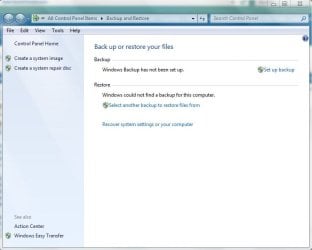
Windows 7 has its own special system image program already available. If you click the Start button and type backup in the search box you should see Backup your computer in the upper panel. If you click on that a new screen opens that looks like this:

backup.JPG

In the left column you can select Create A System Image or Create a System Repair Disc. Again, the image is like a snapshot of your entire hard drive. The repair disc is a special CD/DVD/Flash drive that you can make that will allow you to boot your computer if Windows 7 ever crashes and you can't start the computer normally. It's a good idea to make this disc, especially if you don't have an installation DVD. Even if you do have the installation disc what if it gets lost or damaged? The repair disc is cheap insurance.

Before you make your system image you'll want the external hard drive plugged in to your computer. When you click on Create a system image your computer will automatically search for the external hard drive. When it's found you will be asked if you want to continue making the image. If you say yes you will then be told how much space will be used on the external hard drive. If you still want to continue the system image will be created with nothing else required of you. Sit back, have a beverage of choice, and in about 30 minutes (maybe a bit longer depending on how many gigabytes of stuff is being copied) you'll have your brand new system image on the external hard drive.

For more technically advanced users there are other options available and other specialized programs that can be installed to make the system image. But for average users the Windows 7 imaging program is more than sufficient. Hope this quick imaging lesson encourages you to protect your computer
 

My Computer My Computer

Computer type
Laptop
Computer Manufacturer/Model Number
Sony Vaio VPCEB47GM Laptop
OS
Win 7 Pro 64-bit
CPU
Intel i5 2.4 Ghz
Memory
8GB DDR3
Graphics Card(s)
Intel HD 3000
Sound Card
IDT High Definition
Monitor(s) Displays
15.6 WGXA Anti-Glare LED
Screen Resolution
1280x800
Hard Drives
640Gb 7200rpm
Antivirus
MSE
Browser
Opera (primary) with IE9 backup
No I don't. A clean install should of taken care of all infections. Just remember anything that you backed up from that infected computer could also be infected. If you install them on your new Windows install they could infect it. Rootkits are the baddest of the bad boys when it comes to infections. Another little thing. One of the best ways to get a rootket is using torrants and P2P.
Happy computing with your fresh install.

thank you very much for your indeed excellent informative reply.

I never go to torrant sites. what is a P2P site? I never play games at all. is that what you mean? or are there other ones?


after that I took my computer to my tech (because I could not get the wireless going). he replaced the wireless card.
I am not sure if he did another clean install or not. he might have.

anyway, with all of that said, do you think that I still have a rootkit on my computer?

If you're absolutely sure that your computer was not infected AFTER you did the clean install it should be OK. If there's any chance you picked up any kind of malware and if you're absolutely sure your tech didn't accidentally get malware on your machine ... well, if there's any doubt in your mind another clean install might be warranted.

Without getting overly technical, a system image relies on a special program. That special program is what males a copy of the hard drive and lets you save it to another location. Most people recommend an external hard drive that connects to your computer with a USB cable. That external HD can be kept in a secure location until it's needed again. (Other people might say you can use CDs or DVDs and they'd be correct. But let's say you have just 20 gigabytes of data that you need to image. You'd need about 25 CDs or 5 DVDs to make the image. Way too many to guarantee that each CD or DVD will be correctly burned, not to mention the cost. That's why an external hard drive is the better choice.)

Windows 7 has its own special system image program already available. If you click the Start button and type backup in the search box you should see Backup your computer in the upper panel. If you click on that a new screen opens that looks like this:

View attachment 236595

In the left column you can select Create A System Image or Create a System Repair Disc. Again, the image is like a snapshot of your entire hard drive. The repair disc is a special CD/DVD/Flash drive that you can make that will allow you to boot your computer if Windows 7 ever crashes and you can't start the computer normally. It's a good idea to make this disc, especially if you don't have an installation DVD. Even if you do have the installation disc what if it gets lost or damaged? The repair disc is cheap insurance.

Before you make your system image you'll want the external hard drive plugged in to your computer. When you click on Create a system image your computer will automatically search for the external hard drive. When it's found you will be asked if you want to continue making the image. If you say yes you will then be told how much space will be used on the external hard drive. If you still want to continue the system image will be created with nothing else required of you. Sit back, have a beverage of choice, and in about 30 minutes (maybe a bit longer depending on how many gigabytes of stuff is being copied) you'll have your brand new system image on the external hard drive.

For more technically advanced users there are other options available and other specialized programs that can be installed to make the system image. But for average users the Windows 7 imaging program is more than sufficient. Hope this quick imaging lesson encourages you to protect your computer


thank you I will go through this carefully. and figure out what I will do.

thank you for your detailed excellent reply.
 
Last edited:

My Computer My Computer

Computer Manufacturer/Model Number
sony vaio vpcsc31fm
OS
Microsoft Windows 7 Home Premium 64-bit 7601 Multiprocessor Free Service Pack 1
CPU
Intel(R) Core(TM) i5-2430M CPU @ 2.40GHz
Motherboard
Sony Corporation VAIO
Memory
6.00 GB
Graphics Card(s)
Intel(R) HD Graphics Family
Sound Card
(1) High Definition Audio Device (2) Bluetooth Hands-free
Screen Resolution
1366 x 768 x 32 bits (4294967296 colors) @ 59 Hz
Hard Drives
ST95005620AS

My Computer My Computer

Computer type
PC/Desktop
Computer Manufacturer/Model Number
Home made Desktop
OS
Windows 10 Pro. 64/ version 1709 Windows 7 Pro/64
CPU
Intel i7-6800K @ 4.3
Motherboard
ASUS X-99 Deluxe II
Memory
Corsair Platinum 16 gig @2400
Graphics Card(s)
EVGA GTX 1070 OC
Monitor(s) Displays
Asus 27" LED LCD/VE278Q
Screen Resolution
1920-1080 or 1280-720 HDMI
Hard Drives
INTEL SSD 730-240 Gb Sata 3.0/
PSU
EVGA Platium 1200W
Case
Phanteks Luxe Tempered Glass 8 fans/ one radiator
Cooling
XSPC/ Water Cooled CPU
Keyboard
Das 4 Professional
Mouse
Logitech M705/MX Anywhere 2-S
Internet Speed
100 mbits
Antivirus
Microsoft Security Essentials/ Malwarebytes Premium 3.0/ SAS
Browser
I.E. 11 default/Firefox/ ISP Time Warner Cable/Spectrum
Other Info
LG BluRay Burner/
Sound system-KLipsch-THX/
Icy Dock ssd Hot Swap bays.

My Computer My Computer

Computer Manufacturer/Model Number
sony vaio vpcsc31fm
OS
Microsoft Windows 7 Home Premium 64-bit 7601 Multiprocessor Free Service Pack 1
CPU
Intel(R) Core(TM) i5-2430M CPU @ 2.40GHz
Motherboard
Sony Corporation VAIO
Memory
6.00 GB
Graphics Card(s)
Intel(R) HD Graphics Family
Sound Card
(1) High Definition Audio Device (2) Bluetooth Hands-free
Screen Resolution
1366 x 768 x 32 bits (4294967296 colors) @ 59 Hz
Hard Drives
ST95005620AS
Macrium Tutorial

thank you for all recommendations. as far as I know my computer is now clean. clean install. its acting very good.
is it to difficult to create a system image?
would you please tell me how to do it? or guide me to the tutorial?
I am a little gunshy after what I have been through, about messing with anything.

but your idea sounds like a very smart one indeed.

Macrium Tutorial
http://www.sevenforums.com/tutorials/73828-imaging-free-macrium.html
 

My Computer My Computer

Computer type
PC/Desktop
Computer Manufacturer/Model Number
n/a
OS
W7 Ultimate SP1, LM19.2 MATE, W10 Home 1703, W10 Pro 1703 VM, #All 64 bit
CPU
AMD Phenom II x6 1100T, 3.3 GHz
Motherboard
ASUS M4A88T-M/USB3 (AM3)
Memory
12GB DDR3 1333 G-Skill (4GB x 2), G-Skill (2GB x 2)
Graphics Card(s)
NVIDIA GeForce GTX 660
Sound Card
Realtek?
Monitor(s) Displays
Samsung S23B350
Screen Resolution
1920x1080
Hard Drives
WD Green 2TB (SATA), WD Green 3TB (SATA), WD Blue 4TB (SATA), WD Blue 6TB (SATA)
PSU
Cooler Master
Case
Antec GX300 Tower
Cooling
3x Antec TRICOOL 120mm Fans
Mouse
Wired Optical
Internet Speed
DSL
Antivirus
Avast
Browser
Pale Moon (64 bit)
Other Info
2018-12-27 Upgraded HDDs
2015-12-10 Upgraded case, graphics card, storage
2015-08-15 Upgraded motherboard & RAM
2015-07-15 Upgraded LM17.1 to LM17.2
thank you for all recommendations. as far as I know my computer is now clean. clean install. its acting very good.
is it to difficult to create a system image?
would you please tell me how to do it? or guide me to the tutorial?
I am a little gunshy after what I have been through, about messing with anything.

but your idea sounds like a very smart one indeed.

Macrium Tutorial
http://www.sevenforums.com/tutorials/73828-imaging-free-macrium.html

roger that.

thank you for taking the time to reply.
 

My Computer My Computer

Computer Manufacturer/Model Number
sony vaio vpcsc31fm
OS
Microsoft Windows 7 Home Premium 64-bit 7601 Multiprocessor Free Service Pack 1
CPU
Intel(R) Core(TM) i5-2430M CPU @ 2.40GHz
Motherboard
Sony Corporation VAIO
Memory
6.00 GB
Graphics Card(s)
Intel(R) HD Graphics Family
Sound Card
(1) High Definition Audio Device (2) Bluetooth Hands-free
Screen Resolution
1366 x 768 x 32 bits (4294967296 colors) @ 59 Hz
Hard Drives
ST95005620AS
Yes AVG free version includes link scanner as well, which checks all the links in background...
 

My Computer My Computer

OS
Microsoft Windows 7 Professional 64-bit Multiprocessor Free Service Pack 1
CPU
Intel(R) Core(TM) i5-3470 CPU @ 3.20GHz
Motherboard
Intel Corporation DB75EN
Memory
8.00 GB
Graphics Card(s)
NVIDIA GeForce GT 630
Sound Card
(1) Realtek High Definition Audio (2) NVIDIA High Definiti
Screen Resolution
1366 x 768 x 32 bits (4294967296 colors) @ 59 Hz
Hard Drives
WDC WD10EZRX-00A8LB0 ATA Device
Internet Speed
4Mbps
Antivirus
AVG Internet Security
Browser
Google Chrome
Without getting overly technical, a system image relies on a special program. That special program is what males a copy of the hard drive and lets you save it to another location. Most people recommend an external hard drive that connects to your computer with a USB cable. That external HD can be kept in a secure location until it's needed again. (Other people might say you can use CDs or DVDs and they'd be correct. But let's say you have just 20 gigabytes of data that you need to image. You'd need about 25 CDs or 5 DVDs to make the image. Way too many to guarantee that each CD or DVD will be correctly burned, not to mention the cost. That's why an external hard drive is the better choice.)

Windows 7 has its own special system image program already available. If you click the Start button and type backup in the search box you should see Backup your computer in the upper panel. If you click on that a new screen opens that looks like this:


In the left column you can select Create A System Image or Create a System Repair Disc. Again, the image is like a snapshot of your entire hard drive. The repair disc is a special CD/DVD/Flash drive that you can make that will allow you to boot your computer if Windows 7 ever crashes and you can't start the computer normally. It's a good idea to make this disc, especially if you don't have an installation DVD. Even if you do have the installation disc what if it gets lost or damaged? The repair disc is cheap insurance.

Before you make your system image you'll want the external hard drive plugged in to your computer. When you click on Create a system image your computer will automatically search for the external hard drive. When it's found you will be asked if you want to continue making the image. If you say yes you will then be told how much space will be used on the external hard drive. If you still want to continue the system image will be created with nothing else required of you. Sit back, have a beverage of choice, and in about 30 minutes (maybe a bit longer depending on how many gigabytes of stuff is being copied) you'll have your brand new system image on the external hard drive.

For more technically advanced users there are other options available and other specialized programs that can be installed to make the system image. But for average users the Windows 7 imaging program is more than sufficient. Hope this quick imaging lesson encourages you to protect your computer


marsmimar,
do you (or anyone here), know if it would be ok (or advisable), to make system images of my laptop and my desktop computer on the same external hard drive?
 

My Computer My Computer

Computer Manufacturer/Model Number
sony vaio vpcsc31fm
OS
Microsoft Windows 7 Home Premium 64-bit 7601 Multiprocessor Free Service Pack 1
CPU
Intel(R) Core(TM) i5-2430M CPU @ 2.40GHz
Motherboard
Sony Corporation VAIO
Memory
6.00 GB
Graphics Card(s)
Intel(R) HD Graphics Family
Sound Card
(1) High Definition Audio Device (2) Bluetooth Hands-free
Screen Resolution
1366 x 768 x 32 bits (4294967296 colors) @ 59 Hz
Hard Drives
ST95005620AS
Back
Top