uefi ssd USB windows 7 x64 ultimate install error 0xc000000d

Have you called the PC's tech support which is included for the first year and should be able to tell you how Win7 can be installed. If they say Win7 is not supported (an old tired line since we've gotten it installed on every other make/model except this one) and don't have a convincing reason, try to probe them for how to install any other OS which may reveal the setting change needed, or lack of one.

By now we've dealt with just about every make/model here and UEFI. This remains the only one I can recall we weren't able to help install to UEFI or at least Bypass UEFI to Install WIn7.

Since we quite rigorously went through the settings to some annoyance by the OP, which is nearly impossible to do and not attempted anywhere else on the web that I've seen in such detail, let's assume yours are the exact same as you say and you also have checked for any recent UEFI firmware update which are quite frequent on these BIOS' for exactly this reason.

One question that was not answered was when I asked about the backup fail-safe method that has always worked when UEFI won't cooperate in the past, which is to Bypass UEFI to Install WIn7. The OP asked how he can do this when he can't even reach the install screen, yet the steps can in fact be completed without the WIn7 installer booting by using Partition Wizard to Wipe Disk - Video Help. which clears all boot code and allows converting the drive to MBR: How to Convert MBR Disk to GPT Disk | MiniTool Partition Wizard Tutorial.

The may force the installer to boot as a Legacy device with the CSM setting in BIOS, and Secure Boot disabled. If not you can try booting disk or stick as a UEFI device to see if it will install to UEFI. Either way you'll need to wipe the drive first to convert over to the other GPT/MBR format.

Be sure to make your Recovery Disks so you have a path back to Windows 8.

As always we will stick with this until Win7 is successfully installed as we've done for tens of thousands of others with a nearly perfect record of success. Had the OP continued to work with us we would have tried at even more things that have worked in the past, including and up to contacting the maker to help determine what the exact problem is - which hopefully you can now continue to do if we don't hear back from OP.
 
I've talked to the Dell techs at least twice and tried to get them to help to no avail (not fun and a big time suck for being parked on hold for more than half hour). I'm using a different drive so I don't wipe the original and have converted to GPT using DiskPart (from ext. drive connected to a different machine). There is no option for CSM in the BIOS, Secure Boot is disabled. I completely redid the USB drive as described with DiskPart and copied over the files from a Win 7 DVD and went on to do as described if using a 64bit version (which I am), e.g. copying the efi\microsoft\boot folder up a level etc. etc. etc. Nothing has worked. I still get the same Windows Boot Manager error as shown in the screen shot from "SoFrustrated" ....... I guess that makes two of us
 

My Computer My Computer

At a glance

Win7 Pro 64bit
Computer type
PC/Desktop
OS
Win7 Pro 64bit
Just because manual writing of UEFI flash stick tends to fail regularly for variable reasons, eliminate those variables by using Option One from UEFI Bootable USB Flash Drive - Create in Windows which most always works.

If its not the installer then it's likely the BIOS settings since the HD isn't even being accessed yet.

Why don't you ask Dell Support supervisor to explain in the top search result for that Dell model on the top tech forums on the web why there is no compatibility settings for that model, making it useless to anyone who doesn't want Windows 8 which 87% of consumers have made clear they don't want. You could even chat with the supervisor and link him to this thread and this post for him to reply for us via you.

You might consider trying a Clean Install Windows 10 Technical Preview which even though it is pre-beta is quite stable and clearly the logical successor to Win7. In fact I haven't been back to Win7 for nearly two months after installing it in a Dual Boot.
 
I have already used the "Rufus" method also to no avail. I'm not sure when the last time you stayed on the line for over an hour discussing issues with someone from India or from any other country is but it isn't pleasant time spent. This has been the most frustrating machine because I am stubborn and have always plugged through this stuff but this time it may have me beat. I continue to get the same error:
The Boot Configuration for your PC is missing or contains errors.
File: \EFI\MICROSOFT\BOOT\BCD
Error code: 0xc000000f
 

My Computer My Computer

At a glance

Win7 Pro 64bit
Computer type
PC/Desktop
OS
Win7 Pro 64bit
I understand your frustration as I've experienced it myself. So I was offering you the chance to air your experience with the Dell Supervisor on the top tech forums on the web, which will be viewed by countless readers including those most affected by this issue who find it at the top of the search results.

The error means its attempting to boot the HD and not the disk or flash stick. Are you pressing the F12 key at boot to attempt to trigger the flash stick? Windows 8 Boot issue Error: 0xc000000f - Microsoft Community

Can you try burning the confirmed ISO download to disk to try it to compare?

Again trigger these to boot using the F12 key. Does it offer a UEFI verison of the flash stick or disk to boot? Without CSM settings, normally the only way to choose Legacy mode is to choose the non-UEFI version of the disk or stick to boot in the F12 Boot Menu. At this point try UEFI first if available, then Legacy if that fails.
 
Last edited:
I don't have a particular Dell supervisor nor would I call him/her out on this. The error that I posted was not correct I thought that was it and grabbed the text from a different forum for times sake. the actual error upon attempting to boot with the USB is the same as SoFrustrated received:
G1vLZeO.jpg


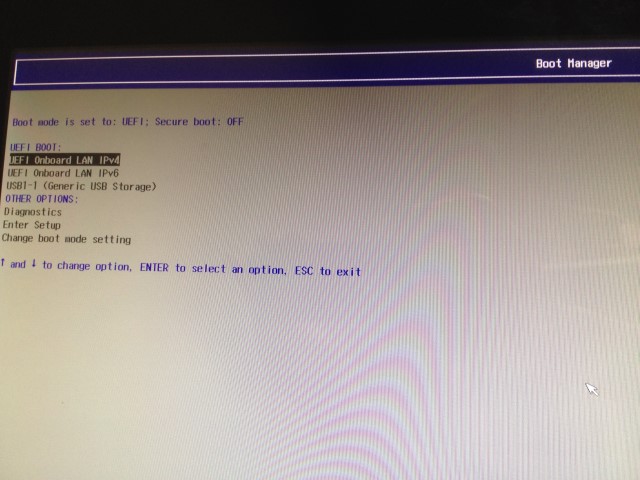
I've tried at least three different ISO files for Win 7, all with the same message. It doesn't offer a UEFI version of the flash stick only the USB and the boot from IPv4 and IPv6 as shown in SoFrustrated message:
WLDcebl.jpg


When I use the DVD version to install from an external DVD it looks more promising in that it gets up through a very short bit of a loading Windows until it hangs at a screen that says Dell ...Starting Windows with a thick red line across the top of the screen. I've done this so many times I can't count. I think this is a lost cause as it has no option for CSM or Legacy mode.
 

My Computer My Computer

At a glance

Win7 Pro 64bit
Computer type
PC/Desktop
OS
Win7 Pro 64bit
There is a BIOS update from Sept 30, shortly after complaints were posted to Dell Forums in early Sept. Do you have it installed? Check BIOS setup for version number. Download here: Product Support | Dell US

If you're unwilling to ask for a supervisor at tech support to see if they can elevate this as a known issue on the model, perhaps someone else will do it who gets stuck with this.

Another thing to try as a last resort is to move the hard drive to another PC, install Win7 on it and then SysPrep to move HD to another computer so that when moved back to the problem PC it will start up like a new install and already be adjusted for different hardware.

An alternative is to Clean Install Windows 10 Technical Preview which although pre-beta is remarkably stable enough I have been running it for over a month on my primary PC. It is based on Windows 8 so may install outright, although it has a normal Start Menu, is faster than Win7 and destined to be its logical successor within the next year. It would be preferable to Windows 8 if you keep the PC.

For those who find themselves with this problem model, keep checking the model's Support Downloads webpage for a newer BIOS update and then probing the BIOS settings, make your unhappiness known to Dell's Tech Support supervisor and forums.
 
I do have the latest Bios (version 6), I even rolled back to an earlier to try that and then back again to the latest. To your quote of "If you're unwilling to ask for a supervisor at tech support to see if they can elevate this as a known issue on the model, then you're not doing due diligence. This is what I would do if I had that model to know I'd done everything possible." I think I have done as much as possible with this. I actually have a family and to be on the phone with a tech support from India trying to plead my case that they allow a few that want to roll back to Windows 7 on this particular machine is not in the cards .... nor would it go anywhere. I have spent hours upon hours after the kids have gone to bed pouring over this machine to get it back to Win 7. I believe I have done due diligence on this and then some. I don't have tens of hours more to spend on the Sysprep method nor do I intend on going the Windows 10 route.
 

My Computer My Computer

At a glance

Win7 Pro 64bit
Computer type
PC/Desktop
OS
Win7 Pro 64bit
Wish I'd found this thread sooner. Just wasted an entire Sunday (like 12 hours) trying to roll my Inspiron 20 back to Windows 7 so I can have Windows Media Center and use it as a TV.

I'm convinced this computer is a total piece of (noun of your choice). But what should I expect? It was like $300 bucks. I'm tossing this baby in the dumpster, unless someone comes across a solution.
 

My Computer My Computer

At a glance

Windows 8.1
Computer type
PC/Desktop
OS
Windows 8.1
...Another thing to try as a last resort is to move the hard drive to another PC, install Win7 on it ...

This doesn't work, either. I installed an SSD and 8.1 no problem with the intent of re-purposing the original drive to a windows 7 laptop. The laptop's BIOS, however, will not even see the drive. And if I put it in a Linux system, I get I/O errors reading the drive from gparted. I was able to get drive info from hdparm, and I tried to secure erase it, but it should've taken an hour or so to finish, and instead returned the command prompt after a few seconds. So, I'm assuming I/O error, but I will try again.

I really get the whole secure boot concept - you want windows to stay on one machine. But crippling the BIOS like that so you can't legacy boot hardware that you've paid for and use it in another system with another OS is straight up thievery.

I've sold 2 of these having installed SSD's in them, but now I'm stuck with 2 brand new worthless hard drives at least until I have another UEFI system come in where I can set them to legacy boot.

I'm extremely disappointed with Dell about this, and the next AIO I sell will be an HP.
 

My Computer My Computer

At a glance

Windows 8.1 64-bit
Computer type
PC/Desktop
OS
Windows 8.1 64-bit
RUKiddingMe, what is the USB Storage device shown under bootable UEFI devices in the Boot Menu above? It may be the flash stick.

Also what about Enter Setup which normally is a shortcut to the installer queued up to boot?

I can see this is attracting Google searches so we can continue if others will want to share screenshots and be patient and not snap at simple questions. This is the only model I can remember that we weren't able to work through to install. We do not quit at these and have gotten every other tough case resolved, but there must be utter patience to get there.
 
Hello, guys.
i also have the same dell inspiron 20 and for the whole day I was trying to install Win 7 64 at this computer, then I found this forum...
I' ve formatted Win 10, made a bootable GPT UEFI USB using Rufus. Tried differrent ISO images, but no luck.
If ISO made on the base of Win 8 boot manager then it starting Win 7 installation and after the first reboot it freezes at "Starting Windows".

If there is a standart Win 7 boot manager then after selecting USB stick as a boot device occurs the error which is shown on the first page.

And again, security option is disabled, there is no legacy option.
Insydeh20 setup utility rev 5.0 is installed.
 

My Computer My Computer

At a glance

Windows 7 Pro x64
Computer type
PC/Desktop
OS
Windows 7 Pro x64
I know this is old thread, but I want to share how I managed to deal with this situation.

My laptop's BIOS also doesn't have CSM mode, although there is option to disable UEFI, but I still want to install Windows 7 64 bit on UEFI mode. So here is how I did it:

1) First, download some required tools:
a. Gandalf's WinPE 8.1 x64 ISO or any bootable windows 8.1 ISO you prefer. Since we can't boot windows 7 dvd/usb over uefi, we will use windows 8.1's help to install windows 7. WinPE 10 ISO might could be used too, but I only ever try with WinPE 8.1.

b. WinNTSetup (not needed if you use WinPE ISO above as it's been included). We will use this tool to install windows 7.

c. Download required Windows 7 drivers to be slipstreamed into windows 7 installer:

- Integrated Graphic Card driver. This depends on your processor. For example, my processor is intel skylake based, so I searched and downloaded Intel HD Graphics 530 driver.

This is the most important required driver, as from many of trials & errors, after I slipstreamed the Intel Graphic driver, the freeze problem was finally solved. It's probably because of UEFI uses GOP protocol rather than old VGA protocol (UGA) which the former is not supported with windows 7 installer, unless you enable CSM.

- USB 3.0 Driver. Probably not needed, but if your machine has usb 3.0 port, you might need it as windows 7 doesn't support usb 3.0 natively. Same as above, the driver depends on your processor. If your machine is Intel, the driver name is Intel USB 3.0 eXtensible Host Controller Driver (make sure you download the latest version).

- And other drivers you suspect it's required for the windows 7 installer. On my trial, I also included the Intel RST driver although I think it's not really needed at all.


2) Burn/write the WinPE 8.1 ISO to usb drive with Rufus (pick GPT scheme). You need minimal 4 GB or 8 GB usb drive.


3) Extract and copy the driver files into a new folder, you can name the folder "my_drivers" or anything you want.

Intel graphics driver is usually in form of EXE installer file, you can use 7-zip or any archiver tool to extract the driver files from the EXE file. The contents are numerous but what you only need is the "Graphics" folder. Copy that folder into the "my_drivers" folder.

For Intel USB 3.0 driver, just extract and copy the "Drivers" folder.


4) Copy the "my_drivers" folder to the WinPE usb drive or any external drive, or any way you want as long as it can be accessed by WinPE.

If you don't use WinPE ISO 8.1 above, you might need to copy WinNTSetup files too.

If your target machine doesn't have optical drive, you might need to copy the windows 7 dvd contents into the WinPE usb drive (if it still can hold them) or other external drive. We will need the dvd contents later.


5) Boot the WinPE 8.1 USB drive from target machine. You will enter the windows 8.1. It's just like running live linux cd/dvd but you got windows instead. If you have external drive that holds "my_drivers" folder and windows dvd contents, then plug it in.

Now you want to make sure you already have the 100 MB EFI boot partition on the target drive, if not, you have to create it first. There are many tutorials out there for this, but in case you don't care about deleting some partitions in target drive, you can just run the Windows 7 DVD installer inside the WinPE (ignore the "The procedure entry point ..." pop-up error message), select "Custom (Advanced)" after agreeing the license dialog, then you can delete and create new partition there, the EFI partition will be created automatically on the create new process. After it's done, cancel and quit the installer.


6) Run WinNTSetup. Look at this tutorial first to see how to use WinNTSetup.

In summary what you need to set:

Location of Windows files => path to your install.wim file. This file is part of the Windows 7 dvd contents. Browse the file into your windows 7 dvd folder.

Location of Boot drive => The EFI Boot partition drive. If all check icons are green, you're in right track.

Location of installation drive => This is where you want to install the windows 7, usually it's C drive. You can format the drive too by pressing small "F" button.


7) Next, check the "Add Drivers" option, browse to the "my_drivers" folder that contains the extracted driver files. With this option, we will slipstream the drivers into the windows 7 installer.


8) When you're ready press "Setup" button, accept the default options, and press OK.

It will create windows 7 installation files on the target partition (drive C). After it's done, restart the machine and boot normally, you would see windows 7 installer running.


9) That's it. Hopefully it helps.


If it's still failed or getting freeze, it could be you miss some drivers, or maybe other things we haven't known...~insert twilight zone theme song here~
 
Last edited:

My Computer My Computer

At a glance

Win7 64bit
OS
Win7 64bit
Back
Top