UEFI (Unified Extensible Firmware Interface) - Install Windows 7 with

How to Install Windows 7 Using the "Unified Extensible Firmware Interface" (UEFI)


   Information
In addition to better interoperability, UEFI firmware provides several technical advantages:
  • Compatibility with operating systems that support only BIOS
  • Ability to boot from large disks
  • CPU-independent architecture
  • CPU-independent drivers
  • Flexible pre-OS environment
  • Modular design
Two of the most notable Windows features for UEFI systems are the following:
  • Multicast deployment, which enables large scale network-based image deployment in manufacturing and enterprise settings.
  • Fast boot and resume from hibernation, which improves user experience.
The rich UEFI interface provides ample room for innovation in the development of operating system features. Along with the other members of the Unified EFI Forum, Microsoft is investigating the following:
  • Rootkit prevention
  • Network authentication
-Microsoft Corporation
This method can also be used for the UEFI installation of Windows 8, Windows Server 2008 SP1, Windows Server 2008 R2, and Windows Vista SP1.

   Note
You will need to satisfy the following requirements in order to proceed:

  • A Windows 7 compatible system
  • A Windows 7 x64-bit installation media. 32-bit is not supported.
  • A UEFI v2.0+ compliant PC. Check your chipset manufacturer/firmware documentation.
  • A blank, partition-free, hard disk for installation.
   Warning

  • Disabling UEFI will make the system unbootable as there is no MBR on the disks.
  • You CANNOT make a sector-by-sector copy of GPT disks. The Disk and Partition GUIDs will no longer be unique. This must never happen. You can make a sector-by-sector copy of the contents of ESP or basic data partitions.
  • Disable secure boot before installing Windows 7.


Here's How:

1. Do step 2 or 3 below depending on what installation Media you are using.

2. If using a Retail 64-bit Windows 7 Installation DVD A) Insert the DVD, restart the computer, and go to step 4 below.
3. If using a 64-bit Windows 7 Installation USB Flash Drive with UEFI A) If you have not already, you will need to create a Windows 7 installation bootable USB flash drive for UEFI from either a Windows 7 installation ISO or DVD.

B) Connect the USB, restart the computer, and go to step 4 below.
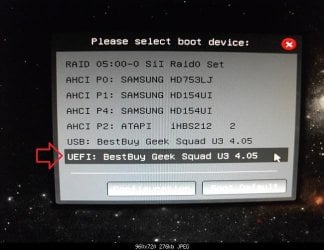
4. Press whatever key (ex: F11) it shows to boot to your motherboard's boot menu, and select to boot from the DVD or UEFI USB. (see screenshot below) UEFI_USB_Boot_Menu.jpg
5. Do steps 3 to 7 in the tutorial link below. http://www.sevenforums.com/tutorials/1649-clean-install-windows-7-a.html
6. Delete all partitions/volumes on the disk # (ex: Disk 0) that you want to install Windows 7 as UEFI on until that disk # shows as unallocated space. (see screenshot below) Step7.jpg
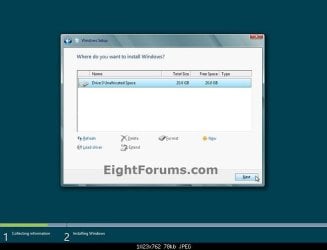
7. When you are finished, click/tap on New, Apply (for full size of disk), and OK. (see screenshot above)

8. You will notice that the disk has now been formatted as GPT with 3 partitions. Select the "Primary" partition 3, and click/tap on Next. (see screenshot below)
NOTE: You might receive a "Windows can't be installed on drive 0" warning, but as long as you can click on the Next button, you're fine.
   Note
The 3 partitions are:
  • Partition 1 - System - The EFI System partition that contains the NTLDR, HAL, Boot.txt, and other files that are needed to boot the system, such as drivers.
  • Partition 2 - MSR - The Microsoft Reserved (MSR) partition that reserves space on each disk drive for subsequent use by operating system software.
  • Partition 3 - Primary - Where Windows is to be installed to.

    It is imperative that these 3 partitions remain in the exact order as they are
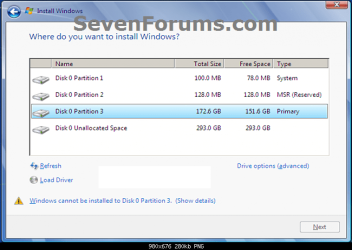


Windows7.PNG
9. You can now finish doing the steps in either tutorial below.

10. That's it. You have successfully installed Windows 7 on an UEFI system.


External Links:


Windows and GPT FAQ
Unified Extensible Firmware Interface - Wikipedia, the free encyclopedia
UEFI and Windows
 
Last edited by a moderator:
No Third Partition...

Hi, guys. Followed the instructions to the letter (I think, at least). When I get to the step where I should see three partitions, I only see two: the System and Primary partitions. Is this still OK or must I do something differently?

Thanks for your help!
 
Last edited:

My Computer My Computer

At a glance

Windows 7 Home Premium 64-Bit
OS
Windows 7 Home Premium 64-Bit
Hello Nicman,

That sounds like you didn't get a UEFI (GPT disk) installation, but only the legacy (MBR disk) instead.

What are you using to install with?

If the UEFI USB from step 1, what did you use to create it with?
 

My Computer My Computer

At a glance

64-bit Windows 11 Pro for WorkstationsIntel i7-8700K OC'd to 5 GHz64 GB (4x16GB) G.SKILL TridentZ RGB DDR4 3600...ASUS ROG-STRIX-GTX1080TI-O11G-GAMING
Computer type
PC/Desktop
Computer Manufacturer/Model Number
Self built custom
OS
64-bit Windows 11 Pro for Workstations
CPU
Intel i7-8700K OC'd to 5 GHz
Motherboard
ASUS ROG Maximus XI Formula Z390
Memory
64 GB (4x16GB) G.SKILL TridentZ RGB DDR4 3600 MHz
Graphics Card(s)
ASUS ROG-STRIX-GTX1080TI-O11G-GAMING
Sound Card
Integrated
Monitor(s) Displays
2 x Samsung Odyssey G7 27"
Screen Resolution
2560x1440
Hard Drives
1TB Samsung 990 PRO M.2,
4TB Samsung 990 PRO PRO M.2,
TerraMaster F8 SSD Plus NAS
PSU
Seasonic Prime Titanium 850W
Case
Thermaltake Core P3
Cooling
Corsair Hydro H115i
Keyboard
Logitech wireless K800
Mouse
Logitech MX Master 4
Internet Speed
2 Gb/s Download and 100 Mb/s Upload
Antivirus
Malwarebyte Anti-Malware Premium
Browser
Google Chrome
Other Info
Logitech Z625 speaker system,
Logitech BRIO 4K Pro webcam,
HP Color LaserJet Pro MFP M477fdn,
APC SMART-UPS RT 1000 XL - SURT1000XLI,
Galaxy S23 Plus phone
I chose the UEFI USB route, and used a 4GB flash drive, with my Win 7 Home Premium DVD. I didn't see a single error when creating it (following the instructions in "create a Windows 7 installation bootable USB flash drive for UEFI"). My BIOS was able to see it in the boot menu, and I completed the installation from the flash drive just fine. I made sure, of course, that my BIOS had UEFI enabled. The one slight deviation from he instructions was that I left the DVD Drive as #1 boot priority, followed by the UEFI drive (priority #2). I didn't think it mattered, since I had taken the Win 7 CD out already... so it was empty. I assumed that it go to the flash drive, which it apparently did, since I installed the OS.
 

My Computer My Computer

At a glance

Windows 7 Home Premium 64-Bit
OS
Windows 7 Home Premium 64-Bit
Ah, ok.

You would need to set your HDD to be listed as #1 in the boot priority list in UEFI/BIOS settings for now, and only select to temporarily boot from the USB in the separate boot menu for the first time to start installation.

This way when the computer restarts for the first time during installation, it will boot from your HDD to finish installation instead of booting from the USB again to start the installation over.

What type Win 7 Home Premium DVD is this? Since you didn't get the 3 partitions, it sounds like you will need to use the red warning box under step 7 in the tutorial below to create the UEFI USB with instead, and start over.

UEFI Bootable USB Flash Drive - Create in Windows
 

My Computer My Computer

At a glance

64-bit Windows 11 Pro for WorkstationsIntel i7-8700K OC'd to 5 GHz64 GB (4x16GB) G.SKILL TridentZ RGB DDR4 3600...ASUS ROG-STRIX-GTX1080TI-O11G-GAMING
Computer type
PC/Desktop
Computer Manufacturer/Model Number
Self built custom
OS
64-bit Windows 11 Pro for Workstations
CPU
Intel i7-8700K OC'd to 5 GHz
Motherboard
ASUS ROG Maximus XI Formula Z390
Memory
64 GB (4x16GB) G.SKILL TridentZ RGB DDR4 3600 MHz
Graphics Card(s)
ASUS ROG-STRIX-GTX1080TI-O11G-GAMING
Sound Card
Integrated
Monitor(s) Displays
2 x Samsung Odyssey G7 27"
Screen Resolution
2560x1440
Hard Drives
1TB Samsung 990 PRO M.2,
4TB Samsung 990 PRO PRO M.2,
TerraMaster F8 SSD Plus NAS
PSU
Seasonic Prime Titanium 850W
Case
Thermaltake Core P3
Cooling
Corsair Hydro H115i
Keyboard
Logitech wireless K800
Mouse
Logitech MX Master 4
Internet Speed
2 Gb/s Download and 100 Mb/s Upload
Antivirus
Malwarebyte Anti-Malware Premium
Browser
Google Chrome
Other Info
Logitech Z625 speaker system,
Logitech BRIO 4K Pro webcam,
HP Color LaserJet Pro MFP M477fdn,
APC SMART-UPS RT 1000 XL - SURT1000XLI,
Galaxy S23 Plus phone
I chose the UEFI USB route, and used a 4GB flash drive, with my Win 7 Home Premium DVD. I didn't see a single error when creating it (following the instructions in "create a Windows 7 installation bootable USB flash drive for UEFI"). My BIOS was able to see it in the boot menu, and I completed the installation from the flash drive just fine. I made sure, of course, that my BIOS had UEFI enabled. The one slight deviation from he instructions was that I left the DVD Drive as #1 boot priority, followed by the UEFI drive (priority #2). I didn't think it mattered, since I had taken the Win 7 CD out already... so it was empty. I assumed that it go to the flash drive, which it apparently did, since I installed the OS.

Try to see if enabling "CSM" (Compatibility Support Module) in the bios could do the trick...maybe some modules need it, both Uefi & Legacy OpRom. CMS SPec
 

My Computer My Computer

At a glance

Windows 7 Professional SP1 - x64 [Non-UEFI Boot]Ivy Bridge Core i5 3570K (Delidded)G.Skill "Ares" DDR3 PC3-12800 - 1600MHz (16Gb)Asus Dual-RX480-O4G
Computer type
PC/Desktop
Computer Manufacturer/Model Number
Custom Build
OS
Windows 7 Professional SP1 - x64 [Non-UEFI Boot]
CPU
Ivy Bridge Core i5 3570K (Delidded)
Motherboard
Asus P8Z77-V LE PLUS
Memory
G.Skill "Ares" DDR3 PC3-12800 - 1600MHz (16Gb)
Graphics Card(s)
Asus Dual-RX480-O4G
Sound Card
Creative Sound Blaster Z w/5.1 sound system
Monitor(s) Displays
Asus IPS 23"
Screen Resolution
16/9
Hard Drives
Internal:
500Go Sata 6Gb/s (x2)
500Go Sata 3Gb/s (x2)
SSD 60Go Sata 6Gb/s
PSU
In Win C 900W Series 80+ Platinum
Case
Thermaltake Chaser A71
Cooling
Custom Water Cooling Loop
Keyboard
Cooler Master QuickFire XTi
Mouse
Razer Imperator 2012 (4G)
Antivirus
MSE
Browser
IE 11.0.xxx Rtm
Other Info
"Raid0" with Intel Smart Response Technology (HDD/SSD)
@Brink:
The way that I got around re-running the installation from the USB drive (over again) was simply removing it while the computer rebooted itself during the actual installation. The boot priority was apparently happy enough, because it knew to use the HDD to continue the installation. It did so without a problem.

I had read the red box under Step 7, but ignored it because first, it said Win 8... but also because I actually DID see UEFI xxx in the boot menu in BIOS.

By the way, I have the Win7 Home Premium x64 DVD.

@NoN:
Thanks for the link. It seems like it's for using a USB CD/DVD drive... but I take it that it applies to using my USB flash drive with Win7 on it too? I guess what I really have trouble understanding is what the UEFI version of the installation looks like. To me, the UEFI bootable USB flash drive contains the same content as what's on the DVD. This makes me wonder if selecting UEFI in BIOS and using the actual Win7 DVD would have given the same result. In any case, manually selecting the UEFI USB line during boot-up would have been nice, just for 100% certainty. And checking to see if there was any CSM option in BIOS would also have been nice.

Too bad I was peer pressured by the kids to finish the installation last night. It's their gaming PC (which recently had a hard drive failure). It would have been nice to get this thing working. I'd like to understand this, though, for next time. So I appreciate your response. Thanks for your help, guys.
 

My Computer My Computer

At a glance

Windows 7 Home Premium 64-Bit
OS
Windows 7 Home Premium 64-Bit
@Brink:
The way that I got around re-running the installation from the USB drive (over again) was simply removing it while the computer rebooted itself during the actual installation. The boot priority was apparently happy enough, because it knew to use the HDD to continue the installation. It did so without a problem.

I had read the red box under Step 7, but ignored it because first, it said Win 8... but also because I actually DID see UEFI xxx in the boot menu in BIOS.

By the way, I have the Win7 Home Premium x64 DVD.

@NoN:
Thanks for the link. It seems like it's for using a USB CD/DVD drive... but I take it that it applies to using my USB flash drive with Win7 on it too? I guess what I really have trouble understanding is what the UEFI version of the installation looks like. To me, the UEFI bootable USB flash drive contains the same content as what's on the DVD. This makes me wonder if selecting UEFI in BIOS and using the actual Win7 DVD would have given the same result. In any case, manually selecting the UEFI USB line during boot-up would have been nice, just for 100% certainty. And checking to see if there was any CSM option in BIOS would also have been nice.

Too bad I was peer pressured by the kids to finish the installation last night. It's their gaming PC (which recently had a hard drive failure). It would have been nice to get this thing working. I'd like to understand this, though, for next time. So I appreciate your response. Thanks for your help, guys.

Guess you tried!

Install Windows 7 x64 in a UEFI Mode could have been good for you IF you was planing to deploy the OS as for Professional matter or for your Personal end-user needs.

Also UEFI Mode is good for those Huge capacity Drives, like 3T and new 4T.

Normally you should have been able to install in UEFI mode through original DVD/CD Drive also as it appears double during boot as Uefi USB Stick does.

In Bios you should have been able to set something like "CSM" on Enable (set to Both Uefi & Legacy OpRom) and "Windows UEFI Mode" (set to standard).

I think at the moment some modules plug onto MB and others are not entirely ready for UEFI Drivers and some UEFI Bios updates have to be made on Motherboards, just to be sure all of that is fully compatible.

Guess more you'll wait better the next time you"ll install, it could have chance to work that mode properly with new & improved components.
 

My Computer My Computer

At a glance

Windows 7 Professional SP1 - x64 [Non-UEFI Boot]Ivy Bridge Core i5 3570K (Delidded)G.Skill "Ares" DDR3 PC3-12800 - 1600MHz (16Gb)Asus Dual-RX480-O4G
Computer type
PC/Desktop
Computer Manufacturer/Model Number
Custom Build
OS
Windows 7 Professional SP1 - x64 [Non-UEFI Boot]
CPU
Ivy Bridge Core i5 3570K (Delidded)
Motherboard
Asus P8Z77-V LE PLUS
Memory
G.Skill "Ares" DDR3 PC3-12800 - 1600MHz (16Gb)
Graphics Card(s)
Asus Dual-RX480-O4G
Sound Card
Creative Sound Blaster Z w/5.1 sound system
Monitor(s) Displays
Asus IPS 23"
Screen Resolution
16/9
Hard Drives
Internal:
500Go Sata 6Gb/s (x2)
500Go Sata 3Gb/s (x2)
SSD 60Go Sata 6Gb/s
PSU
In Win C 900W Series 80+ Platinum
Case
Thermaltake Chaser A71
Cooling
Custom Water Cooling Loop
Keyboard
Cooler Master QuickFire XTi
Mouse
Razer Imperator 2012 (4G)
Antivirus
MSE
Browser
IE 11.0.xxx Rtm
Other Info
"Raid0" with Intel Smart Response Technology (HDD/SSD)
nicman said:
I chose the UEFI USB route, and used a 4GB flash drive, with my Win 7 Home Premium DVD.

Is the DVD x32 or x64?
 

My Computer My Computer

At a glance

ME/XP/Vista/Win7
OS
ME/XP/Vista/Win7
It's x64, theog.

Non, it's true... I should have been more patient.
 

My Computer My Computer

At a glance

Windows 7 Home Premium 64-Bit
OS
Windows 7 Home Premium 64-Bit
Installing Windows 7 on a new windows 8 laptop

Hi Guys,

I'm trying to install Windows 7 Ultimate x64 on a Toshiba laptop with Windows 8 pre-installed. I'm getting to the boot menu, choose to boot from DVD, press any button to start the installation. It's copying the installation files and then The Windows Logo shows up stating "Windows is starting" and that's where it stops. It doesn't move any further. Would you know why ? Does it have anything to do with the new UEFI boot mode ?

Your help will be much appreciated.

Many thanks,

MrCrowling
 

My Computer My Computer

At a glance

Windows 7 64 bit
OS
Windows 7 64 bit
Hi Guys,

I'm trying to install Windows 7 Ultimate x64 on a Toshiba laptop with Windows 8 pre-installed. I'm getting to the boot menu, choose to boot from DVD, press any button to start the installation. It's copying the installation files and then The Windows Logo shows up stating "Windows is starting" and that's where it stops. It doesn't move any further. Would you know why ? Does it have anything to do with the new UEFI boot mode ?

Your help will be much appreciated.

Many thanks,

MrCrowling

You'll also need to turn off Secure Boot on the new Win8 PC's: Secure Boot - Enable or Disable in UEFI

If all else fails, what always seems to work is to Bypass UEFI to Install WIn7
 
Hi Guys,

I'm trying to install Windows 7 Ultimate x64 on a Toshiba laptop with Windows 8 pre-installed. I'm getting to the boot menu, choose to boot from DVD, press any button to start the installation. It's copying the installation files and then The Windows Logo shows up stating "Windows is starting" and that's where it stops. It doesn't move any further. Would you know why ? Does it have anything to do with the new UEFI boot mode ?

Your help will be much appreciated.

Many thanks,

MrCrowling

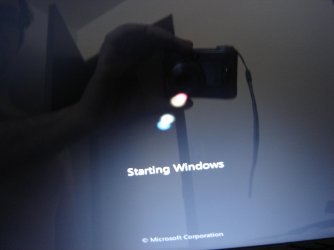
I get the same problem. See the attached photo. Secure Boot has been disabled. I AM able to install Windows 7 successfully onto this pre-installed Windows 8 laptop using the legacy BIOS mode, however. Any ideas what I can do other than re-install using the legacy BIOS?
 

Attachments

  • DSC04632.jpg
    DSC04632.jpg
    168.6 KB · Views: 359

My Computer My Computer

At a glance

Windows 7 Professional x64Intel Core i7-4790 CPU @ 3.60GHz (Haswell)16 GBNVIDIA GeForce GTX 745 4GB DDR 3
Computer type
PC/Desktop
Computer Manufacturer/Model Number
Dell XPS8700
OS
Windows 7 Professional x64
CPU
Intel Core i7-4790 CPU @ 3.60GHz (Haswell)
Motherboard
Dell Lynx Point Z87 Chipset motherboard
Memory
16 GB
Graphics Card(s)
NVIDIA GeForce GTX 745 4GB DDR 3
Sound Card
NVIDIA High Definition Audio
Monitor(s) Displays
HP Pavilion 27bw 27"
Screen Resolution
1920 x 1080 @ 60 Hz
Hard Drives
Seagate ST2000DM001 2 TB
Internet Speed
150 mb/s
Antivirus
Microsoft Security Essentials
Browser
Google Chrome
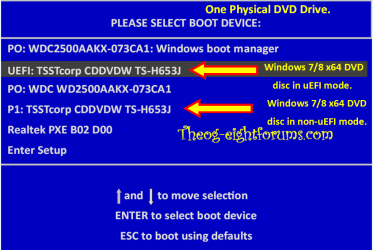
Are you booting the DVD in uEFI mode?

Windows 8 Downgrade-006 SB for posting.PNG
 

My Computer My Computer

At a glance

ME/XP/Vista/Win7
OS
ME/XP/Vista/Win7
The USB stick, yes.
 

My Computer My Computer

At a glance

Windows 7 Professional x64Intel Core i7-4790 CPU @ 3.60GHz (Haswell)16 GBNVIDIA GeForce GTX 745 4GB DDR 3
Computer type
PC/Desktop
Computer Manufacturer/Model Number
Dell XPS8700
OS
Windows 7 Professional x64
CPU
Intel Core i7-4790 CPU @ 3.60GHz (Haswell)
Motherboard
Dell Lynx Point Z87 Chipset motherboard
Memory
16 GB
Graphics Card(s)
NVIDIA GeForce GTX 745 4GB DDR 3
Sound Card
NVIDIA High Definition Audio
Monitor(s) Displays
HP Pavilion 27bw 27"
Screen Resolution
1920 x 1080 @ 60 Hz
Hard Drives
Seagate ST2000DM001 2 TB
Internet Speed
150 mb/s
Antivirus
Microsoft Security Essentials
Browser
Google Chrome
Also, how do I get to the one-time boot menu on this laptop? I've tried all the F keys and the escape key. The people at Sony are clueless, as is expected. I can press the assist key from shut-down, and then press F11 to use boot from media option, but that still isn't the normal one-time boot menu. In theog's one-time boot menu, it shows a UEFI DVD drive and a P1 DVD drive. I';d like to see if I get those two choices for my USB stick, but since I cannot access the one-time boot menu, I can't check it out.
 

My Computer My Computer

At a glance

Windows 7 Professional x64Intel Core i7-4790 CPU @ 3.60GHz (Haswell)16 GBNVIDIA GeForce GTX 745 4GB DDR 3
Computer type
PC/Desktop
Computer Manufacturer/Model Number
Dell XPS8700
OS
Windows 7 Professional x64
CPU
Intel Core i7-4790 CPU @ 3.60GHz (Haswell)
Motherboard
Dell Lynx Point Z87 Chipset motherboard
Memory
16 GB
Graphics Card(s)
NVIDIA GeForce GTX 745 4GB DDR 3
Sound Card
NVIDIA High Definition Audio
Monitor(s) Displays
HP Pavilion 27bw 27"
Screen Resolution
1920 x 1080 @ 60 Hz
Hard Drives
Seagate ST2000DM001 2 TB
Internet Speed
150 mb/s
Antivirus
Microsoft Security Essentials
Browser
Google Chrome
On many Sony's it is F2.

If that doesn't work then set the device first to boot in BIOS setup.
 
Thanks, Greg. F2 didn't work, so I changed the USB stick to boot first in BIOS. I still get the frozen screen during "Starting Windows." I guess I'll have to install Windows 7 under the legacy BIOS.
 

My Computer My Computer

At a glance

Windows 7 Professional x64Intel Core i7-4790 CPU @ 3.60GHz (Haswell)16 GBNVIDIA GeForce GTX 745 4GB DDR 3
Computer type
PC/Desktop
Computer Manufacturer/Model Number
Dell XPS8700
OS
Windows 7 Professional x64
CPU
Intel Core i7-4790 CPU @ 3.60GHz (Haswell)
Motherboard
Dell Lynx Point Z87 Chipset motherboard
Memory
16 GB
Graphics Card(s)
NVIDIA GeForce GTX 745 4GB DDR 3
Sound Card
NVIDIA High Definition Audio
Monitor(s) Displays
HP Pavilion 27bw 27"
Screen Resolution
1920 x 1080 @ 60 Hz
Hard Drives
Seagate ST2000DM001 2 TB
Internet Speed
150 mb/s
Antivirus
Microsoft Security Essentials
Browser
Google Chrome
I followed step 11 exactly, but it still didn't work.
 

My Computer My Computer

At a glance

Windows 7 Professional x64Intel Core i7-4790 CPU @ 3.60GHz (Haswell)16 GBNVIDIA GeForce GTX 745 4GB DDR 3
Computer type
PC/Desktop
Computer Manufacturer/Model Number
Dell XPS8700
OS
Windows 7 Professional x64
CPU
Intel Core i7-4790 CPU @ 3.60GHz (Haswell)
Motherboard
Dell Lynx Point Z87 Chipset motherboard
Memory
16 GB
Graphics Card(s)
NVIDIA GeForce GTX 745 4GB DDR 3
Sound Card
NVIDIA High Definition Audio
Monitor(s) Displays
HP Pavilion 27bw 27"
Screen Resolution
1920 x 1080 @ 60 Hz
Hard Drives
Seagate ST2000DM001 2 TB
Internet Speed
150 mb/s
Antivirus
Microsoft Security Essentials
Browser
Google Chrome
Back
Top