UEFI (Unified Extensible Firmware Interface) - Install Windows 7 with

How to Install Windows 7 Using the "Unified Extensible Firmware Interface" (UEFI)


   Information
In addition to better interoperability, UEFI firmware provides several technical advantages:
  • Compatibility with operating systems that support only BIOS
  • Ability to boot from large disks
  • CPU-independent architecture
  • CPU-independent drivers
  • Flexible pre-OS environment
  • Modular design
Two of the most notable Windows features for UEFI systems are the following:
  • Multicast deployment, which enables large scale network-based image deployment in manufacturing and enterprise settings.
  • Fast boot and resume from hibernation, which improves user experience.
The rich UEFI interface provides ample room for innovation in the development of operating system features. Along with the other members of the Unified EFI Forum, Microsoft is investigating the following:
  • Rootkit prevention
  • Network authentication
-Microsoft Corporation
This method can also be used for the UEFI installation of Windows 8, Windows Server 2008 SP1, Windows Server 2008 R2, and Windows Vista SP1.

   Note
You will need to satisfy the following requirements in order to proceed:

  • A Windows 7 compatible system
  • A Windows 7 x64-bit installation media. 32-bit is not supported.
  • A UEFI v2.0+ compliant PC. Check your chipset manufacturer/firmware documentation.
  • A blank, partition-free, hard disk for installation.
   Warning

  • Disabling UEFI will make the system unbootable as there is no MBR on the disks.
  • You CANNOT make a sector-by-sector copy of GPT disks. The Disk and Partition GUIDs will no longer be unique. This must never happen. You can make a sector-by-sector copy of the contents of ESP or basic data partitions.
  • Disable secure boot before installing Windows 7.


Here's How:

1. Do step 2 or 3 below depending on what installation Media you are using.

2. If using a Retail 64-bit Windows 7 Installation DVD A) Insert the DVD, restart the computer, and go to step 4 below.
3. If using a 64-bit Windows 7 Installation USB Flash Drive with UEFI A) If you have not already, you will need to create a Windows 7 installation bootable USB flash drive for UEFI from either a Windows 7 installation ISO or DVD.

B) Connect the USB, restart the computer, and go to step 4 below.
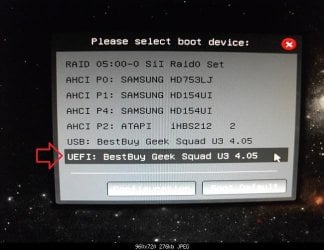
4. Press whatever key (ex: F11) it shows to boot to your motherboard's boot menu, and select to boot from the DVD or UEFI USB. (see screenshot below) UEFI_USB_Boot_Menu.jpg
5. Do steps 3 to 7 in the tutorial link below. http://www.sevenforums.com/tutorials/1649-clean-install-windows-7-a.html
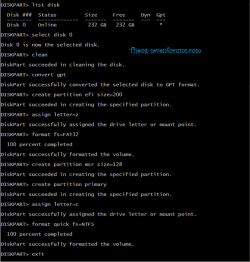
6. Delete all partitions/volumes on the disk # (ex: Disk 0) that you want to install Windows 7 as UEFI on until that disk # shows as unallocated space. (see screenshot below) Step7.jpg
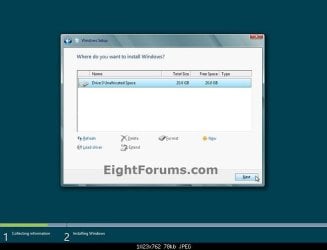
7. When you are finished, click/tap on New, Apply (for full size of disk), and OK. (see screenshot above)

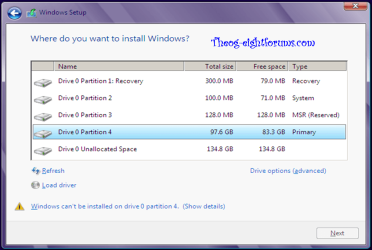
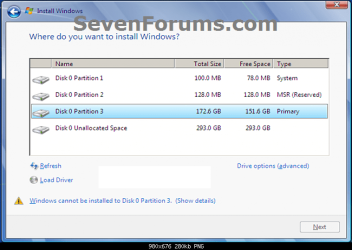
8. You will notice that the disk has now been formatted as GPT with 3 partitions. Select the "Primary" partition 3, and click/tap on Next. (see screenshot below)
NOTE: You might receive a "Windows can't be installed on drive 0" warning, but as long as you can click on the Next button, you're fine.
   Note
The 3 partitions are:
  • Partition 1 - System - The EFI System partition that contains the NTLDR, HAL, Boot.txt, and other files that are needed to boot the system, such as drivers.
  • Partition 2 - MSR - The Microsoft Reserved (MSR) partition that reserves space on each disk drive for subsequent use by operating system software.
  • Partition 3 - Primary - Where Windows is to be installed to.

    It is imperative that these 3 partitions remain in the exact order as they are


Windows7.PNG
9. You can now finish doing the steps in either tutorial below.

10. That's it. You have successfully installed Windows 7 on an UEFI system.


External Links:


Windows and GPT FAQ
Unified Extensible Firmware Interface - Wikipedia, the free encyclopedia
UEFI and Windows
 
Last edited by a moderator:
Hi there, just used your guides to install Windows 7 in UEFI mode on a PC. The guides are great, thanks, but I found a few details confusing. Of course, that is related to how mother board manufactures are doing things differently, and not documenting them at all.

My ASRock Z77 Ex 4 board's UEFI/BIOS has a CSM setting, and a Secure Boot setting, with an option for installing "Default Secure Boot Keys". Related to Secure Boot are two display only fields, System Mode state, and Secure Boot state.

Secure Boot can be enabled, but until the Secure Boot keys are installed, the System mode state is "Setup", and the Secure Boot state is "Disabled". System mode state then becomes "User", and only then is a Secure Boot possible.

Since I'm using Windows 7, I have not used the Secure Boot keys, and remain in Setup state. The PC boots fine.

I have some odd things happening with my boot options that I don't understand. I created a UEFI bootable flash drive from a Windows 64 bit iso file for the installation.

The OS volume is a RAID 0 volume. I clearly saw the three partitions created when the OS volume was formatted. Diskpart also shows three partitions (after the OS installation), and the GPT field is marked/recognized by Diskpart.

OTOH, Windows Disk Management shows only two partitions, one a EFI System Partition, the other the primary partition, but it is labeled NTFS. Is the discrepancy an installation problem, or a side affect of the RAID 0 volume (created using Intel's IRST.)

The truly odd thing IMO is the boot order in the UEFI/BIOS shows "Windows Boot Manager" as the primary boot device, and the RAID 0 volume as secondary. Moving the RAID 0 volume to the primary boot device causes a boot failure. Changing back to Windows Boot Manager causes the PC to boot fine. During the installation, as soon as the first reboot was started, I removed the UEFI USB installation drive. I had no other drives connected to the PC during the installation, and have added none yet.

Any ideas about this?

EDIT: Just noticed in diskpart that the System Reserved partition has no drive letter, and is formatted as FAT32 (???)
 
Last edited:

My Computer My Computer

At a glance

Windows 7 HP 64biti5-3570KSamsungEVGA GTX 650
OS
Windows 7 HP 64bit
CPU
i5-3570K
Motherboard
ASRock Z77 Extreme 4
Memory
Samsung
Graphics Card(s)
EVGA GTX 650
Sound Card
On board
Monitor(s) Displays
LG E2350V
Hard Drives
Samsung 840 Pro, Samsung 830, SanDisk Extreme, Crucial m4
PSU
Seasonic X660
Case
Corsair 550R
Cooling
Corsair H60
So much about UEFI is new to us as it is only coming online full stream now. There is more to read about Secure Boot and variability of these and UEFI settings to be found in Bypass UEFI to Install WIn7 which is the course many have taken who have insurmountable installation problems with either.
 
I understand and agree. I'm not even sure if RAID volumes are supported in a UEFI/GPT boot. I'm wondering if I should convert that FAT32 partition to GPT? I was just experimenting with it so no big deal. IMO, UEFI booting is still not supported very well and is not yet mainstream.

I noticed a board similar to mine just had a UEFI/BIOS update that includes a new RAID OROM, and what was called Support Intel UEFI RAID configuration in BIOS setup. Hopefully my board will get that too.
 

My Computer My Computer

At a glance

Windows 7 HP 64biti5-3570KSamsungEVGA GTX 650
OS
Windows 7 HP 64bit
CPU
i5-3570K
Motherboard
ASRock Z77 Extreme 4
Memory
Samsung
Graphics Card(s)
EVGA GTX 650
Sound Card
On board
Monitor(s) Displays
LG E2350V
Hard Drives
Samsung 840 Pro, Samsung 830, SanDisk Extreme, Crucial m4
PSU
Seasonic X660
Case
Corsair 550R
Cooling
Corsair H60
Remember you have full Tech Support for any new hardware for at least a year. I'd want to read the Manual online before buying anything, then get everything I need out of the manufacturer's Tech Support, Forums, Manuals, google searches, etc. during the first year or sooner so I get even more than my money's worth.

If you'll report back here what you find it will also help countless others who will be searching for this information. SevenForums tends to get prominent placement in search results as I just tested by googling "Install UEFI" and got this thread at the top.

I'd wipe the HD with Diskpart Clean Command to try reinstall to make sure no previous partitioning interfered and you get only what the EFI installer wants.
 
Last edited:
Hi parsec17

The truly odd thing IMO is the boot order in the UEFI/BIOS shows "Windows Boot Manager" as the primary boot device, and the RAID 0 volume as secondary. Moving the RAID 0 volume to the primary boot device causes a boot failure. Changing back to Windows Boot Manager causes the PC to boot fine. During the installation, as soon as the first reboot was started, I removed the UEFI USB installation drive. I had no other drives connected to the PC during the installation, and have added none yet.

Any ideas about this?

EDIT: Just noticed in diskpart that the System Reserved partition has no drive letter, and is formatted as FAT32 (???)

"Windows Boot Manager" should be first boot device.

Windows 8 Downgrade-006 SB.PNG

Partitioning is OK.

uEFI 010-1.PNG
 

My Computer My Computer

At a glance

ME/XP/Vista/Win7
OS
ME/XP/Vista/Win7
theog, thanks very much for the information! This was the first UEFI boot OS installation I've ever done, so was not sure what is right or not. The FAT32 partition surprised me, I was not expecting that. Plus the use of the terminology "Windows Boot Manager" seemed strange to me. The board/UEFI I'm using only displays Windows Boot Manager, with no reference to a drive whatsoever, in the UEFI and Boot Menu.

So it installed correctly, great. I was considering removing that installation, since I thought it was wrong or corrupted. The instructions for the creation of the UEFI Boot USB drive from a Windows 7 iso file worked fine for me, and the resulting USB drive will work fine for installing Windows in non-UEFI boot mode too.

gregrocker, You are theoretically correct about hardware support, the reality of it is entirely different, at least for the manufacture of my mother board.

I was well aware that the drives I used for this installation (SSDs) should have no remnants of partitions or anything before the installation, and used the command prompt option in the Repair section of the USB Windows installation drive to run diskpart and clean the SSDs.

I'd be happy to report my experiences with UEFI booting, as long as I really know what I'm talking about, which has improved after reading theog's reply. I must now try Windows 8 as well.
 

My Computer My Computer

At a glance

Windows 7 HP 64biti5-3570KSamsungEVGA GTX 650
OS
Windows 7 HP 64bit
CPU
i5-3570K
Motherboard
ASRock Z77 Extreme 4
Memory
Samsung
Graphics Card(s)
EVGA GTX 650
Sound Card
On board
Monitor(s) Displays
LG E2350V
Hard Drives
Samsung 840 Pro, Samsung 830, SanDisk Extreme, Crucial m4
PSU
Seasonic X660
Case
Corsair 550R
Cooling
Corsair H60
Thanks theog, but I actually read about UEFI booting standards, etc, so I won't be asking ignorant questions like my first ones.

Although this is the Windows 7 forums, I'll post my experiences with an UEFI installation of Windows 8. The only guides and tools I used were those provided by SevenForums.

I purchased a Windows 8 Pro Upgrade download, and used the create media option. The result was copies of the iso file, and the ESD folder. Given the warning about potential problems with the iso when creating the UEFI bootable USB drive, I used the ESD-TO-ISO program. Creating the UEFI bootable USB drive went perfectly.

The installation went perfectly, the four partitions were created on a raw RAID 0 volume of SSDs. When I do a standard Windows 7 installation on a RAID volume, I always load the Intel "F6" RAID driver, although that is supposed to be optional. I tried that with Windows 8, but the supposedly Windows 8 compatible F6 driver would not load. In the end no optional driver was needed, Windows 8 has what it needs, for Intel IRST RAID.

I had to perform the Windows 8 "Refresh" operation before my installation would activate, which was very simple. I would suggest not loading any drivers you need until after the refresh, since I had to install them again after the refresh. IMO, the overall installation is not a difficult process, and the guides are flawless.

For people that are concerned about the apparent lack of drivers provided by mother board manufactures for use with Windows 8, I now understand why only a few if any drivers are provided. They are unnecessary. I installed only three drivers, one for the video card, and the others I downloaded directly from Intel, for my ASRock board. The two USB 3.0 drivers I need to load for Windows 7 are native to Windows 8, for example.

Also, IMO Windows 8 is not a tablet, touch screen only OS. Yes it is different than Windows 7, but if you really give it a chance, everything you usually use is there, just in a different manner. I have not used one of the "add the Start menu to Windows 8" programs, which forces you to learn the new way things are done. I would suggest others do the same. I may need to buy another copy of Windows 8, before 1/31...
 

My Computer My Computer

At a glance

Windows 7 HP 64biti5-3570KSamsungEVGA GTX 650
OS
Windows 7 HP 64bit
CPU
i5-3570K
Motherboard
ASRock Z77 Extreme 4
Memory
Samsung
Graphics Card(s)
EVGA GTX 650
Sound Card
On board
Monitor(s) Displays
LG E2350V
Hard Drives
Samsung 840 Pro, Samsung 830, SanDisk Extreme, Crucial m4
PSU
Seasonic X660
Case
Corsair 550R
Cooling
Corsair H60
Hi parsec17

We always like to have good news posted.
You are welcome, well done. :dinesh::dinesh:
 

My Computer My Computer

At a glance

ME/XP/Vista/Win7
OS
ME/XP/Vista/Win7
You are welcome as well theog. It may be good news, but it's also true news. :cool:

I forgot to mention the settings in my board's UEFI/BIOS for a UEFI boot. That is, an ASRock Z77 Extreme 4. They are all in the Security menu. Not much there, and not particularly obvious IMO.

The option Secure Boot must be enabled. When that is done, another option appears, for loading the default Security Keys. A display only field also becomes active, displaying Setup mode for Secure Boot. A secure boot only happens if the security keys are loaded, which then changes the mode to User, from Setup. I believe that follows the UEFI secure boot protocol.

The use of "Windows Boot Manager" as an option in the UEFI's boot list, rather than a drive or volume name, as the correct boot device confused me, and I imagine it will confuse others too. The OS drive/volume name is still listed as a boot device in the boot list, which adds to the confusion IMO.

It seems your boards UEFI includes an indication of the drive as part of the "Windows Boot Manager" entry, which makes sense and reduces the initial confusion IMO. I imagine forums will be filled with questions about this in the near future. An explanation of this might be a good addition to the guides.
 

My Computer My Computer

At a glance

Windows 7 HP 64biti5-3570KSamsungEVGA GTX 650
OS
Windows 7 HP 64bit
CPU
i5-3570K
Motherboard
ASRock Z77 Extreme 4
Memory
Samsung
Graphics Card(s)
EVGA GTX 650
Sound Card
On board
Monitor(s) Displays
LG E2350V
Hard Drives
Samsung 840 Pro, Samsung 830, SanDisk Extreme, Crucial m4
PSU
Seasonic X660
Case
Corsair 550R
Cooling
Corsair H60
Sony claims using UEFI mode to install Windows 7 isn't supported. I'm guessing that's BS, but I am still having trouble doing it. When I get to the Starting Windows screen and the coming together of the Windows logo, the screen freezes before the logo's four pieces come together and it stays that way.
 

My Computer My Computer

At a glance

Windows 7 Professional x64Intel Core i7-4790 CPU @ 3.60GHz (Haswell)16 GBNVIDIA GeForce GTX 745 4GB DDR 3
Computer type
PC/Desktop
Computer Manufacturer/Model Number
Dell XPS8700
OS
Windows 7 Professional x64
CPU
Intel Core i7-4790 CPU @ 3.60GHz (Haswell)
Motherboard
Dell Lynx Point Z87 Chipset motherboard
Memory
16 GB
Graphics Card(s)
NVIDIA GeForce GTX 745 4GB DDR 3
Sound Card
NVIDIA High Definition Audio
Monitor(s) Displays
HP Pavilion 27bw 27"
Screen Resolution
1920 x 1080 @ 60 Hz
Hard Drives
Seagate ST2000DM001 2 TB
Internet Speed
150 mb/s
Antivirus
Microsoft Security Essentials
Browser
Google Chrome
I don't know if you've seen this yet but I'd watch it if not to get some background on UEFI and help you decide if you want it right now:


If not you can do what others have done which always works and Bypass UEFI to Install WIn7
 
Thanks, Greg. I'll check out that video.
 

My Computer My Computer

At a glance

Windows 7 Professional x64Intel Core i7-4790 CPU @ 3.60GHz (Haswell)16 GBNVIDIA GeForce GTX 745 4GB DDR 3
Computer type
PC/Desktop
Computer Manufacturer/Model Number
Dell XPS8700
OS
Windows 7 Professional x64
CPU
Intel Core i7-4790 CPU @ 3.60GHz (Haswell)
Motherboard
Dell Lynx Point Z87 Chipset motherboard
Memory
16 GB
Graphics Card(s)
NVIDIA GeForce GTX 745 4GB DDR 3
Sound Card
NVIDIA High Definition Audio
Monitor(s) Displays
HP Pavilion 27bw 27"
Screen Resolution
1920 x 1080 @ 60 Hz
Hard Drives
Seagate ST2000DM001 2 TB
Internet Speed
150 mb/s
Antivirus
Microsoft Security Essentials
Browser
Google Chrome
Sony claims using UEFI mode to install Windows 7 isn't supported. I'm guessing that's BS, but I am still having trouble doing it. When I get to the Starting Windows screen and the coming together of the Windows logo, the screen freezes before the logo's four pieces come together and it stays that way.

Are you sure your SONY has a uEFI/BIOS firmware?
 

My Computer My Computer

At a glance

ME/XP/Vista/Win7
OS
ME/XP/Vista/Win7
Sony claims using UEFI mode to install Windows 7 isn't supported. I'm guessing that's BS, but I am still having trouble doing it. When I get to the Starting Windows screen and the coming together of the Windows logo, the screen freezes before the logo's four pieces come together and it stays that way.

Are you sure your SONY has a uEFI/BIOS firmware?

Yes.
 

My Computer My Computer

At a glance

Windows 7 Professional x64Intel Core i7-4790 CPU @ 3.60GHz (Haswell)16 GBNVIDIA GeForce GTX 745 4GB DDR 3
Computer type
PC/Desktop
Computer Manufacturer/Model Number
Dell XPS8700
OS
Windows 7 Professional x64
CPU
Intel Core i7-4790 CPU @ 3.60GHz (Haswell)
Motherboard
Dell Lynx Point Z87 Chipset motherboard
Memory
16 GB
Graphics Card(s)
NVIDIA GeForce GTX 745 4GB DDR 3
Sound Card
NVIDIA High Definition Audio
Monitor(s) Displays
HP Pavilion 27bw 27"
Screen Resolution
1920 x 1080 @ 60 Hz
Hard Drives
Seagate ST2000DM001 2 TB
Internet Speed
150 mb/s
Antivirus
Microsoft Security Essentials
Browser
Google Chrome
Sony claims using UEFI mode to install Windows 7 isn't supported. I'm guessing that's BS, but I am still having trouble doing it. When I get to the Starting Windows screen and the coming together of the Windows logo, the screen freezes before the logo's four pieces come together and it stays that way.

Are you sure your SONY has a uEFI/BIOS firmware?

Yes.

What Model?
What OS Pre-installed?
 

My Computer My Computer

At a glance

ME/XP/Vista/Win7
OS
ME/XP/Vista/Win7
May I ask why you want to install in UEFI mode?

Just to do it. Plus, I've read there are benefits with installing Windows 7 in UEFI mode. I want to see the differences.
 

My Computer My Computer

At a glance

Windows 7 Professional x64Intel Core i7-4790 CPU @ 3.60GHz (Haswell)16 GBNVIDIA GeForce GTX 745 4GB DDR 3
Computer type
PC/Desktop
Computer Manufacturer/Model Number
Dell XPS8700
OS
Windows 7 Professional x64
CPU
Intel Core i7-4790 CPU @ 3.60GHz (Haswell)
Motherboard
Dell Lynx Point Z87 Chipset motherboard
Memory
16 GB
Graphics Card(s)
NVIDIA GeForce GTX 745 4GB DDR 3
Sound Card
NVIDIA High Definition Audio
Monitor(s) Displays
HP Pavilion 27bw 27"
Screen Resolution
1920 x 1080 @ 60 Hz
Hard Drives
Seagate ST2000DM001 2 TB
Internet Speed
150 mb/s
Antivirus
Microsoft Security Essentials
Browser
Google Chrome

My Computer My Computer

At a glance

Windows 7 Professional x64Intel Core i7-4790 CPU @ 3.60GHz (Haswell)16 GBNVIDIA GeForce GTX 745 4GB DDR 3
Computer type
PC/Desktop
Computer Manufacturer/Model Number
Dell XPS8700
OS
Windows 7 Professional x64
CPU
Intel Core i7-4790 CPU @ 3.60GHz (Haswell)
Motherboard
Dell Lynx Point Z87 Chipset motherboard
Memory
16 GB
Graphics Card(s)
NVIDIA GeForce GTX 745 4GB DDR 3
Sound Card
NVIDIA High Definition Audio
Monitor(s) Displays
HP Pavilion 27bw 27"
Screen Resolution
1920 x 1080 @ 60 Hz
Hard Drives
Seagate ST2000DM001 2 TB
Internet Speed
150 mb/s
Antivirus
Microsoft Security Essentials
Browser
Google Chrome
Hi ESL

You can download Windows 7 drivers here:
Sony eSupport - SVE15123CDS - Support

To Downgrade to Windows 7.

Downgrade Windows 8 to Windows 7

Warning you must have the uEFI/BIOS firmware setting in Step Three set.


theog said:
3) Reset BIOS to default, and reboot to BIOS make sure Secure Boot is disabled.

NOTE: Check your manufacturer's uEFI/BIOS firmware manual for settings.

Make sure CSM is ENABLED, & set to UEFI boot.

Technical Note: UEFI BIOS vs. Legacy BIOS - YouTube

Also enable Boot Menu.


Things to check, Make sure you are doing, Work down this list
1) setting BIOS.
2) doing Step 11 in
UEFI Bootable USB Flash Drive - Create in Windows
3) booting DVD/USB in UEFI mode.
4) using a USB 2.0 port.
5) using Windows 7 x64.

Sony eSupport - Windows® 7 Clean Install Instructions for Windows® 8 PCs

Sony said:
1.With the computer powered off, press the Assist button to enter the VAOCare Rescue Mode Boot screen.
2.Select the ‘Start BIOS setup [F2]’ option to proceed to the system BIOS.
3.Once inside the InsydeH2O Setup Utility, use the arrow keys to select the ‘Boot’ list.
4.With the ‘Boot Mode’ option selected, press enter to change the setting from UEFI to Legacy. or (UEFI/Legacy if a option)
5.Use the arrow keys to proceed to the ‘Exit’ menu.
6.Select the ‘Save Changes’ option and press Enter.
7.After saving the changes, select Shutdown.

Some OEM manufacturers are locking end-users out of the options in BIOS on consumer PC’s, on business PC’s there not.


Windows Hardware Certification Requirements for Client and Server Systems


Microsoft said:
Mandatory. On non-ARM systems, the platform MUST implement the ability for a physically present user to select between two Secure Boot modes in firmware setup: "Custom" and "Standard". Custom Mode allows for more flexibility as specified in the following:

It shall be possible for a physically present user to use the Custom Mode firmware setup option to modify the contents of the Secure Boot signature databases and the PK. This may be implemented by simply providing the option to clear all Secure Boot databases (PK, KEK, db, dbx), which puts the system into setup mode.

If the user ends up deleting the PK then, upon exiting the Custom Mode firmware setup, the system is operating in Setup Mode with SecureBoot turned off.

The firmware setup shall indicate if Secure Boot is turned on, and if it is operated in Standard or Custom Mode. The firmware setup must provide an option to return from Custom to Standard Mode which restores the factory defaults. On an ARM system, it is forbidden to enable Custom Mode. Only Standard Mode may be enabled.
 

My Computer My Computer

At a glance

ME/XP/Vista/Win7
OS
ME/XP/Vista/Win7
Back
Top