
UEFI (Unified Extensible Firmware Interface) - Install Windows 7 with

How to Install Windows 7 Using the "Unified Extensible Firmware Interface" (UEFI)


   Information
In addition to better interoperability, UEFI firmware provides several technical advantages:
  • Compatibility with operating systems that support only BIOS
  • Ability to boot from large disks
  • CPU-independent architecture
  • CPU-independent drivers
  • Flexible pre-OS environment
  • Modular design
Two of the most notable Windows features for UEFI systems are the following:
  • Multicast deployment, which enables large scale network-based image deployment in manufacturing and enterprise settings.
  • Fast boot and resume from hibernation, which improves user experience.
The rich UEFI interface provides ample room for innovation in the development of operating system features. Along with the other members of the Unified EFI Forum, Microsoft is investigating the following:
  • Rootkit prevention
  • Network authentication
-Microsoft Corporation
This method can also be used for the UEFI installation of Windows 8, Windows Server 2008 SP1, Windows Server 2008 R2, and Windows Vista SP1.

   Note
You will need to satisfy the following requirements in order to proceed:

  • A Windows 7 compatible system
  • A Windows 7 x64-bit installation media. 32-bit is not supported.
  • A UEFI v2.0+ compliant PC. Check your chipset manufacturer/firmware documentation.
  • A blank, partition-free, hard disk for installation.
   Warning

  • Disabling UEFI will make the system unbootable as there is no MBR on the disks.
  • You CANNOT make a sector-by-sector copy of GPT disks. The Disk and Partition GUIDs will no longer be unique. This must never happen. You can make a sector-by-sector copy of the contents of ESP or basic data partitions.
  • Disable secure boot before installing Windows 7.


Here's How:

1. Do step 2 or 3 below depending on what installation Media you are using.

2. If using a Retail 64-bit Windows 7 Installation DVD A) Insert the DVD, restart the computer, and go to step 4 below.
3. If using a 64-bit Windows 7 Installation USB Flash Drive with UEFI A) If you have not already, you will need to create a Windows 7 installation bootable USB flash drive for UEFI from either a Windows 7 installation ISO or DVD.

B) Connect the USB, restart the computer, and go to step 4 below.
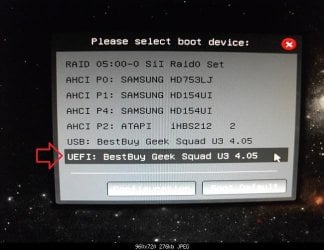
4. Press whatever key (ex: F11) it shows to boot to your motherboard's boot menu, and select to boot from the DVD or UEFI USB. (see screenshot below) UEFI_USB_Boot_Menu.jpg
5. Do steps 3 to 7 in the tutorial link below. http://www.sevenforums.com/tutorials/1649-clean-install-windows-7-a.html
6. Delete all partitions/volumes on the disk # (ex: Disk 0) that you want to install Windows 7 as UEFI on until that disk # shows as unallocated space. (see screenshot below) Step7.jpg
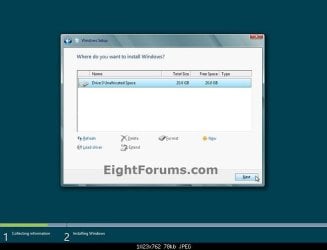
7. When you are finished, click/tap on New, Apply (for full size of disk), and OK. (see screenshot above)

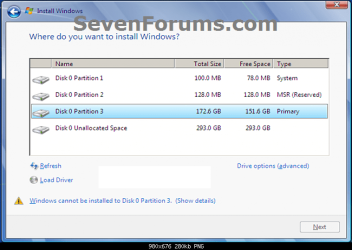
8. You will notice that the disk has now been formatted as GPT with 3 partitions. Select the "Primary" partition 3, and click/tap on Next. (see screenshot below)
NOTE: You might receive a "Windows can't be installed on drive 0" warning, but as long as you can click on the Next button, you're fine.
   Note
The 3 partitions are:
  • Partition 1 - System - The EFI System partition that contains the NTLDR, HAL, Boot.txt, and other files that are needed to boot the system, such as drivers.
  • Partition 2 - MSR - The Microsoft Reserved (MSR) partition that reserves space on each disk drive for subsequent use by operating system software.
  • Partition 3 - Primary - Where Windows is to be installed to.

    It is imperative that these 3 partitions remain in the exact order as they are


Windows7.PNG
9. You can now finish doing the steps in either tutorial below.

10. That's it. You have successfully installed Windows 7 on an UEFI system.


External Links:


Windows and GPT FAQ
Unified Extensible Firmware Interface - Wikipedia, the free encyclopedia
UEFI and Windows
 
Last edited by a moderator:

My Computer My Computer

At a glance

ME/XP/Vista/Win7
OS
ME/XP/Vista/Win7
Hi

By pressing F12 at Boot I got the same screen in BOOT1 link
 

My Computer My Computer

At a glance

Windows 8 64bitIntel core i5 3230 CPU @ 2.60Ghz61144 MbNvidia Geforeve
Computer type
Laptop
Computer Manufacturer/Model Number
Lenovp
OS
Windows 8 64bit
CPU
Intel core i5 3230 CPU @ 2.60Ghz
Motherboard
Intel
Memory
61144 Mb
Graphics Card(s)
Nvidia Geforeve
Antivirus
Avast
Browser
Fireifox
After pressing Enter on USB Drive I got the ' Windows Loading files ' screen after that the ' Starting Windows Screen ' and it stuck on it
 

My Computer My Computer

At a glance

Windows 8 64bitIntel core i5 3230 CPU @ 2.60Ghz61144 MbNvidia Geforeve
Computer type
Laptop
Computer Manufacturer/Model Number
Lenovp
OS
Windows 8 64bit
CPU
Intel core i5 3230 CPU @ 2.60Ghz
Motherboard
Intel
Memory
61144 Mb
Graphics Card(s)
Nvidia Geforeve
Antivirus
Avast
Browser
Fireifox
Thank I'm goona buy another USB Drive and tryin again .... I 'll let you know
 

My Computer My Computer

At a glance

Windows 8 64bitIntel core i5 3230 CPU @ 2.60Ghz61144 MbNvidia Geforeve
Computer type
Laptop
Computer Manufacturer/Model Number
Lenovp
OS
Windows 8 64bit
CPU
Intel core i5 3230 CPU @ 2.60Ghz
Motherboard
Intel
Memory
61144 Mb
Graphics Card(s)
Nvidia Geforeve
Antivirus
Avast
Browser
Fireifox
Hi

And Thank for your Help and all the time you give to me, so a just found a solution to Install windows 7 on my laptop BUT :( just make a big mistake and need your help again.

I think i'm install Win 7 on Win 8, I don't formated any partition before install win 7.

I just repeat all the process now I'm on the screen with all partitions and I don't know wich one to delete because due to my F@#$ mystake.

I have
- Disk 0 partition 2 SYSTEM_DRV (System)
- Disk 0 partition 3 LRS_ESP (OEM) reserved
- Disk 0 partiton 4 (MSR) reserved
- Disk 0partition 5 Windows8_OS (primary)
- Disk 0 Partitoion 6 LENOVO (primary)
-Disk 0 Partition 6 PBR_DRV (OEM) reserved

Can you help my again please.

Thank
 

My Computer My Computer

At a glance

Windows 8 64bitIntel core i5 3230 CPU @ 2.60Ghz61144 MbNvidia Geforeve
Computer type
Laptop
Computer Manufacturer/Model Number
Lenovp
OS
Windows 8 64bit
CPU
Intel core i5 3230 CPU @ 2.60Ghz
Motherboard
Intel
Memory
61144 Mb
Graphics Card(s)
Nvidia Geforeve
Antivirus
Avast
Browser
Fireifox
Hi

And Thank for your Help and all the time you give to me, so a just found a solution to Install windows 7 on my laptop BUT :( just make a big mistake and need your help again.

I think i'm install Win 7 on Win 8, I don't formated any partition before install win 7.

I just repeat all the process now I'm on the screen with all partitions and I don't know wich one to delete because due to my F@#$ mystake.

I have
- Disk 0 partition 2 SYSTEM_DRV (System)
- Disk 0 partition 3 LRS_ESP (OEM) reserved
- Disk 0 partiton 4 (MSR) reserved
- Disk 0partition 5 Windows8_OS (primary)
- Disk 0 Partitoion 6 LENOVO (primary)
-Disk 0 Partition 6 PBR_DRV (OEM) reserved

Can you help my again please.

Thank

Downgrade Windows 8 to Windows 7
 

My Computer My Computer

At a glance

ME/XP/Vista/Win7
OS
ME/XP/Vista/Win7
It's all good 'I think' Thank You
 

My Computer My Computer

At a glance

Windows 8 64bitIntel core i5 3230 CPU @ 2.60Ghz61144 MbNvidia Geforeve
Computer type
Laptop
Computer Manufacturer/Model Number
Lenovp
OS
Windows 8 64bit
CPU
Intel core i5 3230 CPU @ 2.60Ghz
Motherboard
Intel
Memory
61144 Mb
Graphics Card(s)
Nvidia Geforeve
Antivirus
Avast
Browser
Fireifox
I used the method shown for installing Win 7 / 8 in eightforums but it seemed silly to ask questions about Win7 in there so I came back here. First the hardware:

MoBo:Maximus VI Formula
RAM:16GB Mushkin CAS10 DDR3-2400
GFX:2x Asus GTX780's (onboard for now, waiting for price drop next week)
HD: 2x Seagate 2TB Hybrid SSD/HD RAID 1
SSD:2x Samsung 840 Pro 256GB RAID 0
PSU:Seasonic X-1250
Case:Phanteks Enthoo Primo
OS:Win 7 Pro-64
Monitor:Asus VG248QE Black 23" 144 Hz
Optical:Asus BR Burner
KB: Logitech G19s
Mouse:RoG GX950
Fan Contoller: Six Eyes
Cooling:3 x Alphacool Rads, 35x2 Pump, EK CPU/ GPU Block,. Acrylic Tubes w/ BP Fit


1. Made ISO using WinISO and then Bootable USB Stick w/ Rufus per
UEFI Bootable USB Flash Drive - Create in Windows

2. Used the Intel Boot Time Utility to Create Array (Ctl-I)

3. Booted to Windows and used Diskpart to "Clean Disk"

4. Checked BIOS Settings

ADVANCED TAB

Advanced SATA Configuration
SATA Mode Selection - RAID
Aggressive LPM Support - Auto
S.M.A.R.T. Status Check - Enabled

SATA6G1 (Red) - Samsung SSD 840 Pro Series 256
- - Hot Plug - Disabled

SATA6G1 (Red) - Samsung SSD 840 Pro Series 256
- - Hot Plug - Disabled

BOOT TAB

Fast Boot - Enabled
SATA Support - All Devices
USB Support - Partial Initialization
Network Stack Driver Support - Disabled
Next Booty After AC Power Loss - Normal Boot
Hardware Fast Boot - Disabled
Direct Key (DRCT) - Enabled

Boot Logo Display - Auto
- Post Delay Time - 3 sec
BootUp Numlock State - On
Wait for "F1" If Error - Enabled
Option ROM Message - Force BIOS
Interupt 19 Capture - Disabled
Setup Mode - Advanced Mode
CSM Compatibility Support Mode
- Launch CSM - Enabled
- - Boot Device Control - UEFI and Legacy OPROM
- - Boot From Network Devices - UEFI Driver First
- - Boot From Storage Devices - Both, UEFI First
- - Boot From Storage Devices - UEFI Driver First
Secure Boot
- - OS Type - Other OS

Boot Option Priorities
- - Boot Option 1 - UEFI: Corsair Flash Voyager
- - Boot Option 2 - Corsair Flash Voyager

Hard Drive BBS Priorities
- - Boot Option 1 - Corsair Flash Voyager
- - Boot Option 2 - Intel BootSSD

Boot Override
UEFI: Corsair Flash Voyager -
Corsair Flash Voyager -
Intel BootSSDRAID0 -

INTEL (R) RAPID STORAGE TAB

RAID Volumes
- - BootSSDsRAID0 (Stripe) 476.9GB, Normal

5. Rebooted to USB Stick

6. Got to "Where do you want to install Windows Screen:
- - Selected Disk 0 Unallocated Space
- - Selected "New", Left allocation at fill value
- - Hit Apply

7. Got 3 partitions
- - 100.0 / 95.0 - System (Healthy EFI System Partition)
- - 128.0 / 128.0 - MSR Reserved (Does not show under Disk Management)
- - 476.0 / 476.0 - Primary (NTFS, Healthy)

OK why am I here ?

1. I expected that Primary to be GPT ..... if it is supposed to be, where did I go wrong ?
2. Takes 23.2 seconds to boot at this point....disappointing to say the least, my tired 2 year old laptop w/ non RAID Seagate Momentus 750GB SSHD has slipped w/ age but still manages 28.2 secs.....
3. What kind of boot time should I be expecting w/ UEFI ? What kind would I expect if I just did a normal install via DVD ?
 

My Computer My Computer

At a glance

Windows 7 - 64 biti7 920Mushkin 998692GTX 295 FTW Edition 1792MB
Computer Manufacturer/Model Number
Home Built
OS
Windows 7 - 64 bit
CPU
i7 920
Motherboard
Asus Rampage II Extreme
Memory
Mushkin 998692
Graphics Card(s)
GTX 295 FTW Edition 1792MB
Sound Card
Sounblaster Xi Fi Extreme
Monitor(s) Displays
Dekk U2410
Hard Drives
Seagate 7200.12
PSU
Antec SG-850
Case
Antec 1200
Cooling
Prolimatech Megashadow
I notice Fast HD Boot is disabled. Why?

May I ask why you prefer RAID for your WIn7 partition? We see nothing but problems here with RAID and Win7.

I would try the install to a single SSD to compare, then if necessary try Legacy install which should be no problem with CSM enabled - just delete all partitions during install, or if necessary from install System Recovery Options Command Line run Diskpart Clean Command
http://www.sevenforums.com/installa...reinstalled-windows-8-laptop.html#post2178898
 
Bah .... didn't notice there were two entries for Fast Booot. Changed it same results
 

My Computer My Computer

At a glance

Windows 7 - 64 biti7 920Mushkin 998692GTX 295 FTW Edition 1792MB
Computer Manufacturer/Model Number
Home Built
OS
Windows 7 - 64 bit
CPU
i7 920
Motherboard
Asus Rampage II Extreme
Memory
Mushkin 998692
Graphics Card(s)
GTX 295 FTW Edition 1792MB
Sound Card
Sounblaster Xi Fi Extreme
Monitor(s) Displays
Dekk U2410
Hard Drives
Seagate 7200.12
PSU
Antec SG-850
Case
Antec 1200
Cooling
Prolimatech Megashadow
This did not work for me.
 

My Computer My Computer

At a glance

windows 7 professional x64
OS
windows 7 professional x64
Is Legacy or CSM mode set to Disabled or Both modes in BIOS setup?

Did you boot into the installation media as a UEFI device, then delete all partitions to allow the installer if necessary to reformat the hard drive as GPT? If not try that now.

Please post back verbatim error message or at exactly which step it fails and how.

If you're using UEFI Bootable USB Flash Drive - Create in Windows I would format it with Rufus from Option 1 which takes care of the file edit necessary in the second option.

If all else fails what always works is to Bypass UEFI to Install WIn7.
 
Csm is disabled it was not before. I created the usb exactly like the uefi tutorial said to and i used rufus. This is how it fails. Windows could not format a partition on disk 0. The error occured while preparing the partition selected for installation. Error code 0x80070057. I click next even though it says it can not be written on that paRtition just like the tutorial says to. Thanks for the help.
 

My Computer My Computer

At a glance

windows 7 professional x64
OS
windows 7 professional x64
I have Asus P8p67 PRO (rev 3.1) which has UEFI BIOS and WD Black Caviar 2TB hard drive. I created UEFI bootable USB following this tutorial UEFI Bootable USB Flash Drive - Create in Windows

The problem is that I have two partition C and D. I want to preserve all files on partition D but in your tutorial you said that requirement for installation is "A blank, partition-free, hard disk for installation."

So is this true? Do I really need to delete all existing partitions prior installation? What is the point upgrading to newer technology if it can't provide same or better flexibility than older one?
 

My Computer My Computer

At a glance

Windows 7 Ultimate x64
Computer type
PC/Desktop
OS
Windows 7 Ultimate x64
It depends upon whether you currently have the HD partitioned as a GPT drive meant for UEFI installs, or an MBR drive for a Legacy install. If you want to use UEFI on a Legacy MBR drive, then you'll need to wipe it first or delete all partitions during install to clear the formatting so the UEFI installer can format it GPT. But if it's already GPT disk (because it was previously UEFI?) then you can merely format the Win7 partition making sure to choose the correct one, and see if it will install. If not post back the exact error message and point at which it fails in http://www.sevenforums.com/tutorial...e-firmware-interface-install-windows-7-a.html.

If you know for sure you have an MBR drive, then you also have the option to use Legacy BIOS by enabling those settings in BIOS: Legacy BIOS and CSM enabled. If you have problems determining which settings to choose, post back the choices ideally with camera snaps you attach using the paper clip in reply box.

Since you need to back up your data anyway against drive failure, you should be able to wipe the HD if it will not otherwise install. Legacy Mode normally will always install to an MBR disk, but UEFI can be tetchy even with GPT.
 
Can we get a sticky please on what UEFI is and the limitations of older mobos that are a few years old likely do not support UEFI?
 

My Computer My Computer

At a glance

Windows 7, Windows 10 ProIntel Core i7 930G.SKILL F3-12800CL9T-6GBNQ 6GB DDR3 3X2GB DDR...ATI Radeon HD 5700
Computer type
PC/Desktop
Computer Manufacturer/Model Number
Asus P6X58D-E, Lenovo
OS
Windows 7, Windows 10 Pro
CPU
Intel Core i7 930
Motherboard
Asus X58 P6X58D-E
Memory
G.SKILL F3-12800CL9T-6GBNQ 6GB DDR3 3X2GB DDR3-1600 CL 9-9-9
Graphics Card(s)
ATI Radeon HD 5700
Hard Drives
Seagate Barracuda 1TB x2 SATA3 6GB/S 7200RPM 64MB
WD 1TB SATA3
PSU
Coolermaster Silent Pro 700W Modular Power Supply
Back
Top