UEFI (Unified Extensible Firmware Interface) - Install Windows 7 with

How to Install Windows 7 Using the "Unified Extensible Firmware Interface" (UEFI)


   Information
In addition to better interoperability, UEFI firmware provides several technical advantages:
  • Compatibility with operating systems that support only BIOS
  • Ability to boot from large disks
  • CPU-independent architecture
  • CPU-independent drivers
  • Flexible pre-OS environment
  • Modular design
Two of the most notable Windows features for UEFI systems are the following:
  • Multicast deployment, which enables large scale network-based image deployment in manufacturing and enterprise settings.
  • Fast boot and resume from hibernation, which improves user experience.
The rich UEFI interface provides ample room for innovation in the development of operating system features. Along with the other members of the Unified EFI Forum, Microsoft is investigating the following:
  • Rootkit prevention
  • Network authentication
-Microsoft Corporation
This method can also be used for the UEFI installation of Windows 8, Windows Server 2008 SP1, Windows Server 2008 R2, and Windows Vista SP1.

   Note
You will need to satisfy the following requirements in order to proceed:

  • A Windows 7 compatible system
  • A Windows 7 x64-bit installation media. 32-bit is not supported.
  • A UEFI v2.0+ compliant PC. Check your chipset manufacturer/firmware documentation.
  • A blank, partition-free, hard disk for installation.
   Warning

  • Disabling UEFI will make the system unbootable as there is no MBR on the disks.
  • You CANNOT make a sector-by-sector copy of GPT disks. The Disk and Partition GUIDs will no longer be unique. This must never happen. You can make a sector-by-sector copy of the contents of ESP or basic data partitions.
  • Disable secure boot before installing Windows 7.


Here's How:

1. Do step 2 or 3 below depending on what installation Media you are using.

2. If using a Retail 64-bit Windows 7 Installation DVD A) Insert the DVD, restart the computer, and go to step 4 below.
3. If using a 64-bit Windows 7 Installation USB Flash Drive with UEFI A) If you have not already, you will need to create a Windows 7 installation bootable USB flash drive for UEFI from either a Windows 7 installation ISO or DVD.

B) Connect the USB, restart the computer, and go to step 4 below.
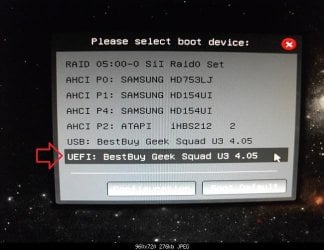
4. Press whatever key (ex: F11) it shows to boot to your motherboard's boot menu, and select to boot from the DVD or UEFI USB. (see screenshot below) UEFI_USB_Boot_Menu.jpg
5. Do steps 3 to 7 in the tutorial link below. http://www.sevenforums.com/tutorials/1649-clean-install-windows-7-a.html
6. Delete all partitions/volumes on the disk # (ex: Disk 0) that you want to install Windows 7 as UEFI on until that disk # shows as unallocated space. (see screenshot below) Step7.jpg
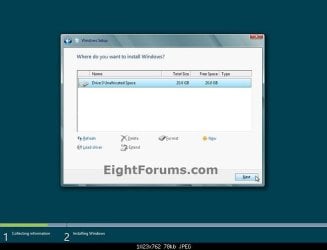
7. When you are finished, click/tap on New, Apply (for full size of disk), and OK. (see screenshot above)

8. You will notice that the disk has now been formatted as GPT with 3 partitions. Select the "Primary" partition 3, and click/tap on Next. (see screenshot below)
NOTE: You might receive a "Windows can't be installed on drive 0" warning, but as long as you can click on the Next button, you're fine.
   Note
The 3 partitions are:
  • Partition 1 - System - The EFI System partition that contains the NTLDR, HAL, Boot.txt, and other files that are needed to boot the system, such as drivers.
  • Partition 2 - MSR - The Microsoft Reserved (MSR) partition that reserves space on each disk drive for subsequent use by operating system software.
  • Partition 3 - Primary - Where Windows is to be installed to.

    It is imperative that these 3 partitions remain in the exact order as they are
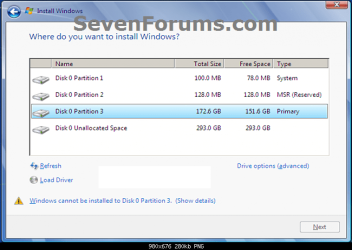


Windows7.PNG
9. You can now finish doing the steps in either tutorial below.

10. That's it. You have successfully installed Windows 7 on an UEFI system.


External Links:


Windows and GPT FAQ
Unified Extensible Firmware Interface - Wikipedia, the free encyclopedia
UEFI and Windows
 
Last edited by a moderator:
Hello guys. I really need some advice here. I have a laptop Asus G73jh, it supports UEFI. Connected to it externally (through sata from the dvd drive port) is a WD 3.5" 3TB disk. This is formated in GPT NFTS just a single partition. Here i store all my music production software/libraries. I want to install windows 7 on this one seperately (dual boot) so i can use this disk exlusively for music production. I went past the point and finally made a W7 UEFI usb installation disk. All good it will let me select the 3TB disk for installation. When i click next it will not let me continue with this: "setup was unable to create a new system partition...see the log blah blah". So i guess it won't let me install it in that partition (i'm not sure why? because it is NFTS?). Anyways i can't format the disk to a new partition since i don't have anywhere to copy my data. If the problem is it needs a clear unlocated space to make the partition i can shrink the one i have already using the free space i have. Can someone clarify what the hell needs more to install? Thanks!
 

My Computer My Computer

At a glance

Windows 7 Ultimate x64
OS
Windows 7 Ultimate x64
Freezing at Windows Install

I've installed Windows 8.1 Pro X64 UEFI mode into my Asus K45A. But for now I want W7 to be installed just like W8.1 is instaled by now. Fastboot and UEFI.

Well, I'm using Rufus to make USB flesh drive install..
It freezes right after Windows setup load up files... that white progress bar over a black screen...
When it appears Windows is Starting and Windows flags shows up... than it freezes.

I just tried it with:
Secureboot ON, Fastboot ON, CSM OFF
Secureboot ON, Fastboot OFF, CSM OFF
Secureboot OFF, Fast boot OFF, CSM OFF

All of these didn't work.

Just this conf worked out.
Secure boot OFF, Fastboot OFF, CSM ON.
But if I'm not wrong this conf will not install Windows 7 in UEFI mode.

So, what I'm doing wrong?
 

My Computer My Computer

At a glance

Sao Paulo
Computer type
PC/Desktop
OS
Sao Paulo
Proceed with the install to see.

Are there specific CSM settings to choose from, or sub-settings like UEFI First or Legacy First?

CSM doesn't necessarily preclude UEFI boot but there may be other settings to assure it. Look for UEFI boot, Legacy Boot, and under Save Settings tab see if there is a Save Optimized Windows 8 settings (which comes with some preinstalled Win7) or Save Default settings for using another configuration.

Did you use Option 1 in UEFI Bootable USB Flash Drive - Create in Windows
 
Proceed with CSM enabled?

There's no specific sub options after enabling CSM... but if Secureboot is enabled even enabling CSM and saving after reboot fastboot comes to be active and CSM disabled.

There're two options into boot options like my USB when CSM ON. One is for normal USB boot and other is for UEFI boot. I'd choose UEFI.

So. I Will try it with CSM ON and Secureboot OFF, fastboot OFF, usb UEFI boot option.

If CSM does not precule UEFI what CSM really is? :S

There's no specific optmized options. Only "restore to defaults" in setup (a.k.a. BIOS)

yes, I did use Option 1 but I'm trying it on the manually way too

About 10 minutes I'll come here to say what happened with my CSM ON attempt but I'm online right now to see any new answers
 

My Computer My Computer

At a glance

Sao Paulo
Computer type
PC/Desktop
OS
Sao Paulo
Secure Boot is only for preinstalled Win8, a marketing gimmick to convince business that it must migrate to 8 to protect against BIOS infections we've never seen here at the top tech forums. It failed miserably considering that business if moving off of XPiring to Windows 7 almost entirely.

So forget it and try the install with CSM. With some mobo's that's enough. If it isn't we need to look at your BIOS settings since they are all different, another reason UEFI is problematic crapware not worth the bother.
 
Yeah. Forget Secureboot. heehhehe By now I'm happy with my fresh W7 install (: It worked :D
But I got one more question. What about fastboot? Fastboot is avaiable only if secure boot is on too?
All that's because I'm fastboot, if possible with my W7. Because, for me, it's very very useful to have fastboot.
Is it a matter of drivers? Or because I used W8.1 + Ubuntu and both of them boot up faster. So I think. Why with W7 should be different? Right? So, Is that possible?
 
Last edited by a moderator:

My Computer My Computer

At a glance

Sao Paulo
Computer type
PC/Desktop
OS
Sao Paulo
Try Fast Boot to see if it works with CSM.

CSM is Compatibility Service Module which allows legacy BIOS functions. I don't think it should preclude Fast Boot but every mobo is different.
 
Got it. So many thanks man. I hope this can help other with same issue.
 

My Computer My Computer

At a glance

Sao Paulo
Computer type
PC/Desktop
OS
Sao Paulo
from page 1 of this tutorial, my hard drive does NOT form those 3 GPT partition. So win 7 won't install. How do you make win 7 form those 3 partitions?

In some details, I am working on a Toshiba ALL in 1 PC that c/w win 8. So I wiped all the partition on it and start off fresh.

I change the BIOS to non secure boot, and make the boot mode to CSM Boot

So win 7 boot up, and I'm at step 7 on page 1 of the tutorial

http://www.sevenforums.com/tutorial...e-firmware-interface-install-windows-7-a.html

click/tap on New, Apply (for full size of disk), and OK. (see screenshot above)

8. You will notice that the disk has now been formatted as GPT with 3 partitions. Select the "Primary" partition 3, and click/tap on Next.

I don't see the 3 partitions. I only see win 7 formatted the entire in 1 big 750GB partition. So obviously win 7 won't install


Prior to that, it's all unallocated space
 

My Computer My Computer

At a glance

win 7 pro 32 bit
OS
win 7 pro 32 bit
Hello Happy Hopping, :)

You'll need to have 64-bit Windows 7 and UEFI installation media to be able to install Windows 7 with UEFI. Did you have both?
 

My Computer My Computer

At a glance

64-bit Windows 11 Pro for WorkstationsIntel i7-8700K OC'd to 5 GHz64 GB (4x16GB) G.SKILL TridentZ RGB DDR4 3600...ASUS ROG-STRIX-GTX1080TI-O11G-GAMING
Computer type
PC/Desktop
Computer Manufacturer/Model Number
Self built custom
OS
64-bit Windows 11 Pro for Workstations
CPU
Intel i7-8700K OC'd to 5 GHz
Motherboard
ASUS ROG Maximus XI Formula Z390
Memory
64 GB (4x16GB) G.SKILL TridentZ RGB DDR4 3600 MHz
Graphics Card(s)
ASUS ROG-STRIX-GTX1080TI-O11G-GAMING
Sound Card
Integrated
Monitor(s) Displays
2 x Samsung Odyssey G7 27"
Screen Resolution
2560x1440
Hard Drives
1TB Samsung 990 PRO M.2,
4TB Samsung 990 PRO PRO M.2,
TerraMaster F8 SSD Plus NAS
PSU
Seasonic Prime Titanium 850W
Case
Thermaltake Core P3
Cooling
Corsair Hydro H115i
Keyboard
Logitech wireless K800
Mouse
Logitech MX Master 4
Internet Speed
2 Gb/s Download and 100 Mb/s Upload
Antivirus
Malwarebyte Anti-Malware Premium
Browser
Google Chrome
Other Info
Logitech Z625 speaker system,
Logitech BRIO 4K Pro webcam,
HP Color LaserJet Pro MFP M477fdn,
APC SMART-UPS RT 1000 XL - SURT1000XLI,
Galaxy S23 Plus phone
Just for clarification Shawn,
I gather some install DVDs allow direct UEFI installs. If so how do you determine if you have one?
 

My Computer My Computer

At a glance

Windows 7x64 Home Premium SP1Intel i7 2600kG.Skill Ripjaws (DDR3-1600) 2x4GBNvidia GeForce GTS 450; Intel HD Graphics 300...
Computer type
PC/Desktop
Computer Manufacturer/Model Number
Own build
OS
Windows 7x64 Home Premium SP1
CPU
Intel i7 2600k
Motherboard
ASUS P8Z68 Deluxe
Memory
G.Skill Ripjaws (DDR3-1600) 2x4GB
Graphics Card(s)
Nvidia GeForce GTS 450; Intel HD Graphics 3000(GT2+)
Monitor(s) Displays
Dell Ultrasharp IPS panel U2311H, Samsung SyncMaster P2350
Screen Resolution
1920x1080
Hard Drives
Samsung 850 Pro SSD 256GB, Samsung SSD 840 120GB, Seagates 1TB Barracuda ST31000528AS x2
PSU
Seasonic M12II 520W
Case
Lian Li Lancool PC-K60
Cooling
Case: 1x120mm, 3x140mm CPU: Hyper 212+
Keyboard
Logitech MK520 (wireless)
Mouse
Logitech MK520
Internet Speed
6-7 Mbps
Antivirus
Norton Security Premium, Malwarebytes on 2 (MSE on 3rd PC)
Browser
FireFox
Other Info
Audio: Logitech Z523 2.1
I guess you really don't know for sure until trying to boot from the DVD using UEIF.
 

My Computer My Computer

At a glance

64-bit Windows 11 Pro for WorkstationsIntel i7-8700K OC'd to 5 GHz64 GB (4x16GB) G.SKILL TridentZ RGB DDR4 3600...ASUS ROG-STRIX-GTX1080TI-O11G-GAMING
Computer type
PC/Desktop
Computer Manufacturer/Model Number
Self built custom
OS
64-bit Windows 11 Pro for Workstations
CPU
Intel i7-8700K OC'd to 5 GHz
Motherboard
ASUS ROG Maximus XI Formula Z390
Memory
64 GB (4x16GB) G.SKILL TridentZ RGB DDR4 3600 MHz
Graphics Card(s)
ASUS ROG-STRIX-GTX1080TI-O11G-GAMING
Sound Card
Integrated
Monitor(s) Displays
2 x Samsung Odyssey G7 27"
Screen Resolution
2560x1440
Hard Drives
1TB Samsung 990 PRO M.2,
4TB Samsung 990 PRO PRO M.2,
TerraMaster F8 SSD Plus NAS
PSU
Seasonic Prime Titanium 850W
Case
Thermaltake Core P3
Cooling
Corsair Hydro H115i
Keyboard
Logitech wireless K800
Mouse
Logitech MX Master 4
Internet Speed
2 Gb/s Download and 100 Mb/s Upload
Antivirus
Malwarebyte Anti-Malware Premium
Browser
Google Chrome
Other Info
Logitech Z625 speaker system,
Logitech BRIO 4K Pro webcam,
HP Color LaserJet Pro MFP M477fdn,
APC SMART-UPS RT 1000 XL - SURT1000XLI,
Galaxy S23 Plus phone
A correctly created 64 bit Win7 DVD should install to a UEFI System if the UEFI settings are correct in BIOS.

There is no modification as required for flash stick install to UEFI, if that's what you're asking.
 
Are you booting the installation media as a UEFI device so you know you're doing a UEFI install?

Try cleaning the drive first from installer's System Recovery Options Command Line using Diskpart Clean Command

What are the UEFI, CSM, Legacy BIOS and Boot settings choices in BIOS setup. Pictures would be helpful. Screenshots and Files - Upload and Post in Seven Forums - Windows 7 Forums

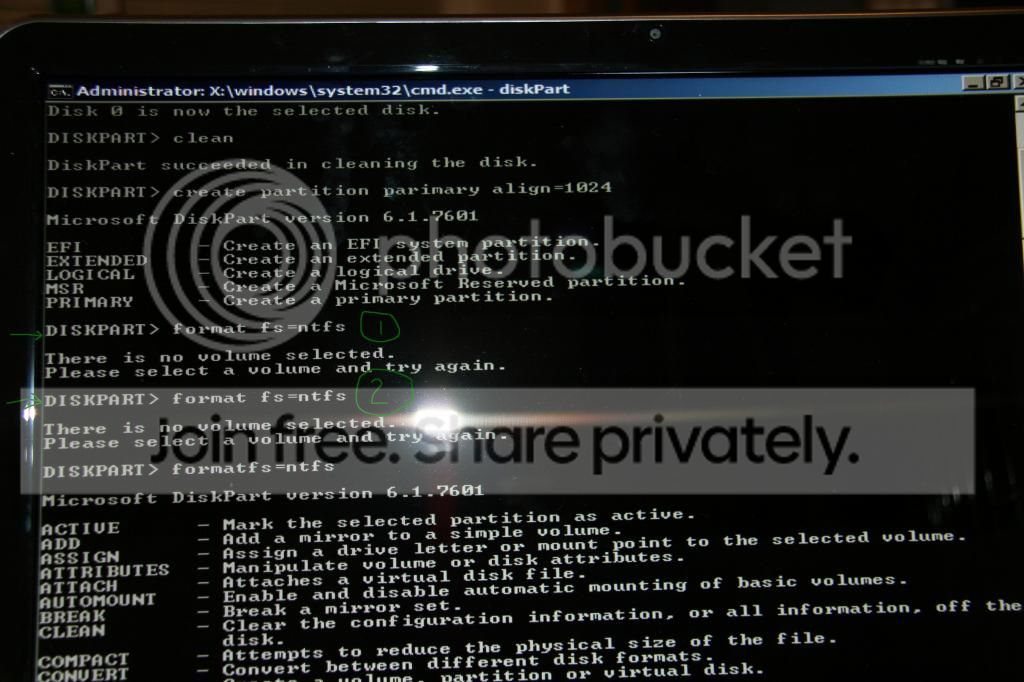
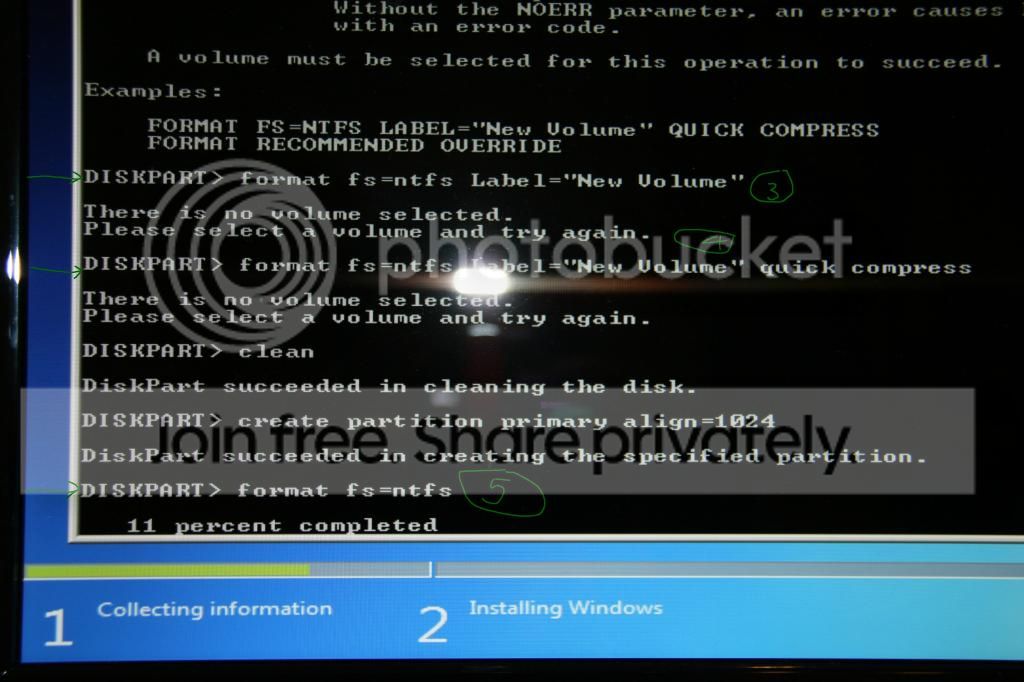
From the below link, I seem to encounter a ghost in the machine. As you can see at the green arrow on case 1 to 4, I clearly typed out: format fs=ntfs, following the steps at the link I paste in the prev. mesg.

And as you can see from the mesg. from win 7, it keep saying "There is no volume selected"

So in the end, I re-enter those cmd. from "clean" to "format fs=ntfs", and somehow it works.

There is no difference of what I type at case 1, to case 4, vs. case 5.

Now, as to the problem I post, I FINALLY got it to work. Again, I didn't make any changes, I go thru the steps here:

http://www.sevenforums.com/tutorial...e-firmware-interface-install-windows-7-a.html

and these steps are things that I have done before, a no. of times in the past many mth.

The drive is set as NON-Secure boot, CSM boot, under the BIOS.

The only difference is, after I try many times, including that time consuming format, I un-plug the power cord for about 10 to 15 min. And when I re-try those steps (Step 7), it works.

However, it does NOT creates those 3 partitions, it only creates that 1 main partition, and before you know it, win 7 says "Installing windows....copying files"

Could some genius explain if why the first 4 try (Case 1 to 4) does not work, and case 5 works. Likewise, please explain why the first few times I go thru those steps, it doesn't work, and after I disconnect the power for 10 to 15 min., going thru those steps works?
IMG_2653.jpg


IMG_2649.jpg
 

My Computer My Computer

At a glance

win 7 pro 32 bit
OS
win 7 pro 32 bit
The Genius is busy so I'll reply: You have installed in Legacy mode. CSM on your mobo allows this.

If you want UEFI disable CSM and don't try to format the drive. Just delete all partitions or Clean the drive from installer CMD.
 
I don't want UEFI.

I am only interested in knowing how to avoid this kind of problems and why is it that it works in the last time (after I disconnect the power cord)? Is it because of a "low quality" PC?
 

My Computer My Computer

At a glance

win 7 pro 32 bit
OS
win 7 pro 32 bit
It doesn't appear to have completed the "create partition primary" command because the word "primary" was misspelled the first time. Therefore it had no partition to perform the format upon.

You wouldn't want to use the "Compress" command which it was only giving as a syntax example. To compress the C drive can make it unbootable. But it didn't accept that command anyway.

Sometimes doing a power cycle can reset things that were causing problems before. But in this case it probably was resolved by typing the command correctly. If not you could probably get by deleting the old partitions to create and format using the drive options pictured in Steps 7/8 of Clean Install Windows 7 which may be enough without the Clean command.
 
This can be useful for troubleshooting UEFI post-installs (no hotfix):

-Article ID: 3004880 - Last Review: October 30, 2014 - Revision: 1.0
A UEFI mode system cannot boot after maintenance or servicing activity.

Symptoms:
A Unified Extensible Firmware Interface (UEFI) mode system that has a boot partition that is larger than 2 terabytes (TB) cannot boot after maintenance or servicing activity. (For example, the system cannot boot after the installation of a hotfix, defragmentation, or restoration from a backup.)

Cause:
The UEFI specification does not provide guidance on whether to use the traditional option ROM drivers or UEFI drivers in Class 2 UEFI mode. This has caused some UEFI implementations to prioritize traditional option ROM drivers over UEFI drivers in this mode. In some cases, these traditional-option ROM drivers support only 32-bit Logical Block Addressing (LBA) for accessing storage. This behavior limits how much storage they can access to 2 TB.

With the wider availability of storage devices that are larger than 2 TB, you can create a Windows boot partition that is larger than 2 TB. This poses a risk in the scenario described here, because a maintenance or servicing activity (for example, the installation of a hotfix, defragmentation, or restoration from a backup) can cause a boot-critical file to be moved beyond the 2 TB limit that is imposed by 32-bit LBA. Because the pre-boot environment cannot access this file, Windows will not boot.

Resolution:


To reduce the effect of this issue, use one of the following options:
  • OEMs can provide a fix for this issue through a firmware update, together with either 64-bit LBA support in traditional Option ROM drivers or prioritizing UEFI drivers when traditional Option ROM is loaded. Please contact your OEM to check whether such an updated firmware exists.
  • Some UEFI implementations provide a setting to select the drivers to use in this mode. An administrator can select UEFI drivers instead of traditional Option ROM drivers to access storage larger than 2 TB.
  • The administrator can also reduce the size of the boot and OS partitions so that the last logical block address for both the boot and OS partitions is located below 2 TB. This configuration prevents boot-critical files from being accidentally relocated to an address above 2 TB, where the boot environment cannot read them.
See also More Information chapter.

A UEFI mode system cannot boot after maintenance or servicing activity
 

My Computer My Computer

At a glance

Windows 7 Professional SP1 - x64 [Non-UEFI Boot]Ivy Bridge Core i5 3570K (Delidded)G.Skill "Ares" DDR3 PC3-12800 - 1600MHz (16Gb)Asus Dual-RX480-O4G
Computer type
PC/Desktop
Computer Manufacturer/Model Number
Custom Build
OS
Windows 7 Professional SP1 - x64 [Non-UEFI Boot]
CPU
Ivy Bridge Core i5 3570K (Delidded)
Motherboard
Asus P8Z77-V LE PLUS
Memory
G.Skill "Ares" DDR3 PC3-12800 - 1600MHz (16Gb)
Graphics Card(s)
Asus Dual-RX480-O4G
Sound Card
Creative Sound Blaster Z w/5.1 sound system
Monitor(s) Displays
Asus IPS 23"
Screen Resolution
16/9
Hard Drives
Internal:
500Go Sata 6Gb/s (x2)
500Go Sata 3Gb/s (x2)
SSD 60Go Sata 6Gb/s
PSU
In Win C 900W Series 80+ Platinum
Case
Thermaltake Chaser A71
Cooling
Custom Water Cooling Loop
Keyboard
Cooler Master QuickFire XTi
Mouse
Razer Imperator 2012 (4G)
Antivirus
MSE
Browser
IE 11.0.xxx Rtm
Other Info
"Raid0" with Intel Smart Response Technology (HDD/SSD)
Back
Top