Unable to launch programs after boot, no error messages

Snyperx

New member
Local time
9:59 PM
Messages
11
UPDATED!!

Hello all. I decided to come to these forums to seek some help with a very odd problem I started experiencing with my Windows 7 Ultimate PC. Let me first state that I am an IT professional by trade and have exhausted my knowledge of getting my install running smooth again.

Basically my problem is that after boot up I get to the Desktop fine. When I attempt to launch a program I get the waiting indicator and then nothing. I can not run chrome, Task Manager, open My computer, nothing. After some time my screen goes black, but I still can use my mouse cursor. After this the only option is to hold the power button and power down.

Up to this point I have done the following:

1. Attempted to run Windows Repair, but could not get that to load. Stated incorrect version of Windows even though I have the Windows 7 Ultimate disc.

2. Booted to Safe Mode a couple of time to try and remove any programs that were installed recently.

2. Thinking I had a virus/malware I used a couple of bootable CD tools that allowed me to scan for infections prior to getting into the O.S. They found nothing.

3. Used the Ultimate Boot CD to scan both the hard drive and memory for errors. Found nothing.


At this point I am hoping to tap into the knowledge of this forum to try and find a resolution. Let me say thank you in advance to anyone that can help.
 
Last edited:

My Computer

Computer type
PC/Desktop
Computer Manufacturer/Model Number
Dell Dimension E520
OS
Windows 7 Ultimate 64-bit
CPU
Intel Pentium D
Graphics Card(s)
ATI Radeon 5670 HD
Hard Drives
Western Digital 600 Gb Black
Antivirus
Symantec
Browser
Chrome
Hi Snyperx, what firewall are you using. Try starting your programs on the desktop by right clicking & select 'Run as administrator'
 

My Computer

Computer Manufacturer/Model Number
Look in my Signature.
OS
Win7 H.Prem. 32bit+SP1
Work through the Troubleshooting Steps for Windows 7 to establish a Clean Boot, monitor which processes are hogging resources, replace your AV with the lightweight recommended one and run a full scan, check System Files, etc. - working in Safe Mode if necessary.

You may need the latest official installer with SP1 if you don't have it, provided in Clean Reinstall - Factory OEM Windows 7. While you're there read through the steps to see how close you come to the tools and methods recommended to get and keep a perfect install.
 
Last edited:
Hi Snyperx, what firewall are you using. Try starting your programs on the desktop by right clicking & select 'Run as administrator'

I am running just the Microsoft firewall.
 

My Computer

Computer type
PC/Desktop
Computer Manufacturer/Model Number
Dell Dimension E520
OS
Windows 7 Ultimate 64-bit
CPU
Intel Pentium D
Graphics Card(s)
ATI Radeon 5670 HD
Hard Drives
Western Digital 600 Gb Black
Antivirus
Symantec
Browser
Chrome
Snyperx

I think your computer is infected with the W32.Sircam.Worm@mm worm virus.
To prevent from this virus follow these instructions.
-click Start, and then type cmd in the Start Search box.
-In the search results list, right-click Command Prompt, and then click Run as Administrator
-in command prompt, type cd \, and then press ENTER.
-in command prompt, type del /f /s /a sirc32.exe, and then press ENTER.
-in command prompt, type del /f /s /a scam32.exe, and then press ENTER.
-in command prompt, type shutdown -r, and then press ENTER.
If it doesn't work then
i will suggest you to read these instructions to resolve your problem
 

My Computer

Computer type
PC/Desktop
OS
microsoft window7 Ultimate x64
Snyperx

I think your computer is infected with the W32.Sircam.Worm@mm worm virus.
To prevent from this virus follow these instructions.
-click Start, and then type cmd in the Start Search box.
-In the search results list, right-click Command Prompt, and then click Run as Administrator
-in command prompt, type cd \, and then press ENTER.
-in command prompt, type del /f /s /a sirc32.exe, and then press ENTER.
-in command prompt, type del /f /s /a scam32.exe, and then press ENTER.
-in command prompt, type shutdown -r, and then press ENTER.
If it doesn't work then
i will suggest you to read these instructions to resolve your problem

Will give it a try. Thanks. I didn't find any sign of this virus when I scanned my PC. Does this virus not show up in virus scan software??
 

My Computer

Computer type
PC/Desktop
Computer Manufacturer/Model Number
Dell Dimension E520
OS
Windows 7 Ultimate 64-bit
CPU
Intel Pentium D
Graphics Card(s)
ATI Radeon 5670 HD
Hard Drives
Western Digital 600 Gb Black
Antivirus
Symantec
Browser
Chrome
UPDATED!!

Hello all. I decided to come to these forums to seek some help with a very odd problem I started experiencing with my Windows 7 Ultimate PC. Let me first state that I am an IT professional by trade and have exhausted my knowledge of getting my install running smooth again.

Basically my problem is that after boot up I get to the Desktop fine. When I attempt to launch a program I get the waiting indicator and then nothing. I can not run chrome, Task Manager, open My computer, nothing. After some time my screen goes black, but I still can use my mouse cursor. After this the only option is to hold the power button and power down.

Up to this point I have done the following:

1. Attempted to run Windows Repair, but could not get that to load. Stated incorrect version of Windows even though I have the Windows 7 Ultimate disc.

2. Booted to Safe Mode a couple of time to try and remove any programs that were installed recently.

2. Thinking I had a virus/malware I used a couple of bootable CD tools that allowed me to scan for infections prior to getting into the O.S. They found nothing.

3. Used the Ultimate Boot CD to scan both the hard drive and memory for errors. Found nothing.


At this point I am hoping to tap into the knowledge of this forum to try and find a resolution. Let me say thank you in advance to anyone that can help.
So you can enter safe mode? And as you say... remove programs.
What doesn't work?
-exe files?
-xls/doc/txt files?
-shortcuts?
 

My Computer

Computer type
Laptop
Computer Manufacturer/Model Number
ACER ASPIRE 5742G
OS
Microsoft Windows 7 Home Premium 64-bits 7601 Multiprocessor Free Service Pack 1
CPU
Intel(R) Core(TM) i3 CPU M 370 @ 2.40GHz
Motherboard
Acer Aspire 5742G
Memory
4,00 GB
Graphics Card(s)
ATI Mobility Radeon HD 5400 Series
Sound Card
(1) AMD High Definition Audio Device (2) Realtek High Defi
Screen Resolution
1366 x 768 x 32 bits (4294967296 colors) @ 60 Hz
Hard Drives
WDC WD5000BEVT-22ZAT0
If you see desktop... explorer.exe is running!
ctrl-shift-esc launches task manager?
 

My Computer

Computer type
Laptop
Computer Manufacturer/Model Number
ACER ASPIRE 5742G
OS
Microsoft Windows 7 Home Premium 64-bits 7601 Multiprocessor Free Service Pack 1
CPU
Intel(R) Core(TM) i3 CPU M 370 @ 2.40GHz
Motherboard
Acer Aspire 5742G
Memory
4,00 GB
Graphics Card(s)
ATI Mobility Radeon HD 5400 Series
Sound Card
(1) AMD High Definition Audio Device (2) Realtek High Defi
Screen Resolution
1366 x 768 x 32 bits (4294967296 colors) @ 60 Hz
Hard Drives
WDC WD5000BEVT-22ZAT0
At this point I am hoping to tap into the knowledge of this forum to try and find a resolution. Let me say thank you in advance to anyone that can help.
So you can enter safe mode? And as you say... remove programs.
What doesn't work?
-exe files?
-xls/doc/txt files?
-shortcuts?

Once the machine is booted and logged in, I can only run programs (web browser, Task manager...etc) for a brief period of time before programs stop opening. You click an icon or try and select the app from the start menu and it never loads. You get the "loading" icon, but the app never opens. Eventually the Desktop disappears and you get just a plain black screen with a working mouse cursor. when Task Manager is working I am not seeing high CPU utilization or high memory usage.
 

My Computer

Computer type
PC/Desktop
Computer Manufacturer/Model Number
Dell Dimension E520
OS
Windows 7 Ultimate 64-bit
CPU
Intel Pentium D
Graphics Card(s)
ATI Radeon 5670 HD
Hard Drives
Western Digital 600 Gb Black
Antivirus
Symantec
Browser
Chrome
Why is there no reply to the Troubleshooting Steps for Windows 7 which I gave you a day ago?

You need to immediately type msconfig in the Start Search box, disable all entries in msconfig>Startup and >Services tabs (after Hiding All MS Services) then reboot the PC. Startup Programs - Change

Then work through the other steps including testing your HD using boot disks provided.

If you can't run them from the desktop then try running the ones which will run in Safe Mode with Networking.

If that won't work then change to these steps for Troubleshooting Windows 7 Failure to Start.
 
Why is there no reply to the Troubleshooting Steps for Windows 7 which I gave you a day ago?

You need to immediately type msconfig in the Start Search box, disable all entries in msconfig>Startup and >Services tabs (after Hiding All MS Services) then reboot the PC. Startup Programs - Change

Then work through the other steps including testing your HD using boot disks provided.

If you can't run them from the desktop then try running the ones which will run in Safe Mode with Networking.

If that won't work then change to these steps for Troubleshooting Windows 7 Failure to Start.


My apologies. I did Follow the steps in the link you provided yesterday evening. Thank you. Disabling the services for startup did nothing. Still seeing same issue(s). Did the HD scan using the Western Digital tools and found nothing wrong with drive (scanned for like 3 hours). Also ran the SFC /SCANNOW command at command prompt in safe mode and found nothing.
 

My Computer

Computer type
PC/Desktop
Computer Manufacturer/Model Number
Dell Dimension E520
OS
Windows 7 Ultimate 64-bit
CPU
Intel Pentium D
Graphics Card(s)
ATI Radeon 5670 HD
Hard Drives
Western Digital 600 Gb Black
Antivirus
Symantec
Browser
Chrome
Did you monitor Processes from Task Manager>Processes tab to see if a process is hogging resources?

Order the processes first by clicking on the CPU column head to watch their behavior, then by RAM. If either go over 100% view the PID by enabling it from View tab, see what Service corresponds to it.

If you need to drill down further use Process Monitor as demonstrated in tutorial.
 
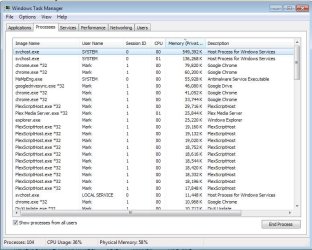
I think I am getting some where. In looking at my running processes I noticed a svchost.exe that was using 500+ Mb of memory. The other instances of svchost.exe were using far less. I ended the process and all of the previous programs I attempted to run popped open and worked. What is interesting is that the same svchost.exe started running again and guess what, my computer started having the previous issues. Now the question is what do I have going on? Infection? Corrupt file? Is my computer a zombie system? What are my steps to remedy?
 

My Computer

Computer type
PC/Desktop
Computer Manufacturer/Model Number
Dell Dimension E520
OS
Windows 7 Ultimate 64-bit
CPU
Intel Pentium D
Graphics Card(s)
ATI Radeon 5670 HD
Hard Drives
Western Digital 600 Gb Black
Antivirus
Symantec
Browser
Chrome
Again you didn't complete the rest of the steps I just gave you..

You want to show the PID on the View tab of Task Manager>Processes.

Then you want to trace that PID in Services tab to see which ones are using it. If necessary look at the related tabs on Resource Monitor.

The step which you skipped in the tutorial also shows how to use Process Monitor to drill down deeper
 
Couple of screen shots attached.
 

Attachments

  • ScreenShot001.jpg
    ScreenShot001.jpg
    79.3 KB · Views: 3
  • ScreenShot002.jpg
    ScreenShot002.jpg
    16.7 KB · Views: 14

My Computer

Computer type
PC/Desktop
Computer Manufacturer/Model Number
Dell Dimension E520
OS
Windows 7 Ultimate 64-bit
CPU
Intel Pentium D
Graphics Card(s)
ATI Radeon 5670 HD
Hard Drives
Western Digital 600 Gb Black
Antivirus
Symantec
Browser
Chrome
Found this interesting in process monitor:
 

Attachments

  • ScreenShot003.jpg
    ScreenShot003.jpg
    13.7 KB · Views: 4

My Computer

Computer type
PC/Desktop
Computer Manufacturer/Model Number
Dell Dimension E520
OS
Windows 7 Ultimate 64-bit
CPU
Intel Pentium D
Graphics Card(s)
ATI Radeon 5670 HD
Hard Drives
Western Digital 600 Gb Black
Antivirus
Symantec
Browser
Chrome
These are really only a concern if they are pegging the CPU or RAM at 100% which causes stalls or hangs.

Have you checked the logs for repeat errors to resolve, as shown in tutorial? Especially check at the time it hangs up.

Perhaps if you have these chronic hangs and everything else checks out then you should move to the Repair Install or even consider getting a perfect Clean Reinstall - Factory OEM Windows 7
 
Stop those services 1 by 1 and test
268359d1368746572-unable-launch-programs-after-boot-no-error-messages-screenshot002.jpg

Application Experience is the one related to the problem I think.
 

My Computer

Computer type
Laptop
Computer Manufacturer/Model Number
ACER ASPIRE 5742G
OS
Microsoft Windows 7 Home Premium 64-bits 7601 Multiprocessor Free Service Pack 1
CPU
Intel(R) Core(TM) i3 CPU M 370 @ 2.40GHz
Motherboard
Acer Aspire 5742G
Memory
4,00 GB
Graphics Card(s)
ATI Mobility Radeon HD 5400 Series
Sound Card
(1) AMD High Definition Audio Device (2) Realtek High Defi
Screen Resolution
1366 x 768 x 32 bits (4294967296 colors) @ 60 Hz
Hard Drives
WDC WD5000BEVT-22ZAT0
Well I ultimately ended up doing a secure wipe of the hard drive and performing a clean install. Will see how things are after I get all the patches and drivers installed.
 

My Computer

Computer type
PC/Desktop
Computer Manufacturer/Model Number
Dell Dimension E520
OS
Windows 7 Ultimate 64-bit
CPU
Intel Pentium D
Graphics Card(s)
ATI Radeon 5670 HD
Hard Drives
Western Digital 600 Gb Black
Antivirus
Symantec
Browser
Chrome
Back
Top