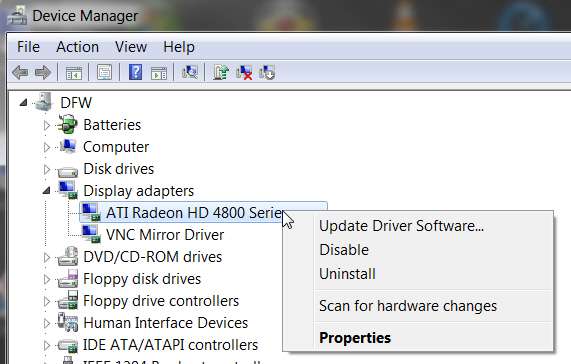
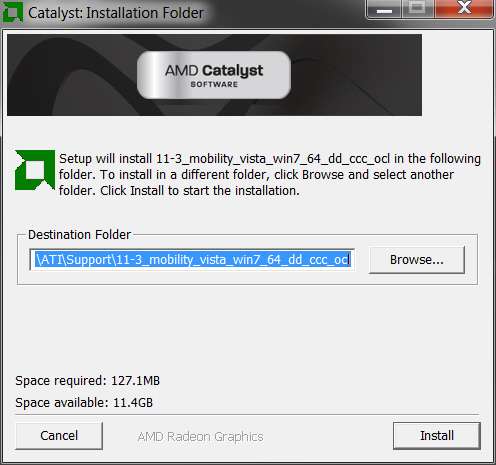
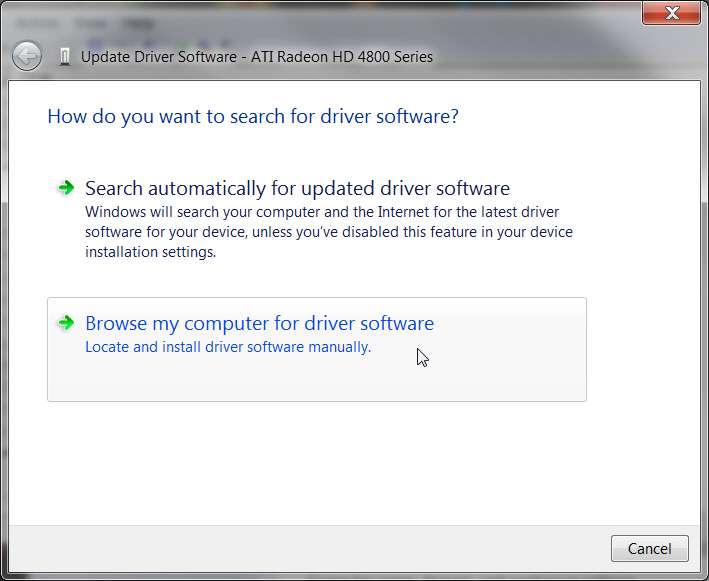
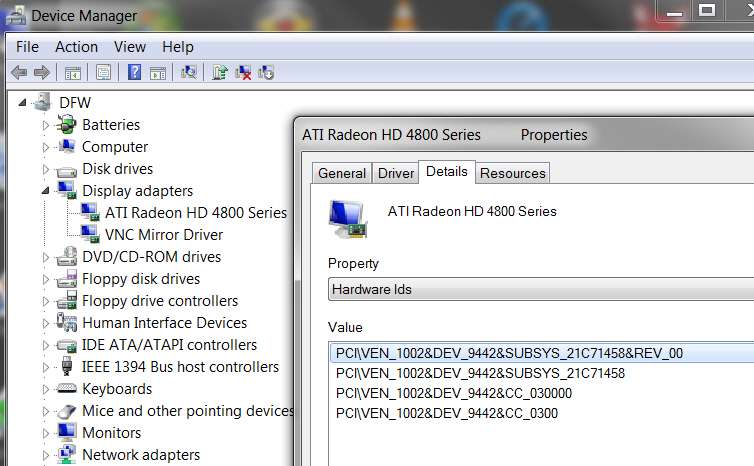
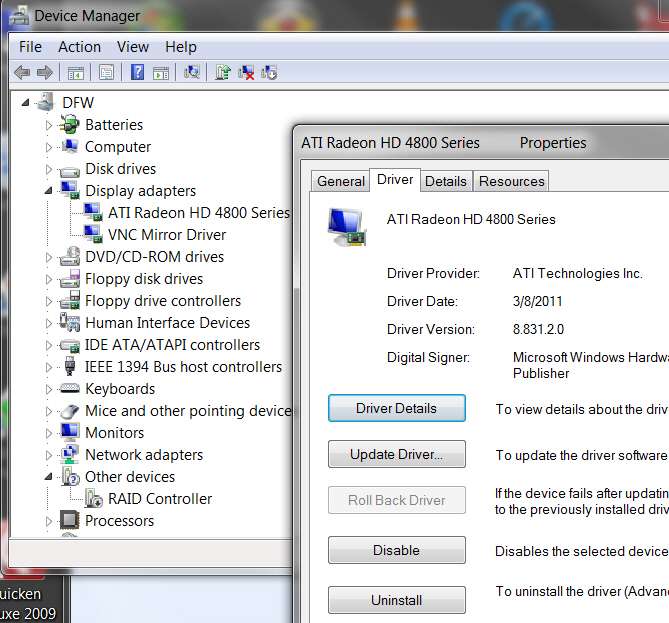
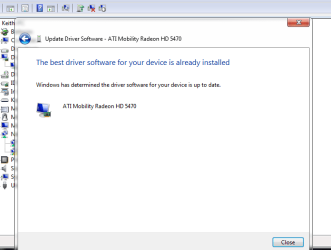
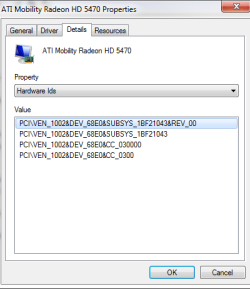
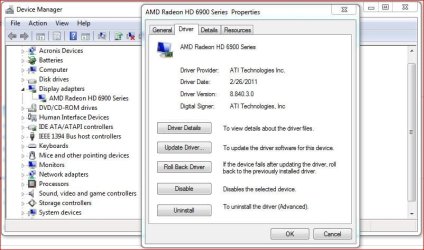
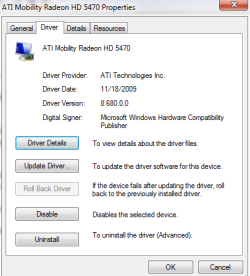
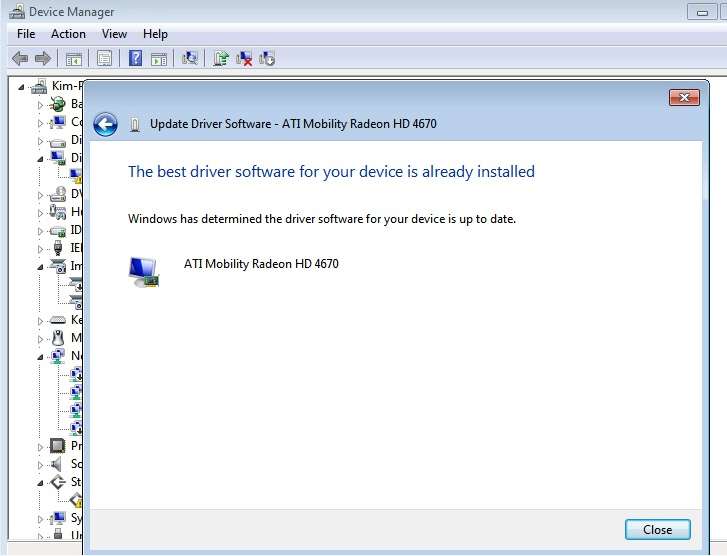
I am still not able to update driver and followed the manual installation method. When I tried to install it I got this error message that is enclosed as my attachment.
Still showing old driver not one from March 2011..
On another similar thread which was going on simultaneously to this one, another user (who has a Dell laptop with Mobility HD 4670 chip, that Dell claimed some ATI driver from 4/2010 was "the recommended version") finally achieved success in installing the 11.3 Mobility driver which I pointed to in my earlier post.
But it took him a total wipe of his PC and a complete reinstall of Windows from scratch to do it. Then, in a brand new environment where it was clear there was no ATI driver installed yet, the running of this 11.3 Mobility driver "suite" installer finally succeeded and he actually did have the latest 11.3 driver installed successfully.
In other words, as long as there was truly NO ATI driver installed at the moment, the NEW driver COULD be installed.
So the real key to success is obvious: YOU MUST FIRST GET YOUR EXISTING OLD ATI DRIVER UNINSTALLED FULLY, before you can install a new one.
It appears that my manually applied Mobility driver upgrade method is for some reason NOT working successfully, when applied right on top of an existing installed Mobility driver.
And yet, Windows Update can certainly accomplish this... but for some reason on your laptop (and the other user's as well) this was not working manually. I'm embarrassed.
Oh well... let's focus on PLAN B to emerge victorious.
And that Plan B involves guaranteeing you have first successfully UNINSTALLED the existing old ATI driver before you try to install the new one, either manually as I've suggested or by simply running that 11.3 Mobility "suite" installer... which really should now work successfully by itself, as long as the current driver is uninstalled fully.
Again, I assume that you've already downloaded the
11.3 Catalyst drivers for ATI Mobility products from this location. Actually, that file is the large 86MB "suite" installer file that includes device driver, Catalyst Control Center, and OCL.
Now here is my recommended recipe to get your current old ATI driver fully uninstalled. This procedure starts off
exactly as the ATI/AMD web site describes as their own recommended approach for uninstalling all ATI software.
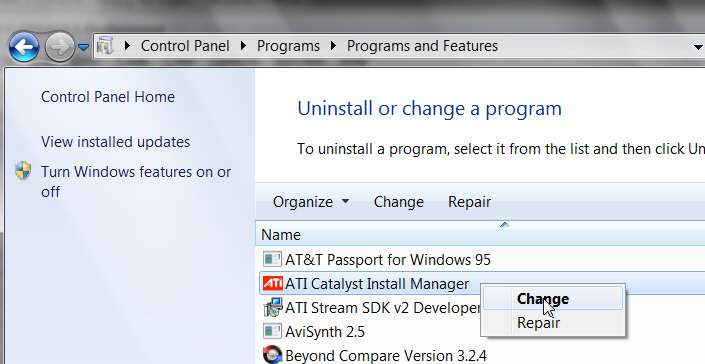
(1) Control Panel -> Programs -> Uninstall a program -> ATI Install Manager
Right-click on that ATI Install Manager program and select "change" from the popup menu.
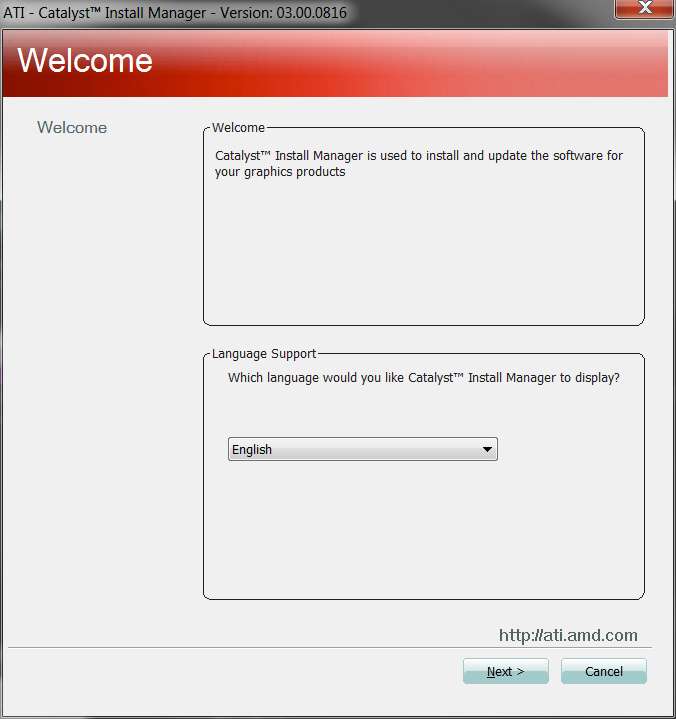
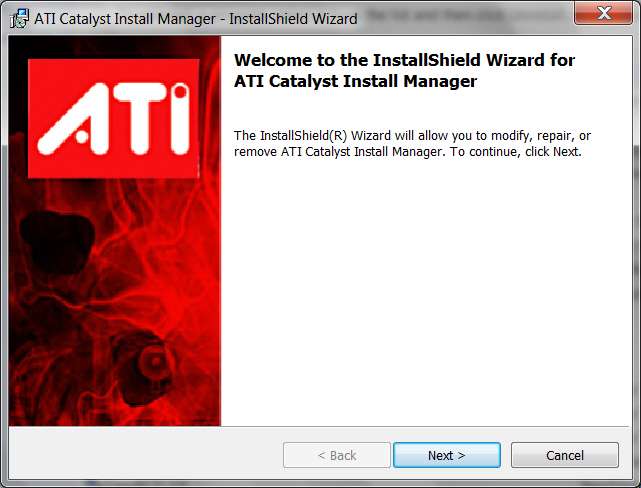
(2) You'll get the following window from the ATI Install Manager:
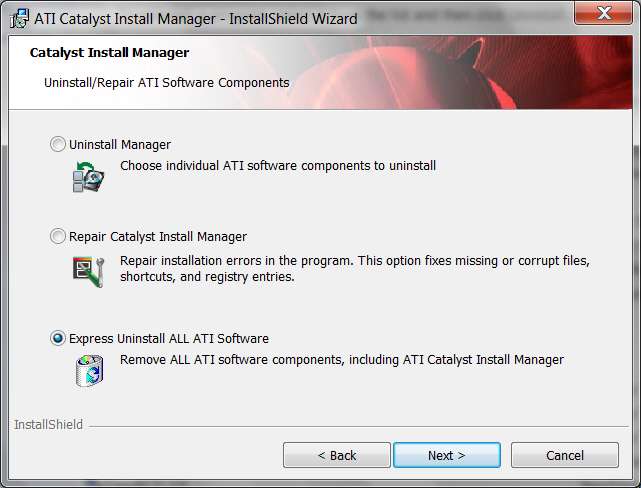
(3) Push the NEXT button, and you'll get the following window:
(4) Check that third item on the dialog: "Express uninstall ALL ATI software; remove ALL ATI software components, including ATI Catalyst Install Manager".
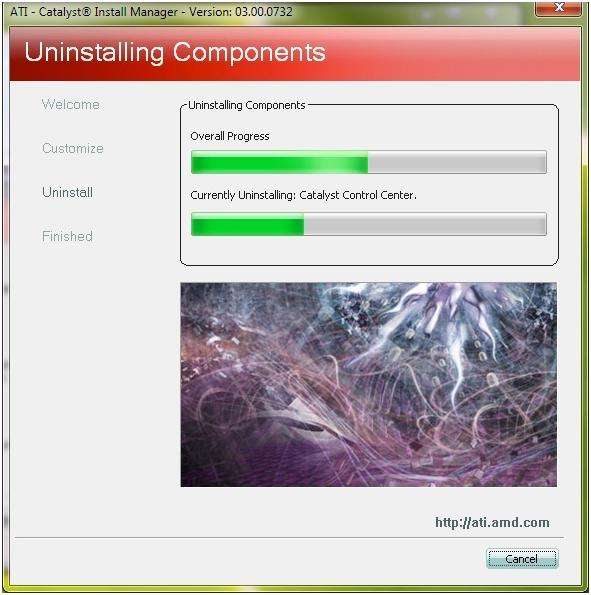
Push the NEXT button. You should then see the uninstaller proceed:
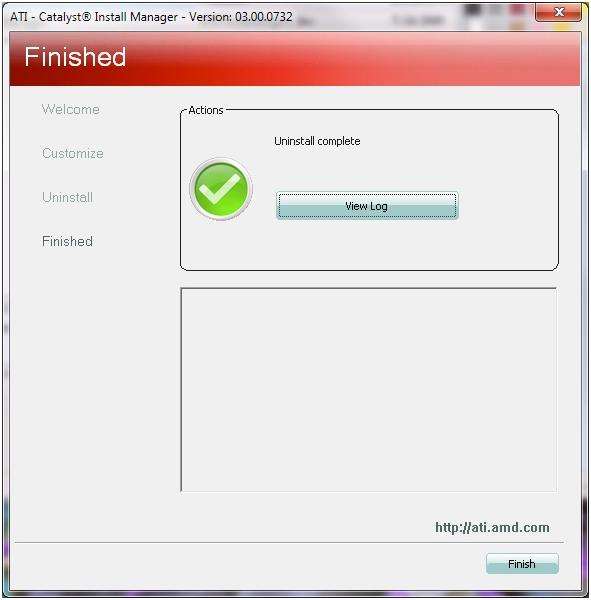
(5) When the uninstaller finishes, you should see this... with a green check and no errors or warnings indicated:
(6) Before you reboot, run Driver Sweeper (
which you can download from here, if you don't already have it. You should install it as you will want to use it now). The web site provides version 2.1.0 but when you run it after installing the program will then prompt you to get the latest version, which I believe is 2.9.0.2
Select the AMD driver item (first in the list) and push the ANALYSE button in the lower right corner.
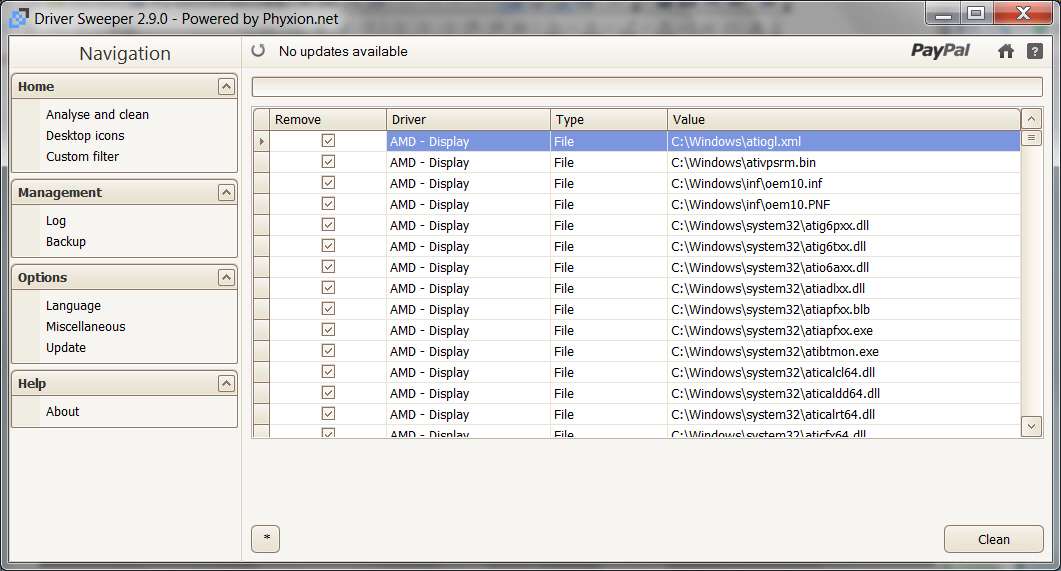
(7) You'll then get hopefully a short list of "leftover" items from the ATI Install Manager's uninstall process, which were not removed by that process. The list might include a handful of DLL's, and perhaps a Registry key entry.
All these remaining items will be pre-checked for removal by Driver Sweeper. Leave them checked just as they are, and push the CLEAN button in the lower right corner.
Here's a sample of this screen on my own system where I have the ATI drivers currently installed, so this sample list from Driver Sweeper looks very long. In your case, after you've run the ATI Install Manager uninstall process, your leftover list for Driver Sweeper to see should be very small.
(8) After pushing the CLEAN button, all of these items should have been removed (or marked for instant removal right after re-booting).
Now re-boot. Some people strongly recommend re-booting to SAFE MODE first, and then re-running Driver Sweeper a SECOND TIME... again selecting the AMD box and pushing ANALYSE, just to ensure that there is absolutely nothing left over at all! If there is somehow something left, once again push the CLEAN button, and re-boot again.
If there's nothing shown in this SAFE MODE running of Driver Sweeper, you're good to go. Now you can re-boot to normal mode with [some] confidence that you've successfully uninstalled the old ATI driver and will now be able to install the new 11.3 drivers.
Anyway, after running the ATI Install Manager uninstall, and then Driver Sweeper before re-booting, and then Driver Sweeper a second time while in SAFE MODE after re-booting, and then re-booting yet again, in theory your Mobility HD 5470 video chip no longer has no ATI drivers installed for it.
And the final boot process should probably result in "new hardware detected, VGA adapter" or something to that effect. Windows will try to locate a suitable adapter for it (and hopefully you have NOT let it go up to the Internet or the Microsoft Windows Update site to get the "latest driver suitible for this new hardware). You do NOT want to let Windows re-get that old ATI driver. You want to FORCE it to use the generic VGA Microsoft driver.
And if you go to Device Manager, open Display Adapters, right-click on whatever named or generic video adapter you see there, select Properties from the popup menu and then select the Driver tab, you should see Microsoft as the driver provider... not ATI.
This would absolutely confirm that you've successfully uninstalled that old ATI driver before the re-boot and now installed the generic Microsoft VGA driver after the re-boot. This is what we want to achieve.
When the install process for the generic Microsoft VGA driver completes, "your hardware is now ready to use". You should probably have your video display in maybe 800x600 default resolution. This is a GOOD sign, as it confirms that you have uninstalled the ATI driver and are now back to the base Microsoft generic drivers. You should now be able to right-click on the desktop, change your 800x600 initial resolution to something higher and more friendly for the moment... for the next step.
(9) Now, with the old ATI driver fully uninstalled, and with the base generic Microsoft VGA driver installed (temporarily), you can install the new 11.3 Mobility driver package.
You can (or should be able to) just run that downloaded 86MB "suite" installer and it should succeed. Or, you should also be able to take the "manual install" approach I described previously.
The "suite" approach should work, and it will also install Catalyst Control Center... so there's advantage to using that method. You should certainly try it first, and I'm confident it will now work... as long as the old ATI driver has been successfully uninstalled and you're back to the vanilla Microsoft VGA driver.
(10) If for some reason at the re-boot the old ATI driver gets reinstalled, as if it had perhaps appeared to be uninstalled but was somehow still physically around and re-grabbed at boot time by the "new hardware detected" process, and re-installed all over again so that the generic Microsoft driver is not needed and installed... well then you're right back where you started.
And that means Plan B has failed. The "new hardware" process either (a) found the old ATI driver still on your hard drive (in \System32?) and just re-installed it again, or (b) went online to the Microsoft Windows Updates site and retrieved the "recommended" old driver. You can probably guarantee that this latter item doesn't happen by temporarily removing your ethernet cable from the PC, just to be absolutely sure this cannot be happening.
But I hope it won't reinstall the old ATI driver, from anywhere. I hope this full uninstall should work, which should then allow the new install of 11.3 work successfully. Good luck, and please report your results.
(11) Worst case: Plan C.
Reinstall Windows from scratch, and then run the 11.3 Mobility installer. It WILL work.