
You are using an out of date browser. It may not display this or other websites correctly.
You should upgrade or use an alternative browser.
You should upgrade or use an alternative browser.
Solved update not updating
- Thread starter DRZ12
- Start date
1. reboot the system.
2. Make sure you have the latest Net framework 4.6.1 installed - download and install it manually selecting repair if it is already installed.
https://www.microsoft.com/en-us/down....aspx?id=49982
3. reboot
4. Ensure you have the most recent update client - download and install it manually
https://support.microsoft.com/en-us/kb/3138612
5. Reboot
6. Ensure the windows update service, Bits service and the Cryptographic service to automatic and started.
7. run windows update.
8. just wait.... some people on here have reported that the process took several hours.
Note the .net and the new windows update client may take a bit of time to install.
2. Make sure you have the latest Net framework 4.6.1 installed - download and install it manually selecting repair if it is already installed.
https://www.microsoft.com/en-us/down....aspx?id=49982
3. reboot
4. Ensure you have the most recent update client - download and install it manually
https://support.microsoft.com/en-us/kb/3138612
5. Reboot
6. Ensure the windows update service, Bits service and the Cryptographic service to automatic and started.
7. run windows update.
8. just wait.... some people on here have reported that the process took several hours.
Note the .net and the new windows update client may take a bit of time to install.
My Computer
At a glance
W7 64bit
- Computer type
- Laptop
- Computer Manufacturer/Model Number
- Dell
- OS
- W7 64bit
1. reboot the system.
2. Make sure you have the latest Net framework 4.6.1 installed - download and install it manually selecting repair if it is already installed.
https://www.microsoft.com/en-us/down....aspx?id=49982
3. reboot
4. Ensure you have the most recent update client - download and install it manually
https://support.microsoft.com/en-us/kb/3138612
5. Reboot
6. Ensure the windows update service, Bits service and the Cryptographic service to automatic and started.
7. run windows update.
8. just wait.... some people on here have reported that the process took several hours.
Note the .net and the new windows update client may take a bit of time to install.
After an enormous battle with the Joseph Mengele designed Win7 update-forever death spiral of boredom, I too followed your instructions and I am FINALLY able to get updates again. So thank you for saving my sanity. My wife and kids thank you as well.
I had to let it cycle through it's stupidness overnight. And by the way, it's reprehensible that MS doesn't supply a "show details/log" button on this so we can see precisely what it's doing. I'm sorry UI guys at MS, but simply having a progress bar mindlessly humming away is not a UI "heartbeat, nor is it a progress bar." (Sorry for the shouting).
However, I have do a question regarding your instructions.
The update service (and perhaps BITS and crytography service too, I'm not sure I remember, were not set to start "automatic", but "automatic, delayed restart".
But I switched it to automatic anyway, as per your instructions.
Was that necessary; What's the difference? Should I switch them back?
My Computer
At a glance
Windows 7 Pro x64
- Computer type
- PC/Desktop
- Computer Manufacturer/Model Number
- Dell Optiplex 7010
- OS
- Windows 7 Pro x64
Thanks! Another wrinkle.
All I have for the entire update history in the machine is now this. When I dive into the bottom ones, it seems like the earliest the files inside them date back to is April 2016.
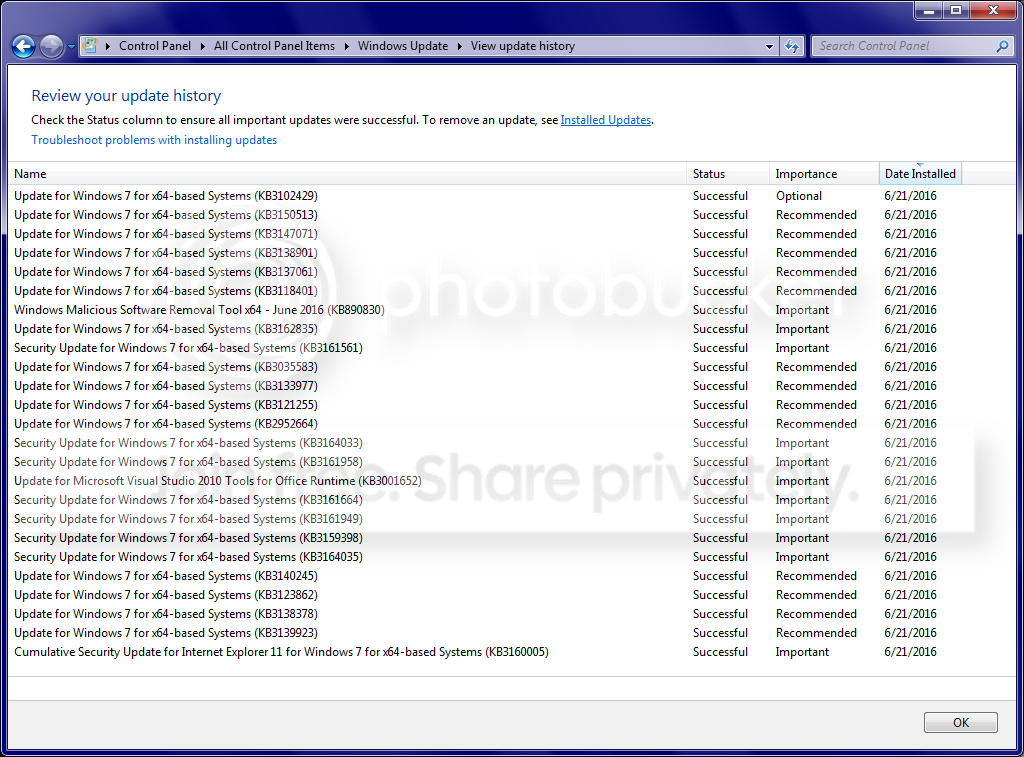
That ^^^^ is all there is. That can't be right. CAN IT?????
In the process of mucking with this for days, (by following instructions) the following has been renamed so that they would be generated from scratch:
So if I wanted to start this whole thing over again from scratch, I'm assuming that I should do something akin to (again):
1. Install WSE (and effectively deactivate it via options and just try to forget it's there. I can go through the hell of trying to uninstall it at some other time).
2. Do this in an administrator cmd window (from answers.microsoft.com):
(?)
All I have for the entire update history in the machine is now this. When I dive into the bottom ones, it seems like the earliest the files inside them date back to is April 2016.
That ^^^^ is all there is. That can't be right. CAN IT?????
In the process of mucking with this for days, (by following instructions) the following has been renamed so that they would be generated from scratch:
C:\Windows\SoftwareDistribution
C:\Windows\System32\catroot2
(and Windows Security Essentials was uninstalled, which failed, and I had to run a fixit script from MS. Thanks MS.)
And I think I borked something in the process. Especially since after I "half-assed removed" WSE, the WSUS Offline Updater failed and complained about WSE not being installed correctly. Great. I'm not likely using the offline updater again anyway.C:\Windows\System32\catroot2
(and Windows Security Essentials was uninstalled, which failed, and I had to run a fixit script from MS. Thanks MS.)
So if I wanted to start this whole thing over again from scratch, I'm assuming that I should do something akin to (again):
1. Install WSE (and effectively deactivate it via options and just try to forget it's there. I can go through the hell of trying to uninstall it at some other time).
2. Do this in an administrator cmd window (from answers.microsoft.com):
net stop wuauserv
net stop bits
net stop cryptsvc
ren %systemroot%\System32\Catroot2 Catroot2.old
ren %systemroot%\SoftwareDistribution SoftwareDistribution.old
net start wuauserv
net start bits
net start cryptsvc
3. Go into windows update, check for updates, and let it run overnight again.net stop bits
net stop cryptsvc
ren %systemroot%\System32\Catroot2 Catroot2.old
ren %systemroot%\SoftwareDistribution SoftwareDistribution.old
net start wuauserv
net start bits
net start cryptsvc
(?)
My Computer
At a glance
Windows 7 Pro x64
- Computer type
- PC/Desktop
- Computer Manufacturer/Model Number
- Dell Optiplex 7010
- OS
- Windows 7 Pro x64
Automatic? Are you aware that gwx was installed on your machine? Why would you install everything without researching a bit before? Do you really need all those updates, especially the optional ones? Just make sure you are using the latest update agent, leave it for few hours, maybe overnight, if still searching, then install June update 3161664 and search again overnight.
Automatic is faster but installs everything no matter if you need it or not. You may see pop-ups on your screen to install Win10. Do you need Win10? Do you need updates fixing Russian language things? Why install everything? It's up to you.
Just set it to check for updates but let me decide what to download and install. Then install what you need. Don't mess with those settings you mentioned.
PS - that printscreen is not your update history, to see update history click Installed Updates in same screen you should see it.
Automatic is faster but installs everything no matter if you need it or not. You may see pop-ups on your screen to install Win10. Do you need Win10? Do you need updates fixing Russian language things? Why install everything? It's up to you.
Just set it to check for updates but let me decide what to download and install. Then install what you need. Don't mess with those settings you mentioned.
PS - that printscreen is not your update history, to see update history click Installed Updates in same screen you should see it.
My Computer
At a glance
Windows 7 Home Premium 64Intel T6400 Core 2 Duo4GBIntel 4500MHD
- Computer type
- Laptop
- Computer Manufacturer/Model Number
- Toshiba
- OS
- Windows 7 Home Premium 64
- CPU
- Intel T6400 Core 2 Duo
- Memory
- 4GB
- Graphics Card(s)
- Intel 4500MHD
When I said leave them at Automatic I was referring to the questions:
The update service (and perhaps BITS and crytography service too, I'm not sure I remember, were not set to start "automatic", but "automatic, delayed restart".
But I switched it to automatic anyway, as per your instructions.
Was that necessary; What's the difference? Should I switch them back?
My response was due to his running them at Automatic origianlly
The update service (and perhaps BITS and crytography service too, I'm not sure I remember, were not set to start "automatic", but "automatic, delayed restart".
But I switched it to automatic anyway, as per your instructions.
Was that necessary; What's the difference? Should I switch them back?
My response was due to his running them at Automatic origianlly
My Computer
At a glance
W7 64bit
- Computer type
- Laptop
- Computer Manufacturer/Model Number
- Dell
- OS
- W7 64bit
Automatic? Are you aware that gwx was installed on your machine? Why would you install everything without researching a bit before? Do you really need all those updates, especially the optional ones? Just make sure you are using the latest update agent, leave it for few hours, maybe overnight, if still searching, then install June update 3161664 and search again overnight.
Automatic is faster but installs everything no matter if you need it or not. You may see pop-ups on your screen to install Win10. Do you need Win10? Do you need updates fixing Russian language things? Why install everything? It's up to you.
Just set it to check for updates but let me decide what to download and install. Then install what you need. Don't mess with those settings you mentioned.
Unless I misunderstood what Microsoft has said about the services, then we're talking about dramatically different things.
AIUI, the "automatic" is the invocation setting for the service. I'm not automatically installing anything. The service itself is set to "automatic"; That's a completely different thing than "automatically download and install updates". All (or at least most?) services have the invocation options:
Automatic, delayed start
Automatic
Manual
Disabled
The automatic options simply mean that the service is started at system bootup; it doesn't say what it has to do once started. The manual means that it's started either by me or by another service, etc. Whether or not that update service actually checks anything, or checks and downloads, etc., are covered by other settings.
In my case, I have the update service set to not install anything, not even check, but start automatically when windows starts (with no delay).
Please feel free to correct me if I'm wrong.
PS - that printscreen is not your update history, to see update history click Installed Updates in same screen you should see it.
Good catch! And yes, there's a TON of updates listed on that "installed updates" screen. THANKS!
My Computer
At a glance
Windows 7 Pro x64
- Computer type
- PC/Desktop
- Computer Manufacturer/Model Number
- Dell Optiplex 7010
- OS
- Windows 7 Pro x64
So it's definitely seeming that this particular problem is now in the "leave well enough alone" category.
Unless anyone thinks I should [painfully] address the WSE uninstall weirdness.....
Either way, thank you johnny20 and especially majulook for your help!!!!
Unless anyone thinks I should [painfully] address the WSE uninstall weirdness.....
Either way, thank you johnny20 and especially majulook for your help!!!!
My Computer
At a glance
Windows 7 Pro x64
- Computer type
- PC/Desktop
- Computer Manufacturer/Model Number
- Dell Optiplex 7010
- OS
- Windows 7 Pro x64
majulook,
u r the man! i've been pulling my hairs searching for the answer high and low for a week since i reformatted my laptop but to no available. even MS website is hopeless, let alone those useless technicians who formatted my pc. now finally i can put my sleepless night behind. thanks again!
u r the man! i've been pulling my hairs searching for the answer high and low for a week since i reformatted my laptop but to no available. even MS website is hopeless, let alone those useless technicians who formatted my pc. now finally i can put my sleepless night behind. thanks again!
My Computer
At a glance
windows 7 home premium 64biti54gb
- Computer type
- Laptop
- Computer Manufacturer/Model Number
- toshiba L645
- OS
- windows 7 home premium 64bit
- CPU
- i5
- Memory
- 4gb
- Antivirus
- kaspersky internet security
- Browser
- firefox
1. reboot the system.
2. Make sure you have the latest Net framework 4.6.1 installed - download and install it manually selecting repair if it is already installed.
https://www.microsoft.com/en-us/down....aspx?id=49982
3. reboot
4. Ensure you have the most recent update client - download and install it manually
https://support.microsoft.com/en-us/kb/3138612
5. Reboot
6. Ensure the windows update service, Bits service and the Cryptographic service to automatic and started.
7. run windows update.
8. just wait.... some people on here have reported that the process took several hours.
Note the .net and the new windows update client may take a bit of time to install.
Majulook - I want to thank you! I have spent 2 days trying to update a Dell laptop that does not get much use. I tried everything; all of the Microsoft Fixit and Diagnostic tools, starting/stopping services, renaming/deleting folders, etc., nothing worked. I even did a System Restore out of desperation and was considering a clean install of the OS. I don't know how you came up with this fix or why it works but it does work! I followed steps 1-6 exactly, I didn't try to manually check for updates but in a few hours Windows Update found them by itself, downloading and installing them has been a breeze. I can now get on with my life and put this infuriating Windows Update bug behind me! Thank You!
Last edited:
My Computer
At a glance
Windows 7 Home Premium 64bit
- Computer type
- Laptop
- OS
- Windows 7 Home Premium 64bit
Similar threads
- Replies
- 2
- Views
- 75

- Replies
- 3
- Views
- 177
- Replies
- 6
- Views
- 3K