How to Change the Password for Your or Another User Account in Windows 7
Information
This will show you how to change the password for either your user account, or for another user account through the Control Panel in Windows 7 and Vista.
Note
If you change the password of a user account that is automatically logged on to at Windows 7 startup, then you will also need to change the password there for that user account.
Warning
If you change the password for a user account other than your own, then that user account will lose access to it's EFS encrypted files, personal certificates, and stored passwords for websites or network resources.
If the other user account doesn't have any of these, or doesn't mind losing them, then changing the password while logged in as an administrator is a fast and easy way to recover the other user account from a forgotten password.
If the other user account doesn't have any of these, or doesn't mind losing them, then changing the password while logged in as an administrator is a fast and easy way to recover the other user account from a forgotten password.
OPTION ONE
To Change the Password for Your User Account in "User Accounts"
2. Click on Change your password. (see screenshots below)
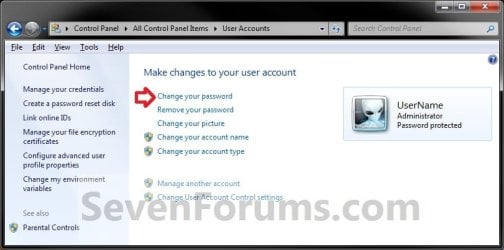
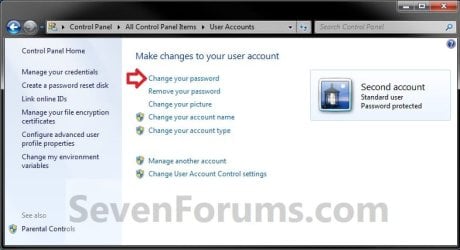
3. Type in your current password that you created previously, type in the new password once, twice to confirm new password, an optional password hint, then click on Change password. (see screenshots below)
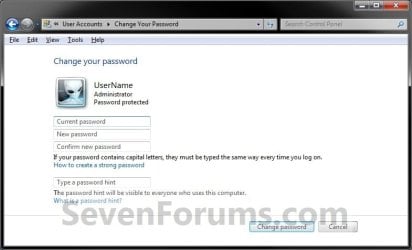
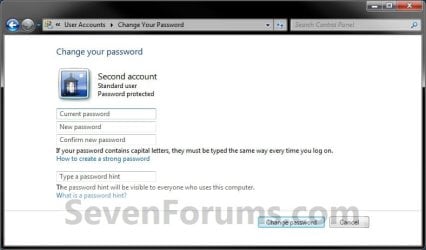
4. When finished, you can now close the User Accounts window if you like. (see screenshots below step 2)
OPTION TWO
To Change the Password for Another User Account in "User Accounts"
NOTE: You must be logged in as administrator to be able to change another account's password.
2. Open the Control Panel (icons view), and click on User Accounts.
3. Click on Manage another account. (see screenshots below)
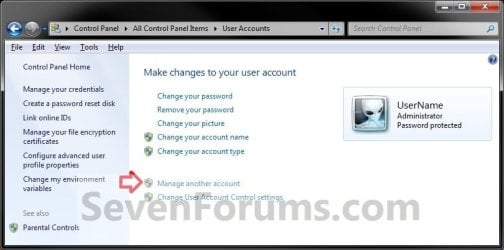
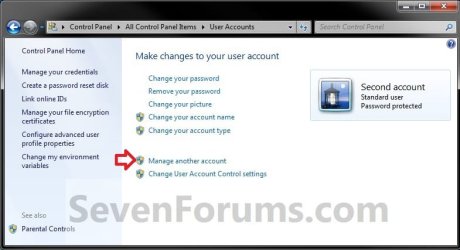
4. If prompted by UAC, then click on Yes (if logged in as administrator) or type in the administrator's password (if logged in as standard user).
5. Select the user account that you want to change the password of. (see screenshot below)
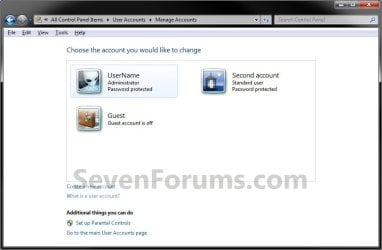
6. Click on Change the password. (see screenshot below)

7. Type in the new password once, twice to confirm new password, an optional password hint, then click on Change password. (see screenshot below)
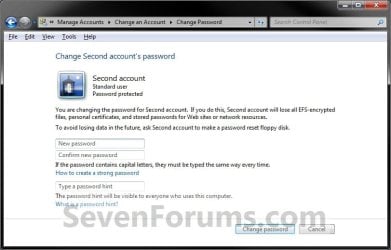
8. When finished, you can now close the Change an Account window if you like. (see screenshot below step 6)
OPTION THREE
To Change the Password for Any User Account in Command Prompt
2. Do step 3 or 4 below for which command you would prefer to use.
3. To Change User Account's Password A) In the elevated command prompt, type the command below and press Enter. (see screenshot below)
NOTE: Substitute UserName in the command below with the actual user name of the user account on the computer that you want to change the password for. Substitute NewPassword in the command below with the password you want for this user account. net user UserName NewPassword
For example: My user account's name is Brink and I want to change the password to MyPassword, so I would type this below exactly and press Enter.
net user Brink MyPassword
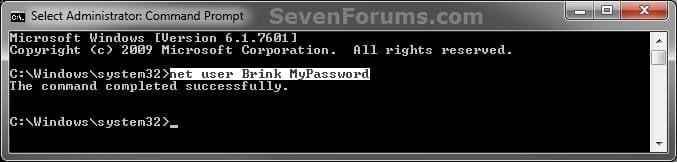
C) Go to step 5 below.
4. To Change or Remove User Account's Password
Note
To Change Password = Enter a password when prompted.
To Remove Password = Press Enter without entering a password when prompted.
To Remove Password = Press Enter without entering a password when prompted.
NOTE: Substitute UserName in the command below with the actual user name of the user account on the computer that you want to change the password for. net user UserName *
For example: My user account's name is Brink, so I would type this below exactly and press Enter.
net user Brink *
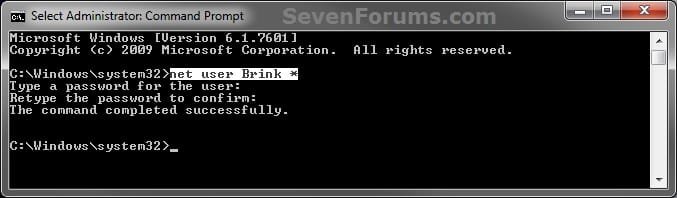
B) When prompted, enter a password twice, and press Enter after each time. (see screenshot above)
NOTE: You will not see the password as you are typing it.
C) Go to step 5 below.
5. If sucessfully changed, then you can close the elevated command prompt.
That's it,
Shawn
Related Tutorials
- How to Create a Password for a Windows 7 User Account
- How to Add or Remove Change Password from the CTRL+ALT+DEL Screen
- How to Create a Windows 7 Password Reset Disk
- How to Create a "Password Reset Wizard" Shortcut in Windows 7 and Vista
- How to Use System Restore to Change User Account Password
- How to Change the User Account Password if Unable to Login to Windows
- How to Reset the Password of a User Account in Windows 7
- How to Enable or Disable Password must meet Complexity Requirements
- How to Set Account Lockout Threshold for Invalid Logon Attempts
- How to Set Account Lockout Duration for Locked Out User Accounts
- How to Set the Reset Account Lockout Counter After Setting
- How to Enable or Disable Password Expiration for a User in Windows 7
- How to Change the Maximum and Minimum Password Age in Windows 7
- How to Enable or Disable Windows 7 Password History Enforcement
- How to Change the Time to Warn a User to Change Password Before Expiration
Last edited: