How to Add or Remove User Accounts from Groups in Vista, Windows 7, and Windows 8
Information
This will show you how to limit the ability of users to be able to perform certain actions by adding or removing their user accounts from being a member of groups and the group's default rights and permissions. Belonging to a local group gives a user the rights and abilities to perform various tasks on the local computer.
You can add local user accounts, domain user accounts, computer accounts, and group accounts to local groups.
You must be logged in as an administrator to be able to do this tutorial.
You can add local user accounts, domain user accounts, computer accounts, and group accounts to local groups.
You must be logged in as an administrator to be able to do this tutorial.
Warning
Be sure to always have at least one user account that is a member of the Administrators group. You will lose access to everything that a standard user (Users group) cannot open if you do not.
Note
The following table provides descriptions of the default groups that are located in the Groups folder. The table also lists the default user rights for each group. These user rights are assigned in the local security policy.
Group
|
Description
|
Default user rights
|Members of this group have full control of the computer, and they can assign user rights and access control permissions to users as necessary. The Administrator account is a default member of this group. When a computer is joined to a domain, the Domain Admins group is added to this group automatically. Because this group has full control of the computer, use caution when you add users to it.|Adjust memory quotas for a process , Allow logon locally , Allow logon through Remote Desktop Services , Back up files and directories , Bypass traverse checking , Change the system time , Change the time zone , Create a page file , Create global objects , Create symbolic links , Debug programs , Force shutdown from a remote system , Impersonate a client after authentication , Increase scheduling priority , Load and unload device drivers , Log on as a batch job , Manage auditing and security log , Modify firmware environment variables , Perform volume maintenance tasks , Profile single process , Profile system performance , Remove computer from docking station , Restore files and directories , Shut down the system , Take ownership of files or other objects
|Members of this group can back up and restore files on a computer, regardless of any permissions that protect those files. This is because the right to perform a backup takes precedence over all file permissions. Members of this group cannot change security settings.|Access this computer from the network , Allow logon locally , Back up files and directories , Bypass traverse checking , Log on as a batch job , Restore files and directories , Shut down the system
|Members of this group are authorized to perform cryptographic operations.|No default user rights
|Members of this group are allowed to start, activate, and use DCOM objects on a computer.|No default user rights
|Members of this group have a temporary profile created at log on, and when the member logs off, the profile is deleted. The Guest account (which is disabled by default) is also a default member of this group.|No default user rights
|This is a built-in group that is used by Internet Information Services (IIS).| No default user rights
|Members of this group can make changes to TCP/IP settings, and they can renew and release TCP/IP addresses. This group has no default members.|No default user rights
|Members of this group can manage performance counters, logs, and alerts on a computer — both locally and from remote clients — without being a member of the Administrators group.|No default user rights
|Members of this group can monitor performance counters on a computer — locally and from remote clients — without being a member of the Administrators group or the Performance Log Users groups|No default user rights
|By default, members of this group have no more user rights or permissions than a standard user account. The Power Users group in previous versions of Windows was designed to give users specific administrator rights and permissions to perform common system tasks. In this version of Windows, standard user accounts inherently have the ability to perform most common configuration tasks, such as changing time zones. For legacy applications that require the same Power User rights and permissions that were present in previous versions of Windows, administrators can apply a security template that enables the Power Users group to assume the same rights and permissions that were present in previous versions of Windows.|No default user rights
|Members of this group can log on to the computer remotely.|Allow logon through Remote Desktop Services
|This group supports replication functions. The only member of the Replicator group should be a domain user account that is used to log on the Replicator services of a domain controller. Do not add user accounts of actual users to this group.|No default user rights
|Members of this group can perform common tasks, such as running applications, using local and network printers, and locking the computer. Members of this group cannot share directories or create local printers. By default, the Domain Users, Authenticated Users, and Interactive groups are members of this group. Therefore, any user account that is created in the domain becomes a member of this group.|Access this computer from the network , Allow logon locally , Bypass traverse checking , Change the time zone , Increase a process working set , Remove the computer from a docking station , Shut down the system
|Members of this group can offer Remote Assistance to the users of this computer.|No default user rights
Administrators
|Members of this group have full control of the computer, and they can assign user rights and access control permissions to users as necessary. The Administrator account is a default member of this group. When a computer is joined to a domain, the Domain Admins group is added to this group automatically. Because this group has full control of the computer, use caution when you add users to it.|Adjust memory quotas for a process , Allow logon locally , Allow logon through Remote Desktop Services , Back up files and directories , Bypass traverse checking , Change the system time , Change the time zone , Create a page file , Create global objects , Create symbolic links , Debug programs , Force shutdown from a remote system , Impersonate a client after authentication , Increase scheduling priority , Load and unload device drivers , Log on as a batch job , Manage auditing and security log , Modify firmware environment variables , Perform volume maintenance tasks , Profile single process , Profile system performance , Remove computer from docking station , Restore files and directories , Shut down the system , Take ownership of files or other objects
Backup Operators
|Members of this group can back up and restore files on a computer, regardless of any permissions that protect those files. This is because the right to perform a backup takes precedence over all file permissions. Members of this group cannot change security settings.|Access this computer from the network , Allow logon locally , Back up files and directories , Bypass traverse checking , Log on as a batch job , Restore files and directories , Shut down the system
Cryptographic Operators
|Members of this group are authorized to perform cryptographic operations.|No default user rights
Distributed COM Users
|Members of this group are allowed to start, activate, and use DCOM objects on a computer.|No default user rights
Guests
|Members of this group have a temporary profile created at log on, and when the member logs off, the profile is deleted. The Guest account (which is disabled by default) is also a default member of this group.|No default user rights
IIS_IUSRS
|This is a built-in group that is used by Internet Information Services (IIS).| No default user rights
Network Configuration Operators
|Members of this group can make changes to TCP/IP settings, and they can renew and release TCP/IP addresses. This group has no default members.|No default user rights
Performance Log Users
|Members of this group can manage performance counters, logs, and alerts on a computer — both locally and from remote clients — without being a member of the Administrators group.|No default user rights
Performance Monitor Users
|Members of this group can monitor performance counters on a computer — locally and from remote clients — without being a member of the Administrators group or the Performance Log Users groups|No default user rights
Power Users
|By default, members of this group have no more user rights or permissions than a standard user account. The Power Users group in previous versions of Windows was designed to give users specific administrator rights and permissions to perform common system tasks. In this version of Windows, standard user accounts inherently have the ability to perform most common configuration tasks, such as changing time zones. For legacy applications that require the same Power User rights and permissions that were present in previous versions of Windows, administrators can apply a security template that enables the Power Users group to assume the same rights and permissions that were present in previous versions of Windows.|No default user rights
Remote Desktop Users
|Members of this group can log on to the computer remotely.|Allow logon through Remote Desktop Services
Replicator
|This group supports replication functions. The only member of the Replicator group should be a domain user account that is used to log on the Replicator services of a domain controller. Do not add user accounts of actual users to this group.|No default user rights
Users (Standard user)
|Members of this group can perform common tasks, such as running applications, using local and network printers, and locking the computer. Members of this group cannot share directories or create local printers. By default, the Domain Users, Authenticated Users, and Interactive groups are members of this group. Therefore, any user account that is created in the domain becomes a member of this group.|Access this computer from the network , Allow logon locally , Bypass traverse checking , Change the time zone , Increase a process working set , Remove the computer from a docking station , Shut down the system
Offer Remote Assistance Helpers
|Members of this group can offer Remote Assistance to the users of this computer.|No default user rights
OPTION ONE
Through "Users" Folder in Local Users and Groups
1. Open Local Users and Groups, and click on the Users folder in the left pane. (see screenshot below)
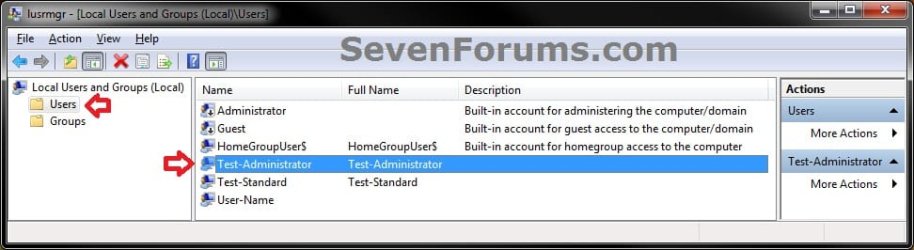
2. In the middle pane, double click on a user account name that you want to add or remove a user from being a member of groups. (see screenshot above)
3. To Remove a User Account from being a Member of a Group
A) Click on the Member Of tab. (see screenshot below)
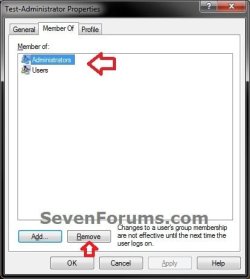
B) Select (highlight) the group(s) that you want to remove the user from being a member of, and click on the Remove button. (see screenshot above)
NOTE: You can press and hold the CTRL key to select more than one listed group.
C) When finished, click on OK. (see screenshot below)
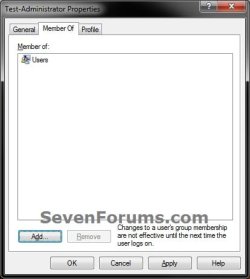
4. To Add a User Account to be a Member of a Group
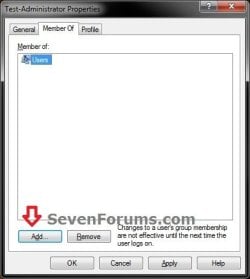
A) Click on the Member Of tab, and click on the Add button. (see screenshot below)
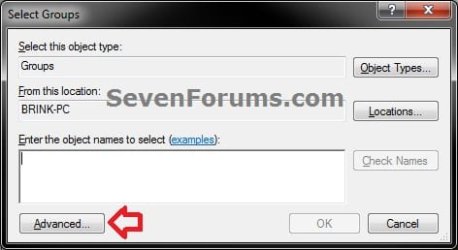
B) Click on the Advanced button. (see screenshot below)
C) Click on the Find Now button. (see screenshot below)
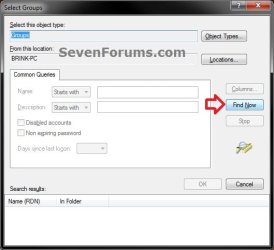
D) In the bottom pane under Search results, select the group(s) that you want to add the user account to be a member of and click on OK. (see screenshot below)
NOTE: You can press and hold the CTRL key to select more than one listed group

E) Click on OK. (see screenshot below)
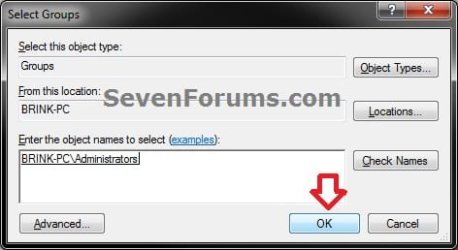
F) When finished, click on OK. (see screenshot below)
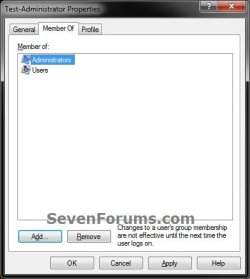
5. When finished, close the Local Users and Groups window. (see screenshot below step 1)
OPTION TWO
Through "Groups" Folder in Local Users and Groups
1. Open Local Users and Groups, and click on the Groups folder in the left pane. (see screenshot below)
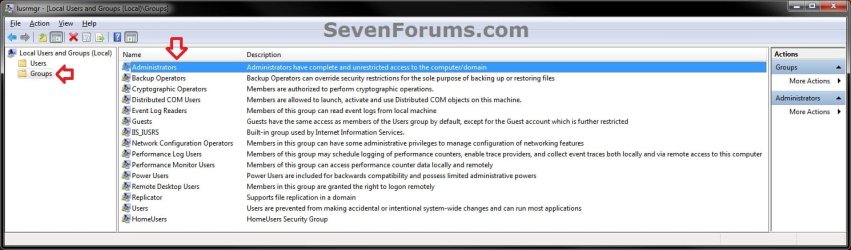
2. In the middle pane, double click on a group that you want to add or remove a user account from being a member of. (see screenshot above)
3. To Remove a User Account from being a Member of a Group
A) Select (highlight) the user account name(s) that you want to remove the from being a member of this group, and click on the Remove button. (see screenshot below)
NOTE: You can press and hold the CTRL key to select more than one listed group.
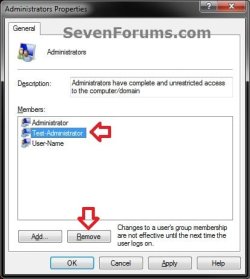
B) When finished, click on OK. (see screenshot below)
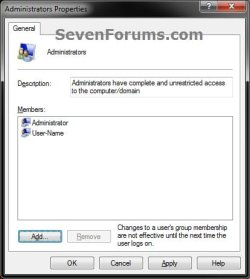
4. To Add a User Account to be a Member of a Group
A) Click on the Add button. (see screenshot below)
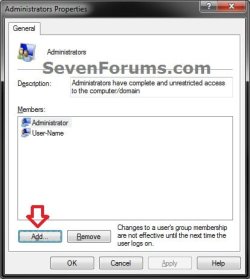
B) Click on the Advanced button. (see screenshot below)
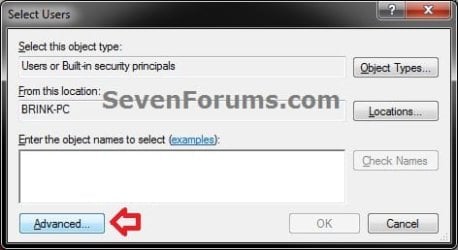
C) Click on the Find Now button. (see screenshot below)
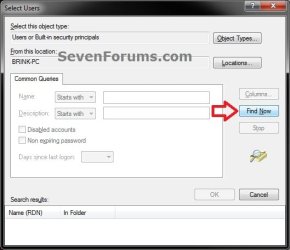
D) In the bottom pane under Search results, select the user account name(s) that you want to add to be a member of this group and click on OK. (see screenshot below)
NOTE: You can press and hold the CTRL key to select more than one listed user account.
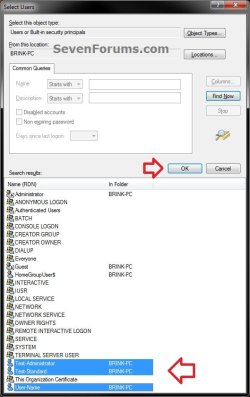
E) Click on OK. (see screenshot below)
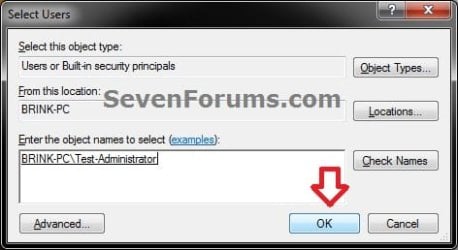
F) When finished, click on OK. (see screenshot below)
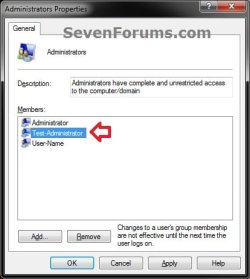
5. When finished, close the Local Users and Groups window. (see screenshot below step 1)
OPTION THREE
Using an Elevated Command Prompt
1. Open an elevated command prompt.
2. To Add a User Account to be a Member of a Group
A) In the elevated command prompt, type the command below and press Enter. (see screenshot below)
Note
You would substitute the items in red in the command below with this:
GroupName = The actual name of the group.
ComputerName = The computer name or domain name that the user account is located on within quotes.
UserName = The actual name of the user account.
GroupName = The actual name of the group.
ComputerName = The computer name or domain name that the user account is located on within quotes.
UserName = The actual name of the user account.
net localgroup "GroupName" ComputerName\UserName /add
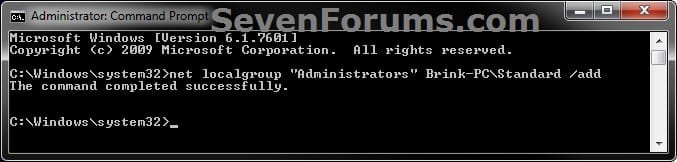
For example: If I wanted to add the user account named Standard to be a member of the Administrators group on my computer named Brink-PC, I would type the command below and press Enter.
net localgroup "Administrators" Brink-PC\Standard /add
B) Go to step 4.
3. To Remove a User Account from being a Member of a Group
A) In the elevated command prompt, type the command below and press Enter. (see screenshot below)
Note
You would substitute the items in red in the command below with this:
GroupName = The actual name of the group.
ComputerName = The computer name or domain name that the user account is located on within quotes.
UserName = The actual name of the user account.
GroupName = The actual name of the group.
ComputerName = The computer name or domain name that the user account is located on within quotes.
UserName = The actual name of the user account.
net localgroup "GroupName" ComputerName\UserName /delete
For example: If I wanted to remove the user account named Standard from being a member of the Administrators group on my computer named Brink-PC, I would type the command below and press Enter.
net localgroup "Administrators" Brink-PC\Standard /delete

B) Go to step 4.
4. When finished, close the elevated command prompt.
That's it,
Shawn
Related Tutorials
- How to Create and Delete a User Group in Windows 7 and Vista
- How to Open the Local Security Policy Editor in Windows 7 and Windows 8
- How to Open Local Users and Groups in Windows 7 and Windows 8
- How to Change a User Account Type in Windows 7
- How to Enable or Disable a User Account in Windows 7
- How to Allow or Deny Permissions to Users and Groups
- How to Add or Remove Users and Groups from "User Rights Assignment"
- How to Allow or Prevent Users and Groups to Shut Down the Computer
- How to Allow or Prevent Users and Groups to Take Ownership
- How to Allow or Prevent Specific Users and Groups from Changing the Date and Time
- How to Allow or Prevent Specific Users and Groups from Changing the Time Zone
- How to Create a User Account in Windows 7
- How to Delete a User Account in Windows 7
- How to Change Behavior of User Account Control (UAC) Prompt for Administrators in Windows
- How to Change Behavior of User Account Control (UAC) Prompt for Standard Users
Last edited: