User Folders - Restore Default Location

How to Restore Default Location of User Folders in Windows 7 and Windows 8

   Information
This will show you how to restore the default location of all or a single user folder of your choice in Windows 7 and Windows 8.

   Note
If you have duplicate user folders instead, then you will need to backup the contents of the duplicate user folders, do OPTION TWO below, delete the duplicate folders, then you may need to restart the computer a couple of times first before the default location is restored.

Windows 8.1 Update released on April 8th 2014 via Windows Update, renamed SkyDrive to OneDrive.


CONTENTS:
  • Option One: To Restore Default Location of User Folders in Properties
  • Option Two: To Restore Default Location of User Folders using a BAT file


EXAMPLE: User folders
NOTE: This is at the default C:\Users\(user-name) location.
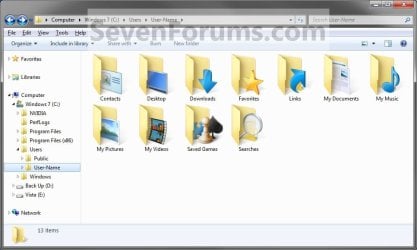
Example1.jpg

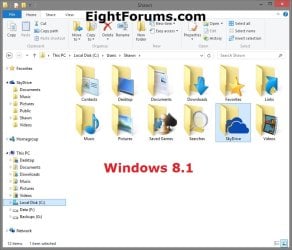
Windows_8.1.jpg


OPTION ONE

To Restore Default Location of User Folders in Properties


NOTE: If using this option does not restore the user folder back to the default location, then use OPTION TWO below instead.
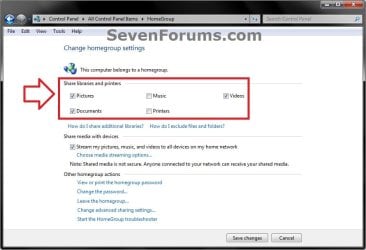
1. If you are in a homegroup, then you will need to change the homegroup settings to no longer share the user folder (ex: My Music) that you want to move first by unchecking the folder and clicking on Save Changes. (see screenshot below)
NOTE: This is so the user folder (ex: My Music) will not be shared on the homegroup anymore.
Homegroup.jpg
2. Press the Windows+R keys to open the Run dialog, type shell:UsersFilesFolder, and press enter.
NOTE: This will open your C:\Users\(user-name) folder.

3. Right click or press and hold on the user folder (ex: My Music) that you want to restore the default location for, and click/tap on Properties.

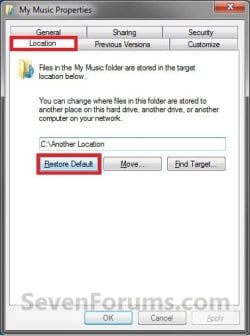
4. Click/tap on the Location tab, and Restore Default button. (See screenshot below)
Properties1.jpg
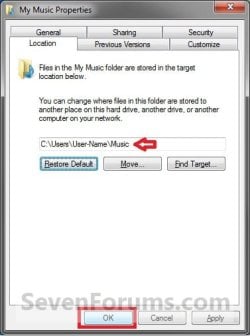
5. Click/tap on OK. (See screenshot below)
NOTE: Notice that the location has changed to the default C:\Users\(user-name) location.
Properties2.jpg
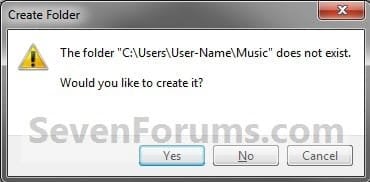
6. Click/tap on Yes. (See screenshot below)
Properties3.jpg

   Note
If you have a folder in the default location named for the user folder already, then you will not see this dialog box.

Windows 8 will not have the "My" in front of the user folder name anymore.

User Folder | Folder Name Contacts |Contacts
Desktop |Desktop
My Documents |Documents
Downloads |Downloads
Favorites |Favorites
Links |Links
My Music |Music
My Pictures |Pictures
OneDrive (Windows 8.1 Update)|OneDrive
Saved Games |Saved Games
Searches |Searches
SkyDrive (Windows 8.1)|SkyDrive
My Videos |Videos


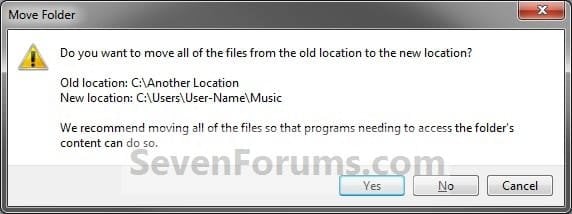
7. Click/tap on Yes. (See screenshot below)
WARNING: If you do not click/tap on Yes, then you will have two copies of this user folder at the C:\Users\(user-name) location. One will be a normal folder (same name) with the contents and the other as the now restored user folder. It is recommended that you click/tap on YES.
Properties4.jpg
8. After a few seconds when the location has been restored, the Properties window (screenshot under step 5) will then close.

9. If you are in a homegroup, then you can now change the homegroup settings back to share the user folder (ex: My Music) again if you like by checking the folder and clicking on Save Changes. (see screenshot below)
Homegroup.jpg


OPTION TWO

To Restore Default Location of User Folders using a BAT file


   Note
This is an example of the contents of the .bat files below. The parts in red are what will vary per .bat file based on what user folder it is for.

Code:
@echo off 
 
taskkill /f /im explorer.exe
 
timeout /t 2 /nobreak >nul
 
if not exist "%UserProfile%\[B][COLOR=red]Pictures[/COLOR][/B]" mkdir "%UserProfile%\[COLOR=red][B]Pictures[/B][/COLOR]"
 
reg add "HKCU\Software\Microsoft\Windows\CurrentVersion\Explorer\Shell Folders" /v "[COLOR=red][B]My Pictures[/B][/COLOR]" /t REG_SZ /d "C:\Users\%USERNAME%\[COLOR=red][B]Pictures[/B][/COLOR]" /f
 
reg add "HKCU\Software\Microsoft\Windows\CurrentVersion\Explorer\User Shell Folders" /v "[COLOR=red][B]My Pictures[/B][/COLOR]" /t REG_EXPAND_SZ /d %%USERPROFILE%%"\[COLOR=red][B]Pictures[/B][/COLOR]" /f
 
attrib +r -s -h "%USERPROFILE%\[COLOR=red][B]Pictures[/B][/COLOR]" /S /D
 
timeout /t 1 /nobreak >nul
 
start explorer.exe


1. Do step 2 to 13 below for what user folder you need to restore the default location of.


2. To Restore the Default Contacts Folder Location
A) Click/tap on the download button below to download the file below, and go to step 14 below.

Restore_Contacts_Default_Location.bat


Download


3. To Restore the Default Desktop Folder Location
A) Click/tap on the download button below to download the file below, and go to step 14 below.

Restore_Desktop_Default_Location.bat


Download


4. To Restore the Default My Documents Folder Location
A) Click/tap on the download button below to download the file below, and go to step 14 below.

Restore_Documents_Default_Location.bat


Download


5. To Restore the Default Downloads Folder Location
A) Click/tap on the download button below to download the file below, and go to step 14 below.

Restore_Downloads_Default_Location.bat


Download


6. To Restore the Default Favorites Folder Location
A) Click/tap on the download button below to download the file below, and go to step 14 below.

Restore_Favorites_Default_Location.bat


Download


7. To Restore the Default Links Folder Location
A) Click/tap on the download button below to download the file below, and go to step 14 below.

Restore_Links_Default_Location.bat


Download


8. To Restore the Default My Music Folder Location
A) Click/tap on the download button below to download the file below, and go to step 14 below.

Restore_Music_Default_Location.bat


Download


9. To Restore Default OneDrive Folder Location in Windows 8.1 Update
A) Click/tap on the download button below to download the file below, and go to step 14 below.

Restore_OneDrive_Default_Location.bat


Download


10. To Restore the Default My Pictures Folder Location
A) Click/tap on the download button below to download the file below, and go to step 14 below.

Restore_Pictures_Default_Location.bat


Download


11. To Restore the Default Saved Games Folder Location
A) Click/tap on the download button below to download the file below, and go to step 14 below.

Restore_Saved_Games_Default_Location.bat


Download


12. To Restore the Default Searches Folder Location
A) Click/tap on the download button below to download the file below, and go to step 14 below.

Restore_Searches_Default_Location.bat


Download


13. To Restore the Default My Videos Folder Location
A) Click/tap on the download button below to download the file below, and go to step 14 below.

Restore_Videos_Default_Location.bat


Download


14. Save the .bat file to your Desktop.

15. Unblock the downloaded .bat file(s).

16. Double click/tap on the downloaded .bat file to run it.

17. The .bat file will now kill explorer causing your screen to go blank, then open a command prompt to quickly restore the default location of the folder in the registry, restore the default attributes of the folder, restart explorer, and close the command prompt.

18. Repeat step 1 above for any other user folder you need to restore the default location of.

19. When finished, check the user folder(s) to verify that they have been restored to their default location.

20. If the user folder(s) still have not been restored to their default locations, then restart the computer and check again.

21. When restored, copy your files from the old folder location back into your now restored default folder location in "C:\Users\(user-name)".


That's it,
Shawn


Attachments

Last edited:
Hi Brink

Double checked and doing everything correct. In the end did a system restore and am back to the default locations now!

Cheers

John


That's great news John. I'm happy to hear that you got it sorted. :)
 

My Computer

Computer type
PC/Desktop
Computer Manufacturer/Model Number
Self built custom
OS
64-bit Windows 11 Pro for Workstations
CPU
Intel i7-8700K OC'd to 5 GHz
Motherboard
ASUS ROG Maximus XI Formula Z390
Memory
64 GB (4x16GB) G.SKILL TridentZ RGB DDR4 3600 MHz
Graphics Card(s)
ASUS ROG-STRIX-GTX1080TI-O11G-GAMING
Sound Card
Integrated
Monitor(s) Displays
2 x Samsung Odyssey G7 27"
Screen Resolution
2560x1440
Hard Drives
1TB Samsung 990 PRO M.2,
4TB Samsung 990 PRO PRO M.2,
TerraMaster F8 SSD Plus NAS
PSU
Seasonic Prime Titanium 850W
Case
Thermaltake Core P3
Cooling
Corsair Hydro H115i
Keyboard
Logitech wireless K800
Mouse
Logitech MX Master 4
Internet Speed
2 Gb/s Download and 100 Mb/s Upload
Antivirus
Malwarebyte Anti-Malware Premium
Browser
Google Chrome
Other Info
Logitech Z625 speaker system,
Logitech BRIO 4K Pro webcam,
HP Color LaserJet Pro MFP M477fdn,
APC SMART-UPS RT 1000 XL - SURT1000XLI,
Galaxy S23 Plus phone
Thank you so very much!

I've been searching for a week or two for a decent (correct and easy to follow) answer to this issue.

Seven.
(Not named after the system, I feel I must add.)
 

My Computer

OS
Windows 7 Premium 32bit
You're most welcome Seven, and welcome to Seven Forums. :)
 

My Computer

Computer type
PC/Desktop
Computer Manufacturer/Model Number
Self built custom
OS
64-bit Windows 11 Pro for Workstations
CPU
Intel i7-8700K OC'd to 5 GHz
Motherboard
ASUS ROG Maximus XI Formula Z390
Memory
64 GB (4x16GB) G.SKILL TridentZ RGB DDR4 3600 MHz
Graphics Card(s)
ASUS ROG-STRIX-GTX1080TI-O11G-GAMING
Sound Card
Integrated
Monitor(s) Displays
2 x Samsung Odyssey G7 27"
Screen Resolution
2560x1440
Hard Drives
1TB Samsung 990 PRO M.2,
4TB Samsung 990 PRO PRO M.2,
TerraMaster F8 SSD Plus NAS
PSU
Seasonic Prime Titanium 850W
Case
Thermaltake Core P3
Cooling
Corsair Hydro H115i
Keyboard
Logitech wireless K800
Mouse
Logitech MX Master 4
Internet Speed
2 Gb/s Download and 100 Mb/s Upload
Antivirus
Malwarebyte Anti-Malware Premium
Browser
Google Chrome
Other Info
Logitech Z625 speaker system,
Logitech BRIO 4K Pro webcam,
HP Color LaserJet Pro MFP M477fdn,
APC SMART-UPS RT 1000 XL - SURT1000XLI,
Galaxy S23 Plus phone
I really need some help. I have only had my pc 2 days, am new to 7, and have lost the luckily empty My Pictures folder and icon from user name folder. I was experimenting to see if anything I save in My Pictures could save on the removable D HD, rather than the usual C.

I right clicked on My Pictures in user name folder > Properties > Location. Then I clicked on 'Move', and another window opened, and I clicked on DATA (D) from the list on second window. This entered (D) in the box on the first window instead of C:\Users\Ian\Pictures. In hindsight, I probably should have clicked on 'Find Target' to make any pictures saved to My Pictures store on D HD, instead of C??

Anyway, the My Pictures folder and icon completely changed. The Icon changed to an icon of a hard drive, and the wording underneath changed to DATA (D). I tried to use 'Restore Default', but it said there were no restore defaults. This may be because the pc has only been on 2 days, and doesn't have any restore points yet? It was impossible to get the My Pictures folder back to how it was, or even get it's location back to C:\Users\Ian\Pictures.

Anyway, I used option 2 on page one of this thread, and everything was perfect, until step 25. It says if the user file is missing, create a new one and name it 'Pictures'. Trouble is, if I try to create a new folder called Pictures in user name folder, a 'Confirm Folder Replace' box appears saying 'This destination already contains a folder named pictures........... Do you want to merge this folder (image of folder).......with this one (image of another folder)? Clicking Yes, makes the new folder disappear, clicking no just means the name stays as 'New Folder'.

I have used command prompts twice, restarted several times, but it doesn't work. Am I right that until I can get a folder in User Name folder named 'Pictures', then the link from registry won't be made, and I won't ever get My Pictures restored?

Two Points;
1) I have checked Regedit, and the line for My Pictures is exactly how it should be, ie. My Pictures REG_SZ C:\Users\Ian\Pictures

2) If I type 'Pictures' in the start menu search box, it comes up with a file called 'Pictures'. Clicking on this brings up a new window and in the address bar at the top it says - Computer>Acer(C)>Users>Default>Pictures. Under the details headings, it says 'This Folder Is Empty'.
If I type 'My Pictures' in start menu search, I get a 'My Pictures' file in the results, with the correct My pictures folder icon that I have lost, to the left of it. Clicking on it opens a new window, and address bar reads Libraries>Pictures Lib>My Pictures, and says below 'This Folder Is Empty'.
I wonder if these 2 files/folders that appear in search results are the reason why I am being told that there is already a folder called Pictures, when I try to rename a new folder in user name folder?

Apologies for the essay, but I would really appreciate help to get the My Pictures folder back as it was. Thanks in advance to Brink, who is probably the expert I need.
 

My Computer

Computer type
PC/Desktop
Computer Manufacturer/Model Number
Acer Aspire Desktop M3910
OS
Windows 7 Home Premium 64 bit SP1
CPU
Intel i3 540
Memory
3GB DDR3SD
Monitor(s) Displays
LG Flatron L1960TR
Screen Resolution
1280x1024
Keyboard
Acer
Mouse
Genius
Antivirus
Avast (Free)
Browser
I E 11
Hello Woodbine,

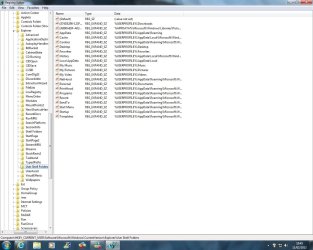
Could you post a screenshot of your opened C:\Users\Ian folder with all hidden files set to show, and both registry locations (step 18 and in NOTE at top of OPTION TWO) to see if anything may stand out?
 

My Computer

Computer type
PC/Desktop
Computer Manufacturer/Model Number
Self built custom
OS
64-bit Windows 11 Pro for Workstations
CPU
Intel i7-8700K OC'd to 5 GHz
Motherboard
ASUS ROG Maximus XI Formula Z390
Memory
64 GB (4x16GB) G.SKILL TridentZ RGB DDR4 3600 MHz
Graphics Card(s)
ASUS ROG-STRIX-GTX1080TI-O11G-GAMING
Sound Card
Integrated
Monitor(s) Displays
2 x Samsung Odyssey G7 27"
Screen Resolution
2560x1440
Hard Drives
1TB Samsung 990 PRO M.2,
4TB Samsung 990 PRO PRO M.2,
TerraMaster F8 SSD Plus NAS
PSU
Seasonic Prime Titanium 850W
Case
Thermaltake Core P3
Cooling
Corsair Hydro H115i
Keyboard
Logitech wireless K800
Mouse
Logitech MX Master 4
Internet Speed
2 Gb/s Download and 100 Mb/s Upload
Antivirus
Malwarebyte Anti-Malware Premium
Browser
Google Chrome
Other Info
Logitech Z625 speaker system,
Logitech BRIO 4K Pro webcam,
HP Color LaserJet Pro MFP M477fdn,
APC SMART-UPS RT 1000 XL - SURT1000XLI,
Galaxy S23 Plus phone
Hi Brink

Here are the screen shots. I notice that in the shot of my user name file, with hidden files set to show, the 'Pictures' folder has miraculously appeared. Hope this is a good sign.

Ian
 

Attachments

  • Regedit - Shell Folders.jpg
    Regedit - Shell Folders.jpg
    333.1 KB · Views: 306
  • Regedit - User Shell Folders.jpg
    Regedit - User Shell Folders.jpg
    305.2 KB · Views: 425
  • User Name Hidden Files.jpg
    User Name Hidden Files.jpg
    122.2 KB · Views: 530

My Computer

Computer type
PC/Desktop
Computer Manufacturer/Model Number
Acer Aspire Desktop M3910
OS
Windows 7 Home Premium 64 bit SP1
CPU
Intel i3 540
Memory
3GB DDR3SD
Monitor(s) Displays
LG Flatron L1960TR
Screen Resolution
1280x1024
Keyboard
Acer
Mouse
Genius
Antivirus
Avast (Free)
Browser
I E 11
Ian,

Yep, that would be why you are getting the message that you already have a Pictures folder then. See if doing steps 22-24 again with the command below will unhide the Pictures folder. If so, then restart the computer afterwards to see if it will appear as the normal My Pictures folder with the correct icon afterwards. :)

attrib +r -s -h "%USERPROFILE%\Pictures" /S /D
 
Last edited:

My Computer

Computer type
PC/Desktop
Computer Manufacturer/Model Number
Self built custom
OS
64-bit Windows 11 Pro for Workstations
CPU
Intel i7-8700K OC'd to 5 GHz
Motherboard
ASUS ROG Maximus XI Formula Z390
Memory
64 GB (4x16GB) G.SKILL TridentZ RGB DDR4 3600 MHz
Graphics Card(s)
ASUS ROG-STRIX-GTX1080TI-O11G-GAMING
Sound Card
Integrated
Monitor(s) Displays
2 x Samsung Odyssey G7 27"
Screen Resolution
2560x1440
Hard Drives
1TB Samsung 990 PRO M.2,
4TB Samsung 990 PRO PRO M.2,
TerraMaster F8 SSD Plus NAS
PSU
Seasonic Prime Titanium 850W
Case
Thermaltake Core P3
Cooling
Corsair Hydro H115i
Keyboard
Logitech wireless K800
Mouse
Logitech MX Master 4
Internet Speed
2 Gb/s Download and 100 Mb/s Upload
Antivirus
Malwarebyte Anti-Malware Premium
Browser
Google Chrome
Other Info
Logitech Z625 speaker system,
Logitech BRIO 4K Pro webcam,
HP Color LaserJet Pro MFP M477fdn,
APC SMART-UPS RT 1000 XL - SURT1000XLI,
Galaxy S23 Plus phone
OK. Done steps 22 - 24, and pasted the line in your post to the command prompt. Restarted pc twice, but no luck. Folder still not reappeared. :(
 

My Computer

Computer type
PC/Desktop
Computer Manufacturer/Model Number
Acer Aspire Desktop M3910
OS
Windows 7 Home Premium 64 bit SP1
CPU
Intel i3 540
Memory
3GB DDR3SD
Monitor(s) Displays
LG Flatron L1960TR
Screen Resolution
1280x1024
Keyboard
Acer
Mouse
Genius
Antivirus
Avast (Free)
Browser
I E 11
Is the "Pictures" folder unhidden now (not grayed out) ?
 

My Computer

Computer type
PC/Desktop
Computer Manufacturer/Model Number
Self built custom
OS
64-bit Windows 11 Pro for Workstations
CPU
Intel i7-8700K OC'd to 5 GHz
Motherboard
ASUS ROG Maximus XI Formula Z390
Memory
64 GB (4x16GB) G.SKILL TridentZ RGB DDR4 3600 MHz
Graphics Card(s)
ASUS ROG-STRIX-GTX1080TI-O11G-GAMING
Sound Card
Integrated
Monitor(s) Displays
2 x Samsung Odyssey G7 27"
Screen Resolution
2560x1440
Hard Drives
1TB Samsung 990 PRO M.2,
4TB Samsung 990 PRO PRO M.2,
TerraMaster F8 SSD Plus NAS
PSU
Seasonic Prime Titanium 850W
Case
Thermaltake Core P3
Cooling
Corsair Hydro H115i
Keyboard
Logitech wireless K800
Mouse
Logitech MX Master 4
Internet Speed
2 Gb/s Download and 100 Mb/s Upload
Antivirus
Malwarebyte Anti-Malware Premium
Browser
Google Chrome
Other Info
Logitech Z625 speaker system,
Logitech BRIO 4K Pro webcam,
HP Color LaserJet Pro MFP M477fdn,
APC SMART-UPS RT 1000 XL - SURT1000XLI,
Galaxy S23 Plus phone
With all hidden files set to 'show', it looks like it's grayed/faded.

Ian
 

Attachments

  • User Name Hidden Files No2.jpg
    User Name Hidden Files No2.jpg
    125.3 KB · Views: 310

My Computer

Computer type
PC/Desktop
Computer Manufacturer/Model Number
Acer Aspire Desktop M3910
OS
Windows 7 Home Premium 64 bit SP1
CPU
Intel i3 540
Memory
3GB DDR3SD
Monitor(s) Displays
LG Flatron L1960TR
Screen Resolution
1280x1024
Keyboard
Acer
Mouse
Genius
Antivirus
Avast (Free)
Browser
I E 11
Could you show a screenshot of this opened from the actual C:\Users\Ian folder location (manually navigate to) instead of the Favorites "Ian" link to it?
 

My Computer

Computer type
PC/Desktop
Computer Manufacturer/Model Number
Self built custom
OS
64-bit Windows 11 Pro for Workstations
CPU
Intel i7-8700K OC'd to 5 GHz
Motherboard
ASUS ROG Maximus XI Formula Z390
Memory
64 GB (4x16GB) G.SKILL TridentZ RGB DDR4 3600 MHz
Graphics Card(s)
ASUS ROG-STRIX-GTX1080TI-O11G-GAMING
Sound Card
Integrated
Monitor(s) Displays
2 x Samsung Odyssey G7 27"
Screen Resolution
2560x1440
Hard Drives
1TB Samsung 990 PRO M.2,
4TB Samsung 990 PRO PRO M.2,
TerraMaster F8 SSD Plus NAS
PSU
Seasonic Prime Titanium 850W
Case
Thermaltake Core P3
Cooling
Corsair Hydro H115i
Keyboard
Logitech wireless K800
Mouse
Logitech MX Master 4
Internet Speed
2 Gb/s Download and 100 Mb/s Upload
Antivirus
Malwarebyte Anti-Malware Premium
Browser
Google Chrome
Other Info
Logitech Z625 speaker system,
Logitech BRIO 4K Pro webcam,
HP Color LaserJet Pro MFP M477fdn,
APC SMART-UPS RT 1000 XL - SURT1000XLI,
Galaxy S23 Plus phone
Sorry Brink, I don't understand. How do I manually navigate to it? Whichever way I try, the favourites list shows on the left.

Also, I'm assuming you want 'show hidden files, folder and drives' selected/dotted?
 

My Computer

Computer type
PC/Desktop
Computer Manufacturer/Model Number
Acer Aspire Desktop M3910
OS
Windows 7 Home Premium 64 bit SP1
CPU
Intel i3 540
Memory
3GB DDR3SD
Monitor(s) Displays
LG Flatron L1960TR
Screen Resolution
1280x1024
Keyboard
Acer
Mouse
Genius
Antivirus
Avast (Free)
Browser
I E 11
Open Computer window (Windows Explorer), open the C: drive, open Users folder, etc.....

The tutorial has to be done from this exact folder location, and not from any shortcut or link to that location instead.
 

My Computer

Computer type
PC/Desktop
Computer Manufacturer/Model Number
Self built custom
OS
64-bit Windows 11 Pro for Workstations
CPU
Intel i7-8700K OC'd to 5 GHz
Motherboard
ASUS ROG Maximus XI Formula Z390
Memory
64 GB (4x16GB) G.SKILL TridentZ RGB DDR4 3600 MHz
Graphics Card(s)
ASUS ROG-STRIX-GTX1080TI-O11G-GAMING
Sound Card
Integrated
Monitor(s) Displays
2 x Samsung Odyssey G7 27"
Screen Resolution
2560x1440
Hard Drives
1TB Samsung 990 PRO M.2,
4TB Samsung 990 PRO PRO M.2,
TerraMaster F8 SSD Plus NAS
PSU
Seasonic Prime Titanium 850W
Case
Thermaltake Core P3
Cooling
Corsair Hydro H115i
Keyboard
Logitech wireless K800
Mouse
Logitech MX Master 4
Internet Speed
2 Gb/s Download and 100 Mb/s Upload
Antivirus
Malwarebyte Anti-Malware Premium
Browser
Google Chrome
Other Info
Logitech Z625 speaker system,
Logitech BRIO 4K Pro webcam,
HP Color LaserJet Pro MFP M477fdn,
APC SMART-UPS RT 1000 XL - SURT1000XLI,
Galaxy S23 Plus phone
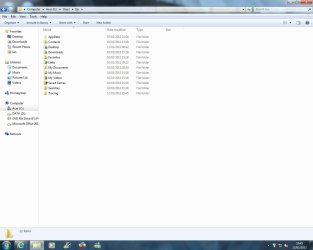
OK, think I got it. I opened Win Explorer from icon on bottom task bar. Then, using address bar at top left - Computer>Acer (C)>Users>Ian. Then I checked 'show hidden files, folders......' on Folder Options.

I notice that with hidden files showing, a grayed folder appears at the top with 'App Data'.

Has this whole restore gone wrong because I may have done it through a shortcut?

Really appreciate you sticking with it!
 

Attachments

  • User Name Hidden Files No3.jpg
    User Name Hidden Files No3.jpg
    143 KB · Views: 500

My Computer

Computer type
PC/Desktop
Computer Manufacturer/Model Number
Acer Aspire Desktop M3910
OS
Windows 7 Home Premium 64 bit SP1
CPU
Intel i3 540
Memory
3GB DDR3SD
Monitor(s) Displays
LG Flatron L1960TR
Screen Resolution
1280x1024
Keyboard
Acer
Mouse
Genius
Antivirus
Avast (Free)
Browser
I E 11
I would recommend to backup anything that you want to keep in the hidden Pictures grayed out folder from the Favorites shortcut to another location, delete that folder, then do the tutorial again at the actual C:\Users\Ian folder (above) instead to see if that may hopefully work for you now. :)
 

My Computer

Computer type
PC/Desktop
Computer Manufacturer/Model Number
Self built custom
OS
64-bit Windows 11 Pro for Workstations
CPU
Intel i7-8700K OC'd to 5 GHz
Motherboard
ASUS ROG Maximus XI Formula Z390
Memory
64 GB (4x16GB) G.SKILL TridentZ RGB DDR4 3600 MHz
Graphics Card(s)
ASUS ROG-STRIX-GTX1080TI-O11G-GAMING
Sound Card
Integrated
Monitor(s) Displays
2 x Samsung Odyssey G7 27"
Screen Resolution
2560x1440
Hard Drives
1TB Samsung 990 PRO M.2,
4TB Samsung 990 PRO PRO M.2,
TerraMaster F8 SSD Plus NAS
PSU
Seasonic Prime Titanium 850W
Case
Thermaltake Core P3
Cooling
Corsair Hydro H115i
Keyboard
Logitech wireless K800
Mouse
Logitech MX Master 4
Internet Speed
2 Gb/s Download and 100 Mb/s Upload
Antivirus
Malwarebyte Anti-Malware Premium
Browser
Google Chrome
Other Info
Logitech Z625 speaker system,
Logitech BRIO 4K Pro webcam,
HP Color LaserJet Pro MFP M477fdn,
APC SMART-UPS RT 1000 XL - SURT1000XLI,
Galaxy S23 Plus phone
OK, done it all again without short cut.

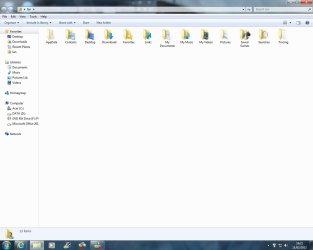
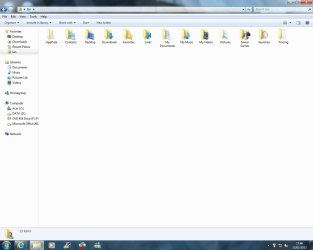
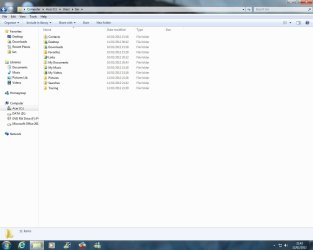
Getting a bit closer. A pictures folder has appeared.

The 2 screen shots are the user folders, with hidden files/folders not shown. All that happens if I show hidden folders, is the grayed 'appdata' folder shows up. Restarted pc 3 times.
 

Attachments

  • User Folders No Short Cut.jpg
    User Folders No Short Cut.jpg
    138 KB · Views: 394
  • User Folder Short Cut.jpg
    User Folder Short Cut.jpg
    122.1 KB · Views: 348

My Computer

Computer type
PC/Desktop
Computer Manufacturer/Model Number
Acer Aspire Desktop M3910
OS
Windows 7 Home Premium 64 bit SP1
CPU
Intel i3 540
Memory
3GB DDR3SD
Monitor(s) Displays
LG Flatron L1960TR
Screen Resolution
1280x1024
Keyboard
Acer
Mouse
Genius
Antivirus
Avast (Free)
Browser
I E 11
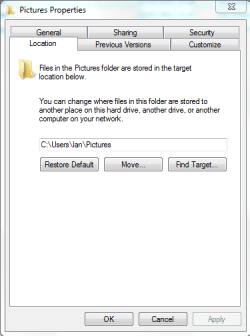
When you right click on the C:\User\Ian\Pictures folder and click on Properties, does it have a Location tab?

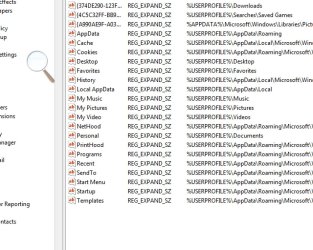
Do the registry locations here still show the same thing?
 

My Computer

Computer type
PC/Desktop
Computer Manufacturer/Model Number
Self built custom
OS
64-bit Windows 11 Pro for Workstations
CPU
Intel i7-8700K OC'd to 5 GHz
Motherboard
ASUS ROG Maximus XI Formula Z390
Memory
64 GB (4x16GB) G.SKILL TridentZ RGB DDR4 3600 MHz
Graphics Card(s)
ASUS ROG-STRIX-GTX1080TI-O11G-GAMING
Sound Card
Integrated
Monitor(s) Displays
2 x Samsung Odyssey G7 27"
Screen Resolution
2560x1440
Hard Drives
1TB Samsung 990 PRO M.2,
4TB Samsung 990 PRO PRO M.2,
TerraMaster F8 SSD Plus NAS
PSU
Seasonic Prime Titanium 850W
Case
Thermaltake Core P3
Cooling
Corsair Hydro H115i
Keyboard
Logitech wireless K800
Mouse
Logitech MX Master 4
Internet Speed
2 Gb/s Download and 100 Mb/s Upload
Antivirus
Malwarebyte Anti-Malware Premium
Browser
Google Chrome
Other Info
Logitech Z625 speaker system,
Logitech BRIO 4K Pro webcam,
HP Color LaserJet Pro MFP M477fdn,
APC SMART-UPS RT 1000 XL - SURT1000XLI,
Galaxy S23 Plus phone
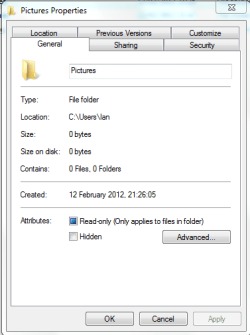
When I right right-click on pictures folder, there is a location on the window when it first appears (General). When I click location tab tab on the window, the location is slightly different - see screen shots. Don't know if this is significant.

Capture 1.PNG

Capture 2.PNG


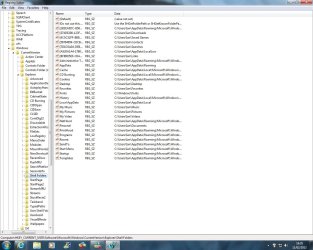
The registry locations all appear the same. I have included a shot of the 'User Shell Folders', as the coding is slightly more complex.


User Shell Folders.jpg


I'll sign off today - it's 11.15pm here - bed time! Tomorrow's another day. Thanks again Brink
 

My Computer

Computer type
PC/Desktop
Computer Manufacturer/Model Number
Acer Aspire Desktop M3910
OS
Windows 7 Home Premium 64 bit SP1
CPU
Intel i3 540
Memory
3GB DDR3SD
Monitor(s) Displays
LG Flatron L1960TR
Screen Resolution
1280x1024
Keyboard
Acer
Mouse
Genius
Antivirus
Avast (Free)
Browser
I E 11
Woodbine,

Everything looks like it's all set properly now.

Give Method Two in OPTION TWO a try in the tutorial below to try and restore the default icon.
http://www.sevenforums.com/tutorials/16312-user-folders-restore-default-icon.html
Afterward, you might restart the computer a few times and wait a day or two to see if the Pictures folder restores back to the default "My Pictures" folder. I've noticed that in bad cases like this one, it sometimes takes a day or two before it's just mysteriously restored back to default again.
 

My Computer

Computer type
PC/Desktop
Computer Manufacturer/Model Number
Self built custom
OS
64-bit Windows 11 Pro for Workstations
CPU
Intel i7-8700K OC'd to 5 GHz
Motherboard
ASUS ROG Maximus XI Formula Z390
Memory
64 GB (4x16GB) G.SKILL TridentZ RGB DDR4 3600 MHz
Graphics Card(s)
ASUS ROG-STRIX-GTX1080TI-O11G-GAMING
Sound Card
Integrated
Monitor(s) Displays
2 x Samsung Odyssey G7 27"
Screen Resolution
2560x1440
Hard Drives
1TB Samsung 990 PRO M.2,
4TB Samsung 990 PRO PRO M.2,
TerraMaster F8 SSD Plus NAS
PSU
Seasonic Prime Titanium 850W
Case
Thermaltake Core P3
Cooling
Corsair Hydro H115i
Keyboard
Logitech wireless K800
Mouse
Logitech MX Master 4
Internet Speed
2 Gb/s Download and 100 Mb/s Upload
Antivirus
Malwarebyte Anti-Malware Premium
Browser
Google Chrome
Other Info
Logitech Z625 speaker system,
Logitech BRIO 4K Pro webcam,
HP Color LaserJet Pro MFP M477fdn,
APC SMART-UPS RT 1000 XL - SURT1000XLI,
Galaxy S23 Plus phone
Brink.

Just done method two of option two, as suggested. Restarted pc twice. No joy yet. Do I need to do step 16 in method two yet (16. In Folder Options, set protected operating system files to be hidden again.), or leave it until 'My Pictures' reappears? I suppose my pc will be a mess until I do?

Also noticed that the 'Pictures' file in Ian (User Name) has an ini file in it marked 'Desktop', right-clicking it, and viewing Properties it says - 'type of file - Configuration Settings (ini).' Hope this is OK?
 

Attachments

  • 13-2 Screen Shot.jpg
    13-2 Screen Shot.jpg
    165.8 KB · Views: 400

My Computer

Computer type
PC/Desktop
Computer Manufacturer/Model Number
Acer Aspire Desktop M3910
OS
Windows 7 Home Premium 64 bit SP1
CPU
Intel i3 540
Memory
3GB DDR3SD
Monitor(s) Displays
LG Flatron L1960TR
Screen Resolution
1280x1024
Keyboard
Acer
Mouse
Genius
Antivirus
Avast (Free)
Browser
I E 11
Back
Top