User Folders - Restore Default Location

How to Restore Default Location of User Folders in Windows 7 and Windows 8

   Information
This will show you how to restore the default location of all or a single user folder of your choice in Windows 7 and Windows 8.

   Note
If you have duplicate user folders instead, then you will need to backup the contents of the duplicate user folders, do OPTION TWO below, delete the duplicate folders, then you may need to restart the computer a couple of times first before the default location is restored.

Windows 8.1 Update released on April 8th 2014 via Windows Update, renamed SkyDrive to OneDrive.


CONTENTS:
  • Option One: To Restore Default Location of User Folders in Properties
  • Option Two: To Restore Default Location of User Folders using a BAT file


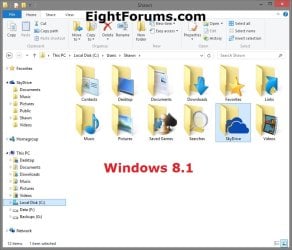
EXAMPLE: User folders
NOTE: This is at the default C:\Users\(user-name) location.
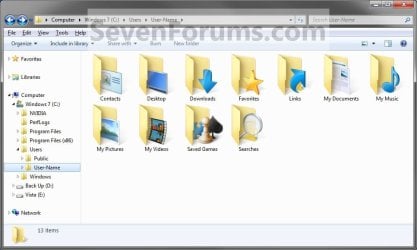
Example1.jpg

Windows_8.1.jpg


OPTION ONE

To Restore Default Location of User Folders in Properties


NOTE: If using this option does not restore the user folder back to the default location, then use OPTION TWO below instead.
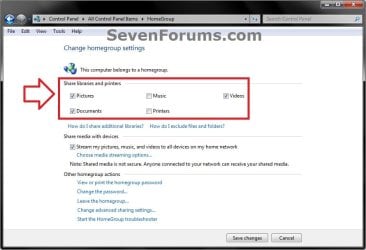
1. If you are in a homegroup, then you will need to change the homegroup settings to no longer share the user folder (ex: My Music) that you want to move first by unchecking the folder and clicking on Save Changes. (see screenshot below)
NOTE: This is so the user folder (ex: My Music) will not be shared on the homegroup anymore.
Homegroup.jpg
2. Press the Windows+R keys to open the Run dialog, type shell:UsersFilesFolder, and press enter.
NOTE: This will open your C:\Users\(user-name) folder.

3. Right click or press and hold on the user folder (ex: My Music) that you want to restore the default location for, and click/tap on Properties.

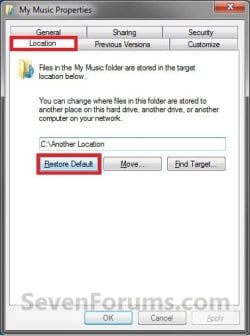
4. Click/tap on the Location tab, and Restore Default button. (See screenshot below)
Properties1.jpg
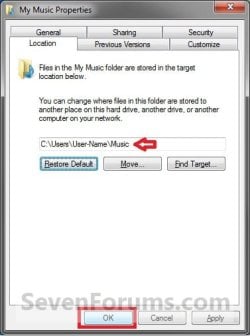
5. Click/tap on OK. (See screenshot below)
NOTE: Notice that the location has changed to the default C:\Users\(user-name) location.
Properties2.jpg
6. Click/tap on Yes. (See screenshot below)
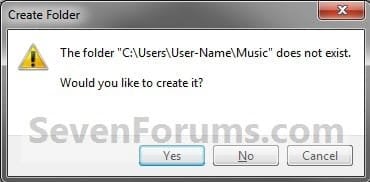
Properties3.jpg

   Note
If you have a folder in the default location named for the user folder already, then you will not see this dialog box.

Windows 8 will not have the "My" in front of the user folder name anymore.

User Folder | Folder Name Contacts |Contacts
Desktop |Desktop
My Documents |Documents
Downloads |Downloads
Favorites |Favorites
Links |Links
My Music |Music
My Pictures |Pictures
OneDrive (Windows 8.1 Update)|OneDrive
Saved Games |Saved Games
Searches |Searches
SkyDrive (Windows 8.1)|SkyDrive
My Videos |Videos


7. Click/tap on Yes. (See screenshot below)
WARNING: If you do not click/tap on Yes, then you will have two copies of this user folder at the C:\Users\(user-name) location. One will be a normal folder (same name) with the contents and the other as the now restored user folder. It is recommended that you click/tap on YES.
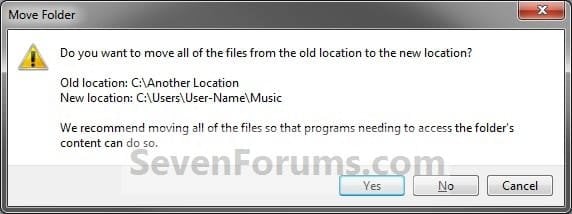
Properties4.jpg
8. After a few seconds when the location has been restored, the Properties window (screenshot under step 5) will then close.

9. If you are in a homegroup, then you can now change the homegroup settings back to share the user folder (ex: My Music) again if you like by checking the folder and clicking on Save Changes. (see screenshot below)
Homegroup.jpg


OPTION TWO

To Restore Default Location of User Folders using a BAT file


   Note
This is an example of the contents of the .bat files below. The parts in red are what will vary per .bat file based on what user folder it is for.

Code:
@echo off 
 
taskkill /f /im explorer.exe
 
timeout /t 2 /nobreak >nul
 
if not exist "%UserProfile%\[B][COLOR=red]Pictures[/COLOR][/B]" mkdir "%UserProfile%\[COLOR=red][B]Pictures[/B][/COLOR]"
 
reg add "HKCU\Software\Microsoft\Windows\CurrentVersion\Explorer\Shell Folders" /v "[COLOR=red][B]My Pictures[/B][/COLOR]" /t REG_SZ /d "C:\Users\%USERNAME%\[COLOR=red][B]Pictures[/B][/COLOR]" /f
 
reg add "HKCU\Software\Microsoft\Windows\CurrentVersion\Explorer\User Shell Folders" /v "[COLOR=red][B]My Pictures[/B][/COLOR]" /t REG_EXPAND_SZ /d %%USERPROFILE%%"\[COLOR=red][B]Pictures[/B][/COLOR]" /f
 
attrib +r -s -h "%USERPROFILE%\[COLOR=red][B]Pictures[/B][/COLOR]" /S /D
 
timeout /t 1 /nobreak >nul
 
start explorer.exe


1. Do step 2 to 13 below for what user folder you need to restore the default location of.


2. To Restore the Default Contacts Folder Location
A) Click/tap on the download button below to download the file below, and go to step 14 below.

Restore_Contacts_Default_Location.bat


Download


3. To Restore the Default Desktop Folder Location
A) Click/tap on the download button below to download the file below, and go to step 14 below.

Restore_Desktop_Default_Location.bat


Download


4. To Restore the Default My Documents Folder Location
A) Click/tap on the download button below to download the file below, and go to step 14 below.

Restore_Documents_Default_Location.bat


Download


5. To Restore the Default Downloads Folder Location
A) Click/tap on the download button below to download the file below, and go to step 14 below.

Restore_Downloads_Default_Location.bat


Download


6. To Restore the Default Favorites Folder Location
A) Click/tap on the download button below to download the file below, and go to step 14 below.

Restore_Favorites_Default_Location.bat


Download


7. To Restore the Default Links Folder Location
A) Click/tap on the download button below to download the file below, and go to step 14 below.

Restore_Links_Default_Location.bat


Download


8. To Restore the Default My Music Folder Location
A) Click/tap on the download button below to download the file below, and go to step 14 below.

Restore_Music_Default_Location.bat


Download


9. To Restore Default OneDrive Folder Location in Windows 8.1 Update
A) Click/tap on the download button below to download the file below, and go to step 14 below.

Restore_OneDrive_Default_Location.bat


Download


10. To Restore the Default My Pictures Folder Location
A) Click/tap on the download button below to download the file below, and go to step 14 below.

Restore_Pictures_Default_Location.bat


Download


11. To Restore the Default Saved Games Folder Location
A) Click/tap on the download button below to download the file below, and go to step 14 below.

Restore_Saved_Games_Default_Location.bat


Download


12. To Restore the Default Searches Folder Location
A) Click/tap on the download button below to download the file below, and go to step 14 below.

Restore_Searches_Default_Location.bat


Download


13. To Restore the Default My Videos Folder Location
A) Click/tap on the download button below to download the file below, and go to step 14 below.

Restore_Videos_Default_Location.bat


Download


14. Save the .bat file to your Desktop.

15. Unblock the downloaded .bat file(s).

16. Double click/tap on the downloaded .bat file to run it.

17. The .bat file will now kill explorer causing your screen to go blank, then open a command prompt to quickly restore the default location of the folder in the registry, restore the default attributes of the folder, restart explorer, and close the command prompt.

18. Repeat step 1 above for any other user folder you need to restore the default location of.

19. When finished, check the user folder(s) to verify that they have been restored to their default location.

20. If the user folder(s) still have not been restored to their default locations, then restart the computer and check again.

21. When restored, copy your files from the old folder location back into your now restored default folder location in "C:\Users\(user-name)".


That's it,
Shawn


Attachments

Last edited:
Hello Shellcool, and welcome to Seven Forums.

That's ok. You can just start over with OPTION TWO to fix your Desktop folder. Be sure that all the folder names, and paths in the registry are correct. :)
 

My Computer

Computer type
PC/Desktop
Computer Manufacturer/Model Number
Self built custom
OS
64-bit Windows 11 Pro for Workstations
CPU
Intel i7-8700K OC'd to 5 GHz
Motherboard
ASUS ROG Maximus XI Formula Z390
Memory
64 GB (4x16GB) G.SKILL TridentZ RGB DDR4 3600 MHz
Graphics Card(s)
ASUS ROG-STRIX-GTX1080TI-O11G-GAMING
Sound Card
Integrated
Monitor(s) Displays
2 x Samsung Odyssey G7 27"
Screen Resolution
2560x1440
Hard Drives
1TB Samsung 990 PRO M.2,
4TB Samsung 990 PRO PRO M.2,
TerraMaster F8 SSD Plus NAS
PSU
Seasonic Prime Titanium 850W
Case
Thermaltake Core P3
Cooling
Corsair Hydro H115i
Keyboard
Logitech wireless K800
Mouse
Logitech MX Master 4
Internet Speed
2 Gb/s Download and 100 Mb/s Upload
Antivirus
Malwarebyte Anti-Malware Premium
Browser
Google Chrome
Other Info
Logitech Z625 speaker system,
Logitech BRIO 4K Pro webcam,
HP Color LaserJet Pro MFP M477fdn,
APC SMART-UPS RT 1000 XL - SURT1000XLI,
Galaxy S23 Plus phone
Hello Shellcool, and welcome to Seven Forums.

That's ok. You can just start over with OPTION TWO to fix your Desktop folder. Be sure that all the folder names, and paths in the registry are correct. :)

I had already fixed it by the time I posted that, It works fully now :D you are amazing :P
 

My Computer

Computer type
PC/Desktop
Computer Manufacturer/Model Number
Dell/Alienware
OS
Windows 7 Home Premium x64
CPU
i7 920 bloomfield
Motherboard
Asus P6T Deluxe V2
Memory
12GB 6Gb cheapo came with pc 6Gb Corsair Vengeance
Graphics Card(s)
Two Nvidia GeForce GTX 260 Core 216 Superclocked 1792MB
Hard Drives
3TB seagate barracuda
465GB seagate barracuda 7200.11 #17k hours *Used to be raid 0 with a twin drive but twin died :(
Samsung 840 Evo 120GB SSD
Antivirus
AVG free
Browser
Chrome
Great news. :)
 

My Computer

Computer type
PC/Desktop
Computer Manufacturer/Model Number
Self built custom
OS
64-bit Windows 11 Pro for Workstations
CPU
Intel i7-8700K OC'd to 5 GHz
Motherboard
ASUS ROG Maximus XI Formula Z390
Memory
64 GB (4x16GB) G.SKILL TridentZ RGB DDR4 3600 MHz
Graphics Card(s)
ASUS ROG-STRIX-GTX1080TI-O11G-GAMING
Sound Card
Integrated
Monitor(s) Displays
2 x Samsung Odyssey G7 27"
Screen Resolution
2560x1440
Hard Drives
1TB Samsung 990 PRO M.2,
4TB Samsung 990 PRO PRO M.2,
TerraMaster F8 SSD Plus NAS
PSU
Seasonic Prime Titanium 850W
Case
Thermaltake Core P3
Cooling
Corsair Hydro H115i
Keyboard
Logitech wireless K800
Mouse
Logitech MX Master 4
Internet Speed
2 Gb/s Download and 100 Mb/s Upload
Antivirus
Malwarebyte Anti-Malware Premium
Browser
Google Chrome
Other Info
Logitech Z625 speaker system,
Logitech BRIO 4K Pro webcam,
HP Color LaserJet Pro MFP M477fdn,
APC SMART-UPS RT 1000 XL - SURT1000XLI,
Galaxy S23 Plus phone
My thanks in advance for any assistance, I know what a pain trying to troubleshoot this way can be! My apologies for the lengthy post, I just wanted to make sure that any pertinent details were included.

In any case, we are experiencing a similar issue to others in this thread on a number of workstations at our company. We are running a mix of Windows 8.1 x64 Enterprise and 7 x64 Enterprise workstations and so far the issue has affected all the 8.1 x64 machines in the same way.

We have folder redirection enabled for documents/videos/pictures/music. We are in the process of removing the folder redirection GPO and forcing all files back locally (the GPO is set to do this when it is no longer applied to a user account). This process SHOULD work easily/smoothly but if you have any experience with Folder Redirection it generally does not.

So, we have been moving these directories back locally by right-clicking on them from explorer -> properties -> Location tab -> 'Restore Default' and then selecting the option to move the content back locally from the server. This works perfectly for Documents/Music/Videos.

However, for the 'Pictures' directory we HAVE the 'Location' tab but we there are no buttons beneath the listed path (you cannot change/edit the path here) for 'Restore Default' or 'Move' or 'Find Target'. We have tried having the user take ownership of the directory on the file server and force down their permissions onto it but it made no difference; still no 'Restore Default' button.

I got around this for my own user account using the reg fix listed above which was fine for me in an isolated instance. Unfortunately while that DID accomplish allowing me to have a 'local' pictures directory it still did not restore the buttons on the location tab (it's just set to a C: path you can't change instead of a network share).

In any case, this isn't a sustainable solution for ALL of our users as it requires making the reg key changes and then MANUALLY copying the appropriate files back down to the local directory from the server.

Is there any reason why that folder doesn't have the 'restore default' button? What controls if that appears or not? I have heard of the location tab not being present but not the button options on the location tab not being there.
 

My Computer

Computer type
PC/Desktop
OS
8.1 Enterprise x64

My Computer

Computer type
PC/Desktop
Computer Manufacturer/Model Number
Self built custom
OS
64-bit Windows 11 Pro for Workstations
CPU
Intel i7-8700K OC'd to 5 GHz
Motherboard
ASUS ROG Maximus XI Formula Z390
Memory
64 GB (4x16GB) G.SKILL TridentZ RGB DDR4 3600 MHz
Graphics Card(s)
ASUS ROG-STRIX-GTX1080TI-O11G-GAMING
Sound Card
Integrated
Monitor(s) Displays
2 x Samsung Odyssey G7 27"
Screen Resolution
2560x1440
Hard Drives
1TB Samsung 990 PRO M.2,
4TB Samsung 990 PRO PRO M.2,
TerraMaster F8 SSD Plus NAS
PSU
Seasonic Prime Titanium 850W
Case
Thermaltake Core P3
Cooling
Corsair Hydro H115i
Keyboard
Logitech wireless K800
Mouse
Logitech MX Master 4
Internet Speed
2 Gb/s Download and 100 Mb/s Upload
Antivirus
Malwarebyte Anti-Malware Premium
Browser
Google Chrome
Other Info
Logitech Z625 speaker system,
Logitech BRIO 4K Pro webcam,
HP Color LaserJet Pro MFP M477fdn,
APC SMART-UPS RT 1000 XL - SURT1000XLI,
Galaxy S23 Plus phone
Hi Shawn,

Thanks for the reply!

I looked at the applicable GPO's on my user account and confirmed that the 'Prohibit User from manually redirecting Profile Folders' is set to 'not configured'. I also confirmed that the reg keys don't exist in HKLM or HKCU to prevent my user account from changing the Profile Folders.

It wouldn't make too much sense even if it was enabled given that it did allow me to move the Documents/Music/Videos folder; just not Pictures.

However, it is interesting that the issue's behavior is exactly as if that was set.
 

My Computer

Computer type
PC/Desktop
OS
8.1 Enterprise x64
It is odd. OPTION TWO to manually move the Pictures folder may be worth trying.
 

My Computer

Computer type
PC/Desktop
Computer Manufacturer/Model Number
Self built custom
OS
64-bit Windows 11 Pro for Workstations
CPU
Intel i7-8700K OC'd to 5 GHz
Motherboard
ASUS ROG Maximus XI Formula Z390
Memory
64 GB (4x16GB) G.SKILL TridentZ RGB DDR4 3600 MHz
Graphics Card(s)
ASUS ROG-STRIX-GTX1080TI-O11G-GAMING
Sound Card
Integrated
Monitor(s) Displays
2 x Samsung Odyssey G7 27"
Screen Resolution
2560x1440
Hard Drives
1TB Samsung 990 PRO M.2,
4TB Samsung 990 PRO PRO M.2,
TerraMaster F8 SSD Plus NAS
PSU
Seasonic Prime Titanium 850W
Case
Thermaltake Core P3
Cooling
Corsair Hydro H115i
Keyboard
Logitech wireless K800
Mouse
Logitech MX Master 4
Internet Speed
2 Gb/s Download and 100 Mb/s Upload
Antivirus
Malwarebyte Anti-Malware Premium
Browser
Google Chrome
Other Info
Logitech Z625 speaker system,
Logitech BRIO 4K Pro webcam,
HP Color LaserJet Pro MFP M477fdn,
APC SMART-UPS RT 1000 XL - SURT1000XLI,
Galaxy S23 Plus phone
Hi Shawn,

I actually did use 'option 2' (essentially) to force my system to stop redirecting the pictures folder to a network location by changing the appropriate DWORD values to %USERPROFILE%\Pictures in the following areas:
HKEY_CURRENT_USER\Software\Microsoft\Windows\CurrentVersion\Explorer\User Shell Folders
HKEY_CURRENT_USER\Software\Microsoft\Windows\CurrentVersion\Explorer\Shell Folders

So, that 'worked' in that my pictures directory is now local. However, it didn't A) Move anything for me automatically from pictures to the local dir and B) Still does not have the move, restore default etc. buttons so you would have to edit the registry again to get it to go elsewhere.
 

My Computer

Computer type
PC/Desktop
OS
8.1 Enterprise x64
I was afraid of that since the folder was not local.
 

My Computer

Computer type
PC/Desktop
Computer Manufacturer/Model Number
Self built custom
OS
64-bit Windows 11 Pro for Workstations
CPU
Intel i7-8700K OC'd to 5 GHz
Motherboard
ASUS ROG Maximus XI Formula Z390
Memory
64 GB (4x16GB) G.SKILL TridentZ RGB DDR4 3600 MHz
Graphics Card(s)
ASUS ROG-STRIX-GTX1080TI-O11G-GAMING
Sound Card
Integrated
Monitor(s) Displays
2 x Samsung Odyssey G7 27"
Screen Resolution
2560x1440
Hard Drives
1TB Samsung 990 PRO M.2,
4TB Samsung 990 PRO PRO M.2,
TerraMaster F8 SSD Plus NAS
PSU
Seasonic Prime Titanium 850W
Case
Thermaltake Core P3
Cooling
Corsair Hydro H115i
Keyboard
Logitech wireless K800
Mouse
Logitech MX Master 4
Internet Speed
2 Gb/s Download and 100 Mb/s Upload
Antivirus
Malwarebyte Anti-Malware Premium
Browser
Google Chrome
Other Info
Logitech Z625 speaker system,
Logitech BRIO 4K Pro webcam,
HP Color LaserJet Pro MFP M477fdn,
APC SMART-UPS RT 1000 XL - SURT1000XLI,
Galaxy S23 Plus phone
Restore default location for present AND future users' folders?

Hi!

A while ago, I followed the amazing "sysprepping" tutorial to relocate the user folders in my new Windows 8 Notebook PC from the default location in partition "C" to a different hard disk partition ("D").

I was very happy, knowing that my "sysprepped" Notebook would also automatically create User Folders for all future new user accounts in the non-default location ("D").

But... What happens? Some day Windows Update just starts refusing to install updates in my machine, citing "users folders having been relocated" as a probable cause.

So i give up the idea of having the User Folders in a non-default location, and now my two goals are...
(1) ...to relocate my present User Folders to the default location, AND
(2) ...to have the PC set in a way that it will also automatically create all future new users' folders in the default location.

My question is:

Will the first procedure (the one described at the beginning this article, i.e. manually relocating the present User Folders one by one) suffice to attain both goals... or should i go with a different procedure?

Thank you very much
 

My Computer

Computer type
Laptop
Computer Manufacturer/Model Number
Panasonic CF-S9
OS
Windows 7 Ultimate x64
CPU
Intel Core i5-560M vPro
Motherboard
Mobile Intel QM57 Express chipset
Memory
4 GB
Graphics Card(s)
on board on Intel Core i5-560M with Intel HD Graphics
Hard Drives
HDD 500 GB
Antivirus
Windows Defender
Browser
Chrome, Firefox
Hello Jero,

Since you have it set to redirect for all users (old and new), it may be best to reinstall to restore back to default. Trying to manually restore them would most likely still have issues. :(
 

My Computer

Computer type
PC/Desktop
Computer Manufacturer/Model Number
Self built custom
OS
64-bit Windows 11 Pro for Workstations
CPU
Intel i7-8700K OC'd to 5 GHz
Motherboard
ASUS ROG Maximus XI Formula Z390
Memory
64 GB (4x16GB) G.SKILL TridentZ RGB DDR4 3600 MHz
Graphics Card(s)
ASUS ROG-STRIX-GTX1080TI-O11G-GAMING
Sound Card
Integrated
Monitor(s) Displays
2 x Samsung Odyssey G7 27"
Screen Resolution
2560x1440
Hard Drives
1TB Samsung 990 PRO M.2,
4TB Samsung 990 PRO PRO M.2,
TerraMaster F8 SSD Plus NAS
PSU
Seasonic Prime Titanium 850W
Case
Thermaltake Core P3
Cooling
Corsair Hydro H115i
Keyboard
Logitech wireless K800
Mouse
Logitech MX Master 4
Internet Speed
2 Gb/s Download and 100 Mb/s Upload
Antivirus
Malwarebyte Anti-Malware Premium
Browser
Google Chrome
Other Info
Logitech Z625 speaker system,
Logitech BRIO 4K Pro webcam,
HP Color LaserJet Pro MFP M477fdn,
APC SMART-UPS RT 1000 XL - SURT1000XLI,
Galaxy S23 Plus phone
Thank you very much for your kind reply, Brink.
Just to be sure I understand:
Do you mean a clean reinstall of Windows 8?
In previous versions of Windows (XP, 7) I have done what was called "recovery". Is this what you mean?
I have not yet tried it in Windows 8... I guess then I will have to change forums to the "EightForums"...
 

My Computer

Computer type
Laptop
Computer Manufacturer/Model Number
Panasonic CF-S9
OS
Windows 7 Ultimate x64
CPU
Intel Core i5-560M vPro
Motherboard
Mobile Intel QM57 Express chipset
Memory
4 GB
Graphics Card(s)
on board on Intel Core i5-560M with Intel HD Graphics
Hard Drives
HDD 500 GB
Antivirus
Windows Defender
Browser
Chrome, Firefox
I don't think a repair install will help in this case since it involves the user folders and profile, so yeah a clean install would give you the best results in the end.
 

My Computer

Computer type
PC/Desktop
Computer Manufacturer/Model Number
Self built custom
OS
64-bit Windows 11 Pro for Workstations
CPU
Intel i7-8700K OC'd to 5 GHz
Motherboard
ASUS ROG Maximus XI Formula Z390
Memory
64 GB (4x16GB) G.SKILL TridentZ RGB DDR4 3600 MHz
Graphics Card(s)
ASUS ROG-STRIX-GTX1080TI-O11G-GAMING
Sound Card
Integrated
Monitor(s) Displays
2 x Samsung Odyssey G7 27"
Screen Resolution
2560x1440
Hard Drives
1TB Samsung 990 PRO M.2,
4TB Samsung 990 PRO PRO M.2,
TerraMaster F8 SSD Plus NAS
PSU
Seasonic Prime Titanium 850W
Case
Thermaltake Core P3
Cooling
Corsair Hydro H115i
Keyboard
Logitech wireless K800
Mouse
Logitech MX Master 4
Internet Speed
2 Gb/s Download and 100 Mb/s Upload
Antivirus
Malwarebyte Anti-Malware Premium
Browser
Google Chrome
Other Info
Logitech Z625 speaker system,
Logitech BRIO 4K Pro webcam,
HP Color LaserJet Pro MFP M477fdn,
APC SMART-UPS RT 1000 XL - SURT1000XLI,
Galaxy S23 Plus phone
OK, got it.
I'll try a clean install.
Thanks a lot.
 

My Computer

Computer type
Laptop
Computer Manufacturer/Model Number
Panasonic CF-S9
OS
Windows 7 Ultimate x64
CPU
Intel Core i5-560M vPro
Motherboard
Mobile Intel QM57 Express chipset
Memory
4 GB
Graphics Card(s)
on board on Intel Core i5-560M with Intel HD Graphics
Hard Drives
HDD 500 GB
Antivirus
Windows Defender
Browser
Chrome, Firefox
Not sure if this thread would still be looked at but I hope it is. I installed an SSD drive in my HP Compaq 6530b yesterday and cloned my existing hard drive, re started and all was well and I checked everything was on my SSD drive. I then formated the old drive and my next action was to move the folders like My Documents, My Pictures etc from my new SSD drive to the old hard drive, using it as storage, all went well but then something came up and I pressed proceed before reading it properly. It was something like" do you want to redirect folder "" into another system folder "" located at "". If you proceed with redirection you will not be able to separate them or restore default locations. I cannot remember which folder this was.

After this I cannot make any new folders on my old hard drive, they keep reverting back to a folder called desktop, each time I do this I also get a folder called Desktop on my new SSD drive. I assume the error is on pressing continue when I should not have done.

If I follow the instructions on this thread will it put my folders back to how they should be, thus allowing me to try and move them again or would a complete reinstall be the only option?

I hope what I have put makes sense and thanks for any help anybody can give me, being pulling my hair out on this one as everthing seemed fine at first but I know it was my error.


Thanks

Martin
 

My Computer

Computer type
PC/Desktop
Computer Manufacturer/Model Number
HP 6530b
OS
Windows 7 Professional 64 Bit
Hello Martin, and welcome to Seven Forums.

I'd say you might see if restoring the default locations of your user folders may allow them to work properly afterwards. If so, then you might consider using the option in the yellow tip box at the top of the tutorial with libraries instead to save space on your SSD. :)
 

My Computer

Computer type
PC/Desktop
Computer Manufacturer/Model Number
Self built custom
OS
64-bit Windows 11 Pro for Workstations
CPU
Intel i7-8700K OC'd to 5 GHz
Motherboard
ASUS ROG Maximus XI Formula Z390
Memory
64 GB (4x16GB) G.SKILL TridentZ RGB DDR4 3600 MHz
Graphics Card(s)
ASUS ROG-STRIX-GTX1080TI-O11G-GAMING
Sound Card
Integrated
Monitor(s) Displays
2 x Samsung Odyssey G7 27"
Screen Resolution
2560x1440
Hard Drives
1TB Samsung 990 PRO M.2,
4TB Samsung 990 PRO PRO M.2,
TerraMaster F8 SSD Plus NAS
PSU
Seasonic Prime Titanium 850W
Case
Thermaltake Core P3
Cooling
Corsair Hydro H115i
Keyboard
Logitech wireless K800
Mouse
Logitech MX Master 4
Internet Speed
2 Gb/s Download and 100 Mb/s Upload
Antivirus
Malwarebyte Anti-Malware Premium
Browser
Google Chrome
Other Info
Logitech Z625 speaker system,
Logitech BRIO 4K Pro webcam,
HP Color LaserJet Pro MFP M477fdn,
APC SMART-UPS RT 1000 XL - SURT1000XLI,
Galaxy S23 Plus phone
Thanks for the reply Brink, at least this gives me some hope. Once I get home, I will give it at go at restoring the default file locations and I will look at the library options as well. I just want to leave as much space as I can on the SSD and use the old main drive for progrrams and folders.

Thanks again for responding.

Martin
 

My Computer

Computer type
PC/Desktop
Computer Manufacturer/Model Number
HP 6530b
OS
Windows 7 Professional 64 Bit
You're welcome. I hope it goes well.
 

My Computer

Computer type
PC/Desktop
Computer Manufacturer/Model Number
Self built custom
OS
64-bit Windows 11 Pro for Workstations
CPU
Intel i7-8700K OC'd to 5 GHz
Motherboard
ASUS ROG Maximus XI Formula Z390
Memory
64 GB (4x16GB) G.SKILL TridentZ RGB DDR4 3600 MHz
Graphics Card(s)
ASUS ROG-STRIX-GTX1080TI-O11G-GAMING
Sound Card
Integrated
Monitor(s) Displays
2 x Samsung Odyssey G7 27"
Screen Resolution
2560x1440
Hard Drives
1TB Samsung 990 PRO M.2,
4TB Samsung 990 PRO PRO M.2,
TerraMaster F8 SSD Plus NAS
PSU
Seasonic Prime Titanium 850W
Case
Thermaltake Core P3
Cooling
Corsair Hydro H115i
Keyboard
Logitech wireless K800
Mouse
Logitech MX Master 4
Internet Speed
2 Gb/s Download and 100 Mb/s Upload
Antivirus
Malwarebyte Anti-Malware Premium
Browser
Google Chrome
Other Info
Logitech Z625 speaker system,
Logitech BRIO 4K Pro webcam,
HP Color LaserJet Pro MFP M477fdn,
APC SMART-UPS RT 1000 XL - SURT1000XLI,
Galaxy S23 Plus phone
Hi Brink I'm now going to try and sort my folders out, before I do, can I ask another question. Looking at my old hard drive, this is now going to be used for folders, photos etc, Drive E and the new SSD drive is C and system reserved is D. Looking at E drive I have the following, a folder called Martin and two index files, one called Everywhere and one called Index Locations, interestingly if I click the folder with my name, it comes up with a warning box saying access is denied. Should I delete these or format this drive before sorting the folders on the C drive.

Thanks

Martin
 

My Computer

Computer type
PC/Desktop
Computer Manufacturer/Model Number
HP 6530b
OS
Windows 7 Professional 64 Bit
I would sort your folders first to be safe.
 

My Computer

Computer type
PC/Desktop
Computer Manufacturer/Model Number
Self built custom
OS
64-bit Windows 11 Pro for Workstations
CPU
Intel i7-8700K OC'd to 5 GHz
Motherboard
ASUS ROG Maximus XI Formula Z390
Memory
64 GB (4x16GB) G.SKILL TridentZ RGB DDR4 3600 MHz
Graphics Card(s)
ASUS ROG-STRIX-GTX1080TI-O11G-GAMING
Sound Card
Integrated
Monitor(s) Displays
2 x Samsung Odyssey G7 27"
Screen Resolution
2560x1440
Hard Drives
1TB Samsung 990 PRO M.2,
4TB Samsung 990 PRO PRO M.2,
TerraMaster F8 SSD Plus NAS
PSU
Seasonic Prime Titanium 850W
Case
Thermaltake Core P3
Cooling
Corsair Hydro H115i
Keyboard
Logitech wireless K800
Mouse
Logitech MX Master 4
Internet Speed
2 Gb/s Download and 100 Mb/s Upload
Antivirus
Malwarebyte Anti-Malware Premium
Browser
Google Chrome
Other Info
Logitech Z625 speaker system,
Logitech BRIO 4K Pro webcam,
HP Color LaserJet Pro MFP M477fdn,
APC SMART-UPS RT 1000 XL - SURT1000XLI,
Galaxy S23 Plus phone
Back
Top