User Folders - Restore Default Location

How to Restore Default Location of User Folders in Windows 7 and Windows 8

   Information
This will show you how to restore the default location of all or a single user folder of your choice in Windows 7 and Windows 8.

   Note
If you have duplicate user folders instead, then you will need to backup the contents of the duplicate user folders, do OPTION TWO below, delete the duplicate folders, then you may need to restart the computer a couple of times first before the default location is restored.

Windows 8.1 Update released on April 8th 2014 via Windows Update, renamed SkyDrive to OneDrive.


CONTENTS:
  • Option One: To Restore Default Location of User Folders in Properties
  • Option Two: To Restore Default Location of User Folders using a BAT file


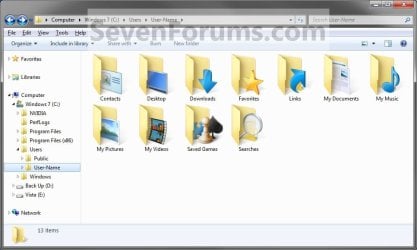
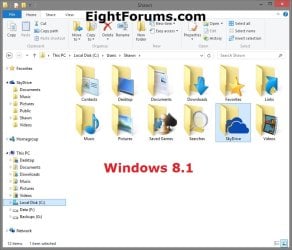
EXAMPLE: User folders
NOTE: This is at the default C:\Users\(user-name) location.
Example1.jpg

Windows_8.1.jpg


OPTION ONE

To Restore Default Location of User Folders in Properties


NOTE: If using this option does not restore the user folder back to the default location, then use OPTION TWO below instead.
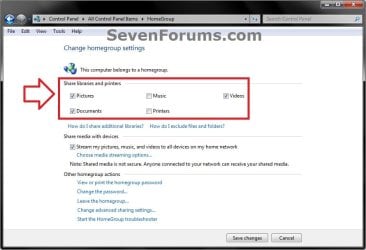
1. If you are in a homegroup, then you will need to change the homegroup settings to no longer share the user folder (ex: My Music) that you want to move first by unchecking the folder and clicking on Save Changes. (see screenshot below)
NOTE: This is so the user folder (ex: My Music) will not be shared on the homegroup anymore.
Homegroup.jpg
2. Press the Windows+R keys to open the Run dialog, type shell:UsersFilesFolder, and press enter.
NOTE: This will open your C:\Users\(user-name) folder.

3. Right click or press and hold on the user folder (ex: My Music) that you want to restore the default location for, and click/tap on Properties.

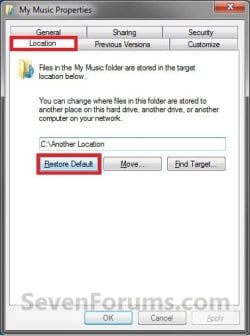
4. Click/tap on the Location tab, and Restore Default button. (See screenshot below)
Properties1.jpg
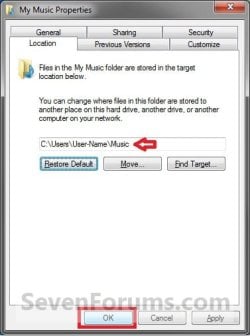
5. Click/tap on OK. (See screenshot below)
NOTE: Notice that the location has changed to the default C:\Users\(user-name) location.
Properties2.jpg
6. Click/tap on Yes. (See screenshot below)
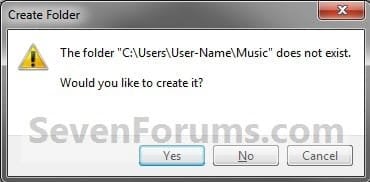
Properties3.jpg

   Note
If you have a folder in the default location named for the user folder already, then you will not see this dialog box.

Windows 8 will not have the "My" in front of the user folder name anymore.

User Folder | Folder Name Contacts |Contacts
Desktop |Desktop
My Documents |Documents
Downloads |Downloads
Favorites |Favorites
Links |Links
My Music |Music
My Pictures |Pictures
OneDrive (Windows 8.1 Update)|OneDrive
Saved Games |Saved Games
Searches |Searches
SkyDrive (Windows 8.1)|SkyDrive
My Videos |Videos


7. Click/tap on Yes. (See screenshot below)
WARNING: If you do not click/tap on Yes, then you will have two copies of this user folder at the C:\Users\(user-name) location. One will be a normal folder (same name) with the contents and the other as the now restored user folder. It is recommended that you click/tap on YES.
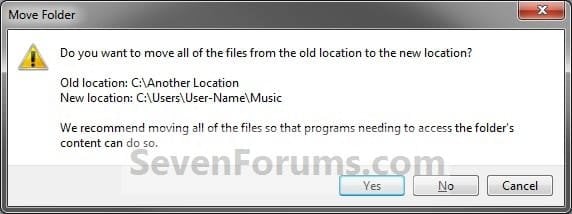
Properties4.jpg
8. After a few seconds when the location has been restored, the Properties window (screenshot under step 5) will then close.

9. If you are in a homegroup, then you can now change the homegroup settings back to share the user folder (ex: My Music) again if you like by checking the folder and clicking on Save Changes. (see screenshot below)
Homegroup.jpg


OPTION TWO

To Restore Default Location of User Folders using a BAT file


   Note
This is an example of the contents of the .bat files below. The parts in red are what will vary per .bat file based on what user folder it is for.

Code:
@echo off 
 
taskkill /f /im explorer.exe
 
timeout /t 2 /nobreak >nul
 
if not exist "%UserProfile%\[B][COLOR=red]Pictures[/COLOR][/B]" mkdir "%UserProfile%\[COLOR=red][B]Pictures[/B][/COLOR]"
 
reg add "HKCU\Software\Microsoft\Windows\CurrentVersion\Explorer\Shell Folders" /v "[COLOR=red][B]My Pictures[/B][/COLOR]" /t REG_SZ /d "C:\Users\%USERNAME%\[COLOR=red][B]Pictures[/B][/COLOR]" /f
 
reg add "HKCU\Software\Microsoft\Windows\CurrentVersion\Explorer\User Shell Folders" /v "[COLOR=red][B]My Pictures[/B][/COLOR]" /t REG_EXPAND_SZ /d %%USERPROFILE%%"\[COLOR=red][B]Pictures[/B][/COLOR]" /f
 
attrib +r -s -h "%USERPROFILE%\[COLOR=red][B]Pictures[/B][/COLOR]" /S /D
 
timeout /t 1 /nobreak >nul
 
start explorer.exe


1. Do step 2 to 13 below for what user folder you need to restore the default location of.


2. To Restore the Default Contacts Folder Location
A) Click/tap on the download button below to download the file below, and go to step 14 below.

Restore_Contacts_Default_Location.bat


Download


3. To Restore the Default Desktop Folder Location
A) Click/tap on the download button below to download the file below, and go to step 14 below.

Restore_Desktop_Default_Location.bat


Download


4. To Restore the Default My Documents Folder Location
A) Click/tap on the download button below to download the file below, and go to step 14 below.

Restore_Documents_Default_Location.bat


Download


5. To Restore the Default Downloads Folder Location
A) Click/tap on the download button below to download the file below, and go to step 14 below.

Restore_Downloads_Default_Location.bat


Download


6. To Restore the Default Favorites Folder Location
A) Click/tap on the download button below to download the file below, and go to step 14 below.

Restore_Favorites_Default_Location.bat


Download


7. To Restore the Default Links Folder Location
A) Click/tap on the download button below to download the file below, and go to step 14 below.

Restore_Links_Default_Location.bat


Download


8. To Restore the Default My Music Folder Location
A) Click/tap on the download button below to download the file below, and go to step 14 below.

Restore_Music_Default_Location.bat


Download


9. To Restore Default OneDrive Folder Location in Windows 8.1 Update
A) Click/tap on the download button below to download the file below, and go to step 14 below.

Restore_OneDrive_Default_Location.bat


Download


10. To Restore the Default My Pictures Folder Location
A) Click/tap on the download button below to download the file below, and go to step 14 below.

Restore_Pictures_Default_Location.bat


Download


11. To Restore the Default Saved Games Folder Location
A) Click/tap on the download button below to download the file below, and go to step 14 below.

Restore_Saved_Games_Default_Location.bat


Download


12. To Restore the Default Searches Folder Location
A) Click/tap on the download button below to download the file below, and go to step 14 below.

Restore_Searches_Default_Location.bat


Download


13. To Restore the Default My Videos Folder Location
A) Click/tap on the download button below to download the file below, and go to step 14 below.

Restore_Videos_Default_Location.bat


Download


14. Save the .bat file to your Desktop.

15. Unblock the downloaded .bat file(s).

16. Double click/tap on the downloaded .bat file to run it.

17. The .bat file will now kill explorer causing your screen to go blank, then open a command prompt to quickly restore the default location of the folder in the registry, restore the default attributes of the folder, restart explorer, and close the command prompt.

18. Repeat step 1 above for any other user folder you need to restore the default location of.

19. When finished, check the user folder(s) to verify that they have been restored to their default location.

20. If the user folder(s) still have not been restored to their default locations, then restart the computer and check again.

21. When restored, copy your files from the old folder location back into your now restored default folder location in "C:\Users\(user-name)".


That's it,
Shawn


Attachments

Last edited:
I have now sorted all the files and it looks better but when I open my computer to see the drives I get an error warning "C/Users/ Martin/Desktop refers to a location that is unavailable etc etc. I click ok and get onto the drive, no problems. I checked the settings for the desktop and they are correct. Besides that all seems much better and just need to try the libraries next.
 

My Computer

Computer type
PC/Desktop
Computer Manufacturer/Model Number
HP 6530b
OS
Windows 7 Professional 64 Bit
In a worse case, you could create a new user account to use instead.
 

My Computer

Computer type
PC/Desktop
Computer Manufacturer/Model Number
Self built custom
OS
64-bit Windows 11 Pro for Workstations
CPU
Intel i7-8700K OC'd to 5 GHz
Motherboard
ASUS ROG Maximus XI Formula Z390
Memory
64 GB (4x16GB) G.SKILL TridentZ RGB DDR4 3600 MHz
Graphics Card(s)
ASUS ROG-STRIX-GTX1080TI-O11G-GAMING
Sound Card
Integrated
Monitor(s) Displays
2 x Samsung Odyssey G7 27"
Screen Resolution
2560x1440
Hard Drives
1TB Samsung 990 PRO M.2,
4TB Samsung 990 PRO PRO M.2,
TerraMaster F8 SSD Plus NAS
PSU
Seasonic Prime Titanium 850W
Case
Thermaltake Core P3
Cooling
Corsair Hydro H115i
Keyboard
Logitech wireless K800
Mouse
Logitech MX Master 4
Internet Speed
2 Gb/s Download and 100 Mb/s Upload
Antivirus
Malwarebyte Anti-Malware Premium
Browser
Google Chrome
Other Info
Logitech Z625 speaker system,
Logitech BRIO 4K Pro webcam,
HP Color LaserJet Pro MFP M477fdn,
APC SMART-UPS RT 1000 XL - SURT1000XLI,
Galaxy S23 Plus phone
Thank you Brink, I have followed all the instructions and everything is back to normal and I have even managed to move the folders on to the spare drive. The only folder I cannot move is my photos folder, the option to change location is not there, I have changed the settings a couple of times but no joy, but never mind, the system is back to normal, so thank you very much.

Martin
 

My Computer

Computer type
PC/Desktop
Computer Manufacturer/Model Number
HP 6530b
OS
Windows 7 Professional 64 Bit
Great news Martin.

If the "Location" tab is not there to move the Photos folder, then that folder is not the one set to be used. If you like, do Option Two again for the Photos folder to restore it's default location to see if the tab is there afterwards. Sometimes, it may take a few restarts to get it all sorted after making sure everything is set right in Option Two though.
 

My Computer

Computer type
PC/Desktop
Computer Manufacturer/Model Number
Self built custom
OS
64-bit Windows 11 Pro for Workstations
CPU
Intel i7-8700K OC'd to 5 GHz
Motherboard
ASUS ROG Maximus XI Formula Z390
Memory
64 GB (4x16GB) G.SKILL TridentZ RGB DDR4 3600 MHz
Graphics Card(s)
ASUS ROG-STRIX-GTX1080TI-O11G-GAMING
Sound Card
Integrated
Monitor(s) Displays
2 x Samsung Odyssey G7 27"
Screen Resolution
2560x1440
Hard Drives
1TB Samsung 990 PRO M.2,
4TB Samsung 990 PRO PRO M.2,
TerraMaster F8 SSD Plus NAS
PSU
Seasonic Prime Titanium 850W
Case
Thermaltake Core P3
Cooling
Corsair Hydro H115i
Keyboard
Logitech wireless K800
Mouse
Logitech MX Master 4
Internet Speed
2 Gb/s Download and 100 Mb/s Upload
Antivirus
Malwarebyte Anti-Malware Premium
Browser
Google Chrome
Other Info
Logitech Z625 speaker system,
Logitech BRIO 4K Pro webcam,
HP Color LaserJet Pro MFP M477fdn,
APC SMART-UPS RT 1000 XL - SURT1000XLI,
Galaxy S23 Plus phone
Just to say Brink, I did as you said and the folder came back and it moved, so all now is well. The only thing I see now is I did all this to add an SSD drive, I put this in the DVD draw via a caddy and cloned my operating system and have my old hard drive for folders and storage. From what I am reading this morning though, I get the impression I should have put the new SSD in place of the old hard drive and put the old hard drive in the caddy, but it appears to work well and does seem quicker, but it is something for me to consider. Anyway, thanks again for a brilliant article and for the help.

Martin
 

My Computer

Computer type
PC/Desktop
Computer Manufacturer/Model Number
HP 6530b
OS
Windows 7 Professional 64 Bit
You're most welcome Martin. I'm glad you got it all sorted.

If the caddy is connected via a SATA connector like the HDD, then there's no need to swap them since it would be the same either way. :)
 

My Computer

Computer type
PC/Desktop
Computer Manufacturer/Model Number
Self built custom
OS
64-bit Windows 11 Pro for Workstations
CPU
Intel i7-8700K OC'd to 5 GHz
Motherboard
ASUS ROG Maximus XI Formula Z390
Memory
64 GB (4x16GB) G.SKILL TridentZ RGB DDR4 3600 MHz
Graphics Card(s)
ASUS ROG-STRIX-GTX1080TI-O11G-GAMING
Sound Card
Integrated
Monitor(s) Displays
2 x Samsung Odyssey G7 27"
Screen Resolution
2560x1440
Hard Drives
1TB Samsung 990 PRO M.2,
4TB Samsung 990 PRO PRO M.2,
TerraMaster F8 SSD Plus NAS
PSU
Seasonic Prime Titanium 850W
Case
Thermaltake Core P3
Cooling
Corsair Hydro H115i
Keyboard
Logitech wireless K800
Mouse
Logitech MX Master 4
Internet Speed
2 Gb/s Download and 100 Mb/s Upload
Antivirus
Malwarebyte Anti-Malware Premium
Browser
Google Chrome
Other Info
Logitech Z625 speaker system,
Logitech BRIO 4K Pro webcam,
HP Color LaserJet Pro MFP M477fdn,
APC SMART-UPS RT 1000 XL - SURT1000XLI,
Galaxy S23 Plus phone
I read this MSDN blog article about "Shell Folders" some time ago, and since then I was under the impression that all of these "Shell Folders" were completely obsolete and only existed for backwards capability.

So I did some testing and I found that the values contained in the "Shell Folders" key indeed did nothing. But the "User Shell Folders" values are in fact used to determine the location of a user accounts' special folders.


Some quotes from the MSDN article,
But to ease the transition from the M3 documentation to the RTM documentation, we left the old "Shell Folders" registry key around
[...]
[The "Shell Folders" key] was just a shadow of the "real" data stored elsewhere ("User Shell Folders").
[...]
The "Shell Folders" key exists solely to permit four programs written in 1994 to continue running on the RTM version of Windows 95.


Fixing the values contained in the "User Shell Folders" key is the important step. Any attempting this tutorial can effectively skip steps 19 - 24 (which instruct you to repair the values in the "Shell Folder" key) and still have their special folders back to where they should be.


Brink, why not have a single .reg file that fixes values in both the "Shell Folder" and "User Shell Folder" keys at the same time?
 

My Computer

Computer type
PC/Desktop
OS
Windows 10, Windows 8.1 Pro, Windows 7 Professional, OS X El Capitan
I read this MSDN blog article about "Shell Folders" some time ago, and since then I was under the impression that all of these "Shell Folders" were completely obsolete and only existed for backwards capability.

So I did some testing and I found that the values contained in the "Shell Folders" key indeed did nothing. But the "User Shell Folders" values are in fact used to determine the location of a user accounts' special folders.


Some quotes from the MSDN article,
But to ease the transition from the M3 documentation to the RTM documentation, we left the old "Shell Folders" registry key around
[...]
[The "Shell Folders" key] was just a shadow of the "real" data stored elsewhere ("User Shell Folders").
[...]
The "Shell Folders" key exists solely to permit four programs written in 1994 to continue running on the RTM version of Windows 95.


Fixing the values contained in the "User Shell Folders" key is the important step. Any attempting this tutorial can effectively skip steps 19 - 24 (which instruct you to repair the values in the "Shell Folder" key) and still have their special folders back to where they should be.


Brink, why not have a single .reg file that fixes values in both the "Shell Folder" and "User Shell Folder" keys at the same time?

Incorrect. Those steps do indeed need to make sure that they have the correct path as well. If not, then you could run into issues with anything that needs backwards compatibility.

It's best to be thorough and safe, than risk something breaking later. :)

I would love to, but can't do a .reg file for the "Shell Folder" location since it's data values must use the full path with user name instead of with a variable like the "User Shell Folder" location.
 

My Computer

Computer type
PC/Desktop
Computer Manufacturer/Model Number
Self built custom
OS
64-bit Windows 11 Pro for Workstations
CPU
Intel i7-8700K OC'd to 5 GHz
Motherboard
ASUS ROG Maximus XI Formula Z390
Memory
64 GB (4x16GB) G.SKILL TridentZ RGB DDR4 3600 MHz
Graphics Card(s)
ASUS ROG-STRIX-GTX1080TI-O11G-GAMING
Sound Card
Integrated
Monitor(s) Displays
2 x Samsung Odyssey G7 27"
Screen Resolution
2560x1440
Hard Drives
1TB Samsung 990 PRO M.2,
4TB Samsung 990 PRO PRO M.2,
TerraMaster F8 SSD Plus NAS
PSU
Seasonic Prime Titanium 850W
Case
Thermaltake Core P3
Cooling
Corsair Hydro H115i
Keyboard
Logitech wireless K800
Mouse
Logitech MX Master 4
Internet Speed
2 Gb/s Download and 100 Mb/s Upload
Antivirus
Malwarebyte Anti-Malware Premium
Browser
Google Chrome
Other Info
Logitech Z625 speaker system,
Logitech BRIO 4K Pro webcam,
HP Color LaserJet Pro MFP M477fdn,
APC SMART-UPS RT 1000 XL - SURT1000XLI,
Galaxy S23 Plus phone
Incorrect. Those steps do indeed need to make sure that they have the correct path as well.
Would you like to provide evidence or cite some source to support the fact that Steps 19 - 24 are important? From my testing at least, the "Shell Folders" key appears to be utterly redundant.

I had changed the value of the "My Video" entry of both the "Shell Folder" and "User Shell Folder" keys to different locations on my machine. Upon logging in again, I found that my "My Videos" folder was the location of which the "My Video" value of the "User Shell Folder" key mentions.

If not, then you could run into issues with anything that needs backwards compatibility.
I'd like to rebut that statement by restating the the quote from MSDN,
The "Shell Folders" key exists solely to permit four programs written in 1994 to continue running on the RTM version of Windows 95.
Changing or even deleting the Shell Folders key will not breaking anything. The year 1994, where reading values from Shell Folder was encouraged, is far long in the past to be relevant to anything today. Thus it can be assumed that the Shell Folders key is no longer used for anything and is obsolete now.
I strongly suspect that of those four original programs for which the "Shell Folders" key was originally created, not a single one is still in existence today.


I would love to, but can't do a .reg file for the "Shell Folder" location since it's data values must use the full path with user name instead of with a variable like the "User Shell Folder" location.
Ahh, I see. That would make sense.

Hm. A batch file can fix that... which gets me thinking: ever considered an option 3 that makes use of a batch file to fix all the Shell Folders and User Shell Folders values? That would be most convenient and a really fast solution for the users who just want things fixed immediately.
 

My Computer

Computer type
PC/Desktop
OS
Windows 10, Windows 8.1 Pro, Windows 7 Professional, OS X El Capitan
Incorrect. Those steps do indeed need to make sure that they have the correct path as well.
Would you like to provide evidence or cite some source to support the fact that Steps 19 - 24 are important? From my testing at least, the "Shell Folders" key appears to be utterly redundant.

I had changed the value of the "My Video" entry of both the "Shell Folder" and "User Shell Folder" keys to different locations on my machine. Upon logging in again, I found that my "My Videos" folder was the location of which the "My Video" value of the "User Shell Folder" key mentions.

If not, then you could run into issues with anything that needs backwards compatibility.
I'd like to rebut that statement by restating the the quote from MSDN,

Changing or even deleting the Shell Folders key will not breaking anything. The year 1994, where reading values from Shell Folder was encouraged, is far long in the past to be relevant to anything today. Thus it can be assumed that the Shell Folders key is no longer used for anything and is obsolete now.
I strongly suspect that of those four original programs for which the "Shell Folders" key was originally created, not a single one is still in existence today.

If you change a folder location using the GUI in OPTION ONE, it will make that change in both the "User Shell Folders" and "Shell Folders" key locations.

Because of that, I believe in being thorough, and making sure that it's set correctly everywhere in the registry to avoid every possible issue despite what that article says. I don't like leaving anything set incorrectly whether it's redundant or not.


I would love to, but can't do a .reg file for the "Shell Folder" location since it's data values must use the full path with user name instead of with a variable like the "User Shell Folder" location.
Ahh, I see. That would make sense.

Hm. A batch file can fix that... which gets me thinking: ever considered an option 3 that makes use of a batch file to fix all the Shell Folders and User Shell Folders values? That would be most convenient and a really fast solution for the users who just want things fixed immediately.


It would be great to have an a .bat or .vbs file that fixes it all in one click for each folder, but I'm not sure how to call for the user name to have the registry value set with it.
 

My Computer

Computer type
PC/Desktop
Computer Manufacturer/Model Number
Self built custom
OS
64-bit Windows 11 Pro for Workstations
CPU
Intel i7-8700K OC'd to 5 GHz
Motherboard
ASUS ROG Maximus XI Formula Z390
Memory
64 GB (4x16GB) G.SKILL TridentZ RGB DDR4 3600 MHz
Graphics Card(s)
ASUS ROG-STRIX-GTX1080TI-O11G-GAMING
Sound Card
Integrated
Monitor(s) Displays
2 x Samsung Odyssey G7 27"
Screen Resolution
2560x1440
Hard Drives
1TB Samsung 990 PRO M.2,
4TB Samsung 990 PRO PRO M.2,
TerraMaster F8 SSD Plus NAS
PSU
Seasonic Prime Titanium 850W
Case
Thermaltake Core P3
Cooling
Corsair Hydro H115i
Keyboard
Logitech wireless K800
Mouse
Logitech MX Master 4
Internet Speed
2 Gb/s Download and 100 Mb/s Upload
Antivirus
Malwarebyte Anti-Malware Premium
Browser
Google Chrome
Other Info
Logitech Z625 speaker system,
Logitech BRIO 4K Pro webcam,
HP Color LaserJet Pro MFP M477fdn,
APC SMART-UPS RT 1000 XL - SURT1000XLI,
Galaxy S23 Plus phone
I don't like leaving anything set incorrectly whether it's redundant or not.
I don't disagree.


I would love to, but can't do a .reg file for the "Shell Folder" location since it's data values must use the full path with user name instead of with a variable like the "User Shell Folder" location.
Ahh, I see. That would make sense.

Hm. A batch file can fix that... which gets me thinking: ever considered an option 3 that makes use of a batch file to fix all the Shell Folders and User Shell Folders values? That would be most convenient and a really fast solution for the users who just want things fixed immediately.


It would be great to have an a .bat or .vbs file that fixes it all in one click for each folder, but I'm not sure how to call for the user name to have the registry value set with it.

Why not take advantage of the %Username% environment variable to retrieve the username, in batch? And use the Reg command to write to the registry.

E.g. A simple batch file just listing out Reg commands should do the trick.
Code:
reg add "HKCU\Software\Microsoft\Windows\CurrentVersion\Explorer\Shell Folders" /v "My Music" /t REG_SZ /d "C:\Users\%USERNAME%\Music" /f
reg add "HKCU\Software\Microsoft\Windows\CurrentVersion\Explorer\Shell Folders" /v "My Pictures" /t REG_SZ /d "C:\Users\%USERNAME%\Pictures" /f
reg add "HKCU\Software\Microsoft\Windows\CurrentVersion\Explorer\Shell Folders" /v "My Video" /t REG_SZ /d "C:\Users\%USERNAME%\Video" /f
[COLOR="Gray"]etc...[/COLOR]
reg add "HKCU\Software\Microsoft\Windows\CurrentVersion\Explorer\User Shell Folders" /v "My Music" /t REG_EXPAND_SZ /d %%USERPROFILE%%"\Music" /f
reg add "HKCU\Software\Microsoft\Windows\CurrentVersion\Explorer\User Shell Folders" /v "My Pictures" /t REG_EXPAND_SZ /d %%USERPROFILE%%"\Pictures" /f
reg add "HKCU\Software\Microsoft\Windows\CurrentVersion\Explorer\User Shell Folders" /v "My Video" /t REG_EXPAND_SZ /d %%USERPROFILE%%"\Video" /f
[COLOR="Gray"]etc...[/COLOR]
 

My Computer

Computer type
PC/Desktop
OS
Windows 10, Windows 8.1 Pro, Windows 7 Professional, OS X El Capitan
Well, that sure was easy. Not sure why I didn't think of doing with a .bat. :o

Thank you. I'll update the tutorial later today for this.
 

My Computer

Computer type
PC/Desktop
Computer Manufacturer/Model Number
Self built custom
OS
64-bit Windows 11 Pro for Workstations
CPU
Intel i7-8700K OC'd to 5 GHz
Motherboard
ASUS ROG Maximus XI Formula Z390
Memory
64 GB (4x16GB) G.SKILL TridentZ RGB DDR4 3600 MHz
Graphics Card(s)
ASUS ROG-STRIX-GTX1080TI-O11G-GAMING
Sound Card
Integrated
Monitor(s) Displays
2 x Samsung Odyssey G7 27"
Screen Resolution
2560x1440
Hard Drives
1TB Samsung 990 PRO M.2,
4TB Samsung 990 PRO PRO M.2,
TerraMaster F8 SSD Plus NAS
PSU
Seasonic Prime Titanium 850W
Case
Thermaltake Core P3
Cooling
Corsair Hydro H115i
Keyboard
Logitech wireless K800
Mouse
Logitech MX Master 4
Internet Speed
2 Gb/s Download and 100 Mb/s Upload
Antivirus
Malwarebyte Anti-Malware Premium
Browser
Google Chrome
Other Info
Logitech Z625 speaker system,
Logitech BRIO 4K Pro webcam,
HP Color LaserJet Pro MFP M477fdn,
APC SMART-UPS RT 1000 XL - SURT1000XLI,
Galaxy S23 Plus phone
OPTION TWO in this tutorial has been updated to now allow you to restore the default location of user folders using a simple .bat file instead of the old harder way of manually in the registry. :)
 

My Computer

Computer type
PC/Desktop
Computer Manufacturer/Model Number
Self built custom
OS
64-bit Windows 11 Pro for Workstations
CPU
Intel i7-8700K OC'd to 5 GHz
Motherboard
ASUS ROG Maximus XI Formula Z390
Memory
64 GB (4x16GB) G.SKILL TridentZ RGB DDR4 3600 MHz
Graphics Card(s)
ASUS ROG-STRIX-GTX1080TI-O11G-GAMING
Sound Card
Integrated
Monitor(s) Displays
2 x Samsung Odyssey G7 27"
Screen Resolution
2560x1440
Hard Drives
1TB Samsung 990 PRO M.2,
4TB Samsung 990 PRO PRO M.2,
TerraMaster F8 SSD Plus NAS
PSU
Seasonic Prime Titanium 850W
Case
Thermaltake Core P3
Cooling
Corsair Hydro H115i
Keyboard
Logitech wireless K800
Mouse
Logitech MX Master 4
Internet Speed
2 Gb/s Download and 100 Mb/s Upload
Antivirus
Malwarebyte Anti-Malware Premium
Browser
Google Chrome
Other Info
Logitech Z625 speaker system,
Logitech BRIO 4K Pro webcam,
HP Color LaserJet Pro MFP M477fdn,
APC SMART-UPS RT 1000 XL - SURT1000XLI,
Galaxy S23 Plus phone
Link error

The link for the Downloads bat file is the same as the one for the Documents bat file.
 

My Computer

Computer type
PC/Desktop
Computer Manufacturer/Model Number
Home built
OS
Windows 7 Ultimate x64 & x32
CPU
AMD Phenom II 925
Motherboard
Asus M4A79XTD EVO
Memory
2 x Corsair 4GB (CMX8GX3M2A1600C)
Graphics Card(s)
EVAG Nvida GeForce GTS450
Hard Drives
3 x Hitachi Deskstar 1GB (Hitachi HUA721010KLA330)
One is my primary drive and the other two are running as a mirrored pair (Win 7's built-in RAID 1)
Antivirus
AVG free 2014
Browser
Seamonkey 2.22 (also have IE10 but very rarely use it)
I'm sorry about that Marc. The download link has been corrected.
 

My Computer

Computer type
PC/Desktop
Computer Manufacturer/Model Number
Self built custom
OS
64-bit Windows 11 Pro for Workstations
CPU
Intel i7-8700K OC'd to 5 GHz
Motherboard
ASUS ROG Maximus XI Formula Z390
Memory
64 GB (4x16GB) G.SKILL TridentZ RGB DDR4 3600 MHz
Graphics Card(s)
ASUS ROG-STRIX-GTX1080TI-O11G-GAMING
Sound Card
Integrated
Monitor(s) Displays
2 x Samsung Odyssey G7 27"
Screen Resolution
2560x1440
Hard Drives
1TB Samsung 990 PRO M.2,
4TB Samsung 990 PRO PRO M.2,
TerraMaster F8 SSD Plus NAS
PSU
Seasonic Prime Titanium 850W
Case
Thermaltake Core P3
Cooling
Corsair Hydro H115i
Keyboard
Logitech wireless K800
Mouse
Logitech MX Master 4
Internet Speed
2 Gb/s Download and 100 Mb/s Upload
Antivirus
Malwarebyte Anti-Malware Premium
Browser
Google Chrome
Other Info
Logitech Z625 speaker system,
Logitech BRIO 4K Pro webcam,
HP Color LaserJet Pro MFP M477fdn,
APC SMART-UPS RT 1000 XL - SURT1000XLI,
Galaxy S23 Plus phone
My issue was fixed when the Forum Team recommended that I use the .bat file to restore my Download Folder. Thank you!
 

My Computer

OS
Windows 7
Glad it could help. :)
 

My Computer

Computer type
PC/Desktop
Computer Manufacturer/Model Number
Self built custom
OS
64-bit Windows 11 Pro for Workstations
CPU
Intel i7-8700K OC'd to 5 GHz
Motherboard
ASUS ROG Maximus XI Formula Z390
Memory
64 GB (4x16GB) G.SKILL TridentZ RGB DDR4 3600 MHz
Graphics Card(s)
ASUS ROG-STRIX-GTX1080TI-O11G-GAMING
Sound Card
Integrated
Monitor(s) Displays
2 x Samsung Odyssey G7 27"
Screen Resolution
2560x1440
Hard Drives
1TB Samsung 990 PRO M.2,
4TB Samsung 990 PRO PRO M.2,
TerraMaster F8 SSD Plus NAS
PSU
Seasonic Prime Titanium 850W
Case
Thermaltake Core P3
Cooling
Corsair Hydro H115i
Keyboard
Logitech wireless K800
Mouse
Logitech MX Master 4
Internet Speed
2 Gb/s Download and 100 Mb/s Upload
Antivirus
Malwarebyte Anti-Malware Premium
Browser
Google Chrome
Other Info
Logitech Z625 speaker system,
Logitech BRIO 4K Pro webcam,
HP Color LaserJet Pro MFP M477fdn,
APC SMART-UPS RT 1000 XL - SURT1000XLI,
Galaxy S23 Plus phone
Incorrect. Those steps do indeed need to make sure that they have the correct path as well.
Would you like to provide evidence or cite some source to support the fact that Steps 19 - 24 are important? From my testing at least, the "Shell Folders" key appears to be utterly redundant.

I had changed the value of the "My Video" entry of both the "Shell Folder" and "User Shell Folder" keys to different locations on my machine. Upon logging in again, I found that my "My Videos" folder was the location of which the "My Video" value of the "User Shell Folder" key mentions.

If you change a folder location using the GUI in OPTION ONE, it will make that change in both the "User Shell Folders" and "Shell Folders" key locations.

Regarding this, how does the UI manage these values when setting the folder to somewhere outside of %USERPROFILE%? will the values in the "Shell Folder" and "User Shell Folder" keys be the same, i.e. the full path?
 

My Computer

Computer type
PC/Desktop
Computer Manufacturer/Model Number
Awesome Custom
OS
Windows 7 Home Premium SP1 64-bit (second reinstall)
CPU
Intel(R) Core(TM) i7-3770 CPU @ 3.40GHz Quad Core
Motherboard
ASUS P8Z77-V Pro
Memory
2 x 4GB Corsair Vengeance DDR3 gaming RAM with Heatsink
Graphics Card(s)
AMD Sapphire Radeon HD6670 1GB GDDR5
Sound Card
Onboard Realtek HD Audio, Onboard HDMI Intel Display Audio
Monitor(s) Displays
Philips E-line 23" (58.4cm)
Screen Resolution
1680x1050@60Hz
Hard Drives
Main: 320GB laptop harddrive, 283GB NTFS Partition called Windows 7 set to drive C: (See 'other info' for more)
PSU
Corsair Enthusiast Series Modular TX550M (550 W)
Case
NZXT Tempest 410 Elite
Cooling
Case comes with 3 fans, PSU, CPU and graphics each have one
Keyboard
Dell RT7D00
Mouse
Normal Office Mouse
Antivirus
MSE, SUPERAntiSpyware and MBAM
Browser
Google Chrome and Firefox as main, 9 browsers in total
Other Info
walkman100.github.com/specs
Go there for a complete view of my specs.
Harddrives:
WDC WD3200BEVT-75A23T0 ATA Device - 320GB, laptop harddrive with Windows 7 OS, only partitions are 100MB OEM, 15GB Recovery NTFS set to drive A:, 283GB NTFS Windows 7 set to drive C:

My Computer

Computer type
PC/Desktop
Computer Manufacturer/Model Number
Self built custom
OS
64-bit Windows 11 Pro for Workstations
CPU
Intel i7-8700K OC'd to 5 GHz
Motherboard
ASUS ROG Maximus XI Formula Z390
Memory
64 GB (4x16GB) G.SKILL TridentZ RGB DDR4 3600 MHz
Graphics Card(s)
ASUS ROG-STRIX-GTX1080TI-O11G-GAMING
Sound Card
Integrated
Monitor(s) Displays
2 x Samsung Odyssey G7 27"
Screen Resolution
2560x1440
Hard Drives
1TB Samsung 990 PRO M.2,
4TB Samsung 990 PRO PRO M.2,
TerraMaster F8 SSD Plus NAS
PSU
Seasonic Prime Titanium 850W
Case
Thermaltake Core P3
Cooling
Corsair Hydro H115i
Keyboard
Logitech wireless K800
Mouse
Logitech MX Master 4
Internet Speed
2 Gb/s Download and 100 Mb/s Upload
Antivirus
Malwarebyte Anti-Malware Premium
Browser
Google Chrome
Other Info
Logitech Z625 speaker system,
Logitech BRIO 4K Pro webcam,
HP Color LaserJet Pro MFP M477fdn,
APC SMART-UPS RT 1000 XL - SURT1000XLI,
Galaxy S23 Plus phone
Regarding this, how does the UI manage these values when setting the folder to somewhere outside of %USERPROFILE%? will the values in the "Shell Folder" and "User Shell Folder" keys be the same, i.e. the full path?
Good question. This demonstration will answer that...

So default data for the value 'My Videos' of keys 'Shell Folders' and 'User Shell Folders' are "C:\Users\Pyprohly\Videos" and "%USERPROFILE%\Videos" respectively. Upon moving my 'My Videos' folder into a directory named 'New Folder', the data of the 'My Video' values change to "C:\Users\Pyprohly\New folder\Videos" and "%USERPROFILE%\New folder\Videos" as expected. Now, when I move my 'My Videos' folder outside of my user profile folder to, for instance, the root of my C drive, the data of the 'My Videos' values of 'Shell Folders' and 'User Shell Folders' become "C:\Videos" and "%SystemDrive%\Videos".

It appears both the keys 'Shell Folder' and 'User Shell Folder' are managed appropriately. They will always reference the same location. Though all data in the values of the 'Shell Folder' key will use environment variables where possible.
 

My Computer

Computer type
PC/Desktop
OS
Windows 10, Windows 8.1 Pro, Windows 7 Professional, OS X El Capitan
Back
Top