User Folders - Restore Default Location

How to Restore Default Location of User Folders in Windows 7 and Windows 8

   Information
This will show you how to restore the default location of all or a single user folder of your choice in Windows 7 and Windows 8.

   Note
If you have duplicate user folders instead, then you will need to backup the contents of the duplicate user folders, do OPTION TWO below, delete the duplicate folders, then you may need to restart the computer a couple of times first before the default location is restored.

Windows 8.1 Update released on April 8th 2014 via Windows Update, renamed SkyDrive to OneDrive.


CONTENTS:
  • Option One: To Restore Default Location of User Folders in Properties
  • Option Two: To Restore Default Location of User Folders using a BAT file


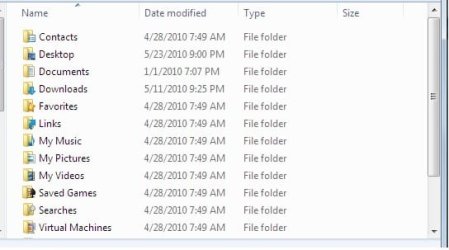
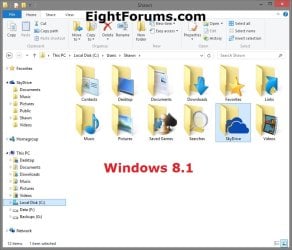
EXAMPLE: User folders
NOTE: This is at the default C:\Users\(user-name) location.
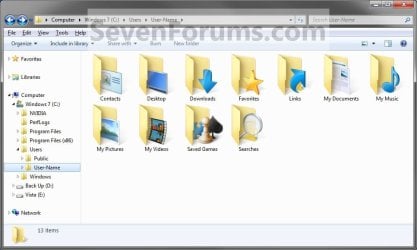
Example1.jpg

Windows_8.1.jpg


OPTION ONE

To Restore Default Location of User Folders in Properties


NOTE: If using this option does not restore the user folder back to the default location, then use OPTION TWO below instead.
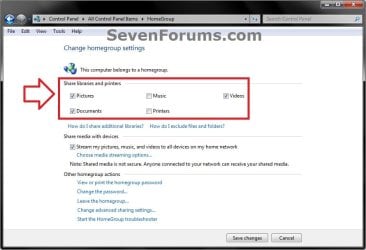
1. If you are in a homegroup, then you will need to change the homegroup settings to no longer share the user folder (ex: My Music) that you want to move first by unchecking the folder and clicking on Save Changes. (see screenshot below)
NOTE: This is so the user folder (ex: My Music) will not be shared on the homegroup anymore.
Homegroup.jpg
2. Press the Windows+R keys to open the Run dialog, type shell:UsersFilesFolder, and press enter.
NOTE: This will open your C:\Users\(user-name) folder.

3. Right click or press and hold on the user folder (ex: My Music) that you want to restore the default location for, and click/tap on Properties.

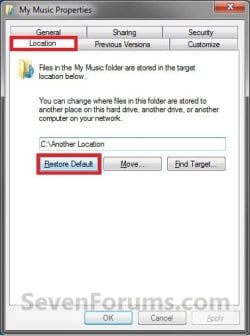
4. Click/tap on the Location tab, and Restore Default button. (See screenshot below)
Properties1.jpg
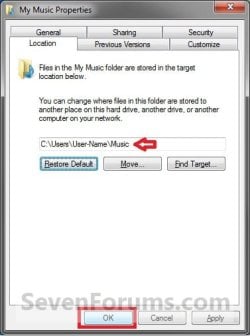
5. Click/tap on OK. (See screenshot below)
NOTE: Notice that the location has changed to the default C:\Users\(user-name) location.
Properties2.jpg
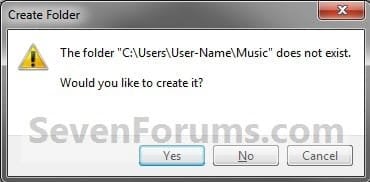
6. Click/tap on Yes. (See screenshot below)
Properties3.jpg

   Note
If you have a folder in the default location named for the user folder already, then you will not see this dialog box.

Windows 8 will not have the "My" in front of the user folder name anymore.

User Folder | Folder Name Contacts |Contacts
Desktop |Desktop
My Documents |Documents
Downloads |Downloads
Favorites |Favorites
Links |Links
My Music |Music
My Pictures |Pictures
OneDrive (Windows 8.1 Update)|OneDrive
Saved Games |Saved Games
Searches |Searches
SkyDrive (Windows 8.1)|SkyDrive
My Videos |Videos


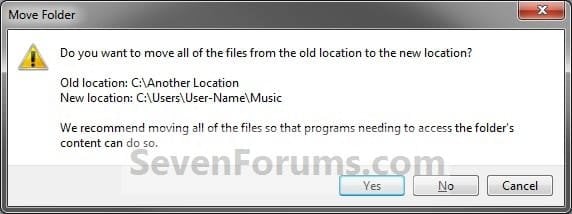
7. Click/tap on Yes. (See screenshot below)
WARNING: If you do not click/tap on Yes, then you will have two copies of this user folder at the C:\Users\(user-name) location. One will be a normal folder (same name) with the contents and the other as the now restored user folder. It is recommended that you click/tap on YES.
Properties4.jpg
8. After a few seconds when the location has been restored, the Properties window (screenshot under step 5) will then close.

9. If you are in a homegroup, then you can now change the homegroup settings back to share the user folder (ex: My Music) again if you like by checking the folder and clicking on Save Changes. (see screenshot below)
Homegroup.jpg


OPTION TWO

To Restore Default Location of User Folders using a BAT file


   Note
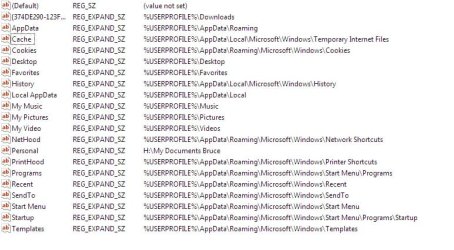
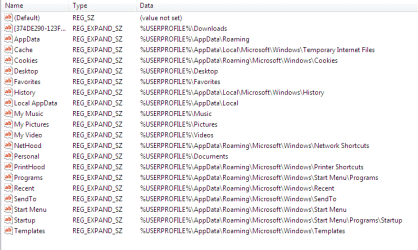
This is an example of the contents of the .bat files below. The parts in red are what will vary per .bat file based on what user folder it is for.

Code:
@echo off 
 
taskkill /f /im explorer.exe
 
timeout /t 2 /nobreak >nul
 
if not exist "%UserProfile%\[B][COLOR=red]Pictures[/COLOR][/B]" mkdir "%UserProfile%\[COLOR=red][B]Pictures[/B][/COLOR]"
 
reg add "HKCU\Software\Microsoft\Windows\CurrentVersion\Explorer\Shell Folders" /v "[COLOR=red][B]My Pictures[/B][/COLOR]" /t REG_SZ /d "C:\Users\%USERNAME%\[COLOR=red][B]Pictures[/B][/COLOR]" /f
 
reg add "HKCU\Software\Microsoft\Windows\CurrentVersion\Explorer\User Shell Folders" /v "[COLOR=red][B]My Pictures[/B][/COLOR]" /t REG_EXPAND_SZ /d %%USERPROFILE%%"\[COLOR=red][B]Pictures[/B][/COLOR]" /f
 
attrib +r -s -h "%USERPROFILE%\[COLOR=red][B]Pictures[/B][/COLOR]" /S /D
 
timeout /t 1 /nobreak >nul
 
start explorer.exe


1. Do step 2 to 13 below for what user folder you need to restore the default location of.


2. To Restore the Default Contacts Folder Location
A) Click/tap on the download button below to download the file below, and go to step 14 below.

Restore_Contacts_Default_Location.bat


Download


3. To Restore the Default Desktop Folder Location
A) Click/tap on the download button below to download the file below, and go to step 14 below.

Restore_Desktop_Default_Location.bat


Download


4. To Restore the Default My Documents Folder Location
A) Click/tap on the download button below to download the file below, and go to step 14 below.

Restore_Documents_Default_Location.bat


Download


5. To Restore the Default Downloads Folder Location
A) Click/tap on the download button below to download the file below, and go to step 14 below.

Restore_Downloads_Default_Location.bat


Download


6. To Restore the Default Favorites Folder Location
A) Click/tap on the download button below to download the file below, and go to step 14 below.

Restore_Favorites_Default_Location.bat


Download


7. To Restore the Default Links Folder Location
A) Click/tap on the download button below to download the file below, and go to step 14 below.

Restore_Links_Default_Location.bat


Download


8. To Restore the Default My Music Folder Location
A) Click/tap on the download button below to download the file below, and go to step 14 below.

Restore_Music_Default_Location.bat


Download


9. To Restore Default OneDrive Folder Location in Windows 8.1 Update
A) Click/tap on the download button below to download the file below, and go to step 14 below.

Restore_OneDrive_Default_Location.bat


Download


10. To Restore the Default My Pictures Folder Location
A) Click/tap on the download button below to download the file below, and go to step 14 below.

Restore_Pictures_Default_Location.bat


Download


11. To Restore the Default Saved Games Folder Location
A) Click/tap on the download button below to download the file below, and go to step 14 below.

Restore_Saved_Games_Default_Location.bat


Download


12. To Restore the Default Searches Folder Location
A) Click/tap on the download button below to download the file below, and go to step 14 below.

Restore_Searches_Default_Location.bat


Download


13. To Restore the Default My Videos Folder Location
A) Click/tap on the download button below to download the file below, and go to step 14 below.

Restore_Videos_Default_Location.bat


Download


14. Save the .bat file to your Desktop.

15. Unblock the downloaded .bat file(s).

16. Double click/tap on the downloaded .bat file to run it.

17. The .bat file will now kill explorer causing your screen to go blank, then open a command prompt to quickly restore the default location of the folder in the registry, restore the default attributes of the folder, restart explorer, and close the command prompt.

18. Repeat step 1 above for any other user folder you need to restore the default location of.

19. When finished, check the user folder(s) to verify that they have been restored to their default location.

20. If the user folder(s) still have not been restored to their default locations, then restart the computer and check again.

21. When restored, copy your files from the old folder location back into your now restored default folder location in "C:\Users\(user-name)".


That's it,
Shawn


Attachments

Last edited:

My Computer

Computer type
PC/Desktop
Computer Manufacturer/Model Number
Self built custom
OS
64-bit Windows 11 Pro for Workstations
CPU
Intel i7-8700K OC'd to 5 GHz
Motherboard
ASUS ROG Maximus XI Formula Z390
Memory
64 GB (4x16GB) G.SKILL TridentZ RGB DDR4 3600 MHz
Graphics Card(s)
ASUS ROG-STRIX-GTX1080TI-O11G-GAMING
Sound Card
Integrated
Monitor(s) Displays
2 x Samsung Odyssey G7 27"
Screen Resolution
2560x1440
Hard Drives
1TB Samsung 990 PRO M.2,
4TB Samsung 990 PRO PRO M.2,
TerraMaster F8 SSD Plus NAS
PSU
Seasonic Prime Titanium 850W
Case
Thermaltake Core P3
Cooling
Corsair Hydro H115i
Keyboard
Logitech wireless K800
Mouse
Logitech MX Master 4
Internet Speed
2 Gb/s Download and 100 Mb/s Upload
Antivirus
Malwarebyte Anti-Malware Premium
Browser
Google Chrome
Other Info
Logitech Z625 speaker system,
Logitech BRIO 4K Pro webcam,
HP Color LaserJet Pro MFP M477fdn,
APC SMART-UPS RT 1000 XL - SURT1000XLI,
Galaxy S23 Plus phone
thank you so much brink.
 

My Computer

OS
Windows 7
CPU
Core i5 2,26Ghz
Memory
500GB
Graphics Card(s)
AMD Ati Radeon HD 5470
You're most welcome Hau. :)
 

My Computer

Computer type
PC/Desktop
Computer Manufacturer/Model Number
Self built custom
OS
64-bit Windows 11 Pro for Workstations
CPU
Intel i7-8700K OC'd to 5 GHz
Motherboard
ASUS ROG Maximus XI Formula Z390
Memory
64 GB (4x16GB) G.SKILL TridentZ RGB DDR4 3600 MHz
Graphics Card(s)
ASUS ROG-STRIX-GTX1080TI-O11G-GAMING
Sound Card
Integrated
Monitor(s) Displays
2 x Samsung Odyssey G7 27"
Screen Resolution
2560x1440
Hard Drives
1TB Samsung 990 PRO M.2,
4TB Samsung 990 PRO PRO M.2,
TerraMaster F8 SSD Plus NAS
PSU
Seasonic Prime Titanium 850W
Case
Thermaltake Core P3
Cooling
Corsair Hydro H115i
Keyboard
Logitech wireless K800
Mouse
Logitech MX Master 4
Internet Speed
2 Gb/s Download and 100 Mb/s Upload
Antivirus
Malwarebyte Anti-Malware Premium
Browser
Google Chrome
Other Info
Logitech Z625 speaker system,
Logitech BRIO 4K Pro webcam,
HP Color LaserJet Pro MFP M477fdn,
APC SMART-UPS RT 1000 XL - SURT1000XLI,
Galaxy S23 Plus phone
Thanks for this tutorial.
I am trying to restore my Download folder and when I get to the stage of running the elevated command " attrib +r -s -h %USERPROFILE%\Downloads /S /D" it come back with error "Parameter format not correct -"
Any suggestions?
Thank you.
 

My Computer

OS
Windows 7
Hello Eastendpar, and welcome to Seven Forums.

The "Parameter format not correct -" error is always something not typed in correctly. You might copy and past the command instead to see if that may work better.

attrib +r -s -h %USERPROFILE%\Downloads /S /D

Hope this helps,
Shawn
 

My Computer

Computer type
PC/Desktop
Computer Manufacturer/Model Number
Self built custom
OS
64-bit Windows 11 Pro for Workstations
CPU
Intel i7-8700K OC'd to 5 GHz
Motherboard
ASUS ROG Maximus XI Formula Z390
Memory
64 GB (4x16GB) G.SKILL TridentZ RGB DDR4 3600 MHz
Graphics Card(s)
ASUS ROG-STRIX-GTX1080TI-O11G-GAMING
Sound Card
Integrated
Monitor(s) Displays
2 x Samsung Odyssey G7 27"
Screen Resolution
2560x1440
Hard Drives
1TB Samsung 990 PRO M.2,
4TB Samsung 990 PRO PRO M.2,
TerraMaster F8 SSD Plus NAS
PSU
Seasonic Prime Titanium 850W
Case
Thermaltake Core P3
Cooling
Corsair Hydro H115i
Keyboard
Logitech wireless K800
Mouse
Logitech MX Master 4
Internet Speed
2 Gb/s Download and 100 Mb/s Upload
Antivirus
Malwarebyte Anti-Malware Premium
Browser
Google Chrome
Other Info
Logitech Z625 speaker system,
Logitech BRIO 4K Pro webcam,
HP Color LaserJet Pro MFP M477fdn,
APC SMART-UPS RT 1000 XL - SURT1000XLI,
Galaxy S23 Plus phone
Thanks Shawn
I have copied and pasted again (this time using the text in your reply) and got the same message again.
I am perplexed now!
Thanks.
 

My Computer

OS
Windows 7
Strange. Since you alread did step 4 in OPTION TWO, go ahead and restart the computer a couple of times to see if the folder will show up afterwards.

If not, try the command again. If the command still does not work, then use the one below instead. Substitute user-name with your actual user folder name instead.

attrib +r -s -h "C:\Users\user-name\Downloads" /S /D
 

My Computer

Computer type
PC/Desktop
Computer Manufacturer/Model Number
Self built custom
OS
64-bit Windows 11 Pro for Workstations
CPU
Intel i7-8700K OC'd to 5 GHz
Motherboard
ASUS ROG Maximus XI Formula Z390
Memory
64 GB (4x16GB) G.SKILL TridentZ RGB DDR4 3600 MHz
Graphics Card(s)
ASUS ROG-STRIX-GTX1080TI-O11G-GAMING
Sound Card
Integrated
Monitor(s) Displays
2 x Samsung Odyssey G7 27"
Screen Resolution
2560x1440
Hard Drives
1TB Samsung 990 PRO M.2,
4TB Samsung 990 PRO PRO M.2,
TerraMaster F8 SSD Plus NAS
PSU
Seasonic Prime Titanium 850W
Case
Thermaltake Core P3
Cooling
Corsair Hydro H115i
Keyboard
Logitech wireless K800
Mouse
Logitech MX Master 4
Internet Speed
2 Gb/s Download and 100 Mb/s Upload
Antivirus
Malwarebyte Anti-Malware Premium
Browser
Google Chrome
Other Info
Logitech Z625 speaker system,
Logitech BRIO 4K Pro webcam,
HP Color LaserJet Pro MFP M477fdn,
APC SMART-UPS RT 1000 XL - SURT1000XLI,
Galaxy S23 Plus phone
When Win 7 first came out I "crudely" moved "My Documents" several times. I once had an H: drive but deleted that somewhere along the line.

I am now trying to fix this by Option 2.
Before starting my registry shell folder looked like this with the H:\ path (Untitled)

I deleted a "My Documents" folder in the shell:UsersFilesFolder that did not have the Location tab on it and then did Restore_Default_My_Documents_Location.reg.
I did the elevated cmd prompt and steps 17 18 19 20 20 20 .
At the shell:UsersFilesFolder location I now have a "Documents" folder with a Location tab (Untilted 2)
And my shell folder shows "Documents" for my personal folder (Untitled 3)/

In some ways this makes sense because none of your listings in 17 and 19 is for "My Documents".

But where is MY DOCUMENTS??
Thanks

As an update to my previous post: One reason I needed to fix this was some programs complained about the missing H: during installation. An update to Adobe Reader9 was one such program which kept failing before.
However, I just did the update very smoothly. So maybe I am not in such a mess. I have "Documents" but no "My Documents". I guess I can use the location tab to direct it to my F: drive.
You're a smart guy if you can follow all these twists and turns!
 

Attachments

  • Untitled2.jpg
    Untitled2.jpg
    49.5 KB · Views: 1,584
  • Untitled.jpg
    Untitled.jpg
    156.1 KB · Views: 580
  • Untitled3.png
    Untitled3.png
    43.8 KB · Views: 800
Last edited by a moderator:

My Computer

OS
Window 7 64 professioinal
Hello BMACD, and welcome to Seven Forums.

See if you can go to your C:\Users\(user-name) folder, and rename the Documents folder to My Documents instead. Next, check to make sure that it still has the Location tab in it's properties page.

Hope this helps,
Shawn
 

My Computer

Computer type
PC/Desktop
Computer Manufacturer/Model Number
Self built custom
OS
64-bit Windows 11 Pro for Workstations
CPU
Intel i7-8700K OC'd to 5 GHz
Motherboard
ASUS ROG Maximus XI Formula Z390
Memory
64 GB (4x16GB) G.SKILL TridentZ RGB DDR4 3600 MHz
Graphics Card(s)
ASUS ROG-STRIX-GTX1080TI-O11G-GAMING
Sound Card
Integrated
Monitor(s) Displays
2 x Samsung Odyssey G7 27"
Screen Resolution
2560x1440
Hard Drives
1TB Samsung 990 PRO M.2,
4TB Samsung 990 PRO PRO M.2,
TerraMaster F8 SSD Plus NAS
PSU
Seasonic Prime Titanium 850W
Case
Thermaltake Core P3
Cooling
Corsair Hydro H115i
Keyboard
Logitech wireless K800
Mouse
Logitech MX Master 4
Internet Speed
2 Gb/s Download and 100 Mb/s Upload
Antivirus
Malwarebyte Anti-Malware Premium
Browser
Google Chrome
Other Info
Logitech Z625 speaker system,
Logitech BRIO 4K Pro webcam,
HP Color LaserJet Pro MFP M477fdn,
APC SMART-UPS RT 1000 XL - SURT1000XLI,
Galaxy S23 Plus phone
:D
That was simple!
I changed the name, it retained the location tab, I logged off and on and checked my registry and Personal is now showing "My Documents".
Thanks!
 

My Computer

OS
Window 7 64 professioinal
You're most welcome BMACD. :)
 

My Computer

Computer type
PC/Desktop
Computer Manufacturer/Model Number
Self built custom
OS
64-bit Windows 11 Pro for Workstations
CPU
Intel i7-8700K OC'd to 5 GHz
Motherboard
ASUS ROG Maximus XI Formula Z390
Memory
64 GB (4x16GB) G.SKILL TridentZ RGB DDR4 3600 MHz
Graphics Card(s)
ASUS ROG-STRIX-GTX1080TI-O11G-GAMING
Sound Card
Integrated
Monitor(s) Displays
2 x Samsung Odyssey G7 27"
Screen Resolution
2560x1440
Hard Drives
1TB Samsung 990 PRO M.2,
4TB Samsung 990 PRO PRO M.2,
TerraMaster F8 SSD Plus NAS
PSU
Seasonic Prime Titanium 850W
Case
Thermaltake Core P3
Cooling
Corsair Hydro H115i
Keyboard
Logitech wireless K800
Mouse
Logitech MX Master 4
Internet Speed
2 Gb/s Download and 100 Mb/s Upload
Antivirus
Malwarebyte Anti-Malware Premium
Browser
Google Chrome
Other Info
Logitech Z625 speaker system,
Logitech BRIO 4K Pro webcam,
HP Color LaserJet Pro MFP M477fdn,
APC SMART-UPS RT 1000 XL - SURT1000XLI,
Galaxy S23 Plus phone
If not, try the command again. If the command still does not work, then use the one below instead. Substitute user-name with your actual user folder name instead.

attrib +r -s -h %USERPROFILE%\Pictures /S /D

When I copy and paste, I get a "parameter not correct" error message in "elevated command prompt.". When I substitute the actual administrator user-name I get the same. If I type the user-name without spaces, I get "file path not found."

I'm trying to restore "My Pictures in 7 x64." Are there manual registry hacks I can make? I don't care how involved it is. All the current steps aren't working. :confused: TIA.
 
Last edited by a moderator:

My Computer

OS
Win 7 x64
Hello WFO, and welcome to Seven Forums.

Did you download and mege the "My Pictures" REG file before using that command? The REG file will restore the default location in the registry as shown in the NOTE box under OPTION TWO.

If you didn't then that is why you got the error since the path in the command doesn't exist until after you merge the REG file.

Hope this may help for now,
Shawn
 

My Computer

Computer type
PC/Desktop
Computer Manufacturer/Model Number
Self built custom
OS
64-bit Windows 11 Pro for Workstations
CPU
Intel i7-8700K OC'd to 5 GHz
Motherboard
ASUS ROG Maximus XI Formula Z390
Memory
64 GB (4x16GB) G.SKILL TridentZ RGB DDR4 3600 MHz
Graphics Card(s)
ASUS ROG-STRIX-GTX1080TI-O11G-GAMING
Sound Card
Integrated
Monitor(s) Displays
2 x Samsung Odyssey G7 27"
Screen Resolution
2560x1440
Hard Drives
1TB Samsung 990 PRO M.2,
4TB Samsung 990 PRO PRO M.2,
TerraMaster F8 SSD Plus NAS
PSU
Seasonic Prime Titanium 850W
Case
Thermaltake Core P3
Cooling
Corsair Hydro H115i
Keyboard
Logitech wireless K800
Mouse
Logitech MX Master 4
Internet Speed
2 Gb/s Download and 100 Mb/s Upload
Antivirus
Malwarebyte Anti-Malware Premium
Browser
Google Chrome
Other Info
Logitech Z625 speaker system,
Logitech BRIO 4K Pro webcam,
HP Color LaserJet Pro MFP M477fdn,
APC SMART-UPS RT 1000 XL - SURT1000XLI,
Galaxy S23 Plus phone
Hello WFO, and welcome to Seven Forums.

Did you download and mege the "My Pictures" REG file before using that command? The REG file will restore the default location in the registry as shown in the NOTE box under OPTION TWO.

If you didn't then that is why you got the error since the path in the command doesn't exist until after you merge the REG file.

Hope this may help for now,
Shawn

Hi Brink:

Yep. I downloaded the file, extracted it to my desktop and merged as instructed. I also deleted the manually created "My Pictures" folder that didn't have a location tab. Rebooting multiple times hasn't helped either. :( Any chance you can post what the reg edits are so I can manually edit the reg if the entries are wrong? Thanks for helping. :D
 

My Computer

OS
Win 7 x64
You can right click on the downloaded REG file and click on Edit to see what they are. :)

In addition, double check the registry location below to make sure that it also has the correct full C:\Users\(user-name)\Pictures path for My Pictures.

HKEY_CURRENT_USER\Software\Microsoft\Windows\CurrentVersion\Explorer\Shell Folders
 

My Computer

Computer type
PC/Desktop
Computer Manufacturer/Model Number
Self built custom
OS
64-bit Windows 11 Pro for Workstations
CPU
Intel i7-8700K OC'd to 5 GHz
Motherboard
ASUS ROG Maximus XI Formula Z390
Memory
64 GB (4x16GB) G.SKILL TridentZ RGB DDR4 3600 MHz
Graphics Card(s)
ASUS ROG-STRIX-GTX1080TI-O11G-GAMING
Sound Card
Integrated
Monitor(s) Displays
2 x Samsung Odyssey G7 27"
Screen Resolution
2560x1440
Hard Drives
1TB Samsung 990 PRO M.2,
4TB Samsung 990 PRO PRO M.2,
TerraMaster F8 SSD Plus NAS
PSU
Seasonic Prime Titanium 850W
Case
Thermaltake Core P3
Cooling
Corsair Hydro H115i
Keyboard
Logitech wireless K800
Mouse
Logitech MX Master 4
Internet Speed
2 Gb/s Download and 100 Mb/s Upload
Antivirus
Malwarebyte Anti-Malware Premium
Browser
Google Chrome
Other Info
Logitech Z625 speaker system,
Logitech BRIO 4K Pro webcam,
HP Color LaserJet Pro MFP M477fdn,
APC SMART-UPS RT 1000 XL - SURT1000XLI,
Galaxy S23 Plus phone
Hi Brink:

Despite using the reg file downloaded from your site. When I went to the registry location you suggested, it still says G:\My Pictures. Should I just edit that to the default C location?

Edit: Never mind. I created a folder named "Pictures" in the default location, opened the folder and copied the location from the address bar so I would not miss-type my regedit. I opened regedit and went to: HKEY_CURRENT_USER\Software\Microsoft\Windows\CurrentVersion\Explorer\Shell Folders

I double clicked "My Pictures" and pasted the location of the new folder. On reboot, the new folder had the location tab. Problem solved and I didn't have to run the recommended command in the elevated cmd. Much simpler. :D Sorry about the "bold" in this paragraph. I was too lazy to change it back after the paste. Thanks for the help!
 

My Computer

OS
Win 7 x64
WFO,

At the User Shell Folders registry location, yes you sure can edit it to be exactly how it looks in the screenshot in the NOTE box under OPTION TWO if you like to see how that works for you instead. This is what the REG file changes it to.

Sometimes it will take a few restarts for it to be applied though. Did you also double check the registry entry at the Shell Folders location to see if it's how I posted above?
 

My Computer

Computer type
PC/Desktop
Computer Manufacturer/Model Number
Self built custom
OS
64-bit Windows 11 Pro for Workstations
CPU
Intel i7-8700K OC'd to 5 GHz
Motherboard
ASUS ROG Maximus XI Formula Z390
Memory
64 GB (4x16GB) G.SKILL TridentZ RGB DDR4 3600 MHz
Graphics Card(s)
ASUS ROG-STRIX-GTX1080TI-O11G-GAMING
Sound Card
Integrated
Monitor(s) Displays
2 x Samsung Odyssey G7 27"
Screen Resolution
2560x1440
Hard Drives
1TB Samsung 990 PRO M.2,
4TB Samsung 990 PRO PRO M.2,
TerraMaster F8 SSD Plus NAS
PSU
Seasonic Prime Titanium 850W
Case
Thermaltake Core P3
Cooling
Corsair Hydro H115i
Keyboard
Logitech wireless K800
Mouse
Logitech MX Master 4
Internet Speed
2 Gb/s Download and 100 Mb/s Upload
Antivirus
Malwarebyte Anti-Malware Premium
Browser
Google Chrome
Other Info
Logitech Z625 speaker system,
Logitech BRIO 4K Pro webcam,
HP Color LaserJet Pro MFP M477fdn,
APC SMART-UPS RT 1000 XL - SURT1000XLI,
Galaxy S23 Plus phone
WFO,

At the User Shell Folders registry location, yes you sure can edit it to be exactly how it looks in the screenshot in the NOTE box under OPTION TWO if you like to see how that works for you instead. This is what the REG file changes it to.

Sometimes it will take a few restarts for it to be applied though. Did you also double check the registry entry at the Shell Folders location to see if it's how I posted above?

I was editing while you were posting. See edit above. Problem solved. Thanks again. :D
 

My Computer

OS
Win 7 x64
LOL, that's great news. I'm happy to hear that you got it sorted. :)
 

My Computer

Computer type
PC/Desktop
Computer Manufacturer/Model Number
Self built custom
OS
64-bit Windows 11 Pro for Workstations
CPU
Intel i7-8700K OC'd to 5 GHz
Motherboard
ASUS ROG Maximus XI Formula Z390
Memory
64 GB (4x16GB) G.SKILL TridentZ RGB DDR4 3600 MHz
Graphics Card(s)
ASUS ROG-STRIX-GTX1080TI-O11G-GAMING
Sound Card
Integrated
Monitor(s) Displays
2 x Samsung Odyssey G7 27"
Screen Resolution
2560x1440
Hard Drives
1TB Samsung 990 PRO M.2,
4TB Samsung 990 PRO PRO M.2,
TerraMaster F8 SSD Plus NAS
PSU
Seasonic Prime Titanium 850W
Case
Thermaltake Core P3
Cooling
Corsair Hydro H115i
Keyboard
Logitech wireless K800
Mouse
Logitech MX Master 4
Internet Speed
2 Gb/s Download and 100 Mb/s Upload
Antivirus
Malwarebyte Anti-Malware Premium
Browser
Google Chrome
Other Info
Logitech Z625 speaker system,
Logitech BRIO 4K Pro webcam,
HP Color LaserJet Pro MFP M477fdn,
APC SMART-UPS RT 1000 XL - SURT1000XLI,
Galaxy S23 Plus phone
I moved my My Documents from C;|users to e: drive I am trying to move it back to default c:\users but each time I try to do this it fails. I cant create a new folder called my documents either as it says one exists though its not seen. I tried to unhidden all and it still doesn't show a folder so im stuck
 

My Computer

OS
Windows 7 7264
CPU
AMD Phenon X4955 Black Edition 3.2 Quad Core
Motherboard
ASUS M4A79T Deluxe AM3 DDR3 AMD 790FX ATX AMD Motherboard
Memory
8GB CORSAIR XMS3 DHX 4GB 240-Pin DDR3 SDRAM DDR3 1600
Graphics Card(s)
SAPPHIRE Radeon HD 4890 1GB 256-bit GDDR5 PCI Exp 2.0 16x
Sound Card
Onboard Asus
Monitor(s) Displays
Hanns G 28" Widscreen Baby!
Screen Resolution
1900x1200
Hard Drives
Western Digital Caviar Black WD1001FALS 1TB 7200 RPM 32MB Cache SATA 3.0Gb

Western Digital 320gb 7200 RPM 16MB Cache
PSU
CORSAIR CMPSU-750TX 750W ATX12V / EPS12V
Case
Custom Made ATX
Cooling
Air
Keyboard
Microsoft Wired for gaming
Mouse
Wired for gaming 2200
Internet Speed
Comcast 24GB
Back
Top