User Folders - Restore Default Location

How to Restore Default Location of User Folders in Windows 7 and Windows 8

   Information
This will show you how to restore the default location of all or a single user folder of your choice in Windows 7 and Windows 8.

   Note
If you have duplicate user folders instead, then you will need to backup the contents of the duplicate user folders, do OPTION TWO below, delete the duplicate folders, then you may need to restart the computer a couple of times first before the default location is restored.

Windows 8.1 Update released on April 8th 2014 via Windows Update, renamed SkyDrive to OneDrive.


CONTENTS:
  • Option One: To Restore Default Location of User Folders in Properties
  • Option Two: To Restore Default Location of User Folders using a BAT file


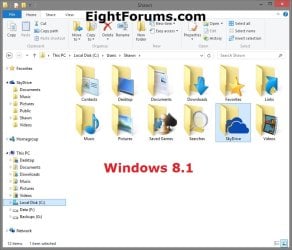
EXAMPLE: User folders
NOTE: This is at the default C:\Users\(user-name) location.
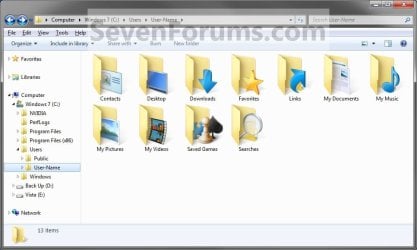
Example1.jpg

Windows_8.1.jpg


OPTION ONE

To Restore Default Location of User Folders in Properties


NOTE: If using this option does not restore the user folder back to the default location, then use OPTION TWO below instead.
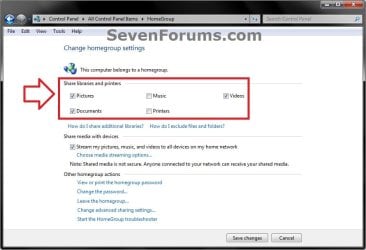
1. If you are in a homegroup, then you will need to change the homegroup settings to no longer share the user folder (ex: My Music) that you want to move first by unchecking the folder and clicking on Save Changes. (see screenshot below)
NOTE: This is so the user folder (ex: My Music) will not be shared on the homegroup anymore.
Homegroup.jpg
2. Press the Windows+R keys to open the Run dialog, type shell:UsersFilesFolder, and press enter.
NOTE: This will open your C:\Users\(user-name) folder.

3. Right click or press and hold on the user folder (ex: My Music) that you want to restore the default location for, and click/tap on Properties.

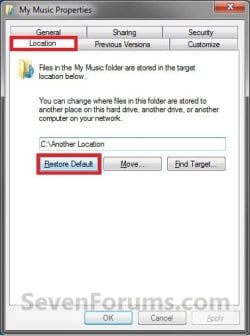
4. Click/tap on the Location tab, and Restore Default button. (See screenshot below)
Properties1.jpg
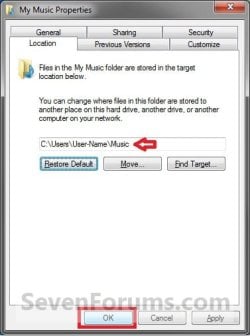
5. Click/tap on OK. (See screenshot below)
NOTE: Notice that the location has changed to the default C:\Users\(user-name) location.
Properties2.jpg
6. Click/tap on Yes. (See screenshot below)
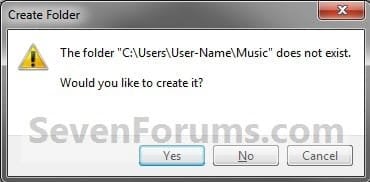
Properties3.jpg

   Note
If you have a folder in the default location named for the user folder already, then you will not see this dialog box.

Windows 8 will not have the "My" in front of the user folder name anymore.

User Folder | Folder Name Contacts |Contacts
Desktop |Desktop
My Documents |Documents
Downloads |Downloads
Favorites |Favorites
Links |Links
My Music |Music
My Pictures |Pictures
OneDrive (Windows 8.1 Update)|OneDrive
Saved Games |Saved Games
Searches |Searches
SkyDrive (Windows 8.1)|SkyDrive
My Videos |Videos


7. Click/tap on Yes. (See screenshot below)
WARNING: If you do not click/tap on Yes, then you will have two copies of this user folder at the C:\Users\(user-name) location. One will be a normal folder (same name) with the contents and the other as the now restored user folder. It is recommended that you click/tap on YES.
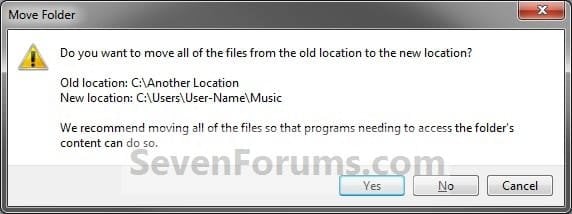
Properties4.jpg
8. After a few seconds when the location has been restored, the Properties window (screenshot under step 5) will then close.

9. If you are in a homegroup, then you can now change the homegroup settings back to share the user folder (ex: My Music) again if you like by checking the folder and clicking on Save Changes. (see screenshot below)
Homegroup.jpg


OPTION TWO

To Restore Default Location of User Folders using a BAT file


   Note
This is an example of the contents of the .bat files below. The parts in red are what will vary per .bat file based on what user folder it is for.

Code:
@echo off 
 
taskkill /f /im explorer.exe
 
timeout /t 2 /nobreak >nul
 
if not exist "%UserProfile%\[B][COLOR=red]Pictures[/COLOR][/B]" mkdir "%UserProfile%\[COLOR=red][B]Pictures[/B][/COLOR]"
 
reg add "HKCU\Software\Microsoft\Windows\CurrentVersion\Explorer\Shell Folders" /v "[COLOR=red][B]My Pictures[/B][/COLOR]" /t REG_SZ /d "C:\Users\%USERNAME%\[COLOR=red][B]Pictures[/B][/COLOR]" /f
 
reg add "HKCU\Software\Microsoft\Windows\CurrentVersion\Explorer\User Shell Folders" /v "[COLOR=red][B]My Pictures[/B][/COLOR]" /t REG_EXPAND_SZ /d %%USERPROFILE%%"\[COLOR=red][B]Pictures[/B][/COLOR]" /f
 
attrib +r -s -h "%USERPROFILE%\[COLOR=red][B]Pictures[/B][/COLOR]" /S /D
 
timeout /t 1 /nobreak >nul
 
start explorer.exe


1. Do step 2 to 13 below for what user folder you need to restore the default location of.


2. To Restore the Default Contacts Folder Location
A) Click/tap on the download button below to download the file below, and go to step 14 below.

Restore_Contacts_Default_Location.bat


Download


3. To Restore the Default Desktop Folder Location
A) Click/tap on the download button below to download the file below, and go to step 14 below.

Restore_Desktop_Default_Location.bat


Download


4. To Restore the Default My Documents Folder Location
A) Click/tap on the download button below to download the file below, and go to step 14 below.

Restore_Documents_Default_Location.bat


Download


5. To Restore the Default Downloads Folder Location
A) Click/tap on the download button below to download the file below, and go to step 14 below.

Restore_Downloads_Default_Location.bat


Download


6. To Restore the Default Favorites Folder Location
A) Click/tap on the download button below to download the file below, and go to step 14 below.

Restore_Favorites_Default_Location.bat


Download


7. To Restore the Default Links Folder Location
A) Click/tap on the download button below to download the file below, and go to step 14 below.

Restore_Links_Default_Location.bat


Download


8. To Restore the Default My Music Folder Location
A) Click/tap on the download button below to download the file below, and go to step 14 below.

Restore_Music_Default_Location.bat


Download


9. To Restore Default OneDrive Folder Location in Windows 8.1 Update
A) Click/tap on the download button below to download the file below, and go to step 14 below.

Restore_OneDrive_Default_Location.bat


Download


10. To Restore the Default My Pictures Folder Location
A) Click/tap on the download button below to download the file below, and go to step 14 below.

Restore_Pictures_Default_Location.bat


Download


11. To Restore the Default Saved Games Folder Location
A) Click/tap on the download button below to download the file below, and go to step 14 below.

Restore_Saved_Games_Default_Location.bat


Download


12. To Restore the Default Searches Folder Location
A) Click/tap on the download button below to download the file below, and go to step 14 below.

Restore_Searches_Default_Location.bat


Download


13. To Restore the Default My Videos Folder Location
A) Click/tap on the download button below to download the file below, and go to step 14 below.

Restore_Videos_Default_Location.bat


Download


14. Save the .bat file to your Desktop.

15. Unblock the downloaded .bat file(s).

16. Double click/tap on the downloaded .bat file to run it.

17. The .bat file will now kill explorer causing your screen to go blank, then open a command prompt to quickly restore the default location of the folder in the registry, restore the default attributes of the folder, restart explorer, and close the command prompt.

18. Repeat step 1 above for any other user folder you need to restore the default location of.

19. When finished, check the user folder(s) to verify that they have been restored to their default location.

20. If the user folder(s) still have not been restored to their default locations, then restart the computer and check again.

21. When restored, copy your files from the old folder location back into your now restored default folder location in "C:\Users\(user-name)".


That's it,
Shawn


Attachments

Last edited:
Hello Dorfdad,

Have you tried OPTION TWO in the tutorial instead? It may take a few restarts before it is applied.
 

My Computer

Computer type
PC/Desktop
Computer Manufacturer/Model Number
Self built custom
OS
64-bit Windows 11 Pro for Workstations
CPU
Intel i7-8700K OC'd to 5 GHz
Motherboard
ASUS ROG Maximus XI Formula Z390
Memory
64 GB (4x16GB) G.SKILL TridentZ RGB DDR4 3600 MHz
Graphics Card(s)
ASUS ROG-STRIX-GTX1080TI-O11G-GAMING
Sound Card
Integrated
Monitor(s) Displays
2 x Samsung Odyssey G7 27"
Screen Resolution
2560x1440
Hard Drives
1TB Samsung 990 PRO M.2,
4TB Samsung 990 PRO PRO M.2,
TerraMaster F8 SSD Plus NAS
PSU
Seasonic Prime Titanium 850W
Case
Thermaltake Core P3
Cooling
Corsair Hydro H115i
Keyboard
Logitech wireless K800
Mouse
Logitech MX Master 4
Internet Speed
2 Gb/s Download and 100 Mb/s Upload
Antivirus
Malwarebyte Anti-Malware Premium
Browser
Google Chrome
Other Info
Logitech Z625 speaker system,
Logitech BRIO 4K Pro webcam,
HP Color LaserJet Pro MFP M477fdn,
APC SMART-UPS RT 1000 XL - SURT1000XLI,
Galaxy S23 Plus phone
yes I did.. But stiill not able to moved them back.. Every time I try it says there is a folder already there which there isnt..
 

My Computer

OS
Windows 7 7264
CPU
AMD Phenon X4955 Black Edition 3.2 Quad Core
Motherboard
ASUS M4A79T Deluxe AM3 DDR3 AMD 790FX ATX AMD Motherboard
Memory
8GB CORSAIR XMS3 DHX 4GB 240-Pin DDR3 SDRAM DDR3 1600
Graphics Card(s)
SAPPHIRE Radeon HD 4890 1GB 256-bit GDDR5 PCI Exp 2.0 16x
Sound Card
Onboard Asus
Monitor(s) Displays
Hanns G 28" Widscreen Baby!
Screen Resolution
1900x1200
Hard Drives
Western Digital Caviar Black WD1001FALS 1TB 7200 RPM 32MB Cache SATA 3.0Gb

Western Digital 320gb 7200 RPM 16MB Cache
PSU
CORSAIR CMPSU-750TX 750W ATX12V / EPS12V
Case
Custom Made ATX
Cooling
Air
Keyboard
Microsoft Wired for gaming
Mouse
Wired for gaming 2200
Internet Speed
Comcast 24GB
After doing OPTION TWO, you do not need to try and move the folder back since it makes the changes for you in the registry. :confused:


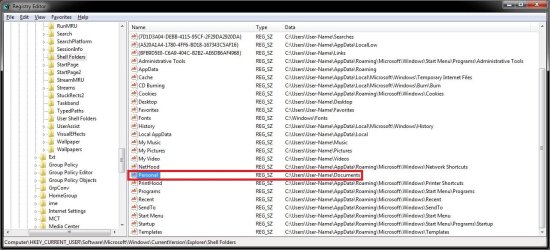
Double check the registry location below as well to make sure it has the correct "full path" like below.

HKEY_CURRENT_USER\Software\Microsoft\Windows\CurrentVersion\Explorer\Shell Folders

Shell_Folders.jpg
 

My Computer

Computer type
PC/Desktop
Computer Manufacturer/Model Number
Self built custom
OS
64-bit Windows 11 Pro for Workstations
CPU
Intel i7-8700K OC'd to 5 GHz
Motherboard
ASUS ROG Maximus XI Formula Z390
Memory
64 GB (4x16GB) G.SKILL TridentZ RGB DDR4 3600 MHz
Graphics Card(s)
ASUS ROG-STRIX-GTX1080TI-O11G-GAMING
Sound Card
Integrated
Monitor(s) Displays
2 x Samsung Odyssey G7 27"
Screen Resolution
2560x1440
Hard Drives
1TB Samsung 990 PRO M.2,
4TB Samsung 990 PRO PRO M.2,
TerraMaster F8 SSD Plus NAS
PSU
Seasonic Prime Titanium 850W
Case
Thermaltake Core P3
Cooling
Corsair Hydro H115i
Keyboard
Logitech wireless K800
Mouse
Logitech MX Master 4
Internet Speed
2 Gb/s Download and 100 Mb/s Upload
Antivirus
Malwarebyte Anti-Malware Premium
Browser
Google Chrome
Other Info
Logitech Z625 speaker system,
Logitech BRIO 4K Pro webcam,
HP Color LaserJet Pro MFP M477fdn,
APC SMART-UPS RT 1000 XL - SURT1000XLI,
Galaxy S23 Plus phone
I was this problem, but with your help I can restore my Registry again.

Thanks for you great help!
 

My Computer

Computer Manufacturer/Model Number
Gateway LX-4720
OS
Windows 7
CPU
Intel® Core™2 Quad Q8200 @2.33Ghz
Motherboard
Gateway Motherboard
Memory
4.00 GB
You're most welcome Vinzent, and welcome to Seven Forums. I'm happy to hear that you got it sorted. :)
 

My Computer

Computer type
PC/Desktop
Computer Manufacturer/Model Number
Self built custom
OS
64-bit Windows 11 Pro for Workstations
CPU
Intel i7-8700K OC'd to 5 GHz
Motherboard
ASUS ROG Maximus XI Formula Z390
Memory
64 GB (4x16GB) G.SKILL TridentZ RGB DDR4 3600 MHz
Graphics Card(s)
ASUS ROG-STRIX-GTX1080TI-O11G-GAMING
Sound Card
Integrated
Monitor(s) Displays
2 x Samsung Odyssey G7 27"
Screen Resolution
2560x1440
Hard Drives
1TB Samsung 990 PRO M.2,
4TB Samsung 990 PRO PRO M.2,
TerraMaster F8 SSD Plus NAS
PSU
Seasonic Prime Titanium 850W
Case
Thermaltake Core P3
Cooling
Corsair Hydro H115i
Keyboard
Logitech wireless K800
Mouse
Logitech MX Master 4
Internet Speed
2 Gb/s Download and 100 Mb/s Upload
Antivirus
Malwarebyte Anti-Malware Premium
Browser
Google Chrome
Other Info
Logitech Z625 speaker system,
Logitech BRIO 4K Pro webcam,
HP Color LaserJet Pro MFP M477fdn,
APC SMART-UPS RT 1000 XL - SURT1000XLI,
Galaxy S23 Plus phone
OK, guys... I think I screwed the pooch on this one. I had previously successfully moved all of my User folders to the D: partition. Recently, I was browsing my user folder and had inadvertently left my mouse in one of its rapidfire modes, and something screwy happened. Now, my <username> folder on the D: is empty, and there is a My Music folder on the D: root dir that has everything that should be in <username> in it instead. There is no additional My Music folder within the incorrect My Music folder. Now all the subfolders are looking like Music subfolders so nothing will stay in Detail view.

When I open any of the folders in the D:\My Music folder, the Location listed in the General tab shows as D:\<username>. WTF??? The Location listed for D:\My Music is showing correctly as D:\, but I am not sure how it got there (other than an inadvertent double-click). Accessing my files via the Libraries links in the left column of any window takes me right to where the files are, so the paths are intact, just in the wrong place.

I am really scratching my head over this. A quick fix would be to just rename the My Music folder with my name and then change the contents to general and make a new My Music folder inside, but I don't know if that will actually achieve the desired result. I guess I could also just copy all of the contents of D:\My Music back into D:\<username>, but I also don't think that would be a good idea. Any suggestions?

BTW, I tried moving the My Music folder to where it is supposed to be (using the "shell:" method in the guide), but Windows said something about not moving to a nested folder.

HALP!!!

TIA!

VSP
 

My Computer

Computer Manufacturer/Model Number
Custom Built
OS
Win7 Pro x64
CPU
i7 860 @ 2.80GHZ
Motherboard
Gigabyte P55A-UD4P
Memory
Corsair Dominator DDR3 1600 (8GB) in XMP mode
Graphics Card(s)
Radeon HD 5850 XFX XXX Edition
Monitor(s) Displays
Hanns-G HG281D
Screen Resolution
1920 x 1200
Hard Drives
Seagate Barracuda 7200.11 1.5TB (300GB C: part ;) )
PSU
Corsair TX750W
Case
NZXT Tempest EVO
Cooling
Asetek LCLC 120, NZXT Stock Fans (4x120mm, 2x140mm)
Keyboard
Cyber Snipa V2 (oh, and MS Natural Multimedia 1.0A)
Mouse
Wolfking Trooper MVP Blue
Internet Speed
FiOS 15/5
Hello VSP,

I have updated OPTION TWO to be more thorough. Please try again to see if you can restore your user folders. :)
 

My Computer

Computer type
PC/Desktop
Computer Manufacturer/Model Number
Self built custom
OS
64-bit Windows 11 Pro for Workstations
CPU
Intel i7-8700K OC'd to 5 GHz
Motherboard
ASUS ROG Maximus XI Formula Z390
Memory
64 GB (4x16GB) G.SKILL TridentZ RGB DDR4 3600 MHz
Graphics Card(s)
ASUS ROG-STRIX-GTX1080TI-O11G-GAMING
Sound Card
Integrated
Monitor(s) Displays
2 x Samsung Odyssey G7 27"
Screen Resolution
2560x1440
Hard Drives
1TB Samsung 990 PRO M.2,
4TB Samsung 990 PRO PRO M.2,
TerraMaster F8 SSD Plus NAS
PSU
Seasonic Prime Titanium 850W
Case
Thermaltake Core P3
Cooling
Corsair Hydro H115i
Keyboard
Logitech wireless K800
Mouse
Logitech MX Master 4
Internet Speed
2 Gb/s Download and 100 Mb/s Upload
Antivirus
Malwarebyte Anti-Malware Premium
Browser
Google Chrome
Other Info
Logitech Z625 speaker system,
Logitech BRIO 4K Pro webcam,
HP Color LaserJet Pro MFP M477fdn,
APC SMART-UPS RT 1000 XL - SURT1000XLI,
Galaxy S23 Plus phone
Thanks, Brink. In my impatience to finally fix this (have been sitting on it for a few weeks), I tried some other things after my post and seem to have created a bigger problem. I tried just moving all files from the D:\My Music folder to the D:\<username> folder, and when I did, I noticed in the Move box the following:

Moving files
From D:\My Music (D:\<username>)
To D:\<username> (D:\MyMusic)

So, I immediately cancelled and relocated what had already been moved. Since it appeared the folders were attached to each others identities, I decided just to rename and change the content designator and then move the My Music folder into the <username> folder. Well, now when I go to the shell:UsersFilesFolder, there is no longer a My Music folder!!! When I open explorer and click on the Music library, it takes me to D:\<username> (like it had been). I found that if I right click on Library>Music in the left column, I can redesignate where it points to (which is currently D:\<username>). The problem is, when I add a My Music folder to the shell, it places it in C:\Users\<username> and there is no Location tab within its properties, so I can't move it to the D:\. Argh!

Now, I did check the registry and it appears that my profile still resides in C:\Users\<username> even though everything else is going to D:\<username>. Could that be the problem now?

I know, I know... :facepalm:

Appreciate your patience. Thx!

VSP

EDIT: Crap. I just noticed that the My Music folder isn't missing from the shell... it is labeled <username>!!! So, instead of having a D:\<username>\My Music folder, I have a D:\<username>\<username> folder!!! Oh for Pete's sake!!! Renaming the <username> folder in the shell also renames the folder in the D:\, so I am back to square 1. I can't use the Location>Move feature since it tells me that it can't move to a descendant folder.

Please tell me the fix isn't FDisk>Format>Reinstall!!! There has just got to be a solution I cannot see.
 

My Computer

Computer Manufacturer/Model Number
Custom Built
OS
Win7 Pro x64
CPU
i7 860 @ 2.80GHZ
Motherboard
Gigabyte P55A-UD4P
Memory
Corsair Dominator DDR3 1600 (8GB) in XMP mode
Graphics Card(s)
Radeon HD 5850 XFX XXX Edition
Monitor(s) Displays
Hanns-G HG281D
Screen Resolution
1920 x 1200
Hard Drives
Seagate Barracuda 7200.11 1.5TB (300GB C: part ;) )
PSU
Corsair TX750W
Case
NZXT Tempest EVO
Cooling
Asetek LCLC 120, NZXT Stock Fans (4x120mm, 2x140mm)
Keyboard
Cyber Snipa V2 (oh, and MS Natural Multimedia 1.0A)
Mouse
Wolfking Trooper MVP Blue
Internet Speed
FiOS 15/5
LOL, you'll get it mate. Were you able to rename and correct it? :)
 

My Computer

Computer type
PC/Desktop
Computer Manufacturer/Model Number
Self built custom
OS
64-bit Windows 11 Pro for Workstations
CPU
Intel i7-8700K OC'd to 5 GHz
Motherboard
ASUS ROG Maximus XI Formula Z390
Memory
64 GB (4x16GB) G.SKILL TridentZ RGB DDR4 3600 MHz
Graphics Card(s)
ASUS ROG-STRIX-GTX1080TI-O11G-GAMING
Sound Card
Integrated
Monitor(s) Displays
2 x Samsung Odyssey G7 27"
Screen Resolution
2560x1440
Hard Drives
1TB Samsung 990 PRO M.2,
4TB Samsung 990 PRO PRO M.2,
TerraMaster F8 SSD Plus NAS
PSU
Seasonic Prime Titanium 850W
Case
Thermaltake Core P3
Cooling
Corsair Hydro H115i
Keyboard
Logitech wireless K800
Mouse
Logitech MX Master 4
Internet Speed
2 Gb/s Download and 100 Mb/s Upload
Antivirus
Malwarebyte Anti-Malware Premium
Browser
Google Chrome
Other Info
Logitech Z625 speaker system,
Logitech BRIO 4K Pro webcam,
HP Color LaserJet Pro MFP M477fdn,
APC SMART-UPS RT 1000 XL - SURT1000XLI,
Galaxy S23 Plus phone
I must have been editing my previous post while you were replying... no, I haven't figured it out yet.

There is always the option to restore the default folder for My Music, which tells me it will place it in C:\Users\<username>\Music, but I am afraid that it will move the entire 25GB of what should be my <username> folder off of the D: and onto the C: and that I will not get these two folders unlinked. Do think there is a chance of that?

EDIT: Remember, there are actually no files designated to be in the My Music folder as I have not ripped or dl'd any music yet... moving it should only be a few KB.
 

My Computer

Computer Manufacturer/Model Number
Custom Built
OS
Win7 Pro x64
CPU
i7 860 @ 2.80GHZ
Motherboard
Gigabyte P55A-UD4P
Memory
Corsair Dominator DDR3 1600 (8GB) in XMP mode
Graphics Card(s)
Radeon HD 5850 XFX XXX Edition
Monitor(s) Displays
Hanns-G HG281D
Screen Resolution
1920 x 1200
Hard Drives
Seagate Barracuda 7200.11 1.5TB (300GB C: part ;) )
PSU
Corsair TX750W
Case
NZXT Tempest EVO
Cooling
Asetek LCLC 120, NZXT Stock Fans (4x120mm, 2x140mm)
Keyboard
Cyber Snipa V2 (oh, and MS Natural Multimedia 1.0A)
Mouse
Wolfking Trooper MVP Blue
Internet Speed
FiOS 15/5
This may help:
  • Backup anything that you do not want to lose in the Music folder to another location to be safe.
  • Delete the misnamed Music folder, and any other instance of it.
  • Using all of OPTION TWO in the tutorial, verify that the Music folder has the correct default name and path in both registry locations. If it doesn't, then change it so that it is.
  • If you Music folder is restored, then copy your files back.
 

My Computer

Computer type
PC/Desktop
Computer Manufacturer/Model Number
Self built custom
OS
64-bit Windows 11 Pro for Workstations
CPU
Intel i7-8700K OC'd to 5 GHz
Motherboard
ASUS ROG Maximus XI Formula Z390
Memory
64 GB (4x16GB) G.SKILL TridentZ RGB DDR4 3600 MHz
Graphics Card(s)
ASUS ROG-STRIX-GTX1080TI-O11G-GAMING
Sound Card
Integrated
Monitor(s) Displays
2 x Samsung Odyssey G7 27"
Screen Resolution
2560x1440
Hard Drives
1TB Samsung 990 PRO M.2,
4TB Samsung 990 PRO PRO M.2,
TerraMaster F8 SSD Plus NAS
PSU
Seasonic Prime Titanium 850W
Case
Thermaltake Core P3
Cooling
Corsair Hydro H115i
Keyboard
Logitech wireless K800
Mouse
Logitech MX Master 4
Internet Speed
2 Gb/s Download and 100 Mb/s Upload
Antivirus
Malwarebyte Anti-Malware Premium
Browser
Google Chrome
Other Info
Logitech Z625 speaker system,
Logitech BRIO 4K Pro webcam,
HP Color LaserJet Pro MFP M477fdn,
APC SMART-UPS RT 1000 XL - SURT1000XLI,
Galaxy S23 Plus phone
OK, will try it, though I might have to wait to do so. "Life" is happening in the middle of my computer crisis. Darn life!!!
 

My Computer

Computer Manufacturer/Model Number
Custom Built
OS
Win7 Pro x64
CPU
i7 860 @ 2.80GHZ
Motherboard
Gigabyte P55A-UD4P
Memory
Corsair Dominator DDR3 1600 (8GB) in XMP mode
Graphics Card(s)
Radeon HD 5850 XFX XXX Edition
Monitor(s) Displays
Hanns-G HG281D
Screen Resolution
1920 x 1200
Hard Drives
Seagate Barracuda 7200.11 1.5TB (300GB C: part ;) )
PSU
Corsair TX750W
Case
NZXT Tempest EVO
Cooling
Asetek LCLC 120, NZXT Stock Fans (4x120mm, 2x140mm)
Keyboard
Cyber Snipa V2 (oh, and MS Natural Multimedia 1.0A)
Mouse
Wolfking Trooper MVP Blue
Internet Speed
FiOS 15/5
I have duplicate Desktop folders. I've followed the instructions in the OP several times to no avail.

They are completely identical. Both have Location tabs and deleting one also deletes the other; recreating one recreates both. I'd prefer to leave them both deleted but then I'd get a "refers to location that is unavailable" error, and they reappear upon reboot.

Any suggestions?
 

My Computer

Computer Manufacturer/Model Number
Dell Inspiron 1420
OS
Windows 7 Enterprise SP1 x64
CPU
Intel Core 2 Duo T7300 2GHz
Memory
3GB
Graphics Card(s)
GeForce 8400M GS
Screen Resolution
1440x900
Hello Caspid,

Have you already tried OPTION TWO in the tutorial for the Desktop folder to see if that may be able to restore it?
 

My Computer

Computer type
PC/Desktop
Computer Manufacturer/Model Number
Self built custom
OS
64-bit Windows 11 Pro for Workstations
CPU
Intel i7-8700K OC'd to 5 GHz
Motherboard
ASUS ROG Maximus XI Formula Z390
Memory
64 GB (4x16GB) G.SKILL TridentZ RGB DDR4 3600 MHz
Graphics Card(s)
ASUS ROG-STRIX-GTX1080TI-O11G-GAMING
Sound Card
Integrated
Monitor(s) Displays
2 x Samsung Odyssey G7 27"
Screen Resolution
2560x1440
Hard Drives
1TB Samsung 990 PRO M.2,
4TB Samsung 990 PRO PRO M.2,
TerraMaster F8 SSD Plus NAS
PSU
Seasonic Prime Titanium 850W
Case
Thermaltake Core P3
Cooling
Corsair Hydro H115i
Keyboard
Logitech wireless K800
Mouse
Logitech MX Master 4
Internet Speed
2 Gb/s Download and 100 Mb/s Upload
Antivirus
Malwarebyte Anti-Malware Premium
Browser
Google Chrome
Other Info
Logitech Z625 speaker system,
Logitech BRIO 4K Pro webcam,
HP Color LaserJet Pro MFP M477fdn,
APC SMART-UPS RT 1000 XL - SURT1000XLI,
Galaxy S23 Plus phone
Yes, I'd tried that.
I just noticed something though; entering shell:Personal opened up the Desktop instead of My Documents. I fixed My Documents using Option Two and one of the Desktop folders disappeared.

Thanks for the help!

By the way, do you know of a way to permanently delete or hide the Desktop, Favorites, and Searches folders from showing up in your user folder? I think this problem started with me trying to move Desktop into Documents.
 

My Computer

Computer Manufacturer/Model Number
Dell Inspiron 1420
OS
Windows 7 Enterprise SP1 x64
CPU
Intel Core 2 Duo T7300 2GHz
Memory
3GB
Graphics Card(s)
GeForce 8400M GS
Screen Resolution
1440x900

My Computer

Computer type
PC/Desktop
Computer Manufacturer/Model Number
Self built custom
OS
64-bit Windows 11 Pro for Workstations
CPU
Intel i7-8700K OC'd to 5 GHz
Motherboard
ASUS ROG Maximus XI Formula Z390
Memory
64 GB (4x16GB) G.SKILL TridentZ RGB DDR4 3600 MHz
Graphics Card(s)
ASUS ROG-STRIX-GTX1080TI-O11G-GAMING
Sound Card
Integrated
Monitor(s) Displays
2 x Samsung Odyssey G7 27"
Screen Resolution
2560x1440
Hard Drives
1TB Samsung 990 PRO M.2,
4TB Samsung 990 PRO PRO M.2,
TerraMaster F8 SSD Plus NAS
PSU
Seasonic Prime Titanium 850W
Case
Thermaltake Core P3
Cooling
Corsair Hydro H115i
Keyboard
Logitech wireless K800
Mouse
Logitech MX Master 4
Internet Speed
2 Gb/s Download and 100 Mb/s Upload
Antivirus
Malwarebyte Anti-Malware Premium
Browser
Google Chrome
Other Info
Logitech Z625 speaker system,
Logitech BRIO 4K Pro webcam,
HP Color LaserJet Pro MFP M477fdn,
APC SMART-UPS RT 1000 XL - SURT1000XLI,
Galaxy S23 Plus phone
Please help!
when i open the elevated command prompt, and put in the code thing for downloads it says-
'0409' is not a recognized as an internal or external command, operable command or batch file.......
 

My Computer

OS
Windows 7
Hello Coolcul, and welcome to Seven Forums.

Is the Downloads folder at it's default location?

Just to also be sure, did you right click on the command prompt shortcut and clicked on "Run as adiministrator" to open it first before copying and pasting the command in it? Double check for any typos in the command as well.
 

My Computer

Computer type
PC/Desktop
Computer Manufacturer/Model Number
Self built custom
OS
64-bit Windows 11 Pro for Workstations
CPU
Intel i7-8700K OC'd to 5 GHz
Motherboard
ASUS ROG Maximus XI Formula Z390
Memory
64 GB (4x16GB) G.SKILL TridentZ RGB DDR4 3600 MHz
Graphics Card(s)
ASUS ROG-STRIX-GTX1080TI-O11G-GAMING
Sound Card
Integrated
Monitor(s) Displays
2 x Samsung Odyssey G7 27"
Screen Resolution
2560x1440
Hard Drives
1TB Samsung 990 PRO M.2,
4TB Samsung 990 PRO PRO M.2,
TerraMaster F8 SSD Plus NAS
PSU
Seasonic Prime Titanium 850W
Case
Thermaltake Core P3
Cooling
Corsair Hydro H115i
Keyboard
Logitech wireless K800
Mouse
Logitech MX Master 4
Internet Speed
2 Gb/s Download and 100 Mb/s Upload
Antivirus
Malwarebyte Anti-Malware Premium
Browser
Google Chrome
Other Info
Logitech Z625 speaker system,
Logitech BRIO 4K Pro webcam,
HP Color LaserJet Pro MFP M477fdn,
APC SMART-UPS RT 1000 XL - SURT1000XLI,
Galaxy S23 Plus phone
hi, i have a problem with My Music folder deleted. i've downloaded and merged the reg file and now the regedit shows the correct default location C:Users\...\Music. but when typing in the command prompt i get an error

File not found - C:Users\...\Music

typing the my music shell command and nothing happens.

i have rebooted several times and tried unsuccessfully to make the my music reappear.

can i be advised in where i am going wrong please
 

My Computer

OS
win 7 pro x64
Hello rkidd, and welcome to Seven Forums.

In addition to the download, did you also do steps 18-21 to change the location at the other registry entry?
 

My Computer

Computer type
PC/Desktop
Computer Manufacturer/Model Number
Self built custom
OS
64-bit Windows 11 Pro for Workstations
CPU
Intel i7-8700K OC'd to 5 GHz
Motherboard
ASUS ROG Maximus XI Formula Z390
Memory
64 GB (4x16GB) G.SKILL TridentZ RGB DDR4 3600 MHz
Graphics Card(s)
ASUS ROG-STRIX-GTX1080TI-O11G-GAMING
Sound Card
Integrated
Monitor(s) Displays
2 x Samsung Odyssey G7 27"
Screen Resolution
2560x1440
Hard Drives
1TB Samsung 990 PRO M.2,
4TB Samsung 990 PRO PRO M.2,
TerraMaster F8 SSD Plus NAS
PSU
Seasonic Prime Titanium 850W
Case
Thermaltake Core P3
Cooling
Corsair Hydro H115i
Keyboard
Logitech wireless K800
Mouse
Logitech MX Master 4
Internet Speed
2 Gb/s Download and 100 Mb/s Upload
Antivirus
Malwarebyte Anti-Malware Premium
Browser
Google Chrome
Other Info
Logitech Z625 speaker system,
Logitech BRIO 4K Pro webcam,
HP Color LaserJet Pro MFP M477fdn,
APC SMART-UPS RT 1000 XL - SURT1000XLI,
Galaxy S23 Plus phone
Back
Top