User Profile - Change Default Location

How to Change the Default Location of a User Profile in Vista and Windows 7


   Information
A user profile is the main C:\Users\(user-name) folder of a user account that contains all of the account's settings, shortcuts, information, and user folders (ex: My Music) with the files in them.

This will show you how to Move the default location of a user profile in Windows 7 and Vista to another location of your choice so it will be stored and used from the new location instead.

This can be handy if you are low on free space on your C: drive.

You must be logged in as an administrator to be able to do the steps in this tutorial.

   Warning
Before doing this, you should create a system image to be safe. This way you can do a system image recovery to undo any mistake you might make in the instructions below that could result in the user profile you are moving, or Windows, to no longer work.
   Note
The drive or partition that you move the user profile folder(s) to, will now be included in a system image if created since it will now be considered a system drive.
   Tip
If you are just wanting to save HDD space from the files in your user folders, then you might consider this below to be able to access the files from your libraries with the files actually located where you like instead. This way you will not have to worry about any potential issues that come with moving user folder locations.


OPTION ONE

For Already Existing User Accounts


   Warning
Some of the programs you have installed may not work properly after moving your user profile folder since they are still looking for their information in the user profile folder's original AppData folder location which of course no longer exists.

If you have this problem afterwards, then you may be able to uninstall and reinstall these programs, or use OPTION TWO in the tutorial to create a new user account and create new shortcuts for the programs to fix this.


Method One

To Change the Default Location of an Existing User Profile


1. Log on to the user account that you want to move. In Windows Explorer, navigate to it's C:\Users\(user-name) folder, right click on the user folder, click on Share with and Nobody.

2. Log off.

3. Log on to an administrator account that you are not moving it's user folder for.
NOTE: If you do not have another administrator account to use, then you will need to create a new account first and log in to it. When done with the tutorial, you can delete the new account.

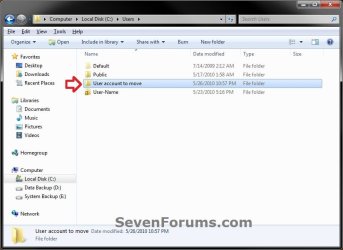
4. In Windows Explorer, navigate to the C:\Users\(user-name) folder (ex: C:\Users\User account to move) that you want to move. Right click on it and click on Copy. (see screenshot below)
Step1.jpg
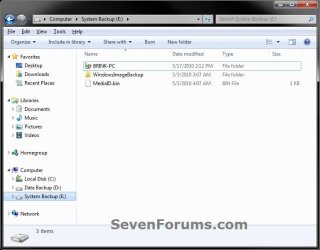
5. In Windows Explorer, navigate to the new location (ex: E: drive) that you want to move the C:\Users\(user-name) folder to. Right click on a empty space in the main window (middle), and click on Paste. (see screenshot below)
NOTE: This should be another internal hard drive or partition.
Step2.jpg
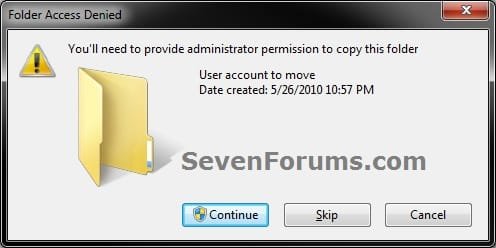
6. If prompted, click on Continue. (see screenshot below)
Step3-UAC.jpg
7. If prompted by UAC, then click on Yes (Windows 7) or Continue (Vista).

8. The C:\Users\(user-name) folder (step 4) is now copied over to the new location (ex: E:\User account to move). You can close Windows Explorer. (see screenshot below)
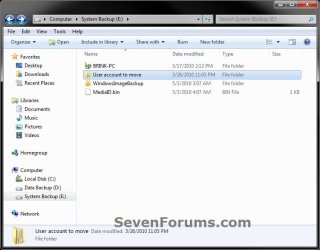
Step4.jpg
9. Open the Start Menu, then type regedit in the search box and press enter.

10. If prompted by UAC, then click on Yes (Windows 7) or Continue (Vista).

11. In regedit, navigate to the location below. (see screenshot below)

Code:
HKEY_LOCAL_MACHINE\SOFTWARE\Microsoft\Windows NT\CurrentVersion\ProfileList
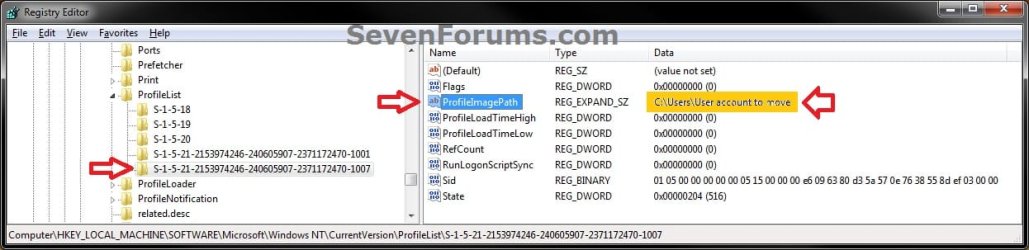
Step5.jpg
12. In the left pane under the Profilelist key, select and look at each S-1-5 key with the long number until you see the user account name and path (step 3) that you want to move in the value Data column of ProfileImagePath in the right pane. When the correct user name is found, right click on ProfileImagePath, and click on Modify. (see screenshot above)

13. Type in the full path of the location (ex: E:\User account to move) that you copied the user profile folder to in step 7, and click on OK. (see screenshot below)
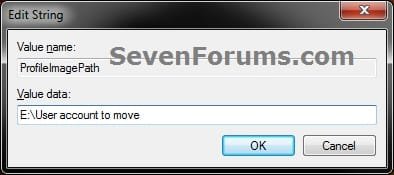
Step6.jpg
14. Regedit will now look similiar to this with the new location now. Close regedit. (see screenshot below)
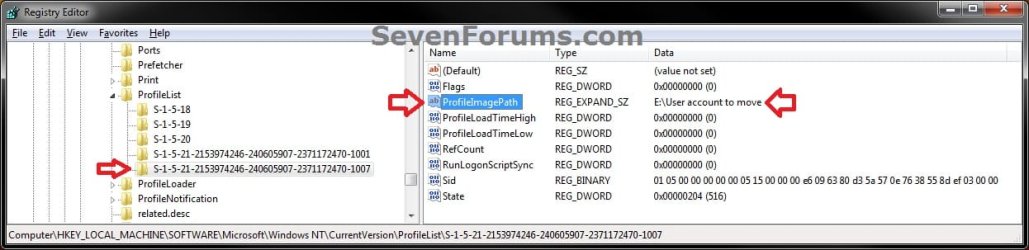
Step7.jpg
15. To Verify that the User Profile has been Moved Successfully
A) Log off or Switch User, then log in to the user account that you moved the user profile folder of.

B) Open the Start Menu and open the user profile folder from this location. (see screenshot below)
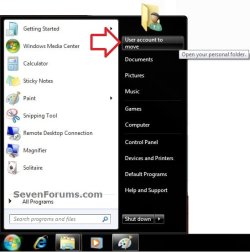
Log-in-1.jpg
C) Right click on one of the user folders (ex: Desktop), click on Properties, and click on the Location tab. (see screenshot below)
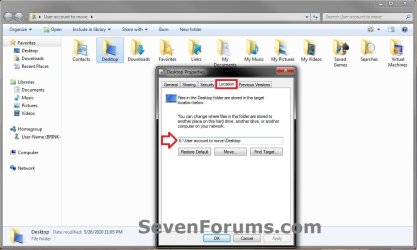
Log-in-2.jpg
D) You should see the new location (ex: E:\User account to move\Desktop) from step 8 as the now new default location. Click on OK. (see screenshot above)
16. To Delete the User Profile from the Old Location
NOTE: Once you have verified (step 15) that the moved user profile has been moved successfully, you can now safely delete the user profile folder from the old location (ex: C:\Users\User account to move) from step 4.
A) Log off of the user account that you moved if you are logged into it from step 15.

B) Log on to an administrator account that you did not move it's user folder for.

C) In Windows Explorer, navigate to the old C:\Users\(user-name) folder (ex: C:\Users\User account to move) that you had copied (step 4). Right click on it and click on Delete. (see screenshot below)
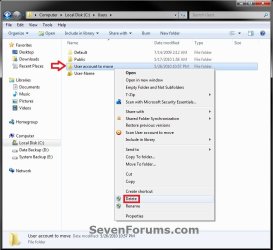
Delete-1_UAC.jpg
D) If prompted by UAC, then click on Yes (Windows 7) or Continue (Vista).

E) If prompted, click on Continue. (see screenshot below)
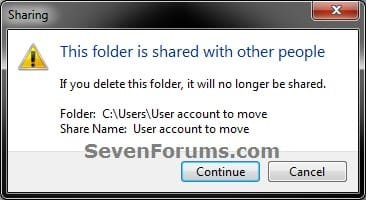
Delete-2.jpg
F) You can now empty the Recycle Bin to finish deleting the old user profile folder from the old location.
NOTE: You will need to approve emptying the Recycle Bin.
17. The existing user profile folder has now been completely moved to the new default location where Windows 7 or Vista will now run it from when logged on to it.


Method Two

To Restore the Existing User Profile's Default Location


1. Repeat OPTION ONE, but move the new default User Profile folder (ex: E:\User account to move) and registry entries back to the original C:\Users folder location (ex: C:\Users\User account to move).


OPTION TWO

For All New User Accounts Created


   Note
This will change where all newly created user accounts will have their user profile folder created at in a default location of your choice instead of the old default C:\Users location.

Thank you to Alain for pointing this out.

1. To Change the Default User Profile Location of New User Accounts
A) Open the Start Menu, then type regedit in the search box and press enter.
B) If prompted by UAC, then click on Yes (Windows 7) or Continue (Vista).

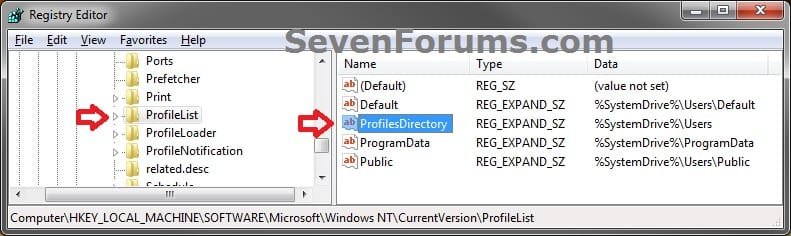
C) In regedit, navigate to the location below. (see screenshot below)

Code:
HKEY_LOCAL_MACHINE\SOFTWARE\Microsoft\Windows NT\CurrentVersion\ProfileList
New-1.jpg
D) In the right pane of ProfileList, right click on ProfilesDirectory and click on Modify. (see screenshot above)

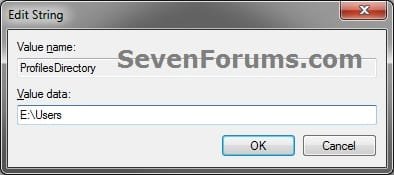
E) Type in the full path (ex: E:\Users) of where you want new user accounts to be created at, and click on OK. (see screenshot below)
New-2.jpg
F) The registry will now look similar to this. (see screenshot below)
New-3.jpg
G) When you create a new user account, it's user profile folder will now be created at the location you specified in step 1E.
2. To Restore the Default User Profile Location of New User Accounts
A) Repeat step 1, but type %SystemDrive%\Users at step 1E instead.
NOTE: This step only changes the user profile folder location of any newly created user accounts back to this default location, and not any existing user accounts.

B) If you wish to change an already existing new account's user profile folder location, then you will need to do Method Two in OPTION ONE above to change it back to C:\Users.
3. Close regedit.

That's it,
Shawn


Last edited:
Hello Berean, and welcome to Seven Forums.

You might restart the computer and see if you may be able to delete the old profile location while logged in Safe Mode using a different administrator account.

Hope this helps,
Shawn
 

My Computer

Computer type
PC/Desktop
Computer Manufacturer/Model Number
Self built custom
OS
64-bit Windows 11 Pro for Workstations
CPU
Intel i7-8700K OC'd to 5 GHz
Motherboard
ASUS ROG Maximus XI Formula Z390
Memory
64 GB (4x16GB) G.SKILL TridentZ RGB DDR4 3600 MHz
Graphics Card(s)
ASUS ROG-STRIX-GTX1080TI-O11G-GAMING
Sound Card
Integrated
Monitor(s) Displays
2 x Samsung Odyssey G7 27"
Screen Resolution
2560x1440
Hard Drives
1TB Samsung 990 PRO M.2,
4TB Samsung 990 PRO PRO M.2,
TerraMaster F8 SSD Plus NAS
PSU
Seasonic Prime Titanium 850W
Case
Thermaltake Core P3
Cooling
Corsair Hydro H115i
Keyboard
Logitech wireless K800
Mouse
Logitech MX Master 4
Internet Speed
2 Gb/s Download and 100 Mb/s Upload
Antivirus
Malwarebyte Anti-Malware Premium
Browser
Google Chrome
Other Info
Logitech Z625 speaker system,
Logitech BRIO 4K Pro webcam,
HP Color LaserJet Pro MFP M477fdn,
APC SMART-UPS RT 1000 XL - SURT1000XLI,
Galaxy S23 Plus phone
Problems on Windows 7 64-bit Home Premium

Using a standalone Windows 7 64-bit box I first I tried just using the location tab to move indiviual user folders and moving them over another partition (e.g. C:\Users\Mom to D:\Mom). When relocated "My Videos," the folder "Mom" became "My Videos." Then I tried to do the same with "My Pictures," but only the folders in my pictures relocated to D:. When I went to access the "My Pictures" folder on the C drive it said I did not have permission. So I used the "Undo" command a rolled everything back, but now Users\Mom has become "My Videos"! It contains all the normal user subfolders (e.g. Downloads, Pictures, etc.), but it is missing the "My Videos" subfolder! When I click "Properties" for the "My Video" folder it says the location is C:\Users\Mom.

So, stumbling upon this article about relocating the entire user directory I gave it a try for user "Dad". At first not all the files copied because Dad was still logged on via switch user command. So I logged off Dad and all the files transferred, but when I logged onto the Dad account the system.ini file could not be accessed. I canceled the error message window, but realized the one gadget I had implented had not loaded. Then when I right clicked on the desktop and selected "Gadgets" I got the same error. So I went back into regedit and pointed the profile back to the original user file location and got it working again.

It is hard to understand why something that should be so very simple to do seems next to impossible in Windows 7.
 

My Computer

Computer Manufacturer/Model Number
Dell Inspiron E1505
OS
Windows XP Media Center
Hello AKautz, and welcome to Seven Forums.

Sometimes moving a user profile may give you issues like this unless it was moved when you first installed Windows 7. Programs that were installed before moving the user profile may not work properly afterwards if the program is hard coded to look at the old location instead of the new one. :(
 
Last edited:

My Computer

Computer type
PC/Desktop
Computer Manufacturer/Model Number
Self built custom
OS
64-bit Windows 11 Pro for Workstations
CPU
Intel i7-8700K OC'd to 5 GHz
Motherboard
ASUS ROG Maximus XI Formula Z390
Memory
64 GB (4x16GB) G.SKILL TridentZ RGB DDR4 3600 MHz
Graphics Card(s)
ASUS ROG-STRIX-GTX1080TI-O11G-GAMING
Sound Card
Integrated
Monitor(s) Displays
2 x Samsung Odyssey G7 27"
Screen Resolution
2560x1440
Hard Drives
1TB Samsung 990 PRO M.2,
4TB Samsung 990 PRO PRO M.2,
TerraMaster F8 SSD Plus NAS
PSU
Seasonic Prime Titanium 850W
Case
Thermaltake Core P3
Cooling
Corsair Hydro H115i
Keyboard
Logitech wireless K800
Mouse
Logitech MX Master 4
Internet Speed
2 Gb/s Download and 100 Mb/s Upload
Antivirus
Malwarebyte Anti-Malware Premium
Browser
Google Chrome
Other Info
Logitech Z625 speaker system,
Logitech BRIO 4K Pro webcam,
HP Color LaserJet Pro MFP M477fdn,
APC SMART-UPS RT 1000 XL - SURT1000XLI,
Galaxy S23 Plus phone
Hi ya'll,

First off I want to say that I've spent the past couple of days lurking all over these forums and have found a wealth of wonderful knowledge!

Brink your tutorials are excellent and have really helped me begin to understand windows 7!

That being said ... I am completely new to all of this other than what I've picked up from IT classes that I am currently taking. I just built my first PC and have been dealing with a major nightmare trying to get everything running smoothly.

The hardware is great ... it's just getting an OS to work for me that's been a real challenge. My first install of Windows 7 ended up with a corrupted user account and that was after major incompatibility issues with trying to get Ubuntu 10.04 to run on my system. And since then I have literally lost sleep trying to get a solid clean install going with my OS isolated on a separate partition ... just so I can get a backup that isn't a mess like the first one I tried to do on the corrupted account (sadly I did the backup without realizing what was wrong).

Anyway, after numerous clean installs and trying to move my profile to a separate partition on my harddrive ... I found your tutorial threads here. After reading through this one and the one about just moving the folders I am curious as to what you all might recommend I do?

It seems to me that both techniques have possible issues from what I've been reading ... but since I have a free and clear hard drive, would you recommend that I move the entire user profile to a separate partition or just the data folders?

In the long run I want to know what is going to keep my system the safest from malware and viruses while, at the same time, give me a fast easy and effective way to backup my important files and programs and not cause any more system errors.

Last question relating directly to the last statement ... do you think it is smarter to isolate newly installed programs, other than virus protection, from the the OS or is it better just to keep them on the same partition?

Thanks so far for all the great info and a preemptive thanks for whomever decides to reply to this post!
 

My Computer

OS
Windows 7 64-bit Professional
Hello Newbi, and welcome to Seven Forums.

If you hard drive that Windows 7 is installed on has the space, then it would be best to leave everything on it as by default to avoid any possible issues that may come from moving any of the folders to another location.

I find that manually backing up (copying) files that I do not wish to lose to a separate hard drive is the safest and best way to back them up. Plus, all you have to do is copy them back to restore them.

To help keep your system safe from malware and viruses, I would recommend a good antivirus and anti-malware program like MSE, using Windows Firewall, use a router with a built in firewall, and just using some common sense to not open anything that you do not where it came from or to go to any dodgy websites.

Hope this helps,
Shawn
 

My Computer

Computer type
PC/Desktop
Computer Manufacturer/Model Number
Self built custom
OS
64-bit Windows 11 Pro for Workstations
CPU
Intel i7-8700K OC'd to 5 GHz
Motherboard
ASUS ROG Maximus XI Formula Z390
Memory
64 GB (4x16GB) G.SKILL TridentZ RGB DDR4 3600 MHz
Graphics Card(s)
ASUS ROG-STRIX-GTX1080TI-O11G-GAMING
Sound Card
Integrated
Monitor(s) Displays
2 x Samsung Odyssey G7 27"
Screen Resolution
2560x1440
Hard Drives
1TB Samsung 990 PRO M.2,
4TB Samsung 990 PRO PRO M.2,
TerraMaster F8 SSD Plus NAS
PSU
Seasonic Prime Titanium 850W
Case
Thermaltake Core P3
Cooling
Corsair Hydro H115i
Keyboard
Logitech wireless K800
Mouse
Logitech MX Master 4
Internet Speed
2 Gb/s Download and 100 Mb/s Upload
Antivirus
Malwarebyte Anti-Malware Premium
Browser
Google Chrome
Other Info
Logitech Z625 speaker system,
Logitech BRIO 4K Pro webcam,
HP Color LaserJet Pro MFP M477fdn,
APC SMART-UPS RT 1000 XL - SURT1000XLI,
Galaxy S23 Plus phone
This seems to be a good tutorial and this is exactly what I want to do - to move my profile folder from C:\ to another drive. However, before I follow the steps, I would like to ask a question.

According to step 2 I have to (rather logically) log in into another admin account before moving my profile. So I went ahead and activated the built-in admin account using another excellent tutorial. I used the first method suggested there, the Local Users and Groups manager.

Now, here's the question - in the Local Users and Groups manager I can select a user, click properties and in the pop-up windows there is a tab named Profile. This tab contains basically two things: a path to the user profile and a path to the local folder. Somehow, for all the users on the machine - there are only two at the moment, myself and the built-in admin - these fields are all empty. What would happen if I populate these fields? I mean, what if I actually type a path to some folder where I want the profile to be stored, as opposed to the standard C:\Users\Myself? Will that by itself do the job, or the registry edit suggested in the tutorial is the only way to do it?

I probably could create a couple of test accounts and figure it out by myself, but I thought I could ask first, maybe someone knows the answer already?
 

My Computer

Computer Manufacturer/Model Number
Dell Inspiron 530
OS
Windows 7 Ultimate (x64)
CPU
Q6600
Memory
8 GB
Graphics Card(s)
ATI Radeon HD 2600 XT
Monitor(s) Displays
Samsung Syncmaster P2450
Screen Resolution
1920x1080
Hard Drives
Samsung HD103UJ
Samsung HD501LJ
Internet Speed
25 Mb/s
Hello Unifex,

I haven't tried it through Local Users and Groups since some Windows 7 editions do not included it, and opted for the registry since it can be used in all editions of Windows 7.

It would be worth a try to see. Just be sure to create a restore point first to be safe in case you need to do a System Recovery. You would still have to move the user folder in steps 3 to 7 first, then substitute steps 8 to 13 with entering the path in the Profile path field under "User profile" in Local Users and Groups.

Please let us know how it went.
 

My Computer

Computer type
PC/Desktop
Computer Manufacturer/Model Number
Self built custom
OS
64-bit Windows 11 Pro for Workstations
CPU
Intel i7-8700K OC'd to 5 GHz
Motherboard
ASUS ROG Maximus XI Formula Z390
Memory
64 GB (4x16GB) G.SKILL TridentZ RGB DDR4 3600 MHz
Graphics Card(s)
ASUS ROG-STRIX-GTX1080TI-O11G-GAMING
Sound Card
Integrated
Monitor(s) Displays
2 x Samsung Odyssey G7 27"
Screen Resolution
2560x1440
Hard Drives
1TB Samsung 990 PRO M.2,
4TB Samsung 990 PRO PRO M.2,
TerraMaster F8 SSD Plus NAS
PSU
Seasonic Prime Titanium 850W
Case
Thermaltake Core P3
Cooling
Corsair Hydro H115i
Keyboard
Logitech wireless K800
Mouse
Logitech MX Master 4
Internet Speed
2 Gb/s Download and 100 Mb/s Upload
Antivirus
Malwarebyte Anti-Malware Premium
Browser
Google Chrome
Other Info
Logitech Z625 speaker system,
Logitech BRIO 4K Pro webcam,
HP Color LaserJet Pro MFP M477fdn,
APC SMART-UPS RT 1000 XL - SURT1000XLI,
Galaxy S23 Plus phone
Hi Brink,

it did not work. Entering a path in Local Users and Groups resulted in appearance of the folder "...\username.V2" in the destination folder. It acted as a shadow copy of the original profile, i.e. both folders would update simultaneously. But, since the purpose was to move the profile, not to copy, the idea was a failure.

At the same time, I keep thinking that there should be a way to specify where to keep the user profile in Windows without having to manually edit the registry.
 

My Computer

Computer Manufacturer/Model Number
Dell Inspiron 530
OS
Windows 7 Ultimate (x64)
CPU
Q6600
Memory
8 GB
Graphics Card(s)
ATI Radeon HD 2600 XT
Monitor(s) Displays
Samsung Syncmaster P2450
Screen Resolution
1920x1080
Hard Drives
Samsung HD103UJ
Samsung HD501LJ
Internet Speed
25 Mb/s
Thank you for posting back with your results Unifex. It appears that using the registry may be the only way.
 

My Computer

Computer type
PC/Desktop
Computer Manufacturer/Model Number
Self built custom
OS
64-bit Windows 11 Pro for Workstations
CPU
Intel i7-8700K OC'd to 5 GHz
Motherboard
ASUS ROG Maximus XI Formula Z390
Memory
64 GB (4x16GB) G.SKILL TridentZ RGB DDR4 3600 MHz
Graphics Card(s)
ASUS ROG-STRIX-GTX1080TI-O11G-GAMING
Sound Card
Integrated
Monitor(s) Displays
2 x Samsung Odyssey G7 27"
Screen Resolution
2560x1440
Hard Drives
1TB Samsung 990 PRO M.2,
4TB Samsung 990 PRO PRO M.2,
TerraMaster F8 SSD Plus NAS
PSU
Seasonic Prime Titanium 850W
Case
Thermaltake Core P3
Cooling
Corsair Hydro H115i
Keyboard
Logitech wireless K800
Mouse
Logitech MX Master 4
Internet Speed
2 Gb/s Download and 100 Mb/s Upload
Antivirus
Malwarebyte Anti-Malware Premium
Browser
Google Chrome
Other Info
Logitech Z625 speaker system,
Logitech BRIO 4K Pro webcam,
HP Color LaserJet Pro MFP M477fdn,
APC SMART-UPS RT 1000 XL - SURT1000XLI,
Galaxy S23 Plus phone
Should I try this?

Hello geeks!
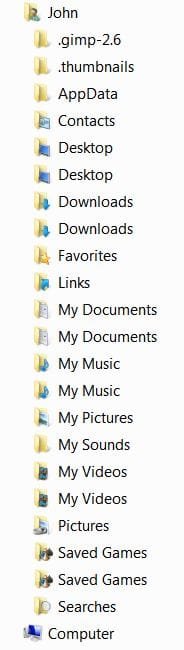
I tried do some fancy chicanery to accomplish this before, and it didn't work quite right. I want to try this tutorial now, but I'm concerned it might not go well for what I did before. I used LSE, and I ended up with multiple User folders as shown in the capture. Can I just go ahead and try this procedure? Or am I going to break something? I am making a disk image with Casper 6.0 right now. Advise much appreciated as always.
Warm Regards,
John
 

Attachments

  • Capture.JPG
    Capture.JPG
    30.2 KB · Views: 2,337
Last edited:

My Computer

Computer Manufacturer/Model Number
Me
OS
Windows 7 Ultimate x64 SP1
CPU
Core i5-2500K 3.3GHz (Sandy Bridge)
Motherboard
ASRock Z68 Professional Gen3
Memory
4GB x 4 G.SKILL DDR3-1600 (F3-12800CL9D-8GBXL)
Graphics Card(s)
Radeon R9 270 X2 Crossfire
Monitor(s) Displays
1x Acer GD235HZ + 2x Acer P235H
Screen Resolution
5760x1080
PSU
SS-760XP platinum
Case
Cooler Master Centurion
Cooling
120mm front, Corsair H60 liquid CPU cooler
Keyboard
MS Natural 4000, Logitech EX110
Mouse
Multiple incl. Logitech Cordless Optical TrackMan trackball
Internet Speed
Cable
Antivirus
Norton Security Suite
Browser
Mostly Chrome
Other Info
ALSO: Gateway - FX6831-03 | OS: Xen Server | CPU: Intel Core i7 860 2.80Ghz Lynnfield | MOBO: H57M01 | MEM: 16GB DDR3 | GPU: Zotac | BOOT: 80GB Intel X25-M | DATA: numerous | PSU: FSP750-80APG | COOLING: 120mm rear, 80mm front || DisplayLink adapters: 2 HP HPNL571AA + Plugable dock
My desk: http://www.biodesk.com/p-5-pro-desk.aspx
Hello L0stKeys,

Be sure to do what's in the WARNING box at the top of the tutorial before doing this. This way you will have a easy way to recover if you make a mistake that breaks Windows 7.

If you follow the tutorial exactly step by step, you should be fine doing it if you like. :)

Hope this helps,
Shawn
 

My Computer

Computer type
PC/Desktop
Computer Manufacturer/Model Number
Self built custom
OS
64-bit Windows 11 Pro for Workstations
CPU
Intel i7-8700K OC'd to 5 GHz
Motherboard
ASUS ROG Maximus XI Formula Z390
Memory
64 GB (4x16GB) G.SKILL TridentZ RGB DDR4 3600 MHz
Graphics Card(s)
ASUS ROG-STRIX-GTX1080TI-O11G-GAMING
Sound Card
Integrated
Monitor(s) Displays
2 x Samsung Odyssey G7 27"
Screen Resolution
2560x1440
Hard Drives
1TB Samsung 990 PRO M.2,
4TB Samsung 990 PRO PRO M.2,
TerraMaster F8 SSD Plus NAS
PSU
Seasonic Prime Titanium 850W
Case
Thermaltake Core P3
Cooling
Corsair Hydro H115i
Keyboard
Logitech wireless K800
Mouse
Logitech MX Master 4
Internet Speed
2 Gb/s Download and 100 Mb/s Upload
Antivirus
Malwarebyte Anti-Malware Premium
Browser
Google Chrome
Other Info
Logitech Z625 speaker system,
Logitech BRIO 4K Pro webcam,
HP Color LaserJet Pro MFP M477fdn,
APC SMART-UPS RT 1000 XL - SURT1000XLI,
Galaxy S23 Plus phone
Hello

I really like this tutorial. I'm planning on carrying out a reinstall of Windows soon and I will make full use of it.

It's amazing how fast the boot drive becomes full even though you don't actually install anything to it yourself.

Anyway, this tutorial is excellent for transfering real user profiles but how does one transfer the Public user profile. I thought I could use the same method but there doesn't seem to be a 'Public' user profile registry entry like normal profiles.

How can I move the 'Public' user profile?

Thank you.
 

My Computer

OS
Windows 7 Home Premium 64bit
CPU
Intel Core i7 980X 3.33Ghz Extreme Edition
Motherboard
Asus Rampage III Extreme
Memory
6GB (3x2GB) DDR3 15000C9 1866MHz Triple Channel
Graphics Card(s)
Asus GeForce GTX 480 1536MB GDDR5 PCI-Express Graphics Card
Monitor(s) Displays
Dell 2407WFP
Screen Resolution
1920 x 1200
Hard Drives
Crucial C300 SSD 256GB
2 x Western Digital Cavier Black 2TB SATA II RAID 1
PSU
Corsair HX 1000W
Case
CoolerMaster HAF X
Keyboard
Keysonic ACK-5000HL (UK)
Mouse
Logitech MX510
Internet Speed
Virgin Media 50mbit
You're most welcome Ian, and welcome to Seven Forums.

I would recommend to not even try to move the Public folder since it is shared with all users on the computer and any networked computers. Moving it will break and cause issues with it.

Hope this helps,
Shawn
 
Last edited:

My Computer

Computer type
PC/Desktop
Computer Manufacturer/Model Number
Self built custom
OS
64-bit Windows 11 Pro for Workstations
CPU
Intel i7-8700K OC'd to 5 GHz
Motherboard
ASUS ROG Maximus XI Formula Z390
Memory
64 GB (4x16GB) G.SKILL TridentZ RGB DDR4 3600 MHz
Graphics Card(s)
ASUS ROG-STRIX-GTX1080TI-O11G-GAMING
Sound Card
Integrated
Monitor(s) Displays
2 x Samsung Odyssey G7 27"
Screen Resolution
2560x1440
Hard Drives
1TB Samsung 990 PRO M.2,
4TB Samsung 990 PRO PRO M.2,
TerraMaster F8 SSD Plus NAS
PSU
Seasonic Prime Titanium 850W
Case
Thermaltake Core P3
Cooling
Corsair Hydro H115i
Keyboard
Logitech wireless K800
Mouse
Logitech MX Master 4
Internet Speed
2 Gb/s Download and 100 Mb/s Upload
Antivirus
Malwarebyte Anti-Malware Premium
Browser
Google Chrome
Other Info
Logitech Z625 speaker system,
Logitech BRIO 4K Pro webcam,
HP Color LaserJet Pro MFP M477fdn,
APC SMART-UPS RT 1000 XL - SURT1000XLI,
Galaxy S23 Plus phone
Awww, that's a little disappointing, but thank you. I'll just move real user profiles over to my other drive(s).
 

My Computer

OS
Windows 7 Home Premium 64bit
CPU
Intel Core i7 980X 3.33Ghz Extreme Edition
Motherboard
Asus Rampage III Extreme
Memory
6GB (3x2GB) DDR3 15000C9 1866MHz Triple Channel
Graphics Card(s)
Asus GeForce GTX 480 1536MB GDDR5 PCI-Express Graphics Card
Monitor(s) Displays
Dell 2407WFP
Screen Resolution
1920 x 1200
Hard Drives
Crucial C300 SSD 256GB
2 x Western Digital Cavier Black 2TB SATA II RAID 1
PSU
Corsair HX 1000W
Case
CoolerMaster HAF X
Keyboard
Keysonic ACK-5000HL (UK)
Mouse
Logitech MX510
Internet Speed
Virgin Media 50mbit
You're welcome Ian.
 

My Computer

Computer type
PC/Desktop
Computer Manufacturer/Model Number
Self built custom
OS
64-bit Windows 11 Pro for Workstations
CPU
Intel i7-8700K OC'd to 5 GHz
Motherboard
ASUS ROG Maximus XI Formula Z390
Memory
64 GB (4x16GB) G.SKILL TridentZ RGB DDR4 3600 MHz
Graphics Card(s)
ASUS ROG-STRIX-GTX1080TI-O11G-GAMING
Sound Card
Integrated
Monitor(s) Displays
2 x Samsung Odyssey G7 27"
Screen Resolution
2560x1440
Hard Drives
1TB Samsung 990 PRO M.2,
4TB Samsung 990 PRO PRO M.2,
TerraMaster F8 SSD Plus NAS
PSU
Seasonic Prime Titanium 850W
Case
Thermaltake Core P3
Cooling
Corsair Hydro H115i
Keyboard
Logitech wireless K800
Mouse
Logitech MX Master 4
Internet Speed
2 Gb/s Download and 100 Mb/s Upload
Antivirus
Malwarebyte Anti-Malware Premium
Browser
Google Chrome
Other Info
Logitech Z625 speaker system,
Logitech BRIO 4K Pro webcam,
HP Color LaserJet Pro MFP M477fdn,
APC SMART-UPS RT 1000 XL - SURT1000XLI,
Galaxy S23 Plus phone
Saving Space by Saving Writes

Hi Brink and thank you for another helpful tutorial,

The idea is to avert as many write commands as possible from being executed on the SSD.

Would it be possible to create a new administrator account, use it to move the original administrator account created at installation to a new location on a spindle drive, and then delete the new administrator account?


My Computer

OS
XP Professional 32-bit, Windows 7 Home Premium 64-bit
Hello m2Ke, and welcome to Seven Forums.

Yes, that would be fine to do. :)
 

My Computer

Computer type
PC/Desktop
Computer Manufacturer/Model Number
Self built custom
OS
64-bit Windows 11 Pro for Workstations
CPU
Intel i7-8700K OC'd to 5 GHz
Motherboard
ASUS ROG Maximus XI Formula Z390
Memory
64 GB (4x16GB) G.SKILL TridentZ RGB DDR4 3600 MHz
Graphics Card(s)
ASUS ROG-STRIX-GTX1080TI-O11G-GAMING
Sound Card
Integrated
Monitor(s) Displays
2 x Samsung Odyssey G7 27"
Screen Resolution
2560x1440
Hard Drives
1TB Samsung 990 PRO M.2,
4TB Samsung 990 PRO PRO M.2,
TerraMaster F8 SSD Plus NAS
PSU
Seasonic Prime Titanium 850W
Case
Thermaltake Core P3
Cooling
Corsair Hydro H115i
Keyboard
Logitech wireless K800
Mouse
Logitech MX Master 4
Internet Speed
2 Gb/s Download and 100 Mb/s Upload
Antivirus
Malwarebyte Anti-Malware Premium
Browser
Google Chrome
Other Info
Logitech Z625 speaker system,
Logitech BRIO 4K Pro webcam,
HP Color LaserJet Pro MFP M477fdn,
APC SMART-UPS RT 1000 XL - SURT1000XLI,
Galaxy S23 Plus phone
hey brink

i really apreciate everything you've shown me and it seems i managed to follow the instructions but im left puzzled because after moving my users location to the new drive, suddenly my users folder is no longer private and is acessiable even by non administrator accounts.. im wondering what i did wrong? and if this is fixable
 

My Computer

OS
windows 7
Hello DizzyGuy, and welcome to Seven Forums.

It may be either the drive that you moved it to applied it's sharing permissions to it or something. Right click on your user profile folder and click on properties, then double check your sharing and permission settings (right click and properties) to make sure that they are exactly like the ones below.

Sharing_Permissions.jpg

Hope this helps,
Shawn
 
Last edited:

My Computer

Computer type
PC/Desktop
Computer Manufacturer/Model Number
Self built custom
OS
64-bit Windows 11 Pro for Workstations
CPU
Intel i7-8700K OC'd to 5 GHz
Motherboard
ASUS ROG Maximus XI Formula Z390
Memory
64 GB (4x16GB) G.SKILL TridentZ RGB DDR4 3600 MHz
Graphics Card(s)
ASUS ROG-STRIX-GTX1080TI-O11G-GAMING
Sound Card
Integrated
Monitor(s) Displays
2 x Samsung Odyssey G7 27"
Screen Resolution
2560x1440
Hard Drives
1TB Samsung 990 PRO M.2,
4TB Samsung 990 PRO PRO M.2,
TerraMaster F8 SSD Plus NAS
PSU
Seasonic Prime Titanium 850W
Case
Thermaltake Core P3
Cooling
Corsair Hydro H115i
Keyboard
Logitech wireless K800
Mouse
Logitech MX Master 4
Internet Speed
2 Gb/s Download and 100 Mb/s Upload
Antivirus
Malwarebyte Anti-Malware Premium
Browser
Google Chrome
Other Info
Logitech Z625 speaker system,
Logitech BRIO 4K Pro webcam,
HP Color LaserJet Pro MFP M477fdn,
APC SMART-UPS RT 1000 XL - SURT1000XLI,
Galaxy S23 Plus phone
even more confused

so when i tried to do what you told me i managed to find the properties section where the red arrow points at "share..." the button wasnt highlighted, so basically i was unable to click on it, i figured it had something to do witht he permissions so i denied all permissions and next thing i knew i couldnt even log into the account anymore, and on my OTHER admin account luckily i coudl still acess it, but it DID give me a warning that the folder was private, the WEIRDEST part was that on my guest account the account was fully acessible still, basically meaning that my admin accounts were somehow more restricted then the guest account, so i managed to undo the problem i made, and miraclously the "share..." button is now a button, and when i click on it the window it gave me somehow has my OTHER useraccount as the owner, so i still find myself wondering what to do cause if i attempt to add the account of the folder to the folder, it asks me "read" or "write/read" with my other admin account as the owner, which doesnt make sense to me since that account already has a user folder...

yeah sorry my english is bad.
 

My Computer

OS
windows 7
Back
Top