User Profile - Change Default Location

How to Change the Default Location of a User Profile in Vista and Windows 7


   Information
A user profile is the main C:\Users\(user-name) folder of a user account that contains all of the account's settings, shortcuts, information, and user folders (ex: My Music) with the files in them.

This will show you how to Move the default location of a user profile in Windows 7 and Vista to another location of your choice so it will be stored and used from the new location instead.

This can be handy if you are low on free space on your C: drive.

You must be logged in as an administrator to be able to do the steps in this tutorial.

   Warning
Before doing this, you should create a system image to be safe. This way you can do a system image recovery to undo any mistake you might make in the instructions below that could result in the user profile you are moving, or Windows, to no longer work.
   Note
The drive or partition that you move the user profile folder(s) to, will now be included in a system image if created since it will now be considered a system drive.
   Tip
If you are just wanting to save HDD space from the files in your user folders, then you might consider this below to be able to access the files from your libraries with the files actually located where you like instead. This way you will not have to worry about any potential issues that come with moving user folder locations.


OPTION ONE

For Already Existing User Accounts


   Warning
Some of the programs you have installed may not work properly after moving your user profile folder since they are still looking for their information in the user profile folder's original AppData folder location which of course no longer exists.

If you have this problem afterwards, then you may be able to uninstall and reinstall these programs, or use OPTION TWO in the tutorial to create a new user account and create new shortcuts for the programs to fix this.


Method One

To Change the Default Location of an Existing User Profile


1. Log on to the user account that you want to move. In Windows Explorer, navigate to it's C:\Users\(user-name) folder, right click on the user folder, click on Share with and Nobody.

2. Log off.

3. Log on to an administrator account that you are not moving it's user folder for.
NOTE: If you do not have another administrator account to use, then you will need to create a new account first and log in to it. When done with the tutorial, you can delete the new account.

4. In Windows Explorer, navigate to the C:\Users\(user-name) folder (ex: C:\Users\User account to move) that you want to move. Right click on it and click on Copy. (see screenshot below)
Step1.jpg
5. In Windows Explorer, navigate to the new location (ex: E: drive) that you want to move the C:\Users\(user-name) folder to. Right click on a empty space in the main window (middle), and click on Paste. (see screenshot below)
NOTE: This should be another internal hard drive or partition.
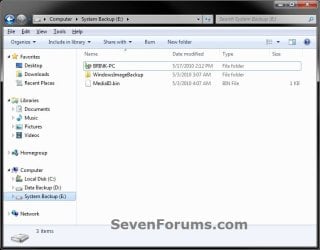
Step2.jpg
6. If prompted, click on Continue. (see screenshot below)
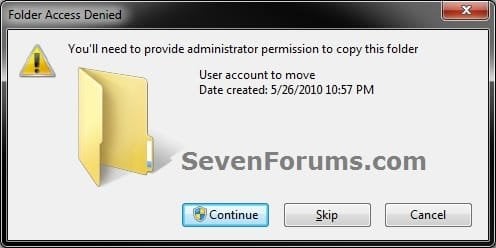
Step3-UAC.jpg
7. If prompted by UAC, then click on Yes (Windows 7) or Continue (Vista).

8. The C:\Users\(user-name) folder (step 4) is now copied over to the new location (ex: E:\User account to move). You can close Windows Explorer. (see screenshot below)
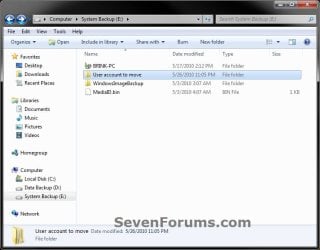
Step4.jpg
9. Open the Start Menu, then type regedit in the search box and press enter.

10. If prompted by UAC, then click on Yes (Windows 7) or Continue (Vista).

11. In regedit, navigate to the location below. (see screenshot below)

Code:
HKEY_LOCAL_MACHINE\SOFTWARE\Microsoft\Windows NT\CurrentVersion\ProfileList
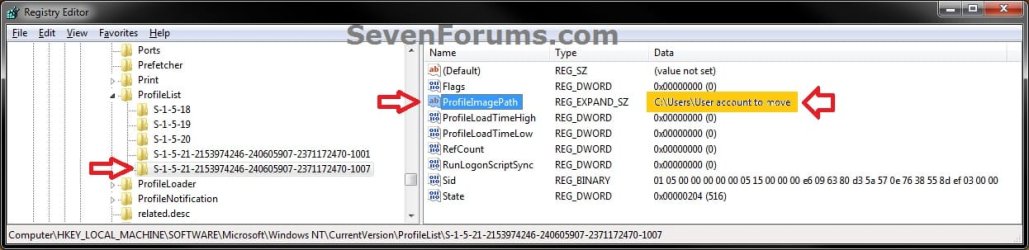
Step5.jpg
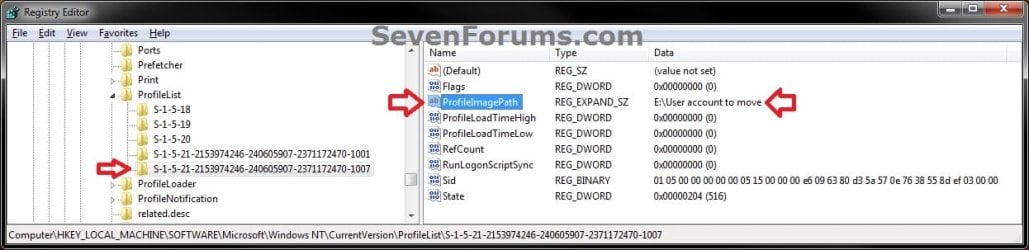
12. In the left pane under the Profilelist key, select and look at each S-1-5 key with the long number until you see the user account name and path (step 3) that you want to move in the value Data column of ProfileImagePath in the right pane. When the correct user name is found, right click on ProfileImagePath, and click on Modify. (see screenshot above)

13. Type in the full path of the location (ex: E:\User account to move) that you copied the user profile folder to in step 7, and click on OK. (see screenshot below)
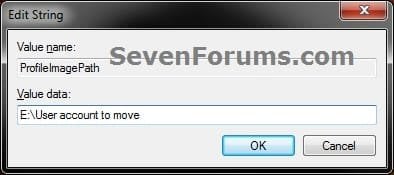
Step6.jpg
14. Regedit will now look similiar to this with the new location now. Close regedit. (see screenshot below)
Step7.jpg
15. To Verify that the User Profile has been Moved Successfully
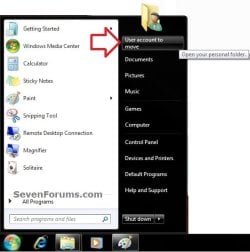
A) Log off or Switch User, then log in to the user account that you moved the user profile folder of.

B) Open the Start Menu and open the user profile folder from this location. (see screenshot below)
Log-in-1.jpg
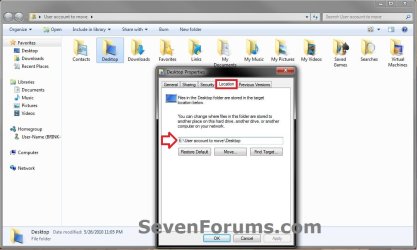
C) Right click on one of the user folders (ex: Desktop), click on Properties, and click on the Location tab. (see screenshot below)
Log-in-2.jpg
D) You should see the new location (ex: E:\User account to move\Desktop) from step 8 as the now new default location. Click on OK. (see screenshot above)
16. To Delete the User Profile from the Old Location
NOTE: Once you have verified (step 15) that the moved user profile has been moved successfully, you can now safely delete the user profile folder from the old location (ex: C:\Users\User account to move) from step 4.
A) Log off of the user account that you moved if you are logged into it from step 15.

B) Log on to an administrator account that you did not move it's user folder for.

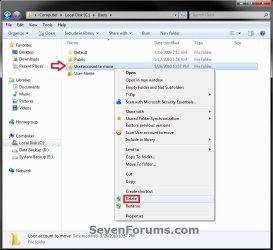
C) In Windows Explorer, navigate to the old C:\Users\(user-name) folder (ex: C:\Users\User account to move) that you had copied (step 4). Right click on it and click on Delete. (see screenshot below)
Delete-1_UAC.jpg
D) If prompted by UAC, then click on Yes (Windows 7) or Continue (Vista).

E) If prompted, click on Continue. (see screenshot below)
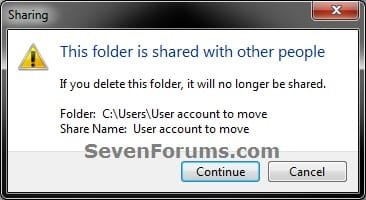
Delete-2.jpg
F) You can now empty the Recycle Bin to finish deleting the old user profile folder from the old location.
NOTE: You will need to approve emptying the Recycle Bin.
17. The existing user profile folder has now been completely moved to the new default location where Windows 7 or Vista will now run it from when logged on to it.


Method Two

To Restore the Existing User Profile's Default Location


1. Repeat OPTION ONE, but move the new default User Profile folder (ex: E:\User account to move) and registry entries back to the original C:\Users folder location (ex: C:\Users\User account to move).


OPTION TWO

For All New User Accounts Created


   Note
This will change where all newly created user accounts will have their user profile folder created at in a default location of your choice instead of the old default C:\Users location.

Thank you to Alain for pointing this out.

1. To Change the Default User Profile Location of New User Accounts
A) Open the Start Menu, then type regedit in the search box and press enter.
B) If prompted by UAC, then click on Yes (Windows 7) or Continue (Vista).

C) In regedit, navigate to the location below. (see screenshot below)

Code:
HKEY_LOCAL_MACHINE\SOFTWARE\Microsoft\Windows NT\CurrentVersion\ProfileList
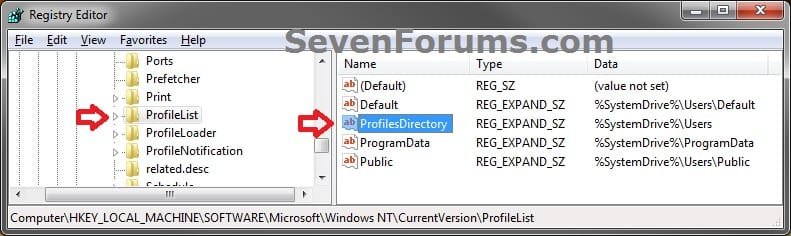
New-1.jpg
D) In the right pane of ProfileList, right click on ProfilesDirectory and click on Modify. (see screenshot above)

E) Type in the full path (ex: E:\Users) of where you want new user accounts to be created at, and click on OK. (see screenshot below)
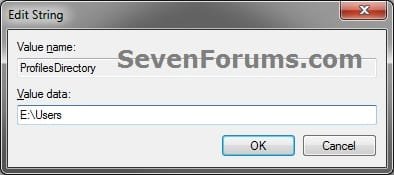
New-2.jpg
F) The registry will now look similar to this. (see screenshot below)
New-3.jpg
G) When you create a new user account, it's user profile folder will now be created at the location you specified in step 1E.
2. To Restore the Default User Profile Location of New User Accounts
A) Repeat step 1, but type %SystemDrive%\Users at step 1E instead.
NOTE: This step only changes the user profile folder location of any newly created user accounts back to this default location, and not any existing user accounts.

B) If you wish to change an already existing new account's user profile folder location, then you will need to do Method Two in OPTION ONE above to change it back to C:\Users.
3. Close regedit.

That's it,
Shawn


Last edited:
Dizzy,

Are you sure that this user folder is not for the one that is listed as the owner?

If you are, then you can take ownership of that folder for the user account that it is suppose to be the owner of. Afterwards, check your "Sharing and Permissions" settings to make sure that it is set like the one from my post above for the user account that the user folder belongs to.

Be sure not to deny access to everyone and the account that it belongs to again though. ;)

To be safe, create a system restore point before doing this so that you will be able to easily undo it if need be.
 

My Computer

Computer type
PC/Desktop
Computer Manufacturer/Model Number
Self built custom
OS
64-bit Windows 11 Pro for Workstations
CPU
Intel i7-8700K OC'd to 5 GHz
Motherboard
ASUS ROG Maximus XI Formula Z390
Memory
64 GB (4x16GB) G.SKILL TridentZ RGB DDR4 3600 MHz
Graphics Card(s)
ASUS ROG-STRIX-GTX1080TI-O11G-GAMING
Sound Card
Integrated
Monitor(s) Displays
2 x Samsung Odyssey G7 27"
Screen Resolution
2560x1440
Hard Drives
1TB Samsung 990 PRO M.2,
4TB Samsung 990 PRO PRO M.2,
TerraMaster F8 SSD Plus NAS
PSU
Seasonic Prime Titanium 850W
Case
Thermaltake Core P3
Cooling
Corsair Hydro H115i
Keyboard
Logitech wireless K800
Mouse
Logitech MX Master 4
Internet Speed
2 Gb/s Download and 100 Mb/s Upload
Antivirus
Malwarebyte Anti-Malware Premium
Browser
Google Chrome
Other Info
Logitech Z625 speaker system,
Logitech BRIO 4K Pro webcam,
HP Color LaserJet Pro MFP M477fdn,
APC SMART-UPS RT 1000 XL - SURT1000XLI,
Galaxy S23 Plus phone
hey man this was entirely my fault haha im quite sure you gave me perfect explanation but what happened is when i initially started looking for solutions i was on this other website and it said something about how if im going to edit a users folder i must be on an alternative user to edit a different user, so when i tried to do what u said i was on a DIFFERENT account... i feel like an imbecile.. and i wasted your time, but i am very thankful, im surprised that after ur good explanation i managed to still mess it up..haha, anyways
good day 2 u
 

My Computer

OS
windows 7
LOL, no problem mate. I'm just happy that you were able to get it all sorted out without having to do anything drastic like reinstalling Windows 7. :)
 

My Computer

Computer type
PC/Desktop
Computer Manufacturer/Model Number
Self built custom
OS
64-bit Windows 11 Pro for Workstations
CPU
Intel i7-8700K OC'd to 5 GHz
Motherboard
ASUS ROG Maximus XI Formula Z390
Memory
64 GB (4x16GB) G.SKILL TridentZ RGB DDR4 3600 MHz
Graphics Card(s)
ASUS ROG-STRIX-GTX1080TI-O11G-GAMING
Sound Card
Integrated
Monitor(s) Displays
2 x Samsung Odyssey G7 27"
Screen Resolution
2560x1440
Hard Drives
1TB Samsung 990 PRO M.2,
4TB Samsung 990 PRO PRO M.2,
TerraMaster F8 SSD Plus NAS
PSU
Seasonic Prime Titanium 850W
Case
Thermaltake Core P3
Cooling
Corsair Hydro H115i
Keyboard
Logitech wireless K800
Mouse
Logitech MX Master 4
Internet Speed
2 Gb/s Download and 100 Mb/s Upload
Antivirus
Malwarebyte Anti-Malware Premium
Browser
Google Chrome
Other Info
Logitech Z625 speaker system,
Logitech BRIO 4K Pro webcam,
HP Color LaserJet Pro MFP M477fdn,
APC SMART-UPS RT 1000 XL - SURT1000XLI,
Galaxy S23 Plus phone
so when i tried to do what you told me i managed to find the properties section where the red arrow points at "share..." the button wasnt highlighted, so basically i was unable to click on it, i figured it had something to do witht he permissions so i denied all permissions and next thing i knew i couldnt even log into the account anymore, and on my OTHER admin account luckily i coudl still acess it, but it DID give me a warning that the folder was private, the WEIRDEST part was that on my guest account the account was fully acessible still, basically meaning that my admin accounts were somehow more restricted then the guest account, so i managed to undo the problem i made, and miraclously the "share..." button is now a button, and when i click on it the window it gave me somehow has my OTHER useraccount as the owner, so i still find myself wondering what to do cause if i attempt to add the account of the folder to the folder, it asks me "read" or "write/read" with my other admin account as the owner, which doesnt make sense to me since that account already has a user folder...

yeah sorry my english is bad.

Just my 2 cents here, but if you DENIED all permissions by one account and then tried to add them back using another account or are only asking for a lot of trouble and problems in the future. Unless you know how NTFS permissions work extremely well you may never get the permissions back to where you were or ever get them correct. My suggestion is a complete re-install of Windows 7. (A very very strong suggestion). Back up all your data and make a plan as to how you want to re-load Windows 7 that includes how you want to move the user profiles. Then you can install Windows 7 and move the profiles before you install all your software or move your data back. I hope that helps. -WS

Edit: Retract above, I missed all the new Tread on Page 2 :o:o
 

My Computer

Computer type
PC/Desktop
Computer Manufacturer/Model Number
Dell OP7010
OS
Windows 7 Enterprise (x64); Windows Server 2008 R2 (x64)
Memory
16GB
Monitor(s) Displays
4 Dell 24" LCD
Screen Resolution
1280x1024
Keyboard
Dell
Mouse
Dell Optical
Internet Speed
40meg
Alain Quarre

my tutorials for changing user profile default location for all future user:

Go to registry @:
HKEY_LOCAL_MACHINE\SOFTWARE\Microsoft\Windows NT\CurrentVersion\ProfileList
change value: ProfilesDirectory
with your new desired location, eg : D:\Users

After that, all new users will have their profile in D:\Users and junctions in their profile will be correct.
 
Last edited by a moderator:

My Computer

Computer Manufacturer/Model Number
Fujitsu X9525
OS
Genuine Windows 7 Ultimate x64
CPU
Intel Core 2 Duo P8700 @ 2.53GHz
Memory
4 G DDR2
Graphics Card(s)
nVidia GeForce 9200M GS
Sound Card
Realtek HD
Monitor(s) Displays
WSXGA 15,4"
Screen Resolution
1680X1050
Hard Drives
WD WD5000BEVT 500G
Mouse
Logitech M555b Bluetooth
Internet Speed
VDSL2 16Mbs / 2Mbs
Hello Alain, and welcome to Seven Forums.

Thank you. I have added this as OPTION TWO for new user accounts. :)
 

My Computer

Computer type
PC/Desktop
Computer Manufacturer/Model Number
Self built custom
OS
64-bit Windows 11 Pro for Workstations
CPU
Intel i7-8700K OC'd to 5 GHz
Motherboard
ASUS ROG Maximus XI Formula Z390
Memory
64 GB (4x16GB) G.SKILL TridentZ RGB DDR4 3600 MHz
Graphics Card(s)
ASUS ROG-STRIX-GTX1080TI-O11G-GAMING
Sound Card
Integrated
Monitor(s) Displays
2 x Samsung Odyssey G7 27"
Screen Resolution
2560x1440
Hard Drives
1TB Samsung 990 PRO M.2,
4TB Samsung 990 PRO PRO M.2,
TerraMaster F8 SSD Plus NAS
PSU
Seasonic Prime Titanium 850W
Case
Thermaltake Core P3
Cooling
Corsair Hydro H115i
Keyboard
Logitech wireless K800
Mouse
Logitech MX Master 4
Internet Speed
2 Gb/s Download and 100 Mb/s Upload
Antivirus
Malwarebyte Anti-Malware Premium
Browser
Google Chrome
Other Info
Logitech Z625 speaker system,
Logitech BRIO 4K Pro webcam,
HP Color LaserJet Pro MFP M477fdn,
APC SMART-UPS RT 1000 XL - SURT1000XLI,
Galaxy S23 Plus phone
a small issue!!

hi,

I followed the steps in the tutorial and changed the location of my defult user, and it worked great. Everything is runnig smoothly as always except for this one issue; each time I try to download something from Internet Explorer I get this message "Unable to download from www.*******.com
Unable to open this internet site. The requested site is either unavailable or cannot be found. please try again later.
this problem has started since I moved my user folder, and this only happens with internet explorer ,I can download normally using firefox.
your help is appreciated.

thanks
 

My Computer

OS
Windows 7 Home Premium 32bit
Hello Tamix, and welcome to Seven Forums.

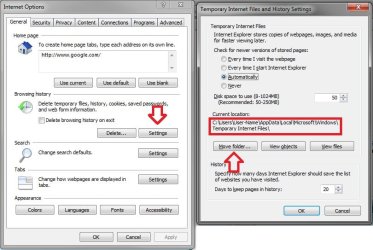
Open Internet Options, and double check to make sure that the "Temporary Internet Files" folder is also at the new location of your user profile folder. If not, then change the drive letter to match.
Internet_Options.jpg
If that does not help, then see if resetting IE may help.

If still not, then move the user profile folder back to the default C: location to see if it will work properly afterwards.

Hope this helps,
Shawn
 

My Computer

Computer type
PC/Desktop
Computer Manufacturer/Model Number
Self built custom
OS
64-bit Windows 11 Pro for Workstations
CPU
Intel i7-8700K OC'd to 5 GHz
Motherboard
ASUS ROG Maximus XI Formula Z390
Memory
64 GB (4x16GB) G.SKILL TridentZ RGB DDR4 3600 MHz
Graphics Card(s)
ASUS ROG-STRIX-GTX1080TI-O11G-GAMING
Sound Card
Integrated
Monitor(s) Displays
2 x Samsung Odyssey G7 27"
Screen Resolution
2560x1440
Hard Drives
1TB Samsung 990 PRO M.2,
4TB Samsung 990 PRO PRO M.2,
TerraMaster F8 SSD Plus NAS
PSU
Seasonic Prime Titanium 850W
Case
Thermaltake Core P3
Cooling
Corsair Hydro H115i
Keyboard
Logitech wireless K800
Mouse
Logitech MX Master 4
Internet Speed
2 Gb/s Download and 100 Mb/s Upload
Antivirus
Malwarebyte Anti-Malware Premium
Browser
Google Chrome
Other Info
Logitech Z625 speaker system,
Logitech BRIO 4K Pro webcam,
HP Color LaserJet Pro MFP M477fdn,
APC SMART-UPS RT 1000 XL - SURT1000XLI,
Galaxy S23 Plus phone
hi
thanks for the quick reply, I've checked and the folder is in the new location. Tried resetting but it didn't work. so I moved the folder back to the C: drive and it worked. However I need it to work with the folder in the new location.
 

My Computer

OS
Windows 7 Home Premium 32bit
Tamix,

Do OPTION TWO in the tutorial to change where new accounts are automatically created at, then create a new user account to see if IE may work in the new account at the new location instead.

If so, then copy all of the contents of the old user account's C:\Users\(user-name) folders (including hidden AppData folder) into the corresponding new account's ?:\Users\(user-name) folder. After everything checks out ok, you can delete the old user account while logged in the new user account.
 

My Computer

Computer type
PC/Desktop
Computer Manufacturer/Model Number
Self built custom
OS
64-bit Windows 11 Pro for Workstations
CPU
Intel i7-8700K OC'd to 5 GHz
Motherboard
ASUS ROG Maximus XI Formula Z390
Memory
64 GB (4x16GB) G.SKILL TridentZ RGB DDR4 3600 MHz
Graphics Card(s)
ASUS ROG-STRIX-GTX1080TI-O11G-GAMING
Sound Card
Integrated
Monitor(s) Displays
2 x Samsung Odyssey G7 27"
Screen Resolution
2560x1440
Hard Drives
1TB Samsung 990 PRO M.2,
4TB Samsung 990 PRO PRO M.2,
TerraMaster F8 SSD Plus NAS
PSU
Seasonic Prime Titanium 850W
Case
Thermaltake Core P3
Cooling
Corsair Hydro H115i
Keyboard
Logitech wireless K800
Mouse
Logitech MX Master 4
Internet Speed
2 Gb/s Download and 100 Mb/s Upload
Antivirus
Malwarebyte Anti-Malware Premium
Browser
Google Chrome
Other Info
Logitech Z625 speaker system,
Logitech BRIO 4K Pro webcam,
HP Color LaserJet Pro MFP M477fdn,
APC SMART-UPS RT 1000 XL - SURT1000XLI,
Galaxy S23 Plus phone
Hello L0stKeys,

Be sure to do what's in the WARNING box at the top of the tutorial before doing this. This way you will have a easy way to recover if you make a mistake that breaks Windows 7.

If you follow the tutorial exactly step by step, you should be fine doing it if you like. :)

Hope this helps,
Shawn

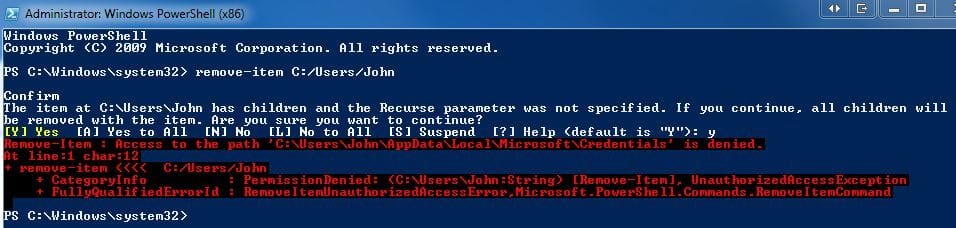
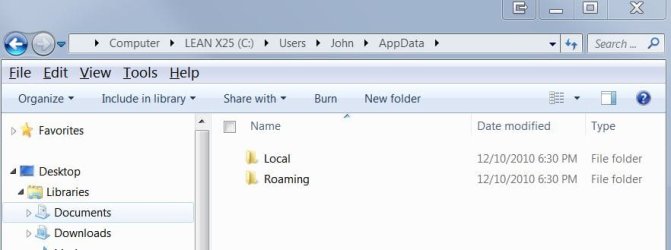
Hi! I went ahead and tried this, but it did not go smoothly. The user folder appears to have copied successfully, but deleting the old location has continued to be difficult. Please see attached snips, and help if you can! :)
As always thanks to all you kindhearted geeks.
John
 

Attachments

  • Deleting User Folder.JPG
    Deleting User Folder.JPG
    63.3 KB · Views: 483
  • Deleting User 2.JPG
    Deleting User 2.JPG
    46.8 KB · Views: 432

My Computer

Computer Manufacturer/Model Number
Me
OS
Windows 7 Ultimate x64 SP1
CPU
Core i5-2500K 3.3GHz (Sandy Bridge)
Motherboard
ASRock Z68 Professional Gen3
Memory
4GB x 4 G.SKILL DDR3-1600 (F3-12800CL9D-8GBXL)
Graphics Card(s)
Radeon R9 270 X2 Crossfire
Monitor(s) Displays
1x Acer GD235HZ + 2x Acer P235H
Screen Resolution
5760x1080
PSU
SS-760XP platinum
Case
Cooler Master Centurion
Cooling
120mm front, Corsair H60 liquid CPU cooler
Keyboard
MS Natural 4000, Logitech EX110
Mouse
Multiple incl. Logitech Cordless Optical TrackMan trackball
Internet Speed
Cable
Antivirus
Norton Security Suite
Browser
Mostly Chrome
Other Info
ALSO: Gateway - FX6831-03 | OS: Xen Server | CPU: Intel Core i7 860 2.80Ghz Lynnfield | MOBO: H57M01 | MEM: 16GB DDR3 | GPU: Zotac | BOOT: 80GB Intel X25-M | DATA: numerous | PSU: FSP750-80APG | COOLING: 120mm rear, 80mm front || DisplayLink adapters: 2 HP HPNL571AA + Plugable dock
My desk: http://www.biodesk.com/p-5-pro-desk.aspx
Hi John,

Are you trying to delete the old location while logged into a different administrator account?
 

My Computer

Computer type
PC/Desktop
Computer Manufacturer/Model Number
Self built custom
OS
64-bit Windows 11 Pro for Workstations
CPU
Intel i7-8700K OC'd to 5 GHz
Motherboard
ASUS ROG Maximus XI Formula Z390
Memory
64 GB (4x16GB) G.SKILL TridentZ RGB DDR4 3600 MHz
Graphics Card(s)
ASUS ROG-STRIX-GTX1080TI-O11G-GAMING
Sound Card
Integrated
Monitor(s) Displays
2 x Samsung Odyssey G7 27"
Screen Resolution
2560x1440
Hard Drives
1TB Samsung 990 PRO M.2,
4TB Samsung 990 PRO PRO M.2,
TerraMaster F8 SSD Plus NAS
PSU
Seasonic Prime Titanium 850W
Case
Thermaltake Core P3
Cooling
Corsair Hydro H115i
Keyboard
Logitech wireless K800
Mouse
Logitech MX Master 4
Internet Speed
2 Gb/s Download and 100 Mb/s Upload
Antivirus
Malwarebyte Anti-Malware Premium
Browser
Google Chrome
Other Info
Logitech Z625 speaker system,
Logitech BRIO 4K Pro webcam,
HP Color LaserJet Pro MFP M477fdn,
APC SMART-UPS RT 1000 XL - SURT1000XLI,
Galaxy S23 Plus phone
Brink,
Thank you for the interesting tutorial. (Hey, you might be getting a swelled head from all these accolades. :D ) That said... (betcha knew that was coming..)

My situation is slightly different. I jut posted this problem on another forum by mistake but no harm in repeating my efforts here. So here goes:

I restored my user files from the Emergency folder backup created by the Dell Recovery Disk. Let me stick to an example: My son "Mikey". His home folder in Windows 7 was, of course, C:\Users\Mikey and this folder was indeed restored from the Emergency backup.

However, the recovery did not restore my user account that corresponds to this folder. Bummer but no problem; I can just create user "Mikey" afresh and re-use this folder, right? Well, not quite; it snubbed the existing C:\Users\Mikey and instead created a new folder,
Code:
C:\Users\Mikey.dabox
where dabox is my machine name. Before he commits too much to his new home folder, I want to reset his home folder to the original C:\Users\Mikey.

Following the directions in Brink's tutorial, I did the following:

  1. Started regedit
  2. Navigated to COMPUTER\HKEY_LOCAL_MACHINE\SOFTWARE\Microsoft\Windows NT\CurrentVersion\ProfileList
  3. Clicked on each long entry that begins with HKEY_LOCAL_MACHINE\SOFTWARE\Microsoft\Windows NT\CurrentVersion\ProfileList\S-1-5-21-.. until I found the path name C:\Users\Mikey.dabox
  4. I changed the name of the folder to C:\Users\Mikey
That should have set Mikey's home folder to C:\Users\Mikey, according to the tutorial.

Well it failed. When Mikey logs in, the system informs him it is "Preparing your Desktop" and it presents him with the default background. It then pops a message that states (as best as I can quote it - it fades before I can capture it):
You have been logged into a temporary profile. Any files you create will be deleted when you log out. Please check the system logs for more information.
What did I overlook? Whoops, a few things:

  • The Restored "Mikey" folder is marked "Read Only"
  • The folder is not owned by Mikey; it is in fact owned by "Administrators".
I went into Windows Explorer and fixed these items:

  • I unset the Read-Only attribute (which seemed to propagate down the directory tree).
  • I set the owner to Mikey (displays as dabox\Mikey) and gave Mikey full control of the folder and sub-folders.
Now that should have solved the problem and allowed him control over the folder, right? Weelll.. Double bummer! :cry: I get the identical screen and message. Even after rebooting! Now I have a problem!

What have I overlooked this time? BTW, when I look at folder again, even after unsetting the Read-Only, I still find it set as read-only. Could this be my problem? How do I remove a persistent Read-Only attribute? (I'll look elsewhere for that answer.)

Thank much for advice on this.
 

My Computer

Computer Manufacturer/Model Number
Dell Studio XPS 7100
OS
Windows 7 Home Premium 64 bit
CPU
AMD Phenom II X6 1035T 2.6 GHz
Memory
4GB
Hard Drives
1TB
@rpaskudniak

While this should be easy in reality it is much more complex than just changing the folders. I will not go into details or we would have 10 pages here.

Anyway I deal with this all the time and it is fairly easy to fix.

Step 1: Delete the Mikey.dabox folder, and rename the one you want to keep Mikey.ORG
Step 2: Navigate to the Registry Key you posted and delete all the Mikey accounts.
Step 3: Log on to the machine as Mikey, reboot and log on again as Mikey.
Step 4: Log on as Administrator and do one of the following:
----4a: Copy everything from the Mikey.dabox to the Mikey replacing the files. (90% time this works fine)
----4b: Go to http://www.scootersoftware.com/ and download Beyond Compare and compare the two folders copying everything from the original to the new.
Step 5: Delete the ORG folder or save as a backup.

That will fix it. -WS
 

My Computer

Computer type
PC/Desktop
Computer Manufacturer/Model Number
Dell OP7010
OS
Windows 7 Enterprise (x64); Windows Server 2008 R2 (x64)
Memory
16GB
Monitor(s) Displays
4 Dell 24" LCD
Screen Resolution
1280x1024
Keyboard
Dell
Mouse
Dell Optical
Internet Speed
40meg
WindowsStar,

Thanks for the suggestion; I have been mulling over just such a sequence or actions. Glad to see a guru on the same path.

A question abut step 2:
Step 2: Navigate to the Registry Key you posted and delete all the Mikey accounts.
There's more than one? Or do you mean delete all the keys under that S-1-(etc) key?

My next question needs some buildup (drum roll, please)

I presume there is a step 3.5 in there, about recreating the Mikey account after I have deleted it from the registry and renamed and deleted the restored and new home folders. Or is is still possible for me to log in as Mikey after I have deleted those registry keys?

It would not have occurred to me to delete the account by deleting the registry entry, especially since for all I know there may be another dozen registry entries that would need to be deleted along with it. Hence my next question:

Might it be safer to delete user Mikey via the Control Panel, rather than by direct messing with the registry? I know this thread involves just such messing around but I would rather avoid doing so if there is an alternative.

Or can an account not be deleted if I have already deleted (or renamed) its home folder?

Thanks again. This is SUUUUCH cool stuff!

Oh, that reminds me: Of course, I will back up the registry before I do this kind of intense messing around. But if I mess up so bad that I can't boot up or log in, how do I reswtore the registry from where I backed it up? (Yes, a restore point would also be helpful.. I mean besides the restore point.) I know, the subject of another thread altogether.
 

My Computer

Computer Manufacturer/Model Number
Dell Studio XPS 7100
OS
Windows 7 Home Premium 64 bit
CPU
AMD Phenom II X6 1035T 2.6 GHz
Memory
4GB
Hard Drives
1TB
@rpaskudniak

Sorry for the late reply, holidays and all.

You need to delete ONLY the Mikey accounts in the registry. There will be more than one and typically 1 or 2 bak accounts plus the original.

Once the folder Mikey.dabox is deleted out of C:\Users and the original Mikey is renamed Mikey.ORG you can logon as Mikey. When you long on as Mikey it will re-create the C:\Users\Mikey folder that is why we renamed the original Mikey.ORG and the registry keys will be re-created as well.

Then you can copy Mikey.ORG to Mikey. You don’t need to copy everything. If you want to error on the careful side you can just copy the documents, favorites, etc., but if you need all the settings for the programs you will need more.

Yes backup registry and make restore points, those will help if you get into trouble. -WS
 

My Computer

Computer type
PC/Desktop
Computer Manufacturer/Model Number
Dell OP7010
OS
Windows 7 Enterprise (x64); Windows Server 2008 R2 (x64)
Memory
16GB
Monitor(s) Displays
4 Dell 24" LCD
Screen Resolution
1280x1024
Keyboard
Dell
Mouse
Dell Optical
Internet Speed
40meg
Hi All

Im just about to do a clean install and am interested in doing this, googling around there is alot of negative feedback after moving the whole profile although a lot seems to come from those who had previously installed windows and have programs etc installed.Has anyone done this after a clean install and is there any feedback you guys can give as to the system stability, problems etc

Thanks Danny
 

My Computer

Computer Manufacturer/Model Number
acer aspire 5935g
OS
Windows 7 Home Premium x64 SP1
CPU
intel(R)core(TM)2 duo CPU T6600 @ 2.20GHz
Motherboard
intel gm45/gm47 revision 07
Memory
3 gb ddr3
Graphics Card(s)
ati radeon hd4570/512mb
Monitor(s) Displays
lop156wh2-tle1 15.3 flat
Screen Resolution
1366x768
Hard Drives
OCZ-Agility3 60gig ssd
320gig external hdd
500gig external hdd
Mouse
Optical
Internet Speed
30Mbps Down/30Mbps Up

My Computer

Computer type
PC/Desktop
Computer Manufacturer/Model Number
Self built custom
OS
64-bit Windows 11 Pro for Workstations
CPU
Intel i7-8700K OC'd to 5 GHz
Motherboard
ASUS ROG Maximus XI Formula Z390
Memory
64 GB (4x16GB) G.SKILL TridentZ RGB DDR4 3600 MHz
Graphics Card(s)
ASUS ROG-STRIX-GTX1080TI-O11G-GAMING
Sound Card
Integrated
Monitor(s) Displays
2 x Samsung Odyssey G7 27"
Screen Resolution
2560x1440
Hard Drives
1TB Samsung 990 PRO M.2,
4TB Samsung 990 PRO PRO M.2,
TerraMaster F8 SSD Plus NAS
PSU
Seasonic Prime Titanium 850W
Case
Thermaltake Core P3
Cooling
Corsair Hydro H115i
Keyboard
Logitech wireless K800
Mouse
Logitech MX Master 4
Internet Speed
2 Gb/s Download and 100 Mb/s Upload
Antivirus
Malwarebyte Anti-Malware Premium
Browser
Google Chrome
Other Info
Logitech Z625 speaker system,
Logitech BRIO 4K Pro webcam,
HP Color LaserJet Pro MFP M477fdn,
APC SMART-UPS RT 1000 XL - SURT1000XLI,
Galaxy S23 Plus phone
Hello Danny,

Since you are doing this smartly with a clean install, then you might consider using the tutorial below to do this during the installation of Windows 7 to make it easier. :)

http://www.sevenforums.com/tutorial...reate-move-during-windows-7-installation.html

I decided to go with your tutorial as it seemed easier to me.All went well and havent had any issues up to now.The only thing I have noticed is that my "D" drive which I relocated the user profile to is now included in windows system images by default and is classed as a system partition.The check box is greyed out so I presume theres not an option to remove it from an image.(Slightly annoying).Would have prefered to use the regular windows backup for my "d" drive and just image "sys res" and "C"

Capture.PNG


Danny
 

My Computer

Computer Manufacturer/Model Number
acer aspire 5935g
OS
Windows 7 Home Premium x64 SP1
CPU
intel(R)core(TM)2 duo CPU T6600 @ 2.20GHz
Motherboard
intel gm45/gm47 revision 07
Memory
3 gb ddr3
Graphics Card(s)
ati radeon hd4570/512mb
Monitor(s) Displays
lop156wh2-tle1 15.3 flat
Screen Resolution
1366x768
Hard Drives
OCZ-Agility3 60gig ssd
320gig external hdd
500gig external hdd
Mouse
Optical
Internet Speed
30Mbps Down/30Mbps Up
Danny,

That's great news. Yeah, that would be normal since the D: drive will be considered a system drive as well now with your user profile located on it.
 

My Computer

Computer type
PC/Desktop
Computer Manufacturer/Model Number
Self built custom
OS
64-bit Windows 11 Pro for Workstations
CPU
Intel i7-8700K OC'd to 5 GHz
Motherboard
ASUS ROG Maximus XI Formula Z390
Memory
64 GB (4x16GB) G.SKILL TridentZ RGB DDR4 3600 MHz
Graphics Card(s)
ASUS ROG-STRIX-GTX1080TI-O11G-GAMING
Sound Card
Integrated
Monitor(s) Displays
2 x Samsung Odyssey G7 27"
Screen Resolution
2560x1440
Hard Drives
1TB Samsung 990 PRO M.2,
4TB Samsung 990 PRO PRO M.2,
TerraMaster F8 SSD Plus NAS
PSU
Seasonic Prime Titanium 850W
Case
Thermaltake Core P3
Cooling
Corsair Hydro H115i
Keyboard
Logitech wireless K800
Mouse
Logitech MX Master 4
Internet Speed
2 Gb/s Download and 100 Mb/s Upload
Antivirus
Malwarebyte Anti-Malware Premium
Browser
Google Chrome
Other Info
Logitech Z625 speaker system,
Logitech BRIO 4K Pro webcam,
HP Color LaserJet Pro MFP M477fdn,
APC SMART-UPS RT 1000 XL - SURT1000XLI,
Galaxy S23 Plus phone
Back
Top