User Profile - Change Default Location

How to Change the Default Location of a User Profile in Vista and Windows 7


   Information
A user profile is the main C:\Users\(user-name) folder of a user account that contains all of the account's settings, shortcuts, information, and user folders (ex: My Music) with the files in them.

This will show you how to Move the default location of a user profile in Windows 7 and Vista to another location of your choice so it will be stored and used from the new location instead.

This can be handy if you are low on free space on your C: drive.

You must be logged in as an administrator to be able to do the steps in this tutorial.

   Warning
Before doing this, you should create a system image to be safe. This way you can do a system image recovery to undo any mistake you might make in the instructions below that could result in the user profile you are moving, or Windows, to no longer work.
   Note
The drive or partition that you move the user profile folder(s) to, will now be included in a system image if created since it will now be considered a system drive.
   Tip
If you are just wanting to save HDD space from the files in your user folders, then you might consider this below to be able to access the files from your libraries with the files actually located where you like instead. This way you will not have to worry about any potential issues that come with moving user folder locations.


OPTION ONE

For Already Existing User Accounts


   Warning
Some of the programs you have installed may not work properly after moving your user profile folder since they are still looking for their information in the user profile folder's original AppData folder location which of course no longer exists.

If you have this problem afterwards, then you may be able to uninstall and reinstall these programs, or use OPTION TWO in the tutorial to create a new user account and create new shortcuts for the programs to fix this.


Method One

To Change the Default Location of an Existing User Profile


1. Log on to the user account that you want to move. In Windows Explorer, navigate to it's C:\Users\(user-name) folder, right click on the user folder, click on Share with and Nobody.

2. Log off.

3. Log on to an administrator account that you are not moving it's user folder for.
NOTE: If you do not have another administrator account to use, then you will need to create a new account first and log in to it. When done with the tutorial, you can delete the new account.

4. In Windows Explorer, navigate to the C:\Users\(user-name) folder (ex: C:\Users\User account to move) that you want to move. Right click on it and click on Copy. (see screenshot below)
Step1.jpg
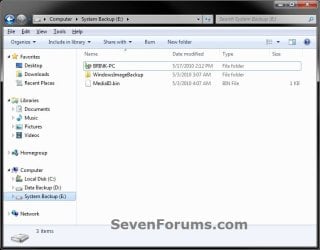
5. In Windows Explorer, navigate to the new location (ex: E: drive) that you want to move the C:\Users\(user-name) folder to. Right click on a empty space in the main window (middle), and click on Paste. (see screenshot below)
NOTE: This should be another internal hard drive or partition.
Step2.jpg
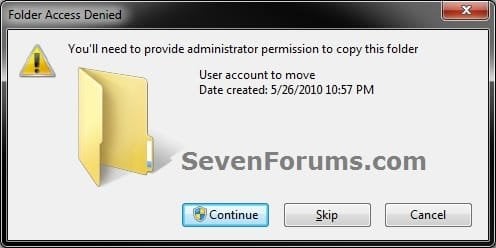
6. If prompted, click on Continue. (see screenshot below)
Step3-UAC.jpg
7. If prompted by UAC, then click on Yes (Windows 7) or Continue (Vista).

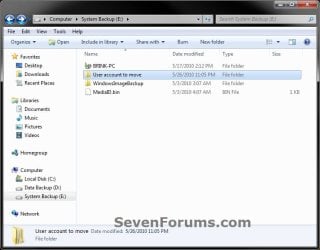
8. The C:\Users\(user-name) folder (step 4) is now copied over to the new location (ex: E:\User account to move). You can close Windows Explorer. (see screenshot below)
Step4.jpg
9. Open the Start Menu, then type regedit in the search box and press enter.

10. If prompted by UAC, then click on Yes (Windows 7) or Continue (Vista).

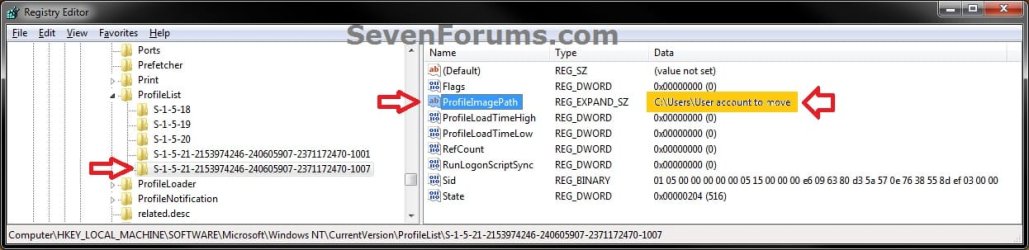
11. In regedit, navigate to the location below. (see screenshot below)

Code:
HKEY_LOCAL_MACHINE\SOFTWARE\Microsoft\Windows NT\CurrentVersion\ProfileList
Step5.jpg
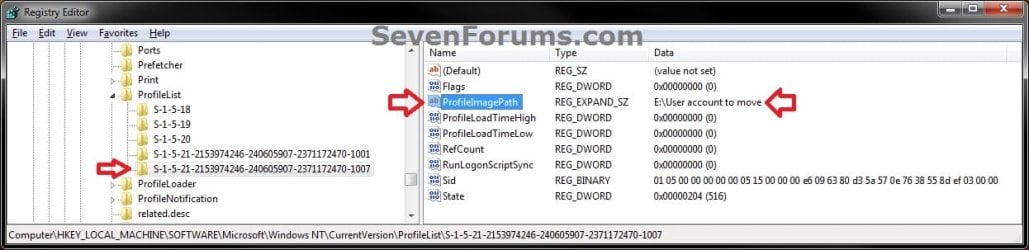
12. In the left pane under the Profilelist key, select and look at each S-1-5 key with the long number until you see the user account name and path (step 3) that you want to move in the value Data column of ProfileImagePath in the right pane. When the correct user name is found, right click on ProfileImagePath, and click on Modify. (see screenshot above)

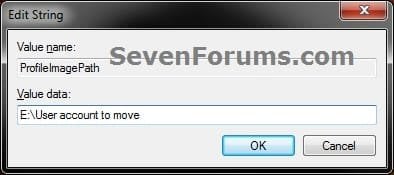
13. Type in the full path of the location (ex: E:\User account to move) that you copied the user profile folder to in step 7, and click on OK. (see screenshot below)
Step6.jpg
14. Regedit will now look similiar to this with the new location now. Close regedit. (see screenshot below)
Step7.jpg
15. To Verify that the User Profile has been Moved Successfully
A) Log off or Switch User, then log in to the user account that you moved the user profile folder of.

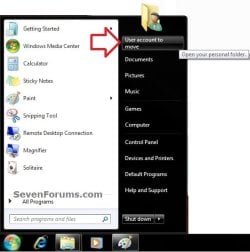
B) Open the Start Menu and open the user profile folder from this location. (see screenshot below)
Log-in-1.jpg
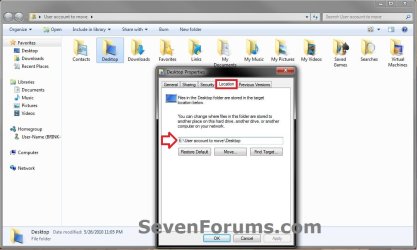
C) Right click on one of the user folders (ex: Desktop), click on Properties, and click on the Location tab. (see screenshot below)
Log-in-2.jpg
D) You should see the new location (ex: E:\User account to move\Desktop) from step 8 as the now new default location. Click on OK. (see screenshot above)
16. To Delete the User Profile from the Old Location
NOTE: Once you have verified (step 15) that the moved user profile has been moved successfully, you can now safely delete the user profile folder from the old location (ex: C:\Users\User account to move) from step 4.
A) Log off of the user account that you moved if you are logged into it from step 15.

B) Log on to an administrator account that you did not move it's user folder for.

C) In Windows Explorer, navigate to the old C:\Users\(user-name) folder (ex: C:\Users\User account to move) that you had copied (step 4). Right click on it and click on Delete. (see screenshot below)
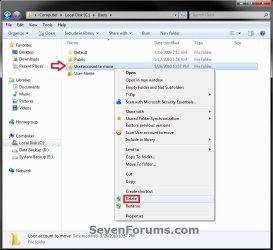
Delete-1_UAC.jpg
D) If prompted by UAC, then click on Yes (Windows 7) or Continue (Vista).

E) If prompted, click on Continue. (see screenshot below)
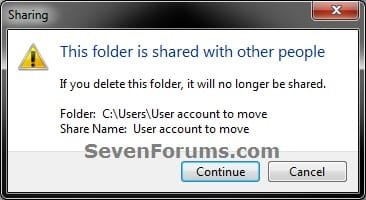
Delete-2.jpg
F) You can now empty the Recycle Bin to finish deleting the old user profile folder from the old location.
NOTE: You will need to approve emptying the Recycle Bin.
17. The existing user profile folder has now been completely moved to the new default location where Windows 7 or Vista will now run it from when logged on to it.


Method Two

To Restore the Existing User Profile's Default Location


1. Repeat OPTION ONE, but move the new default User Profile folder (ex: E:\User account to move) and registry entries back to the original C:\Users folder location (ex: C:\Users\User account to move).


OPTION TWO

For All New User Accounts Created


   Note
This will change where all newly created user accounts will have their user profile folder created at in a default location of your choice instead of the old default C:\Users location.

Thank you to Alain for pointing this out.

1. To Change the Default User Profile Location of New User Accounts
A) Open the Start Menu, then type regedit in the search box and press enter.
B) If prompted by UAC, then click on Yes (Windows 7) or Continue (Vista).

C) In regedit, navigate to the location below. (see screenshot below)

Code:
HKEY_LOCAL_MACHINE\SOFTWARE\Microsoft\Windows NT\CurrentVersion\ProfileList
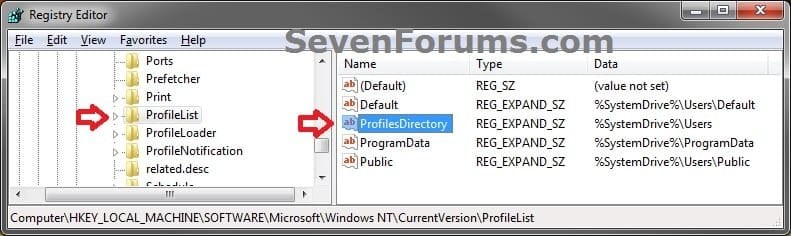
New-1.jpg
D) In the right pane of ProfileList, right click on ProfilesDirectory and click on Modify. (see screenshot above)

E) Type in the full path (ex: E:\Users) of where you want new user accounts to be created at, and click on OK. (see screenshot below)
New-2.jpg
F) The registry will now look similar to this. (see screenshot below)
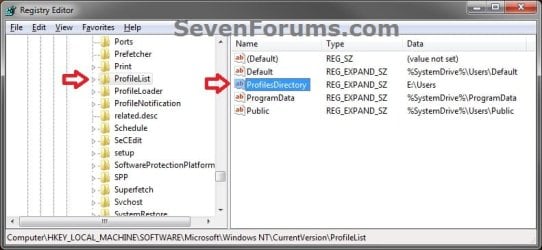
New-3.jpg
G) When you create a new user account, it's user profile folder will now be created at the location you specified in step 1E.
2. To Restore the Default User Profile Location of New User Accounts
A) Repeat step 1, but type %SystemDrive%\Users at step 1E instead.
NOTE: This step only changes the user profile folder location of any newly created user accounts back to this default location, and not any existing user accounts.

B) If you wish to change an already existing new account's user profile folder location, then you will need to do Method Two in OPTION ONE above to change it back to C:\Users.
3. Close regedit.

That's it,
Shawn


Last edited:
Nar, I wouldn't do that with the registry. I'll most likely break something.

In addition, manage your backup to make changes in step 4 below, use "Let me choose" at step 8 below, and uncheck theses folders on the C: drive in step 9. This will remove them from being included in the backup, and to stop getting the can't find them message.
 

My Computer

Computer type
PC/Desktop
Computer Manufacturer/Model Number
Self built custom
OS
64-bit Windows 11 Pro for Workstations
CPU
Intel i7-8700K OC'd to 5 GHz
Motherboard
ASUS ROG Maximus XI Formula Z390
Memory
64 GB (4x16GB) G.SKILL TridentZ RGB DDR4 3600 MHz
Graphics Card(s)
ASUS ROG-STRIX-GTX1080TI-O11G-GAMING
Sound Card
Integrated
Monitor(s) Displays
2 x Samsung Odyssey G7 27"
Screen Resolution
2560x1440
Hard Drives
1TB Samsung 990 PRO M.2,
4TB Samsung 990 PRO PRO M.2,
TerraMaster F8 SSD Plus NAS
PSU
Seasonic Prime Titanium 850W
Case
Thermaltake Core P3
Cooling
Corsair Hydro H115i
Keyboard
Logitech wireless K800
Mouse
Logitech MX Master 4
Internet Speed
2 Gb/s Download and 100 Mb/s Upload
Antivirus
Malwarebyte Anti-Malware Premium
Browser
Google Chrome
Other Info
Logitech Z625 speaker system,
Logitech BRIO 4K Pro webcam,
HP Color LaserJet Pro MFP M477fdn,
APC SMART-UPS RT 1000 XL - SURT1000XLI,
Galaxy S23 Plus phone
When I did a clean reinstall of Windows 10, I named my new account the same name as the account I had on Windows 7. My Windows 7 user folder with all of my documents, music, and settings was on my D: partition and my Windows 10 user account folder was on my C: partition. I used this method on my Windows 10 machine to edit the registry and merged the C: user with the old D: user. It seems to have worked fine. There are a few hiccups with Windows trying to read programs that aren't there but other than that, everything seems okay.
 

My Computer

Computer type
PC/Desktop
Computer Manufacturer/Model Number
Custom Build
OS
Microsoft Windows 7 64-bit Service Pack 1
CPU
Intel Core i7-4790K Devil's Canyon Quad-Core 4.0 GHz
Motherboard
GIGABYTE GA-Z97X-SLI LGA 1150
Memory
16.00 GB
Graphics Card(s)
NVIDIA GeForce GTX 950
Monitor(s) Displays
AOC 2050W
Screen Resolution
1920 x 1080
Hard Drives
ST1000DL002-9TT153 ATA Device
Seagate 2TB FireCuda Gaming SSHD (Solid State Hybrid Drive) - 7200 RPM SATA 6Gb/s 64MB Cache 3.5-Inch Hard Drive
Samsung 850 EVO - 250GB - 2.5-Inch SATA III Internal SSD
PSU
CORSAIR CX-M Series CX750M 750W ATX12V & EPS12V Semi-modular
Case
Lian Li PC-7H
Browser
Firefox
Hi Brink.

Thanks for a great tutorial... I've done the "Method 2" option on a new computer. It wil be added t a domain with a server where I'll add the domain user when I get the computer to that location, i.e. the domain user will (should) be added to the new disk location.

I read that someone had had problems with this setup, but I'm not sure if he MOVED the user or if he did a method 2. Have you heard of any other problems with this regarding domain users on server networks.

Thing is, I've added left over, smaller SSD's as system disks on new desktop computers and set their standard mecanical drives as secondaries, so this really need to work... :)
 

My Computer

Computer type
PC/Desktop
OS
Win 7 Pro
Hello M3rLiN, and welcome to Seven Forums. :)

If you meant "OPTION TWO" for new accounts instead, then that is the one that works best. OPTION ONE for an existing account can sometimes have issues with it breaking installed programs.

I don't have an experience using this with a domain, but it should work the same.
 

My Computer

Computer type
PC/Desktop
Computer Manufacturer/Model Number
Self built custom
OS
64-bit Windows 11 Pro for Workstations
CPU
Intel i7-8700K OC'd to 5 GHz
Motherboard
ASUS ROG Maximus XI Formula Z390
Memory
64 GB (4x16GB) G.SKILL TridentZ RGB DDR4 3600 MHz
Graphics Card(s)
ASUS ROG-STRIX-GTX1080TI-O11G-GAMING
Sound Card
Integrated
Monitor(s) Displays
2 x Samsung Odyssey G7 27"
Screen Resolution
2560x1440
Hard Drives
1TB Samsung 990 PRO M.2,
4TB Samsung 990 PRO PRO M.2,
TerraMaster F8 SSD Plus NAS
PSU
Seasonic Prime Titanium 850W
Case
Thermaltake Core P3
Cooling
Corsair Hydro H115i
Keyboard
Logitech wireless K800
Mouse
Logitech MX Master 4
Internet Speed
2 Gb/s Download and 100 Mb/s Upload
Antivirus
Malwarebyte Anti-Malware Premium
Browser
Google Chrome
Other Info
Logitech Z625 speaker system,
Logitech BRIO 4K Pro webcam,
HP Color LaserJet Pro MFP M477fdn,
APC SMART-UPS RT 1000 XL - SURT1000XLI,
Galaxy S23 Plus phone
I attempted this tutorial on a clean install to move my user account to the d:\ using option 1, method 1, but it didn't appear to be fully successful. When I logged back in to the moved account, all my personal settings were gone or lost. Also, when I checked the user accounts location via the Start Button location, it appeared to be on: C:\Users\TEMP. I suspect there as a new TEMP directory created that everything was move to.

The only thing I noticed when I was performing the tutorial, was that when I was copying the user account to be moved to the new location, I got many indications that files couldn't be moved, because they were in use.

I suspect the problem may be that when I was switching between user accounts, I didn't do a complete restart. So, the files were still in use by the user account that wasn't active.

Is there a fix for this condition?

Regards

Screen Shot 1.jpg

The system appears to have created a new user account, TEMP

Screen Shot 2.jpg

Whatever I did, it wasn't what was intended. It appears the Administrator account was changed to TEMP.

I could probably figure this out and fix it, but I might do something worse that is unfixable. I'll be waiting for assistance.

Regards
 
Last edited:

My Computer

Computer type
PC/Desktop
Computer Manufacturer/Model Number
Custom Build
OS
Windows 7 Professional x64 SP1
CPU
Intel i7-980x @ 3.6GHz
Motherboard
Intel DX58SO
Memory
Corsair 12GB DDR3 RAM (3x4GB)
Graphics Card(s)
EVGA NVIDIA GeForce GTX 760 SC
Sound Card
Intel High Definition 7.1 Audio Subsystem - Realtek ALC889
Monitor(s) Displays
Dual Display - LG Electronics Flatron L227WTG
Screen Resolution
1680 x 1050 60Hz 32-bit
Hard Drives
2 Seagate Constellation ST1000NM0033 1TB SATA 6Gb/s HDDs configured as Intel SATA Array 0, RST RAID 1, Vol. 0 (C:\) & Vol. 1 (D:\), & 2 Seagate Barracuda ST500DM002 500GB SATA 6Gb/s HDDs configured as Intel SATA Array 1 RST RAID 1, Vol. 0 (E:\)
PSU
Corsair HX850W
Case
Antec P182
Cooling
Stock Intel i7-980x Cooling Solution + 4 120mm Case Fans
Keyboard
Microsoft Wireless Multimedia Keyboard 1.1
Mouse
Microsoft Standard Wireless Optical Mouse
Internet Speed
DSL - 3.0 Mb/s download 768 Kb/s upload
Antivirus
ESET Smart Security 12, Defender & SuperAntiSpyware Pro
Browser
Firefox Quantum 64-bit
Other Info
Optical Drives: Pioneer DVR-216R & TSSTcorp SH-S223Q, Anker USB 3.0 PCI-E Card, Hauppauge WinTV-HVR 2250 Dual TV Tuner Board for Windows Media Center, Bose Companion 3 Series II multimedia speaker system, APC Smart-UPS SMT1500
Hello tjg, :)

Usually reversing the process to restore the default location will sort this for you.
 

My Computer

Computer type
PC/Desktop
Computer Manufacturer/Model Number
Self built custom
OS
64-bit Windows 11 Pro for Workstations
CPU
Intel i7-8700K OC'd to 5 GHz
Motherboard
ASUS ROG Maximus XI Formula Z390
Memory
64 GB (4x16GB) G.SKILL TridentZ RGB DDR4 3600 MHz
Graphics Card(s)
ASUS ROG-STRIX-GTX1080TI-O11G-GAMING
Sound Card
Integrated
Monitor(s) Displays
2 x Samsung Odyssey G7 27"
Screen Resolution
2560x1440
Hard Drives
1TB Samsung 990 PRO M.2,
4TB Samsung 990 PRO PRO M.2,
TerraMaster F8 SSD Plus NAS
PSU
Seasonic Prime Titanium 850W
Case
Thermaltake Core P3
Cooling
Corsair Hydro H115i
Keyboard
Logitech wireless K800
Mouse
Logitech MX Master 4
Internet Speed
2 Gb/s Download and 100 Mb/s Upload
Antivirus
Malwarebyte Anti-Malware Premium
Browser
Google Chrome
Other Info
Logitech Z625 speaker system,
Logitech BRIO 4K Pro webcam,
HP Color LaserJet Pro MFP M477fdn,
APC SMART-UPS RT 1000 XL - SURT1000XLI,
Galaxy S23 Plus phone
Hello tjg, :)

Usually reversing the process to restore the default location will sort this for you.

I would normally think so, but it looks like a new entry was created in the registry and the entry I intended to change was made into a back-up.

The worst part is I don't understand what went wrong.

How would you fix this?

Regards
 

My Computer

Computer type
PC/Desktop
Computer Manufacturer/Model Number
Custom Build
OS
Windows 7 Professional x64 SP1
CPU
Intel i7-980x @ 3.6GHz
Motherboard
Intel DX58SO
Memory
Corsair 12GB DDR3 RAM (3x4GB)
Graphics Card(s)
EVGA NVIDIA GeForce GTX 760 SC
Sound Card
Intel High Definition 7.1 Audio Subsystem - Realtek ALC889
Monitor(s) Displays
Dual Display - LG Electronics Flatron L227WTG
Screen Resolution
1680 x 1050 60Hz 32-bit
Hard Drives
2 Seagate Constellation ST1000NM0033 1TB SATA 6Gb/s HDDs configured as Intel SATA Array 0, RST RAID 1, Vol. 0 (C:\) & Vol. 1 (D:\), & 2 Seagate Barracuda ST500DM002 500GB SATA 6Gb/s HDDs configured as Intel SATA Array 1 RST RAID 1, Vol. 0 (E:\)
PSU
Corsair HX850W
Case
Antec P182
Cooling
Stock Intel i7-980x Cooling Solution + 4 120mm Case Fans
Keyboard
Microsoft Wireless Multimedia Keyboard 1.1
Mouse
Microsoft Standard Wireless Optical Mouse
Internet Speed
DSL - 3.0 Mb/s download 768 Kb/s upload
Antivirus
ESET Smart Security 12, Defender & SuperAntiSpyware Pro
Browser
Firefox Quantum 64-bit
Other Info
Optical Drives: Pioneer DVR-216R & TSSTcorp SH-S223Q, Anker USB 3.0 PCI-E Card, Hauppauge WinTV-HVR 2250 Dual TV Tuner Board for Windows Media Center, Bose Companion 3 Series II multimedia speaker system, APC Smart-UPS SMT1500
I'd still try the system restore if you haven't already.
 

My Computer

Computer type
PC/Desktop
Computer Manufacturer/Model Number
Self built custom
OS
64-bit Windows 11 Pro for Workstations
CPU
Intel i7-8700K OC'd to 5 GHz
Motherboard
ASUS ROG Maximus XI Formula Z390
Memory
64 GB (4x16GB) G.SKILL TridentZ RGB DDR4 3600 MHz
Graphics Card(s)
ASUS ROG-STRIX-GTX1080TI-O11G-GAMING
Sound Card
Integrated
Monitor(s) Displays
2 x Samsung Odyssey G7 27"
Screen Resolution
2560x1440
Hard Drives
1TB Samsung 990 PRO M.2,
4TB Samsung 990 PRO PRO M.2,
TerraMaster F8 SSD Plus NAS
PSU
Seasonic Prime Titanium 850W
Case
Thermaltake Core P3
Cooling
Corsair Hydro H115i
Keyboard
Logitech wireless K800
Mouse
Logitech MX Master 4
Internet Speed
2 Gb/s Download and 100 Mb/s Upload
Antivirus
Malwarebyte Anti-Malware Premium
Browser
Google Chrome
Other Info
Logitech Z625 speaker system,
Logitech BRIO 4K Pro webcam,
HP Color LaserJet Pro MFP M477fdn,
APC SMART-UPS RT 1000 XL - SURT1000XLI,
Galaxy S23 Plus phone
I don't have a restore point. If I reverse my actions and then manually edit the registry to remove that backup entry, would that work? How do I get the old Administrator account to show up as Administrator and not Temp?
 

My Computer

Computer type
PC/Desktop
Computer Manufacturer/Model Number
Custom Build
OS
Windows 7 Professional x64 SP1
CPU
Intel i7-980x @ 3.6GHz
Motherboard
Intel DX58SO
Memory
Corsair 12GB DDR3 RAM (3x4GB)
Graphics Card(s)
EVGA NVIDIA GeForce GTX 760 SC
Sound Card
Intel High Definition 7.1 Audio Subsystem - Realtek ALC889
Monitor(s) Displays
Dual Display - LG Electronics Flatron L227WTG
Screen Resolution
1680 x 1050 60Hz 32-bit
Hard Drives
2 Seagate Constellation ST1000NM0033 1TB SATA 6Gb/s HDDs configured as Intel SATA Array 0, RST RAID 1, Vol. 0 (C:\) & Vol. 1 (D:\), & 2 Seagate Barracuda ST500DM002 500GB SATA 6Gb/s HDDs configured as Intel SATA Array 1 RST RAID 1, Vol. 0 (E:\)
PSU
Corsair HX850W
Case
Antec P182
Cooling
Stock Intel i7-980x Cooling Solution + 4 120mm Case Fans
Keyboard
Microsoft Wireless Multimedia Keyboard 1.1
Mouse
Microsoft Standard Wireless Optical Mouse
Internet Speed
DSL - 3.0 Mb/s download 768 Kb/s upload
Antivirus
ESET Smart Security 12, Defender & SuperAntiSpyware Pro
Browser
Firefox Quantum 64-bit
Other Info
Optical Drives: Pioneer DVR-216R & TSSTcorp SH-S223Q, Anker USB 3.0 PCI-E Card, Hauppauge WinTV-HVR 2250 Dual TV Tuner Board for Windows Media Center, Bose Companion 3 Series II multimedia speaker system, APC Smart-UPS SMT1500
OK, I'm back to square one. Everything is restored.

I'm not sure what went wrong, but the first thing I noticed while following those instructions was that a number of files that appeared to be hidden system files wouldn't copy, because they were in use. I have my user account set to log in automatically. So, even if I create a second account for the purpose of this tutorial, I will always log into my regular account if I start or reboot. I was switching between the different accounts by going to the Start Button/Shut down arrow and selecting Switch user. I suspect that some of my regular account system files are still in use and can't be copied for that reason. Perhaps if I change my user account to require a password login so that when I start or reboot, I arrive a screen that requires a choice of which account is logging in, then the other account's files wouldn't be in use and they could be copied without issue. So, it's my impression now that I need to restart when switching accounts for the purposes of this tutorial.

I will change my user account to require a password login and then try this tutorial again.

Regards
 

My Computer

Computer type
PC/Desktop
Computer Manufacturer/Model Number
Custom Build
OS
Windows 7 Professional x64 SP1
CPU
Intel i7-980x @ 3.6GHz
Motherboard
Intel DX58SO
Memory
Corsair 12GB DDR3 RAM (3x4GB)
Graphics Card(s)
EVGA NVIDIA GeForce GTX 760 SC
Sound Card
Intel High Definition 7.1 Audio Subsystem - Realtek ALC889
Monitor(s) Displays
Dual Display - LG Electronics Flatron L227WTG
Screen Resolution
1680 x 1050 60Hz 32-bit
Hard Drives
2 Seagate Constellation ST1000NM0033 1TB SATA 6Gb/s HDDs configured as Intel SATA Array 0, RST RAID 1, Vol. 0 (C:\) & Vol. 1 (D:\), & 2 Seagate Barracuda ST500DM002 500GB SATA 6Gb/s HDDs configured as Intel SATA Array 1 RST RAID 1, Vol. 0 (E:\)
PSU
Corsair HX850W
Case
Antec P182
Cooling
Stock Intel i7-980x Cooling Solution + 4 120mm Case Fans
Keyboard
Microsoft Wireless Multimedia Keyboard 1.1
Mouse
Microsoft Standard Wireless Optical Mouse
Internet Speed
DSL - 3.0 Mb/s download 768 Kb/s upload
Antivirus
ESET Smart Security 12, Defender & SuperAntiSpyware Pro
Browser
Firefox Quantum 64-bit
Other Info
Optical Drives: Pioneer DVR-216R & TSSTcorp SH-S223Q, Anker USB 3.0 PCI-E Card, Hauppauge WinTV-HVR 2250 Dual TV Tuner Board for Windows Media Center, Bose Companion 3 Series II multimedia speaker system, APC Smart-UPS SMT1500
I changed my logon from automatic to password and did a hard user switch. I was able to copy the user folder to the D: drive, but I wasn't able to completely delete the user folder from the system drive, C:. There are still a lot of hidden files in that folder that apparently didn't copy. App Data is one of those files. Is there a solution to copy all the files so the old user folder can be deleted?

Also, Windows Explorer shows that there is another folder under the C:\Users. It's the Public folder. How can that folder be moved to the D: drive?
 

My Computer

Computer type
PC/Desktop
Computer Manufacturer/Model Number
Custom Build
OS
Windows 7 Professional x64 SP1
CPU
Intel i7-980x @ 3.6GHz
Motherboard
Intel DX58SO
Memory
Corsair 12GB DDR3 RAM (3x4GB)
Graphics Card(s)
EVGA NVIDIA GeForce GTX 760 SC
Sound Card
Intel High Definition 7.1 Audio Subsystem - Realtek ALC889
Monitor(s) Displays
Dual Display - LG Electronics Flatron L227WTG
Screen Resolution
1680 x 1050 60Hz 32-bit
Hard Drives
2 Seagate Constellation ST1000NM0033 1TB SATA 6Gb/s HDDs configured as Intel SATA Array 0, RST RAID 1, Vol. 0 (C:\) & Vol. 1 (D:\), & 2 Seagate Barracuda ST500DM002 500GB SATA 6Gb/s HDDs configured as Intel SATA Array 1 RST RAID 1, Vol. 0 (E:\)
PSU
Corsair HX850W
Case
Antec P182
Cooling
Stock Intel i7-980x Cooling Solution + 4 120mm Case Fans
Keyboard
Microsoft Wireless Multimedia Keyboard 1.1
Mouse
Microsoft Standard Wireless Optical Mouse
Internet Speed
DSL - 3.0 Mb/s download 768 Kb/s upload
Antivirus
ESET Smart Security 12, Defender & SuperAntiSpyware Pro
Browser
Firefox Quantum 64-bit
Other Info
Optical Drives: Pioneer DVR-216R & TSSTcorp SH-S223Q, Anker USB 3.0 PCI-E Card, Hauppauge WinTV-HVR 2250 Dual TV Tuner Board for Windows Media Center, Bose Companion 3 Series II multimedia speaker system, APC Smart-UPS SMT1500
Brink,

Thanks for another great tutorial. However, it caused issues and there are some tweaks that may be needed.

First, an overview of what I did. I had a 1TB C drive and wanted to put in a 250GB SSD for the OS, and move the extras to a D drive. (Kind of standard these days.) Moving my profile over to the D drive would shrink my OS files so they'd all fit on the smaller SSD.

I did it. Your tutorial was great. (I'd previously used Kari's sysprep on a different computer, so some of this seemed familiar. I like your way better. ;) ) I moved the one user profile on the computer (named "Kids") from C/Users to D/Users. I created a new profile with admin privileges called "Tempmove", per your instructions, and then deleted it by right-clicking on the folder and selecting "delete".
Everything seemed good. C was the new SSD, D was a spinner, and everything fit and worked.

Except my HP8630 network printer. I could print notepad, but not anything else. After troubleshooting unsuccessfully, I decided to undo the profile move.

I shrank down (and moved) my D drive User files so everything would now fit on the SSD. I followed your tutorial to undo the move. I created another profile "Temp 4 move" to allow me to move "Kids" from the D to the C drive.

It worked.

Except...I lost my desktop background image, never to be found again. Okay, that's minor. I can now print as I should.

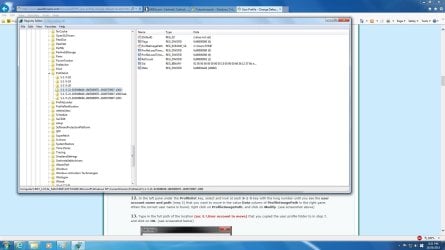
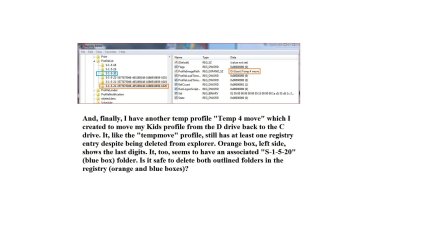
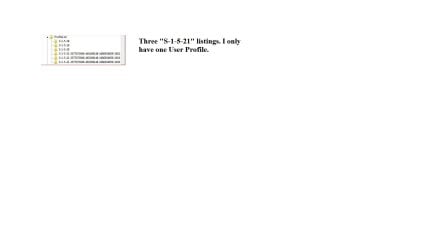
Here's the oddity: my registry contains some entries from "Tempmove" and "Temp 4 move". They're in the Profile List location your tutorial discusses. I've included some pix, with verbiage. (In order, the jpg's should be opened as "overview", "kids", "tempmove", and then "temp 4 move".)

Can I safely delete the 4 folders from Profile List? Or can I only delete the 2 orange ones (1019 and 1020)? Or none?

Should your tutorial include a step to delete these extra profiles from the registry?

Thanks,
Ken
 

Attachments

  • regedit tempmove.jpg
    regedit tempmove.jpg
    235.3 KB · Views: 542
  • regedit temp 4 move.jpg
    regedit temp 4 move.jpg
    256.6 KB · Views: 472
  • regedit overview.jpg
    regedit overview.jpg
    71.4 KB · Views: 546
  • regedit kids entry.jpg
    regedit kids entry.jpg
    185.3 KB · Views: 608

My Computer

Computer type
PC/Desktop
Computer Manufacturer/Model Number
Custom build
OS
Microsoft Windows 7 Home Premium 64-bit 7601 Multiprocessor Free Service Pack 1
CPU
AMD FX(tm)-8350 Eight-Core Processor
Motherboard
ASUSTeK Computer INC. M5A88-M
Memory
16.00 GB
Graphics Card(s)
NVIDIA GeForce GTX 670
Sound Card
(1) Realtek High Definition Audio (2) NVIDIA Virtual Audio
Monitor(s) Displays
Through AVR to one of two TV/Projector
Screen Resolution
1920 x 1080 x 32 bits (4294967296 colors) @ 60 Hz
Hard Drives
Samsung SSD 850 PRO 256G SATA Disk Device
Case
Silverstone GD09
Cooling
Air
Antivirus
Kaspersky Internet Security, 2015
Hello Ken, :)

Since you already deleted the accounts that 1019 and 1020 belong to, it would be safe to delete only these two from the registry.

The shorter ones are system accounts used by Windows, and should not be deleted.
 

My Computer

Computer type
PC/Desktop
Computer Manufacturer/Model Number
Self built custom
OS
64-bit Windows 11 Pro for Workstations
CPU
Intel i7-8700K OC'd to 5 GHz
Motherboard
ASUS ROG Maximus XI Formula Z390
Memory
64 GB (4x16GB) G.SKILL TridentZ RGB DDR4 3600 MHz
Graphics Card(s)
ASUS ROG-STRIX-GTX1080TI-O11G-GAMING
Sound Card
Integrated
Monitor(s) Displays
2 x Samsung Odyssey G7 27"
Screen Resolution
2560x1440
Hard Drives
1TB Samsung 990 PRO M.2,
4TB Samsung 990 PRO PRO M.2,
TerraMaster F8 SSD Plus NAS
PSU
Seasonic Prime Titanium 850W
Case
Thermaltake Core P3
Cooling
Corsair Hydro H115i
Keyboard
Logitech wireless K800
Mouse
Logitech MX Master 4
Internet Speed
2 Gb/s Download and 100 Mb/s Upload
Antivirus
Malwarebyte Anti-Malware Premium
Browser
Google Chrome
Other Info
Logitech Z625 speaker system,
Logitech BRIO 4K Pro webcam,
HP Color LaserJet Pro MFP M477fdn,
APC SMART-UPS RT 1000 XL - SURT1000XLI,
Galaxy S23 Plus phone
Hello Ken, :)

Since you already deleted the accounts that 1019 and 1020 belong to, it would be safe to delete only these two from the registry.

The shorter ones are system accounts used by Windows, and should not be deleted.

Thank you!
 

My Computer

Computer type
PC/Desktop
Computer Manufacturer/Model Number
Custom build
OS
Microsoft Windows 7 Home Premium 64-bit 7601 Multiprocessor Free Service Pack 1
CPU
AMD FX(tm)-8350 Eight-Core Processor
Motherboard
ASUSTeK Computer INC. M5A88-M
Memory
16.00 GB
Graphics Card(s)
NVIDIA GeForce GTX 670
Sound Card
(1) Realtek High Definition Audio (2) NVIDIA Virtual Audio
Monitor(s) Displays
Through AVR to one of two TV/Projector
Screen Resolution
1920 x 1080 x 32 bits (4294967296 colors) @ 60 Hz
Hard Drives
Samsung SSD 850 PRO 256G SATA Disk Device
Case
Silverstone GD09
Cooling
Air
Antivirus
Kaspersky Internet Security, 2015
You're most welcome. :)
 

My Computer

Computer type
PC/Desktop
Computer Manufacturer/Model Number
Self built custom
OS
64-bit Windows 11 Pro for Workstations
CPU
Intel i7-8700K OC'd to 5 GHz
Motherboard
ASUS ROG Maximus XI Formula Z390
Memory
64 GB (4x16GB) G.SKILL TridentZ RGB DDR4 3600 MHz
Graphics Card(s)
ASUS ROG-STRIX-GTX1080TI-O11G-GAMING
Sound Card
Integrated
Monitor(s) Displays
2 x Samsung Odyssey G7 27"
Screen Resolution
2560x1440
Hard Drives
1TB Samsung 990 PRO M.2,
4TB Samsung 990 PRO PRO M.2,
TerraMaster F8 SSD Plus NAS
PSU
Seasonic Prime Titanium 850W
Case
Thermaltake Core P3
Cooling
Corsair Hydro H115i
Keyboard
Logitech wireless K800
Mouse
Logitech MX Master 4
Internet Speed
2 Gb/s Download and 100 Mb/s Upload
Antivirus
Malwarebyte Anti-Malware Premium
Browser
Google Chrome
Other Info
Logitech Z625 speaker system,
Logitech BRIO 4K Pro webcam,
HP Color LaserJet Pro MFP M477fdn,
APC SMART-UPS RT 1000 XL - SURT1000XLI,
Galaxy S23 Plus phone
Okay...two more oddities.

No matter what I do, I keep getting a users profile added to my D drive.

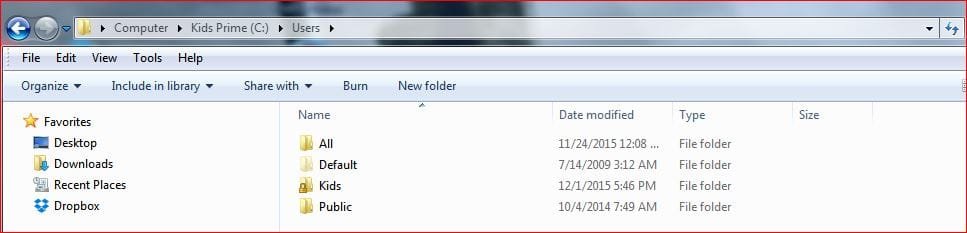
Also, I used to call my user profile "All" (yeah, bad name), so I renamed it "Kids". Now, I have a user profile "All" which I cannot delete.

Of the two, the new profile folders getting created on my D drive is the more problematic. See the attached screenshots. (And, yes, I did change the registry so that all new profiles are created on the C drive.)

"D won't go" shows what gets created everytime I use my main/only profile, "kids". I can delete it (by making another admin profile), but it reappears everytime I login to "kids".

The "user folder" shows the spurious "all" which I cannot get rid of.

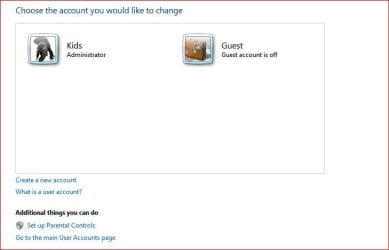
The "account image" shows what I see when I log in to account manager.

Ken
 

Attachments

  • D wont go.JPG
    D wont go.JPG
    46.3 KB · Views: 434
  • account image.JPG
    account image.JPG
    36.3 KB · Views: 1,070
  • user folder.JPG
    user folder.JPG
    42.3 KB · Views: 502

My Computer

Computer type
PC/Desktop
Computer Manufacturer/Model Number
Custom build
OS
Microsoft Windows 7 Home Premium 64-bit 7601 Multiprocessor Free Service Pack 1
CPU
AMD FX(tm)-8350 Eight-Core Processor
Motherboard
ASUSTeK Computer INC. M5A88-M
Memory
16.00 GB
Graphics Card(s)
NVIDIA GeForce GTX 670
Sound Card
(1) Realtek High Definition Audio (2) NVIDIA Virtual Audio
Monitor(s) Displays
Through AVR to one of two TV/Projector
Screen Resolution
1920 x 1080 x 32 bits (4294967296 colors) @ 60 Hz
Hard Drives
Samsung SSD 850 PRO 256G SATA Disk Device
Case
Silverstone GD09
Cooling
Air
Antivirus
Kaspersky Internet Security, 2015
quick question if i may and sorry if i missed this while reading through the tutorial. what would happen if i were to NOT delete the original location info but leave it be? i have moved the location just now and downloaded one app. and it put it in the new location and not the old all perfectly as it should i hope but i have not logged off or shut down the system yet either so was wondering if that would open a can of worms i'd rather not fool with?
 

My Computer

Computer type
PC/Desktop
Computer Manufacturer/Model Number
custom
OS
win7 pro x64/win10 pro x64
CPU
ryzen
Motherboard
x370 taichi
Memory
32mb g skill patriot
Graphics Card(s)
nvidia
Monitor(s) Displays
acer h236hl
Screen Resolution
1920 x 1080
Hard Drives
128 ssd
128 toshiba
500 gb seagate
1tb seagate x4
Antivirus
avg
Browser
chrome
Hello boomhauer, and welcome to Seven Forums. :-)

You don't have to delete the folder at the original location.
 

My Computer

Computer type
PC/Desktop
Computer Manufacturer/Model Number
Self built custom
OS
64-bit Windows 11 Pro for Workstations
CPU
Intel i7-8700K OC'd to 5 GHz
Motherboard
ASUS ROG Maximus XI Formula Z390
Memory
64 GB (4x16GB) G.SKILL TridentZ RGB DDR4 3600 MHz
Graphics Card(s)
ASUS ROG-STRIX-GTX1080TI-O11G-GAMING
Sound Card
Integrated
Monitor(s) Displays
2 x Samsung Odyssey G7 27"
Screen Resolution
2560x1440
Hard Drives
1TB Samsung 990 PRO M.2,
4TB Samsung 990 PRO PRO M.2,
TerraMaster F8 SSD Plus NAS
PSU
Seasonic Prime Titanium 850W
Case
Thermaltake Core P3
Cooling
Corsair Hydro H115i
Keyboard
Logitech wireless K800
Mouse
Logitech MX Master 4
Internet Speed
2 Gb/s Download and 100 Mb/s Upload
Antivirus
Malwarebyte Anti-Malware Premium
Browser
Google Chrome
Other Info
Logitech Z625 speaker system,
Logitech BRIO 4K Pro webcam,
HP Color LaserJet Pro MFP M477fdn,
APC SMART-UPS RT 1000 XL - SURT1000XLI,
Galaxy S23 Plus phone
thx brink. it will have no ill side effects if left there since nothing is going to it anymore ?
 

My Computer

Computer type
PC/Desktop
Computer Manufacturer/Model Number
custom
OS
win7 pro x64/win10 pro x64
CPU
ryzen
Motherboard
x370 taichi
Memory
32mb g skill patriot
Graphics Card(s)
nvidia
Monitor(s) Displays
acer h236hl
Screen Resolution
1920 x 1080
Hard Drives
128 ssd
128 toshiba
500 gb seagate
1tb seagate x4
Antivirus
avg
Browser
chrome
No side effects. You could treat it as a backup.
 

My Computer

Computer type
PC/Desktop
Computer Manufacturer/Model Number
Self built custom
OS
64-bit Windows 11 Pro for Workstations
CPU
Intel i7-8700K OC'd to 5 GHz
Motherboard
ASUS ROG Maximus XI Formula Z390
Memory
64 GB (4x16GB) G.SKILL TridentZ RGB DDR4 3600 MHz
Graphics Card(s)
ASUS ROG-STRIX-GTX1080TI-O11G-GAMING
Sound Card
Integrated
Monitor(s) Displays
2 x Samsung Odyssey G7 27"
Screen Resolution
2560x1440
Hard Drives
1TB Samsung 990 PRO M.2,
4TB Samsung 990 PRO PRO M.2,
TerraMaster F8 SSD Plus NAS
PSU
Seasonic Prime Titanium 850W
Case
Thermaltake Core P3
Cooling
Corsair Hydro H115i
Keyboard
Logitech wireless K800
Mouse
Logitech MX Master 4
Internet Speed
2 Gb/s Download and 100 Mb/s Upload
Antivirus
Malwarebyte Anti-Malware Premium
Browser
Google Chrome
Other Info
Logitech Z625 speaker system,
Logitech BRIO 4K Pro webcam,
HP Color LaserJet Pro MFP M477fdn,
APC SMART-UPS RT 1000 XL - SURT1000XLI,
Galaxy S23 Plus phone
Back
Top