User Profile - Customize During Installation

How to Customize Default User Profile in Audit Mode

   Note
Audit Mode is a very practical way to prepare and customize Windows. This tutorial will show you how to enter Audit Mode to customize the default user profile during the installation of Vista, Windows 7, or Windows 8.

If you have used Windows already you might have noticed that the main user profile folder (default location C:\Users) not only contains individual folders for each user of the PC as for instance C:\Users\Kari, but also a hidden user folder called Default:
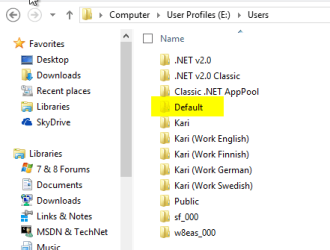
Default_User_Profile.png
When a new user account is created and the user logs in first time, Windows creates the basic set of personal folders (Pictures, Videos, Documents, Favorites etc.) under the user profile folder which is a first level subfolder in the main user profile folder. The default location is as mentioned C:\Users. For instance my personal profile folder would be by default at C:\Users\Kari and my Documents folder at C:\Users\Kari\Documents.

In addition to these standard, default folders and settings system looks now the Default User Profile folder to copy all customized settings to newly created user folder. These can include display and desktop settings, IE favorites, saved searches and so on.

Customizing the Default User Profile in Audit Mode using Windows System Preparation Tool (Sysprep) is only possible if no user accounts except the built-in administrator account exist, hence using this method is only practical when installing Windows and entering Audit Mode during the installation.

If however you want to use this method on an already running Windows setup it is possible. You need to boot to Audit Mode which automatically uses the built-in administrator account, then delete all existing user accounts before proceeding. This is really important so I repeat: You cannot use this method to modify Default User Profile if any user accounts exist!

To boot to Audit Mode from existing Windows setup, close all applications and Explorer windows, press CTRL + R to open the Run dialog, type %windir%\system32\sysprep\sysprep.exe /audit /reboot and hit Enter. Notice that when this method is used on an existing Windows installation, you need to have your product key ready as you need to reactivate the Windows after exiting Audit Mode and returning to normal (OOBE) mode.


This tutorial takes you through following steps:
  1. Installing Windows and entering Audit Mode during first boot after the installation
  2. Customizing Default User Profile in Audit Mode
  3. Running System Preparation Tool to save modified Default User Profile
  4. Booting Windows normally to Windows Welcome (OOBE) to finalize installation
This method is valid for Windows Vista, Windows 7 and Windows 8.

   Warning
Notice that as an upgraded Windows cannot be sysprepped and as a so called repair install is also considered as an upgrade (in-place to same edition), this method only works on cleanly installed Windows 7 and 8. When using this method on an existing Windows setup, it only works if the Windows was installed clean and has never been repaired using repair install.


Step 1:

Install Windows


Start Windows installation normally. Consult the respective tutorials if you need any help:
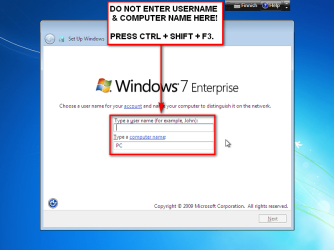
At the end phase of the installation when Windows 7 asks your initial user name and Windows 8 starts the Personalization phase, do not enter a username or a computer name but instead press CTRL + SHIFT + F3 to make Windows to reboot to Audit Mode:

In Vista and Windows 7:
EnterAuditMode.png
In Windows 8:
2013-04-11_173058.png
After the reboot and automatic login as built-in administrator close the Sysprep dialog by clicking Cancel:
CloseSysprep.png


Step 2:

Customize Default User Profile


Install the applications you want to be ready for all users, do not install software that you want to install only for you. Create and edit IE favorites as you wish, or install another browser and set favorites and homepage to it. Modify desktop settings, wallpaper and colors, delete and add shortcuts, make the desktop and your Windows as you would like every new user account to have it.

   Note
Notice that pinned Taskbar items cannot be set now. Pinning simply does not survive the sysprep process.


When you have the Default User Profile set as you wish, open Windows Notepad and type or Copy / Paste following lines to a new document:

Code:
<?xml version="1.0" encoding="utf-8"?>
<unattend xmlns="urn:schemas-microsoft-com:unattend">
    <settings pass="specialize">
        <component name="Microsoft-Windows-Shell-Setup" processorArchitecture="[B][COLOR=darkred][HL]amd64[/HL][/COLOR][/B]" publicKeyToken="31bf3856ad364e35" language="neutral" versionScope="nonSxS" xmlns:wcm="http://schemas.microsoft.com/WMIConfig/2002/State" xmlns:xsi="http://www.w3.org/2001/XMLSchema-instance">
            <CopyProfile>true</CopyProfile>
        </component>
    </settings>
    <cpi:offlineImage cpi:source="[B][COLOR=darkred][HL]wim:E:/sources/install.wim[/HL][/COLOR][/B][HL]#[B][COLOR=darkred]Windows 7 ULTIMATE[/COLOR][/B][/HL]" xmlns:cpi="urn:schemas-microsoft-com:cpi" />
</unattend>

Notice the two highlighted values in above answer file script:
  • Line 4 > The value of the variable ProcessorArchitecture must be amd64 if you are installing a 64 bit Windows (even on Intel processors) and x86 if you are installing a 32 bit Windows
  • Line 8 > The value of cpi:source must be as follows:
    • Path to install.wim file on your install media followed by # and the exact Windows version and edition. The original install media containing install.wim file must be on a drive when you sysprep the system later in Step 3
    • The install.wim is by default located in Sources folder > if the install DVD is on drive D: the path is D:\Sources\install.wim. Also important is to notice that whereas you normally would use the backslash (\) as folder separator in paths (D:\Sources\install.wim), the XML syntax uses slashes instead (D:/Sources/install.wim)
    • The version and edition information with capital letters as follows:
      • WINDOWS 7 HOMEPREMIUM
      • WINDOWS 7 PROFESSIONAL
      • WINDOWS 7 ULTIMATE
      • WINDOWS 7 ENTERPRISE
      • WINDOWS 8
      • WINDOWS 8 PRO
      • WINDOWS 8 ENTERPRISE
      • WINDOWS 8.1
      • WINDOWS 8.1 PRO
      • WINDOWS 8.1 ENTERPRISE
This answer file must be saved as an XML file on the root of an external media like for instance a USB stick. To do this, insert the media, select Save As from Notepad's File menu, select Save As Type as All Files, name the file as DefaultProfile.xml and save it:

SaveAs.png


Step 3:

Sysprep Windows


Put the original Windows install media on drive, insert the USB stick where the answer file is saved.

Open an elevated command prompt and type this:
Code:
%windir%\system32\sysprep\sysprep.exe /generalize /oobe /reboot /unattend:[HL]E:[/HL]\DefaultProfile.xml
Change the drive letter (highlighted above) accordingly so it points to your USB stick where the DefaultProfile.xml is saved. If you are preparing a Windows image to be captured for deployment, change the /reboot switch to /shutdown. Press Enter to start the sysprep process.

When Sysprep is ready, Windows boots normally and continues the last phase of installation you interrupted by booting to the Audit Mode. Alternatively if the /shutdown switch was used Windows shuts down allowing the image to be captured. Your Default User Profile will now be used when you create new user accounts.

Have Fun!

Kari


Last edited:
Spell WINDOWS or Windows?

Thank you very much for this tutorial!
It looks great! I will try this right now!

But first I would like to ask a question,

In the second to last line of the script, is the spelling
Windows ULTIMATE
or
WINDOWS ULTIMATE ?

...or are both spellings Windows / WINDOWS accepted?
 
Last edited:

My Computer

Computer type
Laptop
Computer Manufacturer/Model Number
Panasonic CF-S9
OS
Windows 7 Ultimate x64
CPU
Intel Core i5-560M vPro
Motherboard
Mobile Intel QM57 Express chipset
Memory
4 GB
Graphics Card(s)
on board on Intel Core i5-560M with Intel HD Graphics
Hard Drives
HDD 500 GB
Antivirus
Windows Defender
Browser
Chrome, Firefox
Hi Jero, welcome to the Seven Forums.

It's the same.

I just use the same way to write it as all Microsoft documentation for sysprep, Windows Vista, Windows 7 or Windows 8 with capital W and edition with all capital letters, so in this case it would be Windows 7 ULTIMATE.

Kari
 

My Computer

Computer type
Laptop
Computer Manufacturer/Model Number
HP ENVY 17-1150eg
OS
Windows 10 Pro x64 EN-GB
CPU
1.6 GHz Intel Core i7-720QM Processor
Memory
6 GB
Graphics Card(s)
ATI Mobility Radeon HD 5850 Graphics
Sound Card
Beats sound system with integrated subwoofer
Monitor(s) Displays
17" laptop display, 22" LED and 32" Full HD TV through HDMI
Screen Resolution
1600*900 (1), 1920*1080 (2&3)
Hard Drives
Internal: 2 x 500 GB SATA Hard Disk Drive 7200 rpm
External: 2TB for backups, 3TB USB3 network drive for media
Cooling
As Envy runs a bit warm, I have it on a Cooler Master pad
Keyboard
Logitech diNovo Media Desktop Laser (bluetooth)
Mouse
Logitech Performance Mouse MX
Internet Speed
50/10 Mbps VDSL
Antivirus
Windows Defender 4.3.9431.0
Browser
Maxthon 3.5.2., IE11
Thanks Kari for your excellent work.

In installation, CTRL + SHIFT + F3 dont work. I have an Pavilion DV6 HP. I Have already the same problem with an another HP with Win 8, but I can do it with the prompt command admin, but doesnot work on Win 7.

Any idea?

Thank you
 

My Computer

Computer type
PC/Desktop
OS
Windows 7 Ultimate x64
Thanks Kari for your excellent work.

In installation, CTRL + SHIFT + F3 dont work. I have an Pavilion DV6 HP. I Have already the same problem with an another HP with Win 8, but I can do it with the prompt command admin, but doesnot work on Win 7.

Any idea?

Thank you


Hi Nonosto, welcome to the Seven Forums.

CTRL + SHIFT + F3 works on every computer. HP Pavilion DV6 is a laptop with special functions programmed to F keys so the only reason why it would not work for you is that you laptop is set to use HP's own special functions when an F (function) key is pressed, and normal F key functions only when the Fn key is pressed simultaneously with an F key.

The Fn key is located right from the left CTRL key. You can select how it works from BIOS: either normal functions for F keys when an F key is pressed alone, and HP's special functions (contrast, brightness, volume etc.) when an F key is pressed together with the Fn key, or vice versa as it seems to be in your case.

In your case this means you need to press one extra key (Fn + CTRL + SHIFT + F3), or change the behaviour of the function keys in BIOS.

Kari
 
Last edited:

My Computer

Computer type
Laptop
Computer Manufacturer/Model Number
HP ENVY 17-1150eg
OS
Windows 10 Pro x64 EN-GB
CPU
1.6 GHz Intel Core i7-720QM Processor
Memory
6 GB
Graphics Card(s)
ATI Mobility Radeon HD 5850 Graphics
Sound Card
Beats sound system with integrated subwoofer
Monitor(s) Displays
17" laptop display, 22" LED and 32" Full HD TV through HDMI
Screen Resolution
1600*900 (1), 1920*1080 (2&3)
Hard Drives
Internal: 2 x 500 GB SATA Hard Disk Drive 7200 rpm
External: 2TB for backups, 3TB USB3 network drive for media
Cooling
As Envy runs a bit warm, I have it on a Cooler Master pad
Keyboard
Logitech diNovo Media Desktop Laser (bluetooth)
Mouse
Logitech Performance Mouse MX
Internet Speed
50/10 Mbps VDSL
Antivirus
Windows Defender 4.3.9431.0
Browser
Maxthon 3.5.2., IE11
Thank you Kari

Works fine
 

My Computer

Computer type
PC/Desktop
OS
Windows 7 Ultimate x64
Thank you for this tutorial that is exactly what I was looking for. However it doesn't work for me. I have just tried to apply the procedure several times to a Windows 8 pro 64 bit system without any success. No errors at all, but no customization survive the process (a desktop shortcut to a file, several customizations in the control panel). I have started from an existing system from which I have removed the user accounts (and deleted their directories) as soon the PC was in audit mode.
 

My Computer

Computer type
PC/Desktop
Computer Manufacturer/Model Number
Fujitsu
OS
Windows 8 Pro 64 bit
Hi Francis, welcome to the Seven Forums.

That has happened to me, too, with an existing installation. The thing is there's so many pointers to existing user accounts in register not deleted by deleting the accounts themselves. I have succeeded a few times by doing this:
  • Boot to Audit Mode
  • Select Cancel to close the Sysprep dialog
  • Delete all existing user accounts
  • Reboot (when rebooting from Audit Mode, PC returns automatically to Audit Mode)
  • Select Cancel to close the Sysprep dialog
  • Delete all folders of the deleted user accounts, including the user profile folders themselves. Do no delete Default and Administrator folders!
  • Reboot
  • Select Cancel to close the Sysprep dialog
  • Do your customization, run sysprep with a simple answer file including only the CopyProfile variable, exactly as told in tutorial. Do not add any other configuration passes to answer file; if you need to sysprep / change some other variables, do it after another reboot to Audit Mode
Plan B, the worst case scenario: With a clean install booted to Audit Mode before any user accounts are created, this method works like a charm.

Kari
 

My Computer

Computer type
Laptop
Computer Manufacturer/Model Number
HP ENVY 17-1150eg
OS
Windows 10 Pro x64 EN-GB
CPU
1.6 GHz Intel Core i7-720QM Processor
Memory
6 GB
Graphics Card(s)
ATI Mobility Radeon HD 5850 Graphics
Sound Card
Beats sound system with integrated subwoofer
Monitor(s) Displays
17" laptop display, 22" LED and 32" Full HD TV through HDMI
Screen Resolution
1600*900 (1), 1920*1080 (2&3)
Hard Drives
Internal: 2 x 500 GB SATA Hard Disk Drive 7200 rpm
External: 2TB for backups, 3TB USB3 network drive for media
Cooling
As Envy runs a bit warm, I have it on a Cooler Master pad
Keyboard
Logitech diNovo Media Desktop Laser (bluetooth)
Mouse
Logitech Performance Mouse MX
Internet Speed
50/10 Mbps VDSL
Antivirus
Windows Defender 4.3.9431.0
Browser
Maxthon 3.5.2., IE11
Hello Kari,

Actually, I also have tried to reboot after having deleted the user accounts and the profile folders. Maybe I should have deleted the folders after the reboot… I don’t want to spend more time in experiments; I’ll go to your "plan B" directly. Here are a few more questions and remarks.

During the customization in audit mode:
- I suppose I should not install any software that create a user account (like Acronis Backup and Recovery and ESET antivirus).
- Is there no restriction to what can be safely made? I’m thinking especially at: - Applying Windows and drivers update. - Removing the lock screen - Installing Classic Shell. - Uninstalling or removing all the apps (including Windows Store). - Changing the CD-ROM drive letter.

At the end of this phase in audit mode, I plan to make an image of the disk, booting on a CD in order to possibly continue the customization later on another similar PC. BTW, Acronis BR 11.5 doesn’t work on the PC on which I’m currently working (a Fujitsu Q510), Paragon Hard Disk Manager Pro and StorageCraft do.
 

My Computer

Computer type
PC/Desktop
Computer Manufacturer/Model Number
Fujitsu
OS
Windows 8 Pro 64 bit
Any in Audit Mode installed app that creates a user account (like those you mentioned) makes CopyProfile to fail. It's simple: CopyProfile only works when absolutely no other user profiles exist than the native built-in administrator. Sorry but there's no workaround for this, at least nothing I know.

In my previous post I recommended for you to run sysprep answer file with only the CopyProfile tags, no other configuration passes, and then return to Audit Mode for additional sysprepping. This becomes especially important if you want to modify the Windows Shell; speaking only from own experience, every third party Shell modification increases the risk for sysprep to fail, especially the CopyProfile thing.

This is the method I recommend you to follow. It's a bit more work but IMO it's your best shot. Read the note though at the end of this post before proceeding:
  • First time in Audit Mode, do only the modifications to default profile that do not need any third party software or drivers (IE favorites, theme, wallpaper, desktop shortcuts, drive letters etc.). You can also run Windows Update a few times to install as much of Windows updates and drivers as possible. If and when WU asks for a reboot let Windows do it, rebooting from Audit Mode always returns to Audit Mode
  • Run sysprep with simple answer file as shown in tutorial, only with CopyProfile tags. Change the sysprep command switch /oobe to /audit to reboot back to Audit Mode instead of the OOBE / Welcome boot
  • Now do the third party modifications like installing the Classic Shell and so on, remove the Windows Apps. I do not recommend removing Windows Store as it is an essential part of Windows 8, I have some bad experience toying with it
  • Sysprep again with simple CopyProfile answer file, now rebooting to OOBE

Notice that when creating a new Microsoft Account in Windows 8 the default profile only works partially; for instance, as you certainly know, the Microsoft Account by default uses the lock screen background, desktop wallpaper, theme, Taskbar size and location etc. set for this Microsoft Account on other Windows 8 computers. In other words, using the default settings, if the Microsoft Account is already set up on another Windows 8 PC, the account settings will override some default profile settings.

   Note
When Sysprep is run in Audit Mode, it only prepares the system to be sysprepped when user finally boots to OOBE / Welcome mode first time. As the method described above does this preparation, then returns to Audit Mode for additional modifications, the sysprep itself is not done, it's only prepared. The second sysprep run with third party shell modifications in default profile might cause the whole process not to work. However, as any third party shell modification adds the risk of failing the sysprep this is the method I recommend.


Kari
 

My Computer

Computer type
Laptop
Computer Manufacturer/Model Number
HP ENVY 17-1150eg
OS
Windows 10 Pro x64 EN-GB
CPU
1.6 GHz Intel Core i7-720QM Processor
Memory
6 GB
Graphics Card(s)
ATI Mobility Radeon HD 5850 Graphics
Sound Card
Beats sound system with integrated subwoofer
Monitor(s) Displays
17" laptop display, 22" LED and 32" Full HD TV through HDMI
Screen Resolution
1600*900 (1), 1920*1080 (2&3)
Hard Drives
Internal: 2 x 500 GB SATA Hard Disk Drive 7200 rpm
External: 2TB for backups, 3TB USB3 network drive for media
Cooling
As Envy runs a bit warm, I have it on a Cooler Master pad
Keyboard
Logitech diNovo Media Desktop Laser (bluetooth)
Mouse
Logitech Performance Mouse MX
Internet Speed
50/10 Mbps VDSL
Antivirus
Windows Defender 4.3.9431.0
Browser
Maxthon 3.5.2., IE11
I don’t understand what is the exact purpose of preparing in two (or several) passes? Does it improve the probability of success? On the other hand, if the sysprep finally fails, it amounts to the same thing, unless maybe if an image of the disk had been made between the 2 passes.

BTW, to make a image after the first preparation pass (could be useful because it takes a long time to execute Windows Update and the driver updates), I suppose I could replace /boot with /shutdown like this:
%windir%\system32\sysprep\sysprep.exe /generalize /audit /shutdown /unattend:G:\DefaultProfile.xml
Then boot on the disk imaging software CD, make the image and reboot normaly the PC to continue the preparation.


Thank you,
Francis
 

My Computer

Computer type
PC/Desktop
Computer Manufacturer/Model Number
Fujitsu
OS
Windows 8 Pro 64 bit
Francis, I do not like any third party shell replacement software. My personal experience is that they screw the sysprepping process.

The idea described in my last post is just a theory, never tested by me. The first sysprep run is to create those modifications I know will work regarding default user profile, the second run then to add third party shell modifications.

Your PC, your Windows, your decision. In my honest opinion you are trying too much, I find it a bad idea to implement any third party shell modifications into the default user profile. In case you want to try, I still believe it's better to do first the things that will work, and only then start to play with additional stuff.

How many user accounts you will need on your Windows 8 PC? Will they all be Microsoft Accounts or local accounts?
 

My Computer

Computer type
Laptop
Computer Manufacturer/Model Number
HP ENVY 17-1150eg
OS
Windows 10 Pro x64 EN-GB
CPU
1.6 GHz Intel Core i7-720QM Processor
Memory
6 GB
Graphics Card(s)
ATI Mobility Radeon HD 5850 Graphics
Sound Card
Beats sound system with integrated subwoofer
Monitor(s) Displays
17" laptop display, 22" LED and 32" Full HD TV through HDMI
Screen Resolution
1600*900 (1), 1920*1080 (2&3)
Hard Drives
Internal: 2 x 500 GB SATA Hard Disk Drive 7200 rpm
External: 2TB for backups, 3TB USB3 network drive for media
Cooling
As Envy runs a bit warm, I have it on a Cooler Master pad
Keyboard
Logitech diNovo Media Desktop Laser (bluetooth)
Mouse
Logitech Performance Mouse MX
Internet Speed
50/10 Mbps VDSL
Antivirus
Windows Defender 4.3.9431.0
Browser
Maxthon 3.5.2., IE11
Hello,

There must be something wrong or missing in the procedure described in this tutorial. I have applied it again carefully, it doesn’t work. To be clear, here are the steps I have followed:1. Installing Windows (pro, 64 bit)
2. Entering Audit Mode during first boot (ctrl-shift-F3)
3. Making a few basic customizations (a shortcut on the desktop, changing options in Windows explorer, changing the home page in IE).
4. In a elevated command prompt window : %windir%\system32\sysprep\sysprep.exe /generalize /oobe /reboot /unattend:G:\DefaultProfile.xml
(with 2 changes in the original DefaultProfile.xml file : on my PC, the letter of Cdrom is F and the system is "Windows 8 PRO")
For the rest, I agree. I should not install a shell modification into the default user profile. Notice however that disabling Windows Store should not be a problem as you can do this using Group Policy editor.
 

My Computer

Computer type
PC/Desktop
Computer Manufacturer/Model Number
Fujitsu
OS
Windows 8 Pro 64 bit
The procedure works, have never failed me. It is also the only officially supported method for copying default user profile by Microsoft (Support Article KB973289). I will do some test installs later today when home to check, will return with my findings.

In the mean time, a few questions:
- Which kind of install media you are using? Original Windows 8 DVD, ISO burned to a DVD / USB?
- Is the install media official and valid? How big (exactly) is the Install Media \Sources\Install.wim file?
- Do the drives F: and G: remain as drive F: and G: after you have exited from Audit Mode and booted to OOBE, or do they have gotten other drive letters?

Not disabling Windows Store while sysprepping is my recommendation; any tampering with the Store & Store Apps packages might cause sysprep to fail (one example here). I admit it might be and certainly looks to be too cautious from me, but as our Seven & Eight Forums tutorials are read by so many, I want to be extremely cautious in what I suggest and recommend as to avoid liability, the follow-up posts starting "You said I could do this and it makes my PC to crash". Call me chicken if you'd like to! :)
 

My Computer

Computer type
Laptop
Computer Manufacturer/Model Number
HP ENVY 17-1150eg
OS
Windows 10 Pro x64 EN-GB
CPU
1.6 GHz Intel Core i7-720QM Processor
Memory
6 GB
Graphics Card(s)
ATI Mobility Radeon HD 5850 Graphics
Sound Card
Beats sound system with integrated subwoofer
Monitor(s) Displays
17" laptop display, 22" LED and 32" Full HD TV through HDMI
Screen Resolution
1600*900 (1), 1920*1080 (2&3)
Hard Drives
Internal: 2 x 500 GB SATA Hard Disk Drive 7200 rpm
External: 2TB for backups, 3TB USB3 network drive for media
Cooling
As Envy runs a bit warm, I have it on a Cooler Master pad
Keyboard
Logitech diNovo Media Desktop Laser (bluetooth)
Mouse
Logitech Performance Mouse MX
Internet Speed
50/10 Mbps VDSL
Antivirus
Windows Defender 4.3.9431.0
Browser
Maxthon 3.5.2., IE11
In the mean time, a few questions:
- Which kind of install media you are using? Original Windows 8 DVD, ISO burned to a DVD / USB?
- Is the install media official and valid? How big (exactly) is the Install Media \Sources\Install.wim file?
- Do the drives F: and G: remain as drive F: and G: after you have exited from Audit Mode and booted to OOBE, or do they have gotten other drive letters?

- Original DVD from Fujitsu.
- \Sources\Install.wim file : 3,03 GB.
- The drive letters remain (at installation time, I have defined 3 partitions -> C,D,E.)

Best regards,
Francis
 

My Computer

Computer type
PC/Desktop
Computer Manufacturer/Model Number
Fujitsu
OS
Windows 8 Pro 64 bit
Hello,

There must be something wrong or missing in the procedure described in this tutorial. I have applied it again carefully, it doesn’t work.

There must not be, and there is no errors or wrong or missing in the procedure described in this tutorial.

I did three test installs today, one on a physical machine (Windows 8 Pro x64) and two on virtual machines (one each, x64 and x32). I followed this tutorial of mine to the letter as if I didn't have any former experience from sysprep. Copying the default user profile worked like a charm in all three test installations, as it has always worked for me when properly done.

Please enlarge the screenshots to see the explanations from the process.

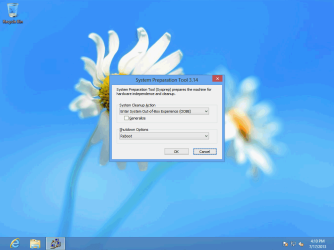
Starting situation, Windows 8 booted to Audit Mode during the installation, logged in as built-in administrator, at this point still no user specified user accounts created:

2013-07-17_161100.PNG

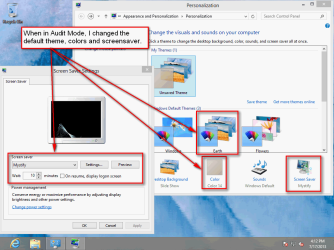
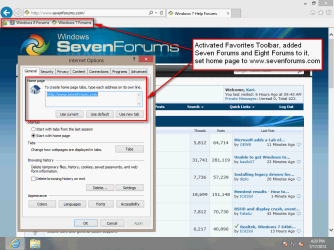
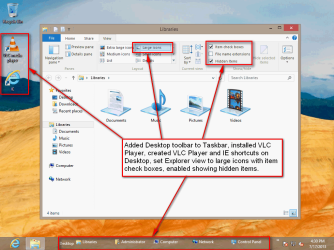
Customizing the default user profile:

2013-07-17_161634.PNG

2013-07-17_162237.PNG

2013-07-17_163344.PNG

At this point, everything customized as I wanted, I copy & pasted the answer file from the tutorial to a USB stick E:, and run the sysprep command with said answer file in elevated Command Prompt as told in tutorial:

Code:
%windir%\system32\sysprep\sysprep.exe /generalize /oobe /reboot /unattend:E:\DefaultProfile.xml

No issues there, Windows booted to OOBE / Welcome Mode as instructed by the sysprep command's /oobe and /reboot switches. I entered the initial user details and logged in to Windows 8.

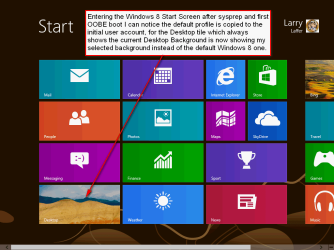
Start Screen after booting to Windows OOBE mode first time after sysprepping and exiting Audit Mode. Already before entering the desktop it is obvious that copying the default profile has worked, as the Start Screen Desktop tile is showing the desktop background I specified in Audit Mode instead of the default Windows 8 desktop background:

2013-07-17_184421.PNG

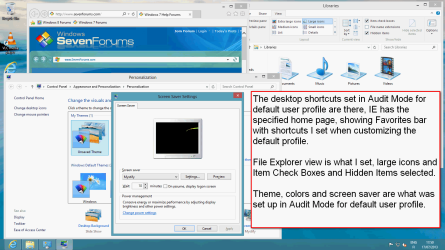
Everything is there as customized:

2013-07-17_185346.PNG

Notice that the Desktop Toolbar did not copy over to the default user profile, being the only one of my modifications which "failed". Actually, it did not fail; Customizing the Start Menu (7 only) and the Taskbar (both 7 & 8) is limited while customizing the default user profile. Read more here: How To: Customize the Windows 7 Start Menu and Taskbar Using unattend.xml - Ask the Core Team - Site Home - TechNet Blogs

I can reproduce your issue, customization of default user profile not working even sysprep gives no error messages, only in these two ways:
  • The value of the ProcessorArchitecture variable is wrong in answer file. It must be amd64 for x64 systems, regardless if the actual processor is Intel or AMD, and x86 for 32 bit systems

    -- OR --

  • The install.wim file is not a valid, original Microsoft Windows install.wim file, or is of wrong bit architecture (for instance when sysprepping a 64 bit system with a 32 bit install.wim file)
In both these cases above I get no error messages when sysprepping but the default user profile will not be customized, for obvious reasons (user errors).

Kari
 
Last edited:

My Computer

Computer type
Laptop
Computer Manufacturer/Model Number
HP ENVY 17-1150eg
OS
Windows 10 Pro x64 EN-GB
CPU
1.6 GHz Intel Core i7-720QM Processor
Memory
6 GB
Graphics Card(s)
ATI Mobility Radeon HD 5850 Graphics
Sound Card
Beats sound system with integrated subwoofer
Monitor(s) Displays
17" laptop display, 22" LED and 32" Full HD TV through HDMI
Screen Resolution
1600*900 (1), 1920*1080 (2&3)
Hard Drives
Internal: 2 x 500 GB SATA Hard Disk Drive 7200 rpm
External: 2TB for backups, 3TB USB3 network drive for media
Cooling
As Envy runs a bit warm, I have it on a Cooler Master pad
Keyboard
Logitech diNovo Media Desktop Laser (bluetooth)
Mouse
Logitech Performance Mouse MX
Internet Speed
50/10 Mbps VDSL
Antivirus
Windows Defender 4.3.9431.0
Browser
Maxthon 3.5.2., IE11
Thank you for your explanations and efforts to make everything clear, again. I think that I have applied the procedure exactly as explained. I don't have Windows 8 PCs under the hand anymore. I should get a few more at the end of August and experiment again with sysprep. In the mean time, I'll contact Fujitsu to get an advice.

Francis
 

My Computer

Computer type
PC/Desktop
Computer Manufacturer/Model Number
Fujitsu
OS
Windows 8 Pro 64 bit
OK, good to know.

I am sorry it did not work for you. As told in my previous post for me it fails only if I knowingly make errors in answer file in my efforts to reproduce your case. Without errors, following the instructions in tutorial the method works always, both in Windows 8 and 8.1.

An idea, it's of course up to you if you want to try once more: The only thing I can think of that you have differently than me is the Windows 8 Pro install media. You told you have Fujitsu's Windows DVD instead of stock Microsoft one.

If you are willing to do some further testing, you could download the official Microsoft Windows 8 Enterprise 90 Day Trial version and do the following:
  • Download the Enterprise Trial x64
  • Open (extract) the ISO file you downloaded, copy \sources\install.wim to a DVD or another external device like a USB stick
  • When sysprepping your Windows 8 Pro, use path to this Enterprise install.wim instead of that from Fujitsu DVD
It just might work. The install.wim in all Windows editions contains information for all Windows editions, so using an Enterprise install.wim although answer file says Windows 8 Pro is not a problem.

Kari
 

My Computer

Computer type
Laptop
Computer Manufacturer/Model Number
HP ENVY 17-1150eg
OS
Windows 10 Pro x64 EN-GB
CPU
1.6 GHz Intel Core i7-720QM Processor
Memory
6 GB
Graphics Card(s)
ATI Mobility Radeon HD 5850 Graphics
Sound Card
Beats sound system with integrated subwoofer
Monitor(s) Displays
17" laptop display, 22" LED and 32" Full HD TV through HDMI
Screen Resolution
1600*900 (1), 1920*1080 (2&3)
Hard Drives
Internal: 2 x 500 GB SATA Hard Disk Drive 7200 rpm
External: 2TB for backups, 3TB USB3 network drive for media
Cooling
As Envy runs a bit warm, I have it on a Cooler Master pad
Keyboard
Logitech diNovo Media Desktop Laser (bluetooth)
Mouse
Logitech Performance Mouse MX
Internet Speed
50/10 Mbps VDSL
Antivirus
Windows Defender 4.3.9431.0
Browser
Maxthon 3.5.2., IE11

My Computer

Computer type
PC/Desktop
Computer Manufacturer/Model Number
Home Built Desktop By DataTech
OS
Windows 7 Ultimate X64 SP1
CPU
Intel i5-2550K, Differing ~4.4-4.8GHz No built in GPU
Motherboard
ASUS P8Z68-V PRO/GEN3
Memory
16GB G.Skill Sniper 1866MHz @ 2133MHz 2x8GB
Graphics Card(s)
ASUS GTX650TIB-DC2OC-2GD5, (650TI Boost)
Sound Card
Onboard Realtek 5-1
Monitor(s) Displays
Samsung P2570HD
Screen Resolution
1920x1080
Hard Drives
Samsung 840 Pro 256GB SSD for OS, 500GB Seagate Constellation (Enterprise drive) for Data
PSU
Corsair HX650W
Case
Inwin Dragon Rider
Cooling
Hyper 212 EVO w/two Noctua fans, push-pull, @1300 RPM
Keyboard
E-Z Eyes, bright yellow keys with large characters
Mouse
steelseries SENSEI Laser Pro Gaming
Internet Speed
48-51Mbs Mbs down, 11 Mbs up Xfinity Cable
Antivirus
Norton Internet Security 2013
Browser
IE 10, Opera, Pale Moon if needed
Other Info
4 case fans, LG BluRay-RE, ASUS DVD-RW, Mr. Fusion power supply, 1.21 gigawatts.
Quite a lot of what I have handled in various sysprep related tuts can and should be cross referenced. I need to check them all to see if more cross linking would serve the purpose. Thanks for mentioning it :).

However, the sticky thread you mentioned is more a general "This is how I set up a Windows PC" post, whereas this tutorial is more an in-depth guide in customizing the default user profile. For an average user with one or two user accounts the sticky is enough, this tut is more for those who like me have a need to set up, use and later change several user accounts. This method is only needed on systems where certain requirements must be filled when a new user profile is created.

Kari
 

My Computer

Computer type
Laptop
Computer Manufacturer/Model Number
HP ENVY 17-1150eg
OS
Windows 10 Pro x64 EN-GB
CPU
1.6 GHz Intel Core i7-720QM Processor
Memory
6 GB
Graphics Card(s)
ATI Mobility Radeon HD 5850 Graphics
Sound Card
Beats sound system with integrated subwoofer
Monitor(s) Displays
17" laptop display, 22" LED and 32" Full HD TV through HDMI
Screen Resolution
1600*900 (1), 1920*1080 (2&3)
Hard Drives
Internal: 2 x 500 GB SATA Hard Disk Drive 7200 rpm
External: 2TB for backups, 3TB USB3 network drive for media
Cooling
As Envy runs a bit warm, I have it on a Cooler Master pad
Keyboard
Logitech diNovo Media Desktop Laser (bluetooth)
Mouse
Logitech Performance Mouse MX
Internet Speed
50/10 Mbps VDSL
Antivirus
Windows Defender 4.3.9431.0
Browser
Maxthon 3.5.2., IE11
Back
Top