
How to Customize Default User Profile in Audit Mode
Note
Audit Mode is a very practical way to prepare and customize Windows. This tutorial will show you how to enter Audit Mode to customize the default user profile during the installation of Vista, Windows 7, or Windows 8.
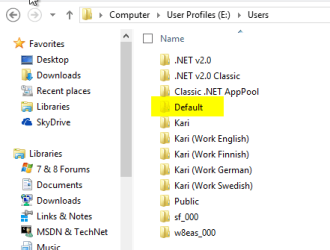
If you have used Windows already you might have noticed that the main user profile folder (default location C:\Users) not only contains individual folders for each user of the PC as for instance C:\Users\Kari, but also a hidden user folder called Default:
When a new user account is created and the user logs in first time, Windows creates the basic set of personal folders (Pictures, Videos, Documents, Favorites etc.) under the user profile folder which is a first level subfolder in the main user profile folder. The default location is as mentioned C:\Users. For instance my personal profile folder would be by default at C:\Users\Kari and my Documents folder at C:\Users\Kari\Documents.
In addition to these standard, default folders and settings system looks now the Default User Profile folder to copy all customized settings to newly created user folder. These can include display and desktop settings, IE favorites, saved searches and so on.
Customizing the Default User Profile in Audit Mode using Windows System Preparation Tool (Sysprep) is only possible if no user accounts except the built-in administrator account exist, hence using this method is only practical when installing Windows and entering Audit Mode during the installation.
If however you want to use this method on an already running Windows setup it is possible. You need to boot to Audit Mode which automatically uses the built-in administrator account, then delete all existing user accounts before proceeding. This is really important so I repeat: You cannot use this method to modify Default User Profile if any user accounts exist!
To boot to Audit Mode from existing Windows setup, close all applications and Explorer windows, press CTRL + R to open the Run dialog, type %windir%\system32\sysprep\sysprep.exe /audit /reboot and hit Enter. Notice that when this method is used on an existing Windows installation, you need to have your product key ready as you need to reactivate the Windows after exiting Audit Mode and returning to normal (OOBE) mode.
If you have used Windows already you might have noticed that the main user profile folder (default location C:\Users) not only contains individual folders for each user of the PC as for instance C:\Users\Kari, but also a hidden user folder called Default:
When a new user account is created and the user logs in first time, Windows creates the basic set of personal folders (Pictures, Videos, Documents, Favorites etc.) under the user profile folder which is a first level subfolder in the main user profile folder. The default location is as mentioned C:\Users. For instance my personal profile folder would be by default at C:\Users\Kari and my Documents folder at C:\Users\Kari\Documents.
In addition to these standard, default folders and settings system looks now the Default User Profile folder to copy all customized settings to newly created user folder. These can include display and desktop settings, IE favorites, saved searches and so on.
Customizing the Default User Profile in Audit Mode using Windows System Preparation Tool (Sysprep) is only possible if no user accounts except the built-in administrator account exist, hence using this method is only practical when installing Windows and entering Audit Mode during the installation.
If however you want to use this method on an already running Windows setup it is possible. You need to boot to Audit Mode which automatically uses the built-in administrator account, then delete all existing user accounts before proceeding. This is really important so I repeat: You cannot use this method to modify Default User Profile if any user accounts exist!
To boot to Audit Mode from existing Windows setup, close all applications and Explorer windows, press CTRL + R to open the Run dialog, type %windir%\system32\sysprep\sysprep.exe /audit /reboot and hit Enter. Notice that when this method is used on an existing Windows installation, you need to have your product key ready as you need to reactivate the Windows after exiting Audit Mode and returning to normal (OOBE) mode.
This tutorial takes you through following steps:
- Installing Windows and entering Audit Mode during first boot after the installation
- Customizing Default User Profile in Audit Mode
- Running System Preparation Tool to save modified Default User Profile
- Booting Windows normally to Windows Welcome (OOBE) to finalize installation
Warning
Notice that as an upgraded Windows cannot be sysprepped and as a so called repair install is also considered as an upgrade (in-place to same edition), this method only works on cleanly installed Windows 7 and 8. When using this method on an existing Windows setup, it only works if the Windows was installed clean and has never been repaired using repair install.
Step 1:
Install Windows
Start Windows installation normally. Consult the respective tutorials if you need any help:
- http://www.sevenforums.com/tutorials/1649-clean-install-windows-7-a.html
- http://www.sevenforums.com/tutorials/257-windows-7-tutorial-index-2.html#post1072
- http://www.sevenforums.com/tutorials/31402-clean-install-upgrade-windows-7-version.html
- Clean Install - Windows 8
- UEFI (Unified Extensible Firmware Interface) - Install Windows 8 with
- Clean Install with Windows 8 Upgrade
In Vista and Windows 7:
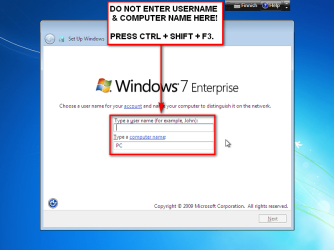
In Windows 8:

After the reboot and automatic login as built-in administrator close the Sysprep dialog by clicking Cancel:

Step 2:
Customize Default User Profile
Install the applications you want to be ready for all users, do not install software that you want to install only for you. Create and edit IE favorites as you wish, or install another browser and set favorites and homepage to it. Modify desktop settings, wallpaper and colors, delete and add shortcuts, make the desktop and your Windows as you would like every new user account to have it.
Note
Notice that pinned Taskbar items cannot be set now. Pinning simply does not survive the sysprep process.
When you have the Default User Profile set as you wish, open Windows Notepad and type or Copy / Paste following lines to a new document:
Code:
<?xml version="1.0" encoding="utf-8"?>
<unattend xmlns="urn:schemas-microsoft-com:unattend">
    <settings pass="specialize">
        <component name="Microsoft-Windows-Shell-Setup" processorArchitecture="[B][COLOR=darkred][HL]amd64[/HL][/COLOR][/B]" publicKeyToken="31bf3856ad364e35" language="neutral" versionScope="nonSxS" xmlns:wcm="http://schemas.microsoft.com/WMIConfig/2002/State" xmlns:xsi="http://www.w3.org/2001/XMLSchema-instance">
            <CopyProfile>true</CopyProfile>
        </component>
    </settings>
    <cpi:offlineImage cpi:source="[B][COLOR=darkred][HL]wim:E:/sources/install.wim[/HL][/COLOR][/B][HL]#[B][COLOR=darkred]Windows 7 ULTIMATE[/COLOR][/B][/HL]" xmlns:cpi="urn:schemas-microsoft-com:cpi" />
</unattend>
Notice the two highlighted values in above answer file script:
- Line 4 > The value of the variable ProcessorArchitecture must be amd64 if you are installing a 64 bit Windows (even on Intel processors) and x86 if you are installing a 32 bit Windows
- Line 8 > The value of cpi:source must be as follows:
- Path to install.wim file on your install media followed by # and the exact Windows version and edition. The original install media containing install.wim file must be on a drive when you sysprep the system later in Step 3
- The install.wim is by default located in Sources folder > if the install DVD is on drive D: the path is D:\Sources\install.wim. Also important is to notice that whereas you normally would use the backslash (\) as folder separator in paths (D:\Sources\install.wim), the XML syntax uses slashes instead (D:/Sources/install.wim)
- The version and edition information with capital letters as follows:
- WINDOWS 7 HOMEPREMIUM
- WINDOWS 7 PROFESSIONAL
- WINDOWS 7 ULTIMATE
- WINDOWS 7 ENTERPRISE
- WINDOWS 8
- WINDOWS 8 PRO
- WINDOWS 8 ENTERPRISE
- WINDOWS 8.1
- WINDOWS 8.1 PRO
- WINDOWS 8.1 ENTERPRISE

Step 3:
Sysprep Windows
Put the original Windows install media on drive, insert the USB stick where the answer file is saved.
Open an elevated command prompt and type this:
Code:
%windir%\system32\sysprep\sysprep.exe /generalize /oobe /reboot /unattend:[HL]E:[/HL]\DefaultProfile.xmlWhen Sysprep is ready, Windows boots normally and continues the last phase of installation you interrupted by booting to the Audit Mode. Alternatively if the /shutdown switch was used Windows shuts down allowing the image to be captured. Your Default User Profile will now be used when you create new user accounts.
Have Fun!
Kari
Related Tutorials
- How to Relocate User Profiles to another Partition or Disk in Windows 8
- How to Change the Default Location of a User Profile in Windows 7 and Vista
- http://www.sevenforums.com/tutorials/117308-user-folders-moving-user-folders-modular-script.html
- How to Change the Default Location of Windows 7 User Folders
- How to Restore the Default Location of Windows 7 User Folders
- How to Create Your Own Special User Folder
Last edited:


