"Gosh! How can I get that file I need when Windows won't load?" How many have heard or uttered that one before? hhmmm..?
You don't time or another system available even to slave your main Windows drive on that! Your project is still on the drive on a system with no floppy drive?
Who uses those now when cd and dvd-rws are so common but... you need Windows running in order to "get the file copied to removable"! :shock: Your boss might get a little hot under the collar when that report isn't in on time!
With the idea of using a data recovery program out since you don't have Windows running to burn any bootable disk that's ruled out for the time being. And if you have a laptop booting from a live Linux cd is out as well! unless the laptop just happens to have an external usb hard drive plugged in until you get Windows running again?
Since the live distro is already burned to a cd-r or dvd-r for a few larger ones you are not able to copy any files onto one of those either when booted live. What you need is something that can do both boot live and recover your files without a big hassle when you either lack time or simply don't have an alternative to use.
How many are familiar with usb keys by the way? I'm sure quite a few are at this point! Now are you going to be ready for something just a little bit different? How about a different form of usb key or rather a live key with something else besides an iso send to it? The following images here will need some close attention as they show how to go about not only installing our selected distro which turns out to be the latest ubuntu 64bit 9.04 but none the less installed to not simply an iso placed on our test usb flash drive!
First we need an index and brief instruct for each image going by number to avoid getting lost. Remember the installation will be seen from a live cd booted from to see installation proceed to the flash drive itself.
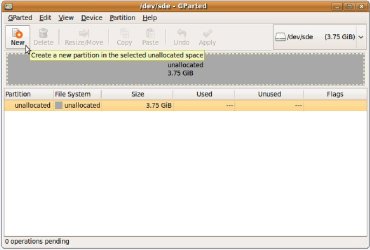
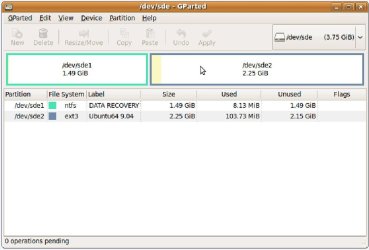
1)You first need to repartition as well as format the test 4gb(3.75gb usable) SanDisk flash drive commonly available over the shelf for two things. The first is the system partition(root) with one for "data" you retrieve accesible by Windows!
2)Due to Windows always looking for the first partition we make that the data partition while a second will be for the distro avoiding the Windows prompt for format if that is the first on the drive. We can't have that.
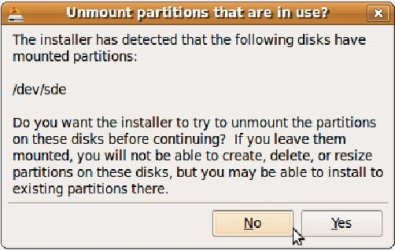
3)The installer will then ask if you want the partitions/drives unmounted including the usb drive.
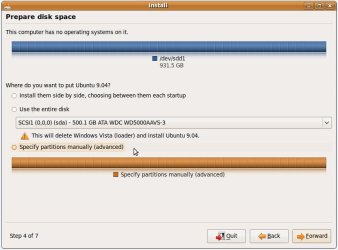
4)Here's the first place to pay close attention to since the ubuntu installer will automatically look for an internal hard drive and simply ignore the usb device. You manually have to specify which partition/drive will be the root/system partition. Note ubuntu unpacked is 1.7gb reserving additional drive space for a swap file.
Since this won't be simply another dual boot of OSs and no programs installed it's a waste to worry about a swap partition with a small distro to begin with as well as leaving more free space available for whatever files you are trying to save or simply transfer. The actual minimum for this type of installation is just as seen with ubuntu going onto a 2.25gb root partition.
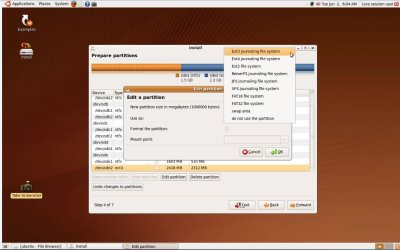
5)Now that you have the root selected you also need to select the file system the ubuntu installer will format yes format or reformat as part of the installation even if you already did that part with GParted earlier since the latest 9.04 includes a better release of GParted at this time.
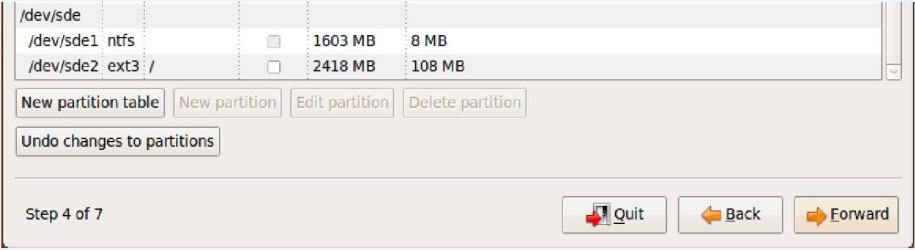
6) + 7)What many will never realize is that you will need to designate a "/" mount point for the Grub boot loader we will see later look for! Without the mount point set the distro simply will not load up making the efforts so far a waste of time!
8)This one can simply be ignored since ubuntu will not need a swap partition only chewing up the little amount of space available for the NTFS data partition. For simply running the distro for that alone the 1.49gb could then be adjusted to see a 1gb swap leaving a little more left over for the root itself since it is cramped! no room for "anything else"!
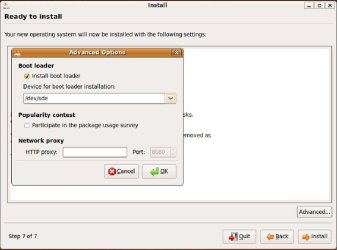
9) + 10)Are even more demanding on attention since you now have to decide where the Grub boot loader will be installed. If you install it on any internal drive the effort becomes useless again since the drive loses portability for use on another system. The live "ubuntu rescue stick" has to be self contained in order to work requiring the Grub loader on it to begin with. Plus you wouldn't want to trash the 7 mbr anyways! :shock:
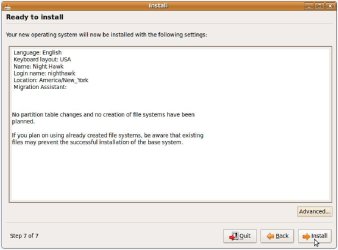
11)This one brings us to the "last chance to bail out!" decision you have to make since the setup files begin to be copied from then on!
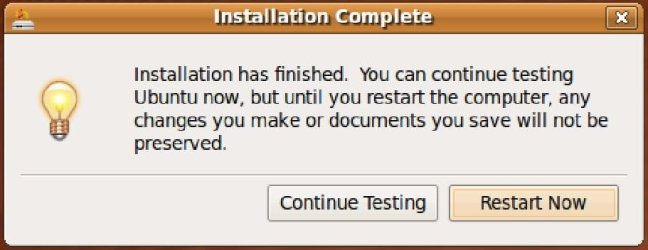
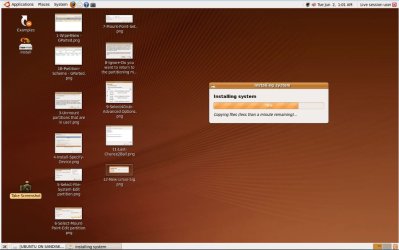
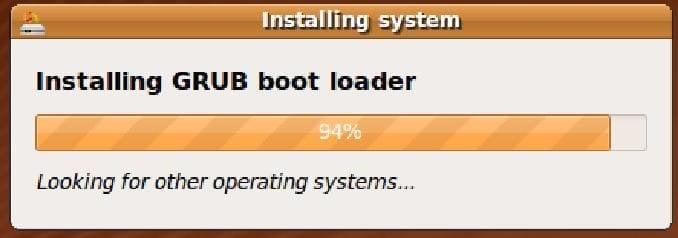
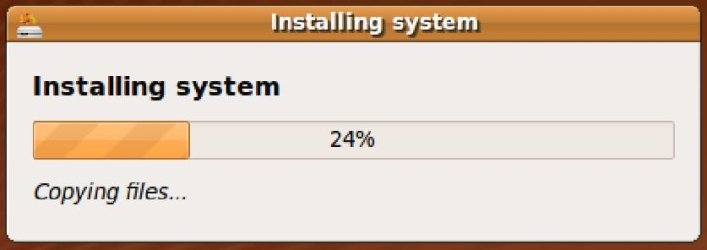
12)-13)-14 are simply sitting back for 20 minutes as the Grub loader is one of the first items installed as the installation itself proceeds on. You'll have to excuse the mess of screenshots still remaining behind there!
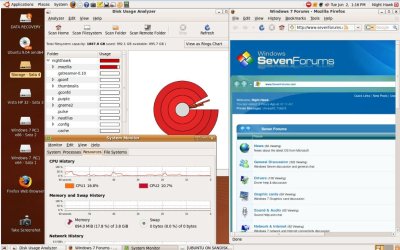
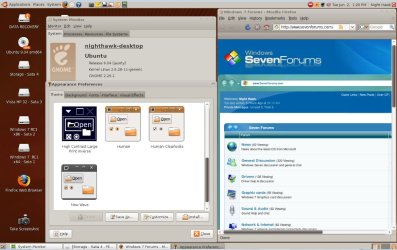
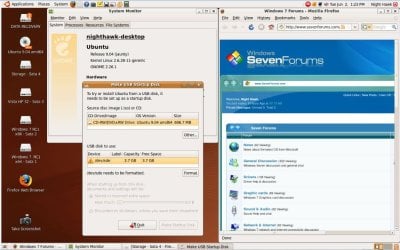
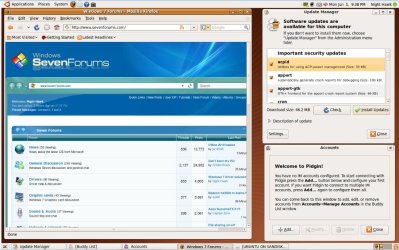
15)Isn't live full of surprizes! :shock: "how did he?" Now that the installation finished and you rebooted selecting the flash drive this time around you find your internet connection is working for FireFox! Some prefer to set their home page as soon as they get online! Too bad it's only temporary however since that's what this is all about.
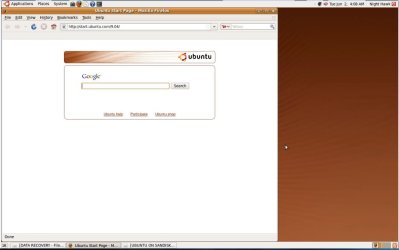
16)Brings us back to reality on the next boot off of the flash drive and opening FireFox to see what? uuuuu yech! You'll be be so glad to get back into Windows later once things are running again!
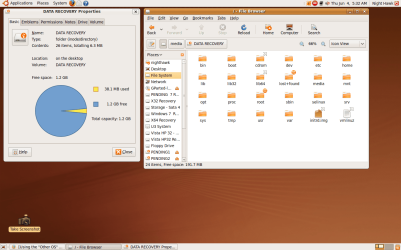
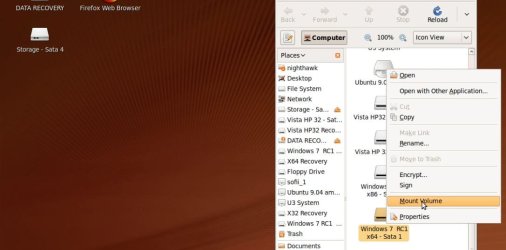
17) + 18)These two show the first thing you actually need to do once the desktop is reached in order to be able access any other drive! When going to the main menu and clicking on "Places" you drop down to the Computer icon seen there for a similar browser like Computer or MyComputer, Windows Explorer on Windows.
The one thing different at first however is that once a drive is mounted by first right clicking on the icon seen in the window a new icon will appear on the desktop itself. You double click on the icon to see the file browser open that then resembles the W.Explorer bringing us to what was that seen in Screen 19)?! :shock:
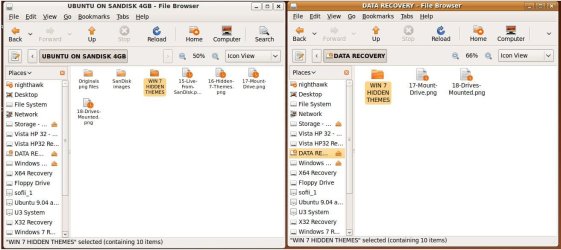
20)One treasure worth a new thread some time! once the important stuff was recovered from...? But of course the last here might just make a new sig somewhere else.
So... now you make yourself a fast rescue tool you can carry along with you. The larger the usb device however the more actual space will be available. For large files or a large number of files... the 4gb commonly found in a dept. store will be too small for an effective rescue tool.
The minimum is actually closer to 8gb for a starter, 16gb being available for under $50- in many retail stores being a recommended size, or going for the larger capacity 32gb or 64gb found as well. You won't be able to back up any good sized hard drive to start with. But you can retrieve quite a bit with a good sized one to avoid any total loss!
You don't time or another system available even to slave your main Windows drive on that! Your project is still on the drive on a system with no floppy drive?
Who uses those now when cd and dvd-rws are so common but... you need Windows running in order to "get the file copied to removable"! :shock:
Your boss might get a little hot under the collar when that report isn't in on time!With the idea of using a data recovery program out since you don't have Windows running to burn any bootable disk that's ruled out for the time being. And if you have a laptop booting from a live Linux cd is out as well! unless the laptop just happens to have an external usb hard drive plugged in until you get Windows running again?
Since the live distro is already burned to a cd-r or dvd-r for a few larger ones you are not able to copy any files onto one of those either when booted live. What you need is something that can do both boot live and recover your files without a big hassle when you either lack time or simply don't have an alternative to use.
How many are familiar with usb keys by the way? I'm sure quite a few are at this point!
Now are you going to be ready for something just a little bit different? How about a different form of usb key or rather a live key with something else besides an iso send to it? The following images here will need some close attention as they show how to go about not only installing our selected distro which turns out to be the latest ubuntu 64bit 9.04 but none the less installed to not simply an iso placed on our test usb flash drive!First we need an index and brief instruct for each image going by number to avoid getting lost. Remember the installation will be seen from a live cd booted from to see installation proceed to the flash drive itself.
1)You first need to repartition as well as format the test 4gb(3.75gb usable) SanDisk flash drive commonly available over the shelf for two things. The first is the system partition(root) with one for "data" you retrieve accesible by Windows!
2)Due to Windows always looking for the first partition we make that the data partition while a second will be for the distro avoiding the Windows prompt for format if that is the first on the drive. We can't have that.
3)The installer will then ask if you want the partitions/drives unmounted including the usb drive.
4)Here's the first place to pay close attention to since the ubuntu installer will automatically look for an internal hard drive and simply ignore the usb device. You manually have to specify which partition/drive will be the root/system partition. Note ubuntu unpacked is 1.7gb reserving additional drive space for a swap file.
Since this won't be simply another dual boot of OSs and no programs installed it's a waste to worry about a swap partition with a small distro to begin with as well as leaving more free space available for whatever files you are trying to save or simply transfer. The actual minimum for this type of installation is just as seen with ubuntu going onto a 2.25gb root partition.
5)Now that you have the root selected you also need to select the file system the ubuntu installer will format yes format or reformat as part of the installation even if you already did that part with GParted earlier since the latest 9.04 includes a better release of GParted at this time.
6) + 7)What many will never realize is that you will need to designate a "/" mount point for the Grub boot loader we will see later look for! Without the mount point set the distro simply will not load up making the efforts so far a waste of time!
8)This one can simply be ignored since ubuntu will not need a swap partition only chewing up the little amount of space available for the NTFS data partition. For simply running the distro for that alone the 1.49gb could then be adjusted to see a 1gb swap leaving a little more left over for the root itself since it is cramped!
no room for "anything else"!9) + 10)Are even more demanding on attention since you now have to decide where the Grub boot loader will be installed. If you install it on any internal drive the effort becomes useless again since the drive loses portability for use on another system. The live "ubuntu rescue stick" has to be self contained in order to work requiring the Grub loader on it to begin with. Plus you wouldn't want to trash the 7 mbr anyways! :shock:
11)This one brings us to the "last chance to bail out!" decision you have to make since the setup files begin to be copied from then on!
12)-13)-14 are simply sitting back for 20 minutes as the Grub loader is one of the first items installed as the installation itself proceeds on. You'll have to excuse the mess of screenshots still remaining behind there!
15)Isn't live full of surprizes! :shock: "how did he?" Now that the installation finished and you rebooted selecting the flash drive this time around you find your internet connection is working for FireFox! Some prefer to set their home page as soon as they get online! Too bad it's only temporary however since that's what this is all about.
16)Brings us back to reality on the next boot off of the flash drive and opening FireFox to see what? uuuuu yech!
You'll be be so glad to get back into Windows later once things are running again! 17) + 18)These two show the first thing you actually need to do once the desktop is reached in order to be able access any other drive! When going to the main menu and clicking on "Places" you drop down to the Computer icon seen there for a similar browser like Computer or MyComputer, Windows Explorer on Windows.
The one thing different at first however is that once a drive is mounted by first right clicking on the icon seen in the window a new icon will appear on the desktop itself. You double click on the icon to see the file browser open that then resembles the W.Explorer bringing us to what was that seen in Screen 19)?!
:shock: 20)One treasure worth a new thread some time!
once the important stuff was recovered from...? But of course the last here might just make a new sig somewhere else. So... now you make yourself a fast rescue tool you can carry along with you. The larger the usb device however the more actual space will be available. For large files or a large number of files... the 4gb commonly found in a dept. store will be too small for an effective rescue tool.
The minimum is actually closer to 8gb for a starter, 16gb being available for under $50- in many retail stores being a recommended size, or going for the larger capacity 32gb or 64gb found as well. You won't be able to back up any good sized hard drive to start with. But you can retrieve quite a bit with a good sized one to avoid any total loss!
Attachments
-
 1-Wipe4New.jpg52.6 KB · Views: 245
 -
 10-Grub-Device-Decided.jpg54.2 KB · Views: 212
 -
 9-Which4Grub.jpg60.3 KB · Views: 203
 -
 8-Ignore-Swap-Warning.jpg77.3 KB · Views: 259
 -
 7-Mount-Point-Set.jpg46.1 KB · Views: 208
 -
 6-Specify-Mount-Point.jpg41 KB · Views: 172
 -
 5-Specify-File-System.jpg78.8 KB · Views: 230
 -
 4-Specify-Device-Requirement.jpg53.5 KB · Views: 189
 -
 3-Unmount-Partitions-on-usb-drive.jpg39.2 KB · Views: 1,253
 -
 2-Partition-Scheme-GParted-Used.jpg59.4 KB · Views: 356
 -
 20-Files-Copied.jpg97.9 KB · Views: 235
 -
 19-Hidden-7-Themes.jpg90.9 KB · Views: 242
 -
 18-Drives-Mounted.jpg59.4 KB · Views: 185
 -
 17-Mount-Drives.jpg57.9 KB · Views: 173
 -
 16-AnythingIsBetter.jpg50.5 KB · Views: 221
 -
 15-UbuntuOnSanDisk-Desktop.jpg117.5 KB · Views: 212
 -
 14-Installation-Complete.jpg48 KB · Views: 161
 -
 13-Ubuntu-Live-Desktop.jpg75.3 KB · Views: 238
 -
 12-Grub-Installing.jpg25.1 KB · Views: 1,195
 -
 11-Last-Chance2Bail.jpg55.2 KB · Views: 222
 -
 21-New-Linux-Sig.jpg25.7 KB · Views: 185
My Computers
System One System Two
-
- Computer type
- PC/Desktop
- Computer Manufacturer/Model Number
- Custom builds = 2
- OS
- W7 Ultimate x64/W10 Pro x64/W11 Pro Triple Boot - Main PC W7 Remote PC Micro ATX W7 Pro x64/W11 Pro
- CPU
- AMD Phenom II X4 975 Deneb 3.6ghz - 965 2nd remote pc
- Motherboard
- Gigabyte GA-790XTA-UD4-Gigabyte GA-880GM-D2H remote pc
- Memory
- Kingston Hyper X DDR3 1600 1.5v 16gb - Hyper X Fury 8gb 2nd
- Graphics Card(s)
- MSI HD Radeon 5750 1gb - MSI HD Radeon 6450 on mini tower
- Sound Card
- Creative Labs X-Fi Xtreme Audio P - Realtek onooard 2nd case
- Monitor(s) Displays
- ASUS VW199T-P 19" HP 2082a Main-HP 2082a 20" remote pc
- Screen Resolution
- Asus 1440x900 - HP 1600x900
- Hard Drives
- WD Black 1TB HD per OS W7, W10, and pending W11 presently on 500gb OS Drive - Pending Triple 1TB HDs for Spanned Storage/backup volume
Single 2TB external USB enclosure, single 1TB System 7 Host/Boot drive, Pending 8TB external HD for system image b
- PSU
- Corsair 750TX - primary / Corsair CX600 - second
- Case
- Antec 900-2 - SSD compatible / NZXT Vulcan mini tower
- Cooling
- Zalman CNPS9900A
- Keyboard
- AZIO L70 Backlit Letters Gaming - ONN Cordless/USB
- Mouse
- MSI DS200 Programmable, Logitech Cordless
- Internet Speed
- 30mbps upgrade - primary hard wired - mini tower usb WiFi
- Antivirus
- GFI VIPRE Internet Security 2014 on W7 2016 beta on W10,
- Browser
- Cyberfox, WaterFox 64bit FF variants, FireFox x64, Pale Moon
- Other Info
- Accomdata fan cooled usb 2.0 PIDE/Sata II, III external enclosure.
Sambient usb/eSata PATA/Sata II, III external enclosure.
-
- Computer type
- PC/Desktop
- System Manufacturer/Model Number
- CUSTOM ASSEMBLY
- OS
- W7 Pro x64/W11 Pro
- CPU
- AMD Deneb 3.6ghz - 965
- Motherboard
- Gigabyte GA-880GM-D2H remote pc
- Memory
- Kingston Hyper X Fury 8gb
- Graphics Card(s)
- MSI HD Radeon 6450 DVI Output
- Sound Card
- Realtek onooard Creative or Other separate PENDING
- Monitor(s) Displays
- VIZIO 32" LCD TV Separate LCD Pending
- Screen Resolution
- 1600x1080
- Hard Drives
- WD 500GB OS Host/Boot WD Green 1TB Storage/Backup
- PSU
- Corsair 600W - THERMALTAKE 600W spare case
- Case
- NZXT Vulcan mini tower
- Cooling
- Twin 120mm Top Fans - 240mm Side Cover
- Keyboard
- ONN Cordless/USB Logitech Cordless
- Mouse
- ONN USB/Cordless - Logitech Cordless
- Internet Speed
- DSL 5G
- Browser
- MS Edge, FireFox, WaterFox x64, FireFox Nightly
- Other Info
- OS Testing-Remote Access to Main TeamViewer