Verclsid.exe Problem in XP Mode

RP McIntosh

New member
Member
VIP
Local time
8:03 PM
Messages
135
I have an annoyance that is a bit baffling.

Background: I'm using Windows XP Mode on my Windows 7 System. Recently, I encountered a problem--when I started Windows XP Mode, I got a message that the Integration Features could not be activated. After several tries, I decided to restore a backup of the entire XP Mode system that I had made the previous day. I did that, and after that, XP Mode works just fine again--with one exception.

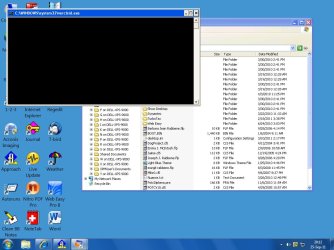
Problem: Now, if I open Windows Explorer (the XP version of Windows Explorer in XP Mode), it works fine, but whenever I click on a drive or folder in the right pane, I get a command prompt box that opens and closes very quickly. After a lot of squinting (because the box only flashes open for a second) I was able to make out in the title bar the name of the program that was running--verclsid.exe. Note that this doesn't occur the SECOND time I click on a drive or folder. But the first time I click on COMPUTER, the box flashes several times, as the drives on the Windows 7 computer are listed one by one--one box for each drive. Windows Explorer still seems to operate OK, but this is clearly NOT normal behavior. I've done some searching for the verclsid.exe file, and find that it has something to do with validating shell extensions. But I'm not even sure if the version that is running is the XP version, or the version from Windows 7 (the host computer for the Virtual Machine in which XP is running).

Anyone have any insights into what is happening, and (more importantly) how to resolve it, short of removing and reinstalling XP Mode? I went thorough that once, and it's a real ordeal to get it reinstalled, reupdated, and my virtual applications reinstalled. That's when I started making daily backups of the entire XP Mode.
 

My Computer

Computer Manufacturer/Model Number
Dell
OS
Windows 7 Ultimate 64
CPU
Intel i7-975
Memory
12 GB
Graphics Card(s)
ATI Radeon HD 5870
Sound Card
Sound Blaster X-Fi Titanium
Monitor(s) Displays
Dell U2410
Hard Drives
3, SATA 1.5 TB each
Follow On Observations

Since no one seems to have any ideas about this problem (an unusual event in this forum in my experience), I thought I'd add a bit more of what I have discovered to see if it ignites a spark of logic in anyone.

I've concluded (perhaps incorrectly) that the problem is likely NOT in the virtual XP system itself, but either in my host Windows 7 system, or more likely, in the virtual machine integration system. I base that tentative conclusion on the following observations.

1. I did some System Restore operations on the Windows XP installation--going well back before the problem appeared. None of that got rid of the problem--the little black command boxes continued to pop up as before.

2. After some more careful observation, I note that I do NOT get the black command boxes when clicking on the folders in the left pane of Windows Explorer that pertain ONLY to the Windows XP installation. I get them when I click the plus next to COMPUTER, but only as the left pane is populated with the drives on the host computer. I can click on the C drive (that is, the XP C drive) or any of its subfolders, with no black command box. But if I click on the drives in the left pane that belong to the host Windows 7 system, that's when I get the black command boxes.

3. What is still puzzling to me, and I haven't figured out yet, is that I don't get the black command box EVERY time I click on a folder in the left pane. It SEEMS to happen primarily when the folder I select has sub-folders. However, there are times when even if the folder has subfolders, I don't get the black command box. I suspect that this MAY have something to do with how Windows Explorer "populates" the left pane--that is, how deeply in the folder structure it polls when you click a parent folder. But since I don't actuall know how this works, this is purely conjecture on my part.

Does any of this make sense/seem reasonable, and/or jog any ideas in any of the brains of the very smart folks on this forum?
 

My Computer

Computer Manufacturer/Model Number
Dell
OS
Windows 7 Ultimate 64
CPU
Intel i7-975
Memory
12 GB
Graphics Card(s)
ATI Radeon HD 5870
Sound Card
Sound Blaster X-Fi Titanium
Monitor(s) Displays
Dell U2410
Hard Drives
3, SATA 1.5 TB each
Have you installed any software that has any kind of shell extension it may have added to Folders & Drives?

Other question - this may sound odd - any HP Printer software in the VM?
 

My Computer

Computer Manufacturer/Model Number
XFX NForce 780i SLI
OS
Win7 64-bit Ultimate
CPU
Intel Core2 Extrme X9650 3.0Ghz @ 3.33Ghz
Motherboard
XFX Intel 780i
Memory
8GB DDR-2 1333Mhz
Graphics Card(s)
2x SLI NVIDIA 780GTX
Sound Card
PCI Express X-Fi Titanium Fatal1ty Champion PCI-X
Monitor(s) Displays
2x Samsung LCD
Screen Resolution
1280x1024
Hard Drives
4x Seagate Barracuda 500GB something.10
PSU
PC Power & Cooling 1000W
Case
Thermaltake
Cooling
Water - 2x Koolance EXOS 2.5
Keyboard
Logitech DiNovo
Mouse
Logitech MX1000
Internet Speed
25 Down/5 Up
Have you installed any software that has any kind of shell extension it may have added to Folders & Drives?

Other question - this may sound odd - any HP Printer software in the VM?

Chris--

Thanks for responding. No, as far as I know, I've not installed any software that has any kind of shell extension that would affect folders or drives. In fact, the ONLY software I've installed in the XP Mode is Microsoft Security Essentials, and one old Parsons Technology program that was incompatible with Windows 7. And both of those were installed immediately after installing XP Mode itself.

On my Windows 7 system, I've not installed any new software in any close proximity (time wise) to this problem appearing. As I mentioned, it appeared right after I had experienced a problem with XP Mode, and had then restored a one day old backup of the whole XP Mode\VM system. That fixed the problem, and XP Mode runs normally again, except for this odd problem with what I (wrongly) tend to call DOS boxes opening--they are really the kind of box you get when you go to the Command Prompt.

Prior to this problem, when I opened Windows Explorer in XP Mode, it opened normally (and it still does). If I then clicked the plus next to COMPUTER in the left pane, I previously got a cascading list in the left pane showing all of the drives on the host (Windows 7) computer. I still do, but now as each drive appears, so does the DOS box (briefly). The whole process takes only a few seconds. Subsequently, if I click a folder in the left pane on the host computer, or perform any action on a ZIP file (which Windows Explorer sees as a folder) on EITHER the host computer or the XP Mode computer), I get the DOS box briefly again. However, this only happens once. That is, if I click a drive or folder and get the DOS box, then close that drive or folder, and later go back to it, I don't get the box the second time--only the first time I access the drive or folder--uless I close Windows Explorer itself, then reopen it, in which case it all starts over again.

And finally, no, I have no HP software of any kind installed on EITHER the XP or th Windows 7 computer.

Hope this strikes a chord of some type. It baffles my mind (unfortunately, a fairly easy thing to do).
 

My Computer

Computer Manufacturer/Model Number
Dell
OS
Windows 7 Ultimate 64
CPU
Intel i7-975
Memory
12 GB
Graphics Card(s)
ATI Radeon HD 5870
Sound Card
Sound Blaster X-Fi Titanium
Monitor(s) Displays
Dell U2410
Hard Drives
3, SATA 1.5 TB each
Have you installed any software that has any kind of shell extension it may have added to Folders & Drives?

Other question - this may sound odd - any HP Printer software in the VM?


As a follow on, I thought I'd see if I could get a screen shot. Though it all goes by very quickly, I was able to gt one. Don't know if this will add anything, but figured it does no harm to show you what it looks like.
 

Attachments

  • XPM_Scr_Sht01.jpg
    XPM_Scr_Sht01.jpg
    111 KB · Views: 18

My Computer

Computer Manufacturer/Model Number
Dell
OS
Windows 7 Ultimate 64
CPU
Intel i7-975
Memory
12 GB
Graphics Card(s)
ATI Radeon HD 5870
Sound Card
Sound Blaster X-Fi Titanium
Monitor(s) Displays
Dell U2410
Hard Drives
3, SATA 1.5 TB each
Are you running 32-bit on both the host and the VM?
And What Parsons technology program is this?
And are you running Microsoft Security Essentials in both the host and VM?
 

My Computer

Computer Manufacturer/Model Number
XFX NForce 780i SLI
OS
Win7 64-bit Ultimate
CPU
Intel Core2 Extrme X9650 3.0Ghz @ 3.33Ghz
Motherboard
XFX Intel 780i
Memory
8GB DDR-2 1333Mhz
Graphics Card(s)
2x SLI NVIDIA 780GTX
Sound Card
PCI Express X-Fi Titanium Fatal1ty Champion PCI-X
Monitor(s) Displays
2x Samsung LCD
Screen Resolution
1280x1024
Hard Drives
4x Seagate Barracuda 500GB something.10
PSU
PC Power & Cooling 1000W
Case
Thermaltake
Cooling
Water - 2x Koolance EXOS 2.5
Keyboard
Logitech DiNovo
Mouse
Logitech MX1000
Internet Speed
25 Down/5 Up
Are you running 32-bit on both the host and the VM?
And What Parsons technology program is this?
And are you running Microsoft Security Essentials in both the host and VM?

Chris--

The XP Mode in the virtual machine is 32 bit (the idea of XP Mode is to give an environment to run programs that are incompatible with Windows 7 (mostly) 64 bit. I am running Windows 7 64 bit Ultimate, but not currently running any actual 64 bit programs.

The Parsons Technology program is Daily Journal 3.0, a kind of personal diary program.

I'm using Microsoft Security Essentials in the XP Mode, and Norton Internet Security in Windows 7.

Note, however, that I have been running this same configuration for several months without this problem appearing. It only happened after I restored a backup copy of the virtual machine, incluing XP, when I encountered a problem with the integration features not working. That did fix the problem with the integration features, but this odd behavior appeared immediately after that. Note also that it is ONLY when clicking on drives or folders on the host (Windows 7) installation that I get this behavior. I get it initially when I click the plus to expand My Computer, but only as it lists the host drives (as you can see from the screen shot, I have several drives on the host system). From that point on, as long as I stay within the XP C drive, I do not get the behavior--only when I click on the Windows 7 C drive, or any of the other Windows 7 drives.

With this one exception, everything seems to work normally. Strange, huh?
 

My Computer

Computer Manufacturer/Model Number
Dell
OS
Windows 7 Ultimate 64
CPU
Intel i7-975
Memory
12 GB
Graphics Card(s)
ATI Radeon HD 5870
Sound Card
Sound Blaster X-Fi Titanium
Monitor(s) Displays
Dell U2410
Hard Drives
3, SATA 1.5 TB each

My Computer

Computer type
Laptop
Computer Manufacturer/Model Number
HP ENVY 17-1150eg
OS
Windows 10 Pro x64 EN-GB
CPU
1.6 GHz Intel Core i7-720QM Processor
Memory
6 GB
Graphics Card(s)
ATI Mobility Radeon HD 5850 Graphics
Sound Card
Beats sound system with integrated subwoofer
Monitor(s) Displays
17" laptop display, 22" LED and 32" Full HD TV through HDMI
Screen Resolution
1600*900 (1), 1920*1080 (2&3)
Hard Drives
Internal: 2 x 500 GB SATA Hard Disk Drive 7200 rpm
External: 2TB for backups, 3TB USB3 network drive for media
Cooling
As Envy runs a bit warm, I have it on a Cooler Master pad
Keyboard
Logitech diNovo Media Desktop Laser (bluetooth)
Mouse
Logitech Performance Mouse MX
Internet Speed
50/10 Mbps VDSL
Antivirus
Windows Defender 4.3.9431.0
Browser
Maxthon 3.5.2., IE11

Kari--

I had read the article. But I concluded (perhaps wrongly, of course) that it was not the basis of my situation. I based this on the following factors

1. I have no HP software on either the host or the virtual system
2. I don't have an NVIDIA graphics card
3. The problem described supposedly stems from an update in 2006. If that was the problem, one would have assumed that it would have appeared before now.
4. The symptoms described do not match the symptoms I am experiencing
5. The problem SEEMS to be centered in the integration features of Windows 7. I base this tenative conclusion on the fact that I only get the behavior when accessing a host drive or folder from the virtual system. Accessing a virtual drive or folder from the virtual system does not produce the behavior, and accessing host drives and folders from the host system does not produce the behavior.
6. Presumably, the "good" update that the article refers to would have been included in the version of Windows XP SP3 that was provided in the Windows XP Mode download.
 

My Computer

Computer Manufacturer/Model Number
Dell
OS
Windows 7 Ultimate 64
CPU
Intel i7-975
Memory
12 GB
Graphics Card(s)
ATI Radeon HD 5870
Sound Card
Sound Blaster X-Fi Titanium
Monitor(s) Displays
Dell U2410
Hard Drives
3, SATA 1.5 TB each
Sorry, I should have checked the article better. Had checked this thread of yours a few times, wondering if there really is no more information available on this issue, found the article and thought I can at least post the link.

Reading it now clearly shows it's no solution for you.

Kari
 

My Computer

Computer type
Laptop
Computer Manufacturer/Model Number
HP ENVY 17-1150eg
OS
Windows 10 Pro x64 EN-GB
CPU
1.6 GHz Intel Core i7-720QM Processor
Memory
6 GB
Graphics Card(s)
ATI Mobility Radeon HD 5850 Graphics
Sound Card
Beats sound system with integrated subwoofer
Monitor(s) Displays
17" laptop display, 22" LED and 32" Full HD TV through HDMI
Screen Resolution
1600*900 (1), 1920*1080 (2&3)
Hard Drives
Internal: 2 x 500 GB SATA Hard Disk Drive 7200 rpm
External: 2TB for backups, 3TB USB3 network drive for media
Cooling
As Envy runs a bit warm, I have it on a Cooler Master pad
Keyboard
Logitech diNovo Media Desktop Laser (bluetooth)
Mouse
Logitech Performance Mouse MX
Internet Speed
50/10 Mbps VDSL
Antivirus
Windows Defender 4.3.9431.0
Browser
Maxthon 3.5.2., IE11
Sorry, I should have checked the article better. Had checked this thread of yours a few times, wondering if there really is no more information available on this issue, found the article and thought I can at least post the link.

Reading it now clearly shows it's no solution for you.

Kari

Kari--

Please don't apologize. Any information is welcome, even if it turns out not to be the solution. I appreciate your interest, and your efforts to be of assistance. It is (at least in my opinion) a lot better to have a bit of information that turns out not to provide a solution, than it is to have no information at all, or, even worse, to NOT have some information that may turn out to be helpful.
 

My Computer

Computer Manufacturer/Model Number
Dell
OS
Windows 7 Ultimate 64
CPU
Intel i7-975
Memory
12 GB
Graphics Card(s)
ATI Radeon HD 5870
Sound Card
Sound Blaster X-Fi Titanium
Monitor(s) Displays
Dell U2410
Hard Drives
3, SATA 1.5 TB each
Back
Top