
Virtual Hard Disk - Create and Attach VHD

How to Create and Attach a Virtual Hard Disk in Windows 7

   Information
A Virtual Hard Disk is a created VHD file on your hard drive that acts as a separate hard drive disk in Computer. This will show you how to create and attach (mount), or only attach (mount) an existing, a VHD in Windows 7.

Special thanks to Steven (dmex) for pointing out this new feature in Windows 7.

   Tip
You can also use a VHD file created from such programs as Windows Virtual PC.

   Warning
The VHD is only attached for the current session. When you restart the computer, any attached VHD files you have will no longer be attached and appear in Computer. You will have to reattach any VHD file to have it display back in the Computer window again until the next restart.

If you disable the Disk Defragmenter service, then you will get the error below when you try to do anything in Disk Management. If you get this error, then make sure that the Disk Defragmenter service is set to only Manual.

Error.jpg


EXAMPLE: New Virtual Hard Disk (VHD) in Computer
Computer.jpg
Here's How:
1. Open the Control Panel (icons view).
A) Click on the Administrative Tools icon, and click on Computer Management.

B) Go to step 3.
OR

2. Open the Start Menu.
A) In the Search box, type compmgmt.msc and press Enter.
3. If prompted by UAC, click on Yes, then do either step 4 or 5 below.

4. To Attach an Existing VHD File
NOTE: This is for a detached VHD file that you had already created in step 5 below, or from an existing VHD file.
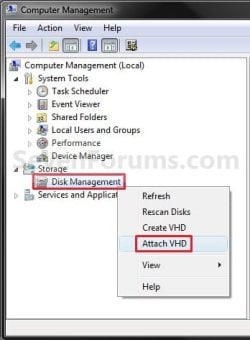
A) In the left pane, right click on Disk Management, and click on Attach VHD. (See screenshot below)
NOTE: You can also click on Disk Management, Action on the menu bar, and Attach VHD.
Attach-1.jpg
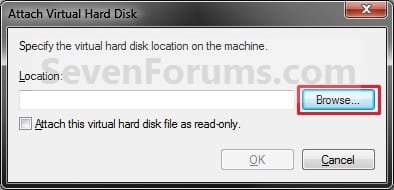
B) Click on the Browse button. (See screenshot below)
Attach-2.jpg
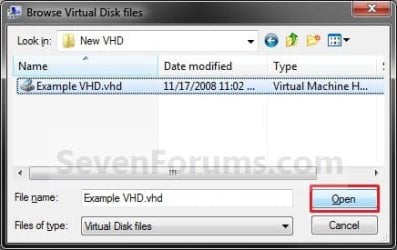
C) Navigate to the VHD file location and select it, then click on the Open button. (See screenshot below)
Attach-3.jpg
D) If you want the VHD to be read-only, then check the box, otherwise leave it unchecked. Click on OK. (See screenshot below)
Attach-4.jpg
E) If the existing VHD file is unallocated, go to step 6. (See screenshot below step 6A)
WARNING: Be sure to create a backup copy of the VHD file first to be safe in case of data loss.

F) If the existing VHD file is allocated, go to step 8. (See screenshot below step 8)
5. To Create and Attach a New Virtual Hard Disk (VHD file)
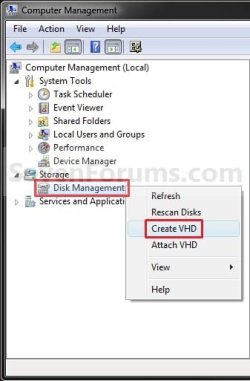
A) In the left pane, right click on Disk Management, and click on Create VHD. (See screenshot below)
NOTE: You can also click on Disk Management, Action on the menu bar, and Create VHD.
Create-1.jpg
B) Click on the Browse button. (See screenshot below)
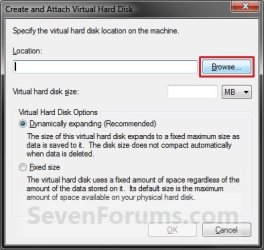
Create-2.jpg
C) Navigate to the location you would like to store the new VHD file, type in a name for the VHD file, and click on Save. (See screenshot below)
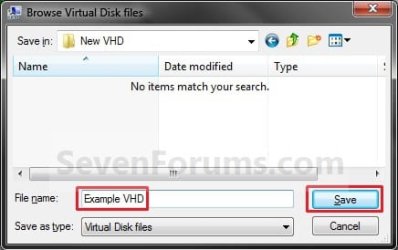
Create-3.jpg
D) Type in the maximum size you want the Virtual Hard Disk to be, and select the size to be MB, GB, or TB (1024 MB = 1 GB, 1024 GB = 1 TB). (See screenshot below)

E) Select (dot) if you want the new VHD size to be Dynamic or Fixed, and click on OK. (See screenshot below)
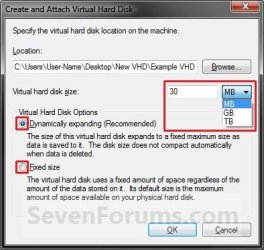
Create-4.jpg

F) Continue to step 6.
6. To Initialize the Virtual Hard Disk
A) Right click on the new unallocated VHD Disk # and click on Initialize Disk. (See screenshot below)
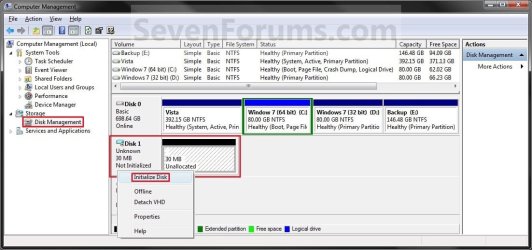
Disk_Management-1.jpg
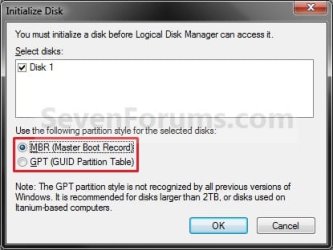
B) Select (check) the Disk # from above for the new VHD. Select (dot) if you want the new VHD to have a MBR (Master Boot Record) or GPT (GUID Partition Table) partition, and click on OK. (See screenshot below)
Initialize.jpg
C) Continue to step 7.
7. To Create a New Simple Volume in the VHD
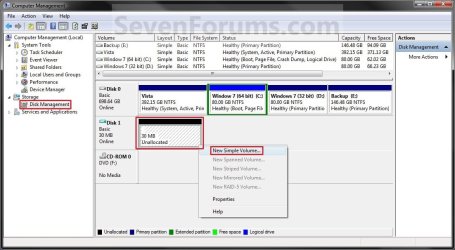
A) Right click on the new unallocated VHD and click on New Simple Volume. (See screenshot below)
Disk_Management-2.jpg
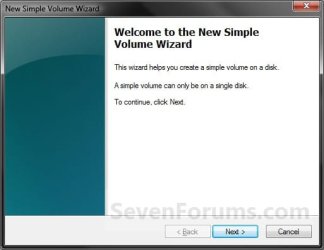
B) Click on the Next button. (See screenshot below)
New_Simple_Volume-1.jpg
C) Type in how much of the maximum disk space (step 5D) you want for the size of this VHD partition, and click on Next. (See screenshot below)
NOTE: If you do not use the maximum space, then you will have a second unallocated VHD partition left with the remaining available disk space.
New_Simple_Volume-2.jpg
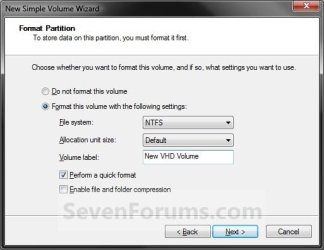
D) Select the file system (NTFS or FAT32) you want the VHD partition to be. (See screenshot below)

E) Type in a name for the VHD to be displayed in Computer. (See screenshot below)

F) Check the Perform a quick format box, and click on Next. (See screenshot below)
New_Simple_Volume-3.jpg
G) Click on the Finish button. (See screenshot below)
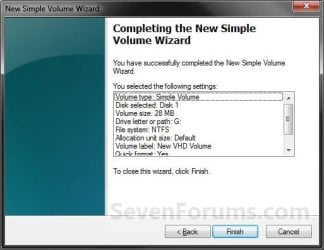
New_Simple_Volume-4.jpg
8. The VHD is now attached and ready to access like a HDD. (see screenshot below)
Disk_Management-3.jpg
That's it,
Shawn


Last edited:
Thanks Shawn, I went with the create vdisk option during installation and it's all good.

However is it normal to have to attach a VHD after each boot? Is there anyway for it to automatically load on start-up?
 

My Computer

Computer type
PC/Desktop
Computer Manufacturer/Model Number
Systems by SmartEyeball
OS
8 Pro x64
CPU
i7 3770K 4.6GHz
Motherboard
ASUS P8Z77 WS
Memory
16GB G.Skill Trident X 2666mhz
Graphics Card(s)
x2 EVGA 780 Ti Superclocked SLI
Sound Card
SB X-FI Surround 5.1 PRO USB / ATH-AD900 Headphones
Monitor(s) Displays
x3 Dell U2410 / 58" Samsung
Screen Resolution
5760*1200/ 1920*1200
Hard Drives
2x Intel 520 240GB (RAID 0) * 2x WD Caviar Blacks 2TB (RAID 0) * 2TB WD Caviar Black * Sony Optirac DVD
PSU
Silverstone Strider Evolution 1200W
Case
Thermaltake Level 10 GT Snow Edition
Cooling
Noctua NH-D14
Keyboard
Topre Realforce // Ducky Shine MX Black // Filco Ninja TKL
Mouse
Thermaltake Theron (Highly Recommended) + Razer Imperator
Antivirus
MSE
Browser
IE, FF, WaterFox
Other Info
GT Extreme V2 Sim Racing Cockpit + 40" LCD and K/B Mouse stand ▼
Fanatec CSR Elite Wheel + Clubsport V1 Pedals + CSR shifter/7G-H ▼Saitek X52 Pro ▼ TrackIR 5 Pro
Buttkicker v2 Seat Rumbler with Dedicated 5.1 and Sub Woofer attached to frame ▼
=
Bloody Big Grin
While attaching a VHD through Disk Management will not add it to the boot files, I'm not certain as to why you had to keep attaching it though. :confused:
 

My Computer

Computer type
PC/Desktop
Computer Manufacturer/Model Number
Self built custom
OS
64-bit Windows 11 Pro for Workstations
CPU
Intel i7-8700K OC'd to 5 GHz
Motherboard
ASUS ROG Maximus XI Formula Z390
Memory
64 GB (4x16GB) G.SKILL TridentZ RGB DDR4 3600 MHz
Graphics Card(s)
ASUS ROG-STRIX-GTX1080TI-O11G-GAMING
Sound Card
Integrated
Monitor(s) Displays
2 x Samsung Odyssey G7 27"
Screen Resolution
2560x1440
Hard Drives
1TB Samsung 990 PRO M.2,
4TB Samsung 990 PRO PRO M.2,
TerraMaster F8 SSD Plus NAS
PSU
Seasonic Prime Titanium 850W
Case
Thermaltake Core P3
Cooling
Corsair Hydro H115i
Keyboard
Logitech wireless K800
Mouse
Logitech MX Master 4
Internet Speed
2 Gb/s Download and 100 Mb/s Upload
Antivirus
Malwarebyte Anti-Malware Premium
Browser
Google Chrome
Other Info
Logitech Z625 speaker system,
Logitech BRIO 4K Pro webcam,
HP Color LaserJet Pro MFP M477fdn,
APC SMART-UPS RT 1000 XL - SURT1000XLI,
Galaxy S23 Plus phone
That's why I was a little confused. I followed the tut and it attached fine through both disk management or the command prompt, but it didn't want to stay attached after a re-boot :huh:
 

My Computer

Computer type
PC/Desktop
Computer Manufacturer/Model Number
Systems by SmartEyeball
OS
8 Pro x64
CPU
i7 3770K 4.6GHz
Motherboard
ASUS P8Z77 WS
Memory
16GB G.Skill Trident X 2666mhz
Graphics Card(s)
x2 EVGA 780 Ti Superclocked SLI
Sound Card
SB X-FI Surround 5.1 PRO USB / ATH-AD900 Headphones
Monitor(s) Displays
x3 Dell U2410 / 58" Samsung
Screen Resolution
5760*1200/ 1920*1200
Hard Drives
2x Intel 520 240GB (RAID 0) * 2x WD Caviar Blacks 2TB (RAID 0) * 2TB WD Caviar Black * Sony Optirac DVD
PSU
Silverstone Strider Evolution 1200W
Case
Thermaltake Level 10 GT Snow Edition
Cooling
Noctua NH-D14
Keyboard
Topre Realforce // Ducky Shine MX Black // Filco Ninja TKL
Mouse
Thermaltake Theron (Highly Recommended) + Razer Imperator
Antivirus
MSE
Browser
IE, FF, WaterFox
Other Info
GT Extreme V2 Sim Racing Cockpit + 40" LCD and K/B Mouse stand ▼
Fanatec CSR Elite Wheel + Clubsport V1 Pedals + CSR shifter/7G-H ▼Saitek X52 Pro ▼ TrackIR 5 Pro
Buttkicker v2 Seat Rumbler with Dedicated 5.1 and Sub Woofer attached to frame ▼
=
Bloody Big Grin
You might see if using a different drive letter for the VHD may make a difference.
 

My Computer

Computer type
PC/Desktop
Computer Manufacturer/Model Number
Self built custom
OS
64-bit Windows 11 Pro for Workstations
CPU
Intel i7-8700K OC'd to 5 GHz
Motherboard
ASUS ROG Maximus XI Formula Z390
Memory
64 GB (4x16GB) G.SKILL TridentZ RGB DDR4 3600 MHz
Graphics Card(s)
ASUS ROG-STRIX-GTX1080TI-O11G-GAMING
Sound Card
Integrated
Monitor(s) Displays
2 x Samsung Odyssey G7 27"
Screen Resolution
2560x1440
Hard Drives
1TB Samsung 990 PRO M.2,
4TB Samsung 990 PRO PRO M.2,
TerraMaster F8 SSD Plus NAS
PSU
Seasonic Prime Titanium 850W
Case
Thermaltake Core P3
Cooling
Corsair Hydro H115i
Keyboard
Logitech wireless K800
Mouse
Logitech MX Master 4
Internet Speed
2 Gb/s Download and 100 Mb/s Upload
Antivirus
Malwarebyte Anti-Malware Premium
Browser
Google Chrome
Other Info
Logitech Z625 speaker system,
Logitech BRIO 4K Pro webcam,
HP Color LaserJet Pro MFP M477fdn,
APC SMART-UPS RT 1000 XL - SURT1000XLI,
Galaxy S23 Plus phone
I deleted that original vhd and created one during installation, but even the new vhd with 7264 installed doesn't show up attached within 7100.

I changed the drive letter and even created a new test vhd in the cmd prompt and that doesn't attach automatically either :huh:

EDIT:
I just attached the two existing vhd's and even created a new one from within 7201 and they still disappear after a re-boot
 

My Computer

Computer type
PC/Desktop
Computer Manufacturer/Model Number
Systems by SmartEyeball
OS
8 Pro x64
CPU
i7 3770K 4.6GHz
Motherboard
ASUS P8Z77 WS
Memory
16GB G.Skill Trident X 2666mhz
Graphics Card(s)
x2 EVGA 780 Ti Superclocked SLI
Sound Card
SB X-FI Surround 5.1 PRO USB / ATH-AD900 Headphones
Monitor(s) Displays
x3 Dell U2410 / 58" Samsung
Screen Resolution
5760*1200/ 1920*1200
Hard Drives
2x Intel 520 240GB (RAID 0) * 2x WD Caviar Blacks 2TB (RAID 0) * 2TB WD Caviar Black * Sony Optirac DVD
PSU
Silverstone Strider Evolution 1200W
Case
Thermaltake Level 10 GT Snow Edition
Cooling
Noctua NH-D14
Keyboard
Topre Realforce // Ducky Shine MX Black // Filco Ninja TKL
Mouse
Thermaltake Theron (Highly Recommended) + Razer Imperator
Antivirus
MSE
Browser
IE, FF, WaterFox
Other Info
GT Extreme V2 Sim Racing Cockpit + 40" LCD and K/B Mouse stand ▼
Fanatec CSR Elite Wheel + Clubsport V1 Pedals + CSR shifter/7G-H ▼Saitek X52 Pro ▼ TrackIR 5 Pro
Buttkicker v2 Seat Rumbler with Dedicated 5.1 and Sub Woofer attached to frame ▼
=
Bloody Big Grin
That is strange. I must admit that I am stumped as to why is does that whenever you reboot. :huh:
 

My Computer

Computer type
PC/Desktop
Computer Manufacturer/Model Number
Self built custom
OS
64-bit Windows 11 Pro for Workstations
CPU
Intel i7-8700K OC'd to 5 GHz
Motherboard
ASUS ROG Maximus XI Formula Z390
Memory
64 GB (4x16GB) G.SKILL TridentZ RGB DDR4 3600 MHz
Graphics Card(s)
ASUS ROG-STRIX-GTX1080TI-O11G-GAMING
Sound Card
Integrated
Monitor(s) Displays
2 x Samsung Odyssey G7 27"
Screen Resolution
2560x1440
Hard Drives
1TB Samsung 990 PRO M.2,
4TB Samsung 990 PRO PRO M.2,
TerraMaster F8 SSD Plus NAS
PSU
Seasonic Prime Titanium 850W
Case
Thermaltake Core P3
Cooling
Corsair Hydro H115i
Keyboard
Logitech wireless K800
Mouse
Logitech MX Master 4
Internet Speed
2 Gb/s Download and 100 Mb/s Upload
Antivirus
Malwarebyte Anti-Malware Premium
Browser
Google Chrome
Other Info
Logitech Z625 speaker system,
Logitech BRIO 4K Pro webcam,
HP Color LaserJet Pro MFP M477fdn,
APC SMART-UPS RT 1000 XL - SURT1000XLI,
Galaxy S23 Plus phone
This sounds like the return of the Beta Breaker :D
 

My Computer

Computer type
PC/Desktop
Computer Manufacturer/Model Number
Systems by SmartEyeball
OS
8 Pro x64
CPU
i7 3770K 4.6GHz
Motherboard
ASUS P8Z77 WS
Memory
16GB G.Skill Trident X 2666mhz
Graphics Card(s)
x2 EVGA 780 Ti Superclocked SLI
Sound Card
SB X-FI Surround 5.1 PRO USB / ATH-AD900 Headphones
Monitor(s) Displays
x3 Dell U2410 / 58" Samsung
Screen Resolution
5760*1200/ 1920*1200
Hard Drives
2x Intel 520 240GB (RAID 0) * 2x WD Caviar Blacks 2TB (RAID 0) * 2TB WD Caviar Black * Sony Optirac DVD
PSU
Silverstone Strider Evolution 1200W
Case
Thermaltake Level 10 GT Snow Edition
Cooling
Noctua NH-D14
Keyboard
Topre Realforce // Ducky Shine MX Black // Filco Ninja TKL
Mouse
Thermaltake Theron (Highly Recommended) + Razer Imperator
Antivirus
MSE
Browser
IE, FF, WaterFox
Other Info
GT Extreme V2 Sim Racing Cockpit + 40" LCD and K/B Mouse stand ▼
Fanatec CSR Elite Wheel + Clubsport V1 Pedals + CSR shifter/7G-H ▼Saitek X52 Pro ▼ TrackIR 5 Pro
Buttkicker v2 Seat Rumbler with Dedicated 5.1 and Sub Woofer attached to frame ▼
=
Bloody Big Grin
Indeed. :(

Be sure to send feedback on it.
 

My Computer

Computer type
PC/Desktop
Computer Manufacturer/Model Number
Self built custom
OS
64-bit Windows 11 Pro for Workstations
CPU
Intel i7-8700K OC'd to 5 GHz
Motherboard
ASUS ROG Maximus XI Formula Z390
Memory
64 GB (4x16GB) G.SKILL TridentZ RGB DDR4 3600 MHz
Graphics Card(s)
ASUS ROG-STRIX-GTX1080TI-O11G-GAMING
Sound Card
Integrated
Monitor(s) Displays
2 x Samsung Odyssey G7 27"
Screen Resolution
2560x1440
Hard Drives
1TB Samsung 990 PRO M.2,
4TB Samsung 990 PRO PRO M.2,
TerraMaster F8 SSD Plus NAS
PSU
Seasonic Prime Titanium 850W
Case
Thermaltake Core P3
Cooling
Corsair Hydro H115i
Keyboard
Logitech wireless K800
Mouse
Logitech MX Master 4
Internet Speed
2 Gb/s Download and 100 Mb/s Upload
Antivirus
Malwarebyte Anti-Malware Premium
Browser
Google Chrome
Other Info
Logitech Z625 speaker system,
Logitech BRIO 4K Pro webcam,
HP Color LaserJet Pro MFP M477fdn,
APC SMART-UPS RT 1000 XL - SURT1000XLI,
Galaxy S23 Plus phone
vhd

im having the verysame problem i create a perfect RECOVERY(D:)\ CREATE ME A NEW SYSTEM IMAGE .BACKUP MY SYSTEM AND EVERYTIME WINDOWS UPDATE NEEDS TO REBOOT TO FINISH THE INSTALATION MY VHD IS HISTORY HAVE TO GO REATTACH IT that gets a little old its shure fluttstrating i would like to know the trick on keeping it mounted permanatly running out of options
 
Last edited:

My Computer

Computer Manufacturer/Model Number
dell inspiron 530
OS
windows 7 rc
Hard Drives
sata 250 gb
Hiya guys...

I am trying to create a VHD so I can trial win7x64 and I have hit a virtual wall....

So far I have followed the tut and created the VHD file and now it doesn't show up in computer management...

I have looked at where I placed the .VHD file and its there but nothing showing up at all...

Have I missed something?
 

My Computer

Computer Manufacturer/Model Number
Custom Build
OS
Windows 7 Ultimate 7600
CPU
Intel Core2Quad Q6600
Motherboard
XFX nForce 680i LT SLi
Memory
OCZ DDR2 4GB 800MHz SLi
Graphics Card(s)
nVidia GeForce 9800GT 512MB SLi
Sound Card
Mobo soundcard output to Panasonic SA-AK770
Monitor(s) Displays
LG Flatron W2234S
Screen Resolution
1680 x 1050
Hard Drives
Samsung 1TB HD103UJ Internal
Maxtor 1TB External
PSU
Novatech WinPower 750W
Case
Coolermaster CM 690 Tower
Cooling
Standard case fans (for now)
Keyboard
Microsoft Wireless Keyboard 2000
Mouse
Microsoft Wireless Optical Mouse 2000
Internet Speed
8MB
i have got the same issue here, i created VHD but when i reboot the system i does not show it again. any ideas ???

by the way i am using the final release of windows 7 RTM build 7600.
 

My Computer

Computer Manufacturer/Model Number
Aspire 4920
OS
Windows 7
CPU
Core Duo 2.2
Memory
3 GB
Graphics Card(s)
ATI 2400 XT 256 MB
Hard Drives
250 GB
Hello Cyborgee, and welcome to Seven Forums.

Where do you have the VHD file save at?

Was this VHD created using the method in the tutorial or another program?

UPDATE:
It seems to be either a new feature or bug in the final RTM build. Any attached VHD (newly created or existing) will no longer be attached after a restart. It seems to only be a temporary feature per active session now. I have added a warning at the top of the tutorial.
 
Last edited:

My Computer

Computer type
PC/Desktop
Computer Manufacturer/Model Number
Self built custom
OS
64-bit Windows 11 Pro for Workstations
CPU
Intel i7-8700K OC'd to 5 GHz
Motherboard
ASUS ROG Maximus XI Formula Z390
Memory
64 GB (4x16GB) G.SKILL TridentZ RGB DDR4 3600 MHz
Graphics Card(s)
ASUS ROG-STRIX-GTX1080TI-O11G-GAMING
Sound Card
Integrated
Monitor(s) Displays
2 x Samsung Odyssey G7 27"
Screen Resolution
2560x1440
Hard Drives
1TB Samsung 990 PRO M.2,
4TB Samsung 990 PRO PRO M.2,
TerraMaster F8 SSD Plus NAS
PSU
Seasonic Prime Titanium 850W
Case
Thermaltake Core P3
Cooling
Corsair Hydro H115i
Keyboard
Logitech wireless K800
Mouse
Logitech MX Master 4
Internet Speed
2 Gb/s Download and 100 Mb/s Upload
Antivirus
Malwarebyte Anti-Malware Premium
Browser
Google Chrome
Other Info
Logitech Z625 speaker system,
Logitech BRIO 4K Pro webcam,
HP Color LaserJet Pro MFP M477fdn,
APC SMART-UPS RT 1000 XL - SURT1000XLI,
Galaxy S23 Plus phone
Thanks Brink

well , i made the VHD by using the same method in the tutorial. and i save it on drive C , system partition.

I went through many blogs about creating VHD. and i have found that most of them has the same issue. but i found that one of them mentioned that in order to have a bootable VHD then you have to create it by using setup CD (repair command) , and using certain commands to create it. after that install the operating system directly without rebooting.

i will try this to install windows 2008 R2 which has the same tools as windows 7, and i will inform you about it.

But it is important to have a VHD that starts while windows 7 booting without installing an operating system.
 

My Computer

Computer Manufacturer/Model Number
Aspire 4920
OS
Windows 7
CPU
Core Duo 2.2
Memory
3 GB
Graphics Card(s)
ATI 2400 XT 256 MB
Hard Drives
250 GB

My Computer

Computer type
PC/Desktop
Computer Manufacturer/Model Number
Self built custom
OS
64-bit Windows 11 Pro for Workstations
CPU
Intel i7-8700K OC'd to 5 GHz
Motherboard
ASUS ROG Maximus XI Formula Z390
Memory
64 GB (4x16GB) G.SKILL TridentZ RGB DDR4 3600 MHz
Graphics Card(s)
ASUS ROG-STRIX-GTX1080TI-O11G-GAMING
Sound Card
Integrated
Monitor(s) Displays
2 x Samsung Odyssey G7 27"
Screen Resolution
2560x1440
Hard Drives
1TB Samsung 990 PRO M.2,
4TB Samsung 990 PRO PRO M.2,
TerraMaster F8 SSD Plus NAS
PSU
Seasonic Prime Titanium 850W
Case
Thermaltake Core P3
Cooling
Corsair Hydro H115i
Keyboard
Logitech wireless K800
Mouse
Logitech MX Master 4
Internet Speed
2 Gb/s Download and 100 Mb/s Upload
Antivirus
Malwarebyte Anti-Malware Premium
Browser
Google Chrome
Other Info
Logitech Z625 speaker system,
Logitech BRIO 4K Pro webcam,
HP Color LaserJet Pro MFP M477fdn,
APC SMART-UPS RT 1000 XL - SURT1000XLI,
Galaxy S23 Plus phone
NOOB question

My boss got me a new Windows 7 box and wants me to create Virtual Machines running either Windows Server 2008 or Windows Server 2005. I have used MS Virtual Server 2005 in the past, but with Windows 7, I can't install the applicatioin, I get a "hard block" or whatever the terminology is.

Anyways, I followed the awesome tutorial above, and have created a VHD on my box, but was wondering how I would go about installing another OS to it, is that even possible with the available functionality? I have done my best to research this topic, but plead ignorance because I can't find any tutorials in regards to installing a "non windows 7 OS" as a virtual machine on a windows 7 machine....

And yes, as I was typing all this, I stumbled upon my answer... :geek: fmylife, but thanks guys for adding to this awesome forum!
http://www.sevenforums.com/tutorials/8254-windows-virtual-pc-create-virtual-machine.html
 

My Computer

OS
Windows 7 Professional 64-bit Operating System
Hello Gazhalim,

LOL, I'm happy to hear that you got it sorted. :)
 

My Computer

Computer type
PC/Desktop
Computer Manufacturer/Model Number
Self built custom
OS
64-bit Windows 11 Pro for Workstations
CPU
Intel i7-8700K OC'd to 5 GHz
Motherboard
ASUS ROG Maximus XI Formula Z390
Memory
64 GB (4x16GB) G.SKILL TridentZ RGB DDR4 3600 MHz
Graphics Card(s)
ASUS ROG-STRIX-GTX1080TI-O11G-GAMING
Sound Card
Integrated
Monitor(s) Displays
2 x Samsung Odyssey G7 27"
Screen Resolution
2560x1440
Hard Drives
1TB Samsung 990 PRO M.2,
4TB Samsung 990 PRO PRO M.2,
TerraMaster F8 SSD Plus NAS
PSU
Seasonic Prime Titanium 850W
Case
Thermaltake Core P3
Cooling
Corsair Hydro H115i
Keyboard
Logitech wireless K800
Mouse
Logitech MX Master 4
Internet Speed
2 Gb/s Download and 100 Mb/s Upload
Antivirus
Malwarebyte Anti-Malware Premium
Browser
Google Chrome
Other Info
Logitech Z625 speaker system,
Logitech BRIO 4K Pro webcam,
HP Color LaserJet Pro MFP M477fdn,
APC SMART-UPS RT 1000 XL - SURT1000XLI,
Galaxy S23 Plus phone
Same isuue here.

Hiya guys...

I am trying to create a VHD so I can trial win7x64 and I have hit a virtual wall....

So far I have followed the tut and created the VHD file and now it doesn't show up in computer management...

I have looked at where I placed the .VHD file and its there but nothing showing up at all...

Have I missed something?

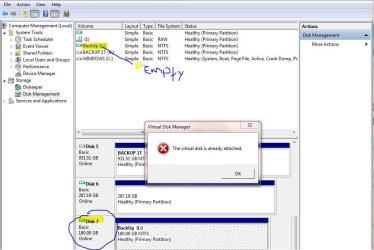
Hi. Ive followed your steps but when i look inside or double click the hard drive theres nothing inside and nothing happens.

I attached an image created by W7 of a backup and i was hoping this tut might help but the only thing i see its an empty 180G space.

If some could help would be greatly appreciated.
 

Attachments

  • VHD.JPG
    VHD.JPG
    109.6 KB · Views: 315

My Computer

OS
7

My Computer

Computer type
PC/Desktop
Computer Manufacturer/Model Number
Self built custom
OS
64-bit Windows 11 Pro for Workstations
CPU
Intel i7-8700K OC'd to 5 GHz
Motherboard
ASUS ROG Maximus XI Formula Z390
Memory
64 GB (4x16GB) G.SKILL TridentZ RGB DDR4 3600 MHz
Graphics Card(s)
ASUS ROG-STRIX-GTX1080TI-O11G-GAMING
Sound Card
Integrated
Monitor(s) Displays
2 x Samsung Odyssey G7 27"
Screen Resolution
2560x1440
Hard Drives
1TB Samsung 990 PRO M.2,
4TB Samsung 990 PRO PRO M.2,
TerraMaster F8 SSD Plus NAS
PSU
Seasonic Prime Titanium 850W
Case
Thermaltake Core P3
Cooling
Corsair Hydro H115i
Keyboard
Logitech wireless K800
Mouse
Logitech MX Master 4
Internet Speed
2 Gb/s Download and 100 Mb/s Upload
Antivirus
Malwarebyte Anti-Malware Premium
Browser
Google Chrome
Other Info
Logitech Z625 speaker system,
Logitech BRIO 4K Pro webcam,
HP Color LaserJet Pro MFP M477fdn,
APC SMART-UPS RT 1000 XL - SURT1000XLI,
Galaxy S23 Plus phone
I followed the steps(I think) but the VHD created does not have anything in it. Is this what is supposed to be?
 

My Computer

Computer type
PC/Desktop
OS
W7 Ult x64, W8 Pro x64 and W10 Pro x64
CPU
Phenom FX6300
Motherboard
Gigabyte GA-970A-UD3 rev. 1.2
Memory
16GB DDR3 1866 G.Skill F3-1866C9D-16GWM x2
Graphics Card(s)
Radeon R7 360
Sound Card
Asus Xonar DS
Monitor(s) Displays
27" x2, Dell P2715Q
Screen Resolution
3840 x 2160
Hard Drives
Samsung 850Pro 1TB SSD - system
Samsung 4TB SSD - Data
PSU
Corsair CX450M
Case
Corsair 200R
Cooling
Zalman CNPS5X Performa
Internet Speed
400Mbps/12Mbps
Other Info
2nd machine: Same as above
3rd machine: Apple MacAir with W7 Ult installed
Hello Churin,

If you created a new VHD, then yes it would be empty. It's just like creating a new partition or volume. :)
 

My Computer

Computer type
PC/Desktop
Computer Manufacturer/Model Number
Self built custom
OS
64-bit Windows 11 Pro for Workstations
CPU
Intel i7-8700K OC'd to 5 GHz
Motherboard
ASUS ROG Maximus XI Formula Z390
Memory
64 GB (4x16GB) G.SKILL TridentZ RGB DDR4 3600 MHz
Graphics Card(s)
ASUS ROG-STRIX-GTX1080TI-O11G-GAMING
Sound Card
Integrated
Monitor(s) Displays
2 x Samsung Odyssey G7 27"
Screen Resolution
2560x1440
Hard Drives
1TB Samsung 990 PRO M.2,
4TB Samsung 990 PRO PRO M.2,
TerraMaster F8 SSD Plus NAS
PSU
Seasonic Prime Titanium 850W
Case
Thermaltake Core P3
Cooling
Corsair Hydro H115i
Keyboard
Logitech wireless K800
Mouse
Logitech MX Master 4
Internet Speed
2 Gb/s Download and 100 Mb/s Upload
Antivirus
Malwarebyte Anti-Malware Premium
Browser
Google Chrome
Other Info
Logitech Z625 speaker system,
Logitech BRIO 4K Pro webcam,
HP Color LaserJet Pro MFP M477fdn,
APC SMART-UPS RT 1000 XL - SURT1000XLI,
Galaxy S23 Plus phone
Back
Top