
Virtual Hard Disk - Create and Attach VHD

How to Create and Attach a Virtual Hard Disk in Windows 7

   Information
A Virtual Hard Disk is a created VHD file on your hard drive that acts as a separate hard drive disk in Computer. This will show you how to create and attach (mount), or only attach (mount) an existing, a VHD in Windows 7.

Special thanks to Steven (dmex) for pointing out this new feature in Windows 7.

   Tip
You can also use a VHD file created from such programs as Windows Virtual PC.

   Warning
The VHD is only attached for the current session. When you restart the computer, any attached VHD files you have will no longer be attached and appear in Computer. You will have to reattach any VHD file to have it display back in the Computer window again until the next restart.

If you disable the Disk Defragmenter service, then you will get the error below when you try to do anything in Disk Management. If you get this error, then make sure that the Disk Defragmenter service is set to only Manual.

Error.jpg


EXAMPLE: New Virtual Hard Disk (VHD) in Computer
Computer.jpg
Here's How:
1. Open the Control Panel (icons view).
A) Click on the Administrative Tools icon, and click on Computer Management.

B) Go to step 3.
OR

2. Open the Start Menu.
A) In the Search box, type compmgmt.msc and press Enter.
3. If prompted by UAC, click on Yes, then do either step 4 or 5 below.

4. To Attach an Existing VHD File
NOTE: This is for a detached VHD file that you had already created in step 5 below, or from an existing VHD file.
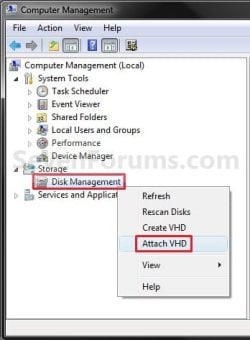
A) In the left pane, right click on Disk Management, and click on Attach VHD. (See screenshot below)
NOTE: You can also click on Disk Management, Action on the menu bar, and Attach VHD.
Attach-1.jpg
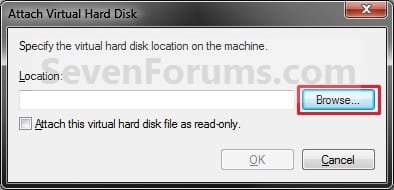
B) Click on the Browse button. (See screenshot below)
Attach-2.jpg
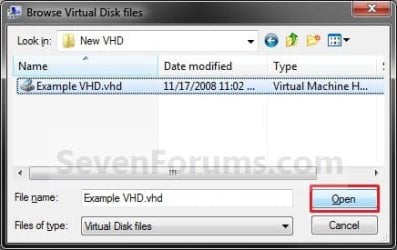
C) Navigate to the VHD file location and select it, then click on the Open button. (See screenshot below)
Attach-3.jpg
D) If you want the VHD to be read-only, then check the box, otherwise leave it unchecked. Click on OK. (See screenshot below)
Attach-4.jpg
E) If the existing VHD file is unallocated, go to step 6. (See screenshot below step 6A)
WARNING: Be sure to create a backup copy of the VHD file first to be safe in case of data loss.

F) If the existing VHD file is allocated, go to step 8. (See screenshot below step 8)
5. To Create and Attach a New Virtual Hard Disk (VHD file)
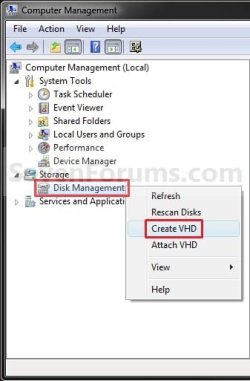
A) In the left pane, right click on Disk Management, and click on Create VHD. (See screenshot below)
NOTE: You can also click on Disk Management, Action on the menu bar, and Create VHD.
Create-1.jpg
B) Click on the Browse button. (See screenshot below)
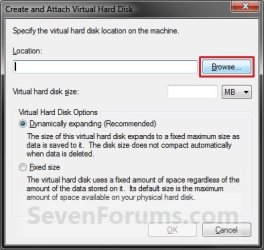
Create-2.jpg
C) Navigate to the location you would like to store the new VHD file, type in a name for the VHD file, and click on Save. (See screenshot below)
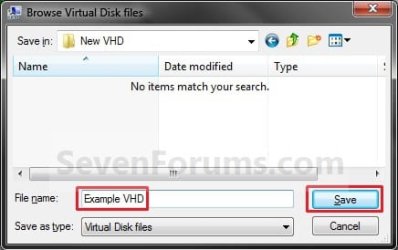
Create-3.jpg
D) Type in the maximum size you want the Virtual Hard Disk to be, and select the size to be MB, GB, or TB (1024 MB = 1 GB, 1024 GB = 1 TB). (See screenshot below)

E) Select (dot) if you want the new VHD size to be Dynamic or Fixed, and click on OK. (See screenshot below)
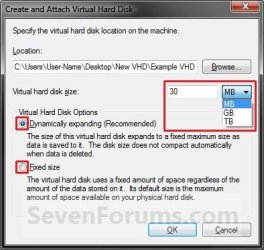
Create-4.jpg

F) Continue to step 6.
6. To Initialize the Virtual Hard Disk
A) Right click on the new unallocated VHD Disk # and click on Initialize Disk. (See screenshot below)
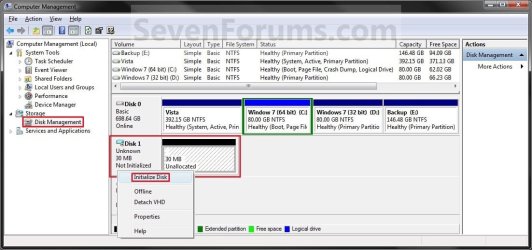
Disk_Management-1.jpg
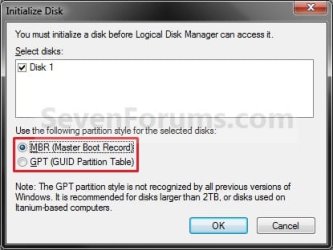
B) Select (check) the Disk # from above for the new VHD. Select (dot) if you want the new VHD to have a MBR (Master Boot Record) or GPT (GUID Partition Table) partition, and click on OK. (See screenshot below)
Initialize.jpg
C) Continue to step 7.
7. To Create a New Simple Volume in the VHD
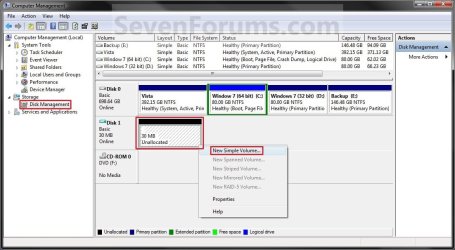
A) Right click on the new unallocated VHD and click on New Simple Volume. (See screenshot below)
Disk_Management-2.jpg
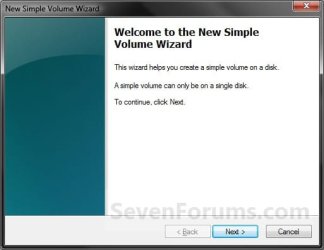
B) Click on the Next button. (See screenshot below)
New_Simple_Volume-1.jpg
C) Type in how much of the maximum disk space (step 5D) you want for the size of this VHD partition, and click on Next. (See screenshot below)
NOTE: If you do not use the maximum space, then you will have a second unallocated VHD partition left with the remaining available disk space.
New_Simple_Volume-2.jpg
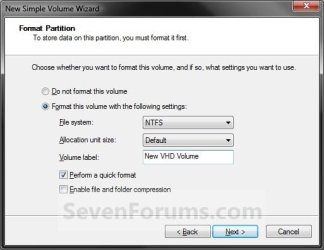
D) Select the file system (NTFS or FAT32) you want the VHD partition to be. (See screenshot below)

E) Type in a name for the VHD to be displayed in Computer. (See screenshot below)

F) Check the Perform a quick format box, and click on Next. (See screenshot below)
New_Simple_Volume-3.jpg
G) Click on the Finish button. (See screenshot below)
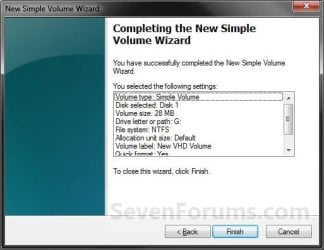
New_Simple_Volume-4.jpg
8. The VHD is now attached and ready to access like a HDD. (see screenshot below)
Disk_Management-3.jpg
That's it,
Shawn


Last edited:
Hi Brink,
Thanks for your response.
I should have checked past responses in this thread. I noticed what to do next posted by you above.
 

My Computer

Computer type
PC/Desktop
OS
W7 Ult x64, W8 Pro x64 and W10 Pro x64
CPU
Phenom FX6300
Motherboard
Gigabyte GA-970A-UD3 rev. 1.2
Memory
16GB DDR3 1866 G.Skill F3-1866C9D-16GWM x2
Graphics Card(s)
Radeon R7 360
Sound Card
Asus Xonar DS
Monitor(s) Displays
27" x2, Dell P2715Q
Screen Resolution
3840 x 2160
Hard Drives
Samsung 850Pro 1TB SSD - system
Samsung 4TB SSD - Data
PSU
Corsair CX450M
Case
Corsair 200R
Cooling
Zalman CNPS5X Performa
Internet Speed
400Mbps/12Mbps
Other Info
2nd machine: Same as above
3rd machine: Apple MacAir with W7 Ult installed
No problem Churin. Anytime. :)
 

My Computer

Computer type
PC/Desktop
Computer Manufacturer/Model Number
Self built custom
OS
64-bit Windows 11 Pro for Workstations
CPU
Intel i7-8700K OC'd to 5 GHz
Motherboard
ASUS ROG Maximus XI Formula Z390
Memory
64 GB (4x16GB) G.SKILL TridentZ RGB DDR4 3600 MHz
Graphics Card(s)
ASUS ROG-STRIX-GTX1080TI-O11G-GAMING
Sound Card
Integrated
Monitor(s) Displays
2 x Samsung Odyssey G7 27"
Screen Resolution
2560x1440
Hard Drives
1TB Samsung 990 PRO M.2,
4TB Samsung 990 PRO PRO M.2,
TerraMaster F8 SSD Plus NAS
PSU
Seasonic Prime Titanium 850W
Case
Thermaltake Core P3
Cooling
Corsair Hydro H115i
Keyboard
Logitech wireless K800
Mouse
Logitech MX Master 4
Internet Speed
2 Gb/s Download and 100 Mb/s Upload
Antivirus
Malwarebyte Anti-Malware Premium
Browser
Google Chrome
Other Info
Logitech Z625 speaker system,
Logitech BRIO 4K Pro webcam,
HP Color LaserJet Pro MFP M477fdn,
APC SMART-UPS RT 1000 XL - SURT1000XLI,
Galaxy S23 Plus phone
In the tutorial in V the top two entries of tutorials are the following and listed in the order as shown below:

Virtual Hard Drive - Create and Start with at Boot
Virtual Hard Drive - Create and Attach VHD

Despite that they are listed in the order as above, I assume the first step to follow is the second one, then the first one.

I have a question about the second tutorial:
In the step 4/A), the Attach VHD is grayed in the menu shown by right-clicking the Disk Management. If I click on any of the partitions in the right side pane and try right-clicking Disk Management, the Attach VHD in the menu is enabled.
Am I supposed to select any particular partition before right-clicking the Disk Management?
 

My Computer

Computer type
PC/Desktop
OS
W7 Ult x64, W8 Pro x64 and W10 Pro x64
CPU
Phenom FX6300
Motherboard
Gigabyte GA-970A-UD3 rev. 1.2
Memory
16GB DDR3 1866 G.Skill F3-1866C9D-16GWM x2
Graphics Card(s)
Radeon R7 360
Sound Card
Asus Xonar DS
Monitor(s) Displays
27" x2, Dell P2715Q
Screen Resolution
3840 x 2160
Hard Drives
Samsung 850Pro 1TB SSD - system
Samsung 4TB SSD - Data
PSU
Corsair CX450M
Case
Corsair 200R
Cooling
Zalman CNPS5X Performa
Internet Speed
400Mbps/12Mbps
Other Info
2nd machine: Same as above
3rd machine: Apple MacAir with W7 Ult installed
Churin,

I'm confused a bit here. These are two separate tutorials and cannot be used together.

Could you post a screenshot of your Disk Management showing what you are seing? This may help determine why this may be happening better.
 

My Computer

Computer type
PC/Desktop
Computer Manufacturer/Model Number
Self built custom
OS
64-bit Windows 11 Pro for Workstations
CPU
Intel i7-8700K OC'd to 5 GHz
Motherboard
ASUS ROG Maximus XI Formula Z390
Memory
64 GB (4x16GB) G.SKILL TridentZ RGB DDR4 3600 MHz
Graphics Card(s)
ASUS ROG-STRIX-GTX1080TI-O11G-GAMING
Sound Card
Integrated
Monitor(s) Displays
2 x Samsung Odyssey G7 27"
Screen Resolution
2560x1440
Hard Drives
1TB Samsung 990 PRO M.2,
4TB Samsung 990 PRO PRO M.2,
TerraMaster F8 SSD Plus NAS
PSU
Seasonic Prime Titanium 850W
Case
Thermaltake Core P3
Cooling
Corsair Hydro H115i
Keyboard
Logitech wireless K800
Mouse
Logitech MX Master 4
Internet Speed
2 Gb/s Download and 100 Mb/s Upload
Antivirus
Malwarebyte Anti-Malware Premium
Browser
Google Chrome
Other Info
Logitech Z625 speaker system,
Logitech BRIO 4K Pro webcam,
HP Color LaserJet Pro MFP M477fdn,
APC SMART-UPS RT 1000 XL - SURT1000XLI,
Galaxy S23 Plus phone
Churin,

I'm confused a bit here. These are two separate tutorials and cannot be used together.
What I want to do is to boot from VHD. It appears that one should follow the second tutorials to create the VHD, then follow the first one to make it ready for booting from VHD.
If I am mistaken, please correct me.

Note:Listing order of the two tutorials as shown in this thread appears to have been reversed since my previous post)
Could you post a screenshot of your Disk Management showing what you are seing? This may help determine why this may be happening better.
Before making the screenshot, I double checked if the problem repeats and found there was no such problem this time around.:huh:
I will resume the process along the tutorials(Create and Attach VHD) and post back. In the meantime please answer my question as above.
 

My Computer

Computer type
PC/Desktop
OS
W7 Ult x64, W8 Pro x64 and W10 Pro x64
CPU
Phenom FX6300
Motherboard
Gigabyte GA-970A-UD3 rev. 1.2
Memory
16GB DDR3 1866 G.Skill F3-1866C9D-16GWM x2
Graphics Card(s)
Radeon R7 360
Sound Card
Asus Xonar DS
Monitor(s) Displays
27" x2, Dell P2715Q
Screen Resolution
3840 x 2160
Hard Drives
Samsung 850Pro 1TB SSD - system
Samsung 4TB SSD - Data
PSU
Corsair CX450M
Case
Corsair 200R
Cooling
Zalman CNPS5X Performa
Internet Speed
400Mbps/12Mbps
Other Info
2nd machine: Same as above
3rd machine: Apple MacAir with W7 Ult installed

My Computer

Computer type
PC/Desktop
Computer Manufacturer/Model Number
Self built custom
OS
64-bit Windows 11 Pro for Workstations
CPU
Intel i7-8700K OC'd to 5 GHz
Motherboard
ASUS ROG Maximus XI Formula Z390
Memory
64 GB (4x16GB) G.SKILL TridentZ RGB DDR4 3600 MHz
Graphics Card(s)
ASUS ROG-STRIX-GTX1080TI-O11G-GAMING
Sound Card
Integrated
Monitor(s) Displays
2 x Samsung Odyssey G7 27"
Screen Resolution
2560x1440
Hard Drives
1TB Samsung 990 PRO M.2,
4TB Samsung 990 PRO PRO M.2,
TerraMaster F8 SSD Plus NAS
PSU
Seasonic Prime Titanium 850W
Case
Thermaltake Core P3
Cooling
Corsair Hydro H115i
Keyboard
Logitech wireless K800
Mouse
Logitech MX Master 4
Internet Speed
2 Gb/s Download and 100 Mb/s Upload
Antivirus
Malwarebyte Anti-Malware Premium
Browser
Google Chrome
Other Info
Logitech Z625 speaker system,
Logitech BRIO 4K Pro webcam,
HP Color LaserJet Pro MFP M477fdn,
APC SMART-UPS RT 1000 XL - SURT1000XLI,
Galaxy S23 Plus phone
Brink,

Thank you for your lightening fast response.

OK, I will follow that tutorials and post back.
 

My Computer

Computer type
PC/Desktop
OS
W7 Ult x64, W8 Pro x64 and W10 Pro x64
CPU
Phenom FX6300
Motherboard
Gigabyte GA-970A-UD3 rev. 1.2
Memory
16GB DDR3 1866 G.Skill F3-1866C9D-16GWM x2
Graphics Card(s)
Radeon R7 360
Sound Card
Asus Xonar DS
Monitor(s) Displays
27" x2, Dell P2715Q
Screen Resolution
3840 x 2160
Hard Drives
Samsung 850Pro 1TB SSD - system
Samsung 4TB SSD - Data
PSU
Corsair CX450M
Case
Corsair 200R
Cooling
Zalman CNPS5X Performa
Internet Speed
400Mbps/12Mbps
Other Info
2nd machine: Same as above
3rd machine: Apple MacAir with W7 Ult installed
You're welcome. Ok. :)
 

My Computer

Computer type
PC/Desktop
Computer Manufacturer/Model Number
Self built custom
OS
64-bit Windows 11 Pro for Workstations
CPU
Intel i7-8700K OC'd to 5 GHz
Motherboard
ASUS ROG Maximus XI Formula Z390
Memory
64 GB (4x16GB) G.SKILL TridentZ RGB DDR4 3600 MHz
Graphics Card(s)
ASUS ROG-STRIX-GTX1080TI-O11G-GAMING
Sound Card
Integrated
Monitor(s) Displays
2 x Samsung Odyssey G7 27"
Screen Resolution
2560x1440
Hard Drives
1TB Samsung 990 PRO M.2,
4TB Samsung 990 PRO PRO M.2,
TerraMaster F8 SSD Plus NAS
PSU
Seasonic Prime Titanium 850W
Case
Thermaltake Core P3
Cooling
Corsair Hydro H115i
Keyboard
Logitech wireless K800
Mouse
Logitech MX Master 4
Internet Speed
2 Gb/s Download and 100 Mb/s Upload
Antivirus
Malwarebyte Anti-Malware Premium
Browser
Google Chrome
Other Info
Logitech Z625 speaker system,
Logitech BRIO 4K Pro webcam,
HP Color LaserJet Pro MFP M477fdn,
APC SMART-UPS RT 1000 XL - SURT1000XLI,
Galaxy S23 Plus phone
Brink,

I followed the steps to the end for Create and Start with at Boot.
what I did appears to be creating VHD drive and clean installing W7 from its installer DVD. It is working fine.

Is there a tutorials for creating a VHD drive and installing from a VHD file which is a backup image of installed W7 including application softwares?
 

My Computer

Computer type
PC/Desktop
OS
W7 Ult x64, W8 Pro x64 and W10 Pro x64
CPU
Phenom FX6300
Motherboard
Gigabyte GA-970A-UD3 rev. 1.2
Memory
16GB DDR3 1866 G.Skill F3-1866C9D-16GWM x2
Graphics Card(s)
Radeon R7 360
Sound Card
Asus Xonar DS
Monitor(s) Displays
27" x2, Dell P2715Q
Screen Resolution
3840 x 2160
Hard Drives
Samsung 850Pro 1TB SSD - system
Samsung 4TB SSD - Data
PSU
Corsair CX450M
Case
Corsair 200R
Cooling
Zalman CNPS5X Performa
Internet Speed
400Mbps/12Mbps
Other Info
2nd machine: Same as above
3rd machine: Apple MacAir with W7 Ult installed

My Computer

Computer type
PC/Desktop
Computer Manufacturer/Model Number
Self built custom
OS
64-bit Windows 11 Pro for Workstations
CPU
Intel i7-8700K OC'd to 5 GHz
Motherboard
ASUS ROG Maximus XI Formula Z390
Memory
64 GB (4x16GB) G.SKILL TridentZ RGB DDR4 3600 MHz
Graphics Card(s)
ASUS ROG-STRIX-GTX1080TI-O11G-GAMING
Sound Card
Integrated
Monitor(s) Displays
2 x Samsung Odyssey G7 27"
Screen Resolution
2560x1440
Hard Drives
1TB Samsung 990 PRO M.2,
4TB Samsung 990 PRO PRO M.2,
TerraMaster F8 SSD Plus NAS
PSU
Seasonic Prime Titanium 850W
Case
Thermaltake Core P3
Cooling
Corsair Hydro H115i
Keyboard
Logitech wireless K800
Mouse
Logitech MX Master 4
Internet Speed
2 Gb/s Download and 100 Mb/s Upload
Antivirus
Malwarebyte Anti-Malware Premium
Browser
Google Chrome
Other Info
Logitech Z625 speaker system,
Logitech BRIO 4K Pro webcam,
HP Color LaserJet Pro MFP M477fdn,
APC SMART-UPS RT 1000 XL - SURT1000XLI,
Galaxy S23 Plus phone
Churin,
Usually with a backup image if created using Windows 7, you would do a system image recovery to restore it with instead.
This is exactly what I wanted to do and tried it about six months ago but to no avail. I sought help in this forum but no response was posted. If you see anything wrong about how I did it, then I will try again.

I have not tried this with a image backup, but this will allow you to boot from an existing VHD if the VHD is bootable.

http://www.sevenforums.com/tutorials/625-boot-vhd-using-windows-7-a.html
Does "if the VHD is bootable" mean if the image was created correctly and there is no subsequent damage done to it?
 

My Computer

Computer type
PC/Desktop
OS
W7 Ult x64, W8 Pro x64 and W10 Pro x64
CPU
Phenom FX6300
Motherboard
Gigabyte GA-970A-UD3 rev. 1.2
Memory
16GB DDR3 1866 G.Skill F3-1866C9D-16GWM x2
Graphics Card(s)
Radeon R7 360
Sound Card
Asus Xonar DS
Monitor(s) Displays
27" x2, Dell P2715Q
Screen Resolution
3840 x 2160
Hard Drives
Samsung 850Pro 1TB SSD - system
Samsung 4TB SSD - Data
PSU
Corsair CX450M
Case
Corsair 200R
Cooling
Zalman CNPS5X Performa
Internet Speed
400Mbps/12Mbps
Other Info
2nd machine: Same as above
3rd machine: Apple MacAir with W7 Ult installed
Brink,

I followed the steps to the end for Create and Start with at Boot.
what I did appears to be creating VHD drive and clean installing W7 from its installer DVD. It is working fine.

Is there a tutorials for creating a VHD drive and installing from a VHD file which is a backup image of installed W7 including application softwares?

You can mount a system image vhd as a second hard drive to an existing virtual machine, as told here.

Because of the difference in hardware setup, I do not believe it could be used as a boot disk, though I have to admit I've never tried because it just sounds so impossible ;)

Kari
 

My Computer

Computer type
Laptop
Computer Manufacturer/Model Number
HP ENVY 17-1150eg
OS
Windows 10 Pro x64 EN-GB
CPU
1.6 GHz Intel Core i7-720QM Processor
Memory
6 GB
Graphics Card(s)
ATI Mobility Radeon HD 5850 Graphics
Sound Card
Beats sound system with integrated subwoofer
Monitor(s) Displays
17" laptop display, 22" LED and 32" Full HD TV through HDMI
Screen Resolution
1600*900 (1), 1920*1080 (2&3)
Hard Drives
Internal: 2 x 500 GB SATA Hard Disk Drive 7200 rpm
External: 2TB for backups, 3TB USB3 network drive for media
Cooling
As Envy runs a bit warm, I have it on a Cooler Master pad
Keyboard
Logitech diNovo Media Desktop Laser (bluetooth)
Mouse
Logitech Performance Mouse MX
Internet Speed
50/10 Mbps VDSL
Antivirus
Windows Defender 4.3.9431.0
Browser
Maxthon 3.5.2., IE11
Is there a tutorials for creating a VHD drive and installing from a VHD file which is a backup image of installed W7 including application softwares?

You can mount a system image vhd as a second hard drive to an existing virtual machine, as told here.

Because of the difference in hardware setup, I do not believe it could be used as a boot disk, though I have to admit I've never tried because it just sounds so impossible ;)

What "difference in hardware setup" do you mean? I want to restore an image onto a VHD drive in the hardware system on which the image is created. Another word there will be two identical installed W7 system on the machine if it is done successfully.
 

My Computer

Computer type
PC/Desktop
OS
W7 Ult x64, W8 Pro x64 and W10 Pro x64
CPU
Phenom FX6300
Motherboard
Gigabyte GA-970A-UD3 rev. 1.2
Memory
16GB DDR3 1866 G.Skill F3-1866C9D-16GWM x2
Graphics Card(s)
Radeon R7 360
Sound Card
Asus Xonar DS
Monitor(s) Displays
27" x2, Dell P2715Q
Screen Resolution
3840 x 2160
Hard Drives
Samsung 850Pro 1TB SSD - system
Samsung 4TB SSD - Data
PSU
Corsair CX450M
Case
Corsair 200R
Cooling
Zalman CNPS5X Performa
Internet Speed
400Mbps/12Mbps
Other Info
2nd machine: Same as above
3rd machine: Apple MacAir with W7 Ult installed
Even if it runs on your host computer, a virtual machine doesn't use its hardware. The virtual machine hardware is emulated. If you follow instructions in this tutorial and boot your virtual machine to BIOS setup screen, you will notice it is completely different than your host.

You can see this also in Device Manager. Open Device Manager in your host and then in your virtual machine, and compare the hardware setups. You'll notice how different they are.

Kari
 

My Computer

Computer type
Laptop
Computer Manufacturer/Model Number
HP ENVY 17-1150eg
OS
Windows 10 Pro x64 EN-GB
CPU
1.6 GHz Intel Core i7-720QM Processor
Memory
6 GB
Graphics Card(s)
ATI Mobility Radeon HD 5850 Graphics
Sound Card
Beats sound system with integrated subwoofer
Monitor(s) Displays
17" laptop display, 22" LED and 32" Full HD TV through HDMI
Screen Resolution
1600*900 (1), 1920*1080 (2&3)
Hard Drives
Internal: 2 x 500 GB SATA Hard Disk Drive 7200 rpm
External: 2TB for backups, 3TB USB3 network drive for media
Cooling
As Envy runs a bit warm, I have it on a Cooler Master pad
Keyboard
Logitech diNovo Media Desktop Laser (bluetooth)
Mouse
Logitech Performance Mouse MX
Internet Speed
50/10 Mbps VDSL
Antivirus
Windows Defender 4.3.9431.0
Browser
Maxthon 3.5.2., IE11
Kari,

I looked at the link. It appears to be about Windows Virtual PC which is a software but I am not using the software.
 

My Computer

Computer type
PC/Desktop
OS
W7 Ult x64, W8 Pro x64 and W10 Pro x64
CPU
Phenom FX6300
Motherboard
Gigabyte GA-970A-UD3 rev. 1.2
Memory
16GB DDR3 1866 G.Skill F3-1866C9D-16GWM x2
Graphics Card(s)
Radeon R7 360
Sound Card
Asus Xonar DS
Monitor(s) Displays
27" x2, Dell P2715Q
Screen Resolution
3840 x 2160
Hard Drives
Samsung 850Pro 1TB SSD - system
Samsung 4TB SSD - Data
PSU
Corsair CX450M
Case
Corsair 200R
Cooling
Zalman CNPS5X Performa
Internet Speed
400Mbps/12Mbps
Other Info
2nd machine: Same as above
3rd machine: Apple MacAir with W7 Ult installed
Even if it runs on your host computer, a virtual machine doesn't use its hardware. The virtual machine hardware is emulated. If you follow instructions in this tutorial and boot your virtual machine to BIOS setup screen, you will notice it is completely different than your host.

You can see this also in Device Manager. Open Device Manager in your host and then in your virtual machine, and compare the hardware setups. You'll notice how different they are.

Kari

So then are you saying that if you have hardware compatiblity issues with Win 7, a VM running XP will most likely NOT solve the incompatibility?

I've got an old Nikon SCSI film scanner whose software needs the SCSI ASPI layer. Unfortunately, Adaptec pulled the plug on ASPI support beyond XP. I'm trying to decide if I should set up a dual boot system or try the VM.
 

My Computer

OS
Win 7 64-bit/32-bit/XP
So then are you saying that if you have hardware compatiblity issues with Win 7, a VM running XP will most likely NOT solve the incompatibility?
Quite the contrary. For instance let's say you occasionally need some old 16-bit application which would never run on your modern Win7x64 rig. It's quite possible you can still run it on VM.

My wife likes Outlook Express which is a PITA to install on 7x64. She uses it on XP Mode without a problem. A friend of mine can only use his old Canon printer through XP Mode, and so on.

I've got an old Nikon SCSI film scanner whose software needs the SCSI ASPI layer. Unfortunately, Adaptec pulled the plug on ASPI support beyond XP. I'm trying to decide if I should set up a dual boot system or try the VM.
I have no experience in installing SCSI devices on XP Mode, but I would recommend to you to try it before setting up a dual boot system. If it works, you don't have to leave your 7 session just to use that application.

You can always setup dual boot if this fails; the only think you lose trying XP Mode first is about 20 minutes of your time.

Kari
 

My Computer

Computer type
Laptop
Computer Manufacturer/Model Number
HP ENVY 17-1150eg
OS
Windows 10 Pro x64 EN-GB
CPU
1.6 GHz Intel Core i7-720QM Processor
Memory
6 GB
Graphics Card(s)
ATI Mobility Radeon HD 5850 Graphics
Sound Card
Beats sound system with integrated subwoofer
Monitor(s) Displays
17" laptop display, 22" LED and 32" Full HD TV through HDMI
Screen Resolution
1600*900 (1), 1920*1080 (2&3)
Hard Drives
Internal: 2 x 500 GB SATA Hard Disk Drive 7200 rpm
External: 2TB for backups, 3TB USB3 network drive for media
Cooling
As Envy runs a bit warm, I have it on a Cooler Master pad
Keyboard
Logitech diNovo Media Desktop Laser (bluetooth)
Mouse
Logitech Performance Mouse MX
Internet Speed
50/10 Mbps VDSL
Antivirus
Windows Defender 4.3.9431.0
Browser
Maxthon 3.5.2., IE11
I have no experience in installing SCSI devices on XP Mode, but I would recommend to you to try it before setting up a dual boot system. If it works, you don't have to leave your 7 session just to use that application.

You can always setup dual boot if this fails; the only think you lose trying XP Mode first is about 20 minutes of your time.Kari
Yes, it may be about 20 minutes IF Ivan05 knows his machine(CPU) supports XP Mode. If not some more time is needed. Unlike AMD cpu a lot of Intel cpus do not support XP mode.
 

My Computer

Computer type
PC/Desktop
OS
W7 Ult x64, W8 Pro x64 and W10 Pro x64
CPU
Phenom FX6300
Motherboard
Gigabyte GA-970A-UD3 rev. 1.2
Memory
16GB DDR3 1866 G.Skill F3-1866C9D-16GWM x2
Graphics Card(s)
Radeon R7 360
Sound Card
Asus Xonar DS
Monitor(s) Displays
27" x2, Dell P2715Q
Screen Resolution
3840 x 2160
Hard Drives
Samsung 850Pro 1TB SSD - system
Samsung 4TB SSD - Data
PSU
Corsair CX450M
Case
Corsair 200R
Cooling
Zalman CNPS5X Performa
Internet Speed
400Mbps/12Mbps
Other Info
2nd machine: Same as above
3rd machine: Apple MacAir with W7 Ult installed
I have no experience in installing SCSI devices on XP Mode, but I would recommend to you to try it before setting up a dual boot system. If it works, you don't have to leave your 7 session just to use that application.

You can always setup dual boot if this fails; the only think you lose trying XP Mode first is about 20 minutes of your time.Kari
Yes, it may be about 20 minutes IF Ivan05 knows his machine(CPU) supports XP Mode. If not some more time is needed. Unlike AMD cpu a lot of Intel cpus do not support XP mode.

That's very true. Good catch.
 

My Computer

Computer type
Laptop
Computer Manufacturer/Model Number
HP ENVY 17-1150eg
OS
Windows 10 Pro x64 EN-GB
CPU
1.6 GHz Intel Core i7-720QM Processor
Memory
6 GB
Graphics Card(s)
ATI Mobility Radeon HD 5850 Graphics
Sound Card
Beats sound system with integrated subwoofer
Monitor(s) Displays
17" laptop display, 22" LED and 32" Full HD TV through HDMI
Screen Resolution
1600*900 (1), 1920*1080 (2&3)
Hard Drives
Internal: 2 x 500 GB SATA Hard Disk Drive 7200 rpm
External: 2TB for backups, 3TB USB3 network drive for media
Cooling
As Envy runs a bit warm, I have it on a Cooler Master pad
Keyboard
Logitech diNovo Media Desktop Laser (bluetooth)
Mouse
Logitech Performance Mouse MX
Internet Speed
50/10 Mbps VDSL
Antivirus
Windows Defender 4.3.9431.0
Browser
Maxthon 3.5.2., IE11
Thanks Kari and churin for the additional information. How do you know if it will support XP mode? Parts just arrived for my new build and now I'm even more confused. My old system is on it's last leg and I'm upgrading to a Core i7-860 and assumed it would handle the task with no issues.

Back to the VM question, the VM won't need to be "reinstalled" every time I want to use my scanner, will it? I'm assuming that I'd set up the VHD & VM once, then whenever I needed it invoke it from Win 7 as you mentioned, Kari. From reading through the tutorials here, about the only thing I may have to do is reattach the VM when I wanted to use it (if there was a reboot involved), right? Does this VHD need to be bootable?

I plan on doing a fresh install of Win 7 on my primary boot drive. Should I go ahead and partition out the drive before I install Win 7, leaving room for the VHD? Would I need to create the VHD prior to the Win 7 install?

Sorry for all the questions. I have to admit, I've been using, building and playing with computers since 1980/81, but I'm a noob at this and have no idea what to do. This place, as well as vistaforums, is a treasure trove of information, but there's so much of it it's almost overwhelming and to assimilate it all is a daunting task.

Thanks for any and all help.
 

My Computer

OS
Win 7 64-bit/32-bit/XP
Back
Top