Virtual Hard Disk - Create and Attach VHD

How to Create and Attach a Virtual Hard Disk in Windows 7

   Information
A Virtual Hard Disk is a created VHD file on your hard drive that acts as a separate hard drive disk in Computer. This will show you how to create and attach (mount), or only attach (mount) an existing, a VHD in Windows 7.

Special thanks to Steven (dmex) for pointing out this new feature in Windows 7.

   Tip
You can also use a VHD file created from such programs as Windows Virtual PC.

   Warning
The VHD is only attached for the current session. When you restart the computer, any attached VHD files you have will no longer be attached and appear in Computer. You will have to reattach any VHD file to have it display back in the Computer window again until the next restart.

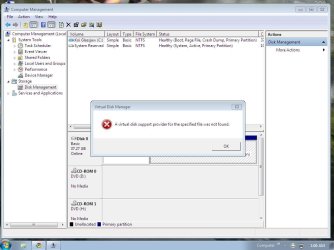
If you disable the Disk Defragmenter service, then you will get the error below when you try to do anything in Disk Management. If you get this error, then make sure that the Disk Defragmenter service is set to only Manual.

Error.jpg


EXAMPLE: New Virtual Hard Disk (VHD) in Computer
Computer.jpg
Here's How:
1. Open the Control Panel (icons view).
A) Click on the Administrative Tools icon, and click on Computer Management.

B) Go to step 3.
OR

2. Open the Start Menu.
A) In the Search box, type compmgmt.msc and press Enter.
3. If prompted by UAC, click on Yes, then do either step 4 or 5 below.

4. To Attach an Existing VHD File
NOTE: This is for a detached VHD file that you had already created in step 5 below, or from an existing VHD file.
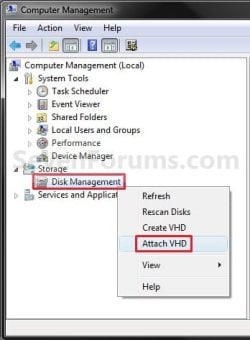
A) In the left pane, right click on Disk Management, and click on Attach VHD. (See screenshot below)
NOTE: You can also click on Disk Management, Action on the menu bar, and Attach VHD.
Attach-1.jpg
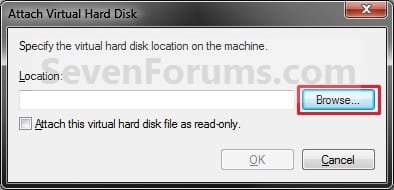
B) Click on the Browse button. (See screenshot below)
Attach-2.jpg
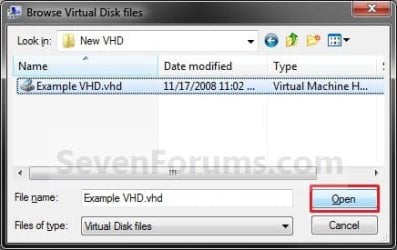
C) Navigate to the VHD file location and select it, then click on the Open button. (See screenshot below)
Attach-3.jpg
D) If you want the VHD to be read-only, then check the box, otherwise leave it unchecked. Click on OK. (See screenshot below)
Attach-4.jpg
E) If the existing VHD file is unallocated, go to step 6. (See screenshot below step 6A)
WARNING: Be sure to create a backup copy of the VHD file first to be safe in case of data loss.

F) If the existing VHD file is allocated, go to step 8. (See screenshot below step 8)
5. To Create and Attach a New Virtual Hard Disk (VHD file)
A) In the left pane, right click on Disk Management, and click on Create VHD. (See screenshot below)
NOTE: You can also click on Disk Management, Action on the menu bar, and Create VHD.
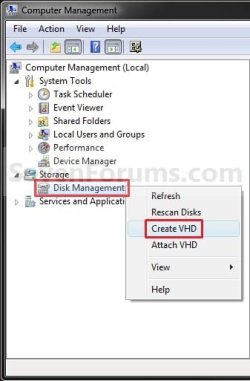
Create-1.jpg
B) Click on the Browse button. (See screenshot below)
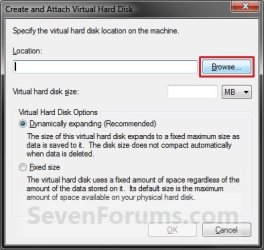
Create-2.jpg
C) Navigate to the location you would like to store the new VHD file, type in a name for the VHD file, and click on Save. (See screenshot below)
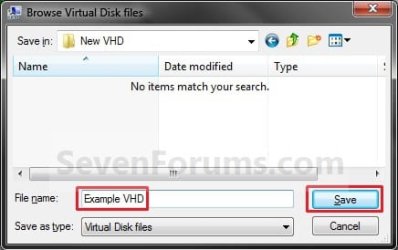
Create-3.jpg
D) Type in the maximum size you want the Virtual Hard Disk to be, and select the size to be MB, GB, or TB (1024 MB = 1 GB, 1024 GB = 1 TB). (See screenshot below)

E) Select (dot) if you want the new VHD size to be Dynamic or Fixed, and click on OK. (See screenshot below)
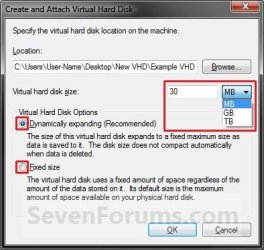
Create-4.jpg

F) Continue to step 6.
6. To Initialize the Virtual Hard Disk
A) Right click on the new unallocated VHD Disk # and click on Initialize Disk. (See screenshot below)
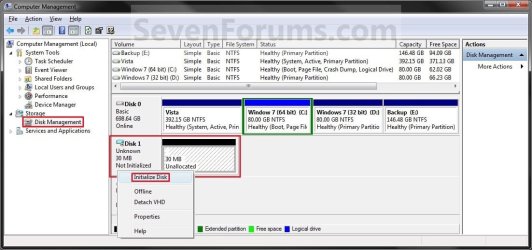
Disk_Management-1.jpg
B) Select (check) the Disk # from above for the new VHD. Select (dot) if you want the new VHD to have a MBR (Master Boot Record) or GPT (GUID Partition Table) partition, and click on OK. (See screenshot below)
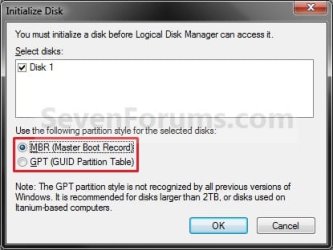
Initialize.jpg
C) Continue to step 7.
7. To Create a New Simple Volume in the VHD
A) Right click on the new unallocated VHD and click on New Simple Volume. (See screenshot below)
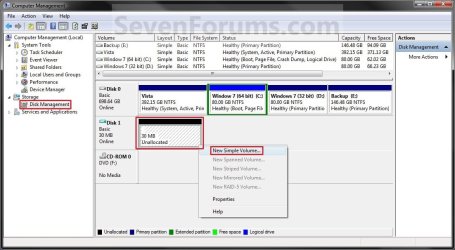
Disk_Management-2.jpg
B) Click on the Next button. (See screenshot below)
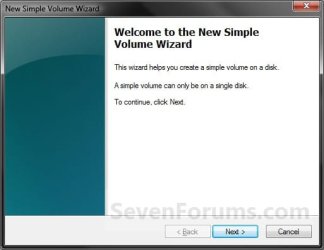
New_Simple_Volume-1.jpg
C) Type in how much of the maximum disk space (step 5D) you want for the size of this VHD partition, and click on Next. (See screenshot below)
NOTE: If you do not use the maximum space, then you will have a second unallocated VHD partition left with the remaining available disk space.
New_Simple_Volume-2.jpg
D) Select the file system (NTFS or FAT32) you want the VHD partition to be. (See screenshot below)

E) Type in a name for the VHD to be displayed in Computer. (See screenshot below)

F) Check the Perform a quick format box, and click on Next. (See screenshot below)
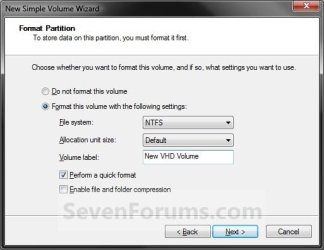
New_Simple_Volume-3.jpg
G) Click on the Finish button. (See screenshot below)
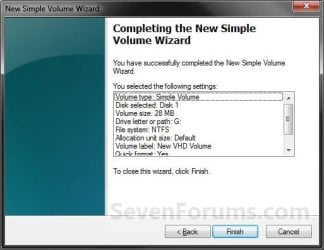
New_Simple_Volume-4.jpg
8. The VHD is now attached and ready to access like a HDD. (see screenshot below)
Disk_Management-3.jpg
That's it,
Shawn


Last edited:
If you are unsure about if your system can handle virtualization, download and install Microsoft® Hardware-Assisted Virtualization Detection Tool and SecureAble. These two small apps help you to determine if your system is able to run Virtual PC.

When you install Virtual PC and XP mode, the virtual machines are always there until you delete them. You don't have to re-install or re-mount them. You just start the virtual machine you want from their default location C:\Users\Your_Username\Virtual Machines (this folder will be created when you install Virtual PC).

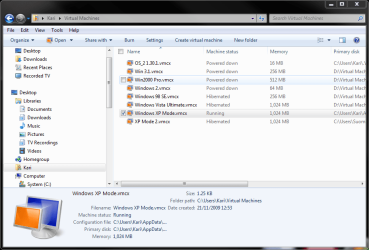
Here you can see my virtual machines. As you see, some of them are hibernated which allows a faster boot. To boot any of these machines, anytime, I just double click it:

VPC_machines.PNG

A virtual machine is a file, a vhd or virtual hard disk file acting like a real HD. Virtual PC puts XP Mode vhd and any vhd's belonging to other virtual machines you create to a folder, so there's no need to create a separate partition for your virtual machines. By default the location of Virtual PC vhd's is C:\Users\Your_Username\AppData\Local\Microsoft\Windows Virtual PC\Virtual Machines. Notice that because AppData is a hidden folder, you have to enable Show hidden files and folders (Control Panel > Folder Options) to see it.

Kari

EDIT: This tutorial is about attaching (mounting) a vhd as an additional HD to your system. Doing it with an XP vhd does not allow you to run the applications from that vhd as in XP because the vhd is only a HD in a Windows 7 system.

To be able to run applications in XP, you need to install and setup Virtual PC and XP Mode. That said, I think you should read another of Brink's excellent tutorials: http://www.sevenforums.com/tutorials/8247-windows-xp-mode-install-setup.html
 

My Computer

Computer type
Laptop
Computer Manufacturer/Model Number
HP ENVY 17-1150eg
OS
Windows 10 Pro x64 EN-GB
CPU
1.6 GHz Intel Core i7-720QM Processor
Memory
6 GB
Graphics Card(s)
ATI Mobility Radeon HD 5850 Graphics
Sound Card
Beats sound system with integrated subwoofer
Monitor(s) Displays
17" laptop display, 22" LED and 32" Full HD TV through HDMI
Screen Resolution
1600*900 (1), 1920*1080 (2&3)
Hard Drives
Internal: 2 x 500 GB SATA Hard Disk Drive 7200 rpm
External: 2TB for backups, 3TB USB3 network drive for media
Cooling
As Envy runs a bit warm, I have it on a Cooler Master pad
Keyboard
Logitech diNovo Media Desktop Laser (bluetooth)
Mouse
Logitech Performance Mouse MX
Internet Speed
50/10 Mbps VDSL
Antivirus
Windows Defender 4.3.9431.0
Browser
Maxthon 3.5.2., IE11
If you are unsure about if your system can handle virtualization, download and install Microsoft® Hardware-Assisted Virtualization Detection Tool and SecureAble. These two small apps help you to determine if your system is able to run Virtual PC.

When you install Virtual PC and XP mode, the virtual machines are always there until you delete them. You don't have to re-install or re-mount them. You just start the virtual machine you want from their default location C:\Users\Your_Username\Virtual Machines (this folder will be created when you install Virtual PC).

Here you can see my virtual machines. As you see, some of them are hibernated which allows a faster boot. To boot any of these machines, anytime, I just double click it:

A virtual machine is a file, a vhd or virtual hard disk file acting like a real HD. Virtual PC puts XP Mode vhd and any vhd's belonging to other virtual machines you create to a folder, so there's no need to create a separate partition for your virtual machines. By default the location of Virtual PC vhd's is C:\Users\Your_Username\AppData\Local\Microsoft\Windows Virtual PC\Virtual Machines. Notice that because AppData is a hidden folder, you have to enable Show hidden files and folders (Control Panel > Folder Options) to see it.

Kari

EDIT: This tutorial is about attaching (mounting) a vhd as an additional HD to your system. Doing it with an XP vhd does not allow you to run the applications from that vhd as in XP because the vhd is only a HD in a Windows 7 system.

To be able to run applications in XP, you need to install and setup Virtual PC and XP Mode. That said, I think you should read another of Brink's excellent tutorials: http://www.sevenforums.com/tutorials/8247-windows-xp-mode-install-setup.html

Thanks for clearing that up Kari. So, just install Win 7 normally, with no need to create a separate partition for the VHD, do the VHD thing as mentioned in the tutorial (which made it sound pretty simple!), install my scanner software in the XP Mode machine and I should be off and running. Sounds better than dealing with the dual boot setup.

Thanks again for your help. I'm going to give this a whirl over the next few days and will report back if I have any questions or problems.

Now, it's off to build the new computer!
 

My Computer

OS
Win 7 64-bit/32-bit/XP
Thanks Kari and churin for the additional information. How do you know if it will support XP mode? Parts just arrived for my new build and now I'm even more confused. My old system is on it's last leg and I'm upgrading to a Core i7-860 and assumed it would handle the task with no issues.
I7-860 does support XP mode. If there is + mark on VT column in this table then the cpu supports Virtualization Technology(VT).
 

My Computer

Computer type
PC/Desktop
OS
W7 Ult x64, W8 Pro x64 and W10 Pro x64
CPU
Phenom FX6300
Motherboard
Gigabyte GA-970A-UD3 rev. 1.2
Memory
16GB DDR3 1866 G.Skill F3-1866C9D-16GWM x2
Graphics Card(s)
Radeon R7 360
Sound Card
Asus Xonar DS
Monitor(s) Displays
27" x2, Dell P2715Q
Screen Resolution
3840 x 2160
Hard Drives
Samsung 850Pro 1TB SSD - system
Samsung 4TB SSD - Data
PSU
Corsair CX450M
Case
Corsair 200R
Cooling
Zalman CNPS5X Performa
Internet Speed
400Mbps/12Mbps
Other Info
2nd machine: Same as above
3rd machine: Apple MacAir with W7 Ult installed
I7-860 does support XP mode. If there is + mark on VT column in this table then the cpu supports Virtualization Technology(VT).

churin, thanks! Even though the i7-860 will support VT, are you still required to run the Microsoft® Hardware-Assisted Virtualization Detection Tool? Does it modify the registry to tell Win 7 that the machine will support VT/VHD?
There may be one more hurdle: The virtualization feature may be disabled by default in the BIOS. The tool available at the link will tell you about it for your BIOS. Or just check the BIOS setting to see if the virtualization is enabled or not. It's not too hard to find it out. The word to look for is "Virtualization" or something like that.
 

My Computer

Computer type
PC/Desktop
OS
W7 Ult x64, W8 Pro x64 and W10 Pro x64
CPU
Phenom FX6300
Motherboard
Gigabyte GA-970A-UD3 rev. 1.2
Memory
16GB DDR3 1866 G.Skill F3-1866C9D-16GWM x2
Graphics Card(s)
Radeon R7 360
Sound Card
Asus Xonar DS
Monitor(s) Displays
27" x2, Dell P2715Q
Screen Resolution
3840 x 2160
Hard Drives
Samsung 850Pro 1TB SSD - system
Samsung 4TB SSD - Data
PSU
Corsair CX450M
Case
Corsair 200R
Cooling
Zalman CNPS5X Performa
Internet Speed
400Mbps/12Mbps
Other Info
2nd machine: Same as above
3rd machine: Apple MacAir with W7 Ult installed
I7-860 does support XP mode. If there is + mark on VT column in this table then the cpu supports Virtualization Technology(VT).

churin, thanks! Even though the i7-860 will support VT, are you still required to run the Microsoft® Hardware-Assisted Virtualization Detection Tool? Does it modify the registry to tell Win 7 that the machine will support VT/VHD?
There may be one more hurdle: The virtualization feature may be disabled by default in the BIOS. The tool available at the link will tell you about it for your BIOS. Or just check the BIOS setting to see if the virtualization is enabled or not. It's not too hard to find it out. The word to look for is "Virtualization" or something like that.

Will do. That's usually the first thing I do when I power up a new build for the is first time. Thanks.
 

My Computer

OS
Win 7 64-bit/32-bit/XP
Last edited by a moderator:

My Computer

Computer Manufacturer/Model Number
Toshiba Satellite S875D-S7239 laptop
OS
MS Windows 7 Ultimate SP1 64-bit
CPU
AMD A10-4600M
Motherboard
AMD Pumori (Socket FT1)
Memory
6.00 GB Dual-Channel DDR3 @ 798MHz (11-11-12-28)
Graphics Card(s)
AMD Radeon HD 7660G
Sound Card
High Definition Audio Device
Monitor(s) Displays
Generic PnP Monitor (1600x900@60Hz)
Screen Resolution
1600x900@60Hz
Hard Drives
SSD 119GB Corsair CSSD-V128GB2 ATA Device
Keyboard
Standard PS/2 Keyboard
Mouse
HP Wireless Optical Mobile Mouse Model FHA-3410
Internet Speed
What the local pub, local coffee shop offers.
Other Info
Optical Drive:MATSHITA BD-CMB UJ160B ATA Device


Also have an Asus ha1002xp netbook with Win 7 Ultimate installed.
Does this virtual hardisk behave like partition? So, if there's something wrong with my OS I can format the C: (OS) only, and back up all my data to E: (created virtual HD)?
 

My Computer

Computer Manufacturer/Model Number
Dell inspiron mini 10
OS
win 7 starter
CPU
Intel atom N450
Memory
1GB
Hello Kepin, welcome to the Seven Forums.

I see no reason why not, as long as you remember the vhd is a file, a virtual hard disk and not a physical HD and you don't keep it on the OS partition. If your vhd is located on the partition you format, you lose everything saved on that partition including your vhd.

You can backup and even use Windows Easy transfer to copy your files to vhd.

Kari
 

My Computer

Computer type
Laptop
Computer Manufacturer/Model Number
HP ENVY 17-1150eg
OS
Windows 10 Pro x64 EN-GB
CPU
1.6 GHz Intel Core i7-720QM Processor
Memory
6 GB
Graphics Card(s)
ATI Mobility Radeon HD 5850 Graphics
Sound Card
Beats sound system with integrated subwoofer
Monitor(s) Displays
17" laptop display, 22" LED and 32" Full HD TV through HDMI
Screen Resolution
1600*900 (1), 1920*1080 (2&3)
Hard Drives
Internal: 2 x 500 GB SATA Hard Disk Drive 7200 rpm
External: 2TB for backups, 3TB USB3 network drive for media
Cooling
As Envy runs a bit warm, I have it on a Cooler Master pad
Keyboard
Logitech diNovo Media Desktop Laser (bluetooth)
Mouse
Logitech Performance Mouse MX
Internet Speed
50/10 Mbps VDSL
Antivirus
Windows Defender 4.3.9431.0
Browser
Maxthon 3.5.2., IE11
As Kari pointed out, a VHD is a file. If you format the drive containing this VHD file, then the VHD file is gone.

You can copy the VHD file to anywhere you desire. You can then use DiskMgmt.msc to "mount" the VHD whenever you need it.
 

My Computer

Computer Manufacturer/Model Number
Toshiba Satellite S875D-S7239 laptop
OS
MS Windows 7 Ultimate SP1 64-bit
CPU
AMD A10-4600M
Motherboard
AMD Pumori (Socket FT1)
Memory
6.00 GB Dual-Channel DDR3 @ 798MHz (11-11-12-28)
Graphics Card(s)
AMD Radeon HD 7660G
Sound Card
High Definition Audio Device
Monitor(s) Displays
Generic PnP Monitor (1600x900@60Hz)
Screen Resolution
1600x900@60Hz
Hard Drives
SSD 119GB Corsair CSSD-V128GB2 ATA Device
Keyboard
Standard PS/2 Keyboard
Mouse
HP Wireless Optical Mobile Mouse Model FHA-3410
Internet Speed
What the local pub, local coffee shop offers.
Other Info
Optical Drive:MATSHITA BD-CMB UJ160B ATA Device


Also have an Asus ha1002xp netbook with Win 7 Ultimate installed.

My Computer

Computer type
PC/Desktop
Computer Manufacturer/Model Number
Self built custom
OS
64-bit Windows 11 Pro for Workstations
CPU
Intel i7-8700K OC'd to 5 GHz
Motherboard
ASUS ROG Maximus XI Formula Z390
Memory
64 GB (4x16GB) G.SKILL TridentZ RGB DDR4 3600 MHz
Graphics Card(s)
ASUS ROG-STRIX-GTX1080TI-O11G-GAMING
Sound Card
Integrated
Monitor(s) Displays
2 x Samsung Odyssey G7 27"
Screen Resolution
2560x1440
Hard Drives
1TB Samsung 990 PRO M.2,
4TB Samsung 990 PRO PRO M.2,
TerraMaster F8 SSD Plus NAS
PSU
Seasonic Prime Titanium 850W
Case
Thermaltake Core P3
Cooling
Corsair Hydro H115i
Keyboard
Logitech wireless K800
Mouse
Logitech MX Master 4
Internet Speed
2 Gb/s Download and 100 Mb/s Upload
Antivirus
Malwarebyte Anti-Malware Premium
Browser
Google Chrome
Other Info
Logitech Z625 speaker system,
Logitech BRIO 4K Pro webcam,
HP Color LaserJet Pro MFP M477fdn,
APC SMART-UPS RT 1000 XL - SURT1000XLI,
Galaxy S23 Plus phone
Hello Kepin, welcome to the Seven Forums.

I see no reason why not, as long as you remember the vhd is a file, a virtual hard disk and not a physical HD and you don't keep it on the OS partition. If your vhd is located on the partition you format, you lose everything saved on that partition including your vhd.

You can backup and even use Windows Easy transfer to copy your files to vhd.

Kari

As Kari pointed out, a VHD is a file. If you format the drive containing this VHD file, then the VHD file is gone.

You can copy the VHD file to anywhere you desire. You can then use DiskMgmt.msc to "mount" the VHD whenever you need it.

Thanks a lot for your information. In my case, I only have 1 drive for OS (C: 250GB) so i need to create a Virtual HD (assign 150 GB become D:), initialize it first that I copy the vhd file from C: to my new virtual D: (any directory). So, when I re-format the c: drive I will still have my virtual D: (along with data stored in it) am I right?
 

My Computer

Computer Manufacturer/Model Number
Dell inspiron mini 10
OS
win 7 starter
CPU
Intel atom N450
Memory
1GB
You are right. Personally, I would not do that. If the second partition is used to store a vhd which in its turn is your main backup storage, I would apply one of my main principles regarding backups: to be sure your backup is as safely stored as possible always use a separate disk, not a partition on the same disk.

Everything can happen, HD's get broken. If your one and only HD no longer works, you' might lose not only your system but also the partition containing the backup vhd. That's why I sincerely recommend you to get a second HD. Both internal and external HD's cost today so little it is in my opinion the best thing you could do.

Of course, with a second partition or HD, whatever you choose, you no longer need to setup a vhd to store your backups so this is a bit like a Catch-22 situation ;)

Please notice the above mentioned is my personal opinion. Other members may think differently.

Kari
 

My Computer

Computer type
Laptop
Computer Manufacturer/Model Number
HP ENVY 17-1150eg
OS
Windows 10 Pro x64 EN-GB
CPU
1.6 GHz Intel Core i7-720QM Processor
Memory
6 GB
Graphics Card(s)
ATI Mobility Radeon HD 5850 Graphics
Sound Card
Beats sound system with integrated subwoofer
Monitor(s) Displays
17" laptop display, 22" LED and 32" Full HD TV through HDMI
Screen Resolution
1600*900 (1), 1920*1080 (2&3)
Hard Drives
Internal: 2 x 500 GB SATA Hard Disk Drive 7200 rpm
External: 2TB for backups, 3TB USB3 network drive for media
Cooling
As Envy runs a bit warm, I have it on a Cooler Master pad
Keyboard
Logitech diNovo Media Desktop Laser (bluetooth)
Mouse
Logitech Performance Mouse MX
Internet Speed
50/10 Mbps VDSL
Antivirus
Windows Defender 4.3.9431.0
Browser
Maxthon 3.5.2., IE11
Well, looks like I'm going to have to go the dual boot route. No 64-bit drivers for the SCSI card. Thanks everyone for the help.
 

My Computer

OS
Win 7 64-bit/32-bit/XP
Well, looks like I'm going to have to go the dual boot route. No 64-bit drivers for the SCSI card. Thanks everyone for the help.

Ivan, as I told you here XP Mode is always 32-bit, even if you run it on a 64-bit Windows 7. So if you are installing new hardware like that SCSI device you've mentioned to be used in XP Mode, you must use 32-bit drivers.

Kari
 

My Computer

Computer type
Laptop
Computer Manufacturer/Model Number
HP ENVY 17-1150eg
OS
Windows 10 Pro x64 EN-GB
CPU
1.6 GHz Intel Core i7-720QM Processor
Memory
6 GB
Graphics Card(s)
ATI Mobility Radeon HD 5850 Graphics
Sound Card
Beats sound system with integrated subwoofer
Monitor(s) Displays
17" laptop display, 22" LED and 32" Full HD TV through HDMI
Screen Resolution
1600*900 (1), 1920*1080 (2&3)
Hard Drives
Internal: 2 x 500 GB SATA Hard Disk Drive 7200 rpm
External: 2TB for backups, 3TB USB3 network drive for media
Cooling
As Envy runs a bit warm, I have it on a Cooler Master pad
Keyboard
Logitech diNovo Media Desktop Laser (bluetooth)
Mouse
Logitech Performance Mouse MX
Internet Speed
50/10 Mbps VDSL
Antivirus
Windows Defender 4.3.9431.0
Browser
Maxthon 3.5.2., IE11
hello, i tried the following steps on how to create a VHD, on the first trial i succesfully created a .vhd file, but then i heard a beep. when i watch on the folder where i made the .vhd file, it disappeared i dont know why. after then i get this errors
:cry:

Im sorry if im too far away or you dont seem to understand but, Im not that good when it comes to these things, about tweaks.

I really need to know this Virtual Drive. And btw if i had created a VHD, how can I make it not to disappear after i reboot?
 

Attachments

  • ako.JPG
    ako.JPG
    100.8 KB · Views: 259

My Computer

OS
windows 7 ultimate 32 bit

My Computer

Computer type
PC/Desktop
Computer Manufacturer/Model Number
Self built custom
OS
64-bit Windows 11 Pro for Workstations
CPU
Intel i7-8700K OC'd to 5 GHz
Motherboard
ASUS ROG Maximus XI Formula Z390
Memory
64 GB (4x16GB) G.SKILL TridentZ RGB DDR4 3600 MHz
Graphics Card(s)
ASUS ROG-STRIX-GTX1080TI-O11G-GAMING
Sound Card
Integrated
Monitor(s) Displays
2 x Samsung Odyssey G7 27"
Screen Resolution
2560x1440
Hard Drives
1TB Samsung 990 PRO M.2,
4TB Samsung 990 PRO PRO M.2,
TerraMaster F8 SSD Plus NAS
PSU
Seasonic Prime Titanium 850W
Case
Thermaltake Core P3
Cooling
Corsair Hydro H115i
Keyboard
Logitech wireless K800
Mouse
Logitech MX Master 4
Internet Speed
2 Gb/s Download and 100 Mb/s Upload
Antivirus
Malwarebyte Anti-Malware Premium
Browser
Google Chrome
Other Info
Logitech Z625 speaker system,
Logitech BRIO 4K Pro webcam,
HP Color LaserJet Pro MFP M477fdn,
APC SMART-UPS RT 1000 XL - SURT1000XLI,
Galaxy S23 Plus phone
Windows Virtual PC? is it an Application?
And if i had successfully created one virtual drive how can i make it stay still? To make it not to disappear after i reboot?
 

My Computer

OS
windows 7 ultimate 32 bit
Glassjaw,

Yes, Windows Virtual PC is a free virtualization program by Microsoft used to create VHD files to use with virtual machines instead that now go away after a restart. :)
 

My Computer

Computer type
PC/Desktop
Computer Manufacturer/Model Number
Self built custom
OS
64-bit Windows 11 Pro for Workstations
CPU
Intel i7-8700K OC'd to 5 GHz
Motherboard
ASUS ROG Maximus XI Formula Z390
Memory
64 GB (4x16GB) G.SKILL TridentZ RGB DDR4 3600 MHz
Graphics Card(s)
ASUS ROG-STRIX-GTX1080TI-O11G-GAMING
Sound Card
Integrated
Monitor(s) Displays
2 x Samsung Odyssey G7 27"
Screen Resolution
2560x1440
Hard Drives
1TB Samsung 990 PRO M.2,
4TB Samsung 990 PRO PRO M.2,
TerraMaster F8 SSD Plus NAS
PSU
Seasonic Prime Titanium 850W
Case
Thermaltake Core P3
Cooling
Corsair Hydro H115i
Keyboard
Logitech wireless K800
Mouse
Logitech MX Master 4
Internet Speed
2 Gb/s Download and 100 Mb/s Upload
Antivirus
Malwarebyte Anti-Malware Premium
Browser
Google Chrome
Other Info
Logitech Z625 speaker system,
Logitech BRIO 4K Pro webcam,
HP Color LaserJet Pro MFP M477fdn,
APC SMART-UPS RT 1000 XL - SURT1000XLI,
Galaxy S23 Plus phone
hehe , thanks , but my windows 7 is not genuine my uncle installed this OS when i got my second hand PC, what other programs does the program to create VHD's? do i need to run the XP mode to make the VHD? and make it stay still even after reboot?
 
Last edited:

My Computer

OS
windows 7 ultimate 32 bit
Back
Top